


 Social Wall
  Feed Analytics

Looking for a way to fix your Instagram feed not loading on your website?
It’s incredibly frustrating when your dynamic Instagram feed, which is meant to showcase engaging content and boost your site’s visual appeal, suddenly stops working.
But figuring out why your Instagram feed isn’t loading can feel difficult and confusing, especially if you’re not familiar with troubleshooting website issues or digging into code.
Personally, I know how frustrating a broken Instagram feed can be when you’re trying to keep your site updated and engaging. That’s why we’ve created this guide specifically for you.
With my extensive experience at Smash Balloon in helping users easily display Instagram feeds on WordPress, we’ve encountered and solved pretty much every feed-loading issue imaginable.
I wrote this article to show you proven ways to troubleshoot and fix your Instagram feed not loading problem.
This tutorial is designed for any website owner, so you can follow it step-by-step and get your Instagram feed back up and running smoothly, even if you’re not tech-savvy!
Quick Answer
Instagram feeds stop loading for a few main reasons: weak internet, a corrupted app cache, an Instagram outage, or (for WordPress sites) an expired access token. For the app, force-stop Instagram and clear the cache. For WordPress, refresh your access token and confirm your account is set to Business or Creator. Before troubleshooting anything, check Downdetector.com to rule out a widespread Instagram outage first.
In This Article
- Find Your Fix Fast
- How to Fix Your Instagram Account Not Loading
- How to Fix Instagram Feed Not Loading on Your Website
- How to Keep Your Instagram Feed Running Smoothly
- Why Add Instagram Feeds to Your Website?
- Frequently Asked Questions
- Top Posts on Troubleshooting Instagram Feed Issues
- Start Fixing Your Instagram Feed Now
Find Your Fix Fast
Not sure where to start? Find your symptom in the table below and jump straight to the right fix.
| Symptom | Most Likely Cause | Go To |
|---|---|---|
| App says “Couldn’t refresh feed” | Internet connection or Instagram outage | Check your internet connection |
| Feed blank on your website | Expired access token | Update your access token |
| Feed loads on app but not on website | Account type or token issue | Check your account type |
| Posts stopped updating on website | Plugin cache or expired token | Update your access token |
| Feed was working, now blank | Token expired (every 60 days) | Update your access token |
| Works on mobile data, not Wi-Fi | Router or firewall issue | Check your internet connection |
| Feed broke after a WordPress update | Plugin conflict or outdated feed plugin | Update your Instagram feed plugin |
| Reels or images not loading in app | Slow connection or corrupted cache | Clear your Instagram cache |
How to Fix Your Instagram Account Not Loading
If your Instagram feed on your app isn’t loading, you can use the steps below to solve the problem. These are all tried-and-tested methods and super easy to do so you can use them right away.
1. Check Your Internet Connection
To get started, you can check your device and see if you’ve got a good internet connection.
Even if you’re connected to WiFi or mobile data, a weak connection can stop Instagram from loading your feed.
If you’ve got a strong internet connection and your Instagram feed is still not loading, then you can move on to the other hacks below.
2. Log Out and Log In Again
Another easy way to fix your Instagram feed is to log out of your account and then log in once again.
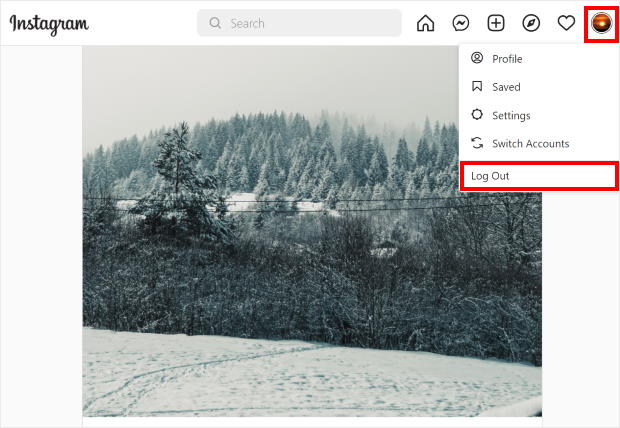
On your computer, just click on your profile photo in the top right corner and then select the Log Out option.
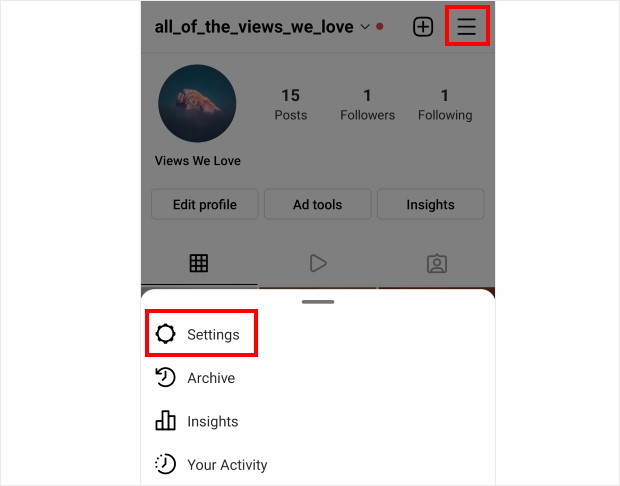
From your phone or tablet, you can just click on the hamburger icon in the top right. From the menu, select the Settings option.
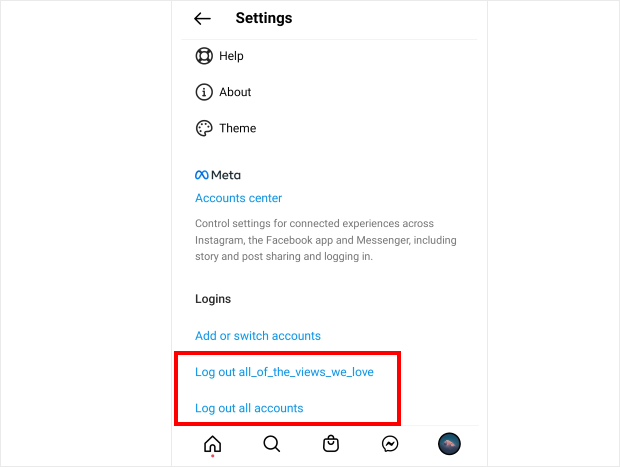
On this page, just scroll down to the bottom until you find the Logins section. You can now choose to Log out of your accounts here.
Once you’ve logged out your Instagram account, log in once again and then check if your Instagram feed is loading now.
3. Force Stop Instagram
Logging out of Instagram and force-stopping it are two different things. Logging out removes your session. Force-stopping closes every background process Instagram is running, including ones you can’t see. If logging out didn’t fix the loading issue, force-stopping often will.
On iPhone: Swipe up from the bottom of the screen and hold for a second until the app previews appear. Find Instagram and swipe it up to close it completely. Then reopen the app.
On Android: Go to Settings > Apps > Instagram > Force Stop, then confirm. Once it’s fully closed, reopen Instagram.
4. Clear Your Instagram Cache
Instagram stores temporary files on your device to help it load faster, but those files can get corrupted over time. Clearing the cache wipes them out and forces the app to start fresh, which fixes loading issues about 30% of the time on its own.
On Android: Go to Settings > Apps > Instagram > Storage > Clear Cache. Tap Clear Data only if clearing the cache doesn’t resolve it. Note: Clear Data will log you out of your account.
On iPhone: iOS doesn’t have a direct “clear cache” option for Instagram. The closest fix is to go to Settings > General > iPhone Storage > Instagram > Offload App. This removes the cached data but keeps your login information. Reinstall Instagram from the App Store afterward and log back in.
5. Check Your System Time
Another reason your Instagram feed might not be working is if your device has the wrong time. When that happens, your browser or Instagram app can’t communicate with Instagram properly.
To solve this, just open your time and date settings and set your time to automatic using the options here.
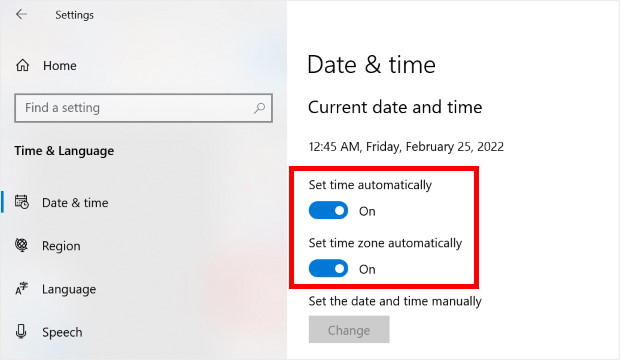
After that, open your Instagram feed once again and see if it works.
6. Update Your Instagram App
If your version of Instagram is outdated, then your feed might stop loading as well. This can be a problem if you’re using Instagram from a mobile device.
Simply look for Instagram in your app store and then click on the Update button.
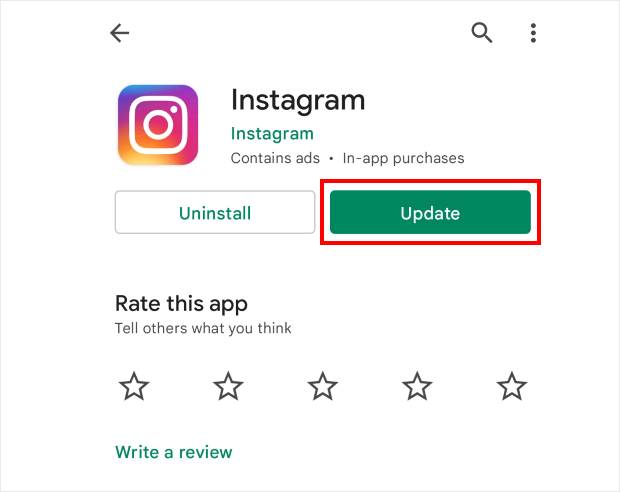
Now open your Instagram app once again and see if you can load your feed.
7. Reinstall Instagram
If none of the above has worked, reinstalling Instagram gives you a completely clean slate.
I know it sounds drastic, but your photos, followers, and account data all live on Instagram’s servers, not your device. Uninstalling the app won’t touch any of it.
Uninstall Instagram from your device, then go to the App Store or Google Play and download it again. Log back in once it’s installed and check whether the feed loads.
8. Check If Instagram is Down
When Instagram itself isn’t working, your app or browser won’t be able to load your Instagram feeds.
Sometimes the problem has nothing to do with your device or website. Instagram goes down regularly, and when it does, there is nothing you can do except wait.
The fastest way to check is Downdetector.com/status/instagram.
If you see a spike in outage reports in the last hour, the issue is on Instagram’s end. You can also search “Instagram down” on X to see real-time reports from other users.
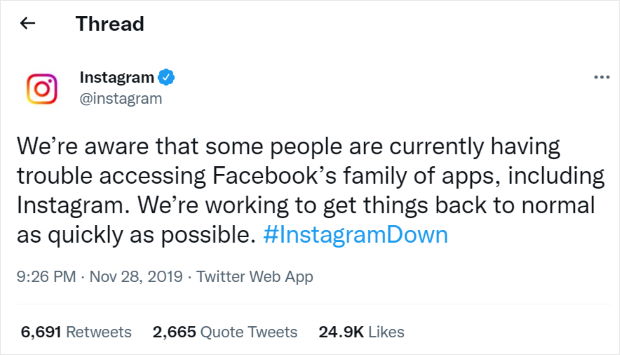
If Instagram is down, wait 15 to 30 minutes and try again. No settings change or plugin update will fix an outage on Instagram’s side.
9. Report Your Problem
Another option to fix your Instagram feed is to report your problem. After that, Instagram’s support team can take a look at your issue.
You can report your problem to Instagram directly from your app. First, open your Instagram profile and then click on the hamburger icon at the top.
After that, click on Settings to continue.
Next, select the Help option from this menu.
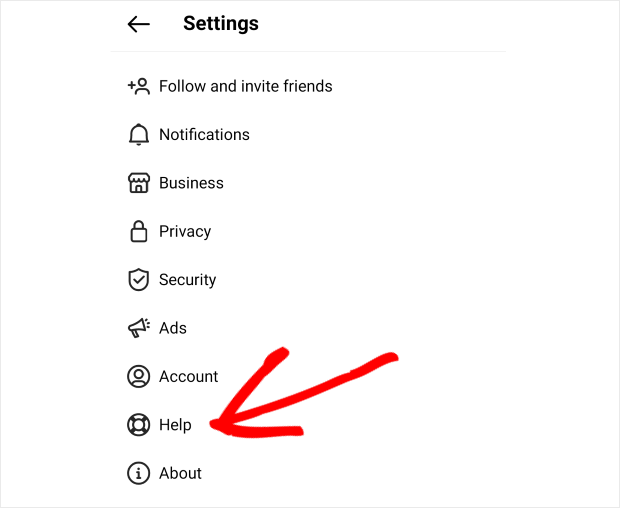
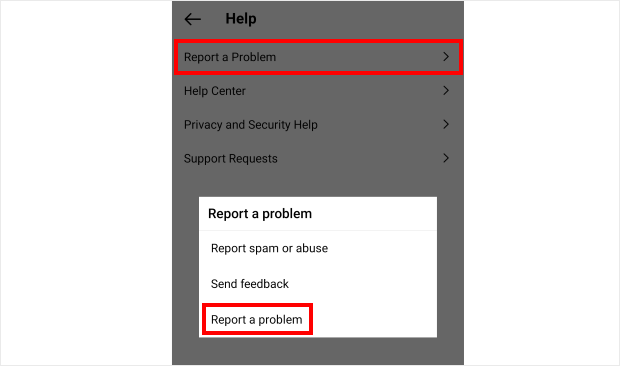
Here, you can find the customer support options that you get with the Instagram app. To proceed, click on Report a Problem and then select Report a problem.
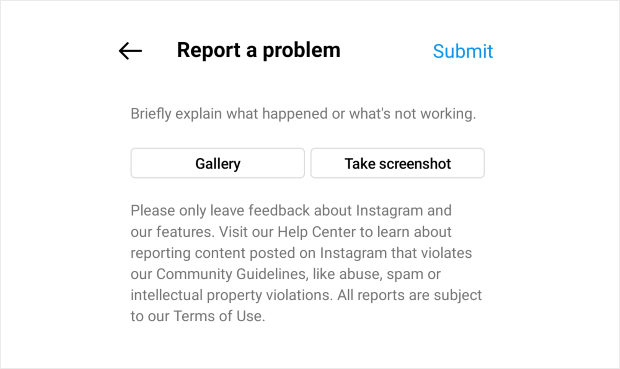
You can now describe your current problem here and even attach screenshots to make it clearer. Once you’ve written your message, click on Submit to finish reporting the problem.
As you can see, there’s many ways you can solve your Instagram feed issue. Plus they’re all super easy to do even if you’re new to Instagram.
Now we can go ahead and show you how to fix the Instagram feeds that you’ve embedded on your WordPress website.
How to Fix Instagram Feed Not Loading on Your Website
If you were wondering why your Instagram feed isn’t loading, then you can rest easy. We’ll show you our proven hacks so you can fix your Instagram feeds in no time.
Let’s take a look at these methods below:
10. Contact the Support Team
For the easist way to fix your Instagram feed, you can just contact the support team for your Instagram feed plugin.
That way, you can let the people who created the plugin solve the problem with your Instagram feeds.
Sadly, you might not always get good customer support from your Instagram feed plugin. In fact, some plugins don’t offer dedicated support at all so you can be left waiting for a reply.
And you’re losing potential customers and Instagram followers each second your feed isn’t online. So, it’s important to pick an Instagram feed plugin that comes with high-quality customer support.
When it comes to Instagram feed plugins with a dependable custom support, there’s 1 option that stands out: Smash Balloon Instagram Feed Pro.
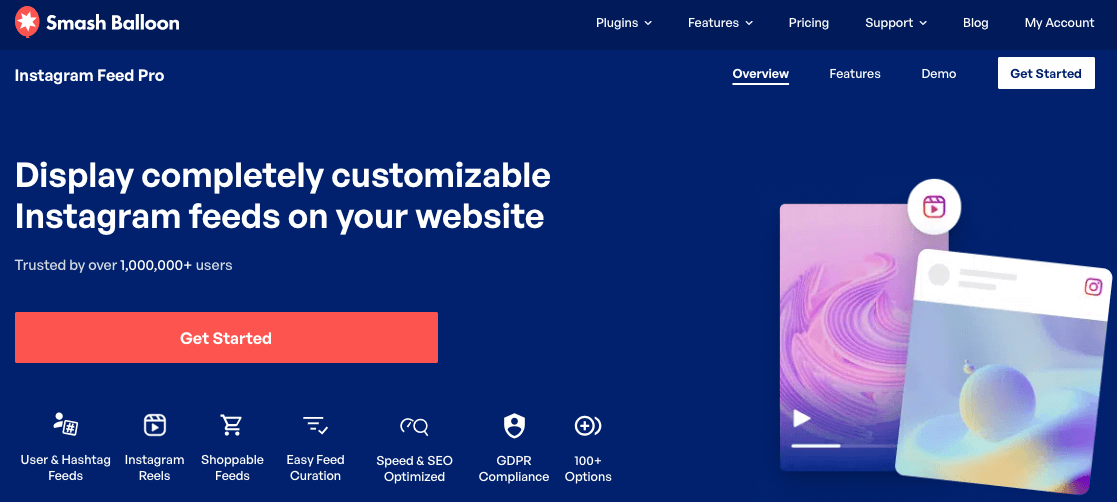
Using this plugin, you get tons of options when it comes to Instagram feeds, including Instagram hashtags feeds, Instagram reels, mentions feeds, Instagram carousels, and so much more.
All it takes is a few simple clicks and you can create, customize, and embed your Instagram feeds — no coding needed.
The best part? It comes with an amazing team of WordPress experts who’re always ready to lend you a hand. There’s no need to spend time figuring out what happened to your Instagram feed since they’ll fix it for you.
In fact, you can just check the user reviews for the plugin to see how happy people are with quality of the customer support.
If your Instagram feed isn’t loading, you can just contact them using their support page or the WordPress forums and they’ll solve the issue for you.
With the help of its dedicated support team, Instagram Feed Pro has over 1 million users and a rating of 4.9 stars out of 5!
Plus, the plugin is used by some of the biggest brands in the world, so you can be sure that your business will be in good hands.
If you want a feature-rich Instagram feed plugin that comes with high-quality customer support, give Instagram Feed Pro a try today.
11. Update Your WordPress Site
WordPress is regularly getting new updates and adding useful features to your website. When that happens, WordPress can sometimes drop its support for older features.
If you’re using an outdated version of WordPress, your site can end up with features that don’t work anymore. And that can lead to your Instagram feed not loading.
On top of that, outdated WordPress sites are targeted by 44% of hacking attempts. So, your website and your Instagram feeds will also be more vulnerable to hackers and malware.
The good news is that you can fix this problem easily. All you have to do is click on the Please update now button on your WordPress dashboard.
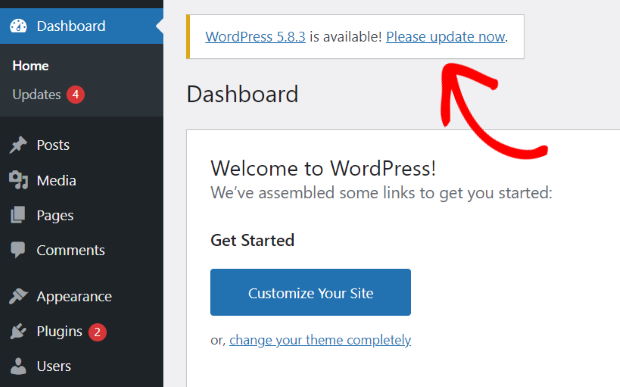
Once you update your website, you can just reload your Instagram feed and see if it’s working.
Want a detailed guide on updating your website? You can take a look at our post on how to safely update WordPress here.
12. Update Your Instagram Feed Plugin
To show Instagram posts on your website, your plugin will connect to Instagram’s API. This API allows apps and plugins to fetch data from Instagram.
When Instagram’s API gets an update, Instagram feed plugins will also need an update otherwise they can’t connect to the new API.
If you’re still using an older version of your Instagram feed plugin, your website might not be able to connect to Instagram’s API anymore. This can be why your Instagram feed isn’t showing new posts or loading at all.
To fix this problem, you can update your Instagram feed plugin so it can connect to Instagram’s API once again.
For that, navigate to Dashboard » Updates from your WordPress dashboard and scroll down to the Plugins section.
Now select your plugin here and then click on Update Plugins.
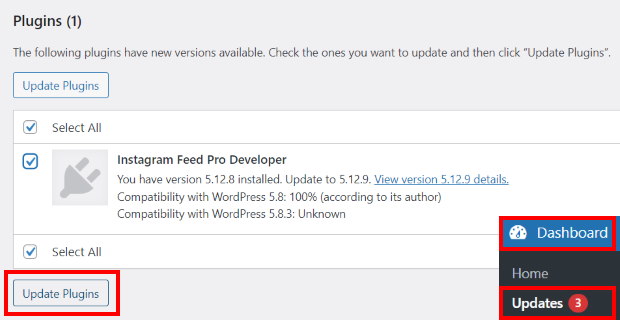
For a detailed guide, you can check out this tutorial on how to update WordPress plugins.
If your Instagram feed plugin doesn’t get regular updates, then it won’t be able to keep up with Instagram’s API. As a result, your plugin can’t connect to Instagram and your feeds won’t load.
That’s why you need an Instagram plugin that gets regular updates. Since Instagram Feed Pro is a trusted Instagram partner, the plugin will always keep up with the latest version of Instagram’s API.
That way, you won’t have to worry about your Instagram feeds not loading.
All you have to do is go to the Plugins menu from your WordPress dashboard and turn on the Enable auto-updates option next to Instagram Feed Pro.
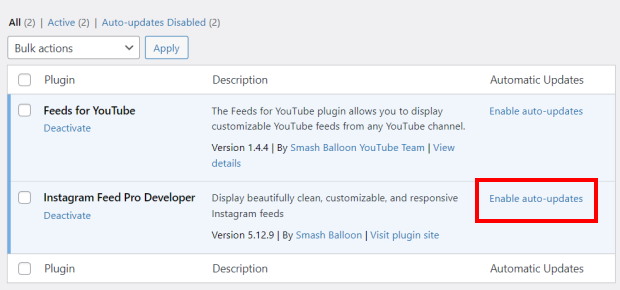
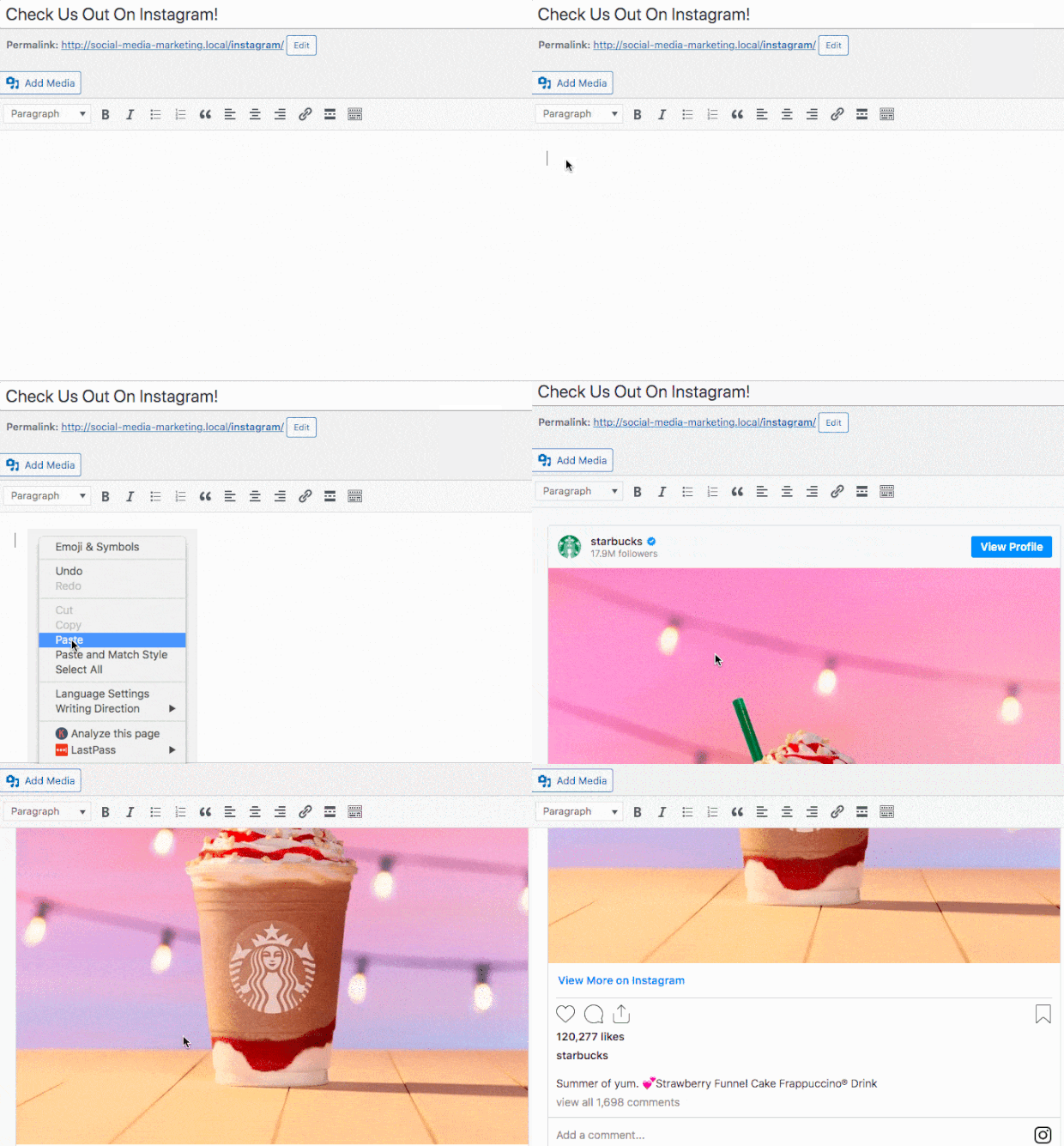
On top of that, Instagram Feed Pro keeps useful features like Instagram oEmbeds even after WordPress stops supporting them.
As a result, you can use this plugin to automatically embed Instagram posts just by pasting the URL.
Instagram Feed Pro also keeps adding useful new features with each update so you can create your Instagram feeds even more easily.
Grab your copy of Instagram Feed Pro and you can get regular updates that keep your Instagram feeds working.
13. Update Your Access Token
Your website uses a special key called an Instagram Access Token to get data from your Instagram account. If that token is outdated, your Instagram feeds won’t load anymore.
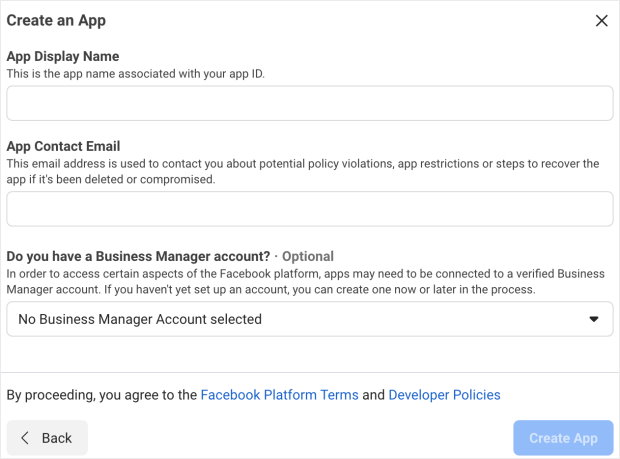
To update your Instagram access token yourself, you’ll have to register as an app developer with Facebook and create an app of your own. And all that can take a lot of time and effort.
The good news is that you can update your Instagram access token in just a few seconds using Instagram Feed Pro.
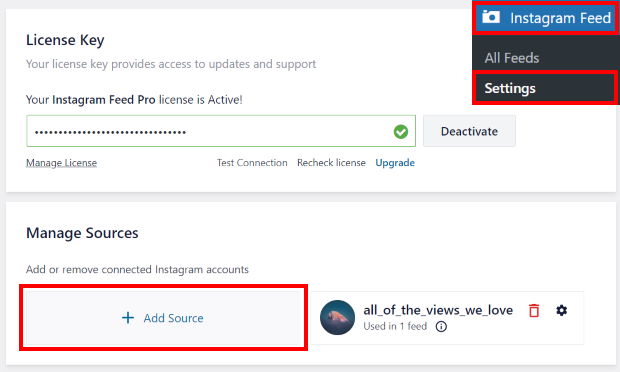
To do that, navigate to the Instagram Feed » Settings menu from your WordPress dashboard. Here, just click on the Add Source button.
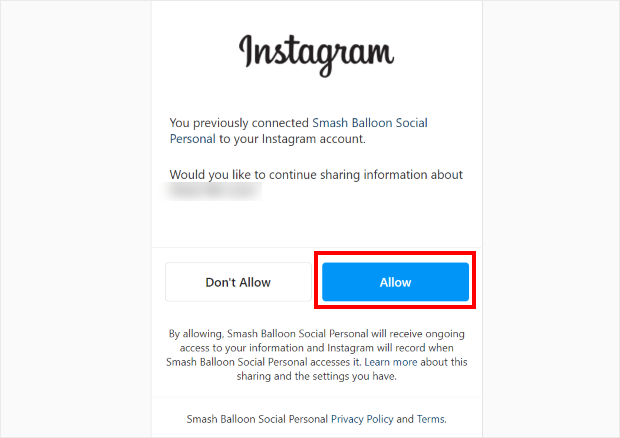
You can now log in to your Instagram account and share your Instagram access token by clicking on the Allow button.
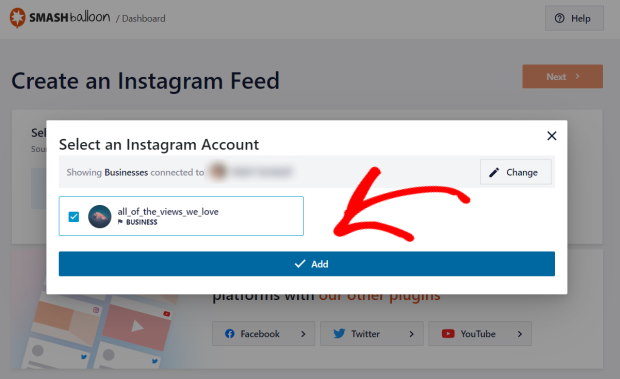
As you can see, it’s super easy to update your Instagram accesss token using the Instagram Feed Pro plugin.
We also have a step-by-step guide on updating your Instagram access token that’ll walk you through the whole process.
14. Check Your Instagram Account Type
This fix is specific to WordPress websites. As of December 2024, Instagram shut down its Basic Display API, which means personal Instagram accounts no longer work for website feed embeds. If your site feed stopped loading around that time or shortly after, this is almost certainly why.
You need a Business or Creator account to display an Instagram feed on your website. Switching is free and takes about two minutes in the Instagram app. Go to Settings > Account > Switch to Professional Account and follow the prompts.
Once you’ve switched, go to Smash Balloon Instagram Feed Pro and reconnect your Instagram account to generate a fresh access token.
You can find step-by-step instructions in our guide to the Basic Display API shutdown if you need help with the transition.
For that, you can use Instagram Feed Pro to create your Instagram feed and select a Business Account.
If you want an Instagram business profile, you can just follow the instructions here and enable it in a few simple steps.
Ask your AI why your feed stopped loading
With Smash Balloon Instagram Feed Pro and the free WPVibe plugin, ChatGPT or Claude checks your connected accounts, access expiry and refresh schedule in one pass. Backed by a 14-day money-back guarantee.
See How It WorksHow to Keep Your Instagram Feed Running Smoothly
Once your feed is back up, these four habits will keep it from breaking again.
Refresh your access token before it expires.
Instagram access tokens expire regularly. When one expires, your website feed goes blank without warning. Set a monthly reminder to refresh yours, or use Smash Balloon Instagram Feed Pro, which handles token refreshes automatically.
Keep your plugin updated.
Instagram updates its API regularly, and plugin updates are how Smash Balloon stays compatible with those changes. Always run the latest version to prevent silent failures after Instagram releases updates. Here’s a comparison of the best Instagram feed plugins for WordPress if you’re ever evaluating your options.
Use a Business or Creator account.
Personal Instagram accounts no longer work with the Instagram API as of December 2024. If you’re still on a personal account, switch now. It’s free, takes two minutes, and is the single most common reason feeds suddenly stop working on WordPress sites.
Check Downdetector before you troubleshoot.
A surprising number of “my feed is broken” situations are actually Instagram outages affecting everyone. Before changing any settings, check Downdetector.com/status/instagram for a spike in reports. It saves a lot of unnecessary work.
If you run feeds from more than one platform, the All Access Bundle puts every Smash Balloon Pro plugin under one license with priority support, so if something does break, you have one team to ask for help with all of them.
Why Add Instagram Feeds to Your Website?
Instagram is one of the biggest social media platforms out there with over 1 billion active users.
By showing relevant Instagram content on your website, you can use social proof to engage your visitors, get more Instagram followers, and even convince people to buy from you.
And if you want the easiest way to post Instagram content on your website, you can just embed Instagram feeds.

By embedding Instagram feeds, you can use your website traffic to boost your likes, comments, and Instagram followers with ease. It’s a great way to boost your brand’s presence on Instagram.
Here’s a few more ways Instagram feeds can help your business:
- To convince visitors to buy your products, you can show Instagram reviews and testimonials on your website.
- You can also show visitors that your brand is active on Instagram. So, people will know that they can reach out to you on Instagram and follow you for more content.
- If you want to keep people on your website for longer, you can just embed Instagram reels and keep them watching directly on your site.
- You can also embed shoppable Instagram feeds if you want to give a great shopping experience to your visitors and boost your sales.
That’s just the start! With the help of Instagram feeds, you use social media marketing and grow your brand effectively.
And that’s it!
For the simplest way to fix your feed, you can ask the support team of your Instagram feed plugin. And if you want high-quality customer support, the best option in the market is Instagram Feed Pro.
Ready to use Instagram marketing and grow your business? Get started with Instagram Feed Pro today.
Frequently Asked Questions
Why does Instagram say “couldn’t refresh feed”?
“Couldn’t refresh feed” means Instagram can’t reach its servers. The most common causes are a weak internet connection, a widespread Instagram outage, or corrupted app data. Start by toggling airplane mode on and off to force a fresh connection. If that doesn’t work, clear your Instagram cache and check Downdetector.com to see if there’s a wider outage on Instagram’s end.
How do I clear Instagram cache on iPhone?
On iPhone, go to Settings > General > iPhone Storage > Instagram and tap “Offload App.” This removes cached data but keeps your login information saved. Reinstall Instagram from the App Store and log back in. There’s no direct “Clear Cache” button on iOS, so offloading is the closest equivalent.
How do I clear Instagram cache on Android?
On Android, go to Settings > Apps > Instagram > Storage > Clear Cache. This removes temporary files without logging you out. Only tap “Clear Data” if clearing the cache doesn’t fix the issue, since that will sign you out of your account.
Why isn’t my Instagram feed updating on my website?
The most common reason is an expired access token. Instagram tokens expire every 60 days, and when one expires, your site feed stops updating or goes completely blank. Go to your Smash Balloon Instagram Feed Pro settings, reconnect your Instagram account, and generate a fresh token. Our access token refresh guide walks you through it step by step.
Will clearing my Instagram cache delete my photos or followers?
No. Clearing the cache only removes temporary files stored on your device. Your photos, videos, followers, and account data are stored on Instagram’s servers. Nothing you do to the app on your device will delete your account content.
Top Posts on Troubleshooting Instagram Feed Issues
- How to Fix Instagram Feed Not Showing New Posts
- How to Fix Instagram Scheduled Posts Not Working
- How to Fix Instagram Embed Not Working [Easy Way in 2025]
Start Fixing Your Instagram Feed Now
Dealing with an Instagram feed that won’t load is frustrating, especially when it disrupts your website’s look and feel.
From my experience as a digital marketer, quick fixes work for a while, but a dedicated plugin like Smash Balloon Instagram Feed Pro makes these problems much easier to handle.
It keeps your feed refreshing on its own, and when Instagram does expire an access token, you can reconnect in a couple of clicks from your WordPress dashboard.
Here’s how you can get started:
- Get Instagram Feed Pro and try it risk-free for 14 days
- Reconnect an expired account right from your dashboard, with no developer setup
- Rely on expert support to quickly resolve any technical glitches
- Keep your website looking professional with a consistently loading feed that engages your visitors and builds trust
Make token renewals a two-minute task, not a headache
Smash Balloon Instagram Feed Pro won’t stop tokens from expiring, but it turns reconnecting into a quick dashboard click instead of a developer project. Backed by a 14-day money-back guarantee.
See Instagram Feed Pro PlansDo you have any questions about fixing your Instagram feed or how Instagram Feed Pro can help prevent future issues? Please let me know in the comments below.






Hello, I have a problem with the plugin, it is that on the website it does not show me the photos of the Instagram Feeds, but when I am as an administrator, it does show me the content. What solution can I give to the problem?
Hi Andersson,
We will be happy to assist you.
If you have any concerns you’d like to be addressed, please contact our support team. If you have a Smash Balloon license, you have access to our priority email support, so please submit a support ticket here: https://smashballoon.com/support/
Otherwise, we provide complimentary support in the Smash Balloon Social Post Feed forum:
https://wordpress.org/plugins/instagram-feed/
I hope this helps.
Have a good one ?
I’m having the strangest issue with Instagram. I have logged out, uninstalled the app and my feed still won’t update. I keep seeing the same posts even though I know they have updated posts. I have done everything this posts has recommended, but I’ve had no success. I sent about 20 “report an issue” to instagram but no success.
Hi Janetta,
Kindly send us a support request using the form on our website here, including the System Info.
To obtain this information, follow the steps on this page.
We ask you to use our form, as the System Info contains other website information and the Access Token for your connection, which we do not suggest posting here.
Thanks! 🙂
Thankyou, I have managed to sort my feed out by following your advice.
Hi David,
Glad you found the article helpful. Don’t forget to follow us on Facebook for more Instagram marketing tips and tutorials. Thanks!
Hi, I have the basic version of your smash balloon plugin and the Instagram only load after refreshing the page everytime. Is that a trick to get me to buy the pro version? ?What can I do?
Hi Stephanie,
Thank you for contacting us! This could happen because the plugin can’t run the scrips when your page loads, most likely due to an optimization implemented by another plugin or theme.
Try the following options to see if this fixes the problem: Navigate to your WordPress Dashboard > Instagram Feed > Settings > Advanced tab:
1- Enable the option AJAX theme loading fix.
2- Enable the option JavaScript Image Loading.
3- Save the Changes.
If that doesn’t work, kindly send us a support request using the form on our website here, including the System Info.
To obtain this information, follow the steps on this page.
We ask you to use our form, as the System Info contains other website information and the Access Token for your connection, which we do not suggest posting here.
Thanks! 🙂
Hello there,
I have an issue with Instagram feed showing on my website. My set up for mobile devices is 6 posts in 2 columns but when I load the page on my phone it shows 6 posts in one row.
It would be great iof you can contact me via email so I can send you printscreens.
Thank you for your time,
Adam
Hi Adam,
Kindly send us a support request using the form on our website here, including the System Info.
To obtain this information, follow the steps on this page.
We ask you to use our form, as the System Info contains other website information and the Access Token for your connection, which we do not suggest posting here.
Thanks! 🙂
Can you not use the free version for a business account? I’ve been able to work on the backend with customizing and uploading my source for the feed. But once I go to embed it on the page it tells me there’s an Error: no feed available, but the feed is there on the plugin in the backend of Wordpress.
When I tested it with my personal account it had been working fine.
Hi Michelle,
Thank you for contacting us! You can connect an Instagram Business Profile to the free version of the plugin; in this case, you might need to check your feed settings and make sure your account is correctly linked to the feed you want to display and that you are using the correct Shortcode to embed it to your site.
If the problem continues, kindly send us a support request using the form on our website here, including the System Info.
Thanks! 🙂
Hi, I have the basic version of your smash balloon plugin and the Instagram post in my website doesn’t show likes count. Is this pro feature or i am missing on some settings
Hey Itika!
Apologies for the delay here. That is correct, the free version does not display these additional stats, which are available in all Pro versions of the plugin. It also requires you to connect your Instagram account source as a Business Profile to be able to display the additional stats. If you are interested and have any additional question, you can reach out to our support team using our contact form.
Thanks!
Posts are not showing on my instagram feed.
Hey Daphne!
If your feed is not showing any images we can certainly help you out with that. Feel free to check the technical troubleshooting page here, or reach out to our support team here and they will be happy to assist you!
Thanks,
Joel