Social Wall
  Feed Analytics

If you run classes, gigs, open houses, or weekly services, Facebook is probably where every event gets posted first. Then someone has to type it all into the website calendar again. And when a date moves, someone has to remember to fix it in both places, which is the step that tends to slip in a busy week.
How Do You Create a WordPress Events Calendar That Updates From Facebook?
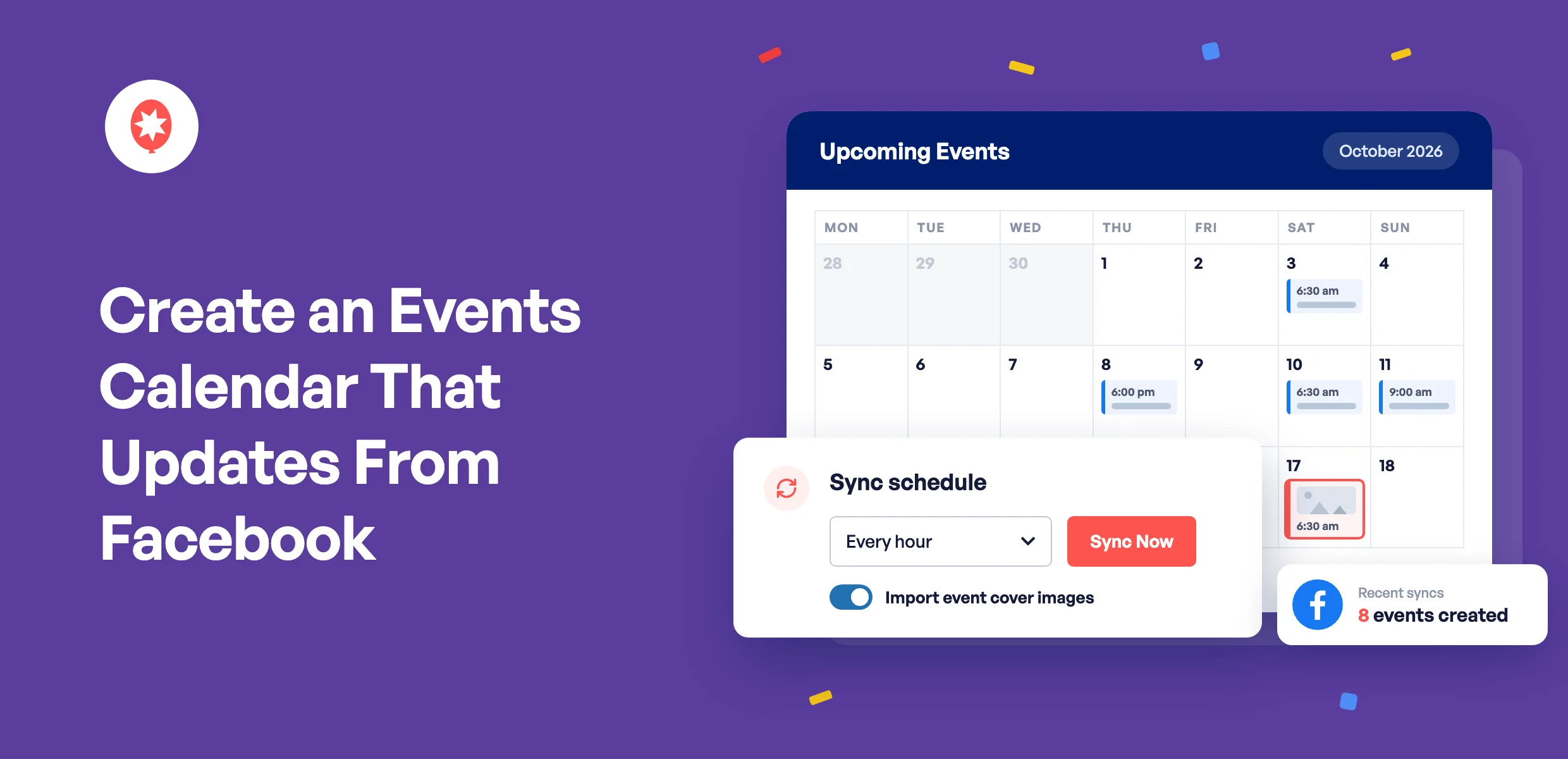
To create a WordPress events calendar that updates from Facebook, install Smash Balloon Facebook Feed Pro with an Elite license, turn on Events Sync, and connect it to Sugar Calendar, a free calendar plugin that Facebook Feed Pro installs for you in one click. Every upcoming event on your Facebook Page then appears on your calendar with its name, date, time, description, location, and cover photo, and Facebook Feed Pro checks for changes every hour, twice a day, or once a day, so edits and cancellations carry over on their own. If your Facebook events are already connected, the setup below takes about 5 minutes.
I write Smash Balloon’s product announcements, and I set this up on a test site with a demo surf school Page while writing about the Facebook Feed Pro 4.13.0 release. The first sync brought over 8 events in one go, cover photos included.
Smash Balloon Facebook Feed Pro is a WordPress plugin that shows your Facebook posts, photos, videos, and events on your website without any code. Its Events Sync feature is what turns your Facebook events into real entries on a WordPress calendar.
What Are the Ways to Get Facebook Events Onto a WordPress Calendar?
There are three realistic options. You can copy each event over by hand, show a Facebook events feed on a page, or sync your events into an actual calendar plugin. Here’s how they compare.
| Copy events over by hand | Show a Facebook events feed | Sync to Sugar Calendar with Facebook Feed Pro ⭐ Recommended | |
|---|---|---|---|
| Do new Facebook events appear on your site by themselves? | ❌ No, every event gets typed in twice | ✅ Yes, new events appear in the feed | ✅ Yes, each one becomes a calendar entry |
| Can visitors see a whole month at a glance? | ✅ Yes, if you keep it up to date | ⚠️ No, it’s a list of upcoming events | ✅ Yes, in Sugar Calendar’s month view |
| Do changed times and cancellations carry over? | ❌ Only if you remember to fix them | ✅ Yes, it shows what’s on your Page right now | ✅ Yes, on your chosen sync schedule |
| Does each event get its own page on your site? | ✅ Yes | ⚠️ No, events live inside the feed | ✅ Yes, with the cover photo and location |
| Best for | A handful of events a year | A simple “what’s coming up” section on your homepage | Anyone who wants a real calendar without the double entry |
If you only host two or three events a year, copying them over is fine. If you want a quick “upcoming events” block, the events feed in Facebook Feed Pro does that well, and our post on showing your Facebook events by picking the Page they’re on shows you how to connect it. If people come to your site to plan their week or month, the calendar sync is the one I’d pick, and you can run it alongside the feed.
What Do You Need Before You Start?
You need four things before you start:
- Facebook Feed Pro Elite or the All Access Bundle. Events Sync is included on both, along with Facebook events.
- A Facebook Page you manage, connected as an events source. Facebook Feed Pro reads your Page’s events through a Facebook App you create yourself, and you need to be an admin of that Page. If you haven’t connected yours yet, our post on showing your Facebook events by picking the Page they’re on walks you through creating the app and picking your Page.
- A calendar plugin. Sugar Calendar’s free version works, and Facebook Feed Pro installs it for you. The Events Calendar works too.
- Permission to install plugins in WordPress, which any administrator account has.
Never set up a calendar plugin before? That’s fine, because you won’t have to add a single event to Sugar Calendar yourself. Facebook Feed Pro fills it for you.
How to Set Up a WordPress Events Calendar That Syncs With Facebook
Before the steps, here’s what the setup comes down to:
- Events Sync lives in Facebook Feed Pro under Facebook Feed » Settings » Events.
- Sugar Calendar’s free version is enough, and one button installs it.
- You pick which Facebook Pages feed your calendar, so a multi-location business can keep each site’s calendar local.
- Sync Now brings your events over right away, so you don’t wait for the first scheduled check.
- The calendar itself goes on any page with Sugar Calendar’s Events Calendar block.
Here are the steps:
- Install Facebook Feed Pro, or update it to version 4.13.0 or newer if it’s already on your site. If you just bought it, download the plugin from your Smash Balloon account, upload it under Plugins » Add New Plugin, activate it, and activate your Elite license key under Facebook Feed » Settings. To update an existing install, go to Plugins and click update now under Custom Facebook Feed Pro.
- Check that your Facebook events are connected. Go to Facebook Feed » Settings and look at Manage Sources on the General tab. Your Page should show with “events” next to its name.
- Turn on Events Sync. Click the Events tab on the same screen and switch on Events Sync.
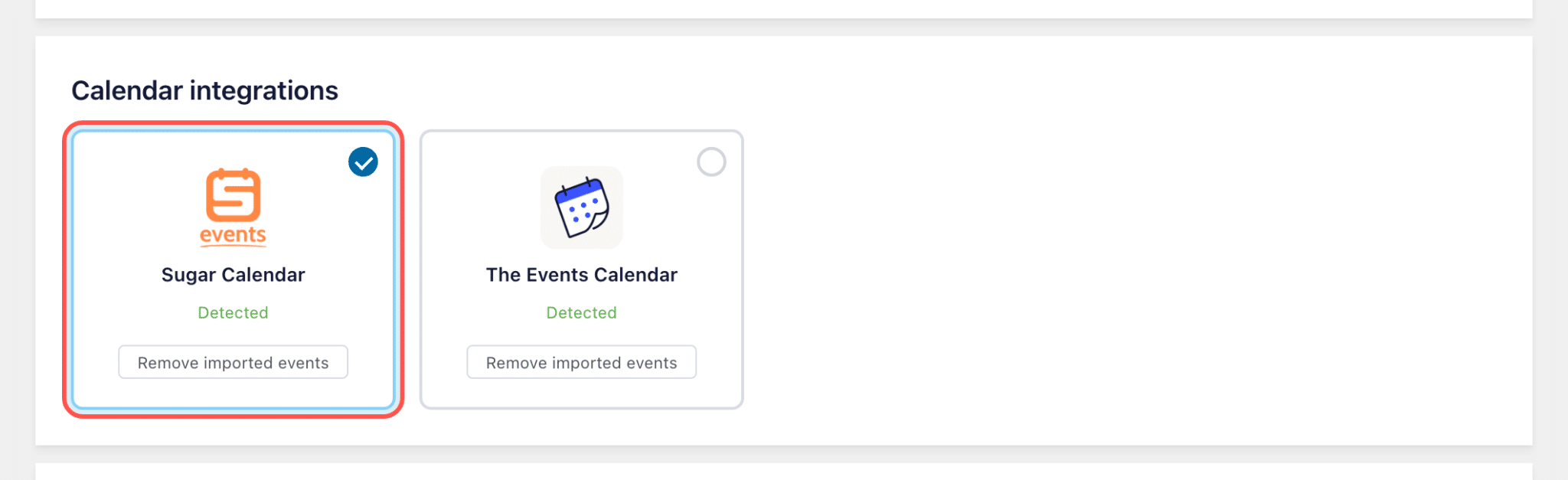
- Choose Sugar Calendar. If you don’t have a calendar plugin active yet, click Install Sugar Calendar and the free version is installed and activated for you. Then, under Calendar integrations, click the Sugar Calendar card.
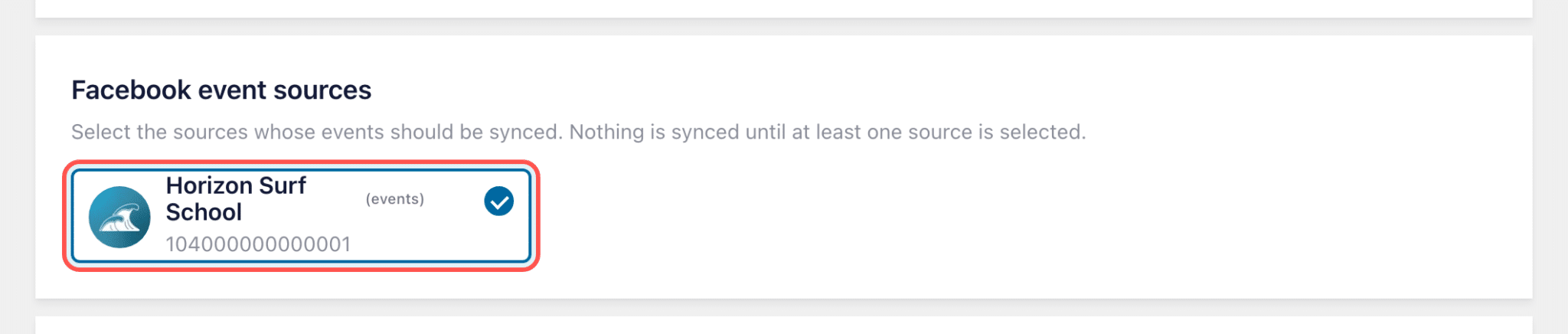
- Pick your Facebook Pages. Under Facebook event sources, click each Page whose events should go on this calendar.
- Set your sync schedule. Under Sync schedule, pick Every hour, Twice daily, or Daily, and leave Import event cover images on. It’s set to Twice daily until you change it. Click Save Changes, then Sync Now.
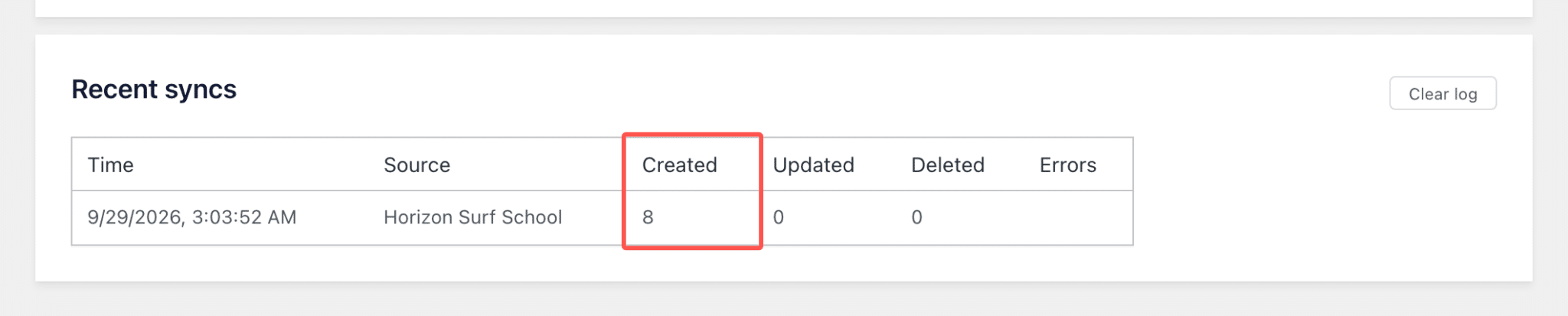
- Check the results. The Recent syncs table shows how many events were created for each Page. If you picked more than one Page, Sync Now brings over the first one right away and the rest follow in the background, about two minutes apart. Reload the page to see them in Recent syncs.
- Add the calendar to a page. Edit the page where your calendar should live, add Sugar Calendar’s Events Calendar block, and publish. Once it’s published, your synced Facebook events show up on that page.
Here’s what the key screens look like. If no calendar plugin is on your site yet, the Events tab offers to install Sugar Calendar for you.
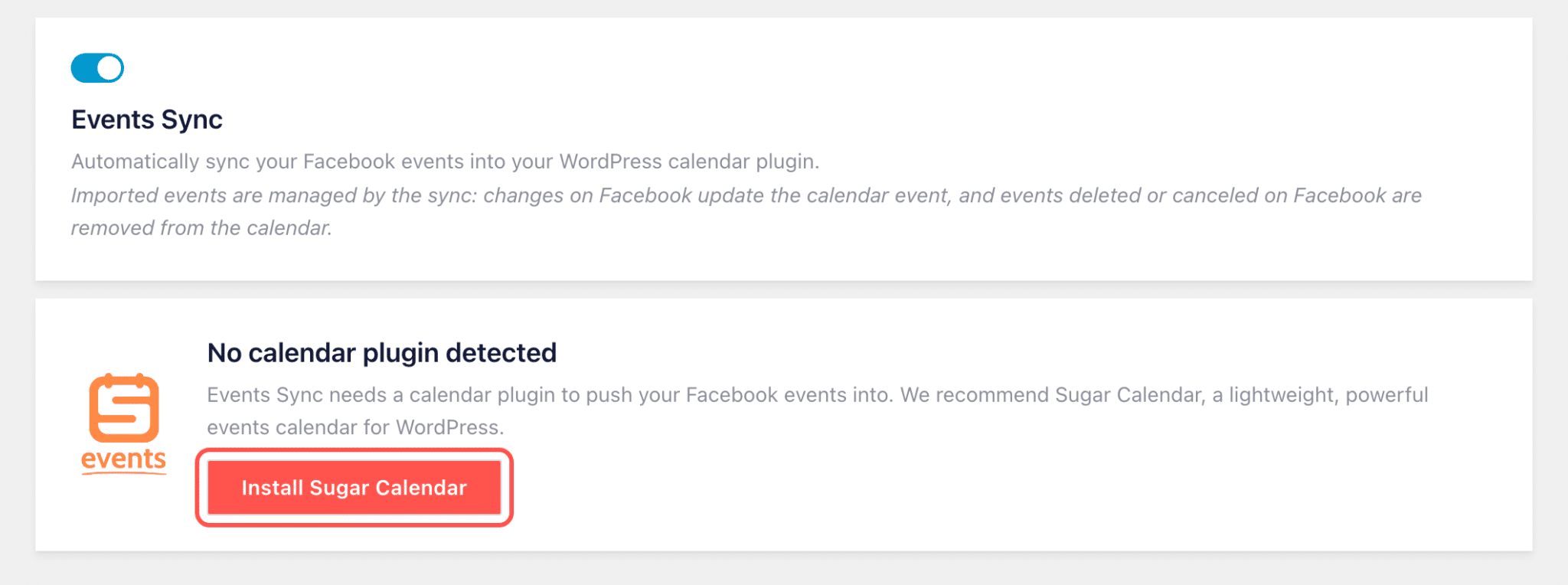
Once it’s installed, Sugar Calendar shows up as a card you can select. Already using The Events Calendar? Click that card instead. If you’d like both, install Sugar Calendar from your Plugins page first and its card shows up here too.
Nothing goes on your calendar until you’ve picked at least one Page, which is handy if you run separate Pages for different locations.
For the schedule, I go with Every hour for anyone who changes plans often, like a venue with a rotating lineup. Twice daily is plenty for a studio whose class times rarely move.

After you click Sync Now, the Recent syncs table tells you what happened. On my test site it showed 8 events created from the demo surf school Page.
Put your Facebook events on a real calendar
Events Sync comes with Facebook Feed Pro Elite and the All Access Bundle. Add the free Sugar Calendar in one click, pick your Page, and new events land on your calendar without any retyping.
See Facebook Feed Pro EliteWhat Happens to Your Calendar After the First Sync?
After the first sync, you keep posting on Facebook the way you already do, and your calendar follows along without any extra work from you.
What happens when you add a new event on Facebook?
It shows up on your calendar at the next scheduled check, with the name, date, time, description, location, and cover photo filled in. If you can’t wait, click Sync Now.
What happens when you change or cancel an event on Facebook?
Move a class to 7 PM on Facebook and the calendar entry shows 7 PM after the next check. Cancel the event, or delete it from your Page, and it’s taken off your calendar too. Only upcoming events are checked, so anything that already happened is left alone.
Do repeating Facebook events show every date?
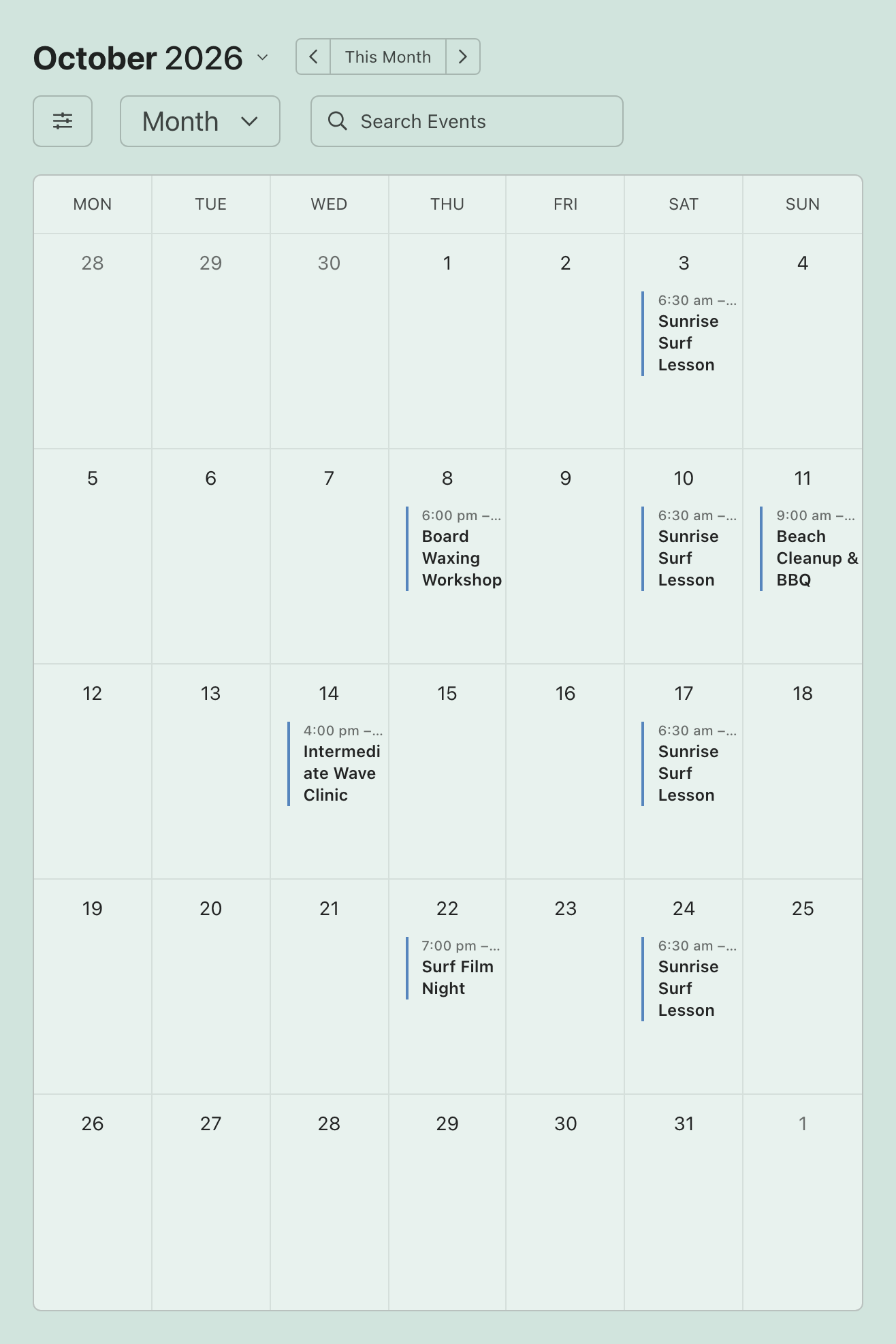
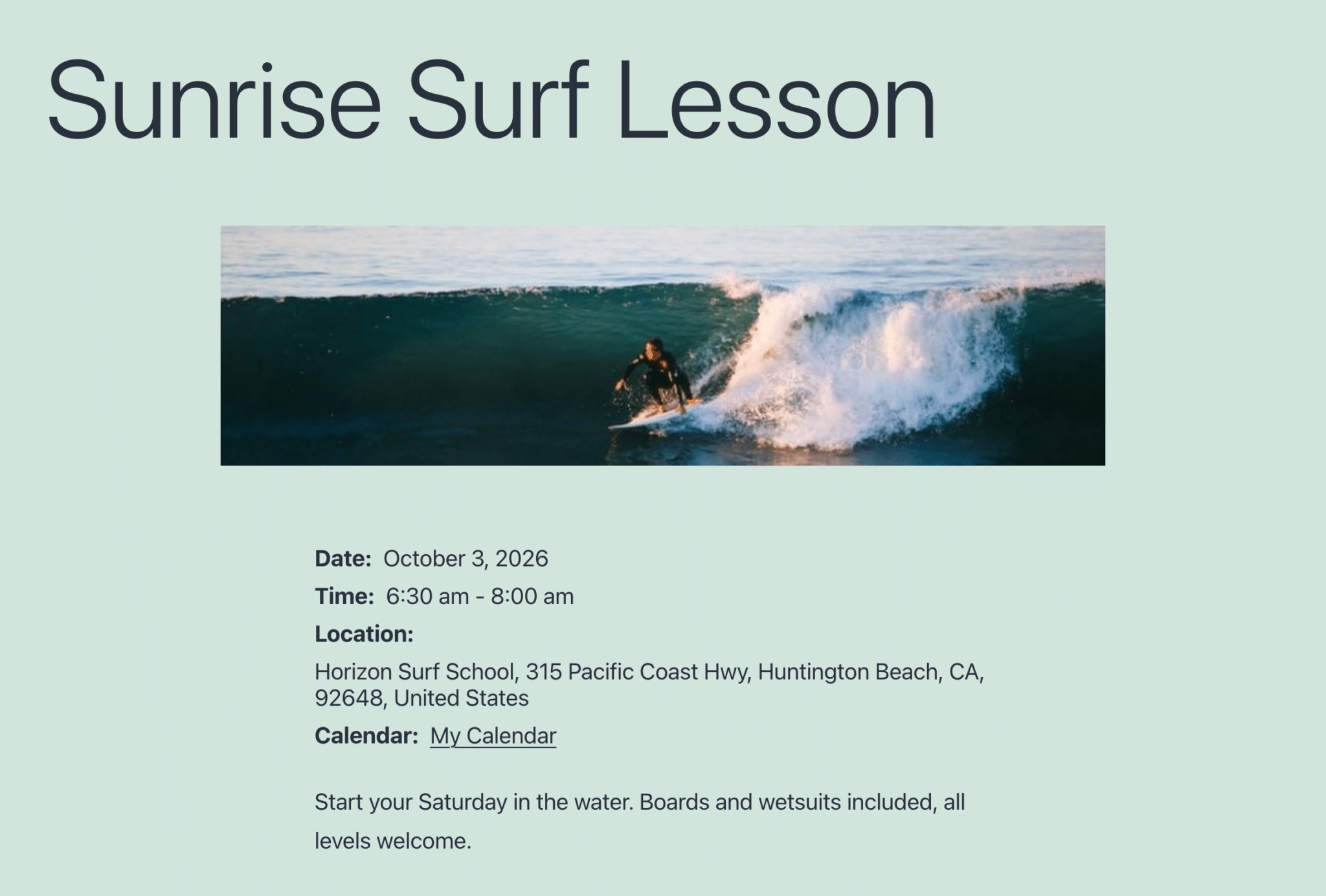
Yes. If one Facebook event covers several dates, like a lesson every Saturday morning, each date is added to your calendar as a separate event with its own page. That’s what you see with the weekly Sunrise Surf Lesson below.
Can you keep a Facebook event off your website calendar?
Yes. Delete or trash it in Sugar Calendar and Facebook Feed Pro remembers that you removed it, so later syncs skip it instead of adding it back. I’d use this for a partner’s event you reshared on your Page, or a members-only meetup you’d rather not list publicly.
What happens to events after they’re over?
They stay on your calendar. Facebook Feed Pro only brings over upcoming events, and once an event has happened it isn’t removed, so your calendar doubles as a record of what you’ve hosted.
Why Put Your Facebook Events on a Calendar Instead of a List?
A list tells people what’s coming up next, while a calendar is what they use to plan. Someone deciding between two Thursday classes wants to see the month laid out, check which weeks they’re already busy, and then open the one that fits.
Here’s what that changes for your business:
- People who don’t use Facebook still find your events. Plenty of the people who land on your website found you through Google rather than your Page, and a calendar meets them where they already are.
- Your calendar stays current. When the only copy you update is the one on Facebook, your website calendar catches up at the next scheduled check.
- Each event gets a page that looks like your brand. The cover photo you designed for Facebook becomes the picture on the event page, so there’s nothing to upload twice.
Keeping a website calendar current has always meant a second round of typing after you post on Facebook. Syncing takes that second round off your list.
Why Use Facebook Feed Pro Instead of a Separate Import Plugin?
You’ll find a handful of plugins that only import Facebook events into WordPress. They can work well, but that’s a second plugin to connect to Facebook and keep updated alongside the one that already shows your feed.
If you already show Facebook content on your site with Facebook Feed Pro, Events Sync uses the events source you’ve already connected. Turning on Events Sync doesn’t change your events feed at all. The calendar gets separate copies of the same events, so you can keep the feed on your homepage and give the calendar its own page. That way you only manage one plugin, your calendar reuses the events connection you already set up, and Sugar Calendar takes care of the calendar itself.
If you already run The Events Calendar, you don’t have to switch. Events Sync works with it too, and you can send your events to both calendars at once.
Smash Balloon helps website owners turn real social content into trust signals that increase credibility and conversions, and more than 1.75 million people use its plugins on their WordPress sites. If you’d like the full announcement with every option explained, read Turn Your Facebook Events Into a Website Calendar With Sugar Calendar.
Why Aren’t My Facebook Events Showing on My Calendar?
Most of the time it’s one of these, and most are quick to fix:
- No Page is selected. Events Sync doesn’t bring anything over until you pick at least one Page under Facebook event sources.
- The calendar plugin isn’t active. If Sugar Calendar was deactivated, the sync has nowhere to send events. Reactivate it on the Plugins page.
- The next scheduled check hasn’t run yet. Click Sync Now to bring everything over right away.
- The Pages list says you have no event source connected. Events Sync can only use a Page that’s already connected as an events source. Connect yours using the events setup post linked above, then come back to the Events tab and pick it.
- The Errors column in Recent syncs has a message. If Facebook is limiting how often the plugin can ask for your events, it says so and tries again on its own 30 minutes later, so you don’t need to do anything.
- The Events tab says Events Sync is available on the Elite plan. Check that your Elite license key is activated under Facebook Feed » Settings. Basic and Plus licenses don’t include Events Sync, and upgrading to Elite turns it on.
- Your site gets very little traffic. Scheduled checks run on WordPress’s built-in scheduler, which only fires when someone visits your site, so a quiet site can sync later than the schedule says. Sync Now brings your first Page over right away, and any other Pages follow as soon as your site gets its next visit.
- You deleted that event from your calendar earlier. Deleted events stay deleted on purpose. To bring everything back, click Remove imported events on your calendar’s card, then click Sync Now. It permanently deletes every imported event first, past ones included, and only upcoming events come back, so save it for a true fresh start.
- Your Page was connected through an iCal feed. A source connected that way can’t be synced. Reconnect the Page using your own Facebook App, as shown in the events setup post linked above, and it can.
Frequently Asked Questions
Does Events Sync work both ways?
No, it runs one way, from your Facebook Page to your WordPress calendar. Anything you add or change in Sugar Calendar stays on your website and never shows up on Facebook, so post and edit your events on Facebook and let the calendar follow.
Do I need Sugar Calendar Pro?
No. The free version of Sugar Calendar works with Events Sync, and Facebook Feed Pro can install it for you with one click from its Events settings. Repeating Facebook events work on the free version too, because each date comes over as its own event.
Which Facebook Feed Pro plan includes Events Sync?
Events Sync comes with Smash Balloon Facebook Feed Pro Elite and the All Access Bundle. If you’re on Basic or Plus, upgrading to Elite adds both Events Sync and Facebook events feeds.
Can I edit a synced event in Sugar Calendar?
You can, but your edits only last until that event changes on Facebook. When it does, the next sync copies the Facebook version over whatever you changed, so I make every edit on the Facebook event itself.
Is there a free way to get Facebook events onto a WordPress calendar?
Yes, if you don’t mind doing it by hand. You can copy each event into the free version of Sugar Calendar, which works fine if you only host a few events a year. Events Sync, which does it automatically, is part of Facebook Feed Pro Elite, and the Sugar Calendar it fills is free.
Do I need to be an admin of the Facebook Page?
Yes. Facebook only shares a Page’s events with someone who has full access to that Page, so connect the events source from an account that manages it. The connection runs through a Facebook App you create, using its App ID, App Secret, and a User Access Token.
Start Syncing Your Facebook Events to Your Calendar Now
You’re already posting your events on Facebook. With Events Sync, that one post is all it takes to keep your website calendar current, and you can stop typing every event in twice.
Turn on Events Sync, add Sugar Calendar in one click, and pick your Page. Your next Facebook event can be on your website calendar today, cover photo and all.
Here’s what you get with Facebook Feed Pro Elite:
- Every upcoming Facebook event on a real WordPress calendar
- Changes and cancellations that carry over on their own
- Repeating events filled in for every date
- Your Facebook events feed, posts, photos, and videos too
Stop typing your events in twice
Facebook Feed Pro Elite is $149 for your first year and includes Events Sync, your Facebook events feed, and Feed Analytics on up to 10 sites. Try it with your own Page, backed by a 14-day money-back guarantee.
Get Facebook Feed Pro Elite