


 Social Wall
  Feed Analytics


Curious about how to seamlessly embed your custom X (Twitter) feeds on your WordPress site?
Showing your X (Twitter) timeline or custom X (Twitter) feeds on your website boosts engagement, shares fresh updates and connects your site visitors with your latest X posts.
But using X (Twitter)’s standard embed options doesn’t give you the flexibility or design control you need.
Also, figuring out the best way to add custom X (Twitter) feeds can feel overwhelming especially with so many plugins and settings to consider.
When I first decided to display my own X (Twitter) feeds, I tried tons of methods before settling on a quick and reliable approach.
With my experience at Smash Balloon helping WordPress users showcase their X posts, I’ve found the easiest steps to make your X (Twitter) feed look great without any hassle.
In this article, I’ll walk you through the exact six steps I use to embed custom X (Twitter) feeds on my WordPress website so you can follow along, even if you’re new to WordPress or don’t have tech skills!
In This Article
- What are Custom X (Twitter) Feeds?
- Embedding Custom X (Twitter) Feeds Manually vs Automatically
- Easiest Way to Add a Custom X (Twitter) Feed to WordPress
- 6 Steps I Use to Display Custom X (Twitter) Feeds on My WordPress Website
- Step 1: Install Smash Balloon X (Twitter) Feed Pro
- Step 2: Create an X (Twitter) Feed
- Step 3: Connect Your X (Twitter) Account
- Step 4: Customize Your Custom X (Twitter) Feed
- Step 5: Add Your Custom X (Twitter) Feed to Your Website Page
- Step 6: Add Your Custom X (Twitter) Feed to Your Website Sidebar or Footer
- Why Embed Custom X (Twitter) Feed Widgets on Your Website?
- Start Embedding Your Custom X (Twitter) Feeds Now
- Popular Articles on Displaying Custom X (Twitter) Feeds
What are Custom X (Twitter) Feeds?
A custom X (Twitter) feed is a collection of X posts that are personalized based on your business needs. It can be a feed of X posts filtered by a specific hashtag, X (Twitter) users or even search keywords.
Custom X (Twitter) feeds come in many shapes and sizes. For instance, you can:
- Create a custom X (Twitter) feed based on hashtags related to your brand
- Embed an X (Twitter) feed with X posts mentioning your brand for user testimonials
- Showcase an X (Twitter) carousel feed on your website
- Display a custom X (Twitter) feed with results from an advanced X (Twitter) search to serve tailored content to educate your visitors
- Embed X posts from multiple users in the same X (Twitter) feed
- Showcase X (Twitter) broadcasts or X (Twitter) livestreams
- Add visual X (Twitter) cards to your website
Now that you know what custom X (Twitter) feeds are, let’s talk about embedding X (Twitter) feeds manually or automatically.
Embedding Custom X (Twitter) Feeds Manually vs Automatically
There are 2 main ways to display customized X (Twitter) content on your WordPress website:
- Manually embed the X (Twitter) embed code
- Use a WordPress X (Twitter) plugin like X (Twitter) Feed Pro to do it all for you
I’ve been displaying customized X (Twitter) feeds on multiple websites for a decade now, and my favorite way to show X posts on WordPress is to use Smash Balloon’s X (Twitter) Feed Pro plugin.
Here’s a quick overview of the differences between adding custom X (Twitter) feeds manually and automatically using a WordPress plugin:
| Feature | Using Smash Balloon X (Twitter) Feed Pro | Using X (Twitter) Code to Manually Embed |
| Setup | ? Simple: Connect your account and embed your feed in a few clicks, directly within WordPress | ? Complex: A multi-step process of generating, copying, and pasting code for every X post |
| Customization | ? Full Control: Use a live visual editor to easily customize layouts, colors, and styles to match your website’s branding. No code needed! | ? You are restricted to X (Twitter)’s default style unless you are an expert in HTML/JavaScript |
| Technical Skill | ? Smash Balloon X (Twitter) Feed Pro is designed to be 100% beginner-friendly | ? Requires coding knowledge or hiring a developer for customization |
| Reliability | ? Smash Balloon team ensures the plugin is always updated, keeping your custom X (Twitter) feeds online and reliable | ? Relies on external code that can break. You are responsible for any troubleshooting |
| Support | ✅ World-Class Support: Get fast and friendly help from our WordPress experts | ❌ None: You are on your own if you encounter any issues |
| Final Takeaway | The easiest and most powerful way to create, customize, and display engaging X (Twitter) feeds on your site. Check out Smash Balloon X (Twitter) Feed Pro now! | A time-consuming method for adding X posts and X (Twitter) feeds that quickly become outdated and offer no design control |
Easiest Way to Add a Custom X (Twitter) Feed to WordPress
Now you may be asking, “How do I add an X (Twitter) feed to my website?”
Without a doubt, the easiest way to embed custom X (Twitter) feeds to your WordPress website is by using the Smash Balloon X (Twitter) Feed Pro plugin.

As the best X (Twitter) feed plugin for WordPress, X (Twitter) Feed Pro lets you create, customize and embed X (Twitter) feeds on your site — no coding needed.
What I like about using Smash Balloon X (Twitter) Feed Pro is I can use it to display different types of customizable X (Twitter) feeds, such as hashtag feeds, user timeline feeds, carousels or slideshow of X posts, X (Twitter) search feeds and more.
Also, using X (Twitter) Feed Pro is much better than manually embedding your X posts because:
- You can connect your X (Twitter) account and website using the plugin in seconds
- The plugin automatically fetches your X posts for you — no need to manually embed X posts one-by-one so you save a lot of time
- With its simple visual feed customizer, you can build deeply customizable X (Twitter) feeds that engage your audience in a few easy clicks.
- Unlike other X (Twitter) feed plugins, X (Twitter) Feed Pro loads your X posts as part of your site’s content so they’re readable by search bots, which is great for boosting your site’s SEO
What’s more, this X (Twitter) feed plugin comes with a support team of WordPress experts who are 100% committed to helping you with your social media feeds.
The best part?
Smash Balloon is trusted by 1.75M+ users to embed social media feeds on their sites, including the biggest brands like Coca-Cola, Indeed and others, so you know you’re in great hands.

Ready to start adding customizable X (Twitter) content to your site? Get started with X (Twitter) Feed Pro!
6 Steps I Use to Display Custom X (Twitter) Feeds on My WordPress Website
Did you know that I can use Smash Balloon X (Twitter) Feed Pro to showcase personalized X (Twitter) feeds on my website — in minutes?
Here’s the step-by-step tutorial I follow to embed X (Twitter) feeds on WordPress, no coding needed.
Step 1: Install Smash Balloon X (Twitter) Feed Pro
First, go and get your copy of X (Twitter) Feed Pro before installing it to your WordPress site.
To help with that, follow these simple instructions for installing a WordPress plugin.
You can now move on to step 2 and create your X (Twitter) feed.
Step 2: Create an X (Twitter) Feed
After that, navigate to X (Twitter) Feed » All Feeds from your WordPress dashboard.
From this page, click on the Add New button at the top to continue.
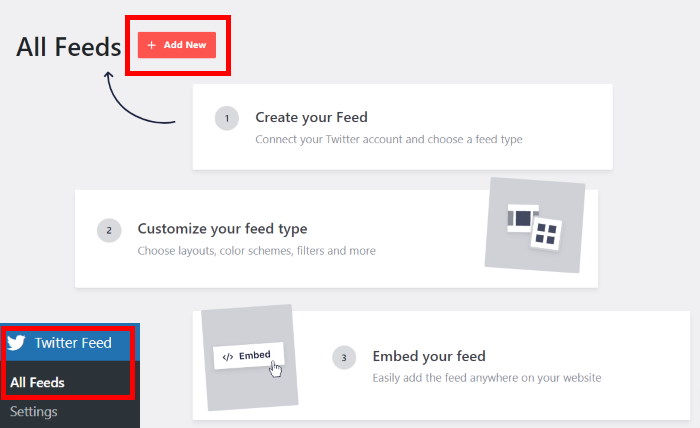
Now, you can choose which type of X (Twitter) feed you want on your website. X (Twitter) Feed Pro has tons of different feed types which include:
- User timeline: Show all the X posts posted by any X (Twitter) user
- Hashtag: Display X posts that contain specific hashtags
- Search: Choose to show X posts that have specific terms
What’s more, you can display X posts from multiple users in the same X (Twitter) feed. Just select more than 1 feed type to do that.
In this tutorial, I’ll embed an X (Twitter) user timeline that I’m customizing later.
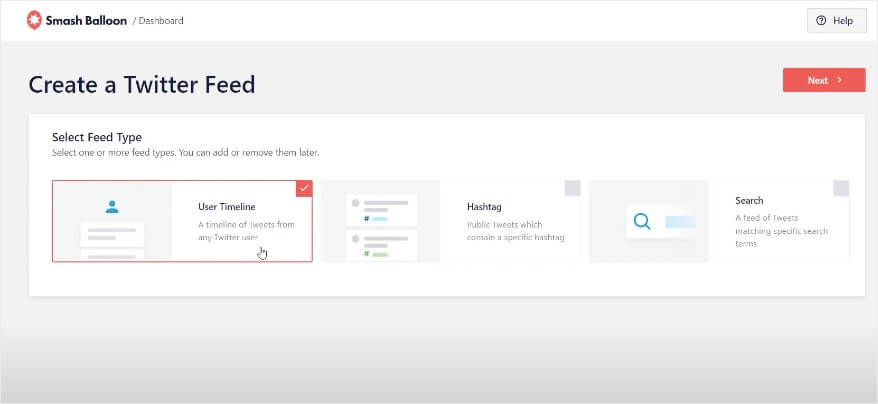
After you pick your X (Twitter) feed type, just click on Next. Then, you can now connect your own X (Twitter) account so your feed can show X posts on your website.
Step 3: Connect Your X (Twitter) Account
The next step is to enter the X (Twitter) username or X (Twitter) handle for the account that you want to display. In this example, we’ll enter the X (Twitter) handle for @starbucks. Then, click on Next to continue.
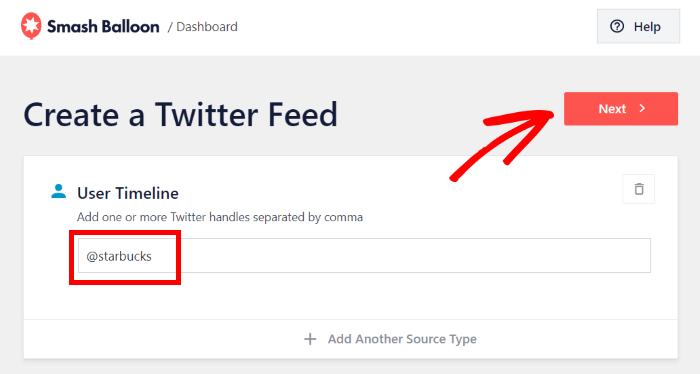
It’s now time to customize the design of your new X (Twitter) feed in step 4.
Step 4: Customize Your Custom X (Twitter) Feed
X (Twitter) Feed Pro makes it super easy to customize and set up your X (Twitter) feed in a few easy steps.
After setting up your feed, the plugin will ask you to choose a feed template that you want to use.
X (Twitter) Feed Pro has lots of professionally-designed templates you can choose from, so it’s easy for you to create X (Twitter) feeds that match your brand’s visuals.
There are 7 templates that you can choose to instantly select a unique layout for your X (Twitter) feed:
- Default
- Masonry
- Simple Carousel
- Simple Cards
- Showcase Carousel
- Latest X posts
- Widget
Once you select the template you prefer, click on Next.
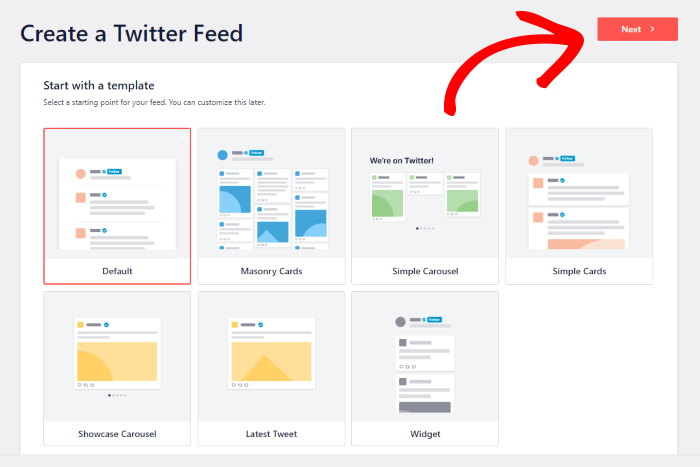
After you do this, the plugin will open your X (Twitter) feed in the visual feed editor — see how quick and easy that was? You’ve now created your X (Twitter) feed in just a few clicks!
Now, you can use the visual feed editor to customize the design of your feed with a real-time preview to help you out.
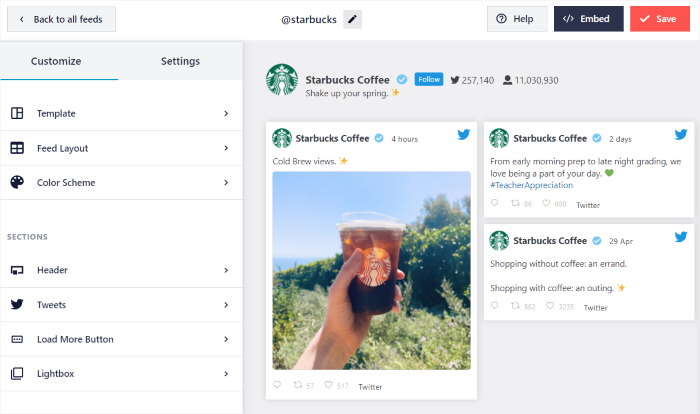
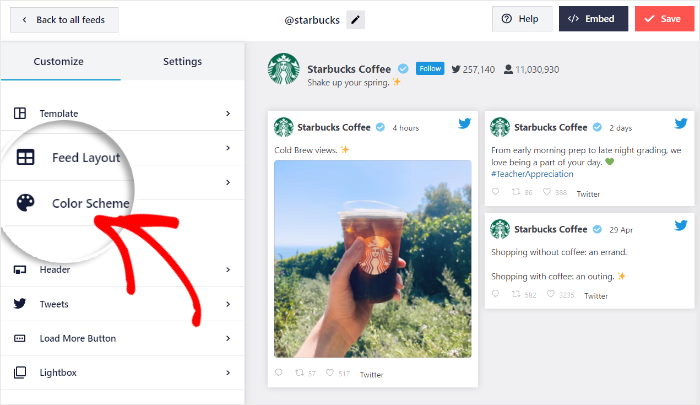
Towards the left, you can find the options to change your feed layout, color scheme, X post box style, feed size, button design, and much more.
There’s a live preview of your feed on the right that’ll show you how everything looks.
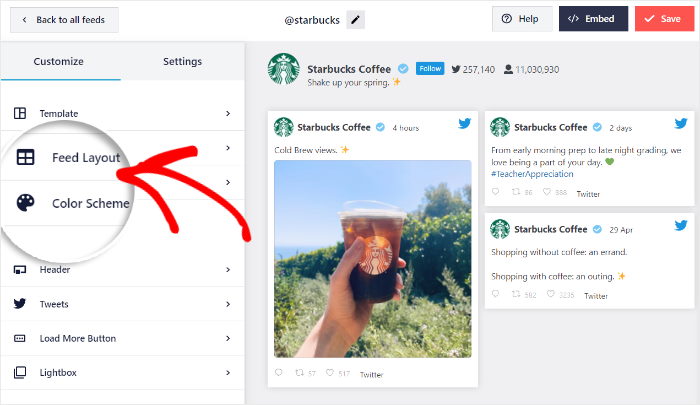
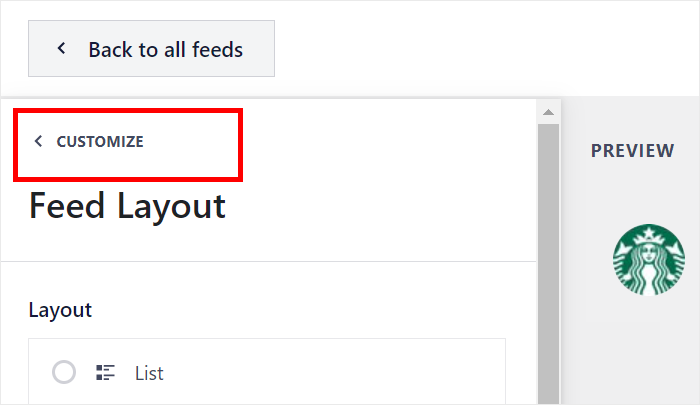
To get started, click on the Feed Layout option on the left panel.
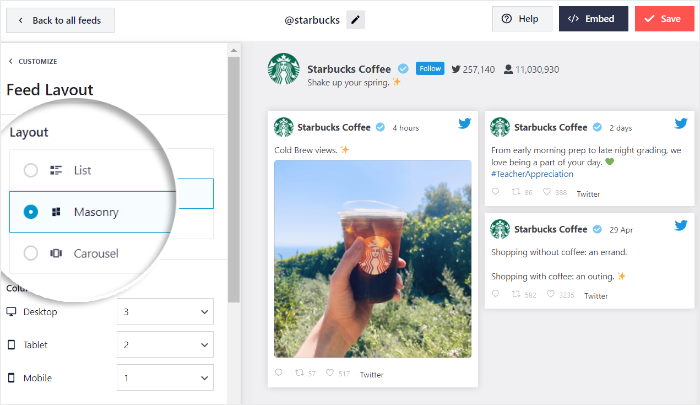
After that, you can choose from 3 different layout settings, including:
- List
- Carousel
- Masonry
With a list layout, your X (Twitter) feed will be displayed as a full-width list of X posts.
Since each X post gets more space, this is a great way to highlight important content.

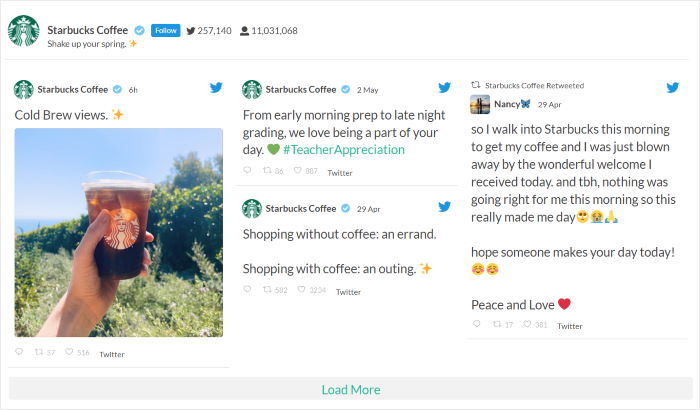
Next, you have the masonry layout that shows X posts in columns with no space in between. It’s a great way to show beautiful photos and videos on your website.
Personally, I like using the masonry layout so my website visitors can view the X (Twitter) photos and videos on my custom X (Twitter) feed.
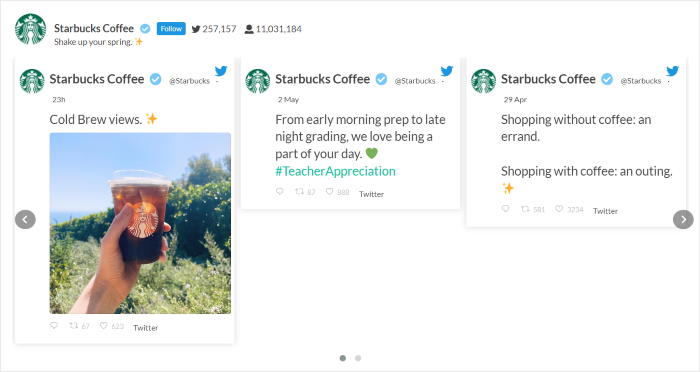
To show your X posts in an engaging X (Twitter) slideshow, you can go for the carousel layout instead.
You can make your site more interactive using this layout.
After picking your X (Twitter) feed layout, click on Save.
To continue and customize the rest of your X (Twitter) feed, just use the small Customize button at the top.
Now, go ahead and click on Color Scheme to set the colors for your X (Twitter) feed.
With X (Twitter) Feed Pro, there are 4 color scheme options:
- Inherit from Theme: Use the same colors as your WordPress theme
- Light: Show a bright X (Twitter) feed with dark font
- Dark: Pick a dark background for your feed along with a light-colored font
- Custom: Manually choose all the colors for your X (Twitter) feed

Once you’ve selected your color scheme, click on Save once again.
In addition to your X (Twitter) feed’s design, you also have complete control over the content of your X (Twitter) feeds.
Using the plugin’s visual customizer, you can also filter your X posts by choosing to hide or show replies or reposts in your X (Twitter) feed. Plus, you can even hide or show X posts based on words that you specify:
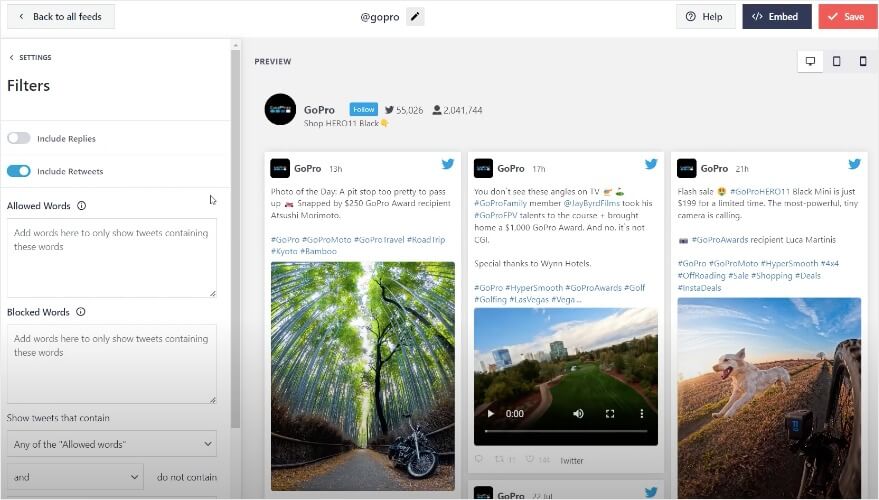
As you can see, it’s pretty easy to use X (Twitter) Feed Pro’s live feed customizer to set your X (Twitter) card style, header design, button style, lightbox options, and much more.
After you’re happy with how your X (Twitter) feed looks, click on the Save button to confirm your changes.
Finally, you can move on to step 5 and embed your custom X (Twitter) feed to your website.
Step 5: Add Your Custom X (Twitter) Feed to Your Website Page
Now that you know how to create custom feeds, let’s look at how to add a custom X (Twitter) feed to your website.
To add your custom X (Twitter) feed to a WordPress post or page, click on the Embed button on the live feed editor.
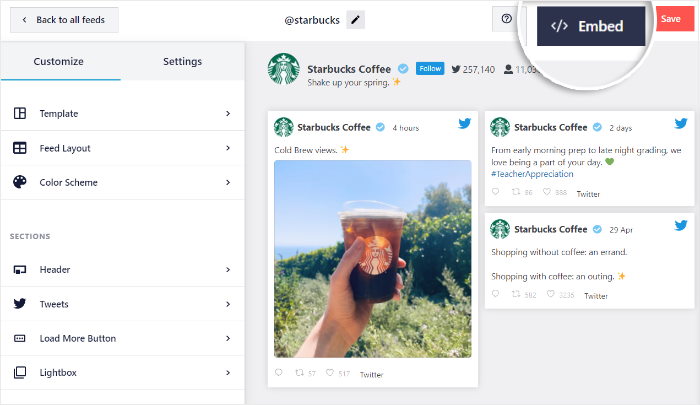
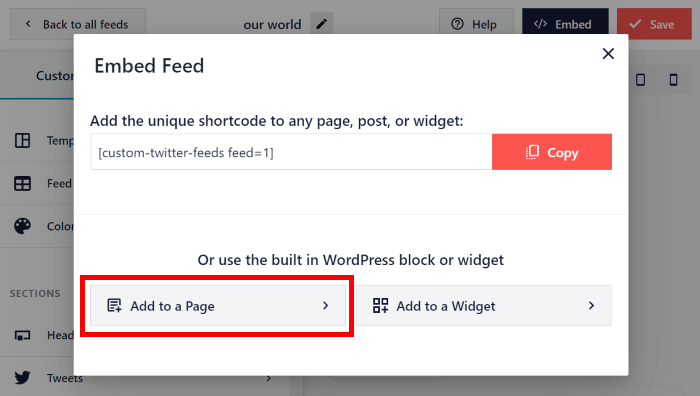
Next, you’ll see a popup that asks where you want to embed your X (Twitter) feed.
Click on the Add to a Page option here to continue.
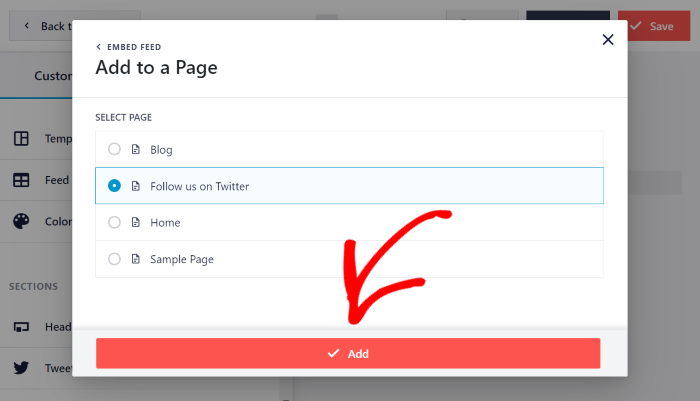
You can now choose which WordPress you want to use for your custom X (Twitter) feed. After you do that, click on Add to continue.
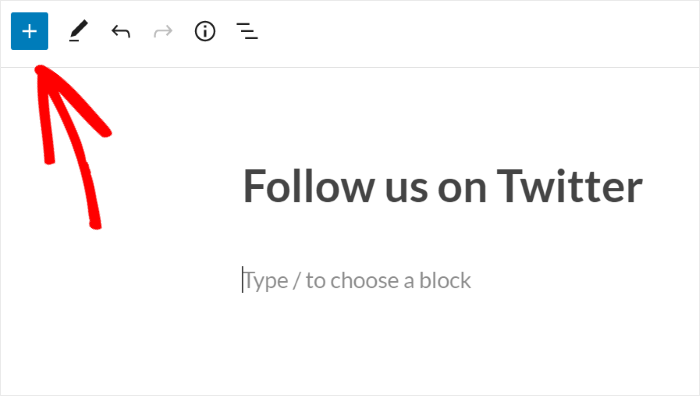
This will open that page in the WordPress editor so you can embed the feed.
To do that, first, click the Plus (+) icon to add a new content block.
In the search box, type “twitter feed” to locate the X (Twitter) Feed block and click on it.
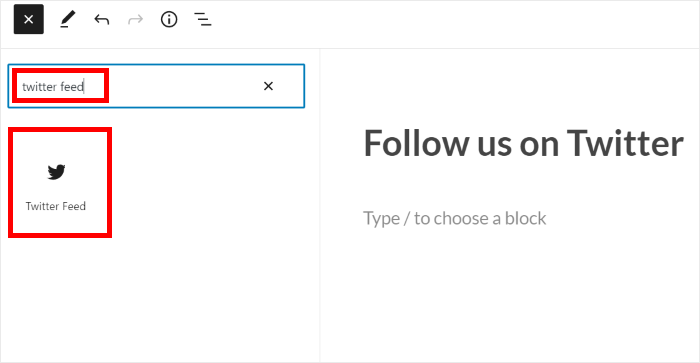
After that, your custom X (Twitter) feed will automatically appear in the content area — no need to deal with confusing X (Twitter) embed codes at all!
You can click on the Publish or Update button to confirm your changes.
Now, you can open your website, and you’ll see how your feed will look to your website’s visitors.
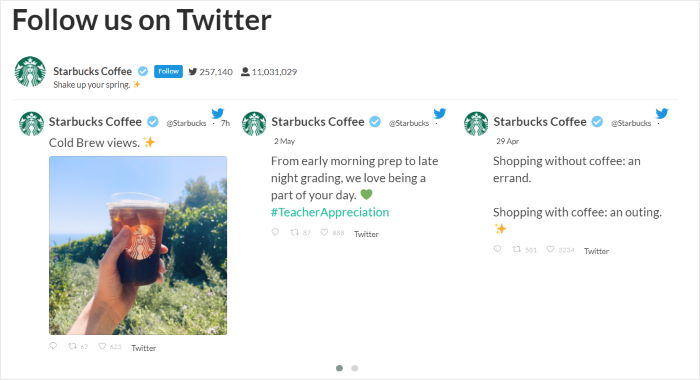
Plus, there’s another way to embed custom X (Twitter) feeds using this plugin.
Let’s go on to step 6 and show you how you can do that.
Step 6: Add Your Custom X (Twitter) Feed to Your Website Sidebar or Footer
Smash Balloon’s X (Twitter) feed plugin also lets you embed X (Twitter) widgets to your sidebar or footer areas.
To get started, just open your X (Twitter) feed in the live feed editor.
You can do that by opening X (Twitter) Feed » All Feeds page from your WordPress dashboard. Then find the X (Twitter) feed that you created and click on it.
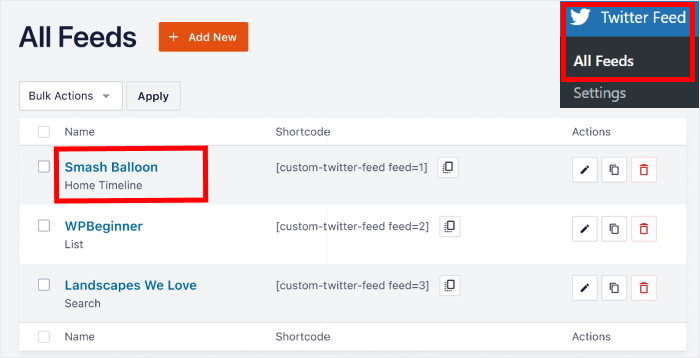
Like before, click on the Embed button in the top right corner of the live editor.
Next, you can use the popup to choose where you want to add your custom X (Twitter) feed. Click on the Add to a Widget option here to continue.
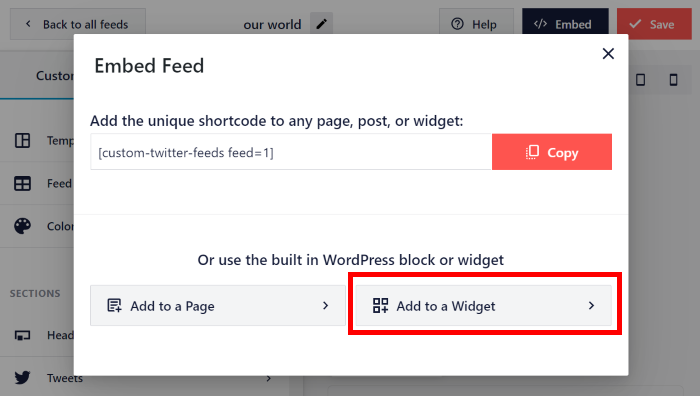
Now, the plugin will open the widgets page of your website so you can embed the X (Twitter) feed.
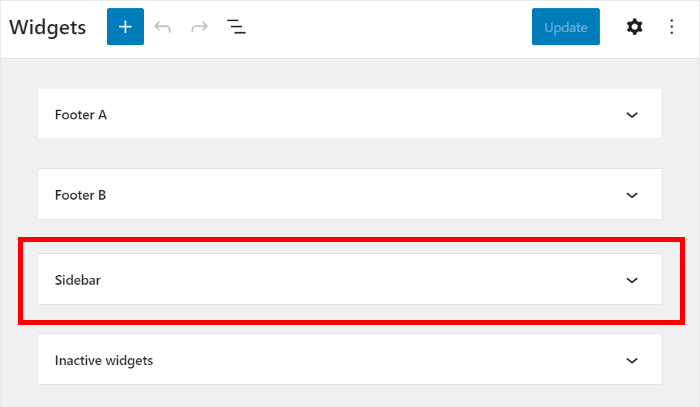
For that, click on the Sidebar panel to start managing the widgets there.
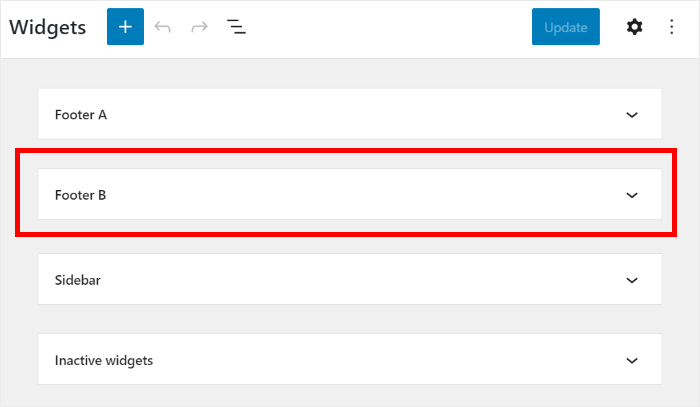
Or, you can click on a Footer panel instead and add your X (Twitter) feed to your footer.
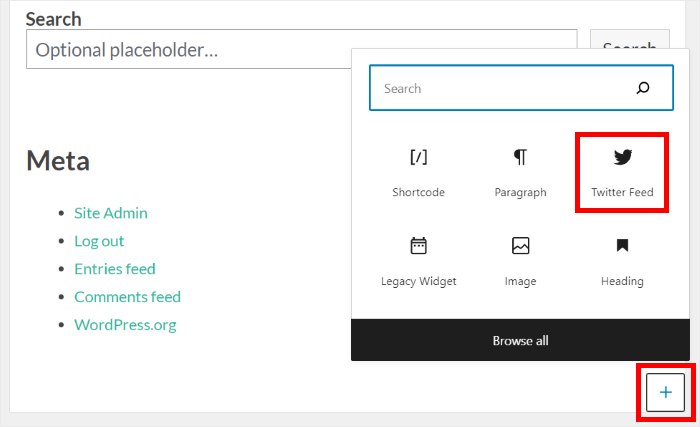
Finally, click on the plus (+) icon to add a new widget, and then click on X (Twitter) Feed.
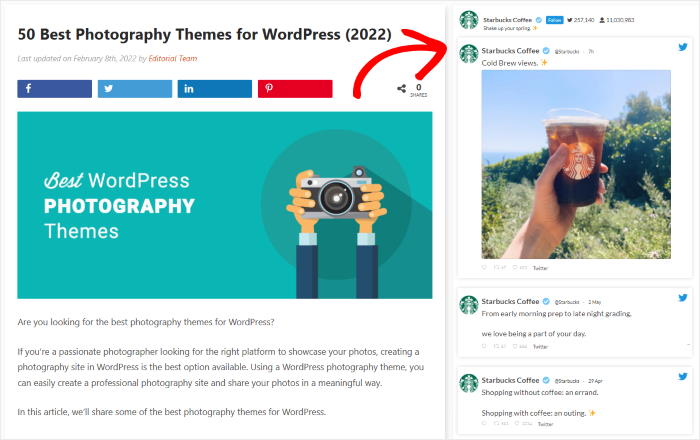
Just like that, you’ve added the custom X (Twitter) feed to your sidebar or footer. Click on the Update button at the top to save your changes.
Now when you visit a page on your website with a sidebar, you’ll see your custom X (Twitter) feed embedded for your visitors.
For more information, check out this guide on how to add an X (Twitter) widget to WordPress.
Why Embed Custom X (Twitter) Feed Widgets on Your Website?
As we mentioned before, an X (Twitter) feed can show a collection of X posts from a specific X (Twitter) profile so you can promote your business online.
Here are the top reasons why it’s important to display custom X (Twitter) feed widgets to your WordPress:
- Increase Site Engagement – Seeing a personalized custom X (Twitter) feed embedded on your site means your site visitors will stay longer and interact with your site more. The longer they’re on your site, the more likely they are to read your blog, sign up to your email list and check out your products. This boosts your X (Twitter) engagement too.
- Drive Sales and Conversions – A dynamic X (Twitter) feed showcasing product demos, customer testimonials, and positive brand interactions can act as powerful social proof, influencing website visitors to buy from you.
- Get More X (Twitter) Followers – It’s easier to convert site visitors into your X (Twitter) followers since they’re already interested in your business.
- Improve Site SEO – Displaying X (Twitter) feeds on your site lets you add keyword-rich X (Twitter) content that search bots can read, so it can improve your site’s SEO — with minimal effort on your part.
And that’s it! We hope this article has helped you learn how to add a custom X (Twitter) feed to your website.
Now all that’s left is for you to create one yourself so you can engage your audience, grow your X (Twitter) followers, and improve your business.
Ready to add your custom X (Twitter) feed to your site? Get started with X (Twitter) Feed Pro today.
Start Embedding Your Custom X (Twitter) Feeds Now
Following the 6 steps in this guide is a reliable way to get your X (Twitter) content onto your WordPress site.
From my own experience, using Smash Balloon’s X (Twitter) Feed Pro makes the entire process efficient and simple.
You can have a professional-looking custom feed live on your site in just a few minutes, without needing to wrestle with code.
Here is what I recommend you do next:
- Get your copy of X (Twitter) Feed Pro here. (It includes our 14-day money-back guarantee!)
- Follow the 6 steps we’ve just covered to create and embed your feed.
- Preview your new X (Twitter) feed to ensure it looks perfect within your website’s layout.
Do you have any questions about using X (Twitter) Feed Pro to follow these steps and embed your feed? Please ask me in the comments below!
Popular Articles on Displaying Custom X (Twitter) Feeds
- How to Add Your X (Twitter) Feed to Your Elementor Website (In 5 Minutes)
- How to Add an X (Twitter) Feed to Your Divi WordPress Site
- How to Add an X (Twitter) Profile to Your Thrive Architect Website
You may also want to check this next post on the best types of X posts proven to grow your business right now.
Having issues with your X (Twitter) embed? Here’s how to fix X (Twitter) embeds that are not working on your site.
And if you enjoyed this article, feel free to follow us on X (Twitter) and Facebook for more social media marketing tutorials.








You can’t embed Twitter Lists anymore. Twitter/X broke it a couple of months ago.
Hi Jarod,
Thank you for contacting us! Unfortunately, due to the Twitter API changes that happened earlier this year, we can no longer display lists; with our new solution, you can display Timelines, Hashtags, and Search feeds using the PRO version of the plugin. You can find more details about these changes here: https://smashballoon.com/doc/smash-balloon-twitter-changes/.
If you have any other questions, feel free to open a support ticket using our form here: https://smashballoon.com/support/
Thanks! 🙂
this is wonderful information that icould use daily since i am always on twitter