Social Wall
  Feed Analytics

You set up a scheduled post, walked away, and came back to find it never went live.
Or the scheduling option is greyed out entirely. Or Meta Business Suite shows a draft that just… sits there.
I’ve seen all three versions of this, and they’re all fixable.
Instagram scheduled posts usually fail for one of three reasons: your account is set to private, your Instagram isn’t properly connected to a Facebook Page, or there’s a bug in the app or Meta Business Suite that needs a simple reset to clear.
This post covers all seven causes and exactly how to fix each one.
Quick summary: The most common fix is making sure your account is set to public. That unlocks scheduling entirely. If your account is already public, the Facebook Page connection and Meta Business Suite troubleshooting steps below will get you sorted.
Why Schedule Your Instagram Posts
- You can prepare content for busy periods like Black Friday or the holiday season beforehand and schedule them in advance.
- By scheduling your posts when users are online, you can make sure your content reaches them at the right time to get the most engagement.
- If your older Instagram posts perform well, you can reschedule them for later and get tons of interactions with ease.
- In case you’re working with a team, you can have people check and review the scheduled posts before it’s online, so everything fits your brand guidelines.
Do You Need a Professional Account to Schedule Instagram Posts?
No. As of March 2026, Instagram opened native scheduling to all public accounts. You no longer need a Business or Creator account to schedule Instagram posts. The one hard requirement is that your account is set to public. Private accounts still can’t access the scheduler, regardless of account type.
If scheduling still isn’t showing up for you, check your account privacy setting first:
- Open Instagram and go to your profile
- Tap the three lines in the top right corner, then tap Settings and privacy
- Tap Account privacy
- Make sure Private account is toggled off
Once your account is public, the scheduling option becomes available immediately. Professional accounts (Business or Creator) still get additional benefits like scheduling through Meta Business Suite and access to the content calendar, but you don’t need one just to schedule a post.
7 Fixes for Instagram Scheduled Posts Not Working
Fix 1: Check That Your Account Is Set to Public
The most common reason scheduling is missing entirely is a private account. Instagram only shows the scheduling option on public accounts. It doesn’t appear at all on private ones, with no explanation.
Go to Settings and privacy → Account privacy and make sure Private account is toggled off.
If you recently switched devices or recovered your account, it’s worth double-checking. Some users find it flips back without warning.
Fix 2: Connect Your Instagram to a Facebook Page
Meta Business Suite handles scheduling for both Instagram and Facebook and requires your Instagram account to be linked to a Facebook Page.
Without that connection, scheduling through Business Suite either won’t work or will throw a vague permission error that doesn’t tell you what’s actually wrong.
How to link them:
- Go to business.facebook.com and log in
- Click Settings in the left sidebar, then Accounts
- Select Instagram accounts and click Add
- Follow the prompts to connect your Instagram account to your Facebook Page
Doing this correctly is what unlocks the full scheduling calendar in Business Suite, including the ability to see your posts across both Instagram and Facebook in one place.
If your account is already listed but scheduling still isn’t working, try disconnecting and reconnecting it.
This clears any stale permission errors that can build up after password changes or Meta security updates.
Fix 3: Check Instagram’s Service Status
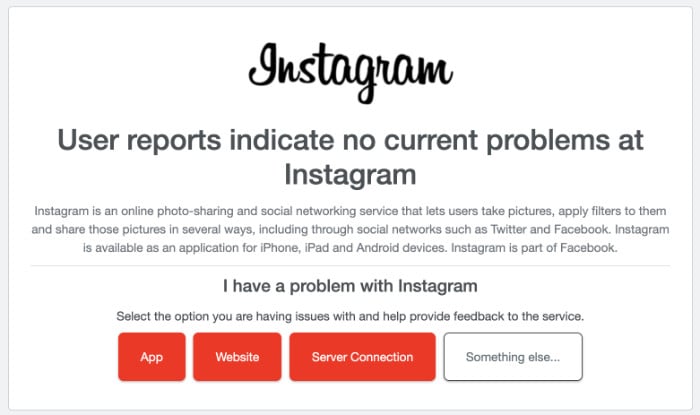
Sometimes the problem isn’t on your end. Instagram and Meta Business Suite both go down occasionally, and a service outage will block scheduling even if everything else is set up correctly.
Check downdetector.com/status/instagram and downdetector.com/status/facebook to see if there are active issues. You can also check Meta’s official status page at metastatus.com.
If there’s a known outage, the only fix is to wait it out. Your draft posts will still be there once the service comes back.
Fix 4: Update the Instagram App
Instagram is constantly releasing updates that change how the app works, so having an outdated app can stop your scheduled posts from working.
Outdated app versions are a common cause of broken scheduling. Meta rolls out bug fixes continuously, and an old version may be missing a patch that affects the scheduler.
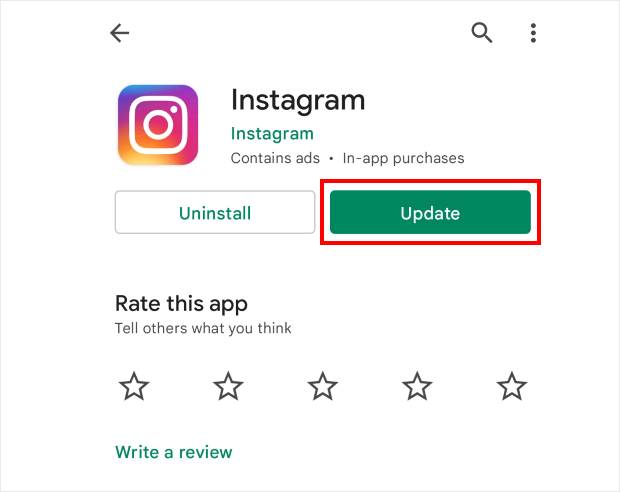
On iOS: Open the App Store, tap your profile icon in the top right, scroll to pending updates, and update Instagram if one is available.
On Android: Open the Google Play Store, tap your profile icon, go to Manage apps and device, and update Instagram.
After updating, force-close the app and reopen it before trying to schedule again.
Fix 5: Clear the App Cache (Android) or Reinstall (iOS)
If updating didn’t fix it, cached data may be the issue.
I’ve had this happen after Meta rolled out a feature update mid-week. The scheduler just stopped responding until I cleared the cache.
On Android, you can clear the cache without losing any data:
- Go to Settings on your phone
- Tap Apps, then find Instagram
- Tap Storage, then Clear cache
- Reopen Instagram and try scheduling again
On iOS, there’s no direct cache clear option. Instead, delete and reinstall Instagram. Your account and posts aren’t affected since they live on Meta’s servers, not your phone.
Fix 6: Troubleshoot Meta Business Suite Directly
If you’re scheduling through Meta Business Suite and hitting errors there specifically, the issue is usually one of three things.
This is especially common after a Meta account security update or a team permission change.
The post is stuck in draft. Open Business Suite, go to Planner, and check the Drafts section. If your scheduled post is sitting there, it may not have been submitted properly. Open it and re-schedule it.
The account permissions are wrong. Go to Business Suite → Settings → People and assets. Make sure your account has full admin access to the Instagram account you’re scheduling for. Limited roles sometimes block the ability to publish.
Two-factor authentication conflict. If you recently enabled or changed 2FA on your Meta account, Business Suite sometimes loses its publishing permissions. Log out of Business Suite completely, log back in, and re-authorize the Instagram connection.
How to reschedule a post in Meta Business Suite:
- Go to business.facebook.com
- Click Planner in the left sidebar
- Find the failed or stuck post and click on it
- Click Edit post, review the scheduled time, and click Schedule post again
- Confirm the post appears on the calendar. This is the step most people skip, and it’s the one that confirms the fix actually worked.
Fix 7: Use a Third-Party Scheduling Tool
If native Instagram scheduling is unreliable for your workflow, or you need features like bulk scheduling, team approval workflows, or multi-platform posting, a dedicated scheduling tool is more stable than relying on the native scheduler.
Popular options include:
- Later: Visual drag-and-drop calendar, strong Instagram support, free plan available
- Buffer: Clean interface, supports all major platforms, straightforward pricing
- Hootsuite: More enterprise-focused, good for teams managing multiple accounts
- Meta Business Suite: Free, built directly by Meta, works for most standard scheduling needs
All of these require your account to be public and, for Business Suite specifically, a connected Facebook Page.
Put your Instagram content to work on your website
Smash Balloon Instagram Feed Pro pulls your published posts into a live, auto-updating feed on your WordPress site. No manual embeds, no outdated screenshots.
Get Instagram Feed ProHow to Schedule Instagram Posts for Free
You have two free options that don’t require any paid tools:
Option 1: Instagram’s built-in scheduler
Instagram has a native scheduling option directly in the app. When creating a post:
On iPhone:
- Tap Advanced settings before hitting Share
- Toggle on Schedule this post
- Select the date and time (up to 75 days in advance)
- Tap Schedule, then Done
On Android:
- Tap More options before hitting Share
- Toggle on Schedule this post
- Select the date and time (up to 75 days in advance)
- Tap Schedule, then Done
The post will appear in your Drafts folder until it publishes at the set time.
Option 2: Meta Business Suite
business.facebook.com is completely free and lets you schedule Instagram and Facebook posts from a desktop browser. It also includes a content calendar view so you can see what’s going out and when.
Both options are completely free. Meta Business Suite requires a connected Facebook Page while the in-app scheduler does not.
Why Are My Instagram Scheduled Posts Not Publishing?
If a scheduled post is set up correctly but doesn’t go live at the right time, the most common reasons are:
- Your account was switched to private after the post was scheduled
- The Facebook Page connection dropped in the background
- Instagram had a brief service issue at the exact scheduled time
- The app was logged out or the session expired before the post went live
Check the Drafts folder in Instagram or the Planner in Business Suite. The post is almost always still there.
Re-schedule it and make sure your account is still set to public and your connections are active before walking away.
Once your posts are going out on time, it’s worth making them work harder on your website too. The All Access Bundle gives you every Smash Balloon Pro plugin, so your Instagram, Facebook, TikTok, YouTube and X (Twitter) content can all show up on your site and update on its own.
Frequently Asked Questions
Why can’t I schedule posts on Instagram?
The most common reason is a private account. As of March 2026, Instagram allows scheduling on all public accounts, but if your account is set to private, the scheduling option won’t appear at all. Go to Settings and privacy → Account privacy and toggle off Private account.
Why are my Instagram scheduled posts not publishing?
Usually it’s one of three things: your account switched to private after the post was scheduled, the Facebook Page connection dropped in the background, or Instagram had a brief service issue at exactly that moment. Check the Drafts folder in Instagram or the Planner in Meta Business Suite. The post is almost always still there waiting. Re-schedule it after confirming your account is public and connections are active.
Do you need a professional account to schedule Instagram posts?
Not anymore. As of March 2026, Instagram extended scheduling to all public accounts. You don’t need to switch to a Business or Creator account. You just need your account set to public. Professional accounts still get access to Meta Business Suite scheduling and the content calendar, but the basic in-app scheduler is available to everyone.
How do I schedule posts on Instagram for free?
Two ways, both free. First, Instagram’s built-in scheduler: when creating a post, tap Advanced settings (iPhone) or More options (Android), toggle on Schedule this post and pick your date and time, up to 75 days out. Second, Meta Business Suite at business.facebook.com, which gives you a full calendar view for both Instagram and Facebook at no cost.
More Social Media Marketing Tutorials and Hacks
- How to Schedule a Facebook Post Easily (Step-by-Step Guide)
- YouTube Shorts vs TikTok: Which Is the Best For You?
- How to Auto Share WordPress Posts on Instagram (5 Easy Steps)
- Best YouTube Plugins to Increase Your Subscribers Right Now
- How to Embed Your Instagram on Your Website (Easiest Way)
Start Scheduling Instagram Posts Without the Headaches
Most scheduling issues come back to the same thing: account privacy.
If the scheduling option isn’t showing up at all, check that your account is set to public first. That fixes it for most people in under a minute.
If you’re already public and posts still aren’t going live, work through the Meta Business Suite troubleshooting steps, particularly the permission check and the 2FA reconnect.
Once your scheduling is sorted and your content is actually going live, the next question is usually: is that traffic landing somewhere useful?
That’s precisely where Smash Balloon Instagram Feed Pro comes in. It pulls your published Instagram posts into a live, auto-updating feed on your WordPress site, so the content you’re scheduling actually shows up where your audience is browsing, not just in the app.
Have a fix that worked for you that isn’t on this list? Drop it in the comments below.