Social Wall
  Feed Analytics

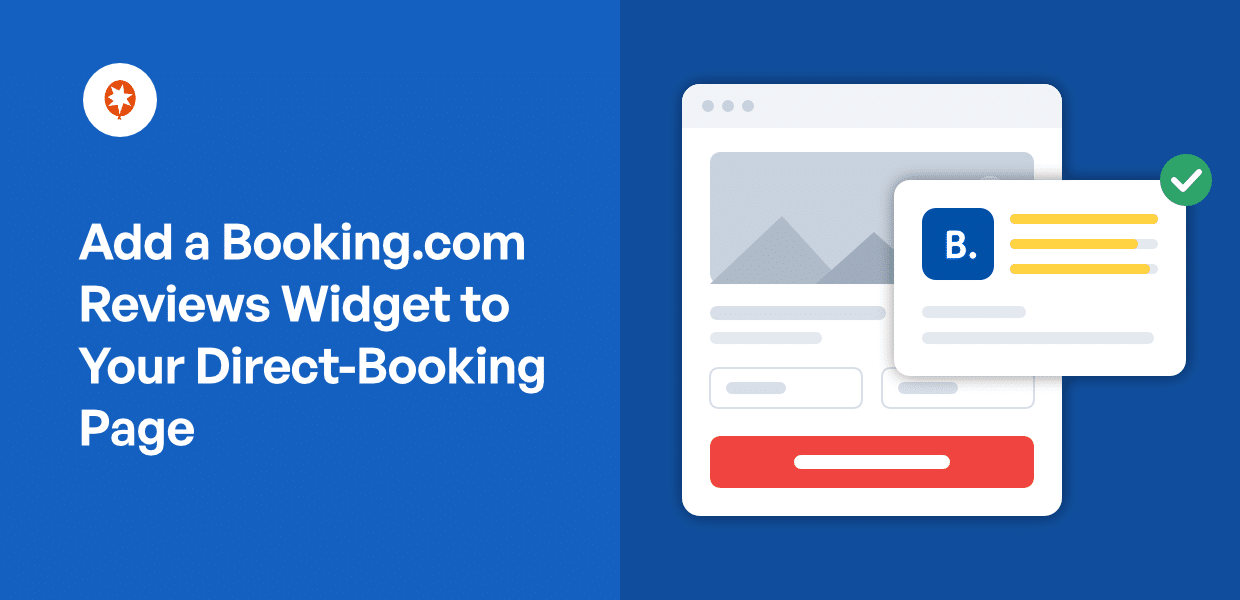
If you’ve ever earned a strong Booking.com score, you know the reviews are doing real work for you.
Guests write out the good and the bad. They give you a title, a 0–10 score, and a word like “Wonderful.”
Then you go to put those reviews on your own direct-booking page. And every result you find is a hosted widget company asking you to make yet another account.
Most property owners in this spot already show Yelp or Tripadvisor reviews somewhere on the site. So the real question isn’t “which widget?”
It’s “can Booking.com just join the reviews I already have?”
Here’s how to display your Booking.com guest reviews on your own WordPress page. You’ll keep the 0–10 score and its label, the review titles, and the pros and cons guests typed out.
- Quick Answer: How to Add a Booking.com Reviews Widget to Your Site
- "Can My Booking.com Reviews Go on the Same Page as My Yelp Ones?"
- The Two Ways to Display Booking.com Reviews
- What Booking.com's Guest Reviews Actually Look Like (And Why Format Matters)
- Reviews Feed Pro: What Handles the Booking.com Widget
- How to Add a Booking.com Reviews Widget in WordPress (Step by Step)
- How to Show Only Your Best Guest Reviews
- What Shows on Your Page If Booking.com Goes Down
- Start Showing Your Booking.com Reviews Now
Quick Answer: How to Add a Booking.com Reviews Widget to Your Site
There are two ways to get a Booking.com reviews widget onto your page.
- Method 1: A hosted widget. You sign up with a third-party provider, and your reviews load from their script on their servers.
- Method 2: A self-hosted widget. You use a WordPress plugin that pulls the reviews into your own site, then displays them from there.
This tutorial covers method 2. No separate account to manage, and the widget renders from your own site instead of depending on another company’s script staying online.
Here’s the short version:
- Install Reviews Feed Pro on your WordPress site.
- Connect your Booking.com property URL.
- Filter which reviews show and pick your styling.
- Embed the feed with a block or shortcode.
Quick note: this post is about displaying reviews on your own site, so if you came here to leave a review after a stay or to get more reviews on your listing, this isn’t that page.
“Can My Booking.com Reviews Go on the Same Page as My Yelp Ones?”
This is a question we hear often from property owners. And it usually comes from someone who is already most of the way there.
You’ve got Yelp or Tripadvisor reviews sitting on your booking page. They look fine. Then your Booking.com score climbs to a 9.2, and you want that on the page too.
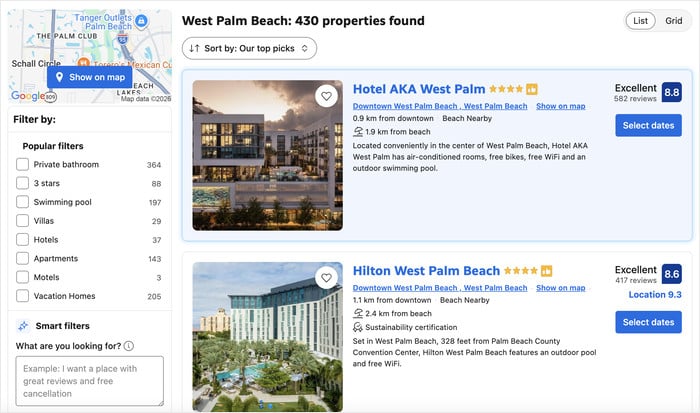
So you start looking. And everything you find seems to point in the same direction: a second widget, from a second company, bolted underneath the first one in a font that doesn’t match your site.
Full disclosure: I work at Smash Balloon. So I’ve had this conversation with a lot of hotel and rental owners.
What they want from Booking.com is specific. It’s not just another star rating to stack next to the ones they already have.
It’s the 0–10 score with its word attached, like “Wonderful,” “Great,” or “Very Good.” It’s the review title the guest wrote. And it’s the pros and cons list, where a guest says the beds were amazing and the parking was tight.
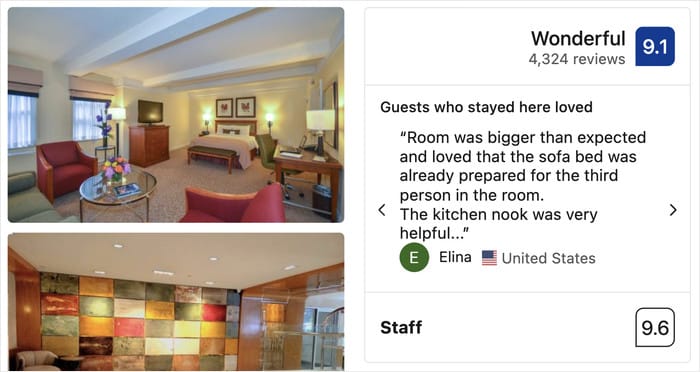
That detail matters to someone deciding whether to book with you. Research says that 81% of travelers always read reviews before booking a hotel. And 70.9% say online reputation influences which accommodation they choose.
So the reviews are doing the selling. You just need them on the page, in one place, looking like they belong there.
Here’s the answer: you don’t need a second widget. You need one feed that holds Booking.com alongside the reviews you already show, and the rest of this post walks through exactly how to set that up.
The Two Ways to Display Booking.com Reviews
Both methods put a Booking.com reviews widget on your page. The only difference is whether it runs on another company’s servers or on your own site.
| Hosted widget | Self-hosted widget (Reviews Feed Pro) | |
|---|---|---|
| Where the reviews render from | A script hosted on the provider’s servers, so your social proof depends on their uptime | Your own site, with reviews cached locally |
| Separate account needed? | Yes, a new account outside WordPress | No. It lives in your WordPress dashboard |
| Can other platforms join the same feed? | Usually no, or limited | Yes. Booking joins Google, Tripadvisor, Yelp, and more in one widget |
| Styling | Styled by the provider’s templates | Inherits your theme’s fonts, colors and layout |
The hosted route is a real option, and it’s fast. You sign up, copy a snippet, paste it into your page, and reviews appear.
But you’re renting the most persuasive part of your booking page. Every update means going back to another dashboard, and the styling never quite matches the rest of your site.
The self-hosted widget skips all of that. Your reviews get cached on your own site, so the page keeps showing them even when the source platform has a bad day.
That’s the method I’d pick, and it’s the one this tutorial follows.
What Booking.com’s Guest Reviews Actually Look Like (And Why Format Matters)
Booking.com doesn’t rate you out of five stars. It gives you a 0–10 score with a word attached, like “Wonderful” or “Very Good.”
That matters more than it sounds. A careless widget takes an 8.8 and rescales it into “4.4 stars,” then drops the label word entirely.
It usually throws away two other things too: the title the guest wrote, and the pros and cons block. That block is often the most convincing thing in the whole review.
Here are the four Booking-specific pieces worth keeping:
- The 0–10 score, shown as the number guests recognize
- The label word attached to it, like “Great”
- The review title the guest wrote themselves
- The pros and cons they typed out separately
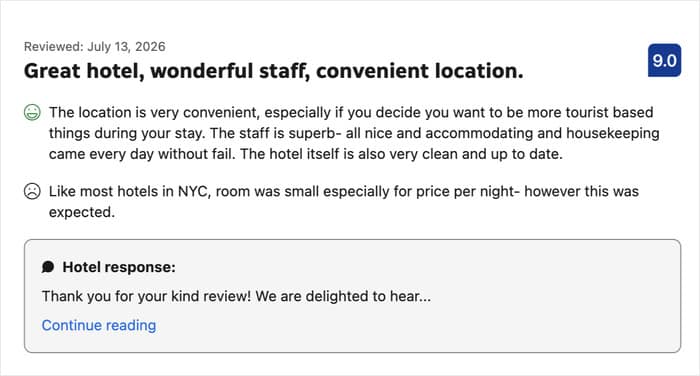
So keep this in mind as you pick a method. The one you choose decides whether guests see your real score or a watered-down version of it.
Reviews Feed Pro: What Handles the Booking.com Widget
So what actually pulls your Booking.com reviews into WordPress?
Reviews Feed Pro. It’s a plugin from Smash Balloon that connects to your review platforms and displays them on your site as a widget you control.
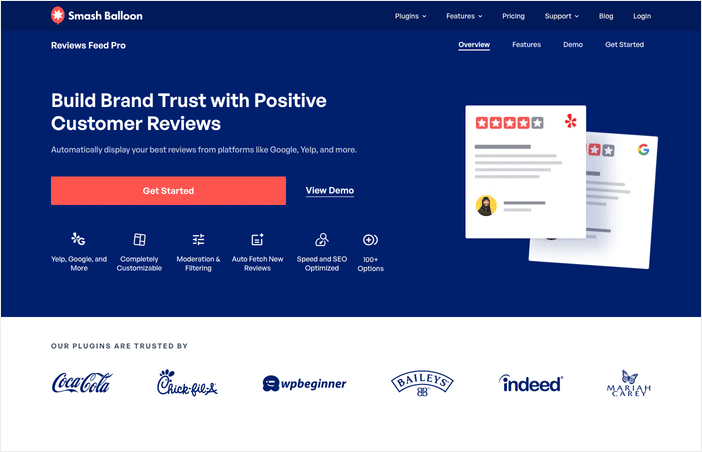
Smash Balloon plugins are used by over 1.75 million people, with more than 6,000 five-star reviews and a 4.9 out of 5 rating. That’s the reason I’d point a property owner here before a hosted widget company they’ve never heard of.
Setup needs no coding, so you can display your widget in under 5 minutes, and it works with your existing theme.
Here’s what it does, mapped to the worries from earlier in this post:
- Booking.com Reviews as a supported source, so your guest reviews come in directly instead of being copied by hand
- Booking.com joins your other platforms, like Yelp, Tripadvisor, Google, and more, and you can combine those reviews into one widget if you like
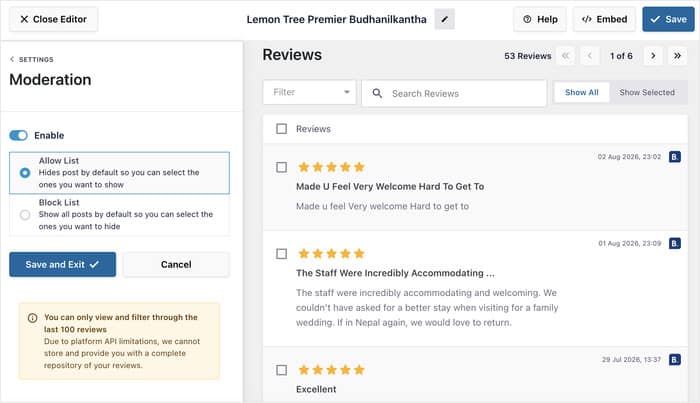
- Visual moderation to pick exactly which reviews appear, so a single grumpy guest doesn’t sit at the top of your booking page
- Manual review upload for platforms that aren’t supported, so you’re not stuck if you collect reviews somewhere else too
- Automatic updates, so your review counts and star ratings stay current without you touching the page
- Backup caching system that keeps reviews on the page during review-platform downtime, so your social proof doesn’t go blank on a bad day
Your Booking.com score also stays a Booking.com score. The plugin keeps the 10-point score with its label, like “8.8 Excellent,” instead of converting it into stars. Review titles and guest pros and cons come through too.
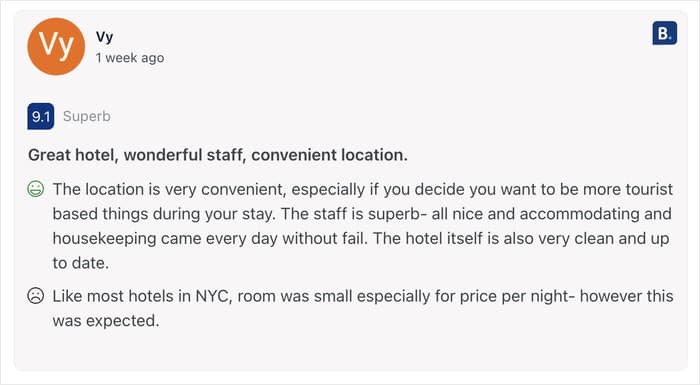
The rest carries over as well: sorting, rating filters, keyword filters, moderation, themes, and layouts all work on Booking reviews.
Want to try out the plugin and embed review widgets with ease? Get Smash Balloon Reviews Feed Pro here!
How to Add a Booking.com Reviews Widget in WordPress (Step by Step)
Ready to put your guest reviews on your booking page? Here’s the whole process, start to finish.
Four steps. Install the plugin, connect your property, pick how it looks, and drop it on the page.
You won’t touch a line of code, and you won’t need anything from your Booking.com Extranet.
Step 1: Install and Activate Reviews Feed Pro
First, grab the plugin from your Smash Balloon account area.
Once you do that, download the plugin file and save the zip to your computer.
Then head to Plugins » Add New Plugin in your WordPress dashboard.
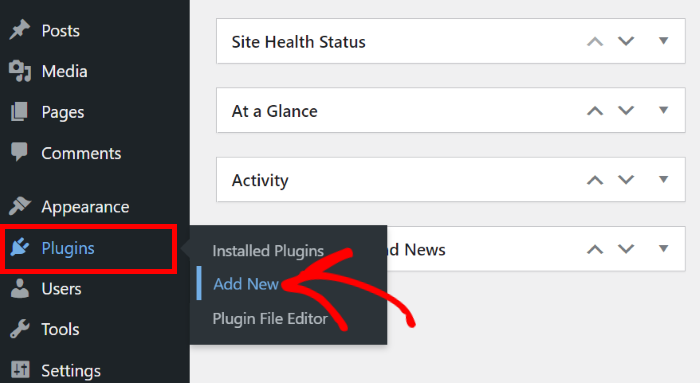
You can then simply upload the zip file from earlier and install Reviews Feed Pro. It’s the same as any other plugin.
Once you install and activate it, head over to Reviews Feed » Settings and paste your license key into the field, then click “Activate”.
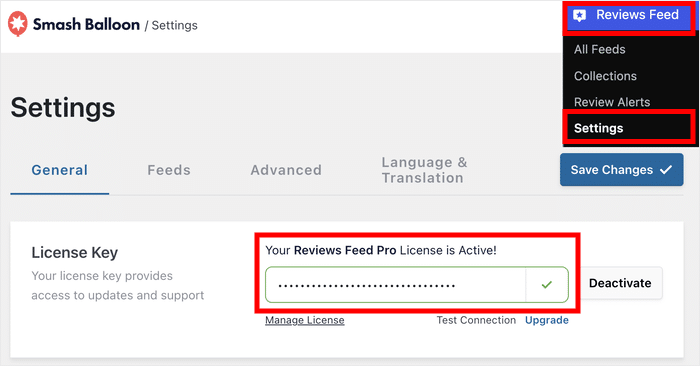
This unlocks automatic updates and turns on the review sources included with your plan.
Step 2: Connect Your Booking.com Property
Head to Reviews Feed » All Feeds and click “Add New”.
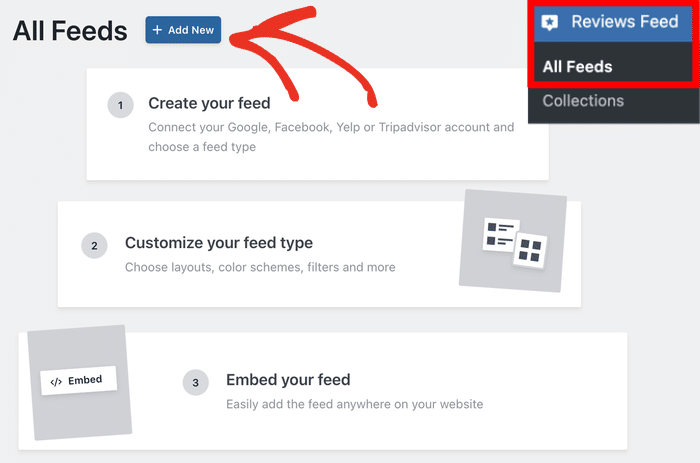
This opens the source picker, where you choose which platform the reviews come from.
Since you’re adding the source for the first time, click on Add Source.
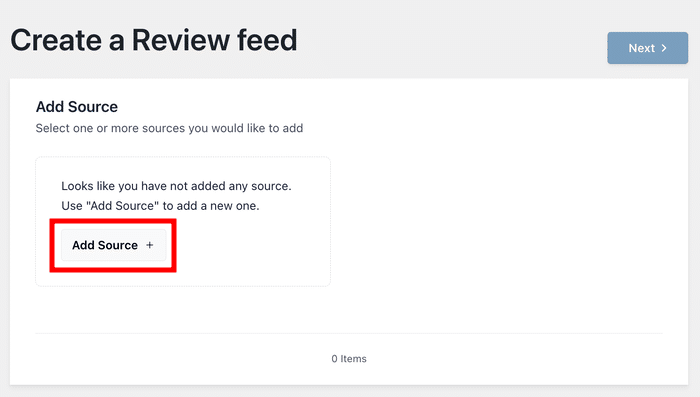
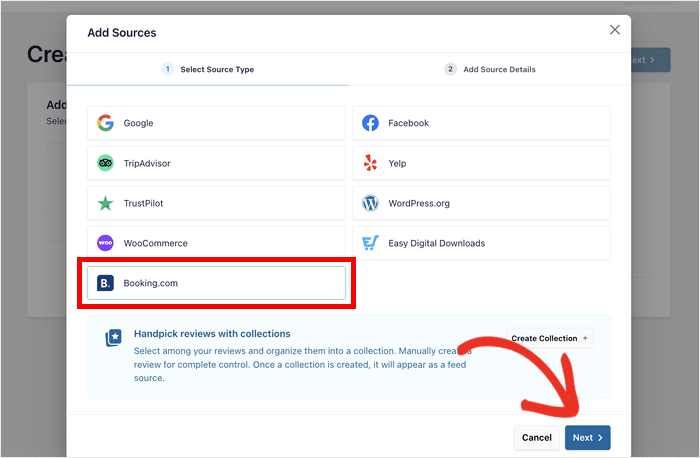
Pick “Booking.com” from the list of sources, then click “Next”.
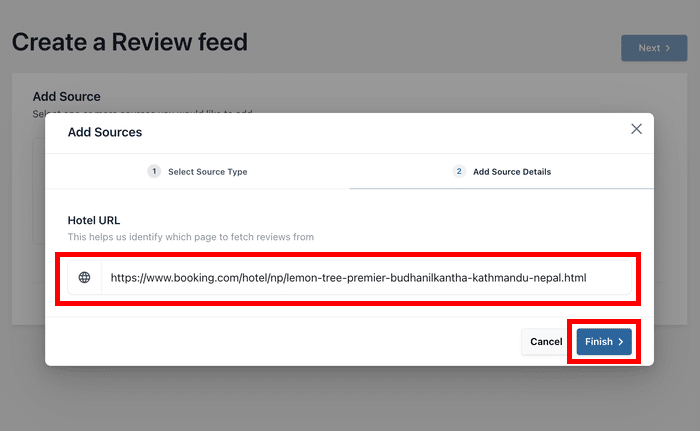
Now paste in your property’s public Booking.com page URL.
That’s the same page a guest sees when they look you up, so you can copy it straight from your browser bar.
Here’s the part people ask about most, so let’s be blunt about it:
You don’t need a Booking.com API key. You don’t need a Booking.com partner account. You don’t need a developer login. The public URL of your property page is the only thing you need.
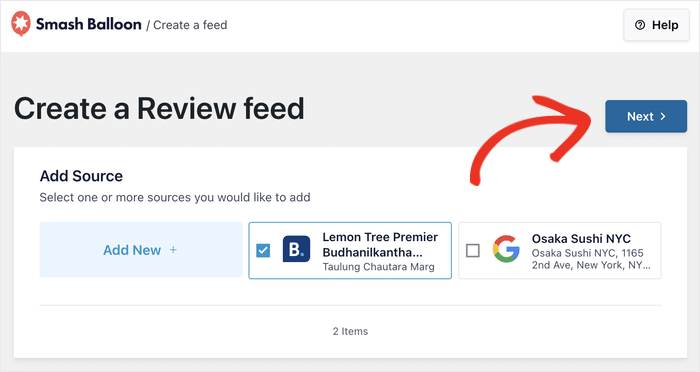
Select the source, click on “Next” and the plugin pulls in your guest reviews.
Step 3: Pick a Template and Layout
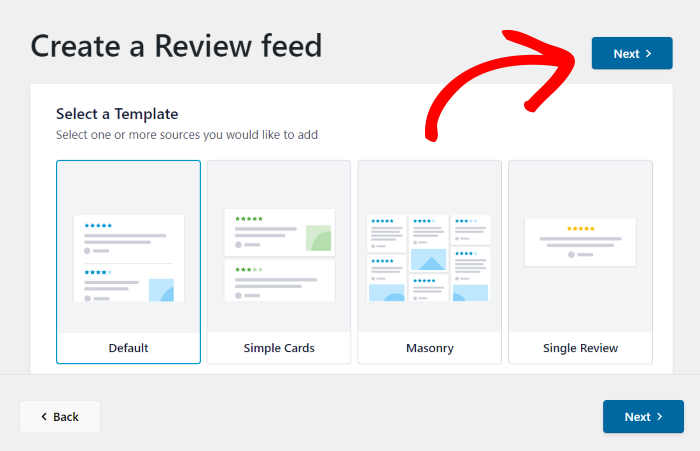
With your reviews connected, you’ll see the template chooser. Each template is a starting point, and you can change the layout later.
Pick the one closest to what you want on your booking page, then click “Next”.
The widget editor opens with a live preview on the right. This is where you can see your Booking.com data land exactly as Booking wrote it.
Your 0–10 score stays a 0–10 score, with its label word sitting right next to it. Review titles come through, and so do the pros and cons your guests typed out.
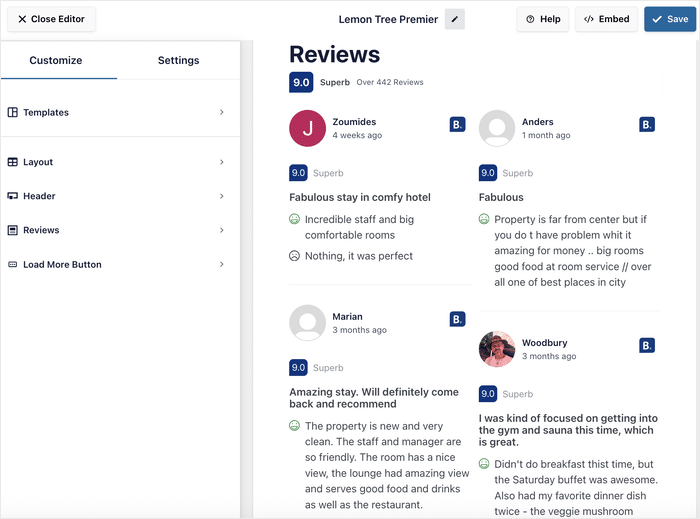
Nothing gets rescaled into stars here. The format your guests wrote in is the format that lands on your page.
Step 4: Embed the Widget on Your Booking Page
There are two ways to do this, and both take about a minute.
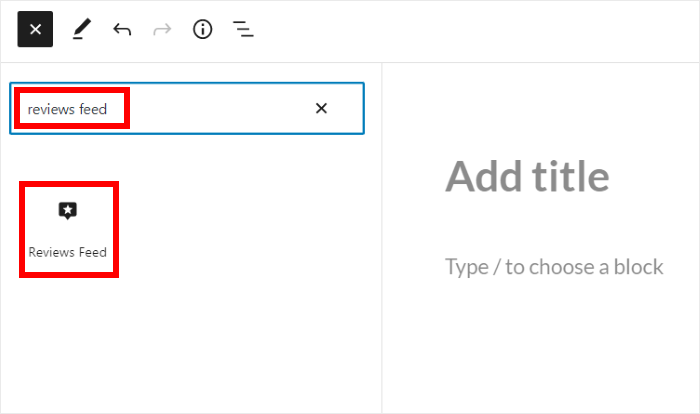
- Using the block editor. Open your booking page, click the “+” button, and search for “Reviews Feed”. Add the block, then pick your widget from the dropdown.
- Using the shortcode. If you build pages with Elementor, Divi, or another page builder, copy the shortcode from your widget’s settings and paste it into a shortcode widget.
Update or publish the page, then view it on the front end. Your Booking.com guest reviews are now live on your direct-booking page, scores, titles, pros, and cons included.
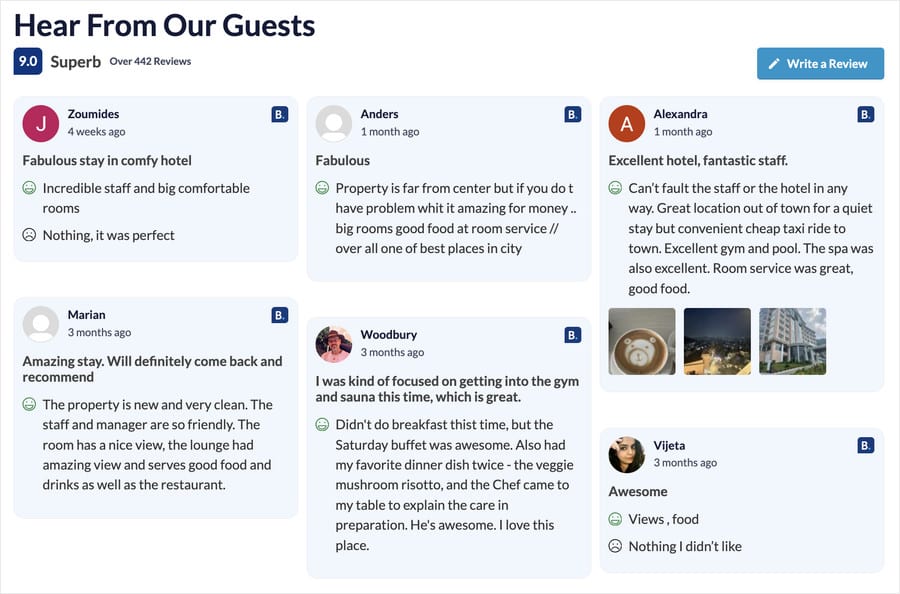
That’s it. No code, no second account, no waiting on someone else’s script to load.
Put your Booking.com guest reviews on your own booking page
Paste your property’s public URL and your reviews appear with the 0 to 10 score, titles, and pros and cons intact. Every plan comes with a 14-day money-back guarantee.
Start Showing My ReviewsHow to Show Only Your Best Guest Reviews
Can you hide the mediocre reviews and show only the strong ones?
Yes. Head to your widget’s settings, and you can control exactly which guest reviews make it onto the page.
You have four ways to narrow things down:
- Filter by rating, so only reviews above a score you pick get displayed
- Filter by keyword, so reviews mentioning “breakfast” or “location” show up and others don’t
- Change the sort order, so your strongest or newest reviews sit at the top
- Use visual moderation, so you can hand-pick individual reviews from a grid of everything you’ve pulled in
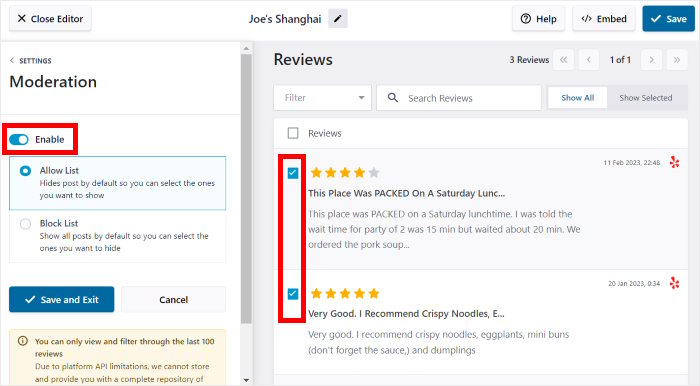
Here’s the part worth saying plainly. Every one of these tools works on Booking.com reviews exactly like it works on Google or Yelp reviews.
Same sorting. Same rating filters. Same keyword filters. Same moderation, themes, and layouts.
Booking.com isn’t a second-class source that gets half the settings. It sits alongside your other platforms with the full set.
One piece of advice on how far to take this. A wall of nothing but perfect 10s reads as edited, and guests notice.
Pro Tip: For more information on filtering and moderating reviews, check out our guide on how to filter reviews on your WordPress website.
What Shows on Your Page If Booking.com Goes Down
It’s Friday night. Someone is on your booking page, deciding between you and the place down the road. They scroll to your guest reviews, and the section is blank.
That’s not a made-up worry. It’s what a hosted widget does when the company behind it has a bad day.
Here’s the mechanism, in plain terms. A hosted widget loads a script from the provider’s servers every time your page loads. If the provider is down, your widget is down too.
Reviews Feed Pro works the other way around. Your reviews get stored in your own site’s database, and the plugin serves them from there.
So when a review platform has an outage, the backup caching system keeps your guest reviews on the page. Nobody visiting your site sees a gap where your social proof should be.
Then automatic updates handle the catch-up. Once the platform is reachable again, your review counts and ratings refresh on their own.
This is the part I’d care about most if I ran a property. Outages are rare, but they never happen at a convenient time, and a blank reviews section on a Friday night costs you the exact booking you were trying to win.
Frequently Asked Questions
Do I need a Booking.com API key or partner account?
No, you don’t need a Booking.com API key, partner account, or developer login. Reviews Feed Pro connects using your property’s public Booking.com page URL, the same page a guest sees when they look you up. Copy it from your browser bar and paste it in.
Can Booking.com reviews share one widget with my Google and Tripadvisor reviews?
Yes, Booking.com reviews can sit in the same widget as your Google, Tripadvisor, Yelp, and Facebook reviews. You don’t need a second reviews section on the page. Turn on the platform filter if you want visitors to click between sources, or leave it off so all the reviews flow together.
Will the 0–10 score stay as-is, or convert to stars?
Your 0–10 score stays a 0–10 score. Reviews Feed Pro keeps the number with its label word next to it, like “8.8 Excellent,” instead of rescaling it into a 5-star rating. That’s the format Booking.com guests wrote, so that’s what shows on your page.
Do review titles and pros/cons come through?
Yes, review titles and the pros and cons your guests typed out both come through. Booking.com reviews carry more detail than a star rating does, and that detail is the part travelers actually read. It lands on your page the way Booking.com published it.
Can I hide reviews below a certain score?
Yes, you can filter by rating so only reviews above a score you pick get displayed. You can also filter by keyword, change the sort order, or use visual moderation to hand-pick individual reviews from a grid. One tip from me: a wall of nothing but perfect 10s reads as edited, so leave a little range in there.
Start Showing Your Booking.com Reviews Now
You already earned those guest reviews. The scores, the titles, the pros and cons your guests sat down and typed out after their stay.
A hosted widget rents that social proof back to you. It lives on someone else’s server, in someone else’s font, behind someone else’s account. And it goes blank the day that server has a bad night.
Reviews Feed Pro keeps it on your own site. Your theme, your booking page, and a single plugin that can pull reviews from Google, Yelp, Tripadvisor, and all the other trusted platforms.
Here’s what you get on your direct-booking page:
- No API key or partner account, just your property’s public Booking.com URL
- The 0–10 score kept as-is, with the label word next to it
- Titles, pros, and cons included, the parts travelers actually read
- One widget for every platform, with a filter if you want one
- Reviews stored in your own database, so an outage doesn’t empty your page
Setup takes a few minutes. Connect your property, pick a template, paste the shortcode, publish.
Get Reviews Feed Pro and put your Booking.com guest reviews on your direct-booking page today.