
If you’re running events on Facebook, there’s a good chance your website visitors are completely missing them.
Most people aren’t going to track down your Facebook page. They’re already on your site, and if your events aren’t there too, you’re leaving attendance on the table.
The good news: you can embed a live Facebook events feed directly on any WordPress page, and it takes about 5 minutes to set up.
I’ve tried both the manual method and the plugin approach. Below, I’ll walk you through each one so you can pick what works for your site.
Quick Answer: The fastest, most reliable way to display Facebook events on your website is with the Smash Balloon Facebook Feed Pro plugin. Install it on WordPress, create an Events feed, connect your Facebook page, choose a layout, and embed it wherever you want. Events update automatically whenever you post or update them on Facebook. No coding required.
Keep reading for step-by-step instructions for both methods.
- 2 Ways to Display Facebook Events on Your Website
- Why Embed Facebook Events on Your Website?
- Method 1: Display Events With the Facebook Page Plugin Widget
- Method 2: Display Facebook Events with a WordPress Plugin [Best Way]
- Frequently Asked Questions
- Start Displaying Your Facebook Events Today
2 Ways to Display Facebook Events on Your Website
Here’s a quick look at your two options before we get into the steps:
| Facebook Page Plugin (Manual) | Smash Balloon Facebook Feed Pro ⭐ Recommended | |
|---|---|---|
| Does it work reliably in 2026? | ⚠️ Works, but only if you’re an admin of the Facebook page. No design control. | ✅ Yes. Fully supported and actively maintained |
| Do you need to write code? | ❌ Yes. You copy/paste iFrame code that can break with Facebook API changes | ✅ No. Visual setup from your WordPress dashboard |
| Can you customize the design? | ❌ No. Locked to Facebook’s default look | ✅ Yes. 5 themes, 7 layouts, custom colors and fonts |
| Do events update on their own? | ❌ No. Static embed that goes stale | ✅ Yes. New events pull in automatically |
| Can you filter which events appear? | ❌ No. All events show, no control | ✅ Yes. Filter, sort, and set a display limit |
| Best for | Sites that want a quick test with no design expectations | WordPress sites that want a polished, self-updating event display without touching code |
Which should you use? If you just want to poke around and see whether event embedding works for your setup before committing to anything, the manual method gives you a way to test.
But if you want something that looks good, stays current on its own, and doesn’t break every time Facebook changes something, go with the Facebook Feed Pro plugin. That’s what I use.
Why Embed Facebook Events on Your Website?
The biggest reason to embed Facebook events on your website is to tell site visitors about upcoming events so they can join.
In fact, here are some other great reasons to embed Facebook events on your website.
- You can get your website visitors to follow your Facebook page by showing them interesting events.
- Adding relevant Facebook content on your site shows visitors that you’re actively engaging with your community.
- Displaying Facebook events on WordPress keeps people on your site for longer, which is better for your site’s SEO.
- You can boost Facebook page engagement and help your content appear higher up in the news feed, raising awareness and increasing traffic to your page.
Method 1: Display Events With the Facebook Page Plugin Widget
Facebook Page Plugin (Manual iFrame Method)
One thing to know before you start: This method only works if you’re an admin of the Facebook page whose events you want to display.
Due to Facebook API restrictions, non-admins can’t pull event data through the page plugin. If it’s your own business page, you’re fine.
Step 1: Go to Facebook’s page plugin code generator, enter your Facebook Page URL, and type “events” in the Tabs field. Click Get Code.

Step 2: Copy the iFrame code from the generated snippet.

Step 3: To start, head to the Appearance » Widgets menu from your WordPress admin area.

Next, you can choose between the Sidebar or Footer for your new WordPress events calendar. We’ll go with the sidebar for this tutorial.

After that, click on the plus (+) icon to add a new widget to your website. Then, select the Custom HTML widget from the options.

Finally, paste your iFrame code snippet from earlier into the new widget.

You’ll see your Facebook events displayed in your sidebar when you navigate to your main website.

The limitation: You get no design control, no filtering, and no automatic updates if Facebook changes anything. It works, but it shows Facebook’s look and feel, not yours.
As you can see, it can be a bit annoying to deal with all the embed codes. Plus, there are some other downsides as well:
- You can’t really customize your Facebook widget, and it might clash with the design of your website.
- The widget is dependent on Facebook, so it’ll go offline if Facebook is dealing with technical issues.
- Since this events widget has a generic design, you’re missing out on a chance to make your site stand out.
- If you want to show multiple Facebook widgets, you’ll have to keep track of lots of embed codes.
- With this method, you can’t control which posts or events show up on your WordPress website.
Method 2: Display Facebook Events with a WordPress Plugin [Best Way]
For the next method, I’ll use a Facebook feed plugin to display Facebook events on a website.
That way, you can let the Facebook plugin automatically fetch the events and add them to your website in a beautiful feed — no need to hire a Facebook developer or deal with coding!
And the best option that you can use to showcase engaging Facebook events feeds on your site is the Smash Balloon Facebook Feed Pro plugin.
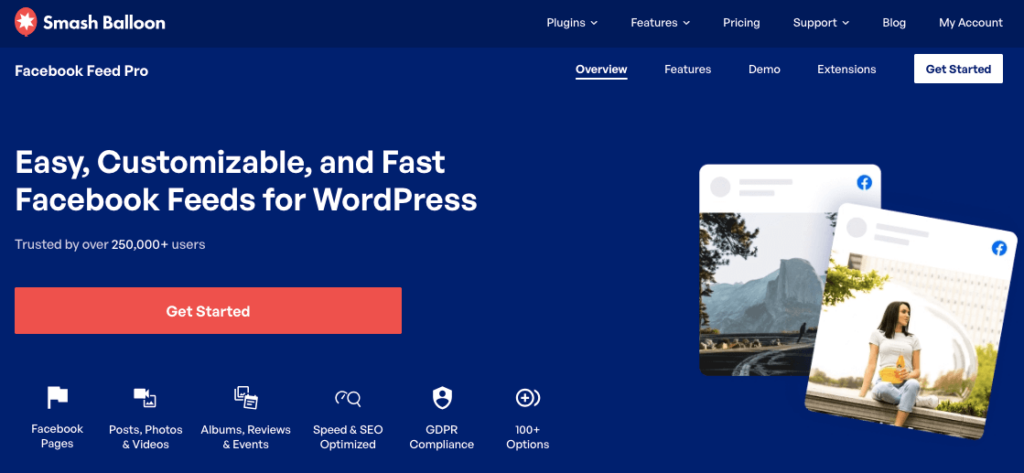
As the best Facebook feed plugin for WordPress, it can help you seamlessly integrate your Facebook content like events feeds with WordPress in just minutes.
Besides displaying Facebook events on your site, this Facebook feed WordPress plugin has the following features:
- Display multiple Facebook feed types on your site, including Facebook posts, photos, video feeds, Facebook live streams and more
- Control the information displayed in your feeds, such as headers, dates, descriptions, and more
- Easily manage and display multiple Facebook account feeds on a single website
- Completely customize your feed’s look and feel with Facebook feed templates like slider and styling options to match your website branding
- Supports lots of feed types, so you can create a Facebook album feed, video feed, and much more.
- Display your feeds beautifully on mobile devices with the mobile-friendly design
- Show Facebook reviews on your website to establish social proof and increase sales for your business.
Even better, you can do all that without having to write a single line of code, making it super-easy for beginners to get started with.
Here’s our video tutorial that’ll show you the simplest way you can embed your Facebook events in WordPress.
Here’s the short version of what you’ll do: install the plugin, create a new Events feed, connect your Facebook page, pick a layout from the visual editor, and embed it on any page or widget area.
Start to finish, it takes about 5 minutes.
Step 1: Install and activate Smash Balloon Custom Facebook Feed Pro on your WordPress site.
Go to Plugins > Add New, upload the plugin file, and activate it. Once activated, you’ll see a new Facebook Feed menu in your WordPress admin.
Step 2: Go to Facebook Feed > All Feeds and click Add New. Select “Events” as your feed type.
This is where you tell the plugin what kind of content to pull. Selecting Events means the feed will show your upcoming and past Facebook events specifically, not your general page posts.
Step 3: Click Add New to set your feed source. You’ll need three things:
- Your Facebook Page ID
- An Event Access Token
- Your Events iCal URL
I know that list looks a little technical, but the plugin walks you through exactly where to find each one. It’s a few copy/paste steps from your Facebook page settings.
Step 4: Choose your layout and design.
This is the part I personally enjoy most. You get 5 themes (Default, Modern, Social Wall, Outline, Overlap) and 7 layout templates to choose from. Use the visual editor to adjust colors, fonts, header style, and number of events to display. You can match it to your site without touching a line of CSS.
Step 5: Click Embed to publish your events feed.
Choose the page or widget area where you want the feed to appear. The plugin generates a shortcode you can drop into any page builder or classic editor block.
Once it’s live, your events will update automatically whenever you add or change something on Facebook. No going back into WordPress to refresh anything.
Now that you know the outline of what you’ll be doing, let’s talk about the detailed steps below:
Step 1: Install Smash Balloon Facebook Feed Pro
Get your copy of Facebook Feed Pro and then install and activate the plugin to get started.
If you need help with that, take a look at our step-by-step guide on how to install a WordPress plugin.
Step 2: Create Your Facebook Events Calendar Feed
Once you’ve installed and activated the plugin on your site, go to the Facebook Feed » All Feeds menu from your dashboard.
To start creating your Facebook events calendar, click on Add New.

After that, you can see that 9 different types of feeds are available here, including a timeline feed, photos feed, videos feed, events feed, reviews feed, and much more.
Next, you can select Events from a list of options and then click the Next button to proceed.

Step 3: Connect to Your Facebook Page
Once you’ve created your feed, you can choose the source for your events. This will be the Facebook page where you’ve planned your events.
To do that, click on the Add New button.

You can now see a new pop-up where you’ll have to add 3 things:
- Facebook Page ID
- Event Access Token
- Events iCal URL
We’ll show you how to get all 3 of these below:

Get Your Facebook Page ID
To get your page, open your Facebook page and then click on the About tab at the top.
After that, click on the Page Transparency option, and you can find the Page ID on the right.

Now that you have your Page ID, remember to save it somewhere safe before you continue.
Get Your Event Access Token
The next step is to get your Event Access Token.
In case you don’t have one yet, check out our step-by-step guide on how to create a Facebook Events Access Token.
You can also follow this video guide:
Get Your Events iCal URL
To get the iCal URL, open your Facebook homepage and make sure you’ve logged in as your Facebook page.
Then, click on the Events option on the left to continue.

Now, click the Your Events option on the left to bring up the active events you’ve planned.
All you have to do now is copy the URL of the Add to calendar button on the top right.

Once you’ve done that, return to your website and enter your Page ID, Event Access Token, and iCal URL.
Finally, click on the Add Source button below.

Now that you’ve connected this source, you can freely reuse it for any of your future Facebook feeds if you like.
To proceed, you can select the newly added source and click on Next.

Step 4: Customize Your Facebook Events Calendar Feed
With that, you can move on and customize your events calendar. First, you can select a theme for your new Facebook feed.
You have 5 different Facebook themes to choose from:
- Default
- Modern
- Social Wall
- Outline
- Overlap
Feel free to select the theme and click on Next to continue.

Next, the plugin will let you choose between 7 different feed templates. Each of these templates has a unique layout that you can import:
- Default
- Single Masonry
- Widget
- Large Grid
- Latest Album
- Showcase Carousel
- Simple Carousel
Now, you can select your template and then click on the Next button.

You can now see a live preview of your feed on the right, and the customization options are on the left.

With these options, you can customize the feed type, layout, color, header design, post design, and a lot more.
First, select the Feed Layout option on the left.

For your events calendar, you have 3 different layouts: List, Masonry, and Carousel.

If you want your events to be listed one after another, you can go for the list layout.

To show your Facebook events in columns instead, you can try the masonry layout instead.

And there’s also a carousel layout where you can show events in a beautiful carousel slider.

After you’ve picked the feed layout, click on the Customize option at the top to go back to the previous customization options.

You can then pick the color scheme for your Facebook feed. To do that, select the Color Scheme option on the left.

Now, you can pick between 4 different options for your feed color.

- Inherit from Theme: Copy the color scheme of your website
- Light: Have a light background with dark-colored text
- Dark: Turn the background dark with light-colored text
- Custom: Enter all the colors yourself

Then you can customize other parts of your events calendar, like the header design, feed size, margins, and a lot more.
Once you’re happy with the design of your Facebook events calendar, click on the Save button.
You can then go to the final step where we show you how to embed Facebook events in a website’s page, sidebar, or footer.
Step 5: Display Your Facebook Events Calendar
After you’re done customizing, you can now display your Facebook events calendar on your website. You have 2 options to display your Facebook page events on your WordPress.
Embed Facebook Events Calendar on Your Pages
How can you embed Facebook events in WordPress? To post your Facebook events calendar on your WordPress page, first, click on the Embed button in the top right corner of your live editor.

You can see a new popup to let you choose where to post your Facebook events calendar. There, you can click on the Add to a Page button to proceed.

After you do that, you can now pick from your list of web pages. Make sure to select the one where you want to post your Facebook events calendar and click on Add.

Now, the plugin will send you to the page you’ve just chosen.
On this page, click on the small plus icon (+) and select the Facebook Feed widget in the dropdown menu to add your Facebook events calendar.

And you’ve now added your Facebook events calendar to your website! You can go ahead and visit your website to see how your Facebook page events calendar feed looks.

Next, we’ll show you how to embed Facebook event feeds on your website’s sidebar or footer using this plugin.
Now let’s take a look at how you can dispay facebook events widget on your website.
Display Facebook Events Calendar on Your Sidebar or Footer
The second way is to embed Facebook events in your website’s widget-ready areas like the sidebar or footer
To get started, you’ll first have to open your feed in the live editor.
Go to the Facebook Feed menu from your WordPress dashboard, and you can see all of your Facebook feeds listed.
From that list, click on your Facebook events feed.

Now, you’ll be back in the Facebook feed plugin’s visual customizer. Here, go and click on the Embed button at the top.
Now, the plugin will show you a popup where you can choose the location of your Facebook events widget. You can simply click on the Add to a Widget button to continue.

After you do that, the plugin will automatically send you to the widgets page. Here, you can add the Facebook calendar widget to your sidebar or footer. From the list of all the widget options, click on Sidebar.

To show your Facebook events calendar widget on your footer, you can click on the Footer option instead.

For now, we’ll post the Facebook events widget on the sidebar.
Once you click either the sidebar or the footer, you can see all the active widgets in a drop-down menu.
There, you can click on the plus icon (+) to add a new widget.
You can pick the Facebook Feed widget from the options to display your Facebook calendar widget on your website sidebar.

And you’re done! Feel free to check out your website’s front-end and see how your Facebook events calendar widget looks.

And that’s it!
We hope this article helped you learn how to display a Facebook events calendar on your website. Using Facebook Feed Pro, you can have an events calendar for your site in a few clicks.
In just minutes, you can boost your Facebook events, get more followers, engage your website visitors, and a whole lot more.
Ready to embed your events calendar? Get started with Facebook Feed Pro now!
Want to grow your followers and get more people joining your events? Check out this guide on how to get more Facebook followers.
Frequently Asked Questions
Do I need to be an admin of the Facebook page to display events on my website?
Yes, if you’re using the manual iFrame method. Due to Facebook API restrictions, the page plugin can only pull event data from pages you have admin access to. If it’s your own business or organization’s page, you’re fine. If you’re trying to display events from a page you don’t manage, the iFrame method won’t work for you.
Can I display Facebook events on my website for free?
Yes. The manual iFrame method using Facebook’s page plugin is free and still works in 2026, as long as you’re an admin of the page. The trade-off is no design control, no filtering, and no automatic updates. Smash Balloon Custom Facebook Feed Pro is the paid option, and it’s worth it if you want the feed to match your site’s look, update on its own, and show only the events you want.
Do my Facebook events update automatically on my site?
Yes, with Smash Balloon Custom Facebook Feed Pro they do. When you add a new event on Facebook or update an existing one, the feed on your website reflects that change automatically. You don’t need to log back into WordPress or do anything manually.
Can I show only upcoming events and hide past ones?
Yes. The plugin lets you filter and sort your events feed, so you can display only upcoming events, limit how many show at once, and control the order. It’s one of the most useful settings in the plugin, especially for organizations that run a lot of recurring events and don’t want a long backlog showing up.
Can I use this with a Facebook Group instead of a Facebook Page?
The Events feed type in Smash Balloon Custom Facebook Feed Pro connects to a Facebook Page, not a Group. Facebook’s API restrictions mean that group event data isn’t accessible in the same way. If your events live on a Page, you’re all set. If they’re only on a Group, you’d need to cross-post them to a Page as well.
More Facebook Marketing Tips and Guides
- Facebook Feed on Your Website: Best Examples You Can Steal
- How to Embed Facebook Reviews on Website (Beginner’s Guide)
- How to Add Instagram Chat to Your Website (Step-by-Step Guide)
- Best Facebook Plugins to Grow Your Business This Year
- Types of Facebook Posts Proven to Easily Boost Engagement
Start Displaying Your Facebook Events Today
The manual iFrame method works, but it shows Facebook’s default look on your site, doesn’t update on its own, and only functions if you’re an admin of the page.
For a lot of sites, that’s enough to rule it out.
Smash Balloon Facebook Feed Pro gives you a feed that matches your site’s design, updates automatically, and lets you control exactly which events show up.
It’s the version I’d use for any site where the events feed actually matters.
Get Started With Smash Balloon Facebook Feed Pro →




Hello I have a problem that came up.. since a short time.. I updated and the coming events came back .. but the past events doesnt show?? is it the short code that I should change or what?? please help, we need it.
THANKS Minna Wallin
https://reimersholmehotel.se/evenemang/
shortcode for past events I use this..
[custom-facebook-feed type=events pastevents=true]
Hi Minna,
I see that you’ve already reached out and gotten support via our team. 🙂
If you have any other concerns you’d like to be addressed, please feel free to contact our support team.
If you have a Smash Balloon license, you have access to our priority email support, so please submit a support ticket here: https://smashballoon.com/custom-facebook-feed/support/
Otherwise, we provide complimentary support in the Smash Balloon Social Post Feed forum: https://wordpress.org/support/plugin/custom-facebook-feed/
Hope this helps!
Your code generators are not displaying my events… What do I need to do? I have tried iframe as well as the javascript method.. I use godaddy. Seems that iframe is the better choice, but the events will not display! The timeline will display. Please help. Reply here so as to help others too please.
Hi Billy,
Thank you for contacting us! I’m sorry for the long delay in our response; your comment went out of our radar. This could happen if your events Access Token is not configured correctly, for that, you’ll need to follow this guide. If you have any other questions, feel free to contact us using the support form here https://smashballoon.com/support/
Thanks! 🙂