Social Wall
  Feed Analytics


Do you want to show your recent tweets on your WordPress site without constantly copy-pasting code? Keeping your website fresh with social proof shouldn’t require manual updates every time you tweet.
Quick Answer: The easiest way to integrate a Twitter feed is using the Smash Balloon Twitter Feed Pro plugin.
- Install and activate the plugin on your site.
- Connect your Twitter (X) account in the settings.
- Embed the feed on any page using the automatic shortcode.
As an expert social media marketer, I’ve observed that showing your social feeds onto your business website can be a very effective strategy.
Integrating your Twitter feed with your official website can keep your content fresh, show visitors what you’re currently sharing on social media, and encourage them to follow you on X.
In this article, I’ll walk you through easy ways to add your Twitter feed to your site.
I’ll share the simple ways I’ve used to integrate Twitter feeds, so you can easily enhance your website with dynamic social content and boost user engagement.
And the best part?
Every X (Twitter) integration has links to step-by-step tutorials so you can easily embed them on your WordPress with just a few clicks.
In This Article
- Why You Need to Embed X (Twitter) Feed on Your Website
- Top X (Twitter) Feeds You Can Integrate on Your Website
- Common Questions on Integrating Twitter into WordPress Website
- Bonus Tip: ? Boost Your Retweets to Maximize Engagement
- Start Integrating Your X (Twitter) Feed Now
Why You Need to Embed X (Twitter) Feed on Your Website
There are different benefits when it comes to adding Twitter content on your site. Some of them are:
- Displaying your Twitter feeds on your WordPress lets you easily give regular updates to your website visitors, even if they’re not Twitter users.
- Cross-promoting your tweets to your website is also a great way to boost user engagement so more people can interact with your tweets.
- Showing your social media content from Twitter on your site can transform site visitors into Twitter followers.
Done right, it can even help skyrocket your sales and grow your business with the power of social proof.
Ready to start integrating your Twitter feeds into your site?
Let’s dive in by talking about the different Twitter integration examples below.
Top X (Twitter) Feeds You Can Integrate on Your Website
1. Live X (Twitter) Feed
One of the most popular ways to integrate Twitter is to embed a live X feed into your website.
Usually, embedded Twitter feeds contain tweets from your own user account.
You can display a live Twitter feed to promote your brand’s announcements.
For example, you can use it to tweet about an upcoming sale you’ll have.
Another way you can integrate Twitter feed on your website is by embedding a feed of your tweets to promote a brand new feature that you’ll add to your products.
Also, did you know that you can add a relevant Twitter feed to your website to boost your audience reach as well?
It’s simple.
Instead of showing your tweets to your Twitter followers only, you can also show your tweets to targeted traffic who are already interested in your brand: your website visitors.
Plus, embedded social media feeds can feature a “follow button” to encourage your website visitors to subscribe to your tweets by being your Twitter followers.
To embed a live Twitter feed on your website, the easiest way is to use a trusted WordPress plugin like Smash Balloon Twitter Feed Pro.
Using this newbie-friendly Twitter feed plugin, I embedded and customized WPBeginner’s live Twitter feed on WordPress in under 5 minutes!

Want to try this for your own website? Take a look at these tutorials on embedding live X feeds on your website:
- How to Add a Twitter Feed to WordPress Site Without a Plugin
- How to Embed an X (Twitter) Timeline on Your Site
2. Branded Hashtag Tweets
Another way to integrate Twitter feeds into your website is by adding a branded hashtag feed to your homepage.
It’s an effective way to drive more sales and generate more exposure to your business with the help of user-generated content in social media platforms.
For example, you can create a specific branded hashtag for a new product that you’re launching.
This way, when you actually announce this product, and it’s being unboxed and used by your customers, they can use this branded hashtag when tweeting about it.
Talk about free marketing by your brand ambassadors, right?
With the help of Smash Balloon Twitter Feed Pro, I easily recreated a popular keyboard brand’s hashtag feed like this:
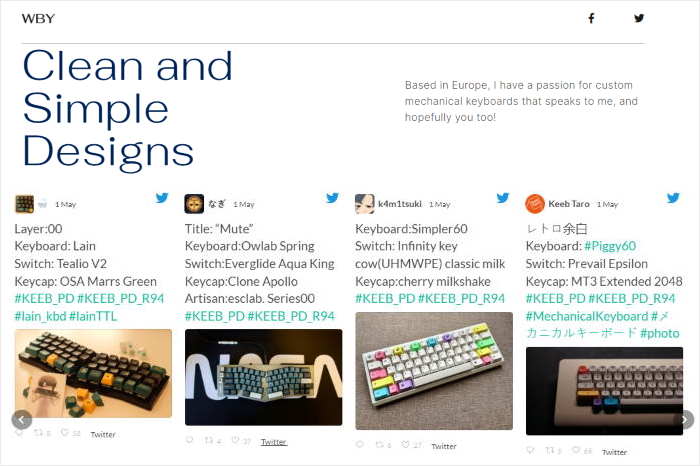
To do this, first you need to come up with a branded hashtag of your own.
Encourage your customers to use this hashtag on their tweets. Then, you just need to curate these tweets before adding them to your site.
Since X doesn’t let you easily embed hashtag feeds on your website, the best tool you can use is Twitter Feed Pro.
This Twitter aggregator has a visual customizer that lets you control how your feeds look — with just a few clicks.
For a step-by-step guide, check out this post on how to embed a Twitter hashtag feed on WordPress.
3. X (Twitter) Testimonials
Did you know that customer testimonials can increase sales by 10%?
If you’re looking into increasing your revenue and making money while getting more Twitter followers, why not embed a Twitter mentions timeline on your website?
By adding a mentions feed, you can easily display positive customer testimonial tweets that mention your Twitter username.
In fact, if you add these Twitter testimonials on your sales page, you can even boost customer conversions by a whopping 34%!
This means more sales simply by showing social media feeds such as X feeds on your WordPress website.
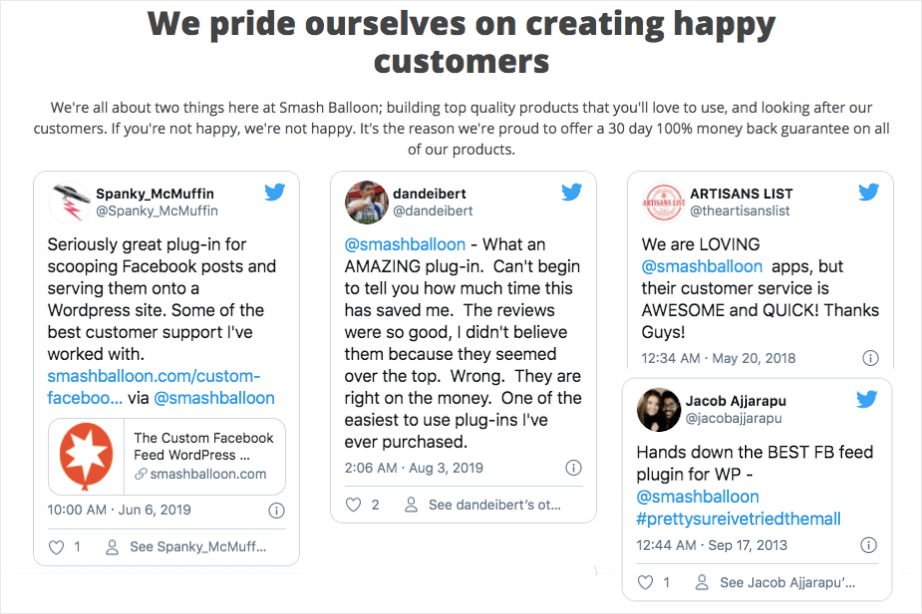
In the example below, SeedProd, the best website builder for WordPress, showed their customer testimonial tweets by embedding a mentions feed on their sales page.

This X integration strengthens brand credibility because it shows potential customers that your business is trusted and happily recommended by your existing users.
And since 83% of people trust reviews over advertising, it’s a simple way to get more sales — with minimal effort on your part.
The not-so-good news? Twitter doesn’t give you an option to add a mentions feed to your website.
The good news? We’ve got you covered.
Simply install Smash Balloon Twitter Feed Pro on your website, connect it to your Twitter account and let it do all the hard work for you.
You just need to check or uncheck customization options and you’re ready to go. I’m not a design expert at all, so I like how easy it is to customize my X feeds to my liking just by pointing and clicking.
Here’s how easy it is to use: even with no technical knowledge or background in design, we created a mentions timeline for Smash Balloon’s Twitter account in just a few minutes:
Want to integrate this type of Twitter feed into your website?
Take a peek at this handy guide on how to embed a mentions timeline to your website so you can try it out for yourself.
Pro-tip: What if you want to display user reviews from popular platforms such as Google, Yelp, Facebook and Tripadvisor?
Here are popular tutorials on embedding reviews feeds on your website:
- How to Allow Website Visitors to Leave Review on Yelp
- Here’s How to Embed Google Reviews in WordPress
- How to Embed Facebook Reviews on Your Website
4. X (Twitter) Sidebar Widget
Another way to integrate your Twitter feeds into your WordPress is by embedding a Twitter sidebar widget.
Personally, I like showing my X (Twitter) feeds on my sidebar widget.
Since it’s added to your sidebar area, your Twitter posts are seen by your visitors — no matter which page they’re on.
You can choose to add a hashtag feed, a mentions feed or a user feed to your sidebar area, depending on what business goal you’d like to achieve:
- Hashtag feed: Increase sales by showing tweets of users who happily use your brand in their daily lives
- Mentions feed: Get more customers by showing tweets of users tagging you and recommending your brand to their friends
- User feed: Boost user engagement by showing tweets from your Twitter profile timeline, directing users to your latest products or newest blog posts

What’s helpful about embedding a Twitter widget on your sidebar is that you save lots of time because your tweets are updated regularly. No need to manually add your tweets one by one.
Plus, if you use Twitter Feed Pro to create and customize your Twitter widgets, your feeds automatically copy your website’s existing theme, so they effortlessly look fantastic right out of the box.
To get started, check out these nifty tutorials:
- How to Add a Twitter Widget in WordPress (With and Without a Plugin)
- How to Embed Responsive Twitter Widgets on Your Website
5. X (Twitter) Carousel
Ever wanted to embed a Twitter feed slideshow on your website?
It’s a useful way to integrate Twitter into your website so you can market your products and advertise your business without overwhelming your website visitors.
Also, since you’re letting your users choose how to consume your tweets, you’re encouraging them to interact with your brand more via replies or retweets.
This helps users stay longer on your site, which is great for improving your SEO and boosting your webpage rankings.
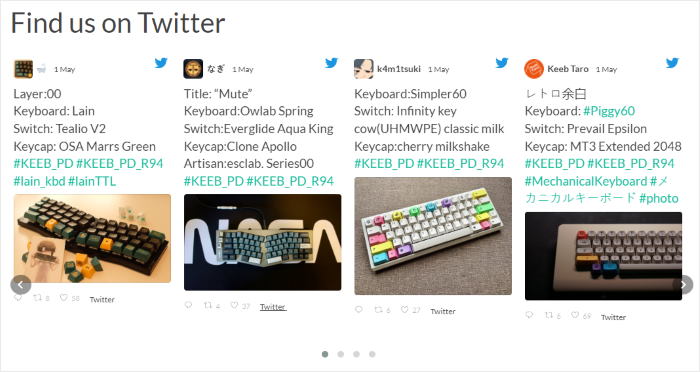
Again, Twitter doesn’t have an easy way for you to customize your feed’s layout.
When you use their platform, you’d need to manually tweak code snippets like HTML or CSS, or hire a developer to display your tweets in a sliding horizontal layout.
We’re here to help you out. By using Smash Balloon Twitter Feed Pro, you can quickly set up and display your Twitter carousel feed on your website in 3 easy steps:
- Install the plugin to your website
- Connect it to your Twitter account
- Choose the carousel layout by checking on it
For more details, see this tutorial on how to display a Twitter feed carousel on WordPress.
6. Live X (Twitter) Broadcasts
Live X (Twitter) broadcasts are one of the best Twitter marketing tools to make your website feel current, interactive, and “in the moment.”
Instead of only showing past tweets or pre-recorded clips, you can automatically display your live video the moment your account goes live on X — and let visitors watch it directly on your site.
Personally, I also like showing live X (Twitter) streams on my official website to save time and effort.
I can just go live on my brand’s Twitter account, and it will also be shown to my site visitors when they visit my account in real-time. Easy-peasy.

Showing X live broadcasts works especially well for things like:
- Product launches or feature announcements
- Live Q&A sessions and AMAs
- Webinars, mini-workshops, and trainings
- Event coverage, keynotes, and behind-the-scenes content
Because the live X (Twitter) video plays directly on your own website, you’re no longer sending hard-earned visitors away to X.
They can stay on your site to watch the live stream, interact, and then naturally move on to your products, blog posts, or product pages to shop from you.
You can easily showcase Twitter livestreams on your site with the help of Smash Balloon Twitter Feed Pro.
For more details, check out this helpful article on how to embed X (Twitter) live broadcasts on your website.
Common Questions on Integrating Twitter into WordPress Website
In this section, we’ll answer some of the most frequently asked questions by Twitter feed beginners.
Can I use Twitter’s publishing widgets to integrate tweets on my site?
Yes, you can use Twitter’s tools to manually embed tweets, a Twitter timeline widget or Twitter buttons on your website. There are downsides to using Twitter’s publishing widgets, like:
- Minimal customization – Your Twitter feeds may not match your site’s theme
- Complicated – You need technical knowledge and coding experience to manually use Twitter’s tools and embed code
- No support available – If you mess your website by tweaking unfamiliar code snippets, you don’t have a dedicated support team to help you.
Can I embed a Twitter feed on my website without a plugin?
Yes, you can embed your Twitter content on your site without a plugin, though we don’t recommend it if you’re a WordPress newbie. Check out this post on how to manually embed Twitter feeds on WordPress.
What are the benefits of using a Twitter feed plugin?
When you use a Twitter feed plugin like Twitter Feed Pro to integrate your tweets on your site, you can:
- Extend the functionality of WordPress, since it’s easy to embed tweets on WordPress, even if you’re a newbie
- Customize your Twitter embeds using the plugin’s visual customizer and built-in templates
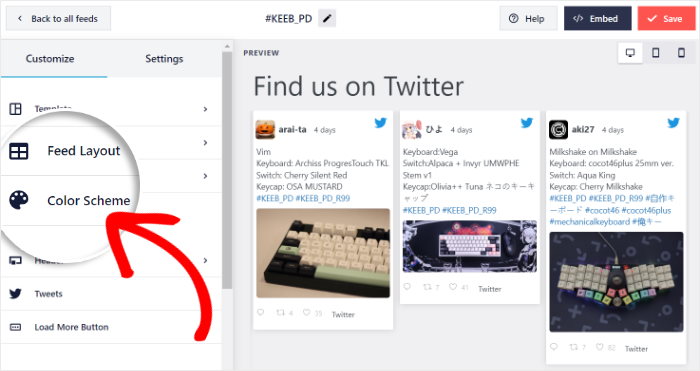
- Embed your Twitter feed on your site with just a few clicks, no knowledge in HTML code, iFrame or JavaScript needed
Can visitors watch my live X broadcast directly on my website?
Yes. When you start a live broadcast on X (Twitter) and use Twitter Feed Pro to show your feed on your site, the feed plugin displays the video card in your timeline.
Visitors can click to play and watch the live X broadcast directly on your WordPress site without being redirected to Twitter.
What if I’m using Elementor on my website?
No problem. Twitter Feed Pro works seamlessly with Elementor. Here’s how you can add your Twitter feed to your Elementor website in just a few minutes.
If you’re using Divi, you can also use this Twitter feed plugin to embed Twitter feeds on your Divi website.
Bonus Tip: ? Boost Your Retweets to Maximize Engagement
Now that you’ve mastered integrating your Twitter feed into your website, let’s chat about how to really get your tweets flying. Retweets are like digital high-fives, spreading your content far and wide.
Why It Helps: More retweets equals more eyes on your tweets, which can boost traffic to your site and attract new followers.
Getting Started: First, make sure your X profile looks sharp! A neat, professional profile with clear branding makes a great impression and encourages people to engage with your content.
Want more awesome tips? Check out this next post on proven ways to get more retweets on X (Twitter).
And that’s it!
We hope this post helped you learn about the different ways you can integrate your Twitter feeds into your website.
By following the linked tutorials, you can create, customize and display your Twitter feeds on WordPress — easily, quickly, and hassle-free.
Get started with Twitter Feed Pro today.
Start Integrating Your X (Twitter) Feed Now
As this guide has shown, there are many creative ways to integrate a Twitter feed into your website.
From my experience, while these options might seem hard, Smash Balloon Twitter Feed Pro is the simplest way to bring any of these examples to life.
You can create everything from a testimonial carousel to a live hashtag feed in just a few minutes, without any coding.
Here’s how you can get started:
- Get your copy of Twitter Feed Pro and try it risk-free for 14 days to start integrating Twitter feeds on your website
- Choose your favorite example from this list, like a branded hashtag feed or Twitter testimonials, to begin engaging your visitors
- Watch as your live Twitter feed keeps your site content fresh and helps grow your followers
Do you have any questions about these Twitter integration examples, or about using Twitter Feed Pro to add them to your site? Please ask me in the comments below.
Finally, if you enjoyed this article, feel free to follow us on Twitter and Facebook for more social media marketing tutorials.