Social Wall
  Feed Analytics


Do you want to show your recent X posts on your WordPress site without constantly copy-pasting code? Keeping your website fresh with social proof shouldn’t require manual updates every time you post.
Quick Answer: The easiest way to integrate an X (Twitter) feed is using the Smash Balloon X (Twitter) Feed Pro plugin.
- Install and activate the plugin on your site.
- Connect your X (Twitter) account in the settings.
- Embed the feed on any page using the automatic shortcode.
As an expert social media marketer, I’ve observed that showing your social feeds onto your business website can be a very effective strategy.
Integrating your X (Twitter) feed with your official website can keep your content fresh, show visitors what you’re currently sharing on social media, and encourage them to follow you on X (Twitter).
In this article, I’ll walk you through easy ways to add your X (Twitter) feed to your site.
I’ll share the simple ways I’ve used to integrate X (Twitter) feeds, so you can easily enhance your website with dynamic social content and boost user engagement.
And the best part?
Every X (Twitter) integration has links to step-by-step tutorials so you can easily embed them on your WordPress with just a few clicks.
In This Article
- Why You Need to Embed X (Twitter) Feed on Your Website
- Top X (Twitter) Feeds You Can Integrate on Your Website
- Common Questions on Integrating X (Twitter) into WordPress Website
- Can I use X (Twitter)'s publishing widgets to integrate X posts on my site?
- Can I embed an X (Twitter) feed on my website without a plugin?
- What are the benefits of using an X (Twitter) feed plugin?
- Can visitors watch my live X (Twitter) broadcast directly on my website?
- What if I'm using Elementor on my website?
- Bonus Tip: ? Boost Your Reposts to Maximize Engagement
- Start Integrating Your X (Twitter) Feed Now
Why You Need to Embed X (Twitter) Feed on Your Website
There are different benefits when it comes to adding X (Twitter) content on your site. Some of them are:
- Displaying your X (Twitter) feeds on your WordPress lets you easily give regular updates to your website visitors, even if they’re not X (Twitter) users.
- Cross-promoting your X posts to your website is also a great way to boost user engagement so more people can interact with your X posts.
- Showing your social media content from X (Twitter) on your site can transform site visitors into X (Twitter) followers.
Done right, it can even help skyrocket your sales and grow your business with the power of social proof.
Ready to start integrating your X (Twitter) feeds into your site?
Let’s dive in by talking about the different X (Twitter) integration examples below.
Top X (Twitter) Feeds You Can Integrate on Your Website
1. Live X (Twitter) Feed
One of the most popular ways to integrate X (Twitter) is to embed a live X (Twitter) feed into your website.
Usually, embedded X (Twitter) feeds contain X posts from your own user account.
You can display a live X (Twitter) feed to promote your brand’s announcements.
For example, you can use it to post about an upcoming sale you’ll have.
Another way you can integrate X (Twitter) feed on your website is by embedding a feed of your X posts to promote a brand new feature that you’ll add to your products.
Also, did you know that you can add a relevant X (Twitter) feed to your website to boost your audience reach as well?
It’s simple.
Instead of showing your X posts to your X (Twitter) followers only, you can also show your X posts to targeted traffic who are already interested in your brand: your website visitors.
Plus, embedded social media feeds can feature a “follow button” to encourage your website visitors to subscribe to your X posts by being your X (Twitter) followers.
To embed a live X (Twitter) feed on your website, the easiest way is to use a trusted WordPress plugin like Smash Balloon X (Twitter) Feed Pro.
Using this newbie-friendly X (Twitter) feed plugin, I embedded and customized WPBeginner’s live X (Twitter) feed on WordPress in under 5 minutes!

Want to try this for your own website? Take a look at these tutorials on embedding live X (Twitter) feeds on your website:
- How to Add an X (Twitter) Feed to WordPress Site Without a Plugin
- How to Embed an X (Twitter) Timeline on Your Site
2. Branded Hashtag X posts
Another way to integrate X (Twitter) feeds into your website is by adding a branded hashtag feed to your homepage.
It’s an effective way to drive more sales and generate more exposure to your business with the help of user-generated content in social media platforms.
For example, you can create a specific branded hashtag for a new product that you’re launching.
This way, when you actually announce this product, and it’s being unboxed and used by your customers, they can use this branded hashtag when posting about it.
Talk about free marketing by your brand ambassadors, right?
With the help of Smash Balloon X (Twitter) Feed Pro, I easily recreated a popular keyboard brand’s hashtag feed like this:

To do this, first you need to come up with a branded hashtag of your own.
Encourage your customers to use this hashtag on their X posts. Then, you just need to curate these X posts before adding them to your site.
Since X (Twitter) doesn’t let you easily embed hashtag feeds on your website, the best tool you can use is X (Twitter) Feed Pro.
This X (Twitter) aggregator has a visual customizer that lets you control how your feeds look — with just a few clicks.
For a step-by-step guide, check out this post on how to embed an X (Twitter) hashtag feed on WordPress.
3. X (Twitter) Testimonials
Did you know that customer testimonials can increase sales by 10%?
If you’re looking into increasing your revenue and making money while getting more X (Twitter) followers, why not embed an X (Twitter) mentions timeline on your website?
By adding a mentions feed, you can easily display positive customer testimonial X posts that mention your X (Twitter) username.
In fact, if you add these X (Twitter) testimonials on your sales page, you can even boost customer conversions by a whopping 34%!
This means more sales simply by showing social media feeds such as X (Twitter) feeds on your WordPress website.
In the example below, SeedProd, the best website builder for WordPress, showed their customer testimonial X posts by embedding a mentions feed on their sales page.

This X (Twitter) integration strengthens brand credibility because it shows potential customers that your business is trusted and happily recommended by your existing users.
And since 83% of people trust reviews over advertising, it’s a simple way to get more sales — with minimal effort on your part.
The not-so-good news? X (Twitter) doesn’t give you an option to add a mentions feed to your website.
The good news? We’ve got you covered.
Simply install Smash Balloon X (Twitter) Feed Pro on your website, connect it to your X (Twitter) account and let it do all the hard work for you.
You just need to check or uncheck customization options and you’re ready to go. I’m not a design expert at all, so I like how easy it is to customize my X (Twitter) feeds to my liking just by pointing and clicking.
Here’s how easy it is to use: even with no technical knowledge or background in design, we created a mentions timeline for Smash Balloon’s X (Twitter) account in just a few minutes:

Want to integrate this type of X (Twitter) feed into your website?
Take a peek at this handy guide on how to embed a mentions timeline to your website so you can try it out for yourself.
Pro-tip: What if you want to display user reviews from popular platforms such as Google, Yelp, Facebook and Tripadvisor?
Here are popular tutorials on embedding reviews feeds on your website:
- How to Allow Website Visitors to Leave Review on Yelp
- Here’s How to Embed Google Reviews in WordPress
- How to Embed Facebook Reviews on Your Website
4. X (Twitter) Sidebar Widget
Another way to integrate your X (Twitter) feeds into your WordPress is by embedding an X (Twitter) sidebar widget.
Personally, I like showing my X (Twitter) feeds on my sidebar widget.
Since it’s added to your sidebar area, your X (Twitter) posts are seen by your visitors — no matter which page they’re on.
You can choose to add a hashtag feed, a mentions feed or a user feed to your sidebar area, depending on what business goal you’d like to achieve:
- Hashtag feed: Increase sales by showing X posts of users who happily use your brand in their daily lives
- Mentions feed: Get more customers by showing X posts of users tagging you and recommending your brand to their friends
- User feed: Boost user engagement by showing X posts from your X (Twitter) profile timeline, directing users to your latest products or newest blog posts

What’s helpful about embedding an X (Twitter) widget on your sidebar is that you save lots of time because your X posts are updated regularly. No need to manually add your X posts one by one.
Plus, if you use X (Twitter) Feed Pro to create and customize your X (Twitter) widgets, your feeds automatically copy your website’s existing theme, so they effortlessly look fantastic right out of the box.
To get started, check out these nifty tutorials:
- How to Add an X (Twitter) Widget in WordPress (With and Without a Plugin)
- How to Embed Responsive X (Twitter) Widgets on Your Website
5. X (Twitter) Carousel
Ever wanted to embed an X (Twitter) feed slideshow on your website?
It’s a useful way to integrate X (Twitter) into your website so you can market your products and advertise your business without overwhelming your website visitors.
Also, since you’re letting your users choose how to consume your X posts, you’re encouraging them to interact with your brand more via replies or reposts.
This helps users stay longer on your site, which is great for improving your SEO and boosting your webpage rankings.

Again, X (Twitter) doesn’t have an easy way for you to customize your feed’s layout.
When you use their platform, you’d need to manually tweak code snippets like HTML or CSS, or hire a developer to display your X posts in a sliding horizontal layout.
We’re here to help you out. By using Smash Balloon X (Twitter) Feed Pro, you can quickly set up and display your X (Twitter) carousel feed on your website in 3 easy steps:
- Install the plugin to your website
- Connect it to your X (Twitter) account
- Choose the carousel layout by checking on it
For more details, see this tutorial on how to display an X (Twitter) feed carousel on WordPress.
6. Live X (Twitter) Broadcasts
Live X (Twitter) broadcasts are one of the best X (Twitter) marketing tools to make your website feel current, interactive, and “in the moment.”
Instead of only showing past X posts or pre-recorded clips, you can automatically display your live video the moment your account goes live on X (Twitter) — and let visitors watch it directly on your site.
Personally, I also like showing live X (Twitter) streams on my official website to save time and effort.
I can just go live on my brand’s X (Twitter) account, and it will also be shown to my site visitors when they visit my account in real-time. Easy-peasy.

Showing X (Twitter) live broadcasts works especially well for things like:
- Product launches or feature announcements
- Live Q&A sessions and AMAs
- Webinars, mini-workshops, and trainings
- Event coverage, keynotes, and behind-the-scenes content
Because the live X (Twitter) video plays directly on your own website, you’re no longer sending hard-earned visitors away to X (Twitter).
They can stay on your site to watch the live stream, interact, and then naturally move on to your products, blog posts, or product pages to shop from you.
You can easily showcase X (Twitter) livestreams on your site with the help of Smash Balloon X (Twitter) Feed Pro.
For more details, check out this helpful article on how to embed X (Twitter) live broadcasts on your website.
Common Questions on Integrating X (Twitter) into WordPress Website
In this section, we’ll answer some of the most frequently asked questions by X (Twitter) feed beginners.
Can I use X (Twitter)’s publishing widgets to integrate X posts on my site?
Yes, you can use X (Twitter)’s tools to manually embed X posts, an X (Twitter) timeline widget or X (Twitter) buttons on your website. There are downsides to using X (Twitter)’s publishing widgets, like:
- Minimal customization – Your X (Twitter) feeds may not match your site’s theme
- Complicated – You need technical knowledge and coding experience to manually use X (Twitter)’s tools and embed code
- No support available – If you mess your website by tweaking unfamiliar code snippets, you don’t have a dedicated support team to help you.
Can I embed an X (Twitter) feed on my website without a plugin?
Yes, you can embed your X (Twitter) content on your site without a plugin, though we don’t recommend it if you’re a WordPress newbie. Check out this post on how to manually embed X (Twitter) feeds on WordPress.
What are the benefits of using an X (Twitter) feed plugin?
When you use an X (Twitter) feed plugin like X (Twitter) Feed Pro to integrate your X posts on your site, you can:
- Extend the functionality of WordPress, since it’s easy to embed X posts on WordPress, even if you’re a newbie
- Customize your X (Twitter) embeds using the plugin’s visual customizer and built-in templates
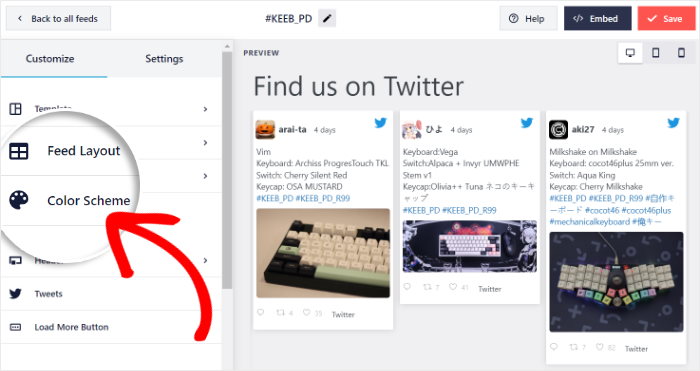
- Embed your X (Twitter) feed on your site with just a few clicks, no knowledge in HTML code, iFrame or JavaScript needed
Can visitors watch my live X (Twitter) broadcast directly on my website?
Yes. When you start a live broadcast on X (Twitter) and use X (Twitter) Feed Pro to show your feed on your site, the feed plugin displays the video card in your timeline.
Visitors can click to play and watch the live X (Twitter) broadcast directly on your WordPress site without being redirected to X (Twitter).
What if I’m using Elementor on my website?
No problem. X (Twitter) Feed Pro works seamlessly with Elementor. Here’s how you can add your X (Twitter) feed to your Elementor website in just a few minutes.
If you’re using Divi, you can also use this X (Twitter) feed plugin to embed X (Twitter) feeds on your Divi website.
Bonus Tip: ? Boost Your Reposts to Maximize Engagement
Now that you’ve mastered integrating your X (Twitter) feed into your website, let’s chat about how to really get your X posts flying. Reposts are like digital high-fives, spreading your content far and wide.
Why It Helps: More reposts equals more eyes on your X posts, which can boost traffic to your site and attract new followers.
Getting Started: First, make sure your X (Twitter) profile looks sharp! A neat, professional profile with clear branding makes a great impression and encourages people to engage with your content.
Want more awesome tips? Check out this next post on proven ways to get more reposts on X (Twitter).
And that’s it!
We hope this post helped you learn about the different ways you can integrate your X (Twitter) feeds into your website.
By following the linked tutorials, you can create, customize and display your X (Twitter) feeds on WordPress — easily, quickly, and hassle-free.
Get started with X (Twitter) Feed Pro today.
Start Integrating Your X (Twitter) Feed Now
As this guide has shown, there are many creative ways to integrate an X (Twitter) feed into your website.
From my experience, while these options might seem hard, Smash Balloon X (Twitter) Feed Pro is the simplest way to bring any of these examples to life.
You can create everything from a testimonial carousel to a live hashtag feed in just a few minutes, without any coding.
Here’s how you can get started:
- Get your copy of X (Twitter) Feed Pro and try it risk-free for 14 days to start integrating X (Twitter) feeds on your website
- Choose your favorite example from this list, like a branded hashtag feed or X (Twitter) testimonials, to begin engaging your visitors
- Watch as your live X (Twitter) feed keeps your site content fresh and helps grow your followers
Do you have any questions about these X (Twitter) integration examples, or about using X (Twitter) Feed Pro to add them to your site? Please ask me in the comments below.
Finally, if you enjoyed this article, feel free to follow us on X (Twitter) and Facebook for more social media marketing tutorials.