
Maybe you’re worried about adding too many plugins.
Maybe you want to understand what’s actually happening under the hood before committing to one.
Either way, this is a fair question and I’ll give you a straight answer.
You can embed a single Instagram post on WordPress without a plugin in about 2 minutes.
But a full Instagram feed, showing multiple posts that update automatically, is not possible without either writing your own Instagram app (which requires developer registration and Instagram approval) or using a plugin.
WordPress removed native Instagram oEmbeds back in October 2020, so the old copy-paste-a-feed-URL trick no longer works.
Quick Answer: To add a single Instagram post to WordPress without a plugin, go to the post on Instagram, click the three-dot menu, select “Embed,” copy the code, and paste it into a Custom HTML block in WordPress.
For a full, automatically updating feed, you need either a plugin or a self-built Instagram app. Most people use Smash Balloon Instagram Feed Pro, which takes about 5 minutes to set up.
I’ll show you both options so you can decide what actually makes sense for your situation.
In This Article
- 2 Ways to Add an Instagram Feed to WordPress
- How to Embed an Instagram Post in WordPress Without a Plugin
- Why the No-Plugin Method Doesn't Work for a Full Feed
- How to Embed Your Instagram Feed in WordPress
- Bonus Tip: Easily Embed Instagram Reels on Your Website
- Add Your Instagram Feed to WordPress Today
2 Ways to Add an Instagram Feed to WordPress
Here’s an honest comparison before you decide which path to take:
| Manual Embed (No Plugin) | Smash Balloon Instagram Feed Pro ⭐ Recommended | |
|---|---|---|
| Can you show a full feed with multiple posts? | ❌ No, one post per embed only | ✅ Yes, full feed with as many posts as you want |
| Does it update automatically when you post? | ❌ No, you re-embed every new post by hand | ✅ Yes, every new Instagram post appears on its own |
| Does it work for public AND private accounts? | ❌ No, Instagram only generates embed codes for public accounts | ✅ Yes, works for Business and Creator accounts regardless |
| Will it always display correctly? | ⚠️ Not reliably. Embedded posts sometimes show as blank links depending on browser and privacy settings | ✅ Yes, renders consistently across all browsers and devices |
| Can you customize the layout or colors? | ❌ No, fixed Instagram embed styling only | ✅ Yes, Grid, Carousel, Masonry, full color and font control |
| Do you need to touch code? | ⚠️ Basic HTML, paste into Custom HTML block | ✅ No code, drag-and-drop widget or block |
| Best for | Dropping a single specific post into a blog article one time | Any WordPress site that wants a live, styled, self-maintaining Instagram feed |
If you just need to embed one post inside a blog article and you don’t care about it updating, the manual method is genuinely fine. For anything resembling a real feed, the plugin is the practical choice.
How to Embed an Instagram Post in WordPress Without a Plugin
You can only display your Instagram feed to WordPress without a plugin if you’ve been approved as an app developer with Instagram first.
With that said, it’s easy to embed a one Instagram post in WordPress without a plugin. Let’s get started.
Step 1: Pick the Instagram Post You Want to Display
First, you need to log into your Instagram account. If you don’t have the login details, you can visit the Instagram profile.

Then, click on the Instagram post you want to embed on your website. In the top right corner of the post, you’ll see 3 dots that look like this ⠇.

Click the dots and select Embed from the menu that appears.

Now, you can see the embed code for the Instagram post on a popup. If you want to embed the caption along with your post, check the Include caption option here.
After that, just click on the Copy Embed Code button.

You’ve now copied the embed code of the Instagram post. Now open your WordPress site so you can paste this code into a post or page.
Step 2: Make a New Page on WordPress
Next, go to your WordPress dashboard and navigate to Pages » Add New to create a new page.

You can also use a WordPress post here instead. For that, go to Posts » Add New from your dashboard area.

Now that you have the WordPress editor open, you can paste your Instagram embed code from earlier.
Step 3: Paste Your Embed Code
To paste the embed code, first, click on the plus icon (+) and select the Custom HTML block.

Now paste the embed code into the Custom HTML block. To check how your Instagram post looks, you can click on the Preview button at the top.
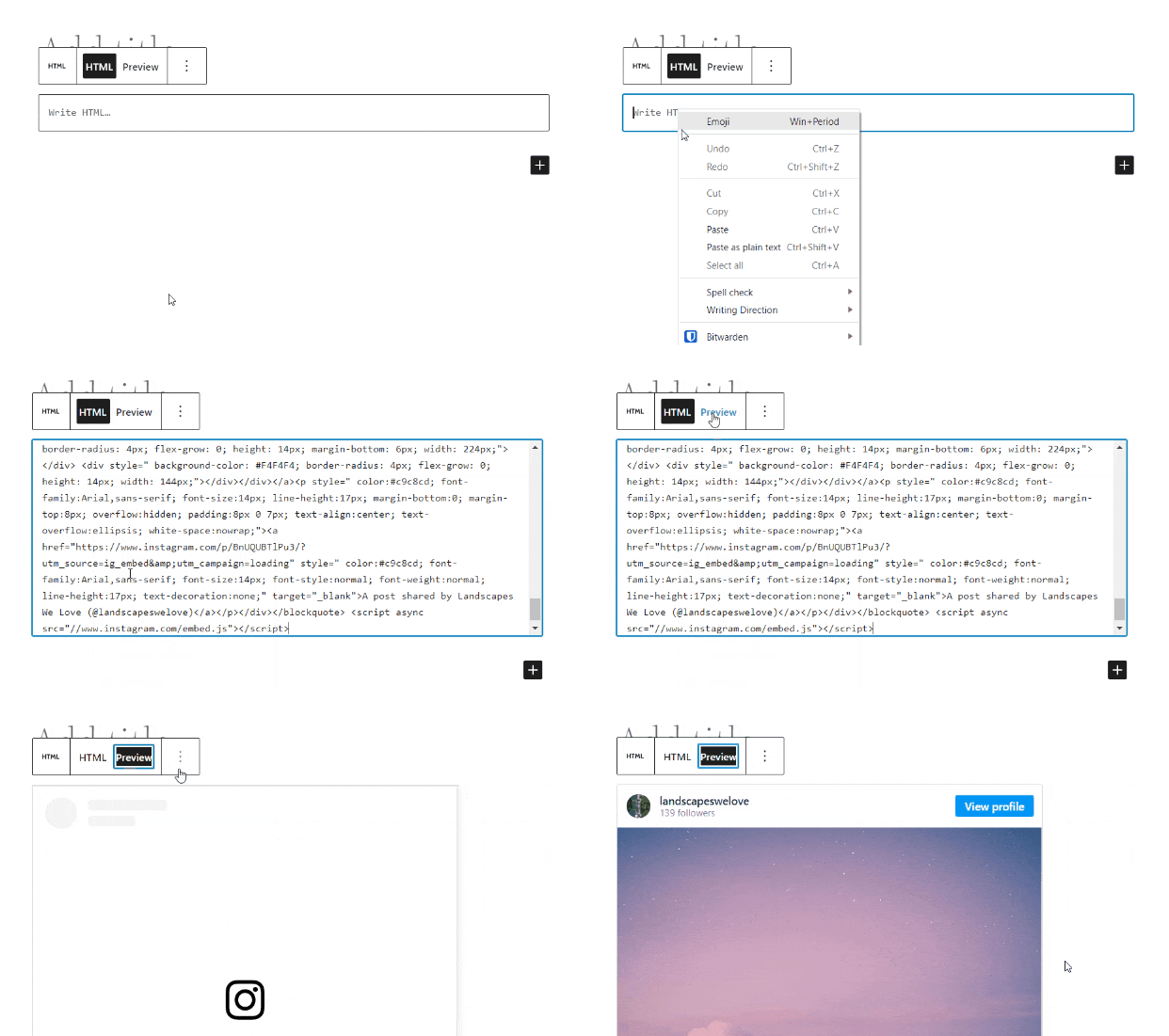
Once you’re happy with how it looks, click on Publish to see your Instagram post embedded on your website.
Having trouble with manual Instagram embeds? Here’s how you can fix Instagram embed issues in WordPress.
And that’s it! You’ve now learned how to embed your Instagram posts on WordPress without using a plugin.
The next question is: Is it better for you to use a WordPress plugin or not when adding your Instagram feed to your website?
Why the No-Plugin Method Doesn’t Work for a Full Feed
It’s worth being specific about what you’re actually signing up for if you go the manual route beyond a single post.
1. You have to repeat the whole process for every post.
Every time you publish something new on Instagram and want it on your site, you go back to Instagram, copy the embed code, open WordPress, find the right page, add a new Custom HTML block, and paste.
For one post it’s fine.

For a feed of 9 or 12 posts that stays current, it becomes a part-time job!
2. Embedded posts don’t always display.
This is the part most tutorials skip.
Depending on the visitor’s browser settings, ad blockers, or privacy extensions, Instagram embeds can render as blank boxes with a link back to Instagram. Your visitor sees nothing. There’s no fallback. You won’t know it’s broken unless someone tells you.
3. It stopped being simple in October 2020.
WordPress used to support Instagram oEmbeds, meaning you could paste an Instagram URL and it would embed automatically.
That stopped working in October 2020 when Facebook changed their API.
Now every embed requires manually copying code from each individual post.
4. A real feed requires registering as an Instagram developer.
To display a full, automatically updating feed without a plugin, you need to register as an Instagram app developer, go through Instagram’s app review process, build authentication flows, and maintain the code yourself.
It’s not a weekend project. It’s an ongoing technical commitment.
Back when I wasn’t in Smash Balloon, I thought about just manually embedding my Instagram feeds on my personal site.
But when I started doing it, I realized that it’s complicated because if you don’t use a WordPress social media plugin, you need to:
- Register as an app developer with Instagram: They need to review your application and approve you only if you meet their standards. Yikes.
- Register a new client on the Instagram Developers website: Plus, you have to set up Implicit Authentication after.
- Generate an access code: To do this, you have to authenticate your own app and grant access to your media.
- Use JavaScript: And work on HTML codes, too.
The worst part about this?
After spending a lot of your time and effort into doing all these, you can only show your last 20 images in your feed. What a bummer.
Meanwhile, if you use a WordPress plugin to embed an Instagram feed on WordPress, you can easily:
- Download and install an easy-to-use plugin: You can try Smash Balloon’s Instagram Feed Pro plugin, it’s the best Instagram plugin for WordPress.

In under 5 minutes, you can easily add your Instagram feed on WordPress. Yes, without tackling confusing HTML code snippets and JavaScript!
Plus, you can also customize how your Instagram feeds look on your website with just a few clicks.
And if you’re using Instagram Feed Pro, your feeds can automatically copy the design of your website and match your branding.
Embed your Instagram feed in a few minutes when you get started with Instagram Feed Pro here!
5. You’re on your own if something breaks.
What if you still went ahead and tried to add an Instagram feed to your website without using a plugin — even after reading the real reasons above?
If you have any issues registering as an app developer or generating an access code, you need to contact Instagram directly.
There’s no 100% guarantee that they’ll solve your problem, though.
What if you messed up your website’s HTML code? Or you can’t figure out how to do JavaScript?
Well, you can either study HTML or hire a developer to help you — but these options cost a lot of time and money.
And it doesn’t make sense to invest thousands of dollars just to add a simple Instagram feed on your WordPress, of course.
If you choose to use Smash Balloon’s Instagram Feed Pro plugin, though, you’ll know you’re in great hands.

The plugin’s customer support team is composed of WordPress experts who’ll gladly help you, every step of the way.
With over 1,000,000 active users and a strong 4.9-star rating, the plugin must be doing something right, don’t you think?

If you’re looking for an easy way to add your Instagram feed to your website, you can use the Instagram Feed Pro plugin instead. It’s easier and faster. You can set it up and display your feed in under 5 minutes, remember?
Plus, using a plugin is better than wasting your precious time with confusing HTML.
It’s also way cheaper than hiring an expensive developer to do it for you.
With only one Instagram feed plugin, you can use Instagram Feed Pro to also:
- Inherit your website’s theme so you use the same font, color, and style on your feed — automatically
- Embed branded hashtag feeds to engage visitors with relevant Instagram photos and videos
- Display as many Instagram feeds as you’d like on your website
- Show Instagram post comments and the number of likes for each post
- Embed Instagram reels feed on WordPress
- Use an amazing live feed customizer to change the design of your Instagram feeds
- Showcase Instagram mentions on your website
- Make shoppable Instagram feeds to boost sales
…and so much more. Check out everything that Instagram Feed Pro can do for you here.
Now that you’ve read about it, you may be asking, “How easy is it really to display an Instagram feed on my website using a plugin?”
Let’s move on to the next section below to answer your question, shall we?
How to Embed Your Instagram Feed in WordPress
In under 5 minutes, you can easily set up the Instagram Feed Pro plugin to display your feed on your site. Here’s how you can do this:
Step 1: Download and Install Instagram Feed Pro
First, you need to get your own copy of Instagram Feed Pro here. Then you can go ahead and install it on your WordPress website.
Not sure how to install a plugin? Check out this helpful tutorial on installing WordPress plugins so you can easily do this.
Once you’ve installed and activated your plugin, go to the next step.
Step 2: Create a New Instagram Feed
After that, you can now create an Instagram feed using the plugin.
First, navigate to Instagram Feed » All Feeds from your WordPress admin dashboard.
On this page, click on the Add New button.

You can now select your Instagram feed type from 3 options:
- User Timeline: Display your latest Instagram posts on your website
- Public Hashtag: Show Instagram posts with specific hashtags
- Tagged Posts: Embed photos and videos that your Instagram account is tagged in
You can select multiple options and combine different feed types into one.
Once you’ve selected your feed type, click on Next to proceed.
For this tutorial, we’ll select a user timeline here.

In a few clicks, you now have a new Instagram feed that the plugin will create for you. You can proceed to step 3 and connect it to your account on Instagram.
Step 3: Connect Your Instagram Account
Next, you can choose to connect a creator or business account to this plugin.
Here’s a handy guide on upgrading your Instagram account if you want to learn more.
To get started, click on the Add Source button.

There are 2 types of Instagram connection that you can choose from:
- Business Basic: Embed photos and reels from your profile
- Business Advanced: Get more feed types, like hashtag feeds, shoppable feeds, and more
After picking an option, click on Connect to proceed.

Now, you can open Facebook or Instagram to finish connecting your account.
For this tutorial, I’ll go ahead and click on Connect with Instagram.

You can now give read-only access to the plugin so it can embed content from Instagram. With this access, Smash Balloon can only view your posts and can’t make any changes at all.
So, it’s completely safe to use Smash Balloon.
Click the Allow button on the popup to give the read-only access.

The plugin will now bring you back to your website so you can finish connecting your new feed to Instagram.
For that, click on the Next button, and you will confirm this Instagram account as a source for your new feed.

Step 4: Customize Your New Instagram Feed
After connecting your Instagram account, you’ll see your feed open in the visual feed editor with live preview.

On the left, you can see the customization options for your Instagram feed. You can use these options to change your feed layout, header style, color scheme, post style, and much more.
When you change the customization options of your Instagram feed, you can see how it looks using the live preview on the right side of the customizer.
Let’s go ahead and begin designing our Instagram feed.
I usually start by personalizing my Instagram feed’s layout. To do this first, click on the Feed Layout option to get started with the customization.

You can now choose from 4 options for your feed layout: Grid, Carousel, Masonry, and Highlight.

The first option is the Grid layout which shows your Instagram posts in rows and columns.
Since all your photos have the same size, your Instagram feed looks clean if you pick this layout.

With the Carousel layout, you can display an Instagram slider on your website. That way, you give your visitors another way to interact with your site and boost your engagement.

Want to show Instagram posts with their original proportions? You can choose the Masonry layout then.
It’s a great way to embed Instagram galleries on your website and show the whole photo to your visitors.

Finally, you have the Highlight layout that can make specific Instagram posts highly visible. Using this layout, you can show off your best products in your shoppable Instagram feeds.

Once you’ve chosen your layout, remember to click on Save Changes.
To return to the main customization options, click on the small Customize button.

After that, you can click on the Color Scheme option to pick the colors for your Instagram feed.

With Instagram Feed Pro, you can choose from 4 different color schemes:
- Inherit from Theme: Inherit the colors of your website
- Light: Show a light background along with a darker font
- Dark: Choose a dark background and a light font color
- Custom: Pick all the colors of your Instagram feed manually

Once you’re happy with the color scheme, click on Save.
This way, you can use the remaining customization options to set the post layout, header style, feed size, lightbox, and much more. And once you’re done with customization, click on Save again.
Step 5: Embed Instagram Feed on Your Website
Finally, it’s time to embed your Instagram feed on your website. With this plugin, you have 2 super easy ways to do that:
- Embed Instagram feed on your page
- Embed Instagram feed on your sidebar or footer
Embed Instagram Feed on Your Page
You can start embedding your Instagram feed right from your live feed editor. To get started, click on the Embed button at the top.

Next, you can choose where to embed your Instagram feed on a new popup. Click on the Add to a Page button to continue.

Next, select the page where you want your Instagram feed and then click on the Add button.

Now, the plugin will send you to that page so you can embed your Instagram feed.
To do that, click on the small plus (+) icon and add a new content block to the page.

Now, use the search bar to look for “Instagram” and then click on the Instagram Feed option in the search results.

Finally, click on Publish and your Instagram feed will be live.
By simply following the steps in this tutorial, you now have an Instagram feed on your WordPress page. You can now open your website and see how your Instagram feed looks.

After that, let’s see how you can embed your Instagram feed on the sidebar or footer of your website.
Embed Instagram Feed on Your Sidebar or Footer
You can also embed Instagram Feeds on your sidebar or footer areas as an Instagram widget.
First, open your Instagram feed in the live feed editor. If it’s not open already, use your WordPress dashboard to navigate to the Instagram Feed » All Feeds.
Now click on the Instagram feed that you created earlier.

You’ll now see the Instagram feed open in the live feed editor.
Click on the Embed button in the top right corner to start embedding your feed.
After that, you’ll see a popup that asks where you want to embed your feed.
On the popup, click on the Add to a Widget button.

The plugin will now open your Widgets page so you can add the Instagram feed widget.
To embed your Instagram feed on the sidebar, you can go ahead and click on the Sidebar panel here.

If you want to embed your Instagram feed on the Footer instead, click on a footer panel.
For this tutorial, we’ll embed the Instagram feed on the website footer.

Now, click on the plus icon (+) here to add a new widget, and then select the Instagram Feed widget from the options.

Go ahead and click on Update to publish your Instagram feed widget on your website.
When you open your website, you can see how it looks.

Bonus Tip: Easily Embed Instagram Reels on Your Website
Having helped countless users display social feeds on their WordPress sites, I know that adding dynamic content like Instagram reels can work wonders for engagement!
Reels not only keep your content fresh but also draw in more visitors thanks to their high reach rates.
By integrating Instagram reels into your website, you’ll provide an engaging video experience that keeps users interacting with your brand longer, helping to boost your site’s appeal and viewer retention.
Using the Smash Balloon Instagram Feed Pro plugin is the easiest way to embed reels. It’s designed with simplicity in mind, so you can add reels without needing any technical skills. Just a few clicks, and you’re set!
To follow along step-by-step, read this next post on how I embed Instagram reels on my website.
And that’s it!
In this article, you’ve learned how to add an Instagram post to your website without using a plugin.
You also know how to embed an Instagram feed to WordPress using a plugin, so you can boost your account’s engagement and increase your website traffic, too.
Want the easiest way to display your Instagram feed on your website?
Get started with Smash Balloon’s Instagram Feed Pro now!
Want to take it a step further and display all your social media feeds? This next article about adding social media feeds to WordPress is for you.
You may also like this next post on how to get more views for your Instagram reels.
Add Your Instagram Feed to WordPress Today
If you just need to embed one post, the manual method works and you’ve got everything you need above.
But if you want a real, self-updating Instagram feed on your site without going back to manually re-embed posts every time you publish, Smash Balloon Instagram Feed Pro is the practical solution.
Setup takes about 5 minutes and the feed maintains itself from there.



