When someone visits your website, one of the first questions they subconsciously ask is:
“Can I trust this brand?”
One of the fastest ways to answer that question is by showing real, public video content from YouTube.
An embedded YouTube channel does more than display videos. It shows that:
- Real people follow your brand
- Your content is active and up to date
- Your business exists beyond your own website
In other words, your YouTube channel becomes social proof. Not just media.
That’s why more businesses embed their YouTube channels directly on key pages like homepages, product pages, and landing pages.
Visitors can see authentic video content without leaving the site, which increases engagement and helps build trust before any conversion happens.
In this guide, you’ll learn how to embed your YouTube channel on your website step by step, and more importantly, how to do it in a way that supports credibility, trust, and long-term growth.
We’ll also show how Smash Balloon YouTube Feed Pro makes it easy to turn YouTube videos into a clean, always-updated trust signal on your WordPress site. Without code or complicated setups.
Let’s turn your YouTube content into your most powerful trust signal.
In This Article
- Video Tutorial on Embedding YouTube Channel on Your Website
- Why Embedding Your YouTube Channel Builds Trust on Your Website
- 1. Public video content is harder to fake than written claims
- 2. Subscriber counts and engagement act as visible social proof
- 3. Embedded video keeps visitors on your site longer
- 4. Video makes small businesses look legitimate
- 5. Your YouTube channel becomes a 24/7 trust-building asset
- Why this matters before we talk about setup
- How to Embed a YouTube Channel on Your Website for Free (And What to Watch Out For)
- 2 Ways to Add YouTube Channel Feeds to WordPress
- Easiest Way to Embed a YouTube Channel on Your Website
- 6 Steps to Embed a YouTube Channel on Your Website
- FAQs on How to Embed a YouTube Channel on Your Website
- How to Embed YouTube Channel in Website Builders
- Start Embedding Your YouTube Channel the Easy Way
Video Tutorial on Embedding YouTube Channel on Your Website
If you prefer to follow along a video tutorial, here is the step-by-step guide we created on how to add YouTube channel widgets on your website:
Why Embedding Your YouTube Channel Builds Trust on Your Website
Most business owners think embedding YouTube is about showing videos.
It’s not.
It’s about proving your brand is real, active, and trusted by real people.
When visitors land on your website, they immediately ask themselves a question:
“Do I have any reason to trust this business beyond what it says about itself?”
Static testimonials can be faked. Stock photos feel generic. “About Us” pages are still just words.
A YouTube channel with real engagement, on a public platform, is different. It’s verifiable social proof.
Here’s why embedding your YouTube channel builds trust in ways static content simply can’t:
1. Public video content is harder to fake than written claims
Anyone can write marketing copy or testimonials. A YouTube channel, on the other hand, is public, time-stamped and hosted on a third-party platform.
View counts, comments, likes, and subscriber numbers exist whether you want them to or not. That transparency makes embedded YouTube videos feel more authentic and believable than static text alone.
Trust impact: One video with visible engagement often builds more credibility than multiple written testimonials on a page.
2. Subscriber counts and engagement act as visible social proof
When visitors see subscriber numbers, view counts and likes and comments, they’re seeing real people publicly engaging with your brand.
This taps into the same psychological principle that makes a busy restaurant feel safer than an empty one. Social proof reduces perceived risk.
Trust impact: Visitors feel reassured that others already trust you, making them more likely to do the same.
3. Embedded video keeps visitors on your site longer
Linking out to YouTube sends visitors away from your website, and often away from your conversion path. Embedding your YouTube channel lets people:
- Watch videos without leaving your site
- Explore more content in context
- Stay engaged longer before converting
It’s the same reason why people choose to embed TikTok videos as well. Longer engagement builds familiarity, confidence, and intent.
Trust impact: More time on site = more trust built = higher likelihood of conversion.
4. Video makes small businesses look legitimate
You don’t need massive budgets to look credible.
When you embed YouTube content showing customer video testimonials, product demos, educational videos and behind-the-scenes content, you instantly look more legitimate than competitors relying on stock photos and generic copy.
Video social proof levels the playing field. A small team with real content can feel just as trustworthy as a much larger company.
Trust impact: Visitors judge authenticity and engagement, not company size.
5. Your YouTube channel becomes a 24/7 trust-building asset
When your YouTube channel is embedded correctly, it becomes a trust signal that works continuously in the background.
Your feed updates automatically as you publish new videos, reflects your most recent content, and reinforces the idea that your business is active and engaged.
Instead of manually refreshing testimonials or redesigning credibility sections every few months, your social proof evolves naturally as your content grows.
Each new video adds another layer of legitimacy.
Over time, visitors don’t just see a snapshot of your brand. They see consistent activity and real engagement, which builds confidence without requiring ongoing effort from you.
Why this matters before we talk about setup
Embedding a YouTube channel isn’t just a technical task. It’s a trust decision.
The way your videos load, how often they update, and how they appear within your site all influence how visitors perceive your brand.
Slow-loading videos, outdated content, or poorly integrated embeds can quietly erode credibility, even if the content itself is strong.
That’s why the method you use to embed your YouTube channel matters.
How to Embed a YouTube Channel on Your Website for Free (And What to Watch Out For)
If you’re just getting started, you might be wondering whether you can embed YouTube videos on your website for free.
The short answer? Yes, you can.
I’ve done this myself plenty of times, especially when I only needed to show one or two videos on a page. YouTube’s built-in embed option works fine for quick tests or simple setups.
But here’s what I’ve learned after helping a lot of site owners use video to build trust: free, manual embeds come with tradeoffs that aren’t obvious at first.
Where manual embeds start to fall short
When you embed videos one by one, your site doesn’t update itself. Every new upload means:
- Going back to YouTube
- Copying a new embed code
- Replacing older videos manually
Over time, it’s surprisingly easy for things to get out of sync. Your YouTube channel stays active, but your website quietly starts to feel outdated, which hurts trust.
Design consistency is another common issue
I’ve also noticed that manual embeds rarely feel cohesive. The videos usually work, but layout options are limited, styling doesn’t always match your site and videos can feel “dropped in” rather than intentional.
Instead of reinforcing credibility, scattered embeds can make a site feel pieced together.
Performance is the hidden downside most people miss
This is something people don’t think about until it becomes a problem. Standard YouTube embeds load external scripts on every page where they appear.
On slower connections or mobile devices, this can affect page speed.
From experience, even small performance issues can quietly chip away at user trust, especially when visitors are seeing your brand for the first time.
The biggest limitation: weak social proof
This is the deal-breaker for most growing businesses. With manual embeds, you’re showing videos, but you’re not clearly showing momentum, consistent activity or the full picture of your channel.
Subscriber counts, engagement, and regular updates — the things that actually help visitors trust you — get lost.
When free embeds do make sense
To be fair, manual embeds aren’t “bad.” They work well if:
- You only want to add a single video
- You’re running a quick experiment
- Trust-building isn’t a priority yet
But once your goal is to use YouTube as a reliable, ongoing trust signal, the limitations start to add up.
That’s why most businesses eventually move to a solution designed to treat YouTube content as social proof, not just embedded media, which is exactly what we’ll look at next.
2 Ways to Add YouTube Channel Feeds to WordPress
Should you manually embed YouTube channel widgets on your website, or is it better to use a plugin to automatically do it?
Check out this table I made to help you compare:
| Feature | Using Smash Balloon’s YouTube Feed Pro | Not Using a Plugin |
| Setup Complexity 🛠️ | Super easy. No coding required. Set up in just a few clicks! | Difficult. You need technical skills to understand coding and YouTube API |
| Coding Requirements 💻 | No coding needed to put YouTube channel feeds on your site. Great for everyone, even new users | You’ll need to write code yourself. This can be hard if you don’t have experience |
| Customization Options 🎨 | In a few clicks, make your YouTube channel look like your site’s design and style! | It’s hard to make your video feed look good with your site’s design. This needs a lot of coding |
| Integration with Website 🔗 | Easily add many channels or playlists to your site | You can only do basic embedding unless you are good at coding |
| Help and Support 📞 | Get expert help from a friendly support team when you need it | YouTube doesn’t have a dedicated team to help fix YouTube video embeds. You’re on your own if something goes wrong or you get stuck |
| Features 🚀 | Packed with features like live streams, moderation and filtering options | You need to copy/paste each video embed code provided by YouTube |
| Final Takeaway ✨ | Want to easily embed YouTube channels in minutes? Check out Smash Balloon’s YouTube Feed Pro today! | Be ready for a tougher setup with limited options if you go without a plugin. |
Let’s talk about the simplest way to display a YouTube channel on your site below.
Easiest Way to Embed a YouTube Channel on Your Website
Adding a YouTube channel feed to your WordPress website is as easy as installing a WordPress social media plugin, connecting it to your YouTube channel, and letting it do the hard work for you.
You can use Smash Balloon YouTube Feed Pro, which helps you create, customize and display your YouTube channel feed on your website in a few clicks.
It’s not just a plugin that “shows videos.” It’s built specifically to transform your YouTube content into professional, trust-building social proof that proves real people engage with your brand.

And as the best YouTube feed plugin for WordPress, YouTube Feed Pro by Smash Balloon works great with any WordPress website.
You can use it to effortlessly embed your entire YouTube channel and even embed YouTube playlists directly onto your website.
Here’s what I love about it:
- From the plugin’s visual feed customizer, you can easily create beautiful YouTube channel feeds for your website – even without coding languages like iFrame, HTML, CSS, or JavaScript.
- YouTube Feed Pro uses smart loading for your videos to improve your webpage’s speed and performance, resulting in better SEO for your site.
- You get access to a support team of WordPress experts who are always ready to lend you a hand if you need help with your YouTube feeds.
- YouTube Feed Pro is 100% compatible with popular website builders. You can use it to embed YouTube feeds on Elementor or add YouTube feeds to Beaver Builder. It’s not designed for Shopify, Squarespace, Weebly, or Wix, but it’s 100% guaranteed to work with WordPress.

Lots of people use YouTube Feed Pro to showcase their YouTube videos, and it has a fantastic rating of 4.9/5 stars.
It’s a social media feed plugin from Smash Balloon, a name used and loved by over 1.75 million websites to add social media feeds to WordPress, ensuring it’s a reliable solution for your video needs.
Want to easily embed engaging YouTube channel feeds on your website? Get your copy of YouTube Feed Pro here.
6 Steps to Embed a YouTube Channel on Your Website
At this point, the goal isn’t just to embed your YouTube channel.
It’s to embed it in a way that supports trust, keeps your site feeling current, and actually helps visitors feel confident about your brand.
That’s why the setup matters.
In the next section, I’ll walk you through the exact steps I use to embed a YouTube channel on a WordPress site, in a way that stays updated automatically and actually supports credibility, not just aesthetics.
Step 1: Install the Smash Balloon YouTube Feed Pro Plugin
To begin, you can download your copy of the YouTube Feed Pro plugin here. This is what allows your website to pull in real, public YouTube content automatically, so your site stays fresh without manual updates.
Then, install and activate the plugin on your WordPress site.
Not sure how to do this? Check out this step-by-step tutorial to install a WordPress plugin for your guide.
Step 2: Create a New YouTube Channel Feed
To get started, you can create a new YouTube feed that you can use to show videos from your channel.
First, navigate to the YouTube Feed » All Feeds menu from your WordPress dashboard and click on the Add New button at the top.

After that, YouTube Feed Pro will ask you to choose your YouTube feed type. You have several strategic options:
- Search results – Curate content around specific trust-building topics
- Channel feed – Show your entire channel’s activity and engagement
- Playlist feed – Highlight specific content like testimonials or product demos
- YouTube Shorts feed – Showcase short-form social proof
- Live streams – Prove real-time engagement with your audience by embedding YouTube live streams
Expert Tip: Do you upload YouTube shorts on your channel? You can even display YouTube shorts on your WordPress website with YouTube Feed Pro.
To continue, I’ll go ahead and select the Channel feed type. Once you pick your feed type, click on Next.

Step 3: Connect The YouTube Channel You Want to Embed
You can now choose from 2 ways to connect your new feed to YouTube:
- Add a YouTube API Key
- Connect your YouTube account
If you want access to all the feed types supported by the plugin, click on the Add API Key option on the popup.

After that, take a look at this step-by-step guide on how to create an API Key. In just a few simple clicks, your API Key will be ready.
Next, paste your API Key on the popup and then click on the Add button.

Or, you can simply link your website to your YouTube channel account. This way, you get access to fewer YouTube feed types than with the other method.
To do that, click on the Connect a YouTube account instead option.

Doing that will send you to https://www.youtube.com, where the plugin asks for read-only access to your account. It will then use this access to connect your feed to YouTube and won’t be able to make any changes.
As you can see, it’s completely safe to use YouTube Feed Pro.
On the popup, click on the Continue button to confirm this access.

Step 4: Select Which YouTube Channel to Embed
After connecting your YouTube feed, go ahead and open the YouTube channel that you want to embed.
At the top, you can see the URL for this YouTube channel. Now look for “/channel/” or “/user/” in the URL and then copy everything after that:

As you can see, I’m using YouTube Feed Pro to embed the official WPBeginner YouTube channel.
Now, return to your website once again and paste it into the Channel ID or Username field.
Finally, click on Next to finish adding the source for your YouTube feed.

In just a few steps, your YouTube channel feed is now ready to be embedded.
You can now display it on your website, and it will instantly look great right out of the box because YouTube Feed Pro will automatically copy your website’s theme.
What if you want to customize your feed’s design, though?
No worries.
When I first tested YouTube Feed Pro, one thing I really liked about it was that this plugin comes with a visual feed customizer that also gives you control over the design of your YouTube feed — no coding necessary.
Step 5: Customize Your YouTube Channel Feed
To get started, you can choose to import the design of a YouTube feed template. Here are the 6 feed templates that you can pick from:
- Default
- Carousel or YouTube Slider
- Cards
- List
- Gallery
- Latest Video
- Showcase Carousel
- Widget
After selecting the feed template that you want for your YouTube channel feed, click on Next.

After that, the plugin will open your YouTube channel feed in the visual feed editor so you can customize its design in real time.
You can see the options to change your feed layout, feed formatting, color scheme, header style, YouTube subscribe button design, and much more on the left side.
Towards the right, you have a live preview of how your YouTube channel feed looks.

Change Your Feed Layout
Ready to change the design of your YouTube feed? Normally, I start by changing the layout of the YouTube videos.
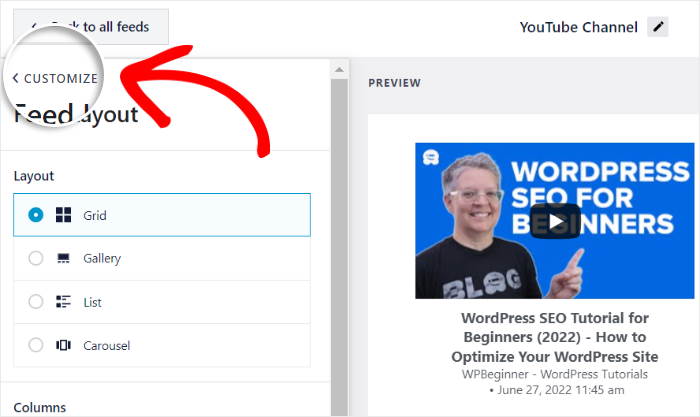
First, click on the Feed Layout option on the left.

You can now choose the layout of your feed and control what your YouTube channel’s feed looks like on your WordPress website.
YouTube Feed Pro comes with 4 options for you to choose from: Grid, Gallery, List, and Carousel.

You have 4 strategic layout options:
Grid Layout — Shows all videos in neat rows and columns
Best for: Proving channel-wide engagement and activity

Next, you have the gallery layout, which highlights one YouTube video while showing the remaining videos underneath.
It’s a great way to put the focus on your best YouTube video and grab people’s attention. Personally, I use the gallery layout for my embedded YouTube channel whenever I want to promote a specific video that’s effective in transforming my site visitors to YouTube subscribers.

List Layout — Displays videos in a single column
Best for: Clean, focused social proof that doesn’t overwhelm visitors

You can also go for the carousel layout that will show the YouTube videos as a slideshow carousel.
This makes your website even more interactive and allows you to show lots of videos for your YouTube channel feed without taking a lot of space.

Select your YouTube feed layout from these options and then click on the Save button at the top.
Next, click on the small Customize button to return to the main customization options once again.
Change Your Feed Header
From here, you can continue changing the design of your YouTube channel feed.
Look for the Header option on the left and click on it to continue.

At the top, you can find the option to Enable or Disable a header for your YouTube channel feed widget.
Under that, you can choose from the 2 Header Style options:
- Standard: Show the channel name, icon, and other info at the top of your feed
- Text: Write a heading to show on top of your YouTube channel feed
Finally, you have the option to show or hide the Channel Descriptions and the number of Subscribers.
If you have tons of YouTube subscribers, I recommend you enable this to boost your social media marketing and encourage your site visitors to follow you.
If you have thousands of YouTube subscribers, displaying that number instantly builds trust. It’s verifiable proof that real people follow your brand.

After setting up the header options for your YouTube channel feed, click on the Save button at the top once again.
As you can see, YouTube Feed Pro has a simple live feed editor that you can use to freely set up your feed design without any coding.
You can continue customizing:
- Color scheme (match your brand perfectly)
- Subscribe button (turn social proof viewers into subscribers)
- Load more button (let visitors explore more of your content)
- Post style (control video thumbnail appearance)
Once your social proof feed looks exactly how you want, click Save.
Finally, click on Save once you’re happy with the design of your YouTube feed.
Step 6: Display Your YouTube Channel Feed in WordPress
Using the YouTube Feed Pro plugin, you can easily add YouTube channel feeds to your website. In fact, there are 2 embed options for you here:
- Embed your WordPress YouTube channel feed on a page
- Embed your WordPress YouTube channel widget on the sidebar or footer
Don’t know which way to use to embed YouTube videos? I’ll talk about both ways to embed your YouTube channel below.
Embed Your WordPress YouTube Channel Feed on a Page
To add a YouTube channel to your site with ease, you can simply use the live feed editor.
First, click on the Embed button at the top to get started.

You can now see a popup that you can use to set the location of your YouTube channel feed.
To embed the feed on a page, you can click on the Add to a Page button on the popup.

After you do that, you can see a list of all the pages on your WordPress website.
To continue, select the page where you want to show your YouTube videos and click on Add.

The plugin will then send you to that WordPress page so you can embed your YouTube channel feed.
To get started, click the plus (+) icon and add a new content block to your page.

Now look for “youtube feed” using the search bar at the top and then click on the Feeds for YouTube block from the results.

Now, click on the Update button at the top to publish your YouTube feed.
Below, you can see the YouTube channel feed that I embedding using this plugin. Here’s how the YouTube channel feed looks on a live site: professional, branded, and automatically building trust:

If you followed the instructions, you’ll also have a similar YouTube feed.
I recommend embedding YouTube social proof on your official website’s:
- Homepage – build trust immediately
- Product/service pages – prove others use what you’re selling
- About page – show the real people behind your brand
- Landing pages – increase conversion rates with social proof
How to Embed Your YouTube Channel Feed on a WordPress Sidebar
Now, if you prefer to add YouTube channel feeds as a YouTube widget on your website sidebar instead, here’s a simple way to do it.
First, go to the YouTube Feed » All Feeds menu from your dashboard area and then click on your YouTube channel feed.

From here, you can embed your YouTube channel feed as a widget as well.
Just click on the Embed button at the top to continue.
On the popup, click on the Add to a Widget option since you want to embed your YouTube content on the sidebar or footer.

Doing that will open the Widgets page of your website, where you can add, remove, and manage your WordPress widgets.
To show your YouTube channel feed on your website sidebar, click on the Sidebar panel here.

Alternatively, you can click on a Footer panel instead to show your videos there.
We’ll go with the sidebar for our tutorial.

Finally, you can click on the plus (+) icon to create a new widget on your sidebar or footer. Then, select the Feeds for YouTube widgets.

After that, click on Update, and you’ve officially added a YouTube video widget with your channel on your website sidebar!
Simply check out your website and see your channel feed’s video content nicely displayed right there.

So, there you have it!
You’ve finally learned how to embed your YouTube channel videos onto your website. Now, you can start growing your channel and expanding your audience.
All you have to do is add YouTube channels to your site, and you can grow your subscribers and make your site more engaging at the same time.
Ready to embed YouTube channels on your site? Get started with YouTube Feed Pro here.
FAQs on How to Embed a YouTube Channel on Your Website
Can you embed an entire YouTube channel on your website?
Yes, you can embed an entire YouTube channel on your website.
When you do this properly, your site shows a live feed of your videos instead of a single static embed. That means new uploads appear automatically, and visitors can see that your brand is active and consistently publishing content.
The downside is that manually embedding all these videos takes a lot of time.
Of course, you can sidestep that issue by using a plugin like YouTube Feed Pro that automatically embeds all the videos for you.
Is it legal to embed a YouTube channel?
Yes, embedding a YouTube channel is completely legal.
When you embed YouTube videos, the content is still hosted on YouTube. Your website is simply displaying it using YouTube’s own embed functionality. You’re not copying or storing the videos yourself.
As long as the videos are public and embeddable (which most channels allow by default), you’re safe to embed them on your site.
Does embedding YouTube videos slow down your website?
It can, depending on how you do it.
Manually embedding multiple YouTube videos can slow down your pages because each embed loads external scripts. On mobile devices or slower connections, this can impact page speed and user experience.
That’s why the method matters. A well-optimized YouTube feed loads content more efficiently, helping pages stay fast while still showing social proof. And faster pages don’t just feel better — they also help maintain trust and engagement.
You won’t have to worry about slowing down your site with embedded YouTube feeds if you’re using a trusted plugin like YouTube Feed Pro.
Is it better to embed a video or link to YouTube?
If your goal is trust and engagement, embedding is usually the better option.
Linking out to YouTube sends visitors away from your site, often before they’ve built enough confidence to take action. Embedding keeps people on your website, where they can watch your content and still be one click away from your products, services, or contact forms.
In other words, embedding supports conversions, while links mostly benefit YouTube.
Are you allowed to have multiple YouTube channels?
Yes, you can embed multiple YouTube channels on the same website. This can be especially useful if you:
- Run different brands or projects
- Separate educational content from marketing content
- Want to showcase partner or community channels
As long as the channels are relevant, multiple feeds can actually strengthen credibility by showing a broader ecosystem around your brand.
Plus, you can follow the steps above to embed the different channels on your website too.
How to Embed YouTube Channel in Website Builders
Tutorials on Embedding YouTube Content on Divi
- How to Embed a YouTube Playlist on Your Divi Website
- How to Embed YouTube Shorts on Your Divi Website
- How to Embed YouTube Videos in Divi WordPress Site
Tutorials on Displaying YouTube Content on Elementor
- How to Embed Your YouTube Live Stream to Elementor
- How to Fix YouTube Video Not Working in Elementor
- How to Embed YouTube Playlist on Elementor (Best Way)
- How to Embed YouTube Shorts on Elementor Website
Tutorials on Showing YouTube Content on Thrive and Astra
- How to Display YouTube Shorts on Your Thrive Architect
- How to Embed YouTube Feed on Your Thrive Architect
Start Embedding Your YouTube Channel the Easy Way
When I first tried to add a full YouTube channel to a site using only YouTube’s default options, it felt messy and slow.
One video was fine.
A whole channel, kept up to date and looking good?
That was a different story.
That’s why I always recommend using our own tools instead of relying on manual embeds.
For a full, always-updated channel feed, Smash Balloon YouTube Feed Pro is what makes the real difference. In my experience, it turns a tricky, repetitive job into a simple setup you do once:
- Your latest videos appear on your site automatically
- The feed matches your site’s design without extra CSS
- Smart loading keeps your pages fast, even with lots of videos
- You can choose layouts like grids, galleries, carousels, and sidebars that actually look like part of your brand
Here’s what I suggest you do next:
- Get started risk-free with YouTube Feed Pro here (we have a 14-day money-back guarantee so you can try it out for your brand first)
- Use the steps in this guide to set up your first channel feed with YouTube Feed Pro
- Check how it looks on key pages like your homepage or blog
- Test it on mobile and desktop so you can see how easy it is for visitors to watch more of your videos without leaving your site
Your YouTube channel shouldn’t live only on YouTube.
When you bring it onto your website with YouTube Feed Pro, it works like a living video section that updates itself and helps turn visitors into subscribers.
If you’re not sure which layout to use or where to place your feed, ask me in the comments. I’ve seen a lot of setups, and I can share what usually works best for channels like yours.