Social Wall
  Feed Analytics

Are YouTube Shorts not embedding properly on your website? Don’t worry, this guide will show you how to fix it.
While YouTube Shorts can be a great way to engage your website visitors, adding them to your website can be tricky.
And if your embeds don’t work properly, they can backfire and create a worse impression of your brand.
The good news? This guide will help you fix common problems and get your short videos up and running in no time.
What Is a YouTube Shorts Embed?
Ever wanted to show off a short YouTube video directly on your website? That’s where the YouTube Shorts embed comes in.
It’s a simple way of showing videos so your visitors can check them out without leaving your site at all.
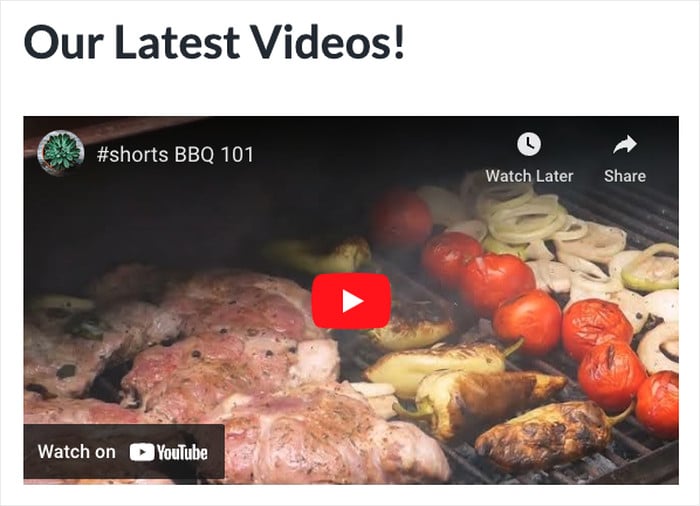
That way, you can keep visitors engaged with relevant videos, promote your own content, and grow your YouTube channel as well.
How to Fix YouTube Shorts Embed Not Working
Facing issues with your embedded YouTube Shorts? Just go through the steps below, and we’ll walk you through our proven solutions.
1. Convert the /shorts/ URL to an /embed/ URL
This is the most common reason YouTube Shorts don’t embed properly, and it’s a quick fix once you know about it.
Here’s the problem: YouTube Shorts use a different URL format than regular YouTube videos. A standard YouTube video URL looks like this:
https://www.youtube.com/watch?v=VIDEO_IDBut a Shorts URL looks like this:
https://www.youtube.com/shorts/VIDEO_IDWhen you paste a /shorts/ URL directly into a page builder, WordPress block, or HTML file, sometimes it won’t be recognized as an embeddable video.
The fix: replace /shorts/ with /embed/
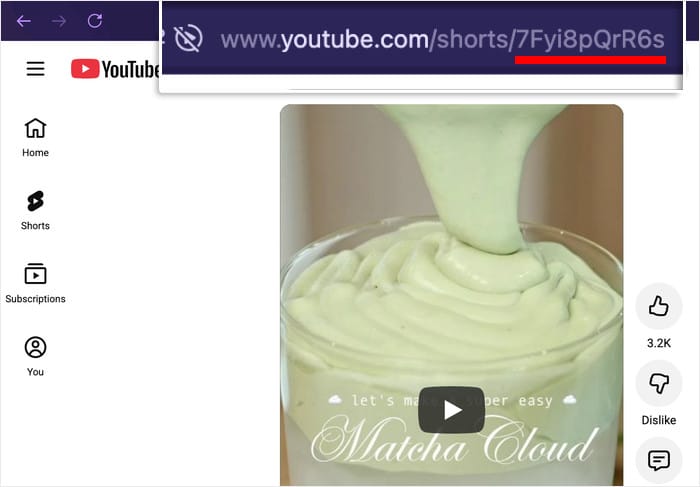
- Go to the YouTube Short you want to embed and copy the URL from your browser’s address bar
- In the URL, replace
/shorts/with/embed/— soyoutube.com/shorts/VIDEO_IDbecomesyoutube.com/embed/VIDEO_ID - Use that converted URL in your embed code
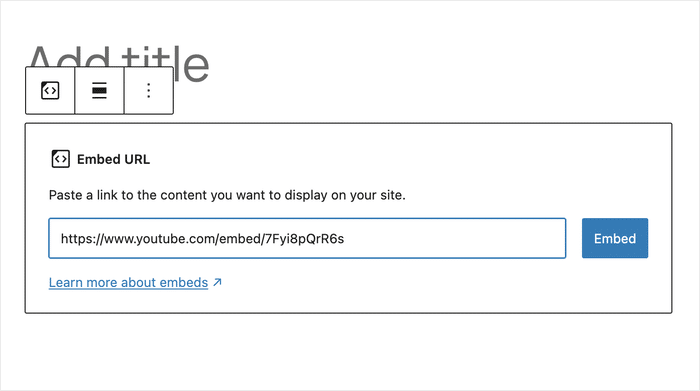
With that, check your YouTube embed and see if it’s working now.
Does YouTube Have Native Shorts Embed Support Yet?
Not yet. As of early 2026, YouTube still hasn’t added a dedicated embed button for Shorts the way it has for regular videos.
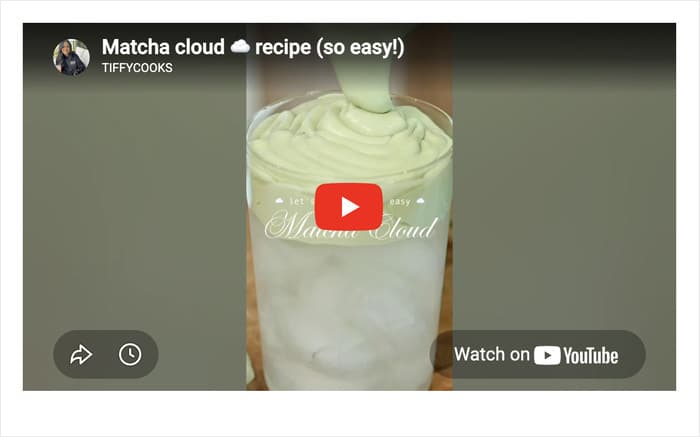
If you want the full Shorts-style experience on your site with multiple videos in a feed format, the YouTube Feed Pro plugin in the section below is the better option.
In case you think this method takes too much time and effort, we’ll show you a better way to do it towards the end of this guide.
Making Your Shorts Embed Responsive
The default iFrame dimensions above (315×560px) are a fixed size, which can look fine on desktop but clip or overflow on mobile.
Since Shorts are filmed in 9:16 vertical format, use this CSS wrapper instead to keep the ratio correct at any screen size:
<div style="position: relative; padding-bottom: 177.78%; height: 0; overflow: hidden; max-width: 315px;">
  <iframe
    style="position: absolute; top: 0; left: 0; width: 100%; height: 100%;"
    src="https://www.youtube.com/embed/YOUR_VIDEO_ID"
    title="YouTube Short"
    frameborder="0"
    allow="accelerometer; autoplay; clipboard-write; encrypted-media; gyroscope; picture-in-picture; web-share"
    allowfullscreen>
  </iframe>
</div>
In the src="https://www.youtube.com/embed/YOUR_VIDEO_ID" line, replace YOUR_VIDEO_ID with the code at the end of your YouTube Shorts URL.
2. Test Your Internet Speed
If your internet speed is too slow, your video embeds can fail to work on even when everything else is loading.
Plus, there’s an easy way to check. You can try opening YouTube and see if the videos there are playing properly.
You can also use free online tools like Google Fiber Speedtest to check how fast your internet is.
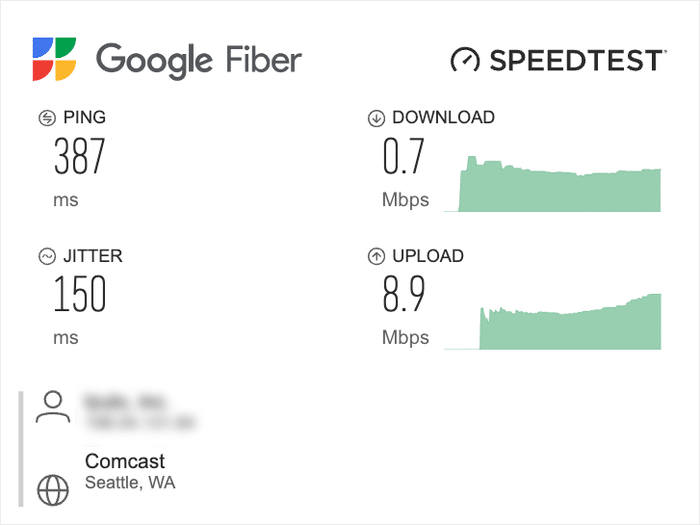
In case your internet turns out to be slow, you can try these solutions:
- Restart the device that you’re browsing the internet on
- Check if you have active downloads or VPNS
- Try restarting your internet router
- Switch to a LAN cable or move closer to your router
- Contact your internet service provider for help
Once your internet is back to normal, you can open your website and check if your YouTube Shorts embeds are working again.
3. Confirm That YouTube Is Online
In some cases, YouTube itself might be temporarily offline. When that happens, your YouTube Shorts embed will stop working too.
After all, the video embeds will still need to fetch content from YouTube to load.
To test it out, you can open YouTube and see if everything’s working fine. Plus, you can use sites like Downdetector to see if YouTube is offline for others.
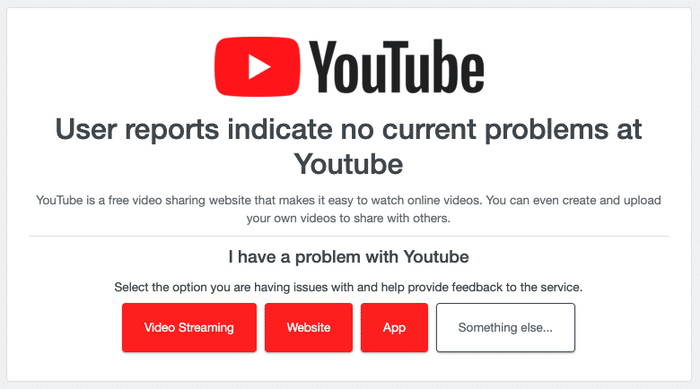
In case YouTube is online and your Shorts embeds still aren’t working, you can move on to the next step.
4. Check If Your YouTube Shorts Are Public
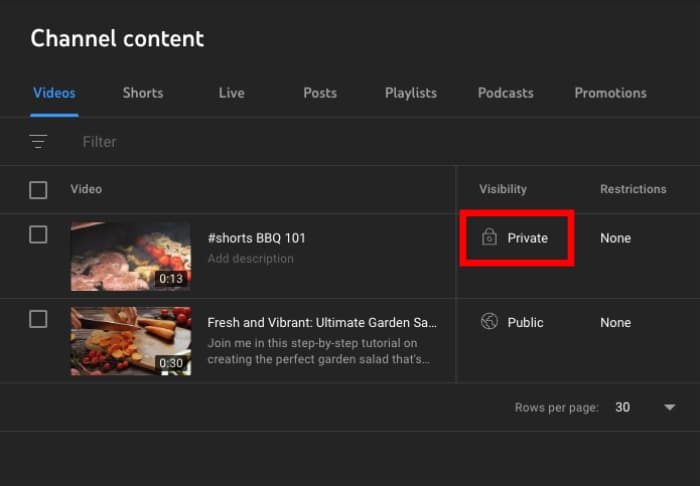
If a YouTube Short is set to private, you won’t be able to embed it on your website. Plus, your existing embeds for that video will stop working as well.
To check, you can open YouTube Studio and check if the visibility is set to private. If that’s the case, you can start changing the visibility by clicking on Private.
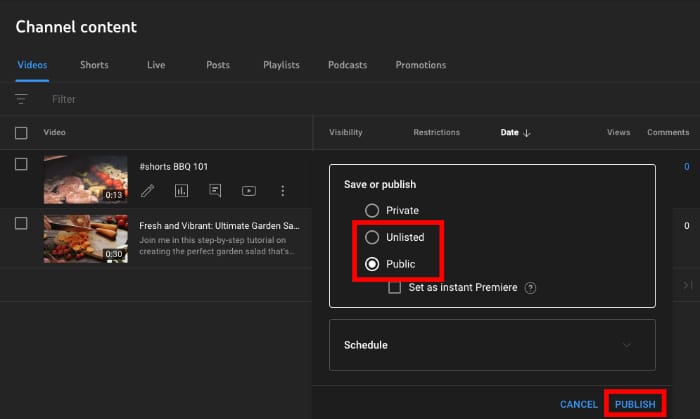
After that, just select Public from the options so anyone can check out your videos.
Or, you can select Unlisted if you don’t want regular YouTube users to be able to find your videos.
After that, click on Publish to save your changes. You can then return to your website and test your YouTube Shorts embeds.
5. Update Your WordPress Version
Sometimes, your WordPress website might be causing problems with your YouTube video embeds.
If your WordPress version is outdated, some features can stop working and cause problems for your YouTube video embeds.
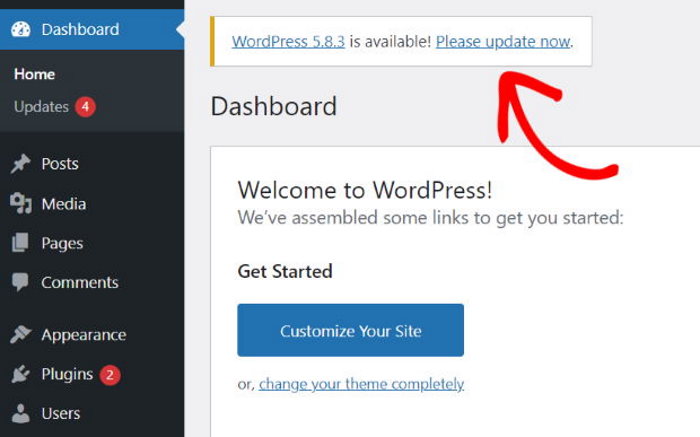
Once you open the dashboard of an outdated WordPress website, you’ll see a banner at the top asking you to update.
If you see this banner, just click on the Please update now button there.
Next, you can simply wait for the update to finish before checking your YouTube embeds once again.
6. Use a YouTube Feed Plugin Instead
YouTube Shorts embeds still not working? The good news is that there’s an easy solution.
Instead of pasting the link or using the YouTube shorts embed code generator, you can simply let a YouTube feed plugin display the videos for you.

That way, you can have a dependable way of showing YouTube Shorts to your website visitors with zero coding!
For more information, we’ll share more details later in the article.
How to Embed YouTube Shorts by Platform
The URL conversion fix above works everywhere, but the exact steps differ depending on where you’re building your site. Here’s how to do it in the most common platforms.
Elementor
- Convert your Shorts URL: replace
/shorts/with/embed/as described in Step 1 - In Elementor, drag an HTML widget onto your page
- Paste the full responsive iFrame code from Step 1 into the widget
- Click Update and the Short will be embedded for you on the front end
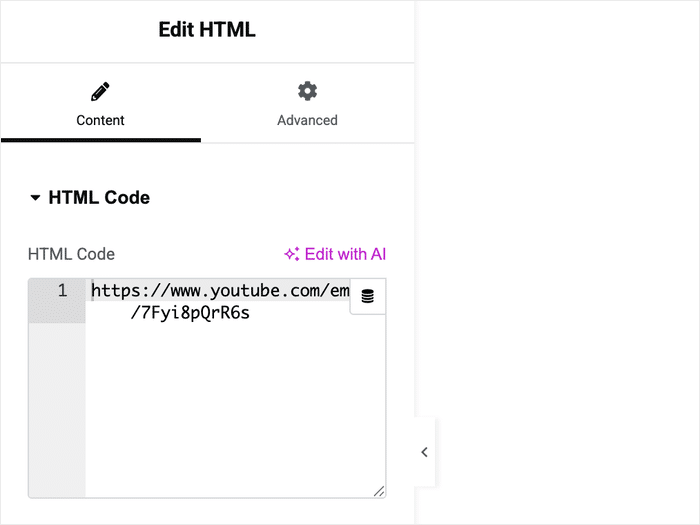
Don’t use Elementor’s built-in Video widget for Shorts since it’s designed for standard YouTube watch URLs and won’t handle the /shorts/ format correctly.
Webflow
- Convert your Shorts URL to the
/embed/format - In Webflow’s designer, add an Embed element (from the Add panel under Components)
- Paste the iFrame code into the Embed element’s code editor
- Publish to see it live
Squarespace
- Convert your Shorts URL to the
/embed/format - In your Squarespace page editor, add a Code block (not a Video block)
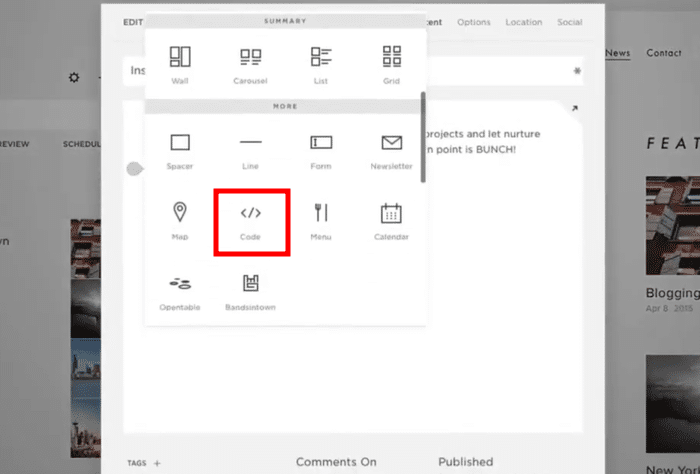
- Paste the embed code into the Code block
- Save and the Short will render in preview and on your published page
Squarespace’s native Video block uses its own URL parser, which doesn’t recognize the /shorts/ format. Instead, the Code block bypasses this entirely.
Easiest Way to Embed YouTube Shorts on Your Website
For the best way to show YouTube Shorts on your site, you can use the #1 YouTube Feed plugin: YouTube Feed Pro!
Using this amazing tool, you can create, customize, and embed YouTube video feeds on your website in just minutes.
To help you out, YouTube Feed Pro comes with tons of useful features, including:
- 3-Step Guide: By following the 3-step guide, you can have beautiful YouTube video feeds on your site with a few simple clicks – no HTML, CSS, or any coding needed.
- Feed Types: On top of embedding YouTube Shorts, you can embed your YouTube channel, livestreams, playlists, as well as search results.
- Built for Speed: Since the plugin is so lightweight, you can embed tons of videos and your site will load as fast as ever.
- Page Builder Support: You can use this tool to display YouTube Shorts in Elementor, Divi, SeedProd, and all other popular page builders.
- Visual Customizer: The plugin has a visual customizer that makes it easier than ever to create beautiful YouTube feeds to grab people’s attention.
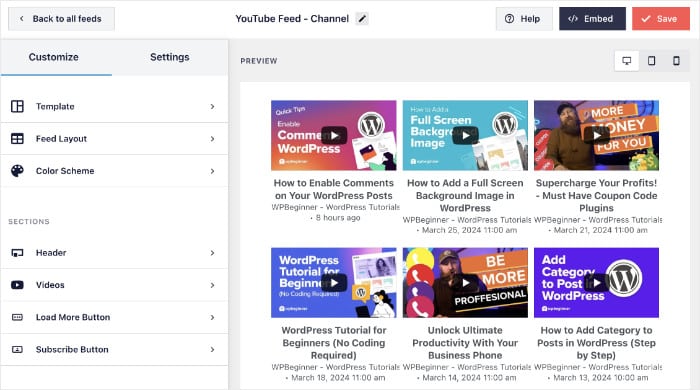
Plus, the plugin comes with an expert support team as well. Whenever you need help, you can simply reach out to them and let them fix your problem for you.
Expert Tip: To learn more, you can take a look at this beginner’s guide on how to embed YouTube Shorts on your website.
And there you go!
As you can see, there are some easy solutions that you can try out if your YouTube Shorts embeds aren’t working. Give these a shot, and you can engage your visitors with short videos in no time.
Plus, you can use YouTube Feed Pro for an even better way of embedding YouTube content on your website – even if you’re new to WordPress.
Ready to embed YouTube Shorts with ease? Get your copy of YouTube Feed Pro today!
Want to get more out of YouTube Shorts? Check out our guide on getting more views in YouTube Shorts.
Frequently Asked Questions
Why can’t I embed YouTube Shorts?
The most common reason is using the `/shorts/` URL format directly in your embed code. Browsers and page builders don’t recognize this as an embeddable video link. The fix is simple: replace `/shorts/` with `/embed/` in the URL, then paste it into a standard iFrame. See Step 1 above for the full code to copy.
Can you embed YouTube Shorts on a website?
Yes, but YouTube doesn’t have a one-click embed button for Shorts the way it does for regular videos. You need to manually convert the URL from `/shorts/VIDEO_ID` to `/embed/VIDEO_ID` and use it in an iFrame. This works on WordPress, Elementor, Webflow, Squarespace, and any platform that accepts HTML embed codes.
How do I fix YouTube Shorts not playing on my website?
Start with the URL conversion fix in Step 1 since this solves the problem for most people. If the Short still won’t play after converting the URL, work through these checks in order: confirm the video is set to Public in YouTube Studio, update your WordPress version if you’re on an older install, and check whether a security or caching plugin is interfering with the embed. If nothing else works, YouTube Feed Pro embeds Shorts through the API directly, which bypasses all of these issues.
More YouTube Marketing Tips and Tutorials
- How to Embed YouTube Videos in WordPress
- Types of YouTube Videos to Skyrocket Your Subscribers Easily
- YouTube Shorts vs TikTok: Which Is the Best For You?
- How to Increase Watch Hours on YouTube Easily
- How To Promote Your YouTube Videos For FREE