Social Wall
  Feed Analytics

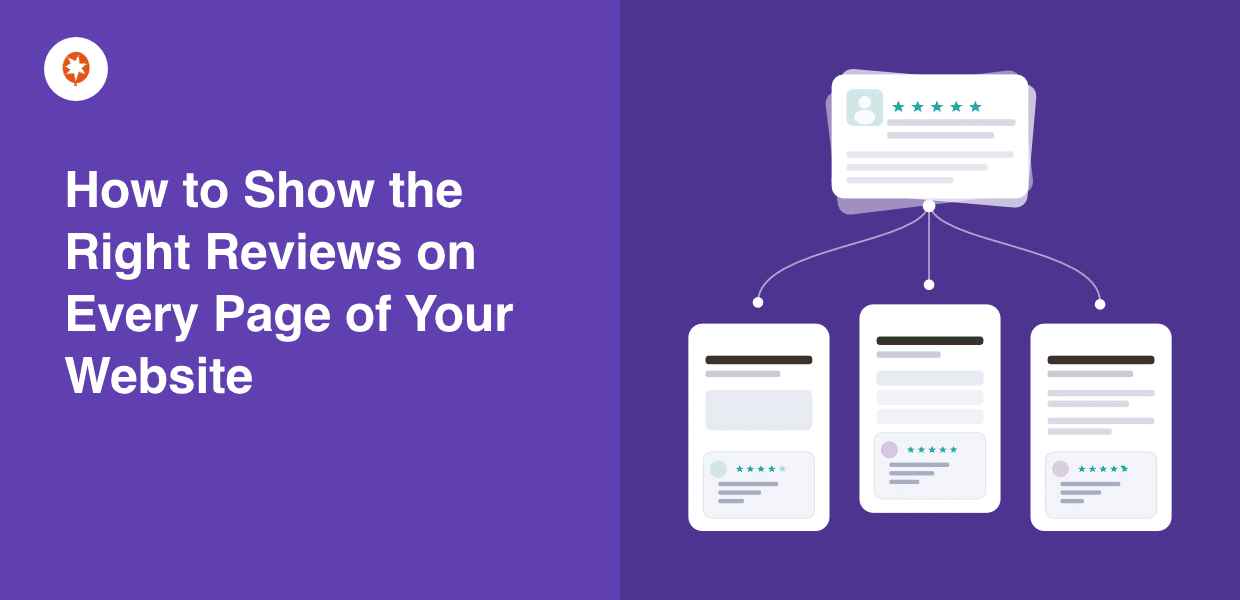
If you’ve set up a reviews widget, dropped the same 10 Google reviews on every page, and called it done, you’re not alone.
Most site owners do exactly that. They grab a plugin, drop a feed in the sidebar, and move on. It feels like a win.
But a review about your shipping speed doesn’t help someone deciding whether to hire you for a home renovation. The wrong review in the wrong place doesn’t just fail to convert. It creates doubt.
I’ve spent a lot of time inside Reviews Feed Pro testing how review placement affects trust. The finding that surprised me most: volume matters less than placement.
Showing the right review on the specific page where someone is deciding is what converts.
This guide covers how to show different reviews on different pages of your site, with no coding, no duplicate plugins, and no rebuilding feeds each time.
- How to Show Reviews on Different Pages: The Short Answer
- Why Showing the Same Reviews Everywhere Is Costing You
- Create a Review Collection in Reviews Feed Pro
- Add Your Review Feed to Any Page on Your Site
- Use Review Alerts to Show Reviews on the Right Pages
- The Right Reviews for Every Page: A Page-by-Page Guide
- Start Showing the Right Reviews on Every Page Now
How to Show Reviews on Different Pages: The Short Answer
Before we get into the how, here’s the quick version: yes, you can show different reviews on different pages, and you can do it with one plugin: Reviews Feed Pro.
Using this plugin, you can embed reviews from the biggest platforms, including Google, Facebook, Yelp, Trustpilot, and more.
Review Collections is the feature that controls which reviews appear in any given feed.
You build a curated group of reviews once, give it a name, and reuse it on any page without touching your original feed settings.
Review Alerts is the feature that controls where on your site a review appears.
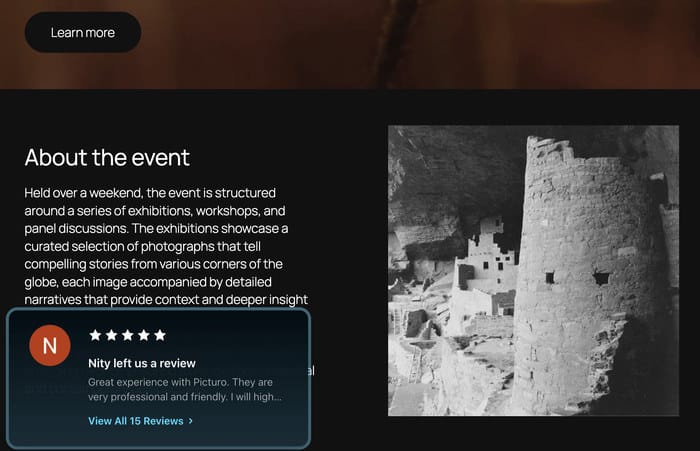
It lets you display a small, targeted review popup on the specific pages you choose, so the right review shows up at exactly the right moment.
Together, they give you complete control over your site’s social proof story.
Why Showing the Same Reviews Everywhere Is Costing You
Most site owners set up one review feed, and place it on their homepage. But there is a hidden problem with this approach: the relevance gap.
A relevance gap happens when a review does not match what the customer is reading on that page. Instead of building confidence, it creates confusion.
Here is why this matters more than most people realize. According to Nielsen, 88% of consumers trust online reviews as much as personal recommendations.

A glowing review about your customer service does not do much for someone who is trying to decide whether your specific product is the right fit for them.
That mismatch is costing you conversions you did not even know you were losing.
The good news is that you can spot this problem on your own site in just a few minutes. Before you change a single plugin setting, run this short audit right now.
Run this 3-page audit:
- Homepage: Are the reviews broad enough to represent your whole business?
- Your top product or service page: Do the reviews mention that specific product or service?
- Checkout or contact page: Are any reviews visible at all?
If the answer to any of those questions was no, the next four steps will fix it.
Create a Review Collection in Reviews Feed Pro
Before Collections existed, managing review feeds meant a lot of painful workarounds.
You had to duplicate entire feeds, manually edit settings each time you wanted something different, or just give up and show every review everywhere.
With Reviews Feed Pro and its Collections feature, that changed completely.
They let you save a curated group of reviews once and reuse that group in any feed, on any page, without ever touching your original feed settings.
Think of it like a playlist. You build it once, give it a name, and then drop it anywhere on your site whenever you need it.
What Plan Do You Need?
You start using the Review Collections feature on any Reviews Feed Pro plan and create targeted review feeds.
Review Alerts is available with the Plus and Elite plans. If you want to show visitors your best reviews at exactly the right moment, that is what the upgrade unlocks.
Check out the pricing plans for Reviews Feed Pro here.
Here is how to create your first Review Collection using Reviews Feed Pro:
New to Reviews Feed Pro? You can install it on your WordPress site like this, connect
your first review source, and then come back to follow the steps below.
- Head to your WordPress dashboard and navigate to Reviews Feed Pro » Collections.
- Click on the Add New button at the top.
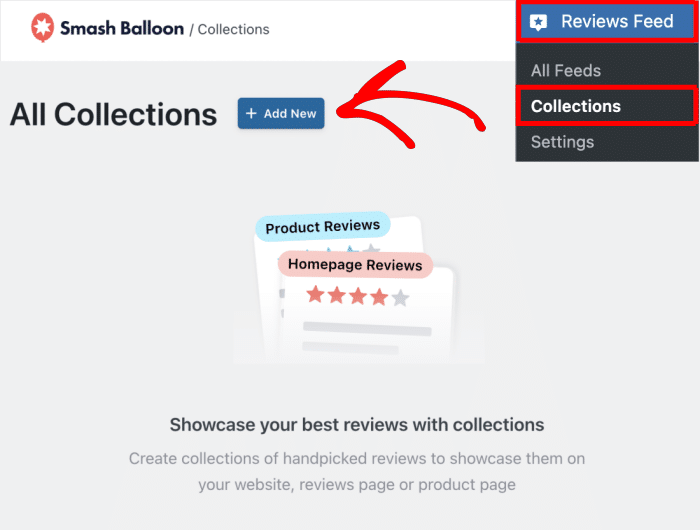
- Give it a clear, descriptive name like “Plumbing Reviews” or “5-Star Product Reviews.”
- Click on the Create Collection button
- Select the Add Review option to start adding reviews to the Collection.
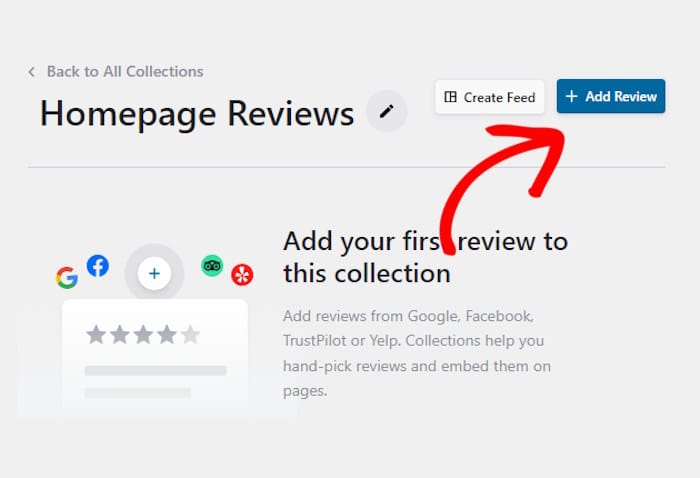
- Choose whether you manually add new reviews or select from existing sources.
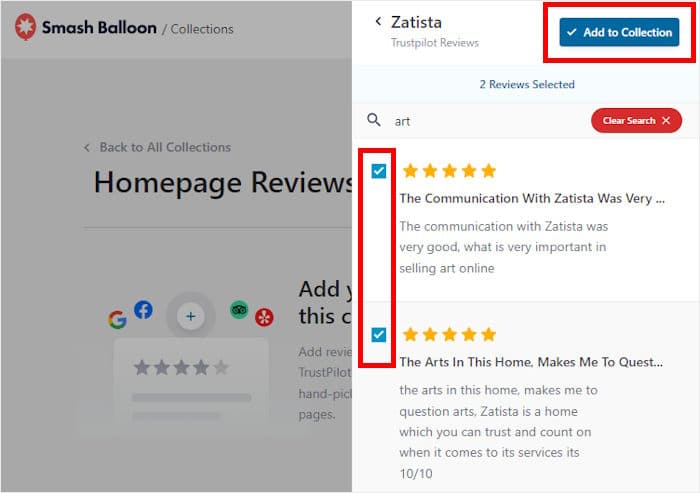
- If you choose to add from a source, select the reviews and click on Add to Collection.
- If you choose to add a review manually, enter the review details (score, title, description, photos)
- Scroll down and click on Add to Collection.
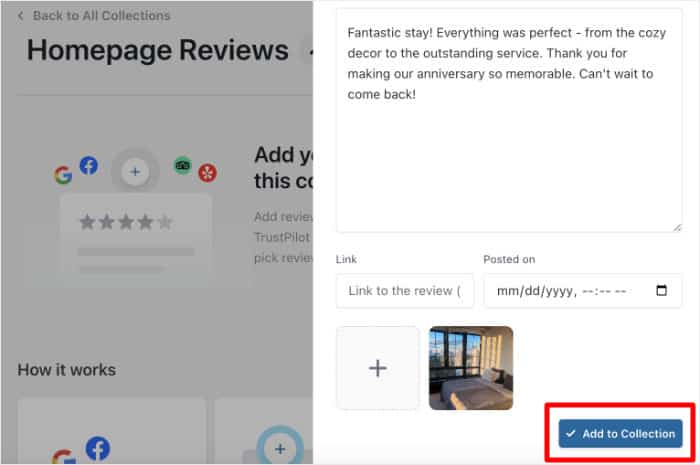
That is it. You have just created your first targeted review group. Now you just need to figure out the perfect place to display it (more on that below).
Expert Tip: For a detailed guide, check out this tutorial on how to add review widgets to your WordPress website.
Filter Reviews or Handpick Them? (Here’s How to Choose)
A lot of people struggle to make the choice here. They try to turn on filtering and end up with reviews they did not want.
Or they handpick every review manually and spend an hour doing it for each page.
Reviews Feed Pro gives you two methods to do this. You can filter your regular review feeds or manually pick specific reviews to create a Collection.
Here is a clear breakdown of when to use each option.
Use Filtering When:
Filtering lets you set rules like minimum star rating, keyword, or review length so the feed automatically shows only reviews that match, and updates as new ones come in.
- You want to show only 5-star reviews across a category
- You are pulling reviews for a specific product SKU or service keyword
- You want the Collection to update automatically as new reviews come in
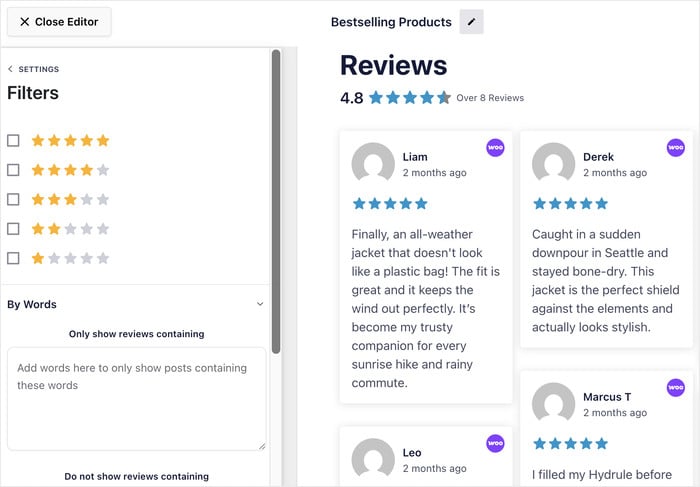
Example: Show all 5-star reviews mentioning “fast delivery” on your shipping landing page.
Use Handpicking When:
Handpicking means you browse your existing reviews and manually select the exact ones you want in a Collection, giving you full control over what shows up on a specific page.
- You want to feature specific reviews from specific customers
- You are building a high-converting landing page and need precise control
- You’d like to highlight a review that tells a compelling story
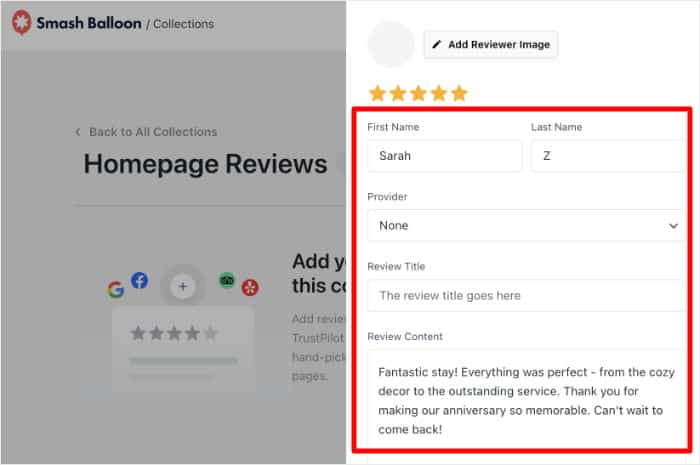
Example: Handpick three detailed reviews for your coaching program’s sales page.
The rule is generally that for landing pages, handpick. For product category pages, filter.
Add Your Review Feed to Any Page on Your Site
A lot of tools can make this simple step really frustrating.
You would copy a shortcode from your plugin settings, paste it into the wrong spot, and then discover it was showing all of your reviews instead of the specific collection you just built.
With Reviews Feed Pro, embedding your reviews is a much simpler process.
It takes about 30 seconds, and you can use the same Collection on as many pages as you want without rebuilding anything.
Option 1: Gutenberg Block
Add the Reviews Feed block to any page, then select the review feed or Collection from the dropdown menu.
This is the best option for product pages and landing pages you build inside the WordPress block editor.
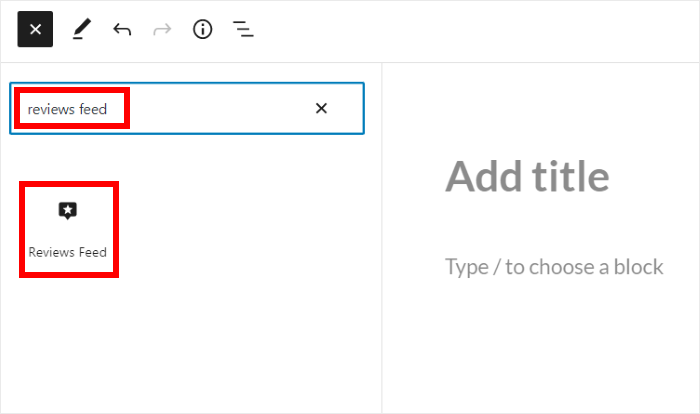
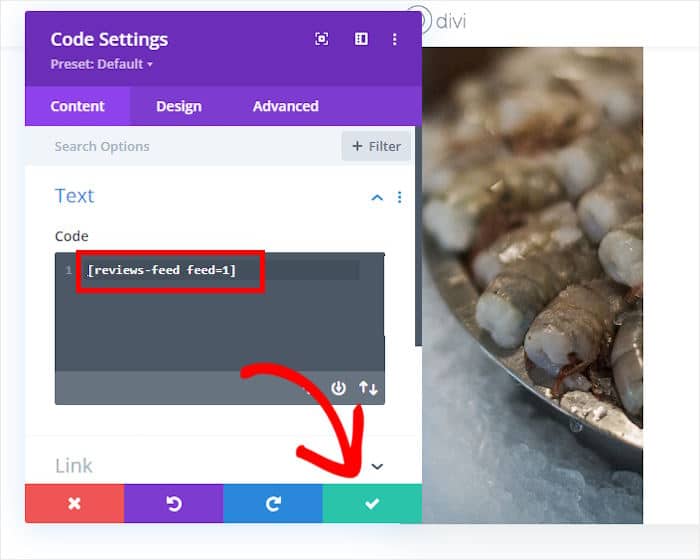
Option 2: Shortcode
Copy the shortcode directly from Reviews Feed Pro and paste it anywhere in your page content.
This works best if you use a page builder like Elementor or Divi.
Option 3: Widget Area
Add the Reviews Feed widget to a sidebar or footer and assign it to specific pages.
This is a great fit for service pages where a sidebar is already visible to your visitors.

You might be wondering whether adding multiple review feeds will slow your site down.
Well, Reviews Feed Pro loads feeds asynchronously, which means a review feed on any page does not block the rest of your page from rendering.
As a result, you can have a completely different review feed on your homepage, your product pages, and your checkout page, all pulling from different Collections.
You can do all that without any coding and still have a lightning-fast website.
Use Review Alerts to Show Reviews on the Right Pages
Most site owners either have no reviews on their inner pages at all, or they have spent time hunting for a separate popup plugin that can display review content.
Neither approach is ideal, and both create more work than necessary.
Review Alerts solves this without adding another plugin to your site.
Instead, they let you create a review popup and control exactly which pages it appears on, all from inside the same plugin you are already using.
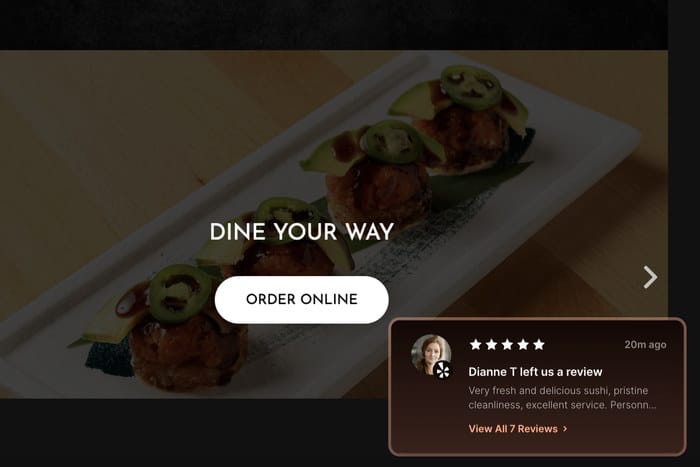
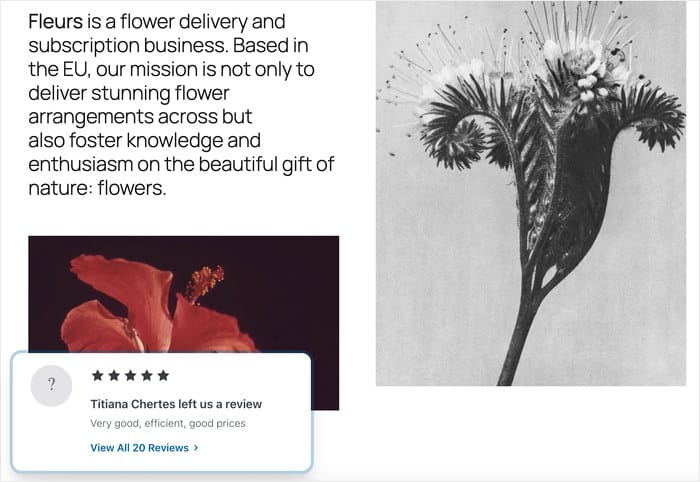
A Review Alert is a small, non-intrusive popup that surfaces a specific review at exactly the right moment.
That might be when someone is on a product page, about to hit ‘Add to Cart,’ or reading through a service description.
Here are some practical ways to use Review Alerts across your site:
- Show a review mentioning “easy setup” on your product tutorial page to reduce buyer hesitation
- Display a 5-star review about your checkout experience on the cart page to push past last-minute doubt
- Trigger a review popup on your pricing page to reinforce value at the decision moment
- Show a location-specific review on your contact page to build local trust
Review Alerts is available on Reviews Feed Pro Plus and Elite plans. If you’re on Lite, this is what you’d be unlocking with an upgrade. See plans for Reviews Feed Pro.
Setting up a Review Alert is straightforward. Here is how to do it:
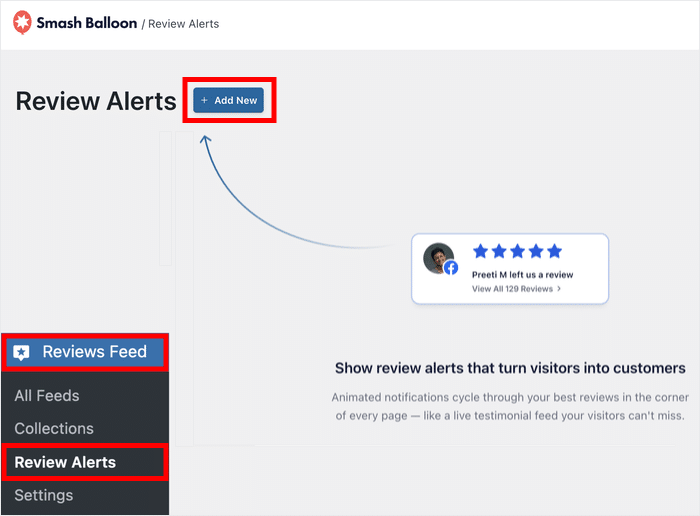
- Go to your WordPress dashboard and open Reviews Feed » Review Alerts.
- Click on the Add New button.
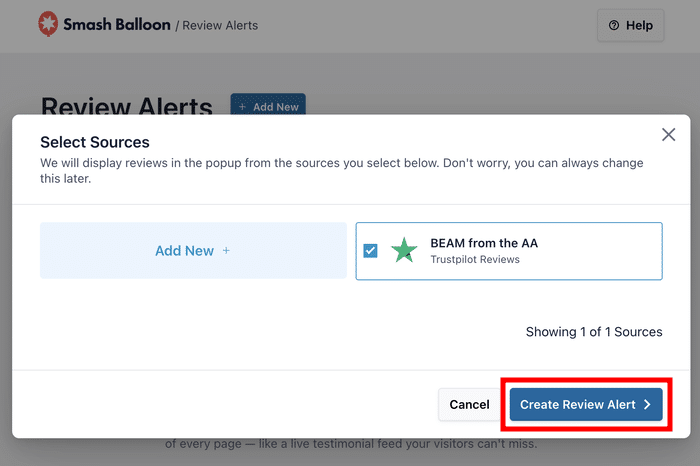
- Select the specific review sources you want to display in the popup.
- Click on Create Review Alert.
- From the customizer, adjust the display timing and position to suit your page layout.
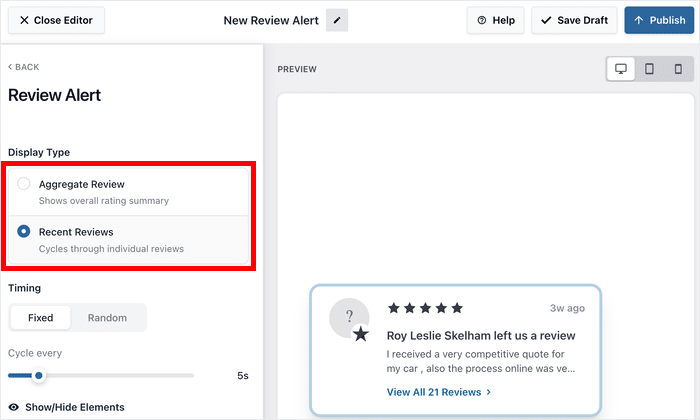
- Select the Review Alert option and choose between aggregate review score or recent reviews.
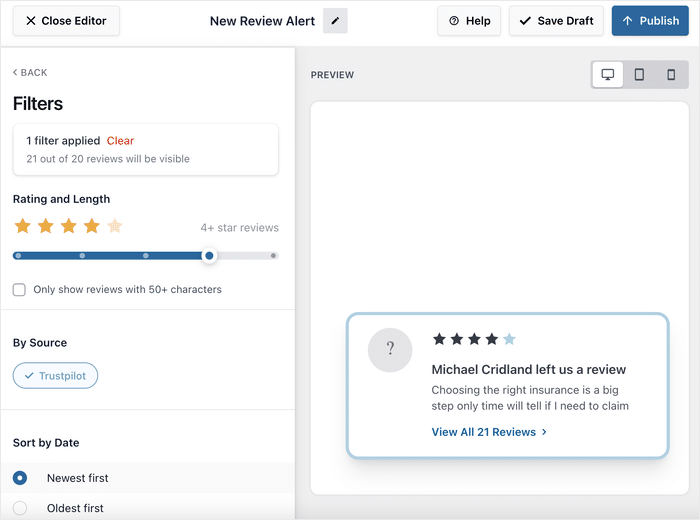
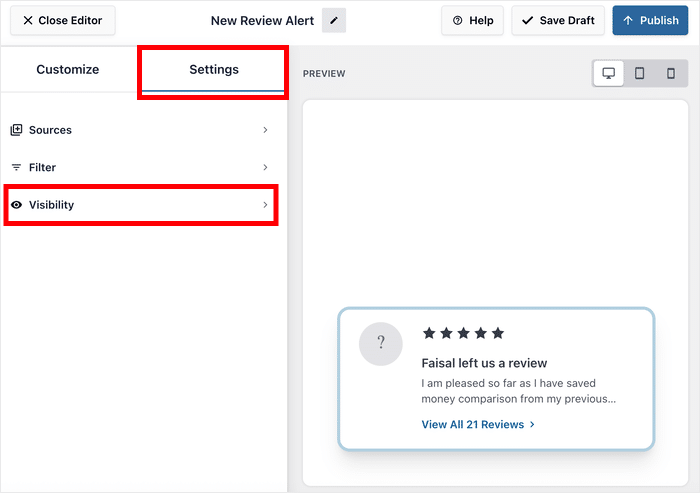
- Click on the Settings tab and select the Filters option.
- Adjust the filters to control the reviews that show up on the popup.
- Save your changes and return to the Settings tab.
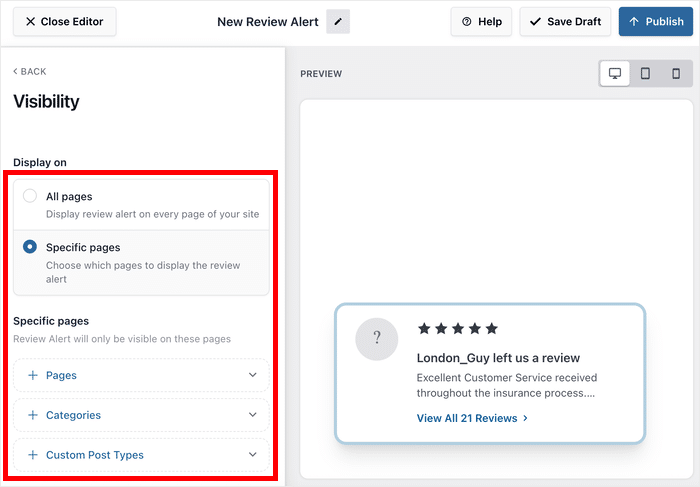
- Click on Visibility to control which pages the alert appears on.
From here, you can control exactly where the popups show up on your site. You have 2 options:
- Choose All Pages to run it site-wide, then use the exclude filters to block it from pages where a popup would feel out of place.
- Select Specific Pages and select exactly which pages, post types, or categories should trigger the alert.
As a result, your reviews are not just sitting on your homepage. They are working on every page where a customer might hesitate.
Pro Tip: Page targeting and review filters can work together. You can show only 5-star reviews AND have them show up on your checkout page to convert more visitors.
The Right Reviews for Every Page: A Page-by-Page Guide
Not sure which reviews to show where? Here is a quick guide for building trust with first-time visitors.
Your Homepage
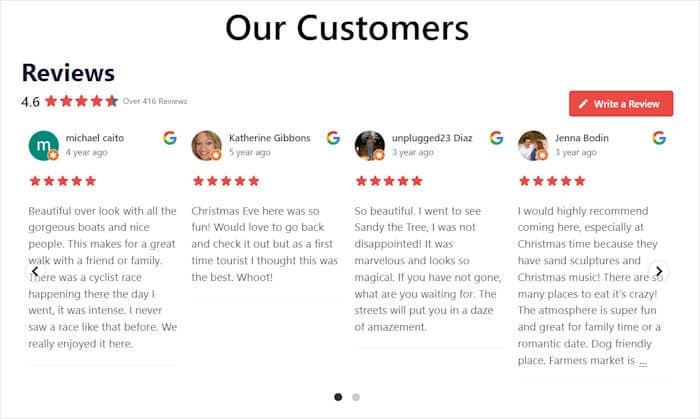
Your homepage is often the first thing a new visitor sees, so the reviews here need to represent your whole business, not just one product or service.
- Show your highest-rated reviews from multiple platforms (Google + Facebook + Trustpilot)
- Use a mixed feed that represents your full range of products or services
- Include reviews that mention your brand name and overall experience
Getting Started: Create a Collection pulling from all your connected sources, switch to a carousel layout, and add it to your homepage using a Gutenberg block.
Product Pages (WooCommerce)
Goal: Confirm the specific product lives up to expectations.
A visitor on a product page is already interested. The right review at this moment can be the final push they need to buy.
- Handpick reviews that mention the exact product by name
- Filter to show only reviews with 4 to 5 stars for that specific product
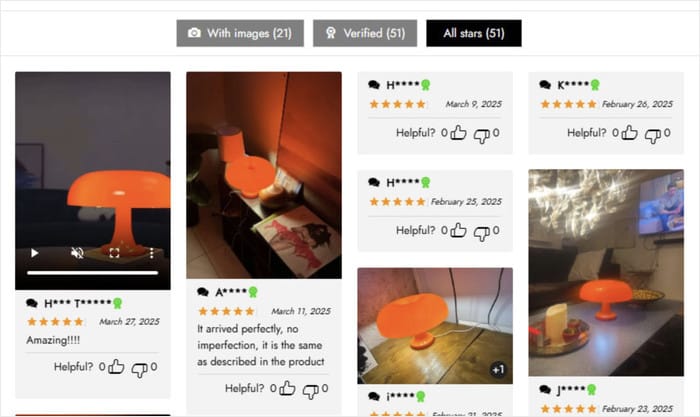
Running a WooCommerce store and want only product-specific reviews to appear on a product page?
Create a Collection of filtered and handpicked reviews for that product, then embed it directly on that page using the Gutenberg block or a shortcode.
This keeps each product page focused on reviews that are actually relevant to what the customer is considering.
Getting Started: Create a Collection filtered by that product’s name and embed it with the Gutenberg block or shortcode.

Checkout / Cart Page
Goal: Eliminate last-minute doubt.
The cart page is where hesitation is highest. A well-placed review here can be the difference between a completed order and an abandoned cart.
- Show reviews that mention fast shipping, easy returns, or great customer service
- Use a Review Alert popup triggered on the cart page rather than a full feed, since less is more here
- Highlight reviews that mention phrases like “so glad I ordered” or “worth every penny”
Getting Started: Use a Review Alert here rather than a full feed, and target it to the cart page URL specifically.
Expert Tip: Want to learn more ways to display WooCommerce reviews? Check out this guide on displaying WooCommerce review feeds on your site.
Services / Landing Pages
Goal: Build credibility for a specific offer.
Landing pages need reviews that speak directly to the audience reading them. A generic review will not do the job here.
- Handpick 3 to 5 reviews from customers who match the target audience for that landing page
- For a “plumbing emergency” service page, show reviews that mention urgent response time
- For a coaching landing page, show reviews that describe transformation, not just satisfaction
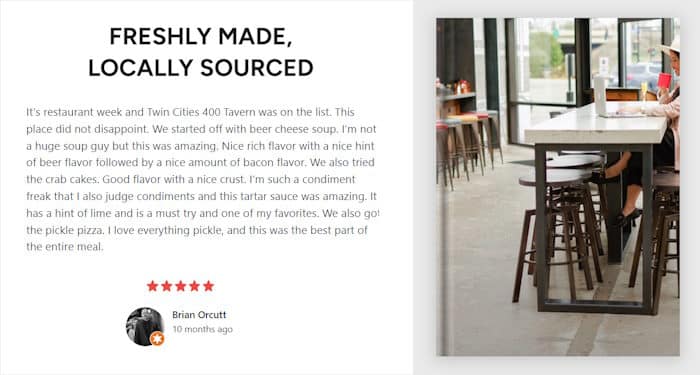
Getting Started: Show a handpicked Collection of reviews from high-value clients and embed it in the page content with a shortcode or block.
About / Contact Page
Goal: Build personal trust and reduce inquiry hesitation.
Visitors on your About or Contact page are close to reaching out. The right review here makes that final step feel easy.
- Show reviews that mention your team, communication, or follow-through
- Feature reviews that highlight how easy it was to get in touch or how quickly you responded
- Include reviews that mention your location or service area to build local trust
Getting Started: A Review Alert works well here. Target it to the contact page and filter for reviews that mention your response time or team by name.
As you can see, every page has a job to do, and the right review makes that job easier.
Pro Tip: If you have both Google and Trustpilot connected in Reviews Feed Pro, you can combine them into a single review feed to have tons of social proof ready to be shown to visitors.
Frequently Asked Questions
Can I show different reviews on different pages without creating multiple accounts or plugins?
Yes, you can show different reviews on different pages using a single Reviews Feed Pro account and no additional plugins. Collections handles which reviews appear in each feed, and Review Alerts handles where on your site a review popup shows up.
How do I get only product-specific reviews to show on a WooCommerce product page?
You can get product-specific reviews to show on a WooCommerce product page by creating a Collection in Reviews Feed Pro and either filtering or handpicking reviews for that specific product. Once your Collection is ready, embed it on the product page using the Gutenberg block or a shortcode. Head back to the embedding section above if you need a refresher on how to do that.
What is the difference between filtering reviews and handpicking them?
Filtering is automatic and rule-based, pulling in reviews that match criteria you set, like star rating or keyword. Handpicking is manual and precise, giving you full control over exactly which reviews appear. For landing pages, handpick. For product category pages, filter.
Will adding multiple review feeds slow down my site?
Adding multiple review feeds will not slow down your site because Reviews Feed Pro loads feeds asynchronously, meaning they do not block the rest of your page from rendering. Most sites see no measurable impact on load time when adding collection feeds to additional pages.
Can I show Google reviews on one page and Trustpilot reviews on another?
Yes, you can show Google reviews on one page and Trustpilot reviews on another as long as both platforms are connected in Reviews Feed Pro. Simply create a separate Collection for each platform and embed each one on the page where you want it to appear.
Start Showing the Right Reviews on Every Page Now
Your homepage review block is a start. But the real social proof work happens on the pages where customers are deciding.
Collections and Review Alerts in Reviews Feed Pro let you put the right review in front of the right customer at exactly the right moment.
Now you have a clear system for making sure each page is doing that job well, from your product pages all the way to your checkout and contact pages.
If you are already on Reviews Feed Pro Plus or Elite, you can have your first Collection and Alert live in under 10 minutes.
If you are not on Reviews Feed Pro yet, this is what you are getting when you sign up.
Get Reviews Feed Pro and start putting your best reviews to work on every page that matters.