Social Wall
  Feed Analytics

Your WooCommerce reviews aren’t showing up. The settings look right, the products are published, and the review form still isn’t on the page.
Here’s what’s going on. WooCommerce has two review switches, not one. The global setting grants store-wide permission. Every product also keeps its own separate setting, and the global switch never touches it.
I traced this through the WooCommerce source code across five versions, from 5.1.1 to 11.1.0. The behavior is the same in every one. It’s not a bug in your store, and it’s not your theme.
Below, you’ll find where the review settings live, why your existing products still have no form, how to fix all of them in one bulk edit, and how to move your reviews onto your homepage where shoppers actually look.
In this Article:
- The Quick Answer: How to Enable Reviews in WooCommerce
- Where WooCommerce Hides the Review Settings
- Enabled Reviews but the Form Still Isn't There? Here's Why
- How to Turn On Reviews for All Your Products at Once
- Why Your Guest Customers Can't Leave a Review
- Two Ways to Show Your Reviews Beyond the Product Page
- Show WooCommerce Reviews Anywhere with Reviews Feed Pro
- Start Showing Off Your Reviews Now
The Quick Answer: How to Enable Reviews in WooCommerce
Here’s the fast version:
- In your WordPress dashboard, go to WooCommerce » Settings.
- Click the Products tab, then the Reviews section.
- Tick the box for “Enable product reviews”.
- Click “Save changes”.
Careful here, because the obvious reading is wrong: this does not switch reviews on for the products already in your store.
It switches on a storewide permission, and every product already in your store keeps its own separate setting that this never touches. I explain why below, and I’ll show you how to fix all your products in one bulk edit.
Where WooCommerce Hides the Review Settings
So where do you actually find these settings? They live in one place, and it’s easy to walk past.
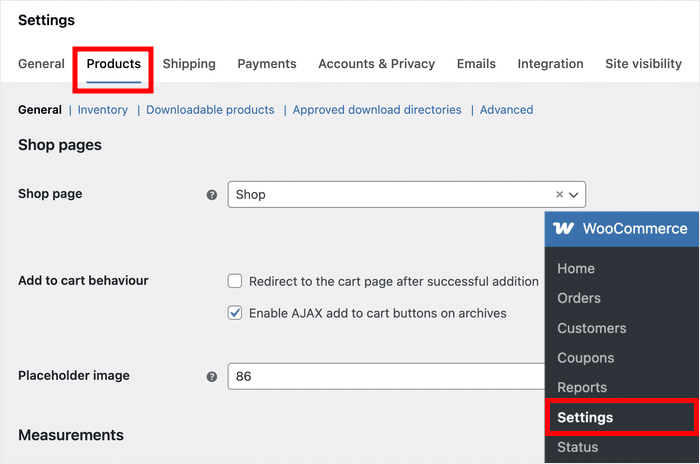
Head to WooCommerce » Settings, click the Products tab, then pick Reviews.
The screen splits the checkboxes into two groups. Enable reviews holds the first three settings, and Product ratings holds the last two.
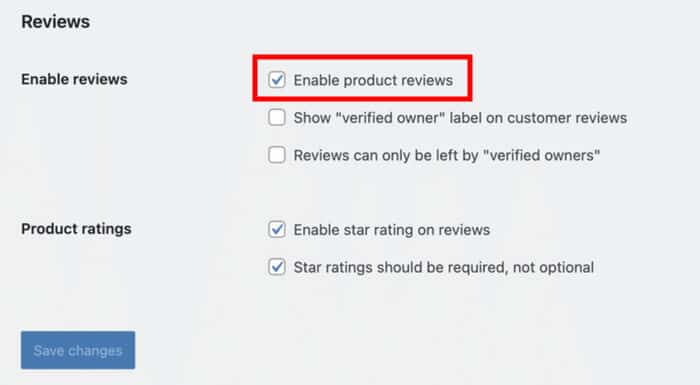
Here’s what each one does, using the labels from WooCommerce’s own Product Reviews documentation:
| Setting | What it does | Default |
|---|---|---|
| “Enable product reviews” | Grants store-wide permission for reviews. Products already in your store keep their own separate setting. | On |
| ‘Show “verified owner” label on customer reviews’ | Adds a small badge to reviews from people who bought the product. | On |
| ‘Reviews can only be left by “verified owners”‘ | Blocks everyone else from reviewing. Careful with this one, more on it below. | Off |
| “Enable star rating on reviews” | Adds the 1 to 5 star picker to your review form. | On |
| ‘Star ratings should be required, not optional’ | Makes shoppers pick a star rating before they can submit. | On |
Can’t see the two verified-owner settings? That’s because “Enable product reviews” isn’t ticked yet. WooCommerce hides both of them until it is. It hides the star-rating requirement too, until “Enable star rating on reviews” is ticked.
Pay attention to that third default. Verified owners only is off out of the box. So if your store is blocking guests, somebody turned that box on deliberately.
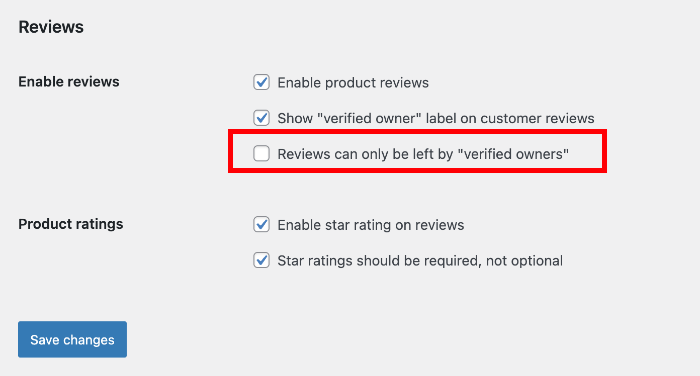
Tick your boxes, then click “Save changes”.
One definition matters here. WooCommerce treats someone as a verified owner when that product appears in an order attached to their account.
No matching order in the account, no verified status. That single rule is why the third checkbox causes so much trouble.
Enabled Reviews but the Form Still Isn’t There? Here’s Why
There are two switches, not one.
The global setting grants store-wide permission. Each product then stores its own “Enable reviews” value, under Product data » Advanced. Flipping the global switch never touches it.
Worse, the two interact badly. I traced this through the WooCommerce plugin files, in versions 5.1.1 through 11.1.0:
- With the global setting off, the per-product checkbox isn’t drawn on the edit screen at all (html-product-data-advanced.php).
- The save handler looks for it anyway, and records the product as closed when it finds nothing (class-wc-meta-box-product-data.php).
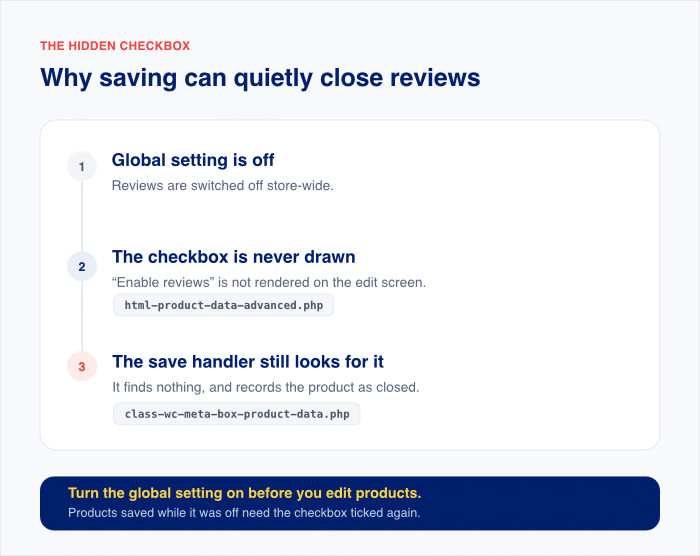
So every time you opened a product and clicked “Update” while that setting was off, you closed reviews on it. Including products whose reviews worked fine the day before.
The fix has an order:
- Turn the global setting on at WooCommerce » Settings » Products » Reviews.
- Then fix your products, covered next.
Why that order? While the global setting is off, WordPress hides the bulk-edit “Comments” control entirely.
One relief if you have hundreds of products: CSV imports and duplication never touch that meta box. Only manual edits close reviews.
How to Turn On Reviews for All Your Products at Once
Editing every product by hand? You don’t have to. WordPress can fix them all in one pass.
Check that the global setting is on first, at WooCommerce » Settings » Products » Reviews. Then:
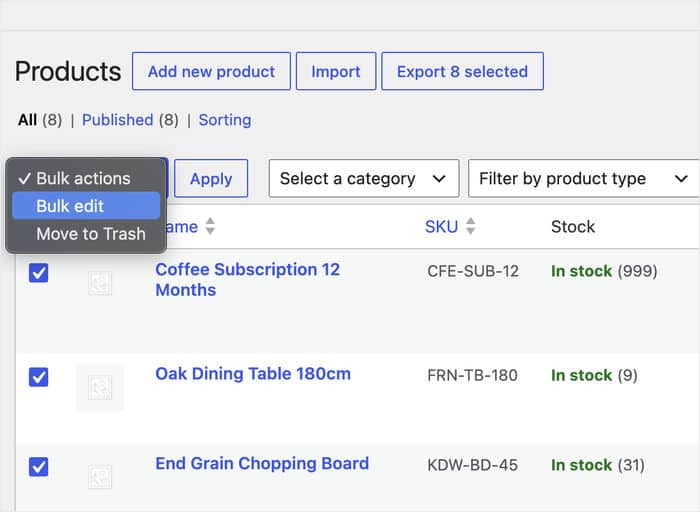
- Go to Products in your dashboard.
- Tick the checkbox in the table header to select every product on the page.
- Choose “Bulk edit” from the Bulk actions dropdown, then click “Apply”.
- Set the “Comments” dropdown to “Allow“.
- Click “Update“.
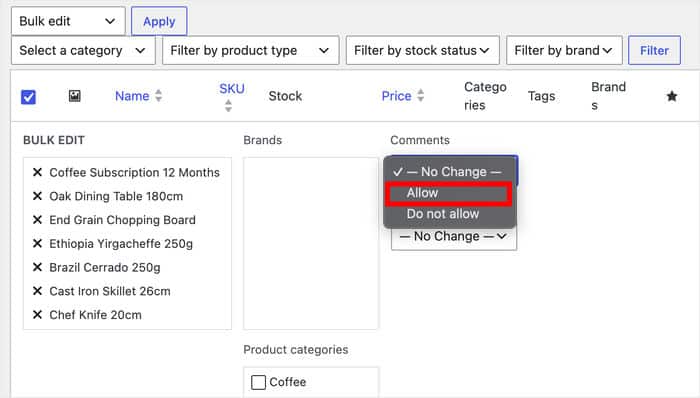
This rewrites the stored value on every product you selected, including the ones sitting at closed. WordPress core’s bulk edit handler applies your choice to each selected post, whatever it held before.
That header checkbox only selects the products on the current page, and WordPress shows 20 by default. Raise “Number of items per page” in Screen Options to cover your catalog, then run the bulk edit once.
No “Comments” dropdown in the panel? That means the global setting is still off. And leave Settings » Discussion » “Allow people to submit comments on new posts” ticked, or new products can arrive closed.
Checking It Worked
- Open a product page in a private browsing window, so you’re logged out.
- Confirm the “Reviews” tab appears alongside “Description”.
- Confirm the form itself renders, not just the tab.
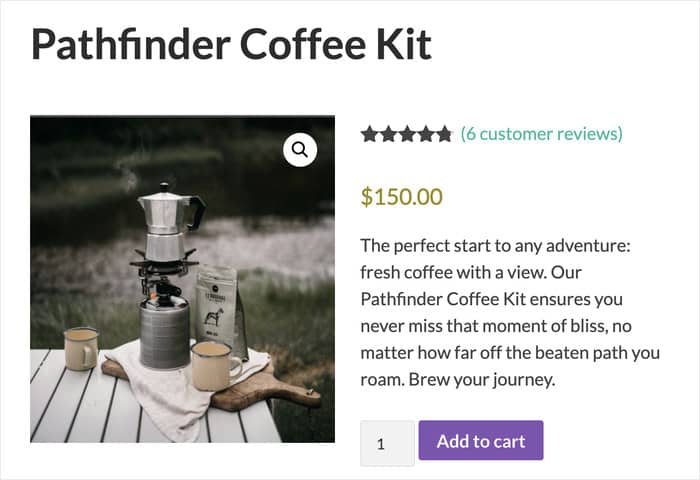
A Reviews tab with nothing under it usually means that product is still closed.
Why Your Guest Customers Can’t Leave a Review
A real customer buys your product, comes back to leave five stars, and finds nothing there. No error message, no explanation. The review form is simply absent.
One setting causes this: ‘Reviews can only be left by “verified owners”‘.
WooCommerce matches reviewers to orders by the account ID on the order, and a guest checkout never creates an account, so there’s nothing to match against.
In this case, the fix is to open WooCommerce » Settings » Products » Reviews and untick this setting..
Now for the part where I disagree with most of the advice out there. Plenty of popular guides tell you to switch verified owners only on to stop fake reviews.
That advice isn’t wrong about fake reviews. It just skips what else the setting does.
Here’s the honest trade-off:
| Setting on | Setting off | |
|---|---|---|
| Who can review | Logged-in customers whose account ID is on the order | Anyone, including your guest buyers |
| Fake review protection | Strong, since reviews need a real order | Weaker, so you’ll moderate more |
| Best fit for | Stores that require an account at checkout | Stores that allow guest checkout |
My recommendation: if you allow guest checkout, leave it off.
Keep ‘Show “verified owner” label on customer reviews’ ticked instead. Shoppers still see which reviews came from real buyers, and your guest customers can still speak up.
Two Ways to Show Your Reviews Beyond the Product Page
Your reviews sit in a collapsed tab at the bottom of a product page. Your homepage, landing pages and checkout show none of them.
The Manual Way: WooCommerce ships three review blocks, All Reviews, Reviews by Product, and Reviews by Category. Search for them in the block editor and drop them on any page. No code.
There’s no shortcode, so your only other option is copying single-product/review.php into a child theme and writing the CSS yourself.
Neither route gives you filtering by star rating or control over styling. The blocks are quick but hand you a comment list. Template files give you control, at the cost of real work.
The Easy Way: Use a plugin that pulls your reviews out of that tab and puts them anywhere on your site.
Show WooCommerce Reviews Anywhere with Reviews Feed Pro
Reviews Feed Pro treats WooCommerce Reviews as a review source, the same way it treats Google or Yelp. It pulls your reviews out of that product tab and hands you a block you can drop on any page. Homepage, landing page, checkout.
Here’s what that solves:
- WooCommerce Reviews as a connected source. Pull reviews by individual product, category or tag, so you decide which ones show up.
- List, carousel and masonry layouts. Your reviews match the page they sit on instead of looking like a comment thread.
- Filtering and moderation. An allow list puts your best reviews on the homepage, and you can exclude the one-star outlier.
- Automatic updates. The plugin fetches new reviews for you, so your star ratings stay current without re-embedding anything.
- Backup caching. Your reviews keep displaying even if there’s a problem with the reviews API.
Every one of those features comes from a single setup flow, and here’s what that flow looks like from start to finish:
- Head to Reviews Feed » All Feeds and click “Add New“.
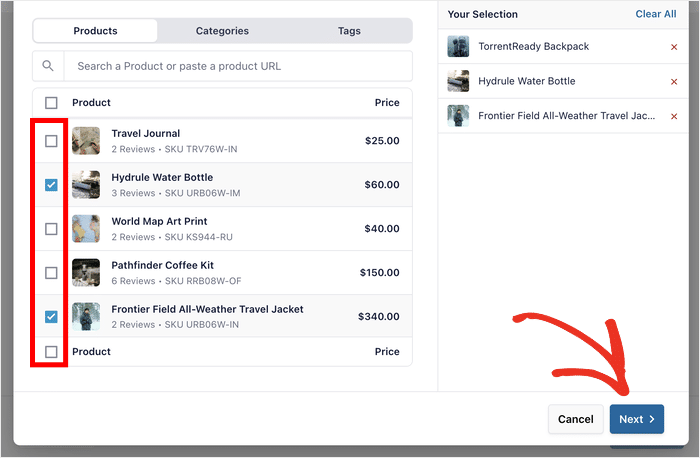
- The source picker opens next. Choose “WooCommerce”, then pick individual products, categories or tags. You can search by product name or URL.
- Name your source and click “Finish“.
- Pick your design in the live customizer, then embed the feed on any page you want.

You’ve fixed the settings, opened up every product, and pulled your reviews out of that buried tab.
The only thing left is deciding where they earn their keep, and that’s the part WooCommerce was never going to do for you.
Get your reviews off the product tab and onto your homepage
You just did the work to make reviews appear. Smash Balloon Reviews Feed Pro puts them where shoppers actually look, in a layout you control. Backed by a 14-day money-back guarantee.
Start Showing My ReviewsFrequently Asked Questions
Why are my WooCommerce reviews not showing up?
Your reviews aren’t showing up because WooCommerce has two gates, not one. The global setting at WooCommerce » Settings » Products » Reviews grants store-wide permission. Each product also stores its own comment status, and the global switch never changes it.
How do I turn reviews on for all products at once?
Turn reviews on for every product with one bulk edit. Go to Products, tick the header checkbox, choose “Edit” from Bulk actions, then set “Comments” to “Allow”. Your products list is paginated, so raise the count in Screen Options first or repeat the edit page by page.
How do I disable reviews on WooCommerce?
To disable reviews everywhere, untick “Enable product reviews” at WooCommerce » Settings » Products » Reviews. For specific products, use the same bulk edit and set “Comments” to “Do not allow”. Reviews already submitted aren’t deleted. They’re just hidden until you switch reviews back on.
Can guest customers leave reviews?
Yes, guest customers can leave reviews, as long as ‘Reviews can only be left by “verified owners”‘ is unticked. While that setting is ticked, WooCommerce matches reviewers to orders by account ID, and guest orders carry none, so guest buyers are blocked.
Where’s the WooCommerce product reviews shortcode?
There isn’t one. WooCommerce registers no reviews shortcode. Use the built-in blocks instead: All Reviews, Reviews by Product, and Reviews by Category. They work in any page or post, but you can’t restyle them or filter by star rating.
Can I show WooCommerce reviews on my homepage?
Not with WooCommerce alone. The built-in blocks place a plain comment list on a page, with no styling control and no filtering. Reviews Feed Pro pulls your WooCommerce reviews into a styled feed you can drop on your homepage, landing pages, or checkout.
Start Showing Off Your Reviews Now
Enabling WooCommerce reviews comes down to three things:
- Turn on “Enable product reviews” at WooCommerce » Settings » Products » Reviews first. Nothing else works until it’s on.
- Then set each product’s own value. One bulk edit handles your whole catalog, so skip the one-by-one route.
- Leave ‘Reviews can only be left by “verified owners”‘ unticked if you accept guest checkout. Ticked, it blocks your guest buyers.
Every review you collect from here is social proof you’ve already paid for. Reviews Feed Pro is how you put it to work, and there’s a money-back guarantee if it isn’t for you.