
Are you looking for the easiest way to embed YouTube videos on your Divi website without breaking your design?
I remember when I first tried adding YouTube videos to my Divi site manually.
I spent hours wrestling with iFrame codes, only to watch my beautiful page design fall apart on mobile devices.
The videos loaded slowly, didn’t match my branding, and honestly looked like they were just slapped on from another website entirely.
Here’s the thing: there’s a much better way to add YouTube content to your Divi site that doesn’t require any coding knowledge whatsoever.
In this tutorial, I’ll show you how to use Smash Balloon’s YouTube Feed Pro to seamlessly embed YouTube videos on your Divi website.
Trust me, this method is not only easier but also faster and more professional-looking than manual embedding.
In This Article
Manual vs. Automatic: Which Way is Better to Add YouTube Videos to Your Divi?
Before we dive into the tutorial, let’s talk about why using a specialized plugin like YouTube Feed Pro beats the traditional manual method.
When most people think about adding YouTube videos to WordPress, they grab the embed code from YouTube and paste it into their page.
While this technically works, it creates some serious problems, especially on a visually sophisticated platform like Divi.
Here’s how the two methods stack up:
| Feature | Smash Balloon YouTube Feed Pro | Manual iFrame Embeds |
| No Coding Required | ✅ Complete visual customizer | ❌ Requires HTML/CSS knowledge |
| Automatic Updates | ✅ Videos update in real-time | ❌ Must manually update each embed |
| Mobile Responsive | ✅ Built-in responsive settings | ❌ Requires custom CSS |
| Page Load Speed | ✅ Smart Loading (2-3 seconds faster) | ❌ Heavy scripts load immediately |
| Design Consistency | ✅ Inherits your Divi theme styling | ❌ Generic YouTube player design |
| Support & Updates | ✅ Dedicated team + automatic compatibility | ❌ You’re on your own |
| Takeaway | YouTube Feed Pro is the quickest way to show YouTube videos on your Divi site. | Needs manual updates and advanced coding knowledge |
The awesome thing about using YouTube Feed Pro with Divi is that it automatically adapts to your theme’s design.
Your videos will look like they were always meant to be part of your site, not awkwardly pasted in from somewhere else.
Easiest Way to Embed YouTube Videos in the Divi Theme
If you want to display YouTube videos on your website with ease, you can simply use a YouTube feed plugin.
And the best option in the market that you can try is Smash Balloon’s YouTube Feed Pro plugin.

With YouTube Feed Pro, it’s easier than ever before to create, customize, and embed YouTube feeds on your website.
Key Features of the YouTube Feed Pro Plugin:
- You can follow the 3-step guided flow, which will take you through the whole process in a few clicks — no need for HTML, CSS, or any embed code.
- YouTube Feed Pro lets you embed a YouTube channel, playlist, live streams, single YouTube videos, and more.
- This plugin also has smart loading, which only loads them when a visitor clicks on it. This makes your YouTube feeds load faster so your site gets better SEO.
- You also get a live feed editor that you can use to change your layout, color scheme, header style, button design, and much more.

All in all, it’s the best YouTube feed plugin in the market and a great way to make your Divi website more engaging.
Ready to embed YouTube feeds? Grab the YouTube Feed Pro plugin right away.
Now, we’ll go ahead and see how you can embed YouTube videos in the Divi theme with the help of this plugin.
How to Add YouTube Videos in the Divi Theme (Step-by-Step)
Now let me walk you through exactly how to add YouTube videos to your Divi website using Smash Balloon.
I’ve personally used this method on dozens of client sites, and it works beautifully every single time.
Step 1: Install and Activate YouTube Feed Pro
To get started, get your copy of the YouTube Feed Pro plugin here. Next, just install and activate the plugin on your site.
If you’re not sure how, you can follow this guide on how to install a WordPress plugin.
Step 2: Create Your YouTube Feed
Now for the fun part: actually creating your video feed!
To display YouTube videos on your website, you can start by creating a YouTube feed using this plugin.
For that, navigate to the YouTube Feed » All Feeds menu from your WordPress dashboard and then click on Add New.

After that, you can select the type of YouTube video that you want on your website. You can choose from 6 different options here:
- Channel: Display YouTube videos from a chosen channel
- Playlist: Embed YouTube playlists to engage visitors
- Search: Add YouTube search results to your Divi website
- Live Streams: Use your feed to embed a YouTube live stream
- Single Videos: Embed selected YouTube videos on a Divi page or post
To continue, select a feed type and click on Next.
For this example, we’ll go with a playlist feed type.

Step 3: Connect Your YouTube Account
By connecting your YouTube account, this feed can fetch videos from YouTube and embed them on Divi.
And the easiest way to connect your YouTube account is to add the API key.
Note: An API key can connect your website to YouTube so plugins like YouTube Feed Pro can fetch and display the videos.
Don’t have your YouTube API key yet? You can follow this step-by-step guide on how to create your YouTube API Key.
After that, paste the API key into the popup and then click on the Add button.

Now, you can pick the source for your YouTube feed. Depending on the feed type you picked, this can be a YouTube channel, playlist, search term, and more.
In this example, we’ll embed a Divi Youtube playlist.
For that, open the YouTube playlist on your web browser and then look for the URL at the top.
From the URL, simply copy the ID at the end.

Now, open your WordPress site once again to finish adding your source.
Finally, paste the code into the Playlist ID field and then click on Next.

Step 4: Customize Your YouTube Feed
Using the YouTube Feed Pro plugin, your feed will automatically inherit the design of your website right out of the box.
On top of that, you can also choose among templates to import for your feed. This determines the basic layout of how your videos will appear on your Divi site.
YouTube Feed Pro offers several gorgeous templates:
- Default
- Carousel
- Cards
- List
- Gallery
- Latest video
- Showcase carousel
- Widget
In my experience, the Cards template works beautifully with Divi’s column structure, so that’s what I usually recommend for most sites. To continue, select the template you prefer and then click on Next.

To help you customize your YouTube feed in detail, YouTube Feed Pro will now send you to the live feed editor.
This is where YouTube Feed Pro really shines. The Visual Feed Customizer lets you design your video feed with a live preview, no coding whatsoever.
On the left, you can find the customization panel that you can use to set your feed layout, color scheme, YouTube subscribe button, header design, load more button, and much more.

Whenever you make any changes, the live preview on the right will show how the YouTube feed looks in real-time.
To get started with the customization, click on the Feed Layout option on the left.

After you do that, YouTube Feed Pro will ask you to choose from 4 different layouts: grid, gallery, list, and carousel.
Let’s take a look at each layout below.

With the grid layout, you can show YouTube videos in simple rows and columns with uniform thumbnails.
As a result, it’s easy to show tons of YouTube videos in Divi with ease.

Next, there’s the gallery layout that turns your feed into a YouTube gallery with a large video at the top and smaller thumbnails below.
As you can see, this can put the focus on a single YouTube video.

Next, you have the list layout that can help you show YouTube video content in a single column.
That way, the video feed will be highly visible and take up more space on your website.

Want to show your YouTube videos in a slideshow? Then, you can pick the carousel layout here.
This can make your website even more interactive for your visitors.

After you select your feed layout, click on the Save button to continue.
Finally, click on the Customize button to continue editing the design of your YouTube feed.

Inherit Your Divi Theme Styling
Here’s one of my favorite features: Smash Balloon YouTube Feed Pro can automatically inherit your Divi theme’s colors, fonts, and styling.
In the Customize tab, look for the Color Scheme section.
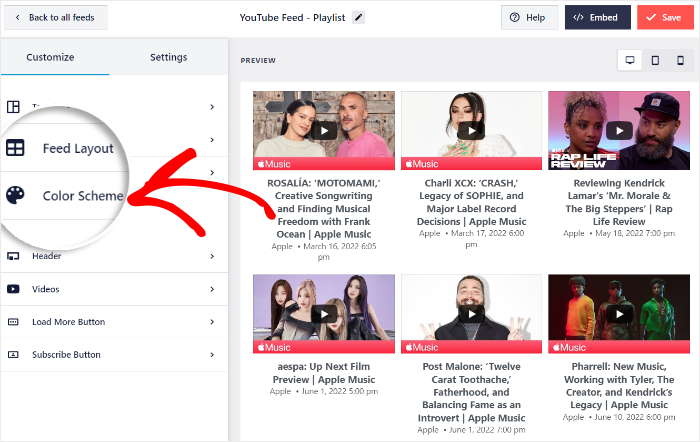
YouTube Feed Pro comes with 4 color schemes that can easily change all the feed colors with ease.
- Inherit from Theme: Copy the colors of your Divi WordPress theme
- Light: Display a light background with a dark font
- Dark: Embed a dark background with a light font
- Custom: Manually pick all the colors yourself
You’ll see an option that says “Inherit from Theme.”
When you enable this option, the plugin scans your active Divi theme and applies your primary fonts, button styles, and color palette to the video feed.
This means your YouTube videos will look like a natural part of your website design, not like an external element.

Trust me, this feature alone is worth the price of admission.
I used to spend hours asking my developer friends to write custom CSS to make embedded videos match my Divi sites. Now it happens automatically.
Once you finally choose your color scheme, confirm your changes by clicking on Save.
Now, you can use the remaining customization options to set your header design, button style, lightbox options, feed size, and more.
Let’s walk through the key customization options:
Feed Layout Settings:
- Columns – Choose how many videos appear per row (I recommend 3 for desktop, 2 for tablet, 1 for mobile)
- Number of Posts – Decide how many videos load initially
- Load More Button – Enable this to let visitors load additional videos without leaving the page
Header Settings:
- Show Header – Toggle this on to display your channel name, subscriber count, and channel avatar
- Header Style – Choose between “Visual” (shows channel art) or “Text Only”
I love adding the visual header because it builds trust. Your site visitors can see your subscriber count and verify that your channel is legitimate.
After you’re done with the customization, click on Save.
Step 5: Embed YouTube Video Feed on Your Divi Website
Now it’s time to actually add your beautiful YouTube feed to a Divi page! Using this plugin, you can start embedding your YouTube feeds directly from the live feed editor.
To get started, click on the Embed button at the top.

Next, you’ll see a popup that contains all the video embed options for your YouTube feed. From here, you can embed your feed in a page, post, sidebar, and footer.
Here, click on the Copy button to continue. You’ll need it in a moment.

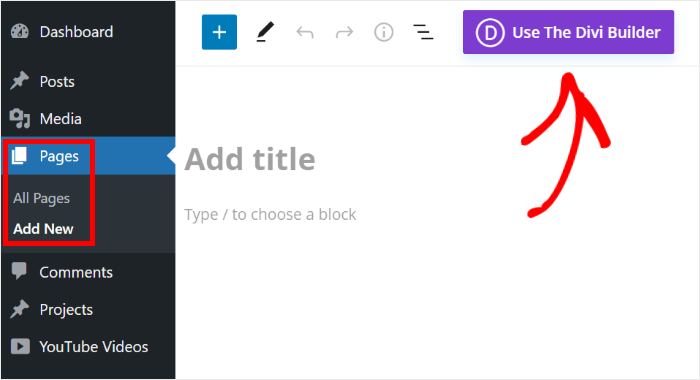
To start embedding your feed on a WordPress page, open the Pages » Add New menu from your dashboard.
From the page editor, click on the Use The Divi Builder button.
Want to use a WordPress post instead? Just create a new post instead and continue with the instructions below.
After that, you can choose between 3 options to start designing your Divi page or post:
- Start Building: Start from a blank template
- Browse Layouts: Import a pre-built layout
- Choose Page: Select a page and copy its design
To continue, just select the option you prefer.

With the Start Building option, you can immediately start designing the page or post.

If you selected the Browse Layouts option, you can browse your pre-existing layouts on the Load From Library popup.
On the popup, just click on the layout that you prefer.

This will show you more details about that layout.
To select this layout for your page or post, click on Use This Layout.

If you go for the Choose Page option, the popup will show you all the page designs that you’ve created using Divi.
To continue, just click on one of the pre-made layouts on this popup,

Now, you can start adding your YouTube videos to this Divi page builder.
First, click on the green plus icon (+) to create a new row to place your YouTube feed.
After that, you can choose the type of row you want to add.

Next, click on the plus (+) icon to open the Insert Module popup. Using this, you can add content to the Divi theme.
In the search bar at the top, look for the “code” module. After that, click on the Code module from the results below.
Here’s the important part: You need to use Divi’s Code Module to embed the feed properly. Don’t use the Text module or Video module. The Code Module prevents Divi from adding unwanted formatting that could break the shortcode.

Once you do that, look for the code field on the left and then paste the shortcode for your YouTube feed.
Finally, click on the check icon at the bottom to save your changes.

With that, you’ve added YouTube videos to your Divi WordPress site. You can now click on Publish, and your feed will be live on your site.
To see how it looks to your visitors, you can open your page or post and take a look.

And that’s it!
Now you know how to add YouTube videos in the Divi theme. As a result, you can keep website visitors engaged and convert them into customers.
With the YouTube Feed Pro plugin, you can embed YouTube videos in your Divi website in just a few easy clicks — no need to touch a single line of code.
Ready to embed a YouTube video into WordPress Divi? Get Smash Balloon YouTube Feed Pro today!
Why Embed YouTube Videos in Divi?

At this point, you might be wondering: “Okay, I know how to embed videos now, but why should I?”
Great question! Let me share some compelling reasons based on my experience and the data.
Using the Divi theme, you can create a beautiful website with ease with the help of the visual builder. Once your Divi site is ready, you can use video content to boost your engagement.
By displaying a YouTube feed in Divi, you can show relevant video content and keep your visitors on your website.
And that’s just the start! Here are a few more amazing ways a YouTube Divi feed can help your website:
Social Proof That Converts
Video content is one of the most powerful forms of social proof you can use on your website.
When potential customers see your YouTube videos, whether they’re tutorials, testimonials, product demos, or behind-the-scenes content, it builds trust in a way that text simply can’t match.
In fact, 84% of consumers say they’ve been convinced to make a purchase after watching a brand’s video. That’s a massive conversion influence!
By embedding your YouTube feed directly on your Divi site, you’re giving visitors immediate access to this persuasive content without forcing them to leave your website.
Increase Time on Site and Engagement
Here’s something interesting: pages with video content keep visitors engaged significantly longer than text-only pages.
When someone clicks play on one of your embedded YouTube videos, they’re committing to spending several minutes (or more) on your site.
This increased “time on site” metric sends positive signals to Google about your content quality, which can improve your SEO and search rankings.
Plus, YouTube Feed Pro’s Lightbox feature means videos play in an overlay on your site. Visitors stay on your page instead of being redirected to YouTube. This keeps them in your conversion funnel.
Keep Content Fresh Automatically
One challenge with maintaining a Divi website is keeping content updated. With YouTube Feed Pro, your video feed updates automatically whenever you publish new content to your channel.
No more logging into WordPress to manually add new video embeds. Your Divi site always displays your latest content without any effort on your part.

As you can see, you can embed videos in Divi to boost your social media presence, engage your visitors, and grow your business.
Start Embedding YouTube Videos on Your Divi Site Now
There you have it! You now know exactly how to embed YouTube videos on your Divi WordPress site using Smash Balloon’s YouTube Feed Pro.
No coding required. No design headaches. Just beautiful, fast-loading, SEO-friendly video feeds that update automatically and convert visitors into customers.
The best part?
The entire setup takes less than 15 minutes, but the benefits last as long as your website does.
If you’re serious about showcasing video content on your Divi site, whether it’s for marketing, education, entertainment, or social proof, YouTube Feed Pro is hands-down the easiest and most professional solution available.
Ready to transform your Divi site with stunning YouTube video feeds?
Get started with YouTube Feed Pro today and watch your engagement soar!
Related Articles You Might Find Helpful:
- How to Display Instagram Feeds on Your Divi Website (No Coding Required)
- Here’s How I Add Social Media Feeds to Divi Websites (+ Screenshots!)
- How to Embed YouTube Shorts on Your Divi Website



