


 Social Wall
  Feed Analytics


Ready to showcase dynamic X (Twitter) conversations on your website with a live hashtag feed?
If you use hashtags for your business, events, or campaigns, showing a live X (Twitter) hashtag feed on your website is a smart idea.
An X (Twitter) hashtag feed on your site displays all the latest X posts using a specific hashtag. This can boost user engagement, increase brand exposure and show visitors what people are saying about your chosen topic right now.
As a social media marketer, I know that getting an X (Twitter) hashtag feed to display exactly how you want it on your website using the standard X (Twitter) embedding options can be hard.
At Smash Balloon, we’ve helped over 1.75 million websites display social media feeds on WordPress. Our social media plugins make it easy to show content from social networks like X (Twitter).
In this article, I’ll walk you through a 5-step process I use to easily embed an X (Twitter) or X (Twitter) hashtag feed.
Using my expertise in social media integrations, I’ll provide a simple, updated guide for 2026, so you can quickly get your beautiful X (Twitter) hashtag feed running by following along step-by-step – no coding needed.
In This Article
- 2 Methods to Embed an X (Twitter) Hashtag Feed on Your Site
- The Easiest Way to Add an X (Twitter) Hashtag Feed
- How to Embed an X (Twitter) Hashtag Feed on Your Website: Complete Guide
- Why Embed X (Twitter) Hashtag Feeds on Your WordPress Website?
- Conclusion and Next Steps
- More Social Media Tutorials & Guides
2 Methods to Embed an X (Twitter) Hashtag Feed on Your Site
If you want to show social media feeds with X (Twitter) content on your site, there are 2 methods:
- Manual (No Plugin): Use X (Twitter)’s feed embed code generator and then modify it to show an X (Twitter) timeline with hashtag X posts. If you’re not tech-savvy, you can hire an expensive developer to help you.
- Automatic (X (Twitter) Feed Pro Plugin): Use Smash Balloon’s X (Twitter) Feed Pro to connect your X (Twitter) account and embed your X (Twitter) hashtag feed in a few clicks.
| Feature | Using Smash Balloon’s X (Twitter) Feed Pro | Not Using a Plugin |
| Setup Complexity ?️ | Quick and easy setup with a simple interface. | Complex setup requiring coding skills and API understanding. |
| Coding Requirements ? | No coding needed — perfect for beginners! 🙂 | Requires JavaScript and HTML coding, along with X (Twitter) API knowledge. |
| Access to Features ? | Access to advanced features like multiple X (Twitter) feeds and feed moderation. | Limited to basic embedding capabilities for single X posts. |
| Customization Options ? | Use plugin’s ready-built visual feed customizer to adjust your X (Twitter) hashtag feed’s design and content — just by clicking! | Minimal customization if you’re not familiar with coding. |
| Time Investment ⏰ | Get your X (Twitter) hashtag feeds up and running in minutes. | Time-consuming process, may take days or weeks to troubleshoot. |
| Help and Support ? | You can contact Smash Balloon’s helpful team of WordPress experts for help. | No dedicated support; troubleshooting is up to you. May cost more to hire a developer. |
| Final Takeaway ✨ | Ready to embed your X (Twitter) hashtag widget easily? Check out Smash Balloon’s X (Twitter) Feed Pro today! | If you don’t want to use an X (Twitter) plugin and prefer to embed feeds manually, prepare for a challenging setup with tons of limitations. |
The Easiest Way to Add an X (Twitter) Hashtag Feed
For the simplest way of embedding X (Twitter) content, you can just use an X (Twitter) WordPress plugin. The plugin will automatically fetch X posts and embed them on your site, saving you a ton of time and effort.
There are a lot of tools out there, but the one I’ll use for this tutorial is the best X (Twitter) feed plugin for WordPress: Smash Balloon X (Twitter) Feed Pro.

Using this tool means you can create and embed X (Twitter) hashtag feeds in just minutes without any coding. Plus, there’s a few other handy features:
- On top of hashtag posts, you can embed your X (Twitter) posts to get more engagement and turn site visitors into followers.
- All the X (Twitter) feeds you create will look great right out of the box because it automatically copies your website’s theme.
- The plugin is pretty lightweight, so you can display a lot of X (Twitter) content on your site and everything will load as fast as ever.
- You get a visual customizer that lets you design beautiful X (Twitter) feeds with ease — even if you’re not tech-savvy.
You can tell this plugin does the job well since it has a solid 4.9/5 stars rating and over 150,000 users do the job.
Expert tip: Looking to showcase your X (Twitter) content on Elementor instead? Here’s a quick guide on how you can add an X (Twitter) feed to your Elementor website.
How to Embed an X (Twitter) Hashtag Feed on Your Website: Complete Guide
For the easiest way to embed X (Twitter) hashtag feeds with the help of this plugin, all you have to do is follow these steps.
Step 1: Install Smash Balloon X (Twitter) Feed Pro
Start by grabbing a copy of the X (Twitter) Feed Pro plugin here and install it on your WordPress website.
If you need help with this, you can use this tutorial on how to install a WordPress plugin on your website as a guide.
Step 2: Create a New X (Twitter) Hashtag Feed
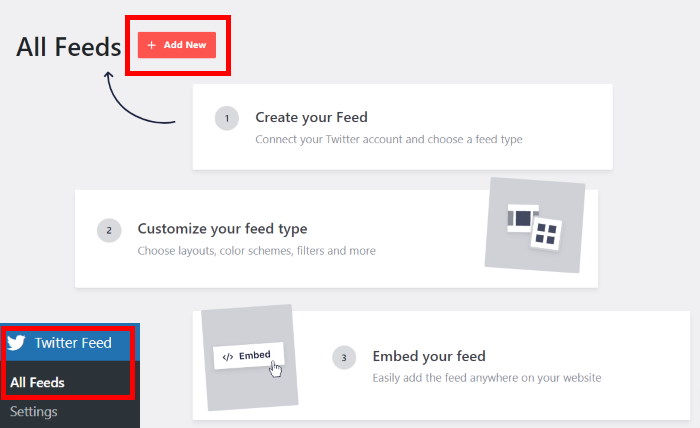
First, I’ll make a new X (Twitter) feed that’s exclusively for hashtag posts. To do this, let’s use the 3-step guided flow to create a new X (Twitter) feed.
Go to the X (Twitter) Feed » All Feeds menu from your WordPress dashboard and click on Add New.
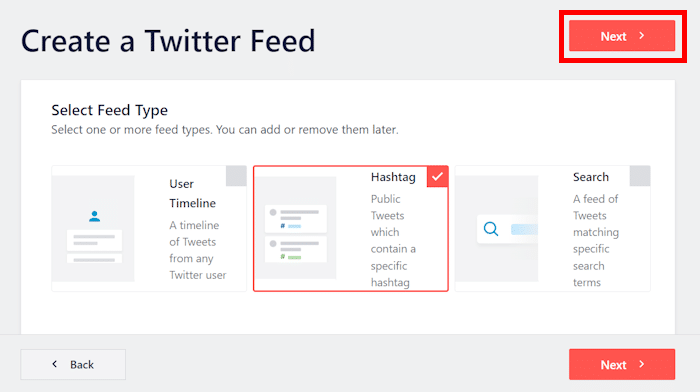
Now, it’s time to choose the type of X (Twitter) feed that you want to display on your website:
- User Timeline: Display social media content from your X (Twitter) timeline
- Hashtag: Show X posts that have your chosen hashtags
- Search: Use a search term to select the X posts that you want to embed
Since this tutorial is about embedding an X (Twitter) hashtag feed on your website, I’ll select the hashtag option and click on Next.
Step 3: Connect Your X (Twitter) Account
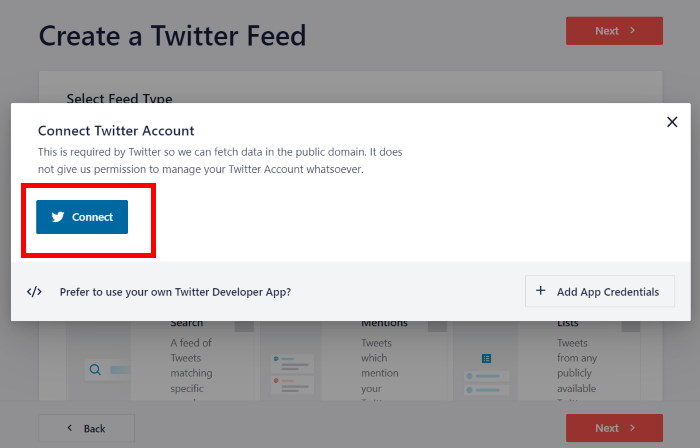
By connecting your X (Twitter) account, the plugin can fetch X posts and display them on your website.
It’s super easy to do this. First, click on the Connect button here.
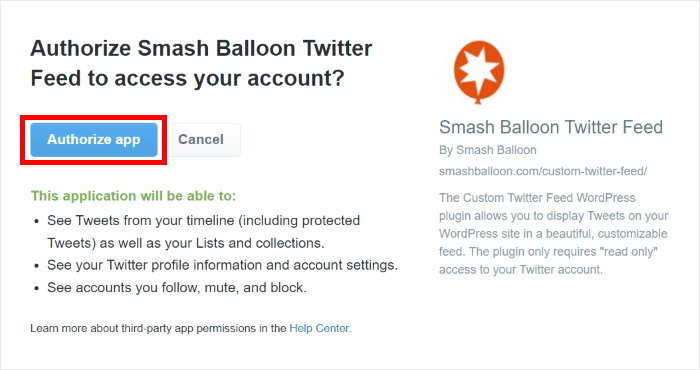
The plugin will then redirect you to X (Twitter) so you can give it read-only access to your account.
Long story short, read-only access means the plugin can’t actually make any changes to your account so it’s totally safe.
To continue, click on the Authorize app button.
Next, the plugin will send you back to your website so you can finish setting up your X (Twitter) hashtag feed.
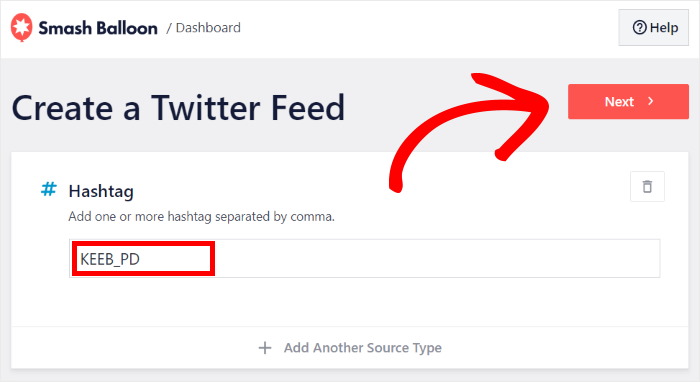
To do that, you can go ahead and add the hashtags you want in the Hashtag field. In this tutorial, let’s use the KEEB_PD hashtag, since I’m personally a fan of keyboards.
You can add multiple hashtags as well by separating them with a comma.
Feel free to change this hashtag to your own branded hashtag so you can show your own custom X (Twitter) feed.
Finally, click on the Next button.
Step 4: Customize Your X (Twitter) Hashtag Feed
Like I said before, your X (Twitter) feed will already look pretty nice right out of the box since it copies your site’s theme.
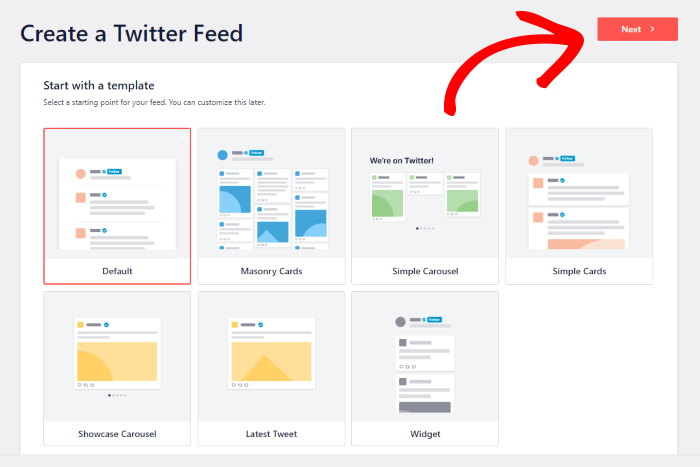
To help you create unique X (Twitter) feeds with ease, the plugin allows you to pick from different feed templates:
- Default
- Masonry
- Simple Carousel
- Simple Cards
- Showcase Carousel
- Latest X posts
- Widget
To continue, select an X (Twitter) feed template and then click on Next.
Want to have even more control over your X (Twitter) feed’s style?
Once you pick your feed template, the plugin will open your X (Twitter) hashtag feed widget in the visual feed editor with live preview.
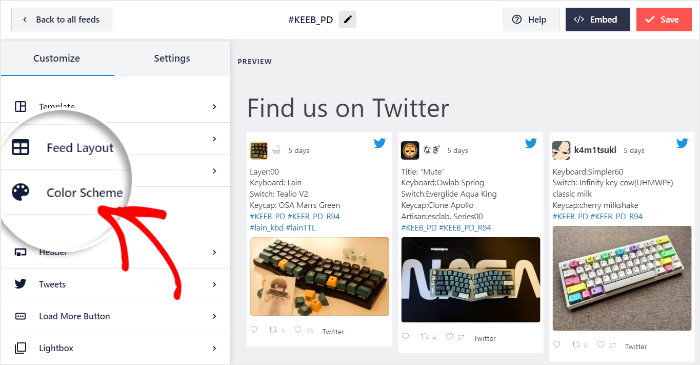
Here, you can change the customization options like feed layout, color scheme, header style, button design, and much more.
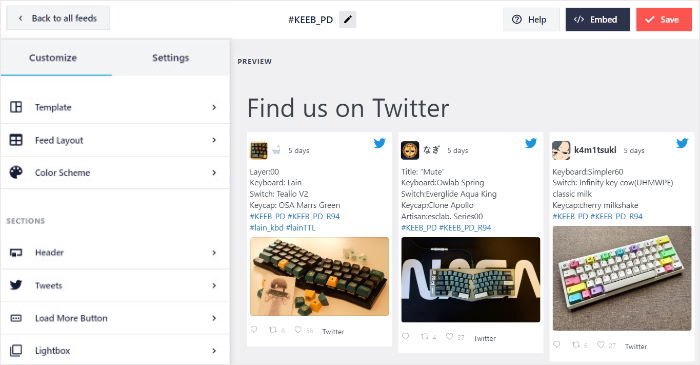
On the right side of the screen, you can see a real-time preview of your X (Twitter) feed so you can track your changes.
There are a lot of options here, so I’ll just guide you through some of my favorite options.
First, click on the Feed Layout option on the left.
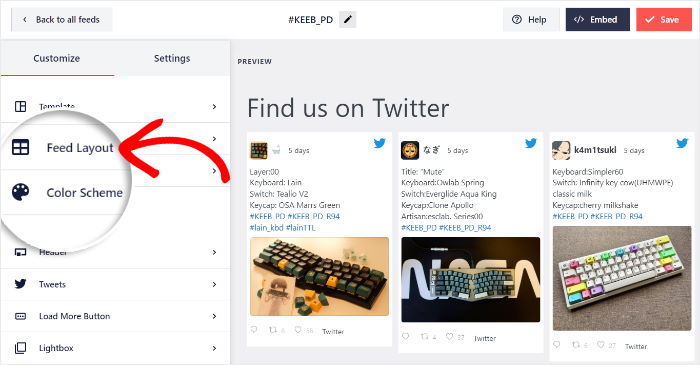
On this page, you can take your time and play around with different layout options for your feed.
There are 3 options that you can pick from: List, Masonry, and Carousel.
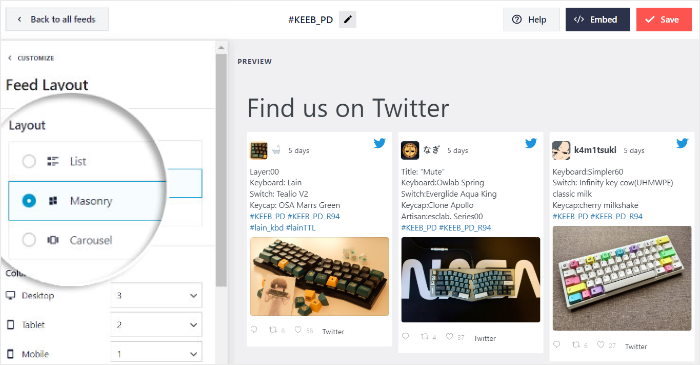
With the List layout, you can display your X (Twitter) content in a full-width layout in a single row.
As a result, each X post is highly visible on your website.

Next, you have the Masonry layout, which shows your X posts in different columns.
Since you can show tons of X posts at once, it’s a great option for an X (Twitter) gallery.

Finally, there’s the Carousel layout template that you can use to embed a slideshow carousel of X posts on your WordPress site.

After selecting the X (Twitter) feed layout that you prefer, click on the Save button.
You can then click on the small Customize button to continue editing your X (Twitter) feed design.
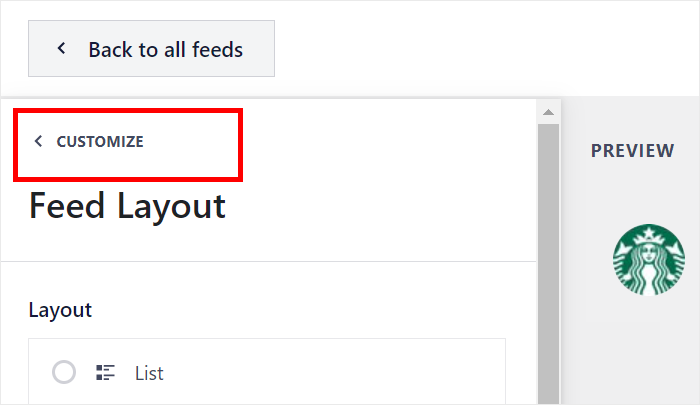
From here, click on Color Scheme to set the colors for your X (Twitter) hashtag feed.
To help you easily change the colors of your X (Twitter) feed, there are 4 color schemes that you can choose from.
- Inherit from Theme: Copy your website’s branding colors
- Light: Light background with a dark font
- Dark: Darker background and a light font
- Custom: Manually select your colors
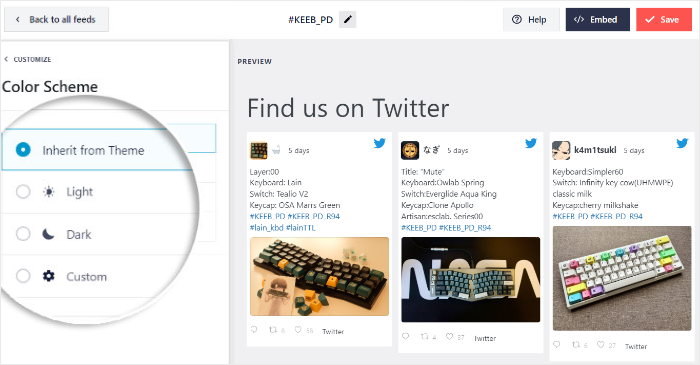
Select a color scheme that you prefer, and then click on Save once again.
That’s not all — you can also customize your font, X (Twitter) header, text length, “load more” buttons, and much more on this page.
On top of that, you can add filters to curate the X (Twitter) embeds that show up on your feed.
Finally, click on the Save button to confirm your changes.
The awesome part?
You don’t need to touch CSS, HTML, Javascript, or any other coding language. Simply click the customization options in the plugin’s visual feed customizer to personalize your feed’s design and content.
Step 5: Embed Your X (Twitter) Hashtag Feed on WordPress
With the help of X (Twitter) Feed Pro, you can easily embed X (Twitter) feeds on a website’s page or widget-ready areas like your footer or sidebar.
Let’s take a look at how you can do that.
Add X (Twitter) Hashtag Feed to WordPress Page
You can display your X (Twitter) feed on your WordPress page directly from your live feed editor.
First, click on the Embed button in the top-right corner of the editor.
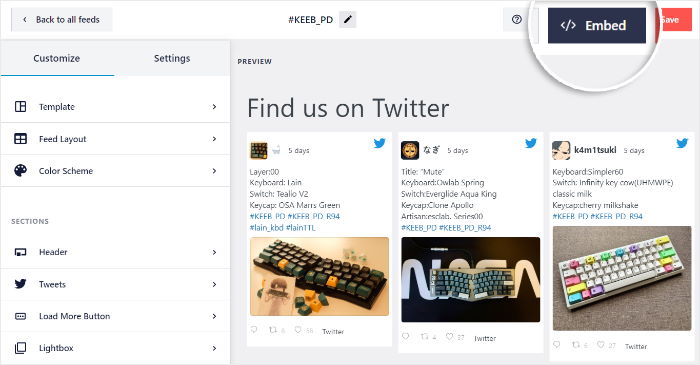
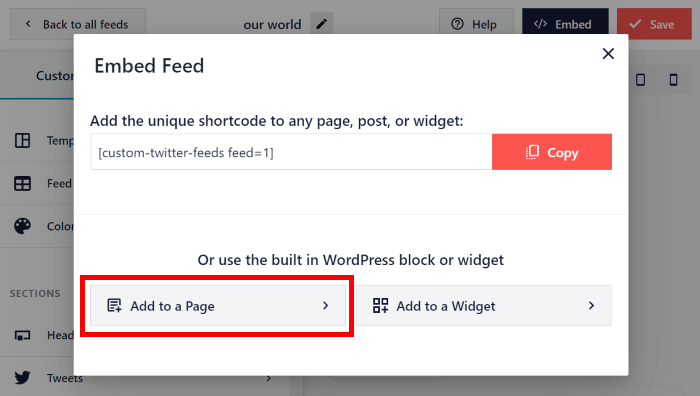
After that, you can see a new popup where you can set the location of your X (Twitter) feed.
For now, you can click on the Add to a Page button to continue.
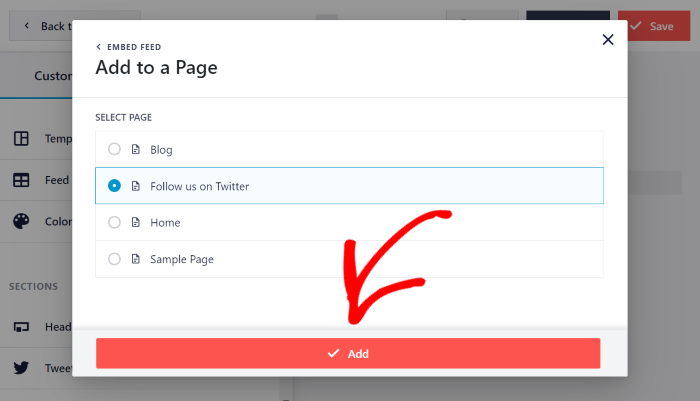
Next, select which page you want to use for your X (Twitter) hashtag feed and then click on Add.
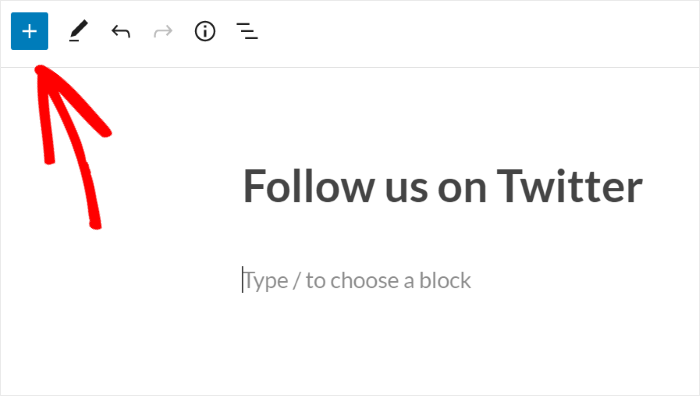
Doing that will open that web page in the WordPress editor.
On the editor, click on the Plus (+) icon to add a new WordPress block.
Look for the X (Twitter) Feed widget and click on it to automatically add your X (Twitter) hashtag feed to your page.
Just like that, this easy X (Twitter) feed widget will show your hashtag feed on your page.
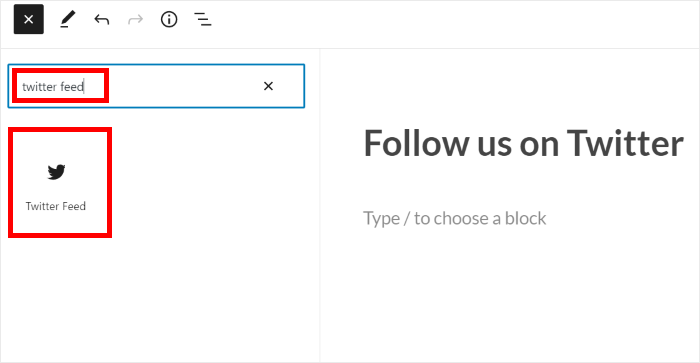
When you’re happy with how your X (Twitter) feed looks, go ahead and click on Publish to make your X (Twitter) feed live on your website.
Now you can open your website, and you can see your X (Twitter) feed displayed on your site showing posts with your chosen hashtag.

Add X (Twitter) Hashtag Feed to WordPress Sidebar
Next, I’ll show you how to add an X (Twitter) feed widget to your sidebar or footer.
To get started, go to your WordPress admin panel and then navigate to the X (Twitter) Feed » All Feeds menu.
Now, click on the X (Twitter) hashtag feed that you created earlier.
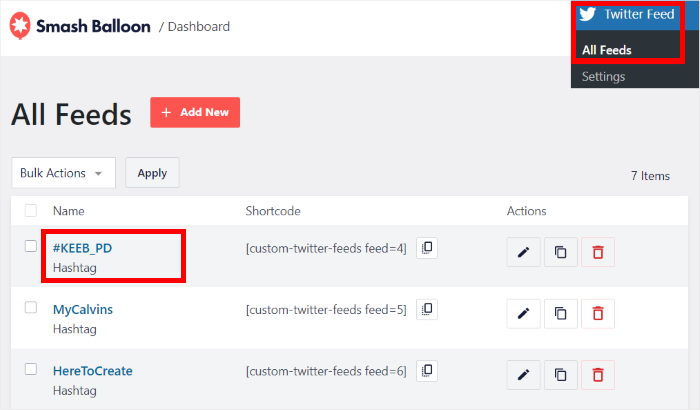
Once you do that, the plugin will open your hashtag X (Twitter) feed in the live feed editor once again.
There, click on the Embed button at the top to proceed.
Now, you can see a popup that asks you to choose the location of your X (Twitter) feed.
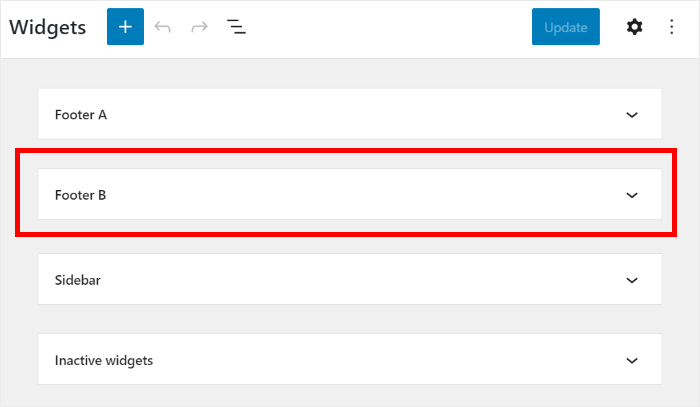
To embed your X (Twitter) hashtag widget on your sidebar or footer, select the Add to a Widget option.
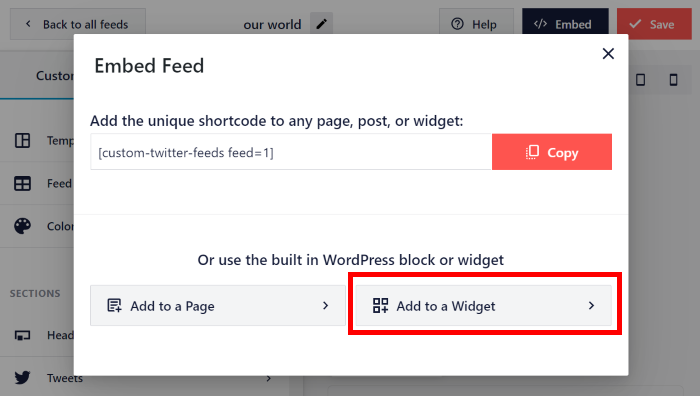
After you do that, the plugin will open the widgets page. Here, you can choose where you want to embed an X (Twitter) feed widget to show hashtags on your site.
From here, you can click on the Sidebar panel to add the X (Twitter) feed there.
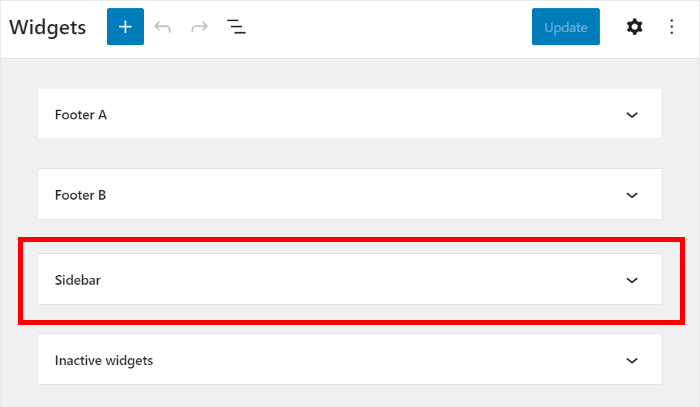
Want to show your X (Twitter) widget on your footer instead?
Then you can select the Footer panel instead.
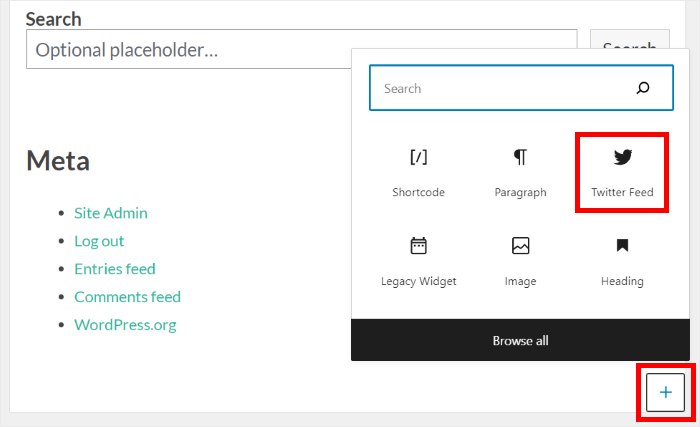
From here, click on the plus icon (+) to add a widget and then click on X (Twitter) Feed.
Finally, click on Update to save your changes.
Now, you can see your X (Twitter) feed displayed on your sidebar when you visit your website, like this:
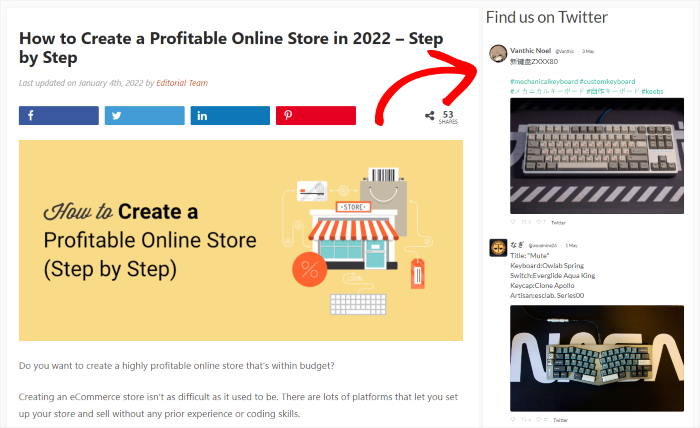
To start showing feeds of X (Twitter) hashtag posts, you can get started with X (Twitter) Feed Pro here.
Why Embed X (Twitter) Hashtag Feeds on Your WordPress Website?
Hashtags on X (Twitter) are a fantastic way to follow specific topics, events, or even conversations about your brand.
Embedding a live feed of a particular hashtag directly on your website can be a really smart way to bring that dynamic discussion and relevant content right to your visitors.
Here’s why embedding an X (Twitter) hashtag feed is a great idea:
- Build Trust in Your Business: Showing X posts centered around a specific topic, event, or campaign directly on your website acts as social proof and builds trust in your brand.
- Boost Your Site’s Rankings: When you add dynamic, updating X (Twitter) content to your WordPress, you keep site visitors interested and increase your site’s dwell time, which helps improve your website SEO.
- Highlight What People Are Saying: Just like Instagram hashtag feeds, an X (Twitter) hashtag feed showcases real-time conversations and user-generated content (UGC) related to your brand or topic.
- Keep Your Site Content Fresh: Your live X (Twitter) widget updates automatically, ensuring your website always has the latest hashtag activity.
Basically, embedding a hashtag feed is an effective way to add relevant, dynamic, and engaging content to your website, connecting your site visitors to the pulse of X (Twitter) around a topic that matters to you.
Conclusion and Next Steps
Adding an X (Twitter) hashtag feed to your website doesn’t have to be complicated. With Smash Balloon’s X (Twitter) Feed Pro, you can have a dynamic feed of posts using your chosen hashtag showing up on your site in minutes, not hours.
Based on my experience, trying to get a live feed of X posts from a specific hashtag to display correctly on a website can be a real headache.
That’s exactly why I find this plugin so useful. It takes all the difficulty out of embedding your hashtag feed. You don’t need any coding knowledge, and the X posts appear looking great on your pages, automatically updating with new posts.
Ready to easily share X posts using your favorite hashtag right on your website? Here’s what I recommend doing next:
- Grab your copy of X (Twitter) Feed Pro. (Remember, it comes with a 14-day money-back guarantee if you want to try it out risk-free!)
- Walk through the simple setup instructions shown in the article.
- See how your new hashtag feed looks on both computers and mobile devices.
- Enjoy having fresh, real-time content automatically updating on your site.
Got questions about putting an X (Twitter) hashtag feed on your website using X (Twitter) Feed Pro? Feel free to ask in the comments below!
More Social Media Tutorials & Guides
- How to Embed Multiple TikTok Videos at Once (Zero Coding Method)
- How to Auto Share Old WordPress Posts to Social Media (Easy Way)
- TikTok is Your Secret Weapon: Best TikTok Ideas for Small Businesses
- Best WordPress Social Media Plugins that Pro Marketers Swear By
- How to Create a Horizontal X (Twitter) Feed in WordPress








Is it still possible to embed X hashtag feeds on (for example) a WordPress website? Or did something change with the X API that results in it costing some $100/month for this functionality?
Hi Ted,
Thank you for contacting us! You can create hashtag feeds using the PRO version of the plugin; we have added our own API solution, so it’s not necessary to pay the $100/month, but there are some limitations that you can check here: https://smashballoon.com/doc/smash-balloon-twitter-changes/
I hope this helps! If you have any other questions, feel free to reach out to us using our support form here https://smashballoon.com/support/.
Regards 😀