Social Wall
  Feed Analytics

As a social media marketer, I know that getting your Twitter feed to look the way you want using native embed options can be frustrating, especially when you want a specific layout like a horizontal slider or carousel.
Twitter’s default embed only creates a vertical timeline, with no horizontal option built in.
I work at Smash Balloon, and the plugin I rely on for this is Smash Balloon Twitter Feed Pro. It has a built-in carousel layout so you can display your Twitter feed horizontally without writing a single line of code.
In short: To create a horizontal Twitter feed in WordPress, install Smash Balloon Twitter Feed Pro, create a new feed, and select the “Simple Carousel” template during setup. That gives you the horizontal scrolling layout in one click.
The full setup takes about 5 minutes. I’ll walk you through every step below.
In this article, I’ll show you exactly how to set up your horizontal Twitter feed step-by-step. This guide is made for everyone, so no coding knowledge is required.
In This Article
- Easiest Way to Add a Horizontal Twitter Feed
- How to Embed a Horizontal X (Twitter) Feed in WordPress
- Frequently Asked Questions About Horizontal X/Twitter Feeds in WordPress
- Popular Tutorials & Guides on Twitter Marketing
- Start Embedding a Horizontal X/Twitter Feed Today
Easiest Way to Add a Horizontal Twitter Feed
You’re free to manually embed a horizontal Twitter feed on your website. But you should know that doing so carries lots of limitations, like:
- Hard to set up: When you manually embed your tweets in a horizontal layout template on WordPress, you need to deal with lots of code like HTML, PHP, JavaScript, or custom CSS.
- Difficult to customize: You’re stuck with the default Twitter layout and design. So if you want to change your Twitter feed’s layout to a horizontal scrolling feed, you might have to spend money hiring a developer.
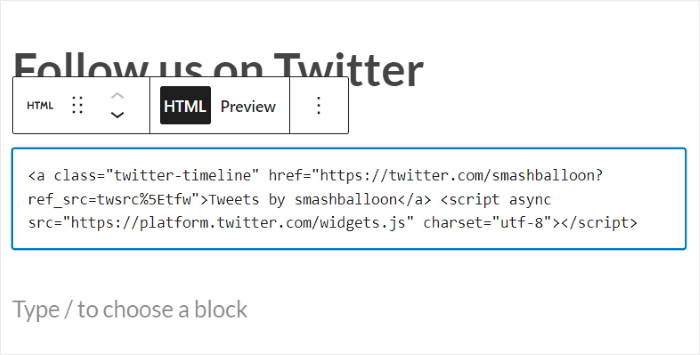
- Risky: Ever tried to tweak your WordPress website’s embed code? Just one tiny mistake, and you may see the dreaded “error” page, which takes up a lot of your time and resources to fix.
- Limited control over your tweets: Want to moderate your tweets to show only the content you want? Twitter doesn’t allow you to do this, too.
- No one to prioritize helping you: Messed up your site? Or don’t know what to do? Twitter doesn’t have a dedicated support team to help you. So you’re on your own.
If Twitter makes it difficult to embed your Twitter feed horizontally on your site, then what’s the best way?
You can make everything easier and faster by using the best Twitter feed plugin for WordPress: Smash Balloon Twitter Feed Pro.

This beginner-friendly plugin helps you easily add your Twitter horizontal feed to your WordPress site.
Yes, you don’t even need to tweak lines of code just to set it up.
And the best part? It has a built-in carousel layout. So you can easily display your Twitter feed horizontally, too.

Also, since it’s designed with the users in mind, you can be sure that the plugin’s super fast-loading on your website. And a faster website means better SEO, so your site ranks higher in the search engine results.
Plus, with a solid 4.9/5 star rating, this custom Twitter feeds plugin is happily recommended by over 100,000 active users.

Twitter Feed Pro extends your website’s functionality to display Twitter content on your site. Here are some of the plugin’s best features:
- Ultra easy to set up: Install the plugin, set it up, and display your horizontal Twitter feed with just a few clicks — no technical knowledge needed!
- Looks great out of the box: This WordPress Twitter feed plugin automatically inherits your theme’s design. So it’s consistent with your brand’s visual identity and existing WordPress theme.
- Easily customizable: Using our live feed customizer, you can easily enable the horizontal scrolling layout, change the colors, set the button layout, and much more.
- Add your Twitter feeds without dealing with code: You can easily embed a scrolling Twitter feed widget on your sidebar or footer areas with the plugin’s ready-made widget.
- Optimized for good SEO: Since the plugin was created with SEO in mind, you’ll have an easier time ranking high in search engine results and reaching more potential customers.
- Gives you full control of your content: Only show tweets that you want on your custom Twitter feed with the help of the plugin’s moderation feature.
And you know what else comes with the plugin? You can contact its friendly and helpful support team. They’re dedicated to always helping you whenever you need someone to give you a hand.
Another cool part about using this plugin to integrate Twitter into your website?
Smash Balloon’s Twitter Feed Pro is also happily trusted by the largest brands around the world to display social proof. So, you know you’re in great company!

As you can see, you’ll have an easy time embedding content from social media platforms with the help of this Twitter feed plugin.
Want to boost engagement for your brand’s Twitter account? Get your copy of Twitter Feed Pro today!
How to Embed a Horizontal X (Twitter) Feed in WordPress
Using this method below, you can set up your rotating tweets on WordPress in a few minutes.
Let’s get started.
Step 1: Install the Twitter Feed Pro Plugin
First off, get your own copy of the Smash Balloon Twitter Feed Pro plugin here. Download the plugin to your computer and then install it on your WordPress website.
Need a refresher on installing WordPress plugins?
You can follow this helpful tutorial on how you can install a WordPress plugin on your site. It has step-by-step instructions so you can do this easily.
Step 2: Create a New Twitter Feed
Using the guided flow, you can easily create a new Twitter feed on your website.
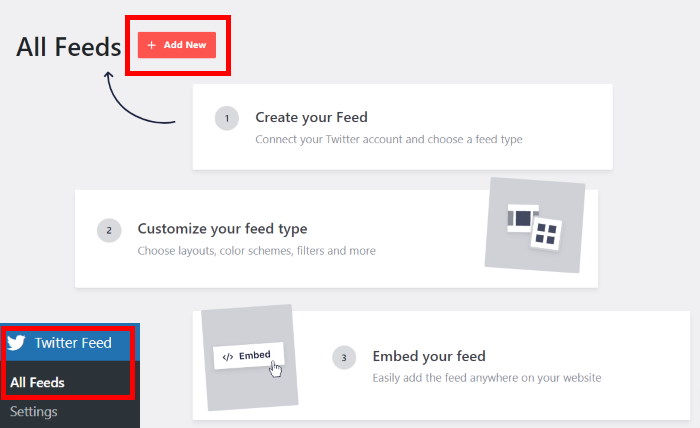
First, navigate to the Twitter Feed » All Feeds menu from your WordPress dashboard.
On this page, click on the Add New button.
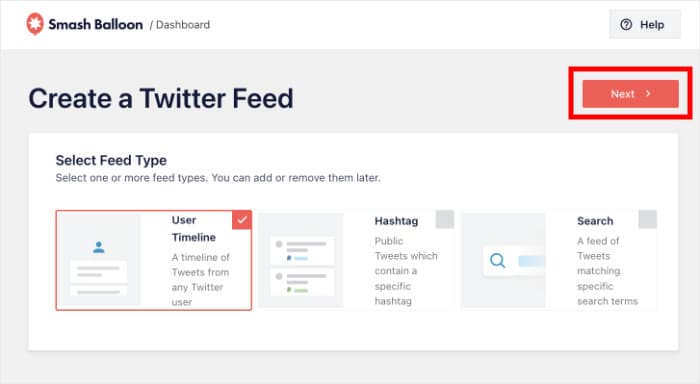
To continue creating your horizontal Twitter feed, you need to choose your feed type.
Using Twitter Feed Pro, there are different feed types that you can pick from:
- User Timeline: Display recent tweets and retweets from your Twitter timeline.
- Hashtag: Show tweets based on specific hashtags you’ve selected.
- Search: Enter search terms and embed the matching Twitter posts.
We chose to show a hashtag Twitter feed as an example.
Once you select your Twitter feed type, click on the Next button.
Step 3: Connect Your Twitter Account
By connecting your Twitter account, you can show content from Twitter on your website.
To begin, click on the Connect button on the popup.
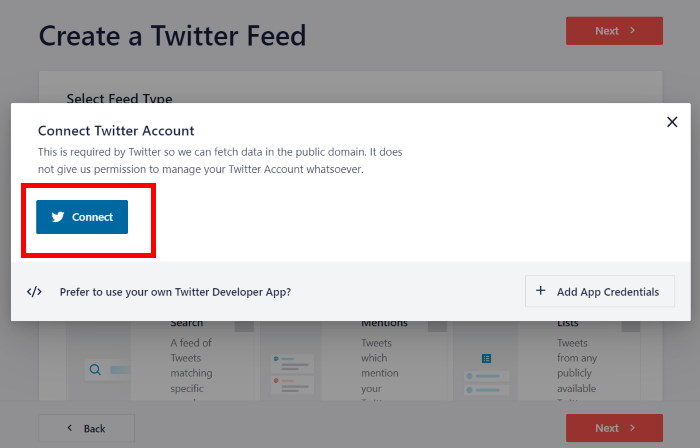
Once you click on it, the plugin will redirect you to Twitter. There, you can give the plugin read-only access to your Twitter account.
Since it’s read-only access, Twitter Feed Pro won’t be able to make any changes to your account at all.
Click on the Authorize app button to connect your Twitter account.
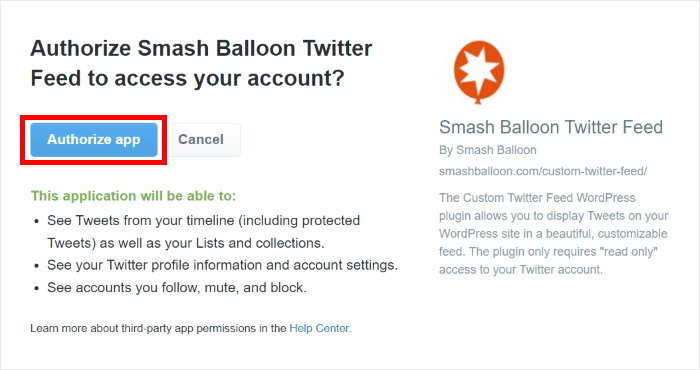
Just like that, you’ve connected your feed to Twitter — no need to deal with access tokens or API!
After that, the plugin will open your website once again so you can finish setting up your Twitter feed.
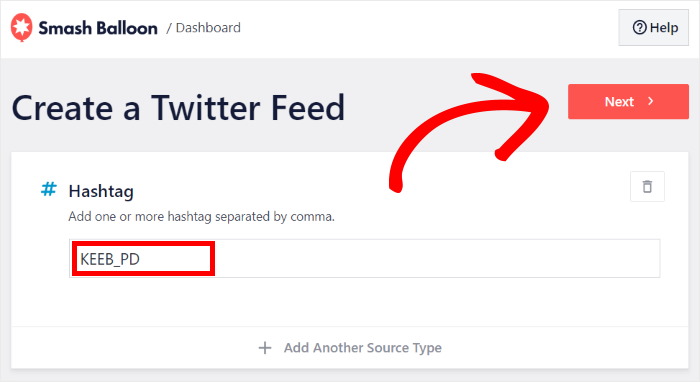
Now, you can choose what to show on your website by entering specific user accounts, hashtags, search terms, and more.
For our tutorial, we’ll add the Twitter hashtag “#KEEB_PD” on the popup.
Once you add a source, click on the Next button.
Step 4: Enable the Horizontal Layout
After you connect your source, the plugin will ask you to pick a template that you prefer.
With these templates, you can quickly create a unique design for your Twitter feed. This means you can easily add a Twitter carousel to WordPress using a template.
To display your Twitter feed horizontally, select the Simple Carousel template and click on Next.
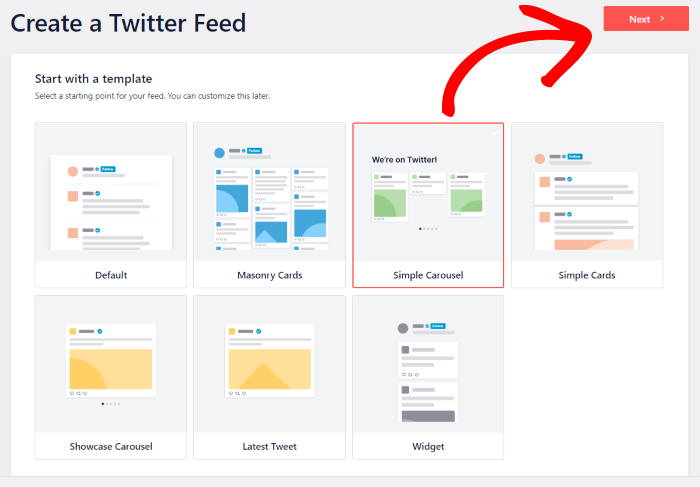
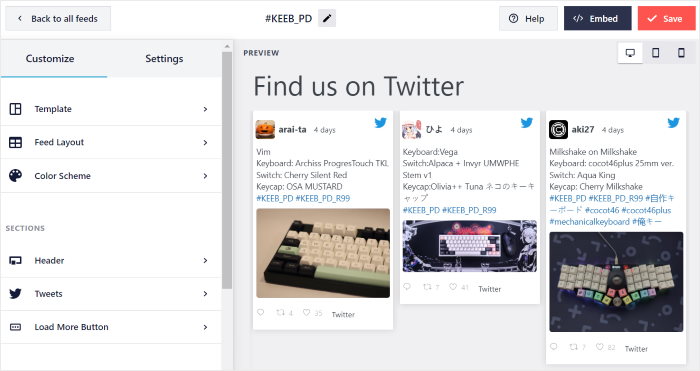
This will enable a horizontal layout for your Twitter feed, which looks something like this:

Step 5: Style Your Horizontal Twitter Feed
Done choosing the carousel layout for your WordPress Twitter feed? Great!
The plugin will now open your horizontal Twitter feed in the live feed editor so you can customize its design.
On the left, you can find all the customization options. Using these, you can set your color scheme, feed layout, feed size, number of posts, and much more.
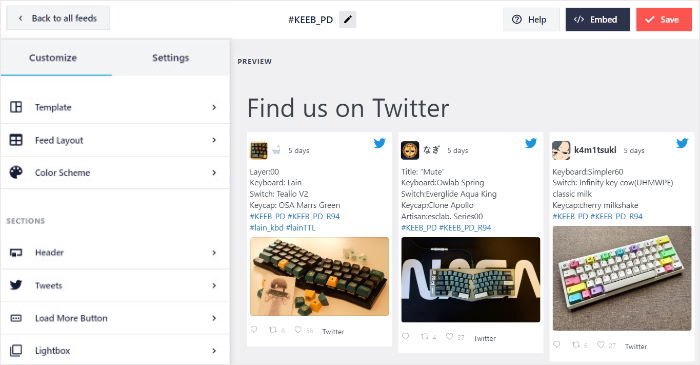
There’s a live preview of your feed as well on the right. That way, you get a real-time preview of your Twitter feed.
To get started, click on the Feed Layout option on the left.
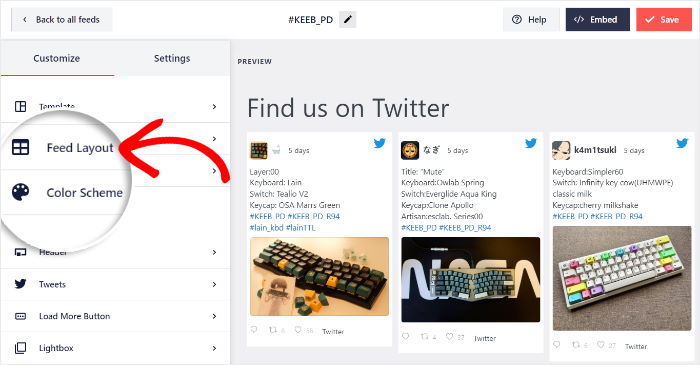
If you scroll down on the left, you can find the options to set up your horizontal Twitter feed.
Under the Carousel Settings option, you can enable or disable the navigation arrows, pagination dots, as well as autoplay.
Below that, you can choose the number of tweets, rows, size of the carousel, interval time, type of loop, and much more.
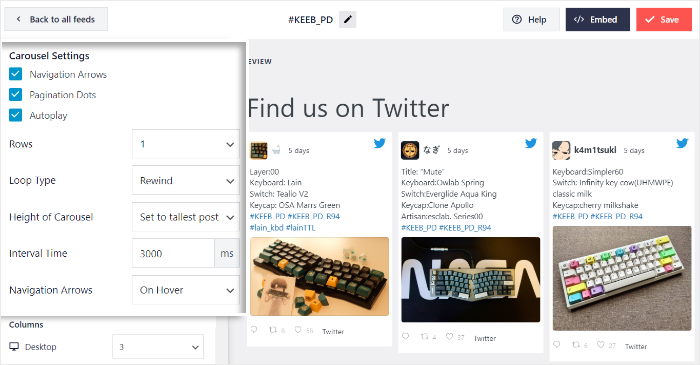
Choose the options that you prefer and then click on Save.
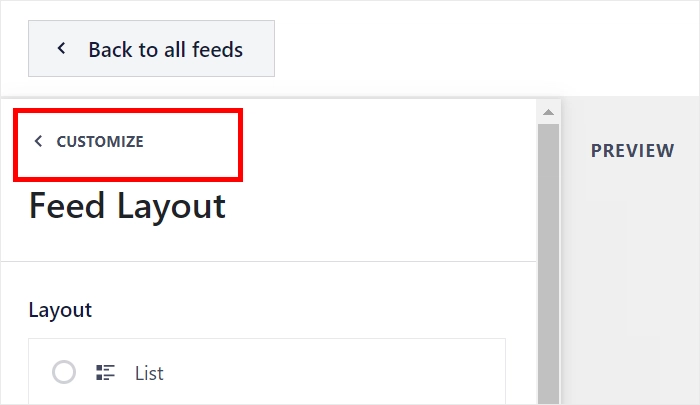
To return to the main options once again, click on the Customize button in the top left corner.
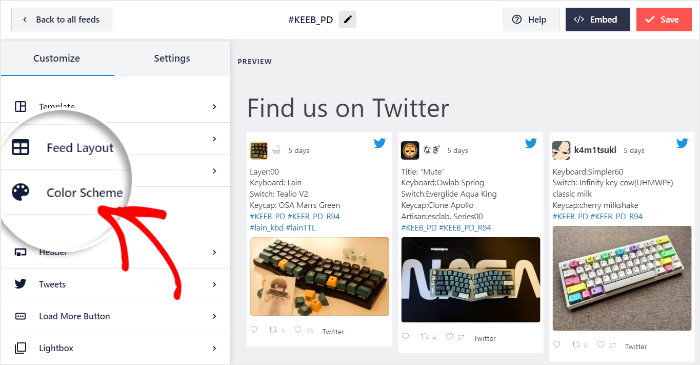
Now, let’s change the colors of your new Twitter feed.
You can do that by going to the Color Scheme option on the left.
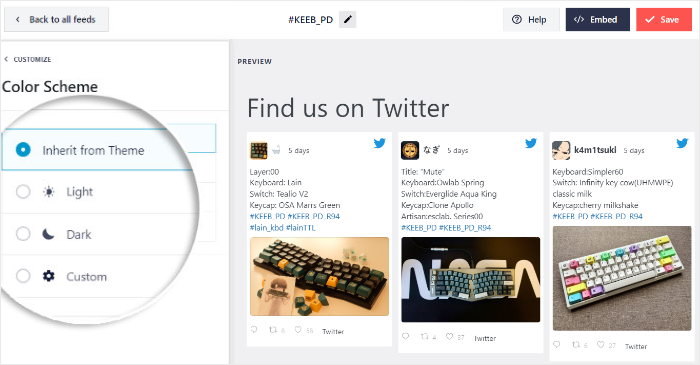
From here, you can choose from 4 different color schemes for your horizontal Twitter feed.
- Inherit from Theme: Copy your website’s colors
- Light: Bright background with dark font
- Dark: Dark background along with a lighter font
- Custom: Manually pick all the colors yourself
Simply select a color scheme from the options and then click on Save to continue.
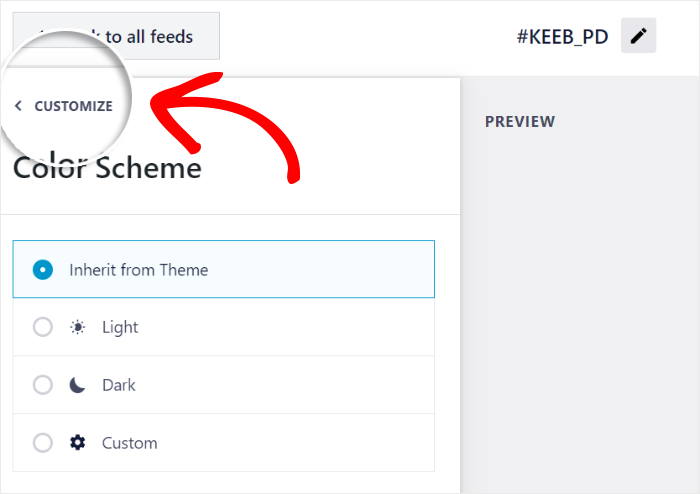
Next, you can return to the main options once again by clicking on the Customize button at the top.
As you can see, you can use the live feed editor to customize the rest of your Twitter feed with ease.
All you have to do is click a few buttons, and you can change your feed header, load more buttons, Twitter card design, and much more. No need to deal with confusing code snippets or hire a developer to help you.
Once you’re satisfied with the look of your horizontal scrolling Twitter feed, click the Save button.
Step 6: Embed Your Horizontal Twitter Feed on WordPress
Finally, you can start embedding this horizontal Twitter feed on your website.
With Twitter Feed Pro, you can display your feed on your website’s page, sidebar, or footer areas.
Embed Your Horizontal Twitter Feed on a WordPress Page
To embed a custom Twitter feed, you can easily use the plugin’s visual feed customizer.
First, click on the Embed button in the top-right corner.
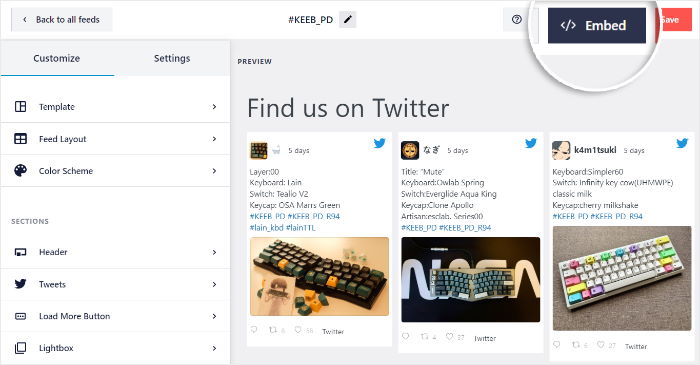
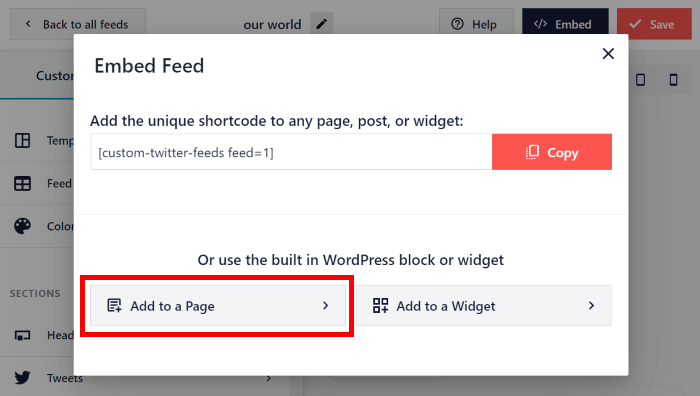
You can now choose to embed your Twitter feed on a page or a widget area. Plus you can also copy the shortcode from this popup.
For now, click on the Add to a Page button to continue.
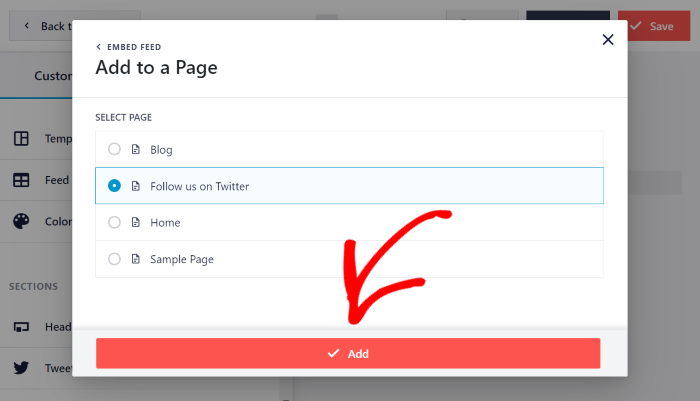
Next, select the page where you want to embed the horizontal Twitter feed, and then click on the Add button.
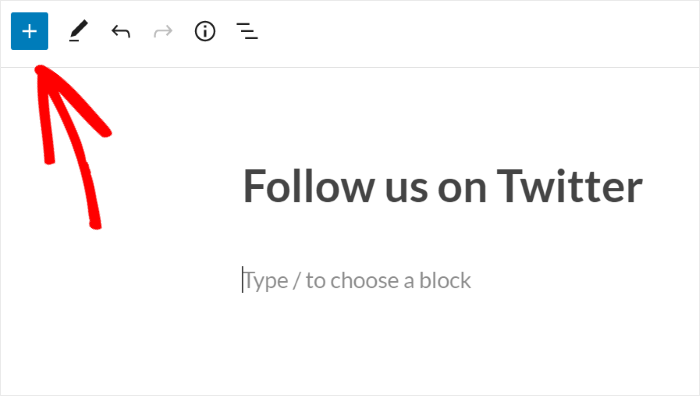
You can now see the page open in the WordPress editor. Here, click on the plus (+) icon so you can add a new content block.
After you do that, type “twitter feed” in the search box and click on the Twitter Feed widget to embed your feed.
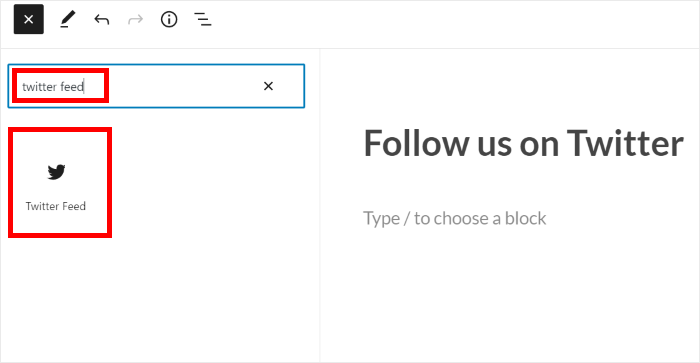
Feel free to edit the page’s content and make sure everything looks great before you click the Publish or Update button.
Once you do that, your website visitors can see your horizontal Twitter feed whenever they visit your website.

Embed Your Horizontal Twitter Feed on Your Sidebar or Footer
If you’d like to add the feed on your site sidebar or footer as a Twitter feed widget, you can use the live feed editor as well.
Start by navigating to the Twitter Feed » All Feeds menu from your WordPress dashboard.
Next, click on the horizontal Twitter feed that you want to embed.
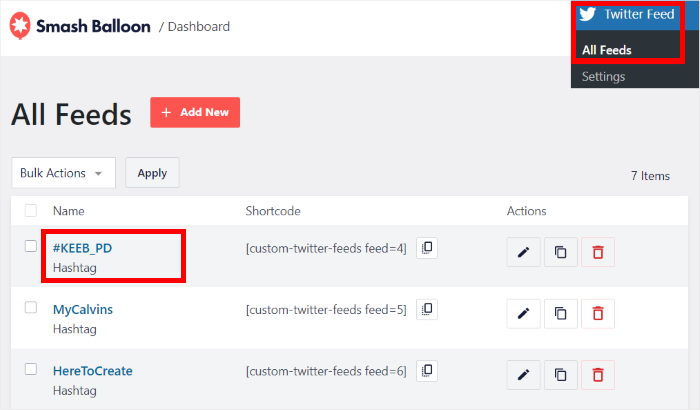
Now, this Twitter feed WordPress plugin will open your feed in the live editor once again.
Like before, click on the Embed button at the top to continue.
On the popup, you can choose to embed your Twitter feed as a widget. Next, click on the Add to a Widget button.
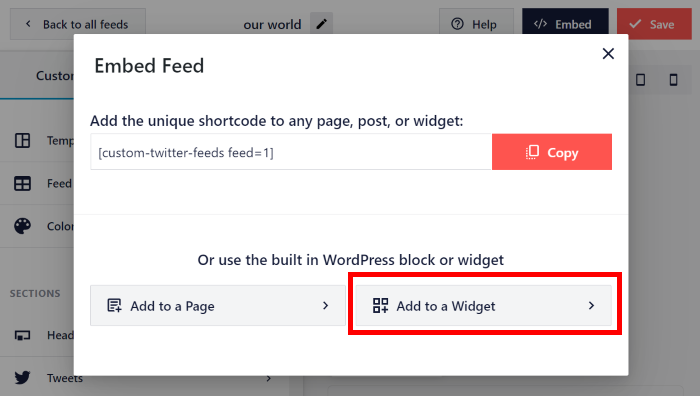
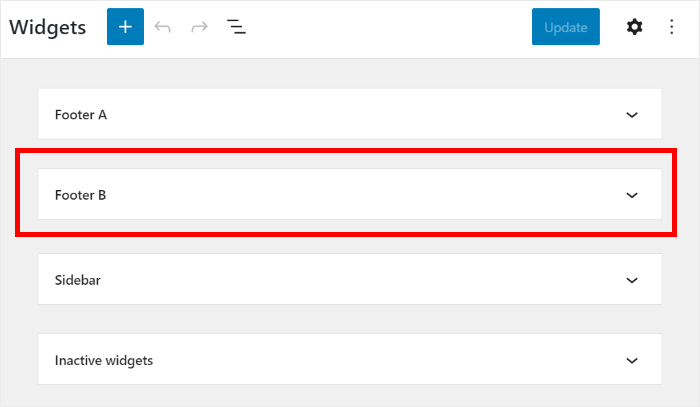
Once you do that, the plugin will open your Widgets page, where you can manage all the widgets on your WordPress website.
To start embedding your Twitter feed, click on the Sidebar panel here
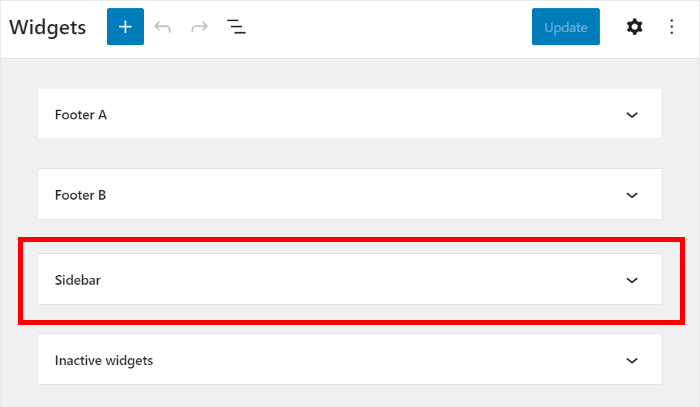
You can also click on a Footer panel if you prefer to embed your feed there.
We’ll go with the footer for our example.
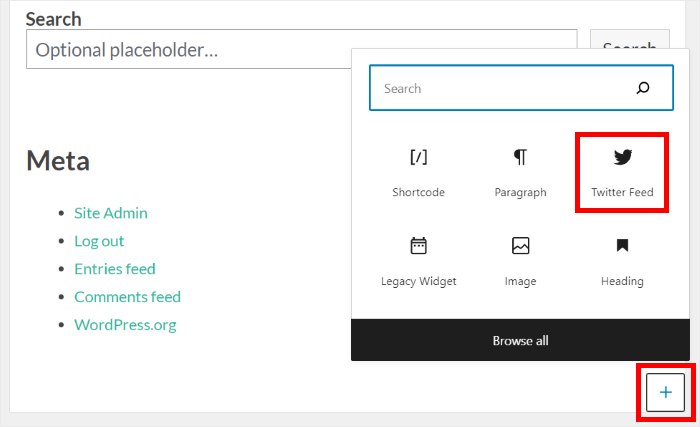
Now, click on the plus icon (+) to add a new widget to your sidebar or footer.
Finally, look for the Twitter Feed widget and then click on it.
To confirm your changes, you can go ahead and click the Update button.
Now, when your website visitors check out your website, they’ll see your embedded Twitter timeline like this:
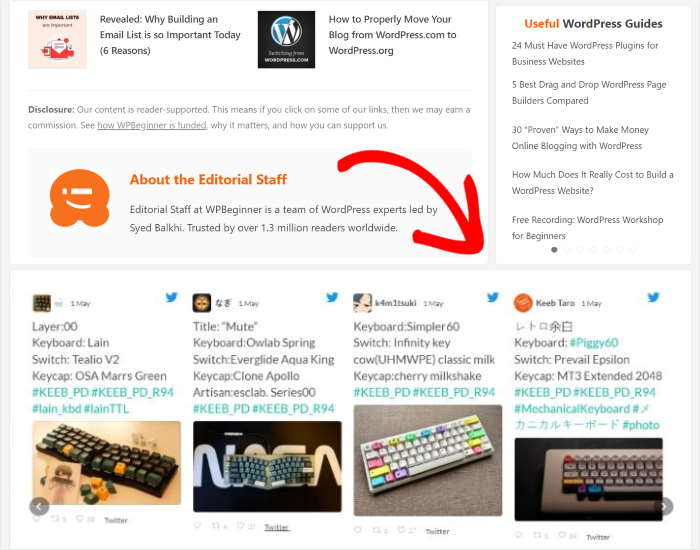
And that’s it!
Now, you know how to add a horizontal scrolling Twitter feed to your site easily. With the help of Twitter Feed Pro, you can embed Twitter content in a lot of different ways in just minutes.
Just like that, it’s much easier to boost your Twitter engagement and increase brand awareness — so you can grow your business in the long run.
Ready to embed Twitter feeds? Get started with Twitter Feed Pro today.
Want more ways to display social media feeds? Follow this guide on how to embed Instagram feeds in WordPress.
Frequently Asked Questions About Horizontal X/Twitter Feeds in WordPress
Does X have a built-in horizontal feed layout?
No. X’s native embed only supports a vertical timeline. There’s no official horizontal or carousel option. To display your Twitter feed in a horizontal scrolling layout on WordPress, you need a plugin like Smash Balloon Twitter Feed Pro, which has a carousel template built in and ready to use.
How do I make my Twitter feed scroll horizontally in WordPress?
With Smash Balloon Twitter Feed Pro, you select the “Simple Carousel” template when setting up your feed. This arranges your tweets side by side in a horizontal layout with optional autoplay, navigation arrows, and pagination dots. From the live editor, you can adjust the number of visible tweets, scroll speed, and carousel size without touching any code.
How do I control how many tweets show in the carousel at once?
In the Feed Layout settings inside the live editor, you can set exactly how many tweets appear at a time, how many rows to show, the size of each card, and the autoplay interval. Most sites display 3 to 5 tweets per view so the feed feels active without being overwhelming.
Popular Tutorials & Guides on Twitter Marketing
- How to Get Smash Balloon Custom Twitter Feeds for FREE
- Top Ways to Increase Your Twitter Engagement Now
- How to Embed Responsive Twitter Widgets on Your Website
- Proven Ways to Make Money on Twitter With Ease (Expert’s Pick)
- How to Embed X (Twitter) Lists on Your Website in 5 Steps
Start Embedding a Horizontal X/Twitter Feed Today
Getting a horizontal X carousel on your WordPress site is one of the quicker design wins you can make.
Once you pick the carousel template and connect your account, the feed takes care of itself from there, pulling in new tweets automatically as you post.
Smash Balloon Twitter Feed Pro is what makes it possible without any code. It’s the plugin I use for sites where the feed layout actually matters, and the setup genuinely takes about 5 minutes.
Get Smash Balloon Twitter Feed Pro →