Social Wall
  Feed Analytics


If you’ve ever asked customers to tag you on Instagram, you know how it usually goes.
A few people do it, you get a handful of nice photos, and then those posts just sit on social media where shoppers visiting your store never see them.
So you screenshot a couple, drop them on your homepage, and feel good about it for about two weeks.
Then the gallery goes stale, one of the original posts gets deleted, and the whole thing quietly gets abandoned.
Here’s the part most guides skip: getting customers to create content is the easy half.
We’ve watched plenty of store owners collect great UGC and still lose all of its value because it never made it onto the pages where people buy.
So I dug into what’s working in 2026. I pulled together the trust and conversion data, looked at how the top-ranking guides handle this (spoiler: almost none of them show you the display step).
In this guide, I’ll show you how to get customers creating content for you without an influencer budget, how to handle permissions the right way, and how to display it all on your site.
- How to Get Customers to Create Content for You: The Short Answer
- Why Customer Content Belongs on Your Site, Not Just on Social
- How to Get Customers to Create Content (Without Paying Influencers)
- Do You Need Permission to Repost a Customer's Photo or Review?
- The Step Most UGC Strategies Skip: Getting It Onto Your Site
- How to Display UGC on Your WordPress Site, Step by Step
- How to Keep Your Feed On-Brand (Moderation and Filtering)
- Don't Overlook the Reviews You Already Have
- Conclusion: Turn Customer Content Into Social Proof That Updates Itself
How to Get Customers to Create Content for You: The Short Answer
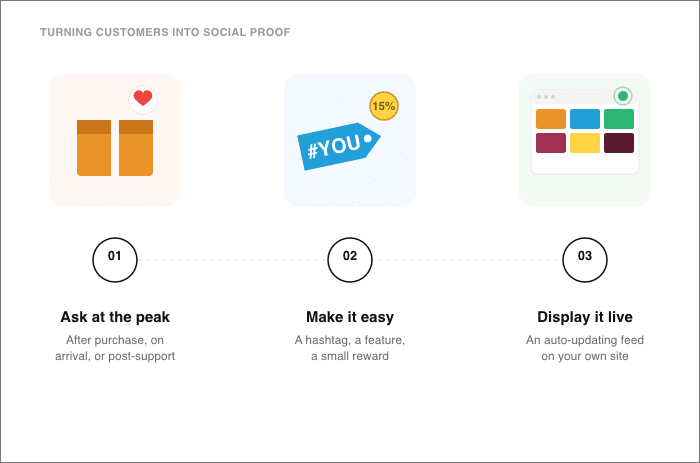
Customers will create content for you when you ask them at the right moment, make it effortless to do, and put the results somewhere everyone can see.
Here’s what that looks like in practice:
- Ask When Customers Are Happiest: Right after a purchase, when their order arrives, or after a good support experience, invite them to share a photo or a review.
- Make It Easy and Give Them a Reason: Hand them a branded hashtag, promise a feature on your site, or offer a small incentive so tagging you takes seconds.
- Display It on Your Own Site: Pull every tagged post into a live, auto-updating feed so your social proof stays current without manual upkeep.
That last step is where most strategies break down, and it’s the problem our team sees again and again.
For most brands, gathering the content isn’t the hard part; the real challenge is keeping that feed current, since a hand-built gallery tends to go stale and get abandoned within a few weeks.
The fix is an auto-updating hashtag and tagged-posts feed built with Smash Balloon Instagram Feed Pro. We’ll walk through the setup below.
Why Customer Content Belongs on Your Site, Not Just on Social
Customer content belongs on your site because your site is where people decide whether to buy. A photo or review sitting on Instagram can’t help a shopper who’s standing on your product page with their card out. The numbers back this up on two fronts: it helps people buy, and it helps people trust you.
Start with the buying side. Shoppers expect to see real customer content before they check out, and they stall when it isn’t there.
| Stat | What it means | Source |
|---|---|---|
| 40% of shoppers won’t complete a purchase if the product page has no UGC, and 55% hesitate to buy without it | Missing customer content costs you sales on the exact page where the decision happens | Bazaarvoice Shopper Experience Index |
| Posts with UGC drive 10.38x higher conversion rates | Real customer content turns far more browsers into buyers than polished brand content | Emplifi |
| 92% trust recommendations from other people over branded content | Shoppers believe a fellow customer before they believe your marketing | Nielsen Global Trust in Advertising Study |
| 84% trust brands more when they use UGC | Showing customer content makes your whole store feel more credible | EnTribe Survey |
| 80% look to peers, not brand experts, for accurate info | People want to hear from other buyers, not from you, when judging your product | Edelman 2025 Trust Barometer |
| 68% call UGC the most authentic content format, 9.8x more authentic than influencer content | Customer content reads as more genuine than anything you can pay for | Billio UGC Statistics |
Here’s the catch I see store owners miss: those numbers only pay off where people actually buy. That’s your product pages and your homepage, not a social platform the shopper has to leave your store to go find. Content stuck on Instagram is doing its work for Instagram, not for you.
How to Get Customers to Create Content (Without Paying Influencers)
You don’t need an influencer budget to get a steady stream of customer content. Your own buyers are the better source, not the cheaper backup.
Shoppers can usually tell when a post was paid for, and they put more weight on a photo from someone who actually bought the product.
So the goal isn’t to find the money for influencers. It’s to make it easy for the happy customers you already have to speak up.
These are tactics you can put in place this week. None of them cost much, and most cost nothing.
- Ask at the moment they’re happiest.
Add the request to your order confirmation email, drop a small card in the packaging, or send a follow-up a few days after delivery.
People are most willing to share right when they’re excited about what they bought, so meet them there instead of asking weeks later.
- Create one memorable branded hashtag.
Pick something short and tied to your brand, then put it everywhere: your emails, your packaging, your social bios.
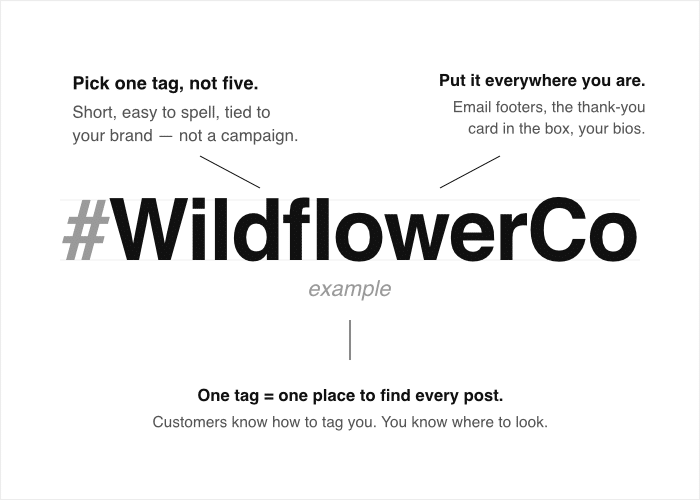
One hashtag gives customers a clear way to tag you and gives you one place to find every post later.
- Offer a feature on your site.
Tell customers that the best photos get shown on your homepage or product pages.
A feature spot is free to give and feels high-value to them, since a real shopper would rather be featured by a brand they love than handed a tiny coupon.
- Use small, low-friction incentives.
A modest discount on the next order or entry into a monthly giveaway is enough to nudge someone who was already happy. Keep the ask tiny, like one photo or a quick review, so it takes seconds.

Note about Incentives:
The moment you offer a reward, you can start attracting fake or thrown-together submissions from people chasing the prize instead of sharing a real experience.
The fix is to reward the right thing. Tie any incentive to a verified purchase so only actual customers qualify.
Reward effort and honesty, not volume, so you’re not paying out for a flood of low-quality posts.
Ask for photos in context, like the product in someone’s home or in use, which is harder to fake and far more convincing to the next shopper.
Pro Tip: If you want a strategy that focuses on testimonials, here’s a detailed guide on how to get Google reviews for your business.
Do You Need Permission to Repost a Customer’s Photo or Review?
Yes, you should ask first. The safe default is to get explicit permission before you put a customer’s photo or review on your own site, even when they tagged you and clearly meant for you to see it.
Getting that permission is simple, and it doesn’t have to feel formal. You have a few easy options:
- Reply and ask for a yes. Comment on the post or send a quick message asking if you can feature it on your site. A clear “yes” in writing is all you need.
- Send a rights-request message. A short DM that names where you’d like to show the photo and asks them to confirm works well, and it gives you a record of the okay.
- Spell it out in your hashtag terms. State that tagging you with your branded hashtag grants permission to display the post. Customers opt in when they tag, and you have terms to point to.
Two things hold true no matter how you get the okay. Always credit the original creator by name or handle, and always link back to their post.

People share because they want to be seen, so the credit is part of the deal, and the link sends a little traffic their way too.
Here’s the practical trap, and it’s the reason I steer store owners away from screenshots. A screenshot strips the credit and the link, so the post stops pointing back to the person who made it.
Worse, it freezes a copy that breaks the moment the original gets deleted or edited, leaving a stale image on your page with no source behind it.
This is exactly why a live feed beats a manual gallery. A feed pulls the real post, keeps the creator’s name attached, and drops anything that gets taken down, so what’s on your site stays attributed and current on its own.

One note: this is general guidance, not legal advice. If you’re unsure about a specific case, check with a professional.
The Step Most UGC Strategies Skip: Getting It Onto Your Site
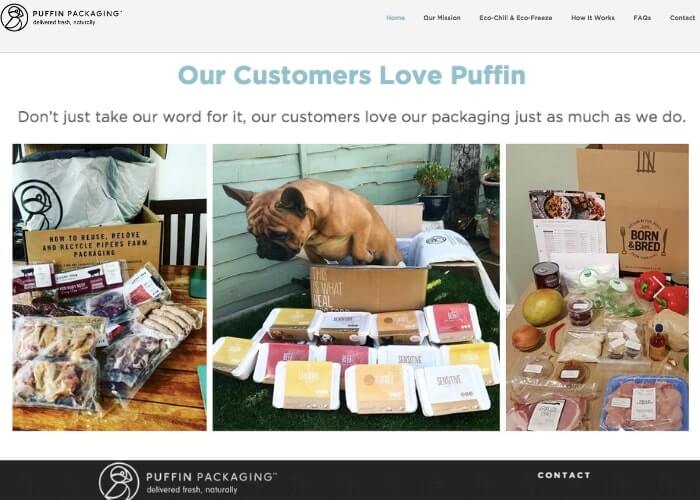
Most UGC advice wraps up right where the actual work begins. Brands can gather a batch of great customer photos without much trouble, but they struggle to keep that content live on the site once the first rush of excitement fades.
Our support team hears the same story from customers describing how they used to do it, before they switched.
A brand would collect a set of great customer photos, hand-build a gallery on the homepage, and feel finished.
Just a few weeks later, no new photos had gone up, one of the original posts had been deleted, and the gallery looked frozen in time.
The fix is an auto-updating feed that pulls in new tagged posts on its own, so your social proof stays current without you touching it.

They keep collecting content exactly the way they did before, except the display now refreshes itself instead of waiting on someone to paste in each new post.
The display gap, by the numbers: The published advice has the same blind spot. I went through the top 10 guides ranking for “user generated content strategy” to count how many actually show you how to display UGC on your own WordPress site.
Only 2 mentioned adding UGC to your site, and both stop at “collect it and repost on social.”
How to Display UGC on Your WordPress Site, Step by Step
The tool that handles this is Smash Balloon Instagram Feed Pro. It connects to Instagram, pulls in your customers’ posts, and displays them on your site as a feed that updates on its own. Here’s how to set it up.
Step 1: Install and connect Instagram Feed Pro
First, get a copy of Instagram Feed Pro here and save it to your computer.
Head to Plugins » Add New in your WordPress dashboard, then install and activate Instagram Feed Pro.
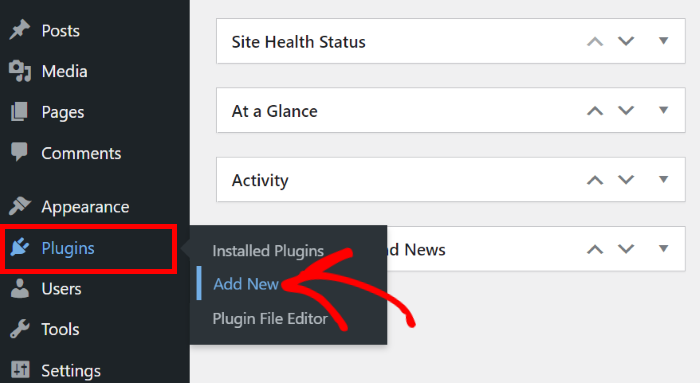
In case you need help, you can follow this step-by-step guide on installing WordPress plugins.
Once it’s active, go to Instagram Feed » All Feeds and click on the “Add New” button at the top.
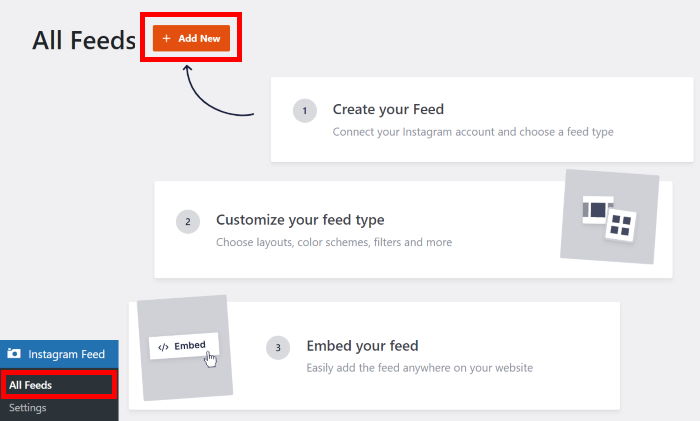
Step 2: Create a hashtag feed, a tagged-posts feed, or both
This is the part that makes collection automatic. Instagram Feed Pro can build a feed from a hashtag or from posts where customers tag your account.
First, select your feed type from the options.
You can use Tagged Posts or Public Hashtag or both. Here’s what’s different about them:
- A hashtag feed pulls in every public post that uses your branded hashtag.
- A tagged-posts feed pulls in posts where customers tag your account.
Pick the source that matches how you ask customers to share and click on Next.
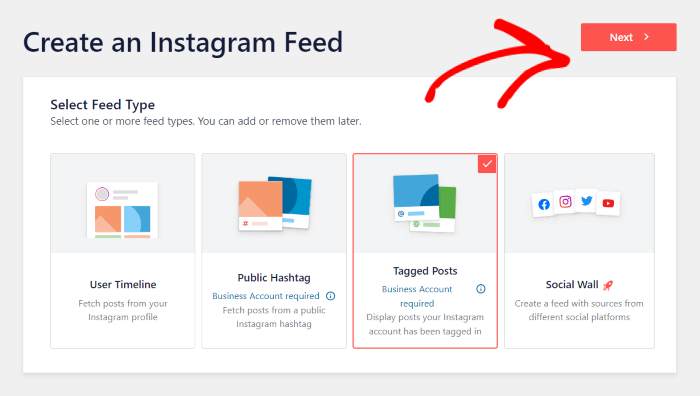
If you selected a hashtag feed, you can also enter the specific hashtags you want to use.
After that, you can click on Add Source to connect this feed to your account.
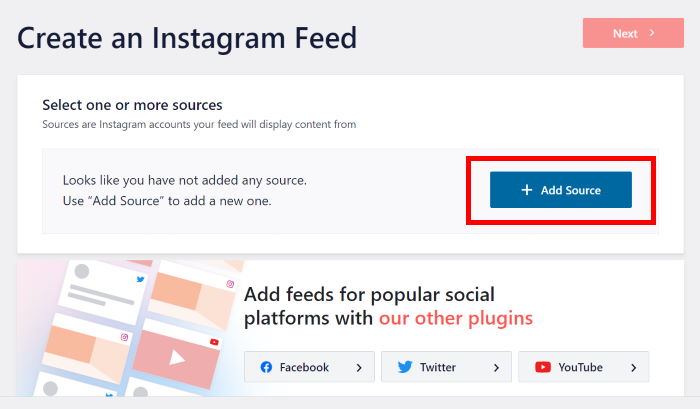
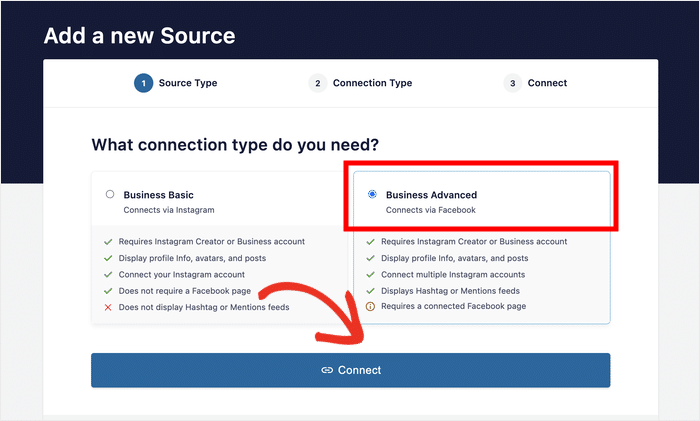
On the next page, you can choose the type of Instagram connection.
Due to how the Instagram API works, a hashtag or tagged feed needs an advanced connection.
It’s actually pretty simple. Just convert your Instagram account to a business or creator account and you’re good to go.
To continue, select the Business Advanced option and click on Connect.
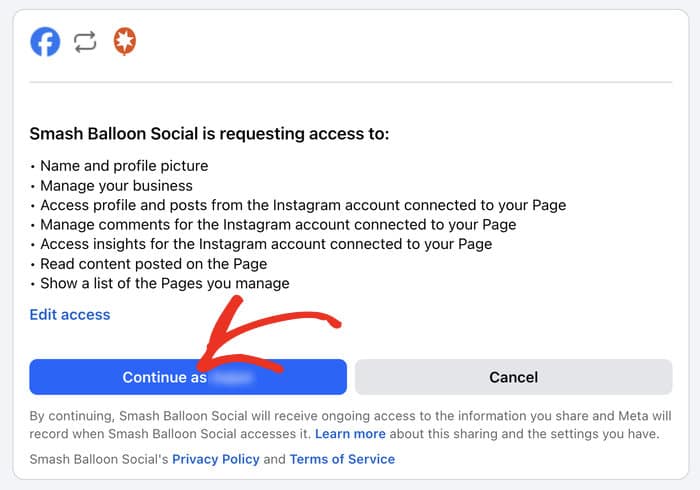
You can then give the plugin read-only access to your account so it can fetch and embed posts for you.
It’s completely safe since the plugin can only view your info.
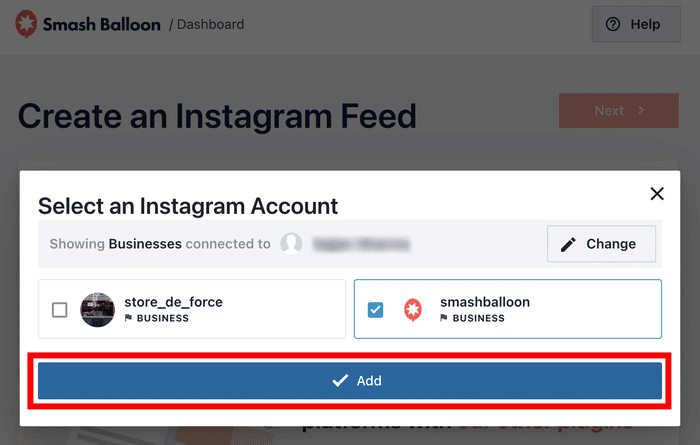
Once you’re back on your website, select the Instagram pages you want to connect and click on Add.
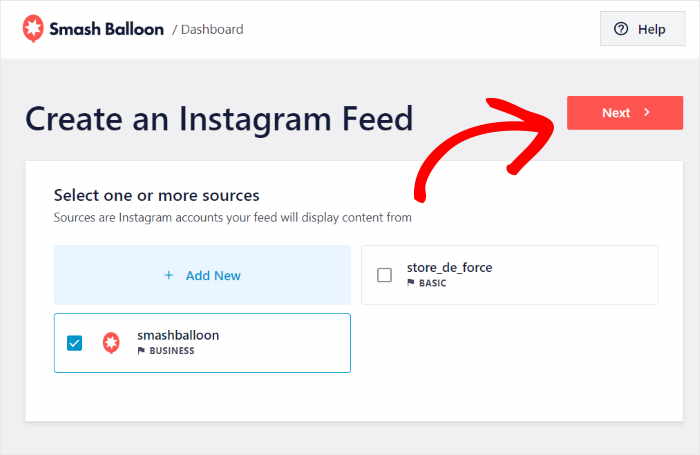
Finally, select your account as the source and click Next.
From now on, when a customer posts and tags you, that post flows straight into your feed.
Step 3: Customize the layout to match your theme.
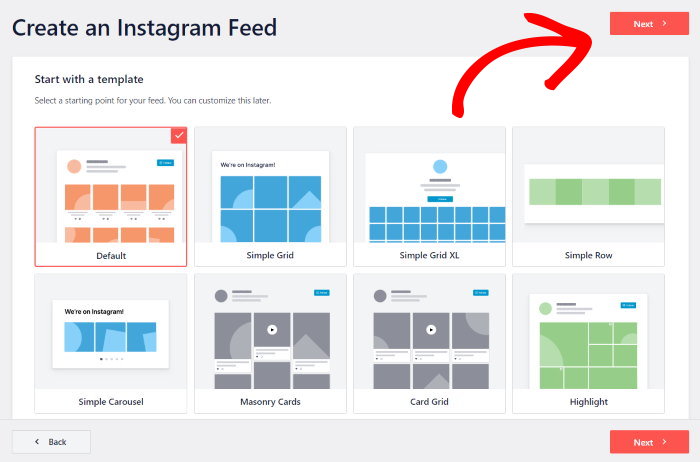
Before you continue, you can select a theme and template for your new feed.
It’s pretty easy to do both. Just select the design you like and click on Next.
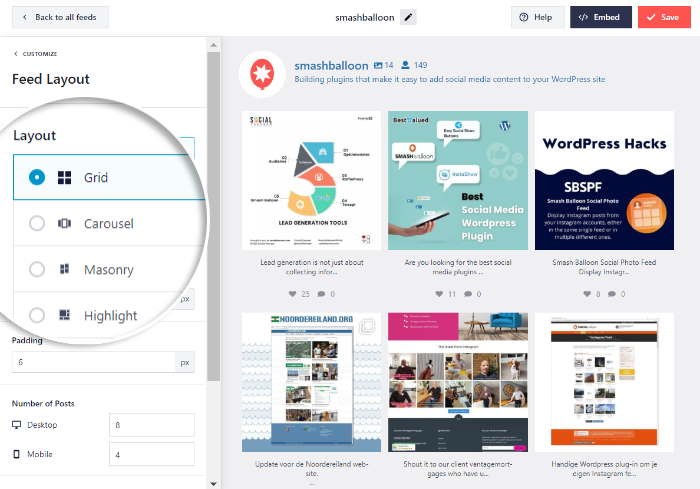
After doing that, you’ll see the feed editor where you can choose a layout, like a grid or a masonry style, then adjust the columns, spacing, and colors.
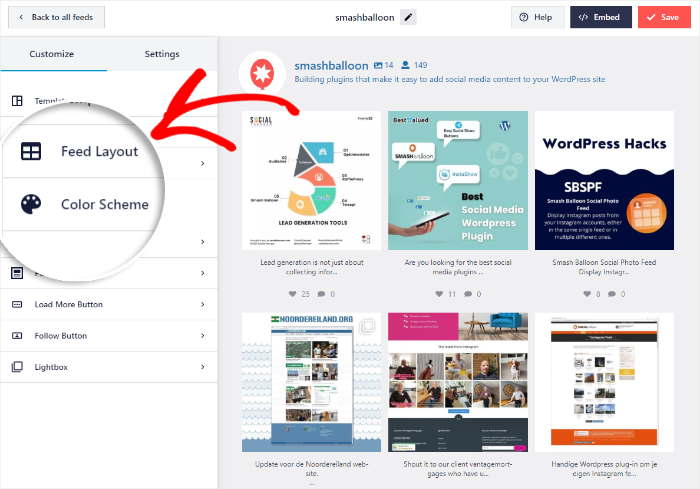
This lets your feed sit on a product page or homepage and look like part of your design instead of a bolted-on box.
I’d start with a grid, since it lines up cleanly on both desktop and mobile.
Step 4: Embed the feed on your homepage and product pages.
When the feed looks right, it’s time to add it where people buy.
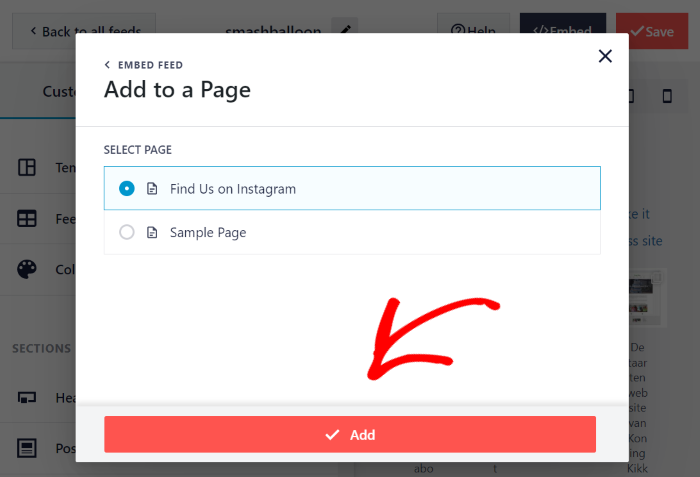
First, click the Embed button at the top and pick where you want to show the feed.
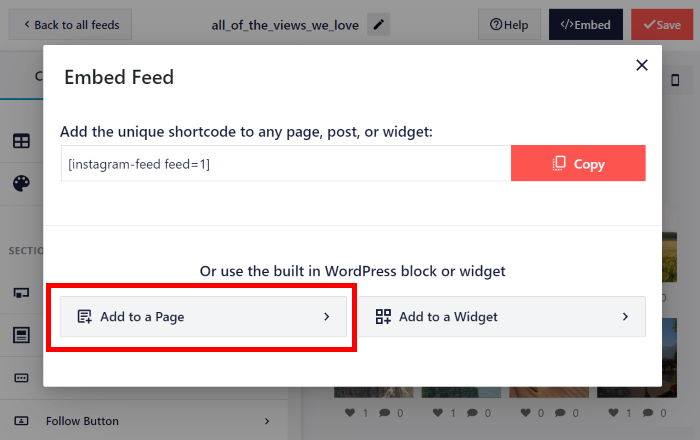
Let’s add it to a page for now, but the process is the same for adding it as a widget on your sidebar or footer.
Select the page where you want the Instagram mentions or hashtags to appear and click on Add.
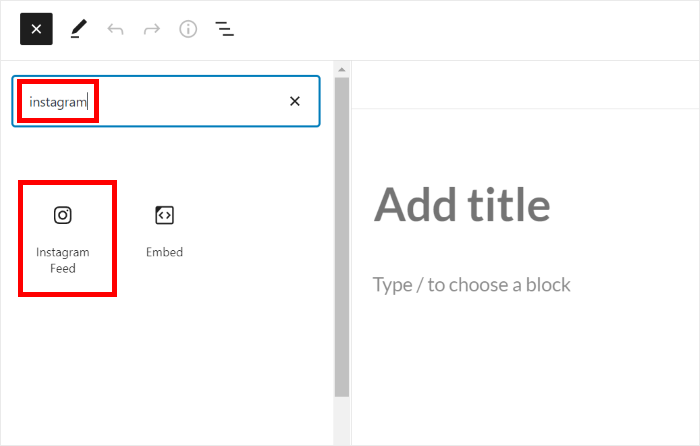
Add a new content block and select the “Instagram Feed” block.
The plugin will automatically add the feed to your page, sidebar, or footer after that — no coding needed.
Putting it on product pages and your homepage is a good idea to get started, since that’s where shoppers are deciding.
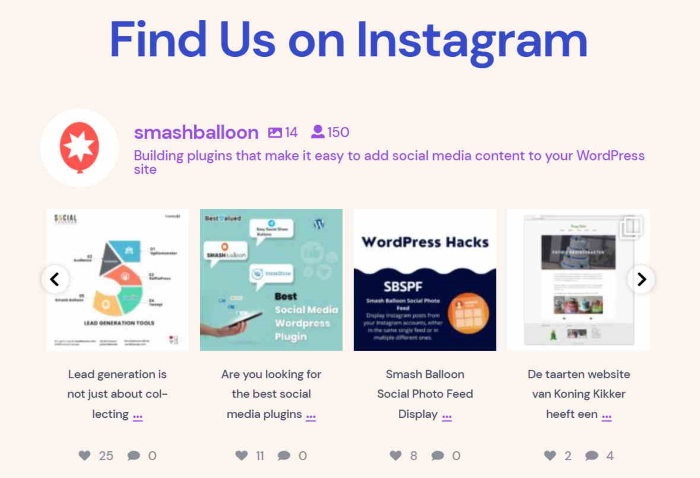
Once it’s live, you’re done touching it. New customer posts appear on your site on their own, so you never have to log into WordPress to update the gallery.
That’s the maintenance step that kills most programs, handled for you.
There’s one more worry worth answering: what if Instagram goes down, or the feed slows your site?
Instagram Feed Pro keeps a copy of your feed data on your own server.
So your feed keeps loading fast since it doesn’t fetch data from Instagram every time someone visitrs your site.
Pro Tip: To learn exactly how social feeds interact with site speed, check out our full guide on whether social media feeds slow down your website.
Plus, it keeps showing your customer content even when Instagram itself is having a bad day. Your social proof stays up and makes sure you keep converting.
Ready to put your customer content to work? Get Instagram Feed Pro and start displaying your feed today!
How to Keep Your Feed On-Brand (Moderation and Filtering)
There’s a fair worry with any live feed. UGC “can be tricky to align with brand guidelines,” as one Reddit thread on the topic put it.
What if someone uses your hashtag on a spammy post, or shares a photo that doesn’t fit your brand?
Instagram Feed Pro gives you control over what shows up. You decide which posts make it onto your site and which get blocked, so nothing reaches a shopper without your say-so. Here are the levers you get:
- Approve or disapprove individual posts. Review what comes in and clear the ones you want shown. Anything you don’t approve stays off the page.
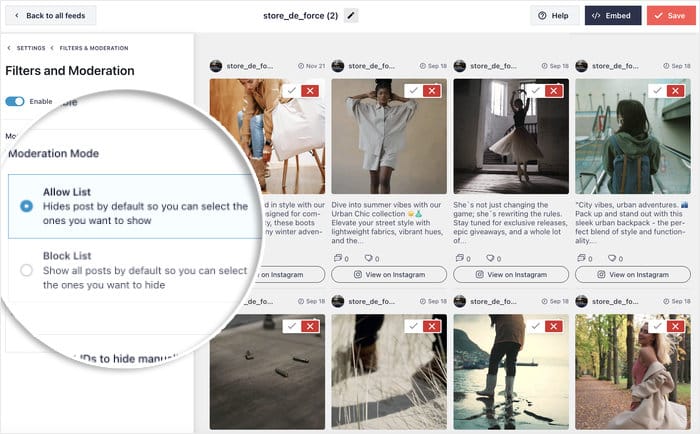
- Filter by keyword or hashtag. Tell the feed to include only posts with certain words, or block posts that contain words you don’t want. Spam and off-topic posts get screened out before anyone sees them.
- Hide specific posts. If one post slips through and doesn’t fit, hide it in a click and it drops off your site.
This is the part that makes a live feed safe to run. An auto-updating feed paired with moderation gives you both freshness and control, so you’re not stuck choosing between a stale-but-safe manual gallery and an unfiltered live one.
Don’t Overlook the Reviews You Already Have
While you’re chasing fresh Instagram photos, you’re probably sitting on the highest-trust UGC you already own: written customer reviews.
People trust recommendations from other people over branded content 88% of the time, according to the Nielsen Global Trust in Advertising Study.

The catch is that they’re scattered, sitting on the platforms where customers left them instead of on your site. Here’s where yours are most likely hiding:
- Google: The reviews on your Google Business Profile, often the first thing a new customer reads about you.
- Yelp: Where service businesses and local shops tend to collect the most feedback.
- Facebook: Recommendations and ratings left right on your page.
- TripAdvisor: A goldmine for restaurants, hotels, and anything travel-related.
Copying those reviews onto your site by hand would mean hopping between four platforms, then doing it all over again every time a new one lands.
But like Instagram feeds, you can let a tool do the hard part for you.
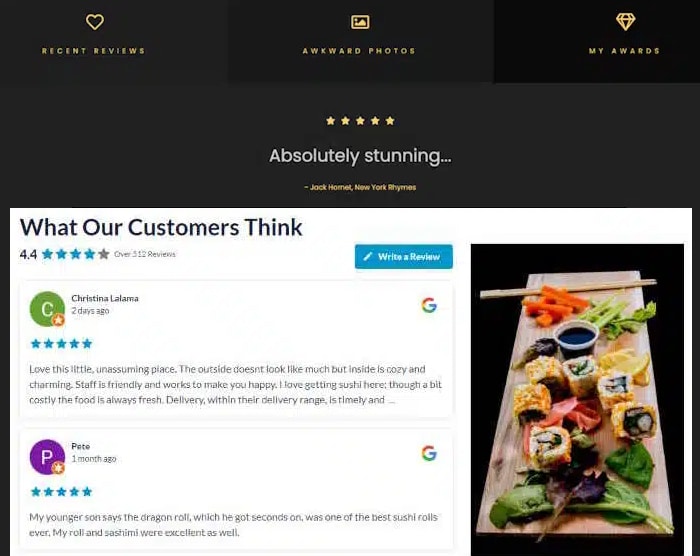
Reviews Feed Pro can pull reviews from these platforms into one feed and display them on your site.
It gives you the same two benefits as the Instagram feed: it updates on its own as new reviews come in, and you can moderate which ones show, so only the reviews you want appear next to your products.
For most store owners, this is the fastest authentic UGC win there is, since the content is already done.
To get started, check out this tutorial on adding social media review widgets to your website.
Frequently Asked Questions
Do I need permission to repost customer content on my website?
Yes, the safe default is to ask for explicit permission before you repost a customer’s photo or review on your site. A quick comment or message asking if you can feature their post is usually all it takes. Once they say yes, credit the creator and link back to their original post.
Will a UGC feed slow down my WordPress site?
A UGC feed built with Instagram Feed Pro won’t slow your site down, because it loads from a copy of your feed data stored on your own server. That backup caching system keeps the feed loading fast, and it keeps your customer content on the page even when Instagram itself goes down. Your social proof stays up either way.
How often does an auto-updating feed refresh?
An auto-updating feed refreshes on its own, pulling in new tagged posts and hashtag posts as customers share them. You never have to log into WordPress to add a post by hand. That’s the maintenance step that freezes most manual galleries, handled for you.
Can I display Instagram posts and reviews together?
Yes, you can display Instagram posts and written reviews together on the same site. Instagram Feed Pro embeds your customer photos as an on-site feed, and Reviews Feed Pro does the same for reviews pulled from Google, Yelp, Facebook, and TripAdvisor. Both sit wherever you want them, like a product page or your homepage.
What’s the difference between the free and Pro versions of Instagram Feed Pro for UGC?
The free version displays your own Instagram posts on your site in a clean, customizable feed, which is exactly what you want if you’re showing off your own content. The Pro version adds the pieces UGC needs on top of that: hashtag feeds, tagged-posts feeds, and moderation. Those are the tools that pull in your customers’ posts and let you control which ones show, turning a feed of your own content into a live, on-brand gallery of customer posts.
Conclusion: Turn Customer Content Into Social Proof That Updates Itself
Getting customers to create content is the easy half. The strategy only pays off when that content lives on your site and stays current on its own, instead of going stale in a manual gallery that you abandon after two weeks.
That’s the step almost every guide skips, and it’s the one that decides whether your UGC works. A hand-built gallery freezes the day you stop updating it.
Think about the work behind a single customer photo:
- The nudge to post: A reminder, a prompt at checkout, or an incentive that got them to share in the first place.
- The hashtag: Your branded tag they had to remember and actually add to their caption.
- The permission ask: The follow-up message requesting the okay to feature their photo on your site.
- The photo itself: The image you finally get back once they say yes.
That’s real effort, and a static gallery throws most of it away the moment the next customer posts something better.
An auto-updating feed does the opposite. It keeps pulling in new customer posts without you logging into WordPress, so the work you put into encouraging UGC compounds instead of expiring, and your social proof stays fresh while you run your business.
That’s exactly what an Instagram feed plugin is built to do, and it’s the simplest way to put everything above into practice.
Start displaying your auto-updating UGC feed today with Instagram Feed Pro.