Social Wall
  Feed Analytics

You already post short videos to Instagram, TikTok, YouTube, or Facebook. On your website, they usually sit in a small box that sends people off to the app the moment they tap play.
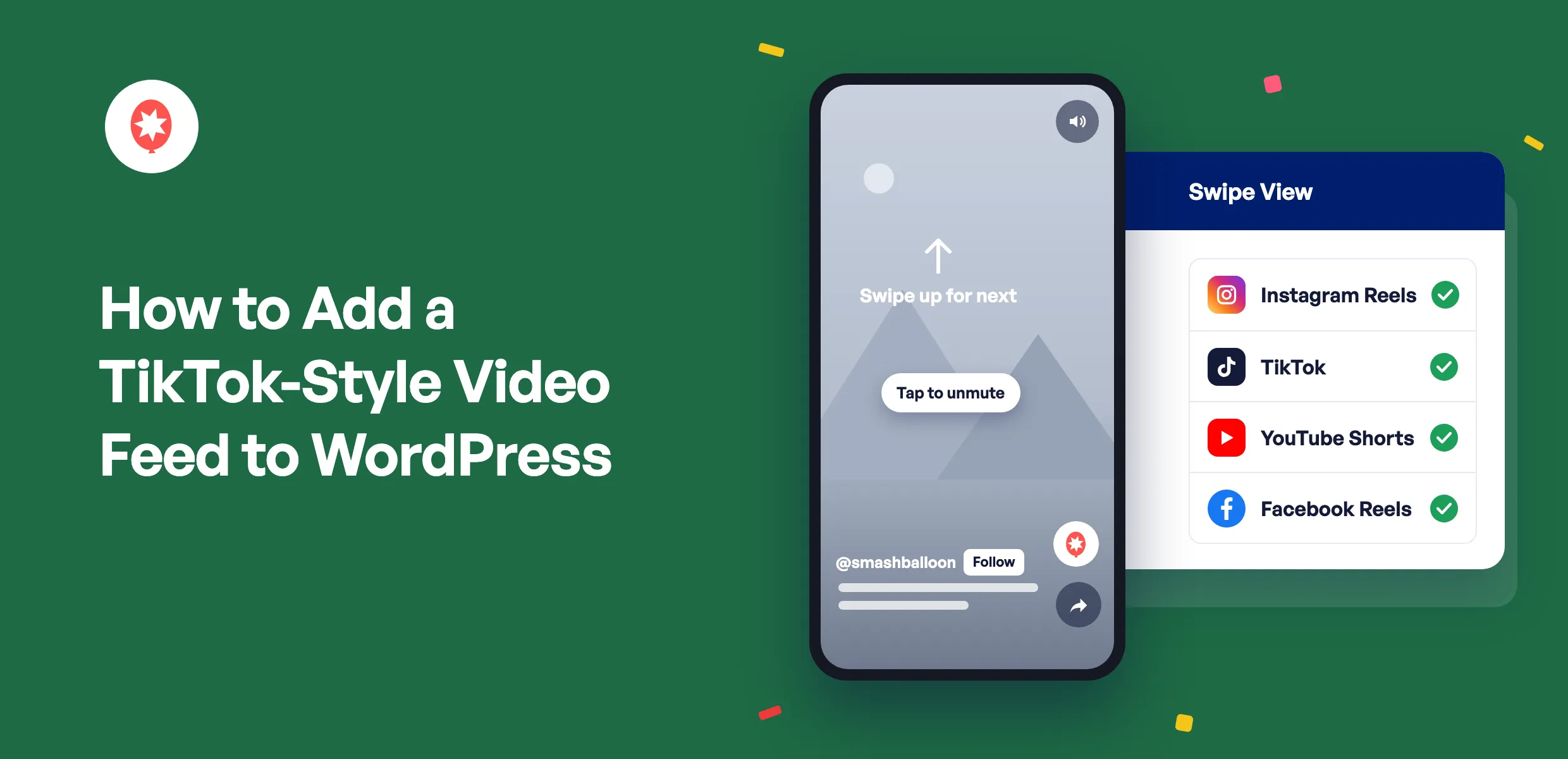
To add a TikTok-style video feed to WordPress, install a Smash Balloon Pro feed plugin and turn on its Swipe View setting. A tap on any video then opens it full-screen with sound, and a swipe brings up the next one, just like the TikTok app, so visitors keep watching on your page. Swipe View works with Instagram Reels, TikTok videos, YouTube Shorts, and Facebook Reels, and it comes with every Pro plan.
I set up all four while writing the announcement posts for each update, and every platform switches it on a little differently. Instagram turns it on for you. Facebook makes you flip a switch. YouTube wants a whole new feed. So here’s the short version for each one.
In This Article
What Is a TikTok-Style Video Feed?
A TikTok-style video feed shows your short vertical videos on a web page and plays them the way phone apps do: full-screen, sound on, one swipe to the next. In Smash Balloon plugins, this viewer is called Swipe View.
Smash Balloon is a set of WordPress plugins that show your Instagram, Facebook, TikTok, YouTube, and X feeds on your website with no code, and more than 1.75 million users rely on it.
Here’s what your visitors get when they tap a video:
- The video fills a phone screen edge to edge, or sits centered on a dark background on a computer.
- The player tries to play with sound. If a browser starts it muted, a Tap to unmute label turns the sound on in one tap.
- On a phone, they swipe up for the next one and down to go back. On a computer, they use the arrows beside the video, the scroll wheel, or the arrow keys.
- Your name and a Follow button sit on Instagram, TikTok, and Facebook videos. YouTube Shorts get a Subscribe button under the feed.
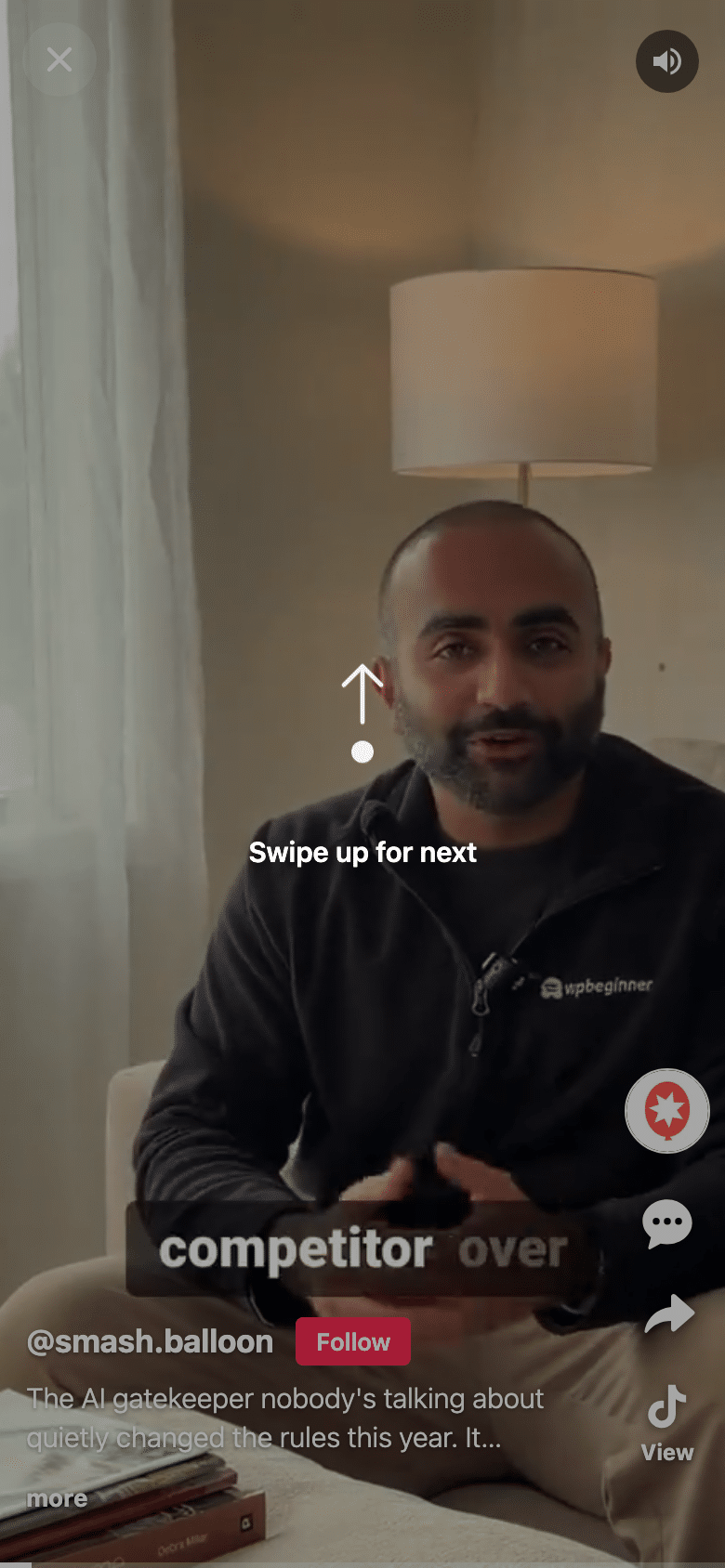
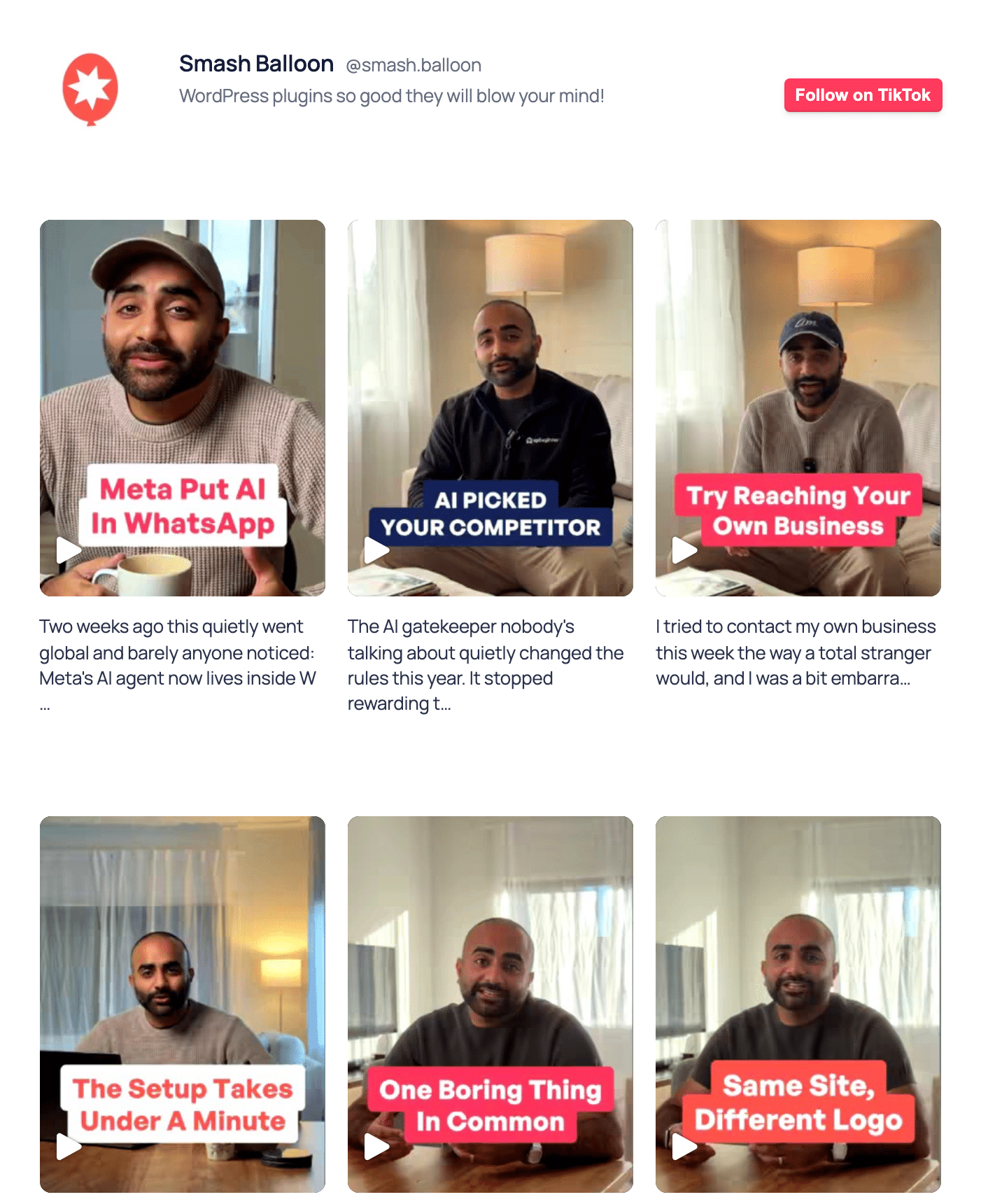
Swipe View doesn’t change how your feed looks on the page. The tiles stay in their grid or list, and only the tap is different: it opens the full-screen player instead of opening the way it did before.
Which Platforms Can Play Full-Screen on Your Site?
All four major short-video platforms work. The difference is where you switch it on.
| Instagram Reels | TikTok | YouTube Shorts | Facebook Reels | |
|---|---|---|---|---|
| Which Smash Balloon plugin do you need? | Instagram Feed Pro 6.14.0 or later | TikTok Feeds Pro 1.8.0 or later | YouTube Feed Pro 2.10.0 or later | Facebook Feed Pro 4.14.0 or later |
| Is it on as soon as you update? | ✅ Yes, it’s on by default | ⚠️ Not yet, pick Swipe in each feed’s settings | ⚠️ Not yet, choose the Swipe View layout on a Shorts feed | ⚠️ Not yet, one switch turns it on for your whole site |
| Can you keep the feed you already have? | ✅ Yes, as long as the feed’s lightbox is on | ✅ Yes, if it uses the Grid, List, or Masonry layout | ❌ No, you create a new Shorts feed | ✅ Yes, any Timeline feed with Reels in it works |
| What opens in Swipe View? | Reels only, photos keep the regular pop-up | Every video in the feed | Every Short in the feed | Reels only, other posts keep the regular pop-up |
| Can viewers follow you from the video? | ✅ @username and Follow button | ✅ @username and Follow button | ⚠️ Subscribe button under the feed, View opens the Short on YouTube | ✅ Page name and Follow button |
| How long does setup take? | About 2 minutes | About a minute | About 2 minutes, plus a free YouTube API key | About a minute |
| Best for | Restaurants, salons, and shops already posting Reels | Creators and brands whose main channel is TikTok | Tutorials and tips you post as Shorts | Local businesses that post Reels to their Facebook Page |
My advice: start with the platform you post to most. If you post the same clip everywhere, pick one for your homepage and add the others to the pages where they fit best.
How Do I Add a TikTok-Style Video Feed to WordPress?
To add a TikTok-style video feed to WordPress, update your Smash Balloon Pro feed plugin, switch on Swipe View, and put the feed on a page. Each platform handles the Swipe View switch a little differently, so here’s each one.
How Do I Show Instagram Reels Full-Screen on My Website?
Update Smash Balloon Instagram Feed Pro to 6.14.0, and your Reels open full-screen with sound. The setting, Enable Swipe View for Reels under Instagram Feed » Settings » Advanced, is on by default, so there’s nothing to switch on.
- Go to Dashboard » Updates and update Instagram Feed Pro to 6.14.0.
- To check the setting, go to Instagram Feed » Settings » Advanced and find Enable Swipe View for Reels. Leave it on.
- Open any page with your Instagram feed and tap a Reel.

Want a feed of only Reels? In the feed editor, open Settings » Filters and Moderation and leave only Reels ticked under Show specific types of posts.
Want to change the feed around your Reels without opening the editor? The same 6.14.0 update lets you manage your Instagram feed by asking ChatGPT or Claude through the free WPVibe connector. Switch on MCP Write Access under Instagram Feed » Settings » General, then type something like “show 2 posts per row and hide the likes,” and your assistant changes the live feed for you. I like this for small tweaks, because I don’t have to dig through settings to find one option.
Want every detail, including what happens with Shoppable Feed? Read Let Visitors Watch Your Instagram Reels Full-Screen, With Sound. New to Reels on your site? Start with how to embed Instagram Reels on your website.
How Do I Embed a TikTok Feed That Visitors Can Swipe Through?
In Smash Balloon TikTok Feeds Pro 1.8.0, open your feed in the editor, go to Video Player Experience, and pick Swipe. Your feed looks the same on the page, and a tap now opens the full-screen viewer.
- Update TikTok Feeds Pro to 1.8.0.
- Go to TikTok Feeds » All Feeds and open your feed, or click Add New to connect your TikTok account.
- In the feed editor, open Video Player Experience, pick Swipe, and click Save.
- If it’s a new feed, click Embed and choose Add to a Page.
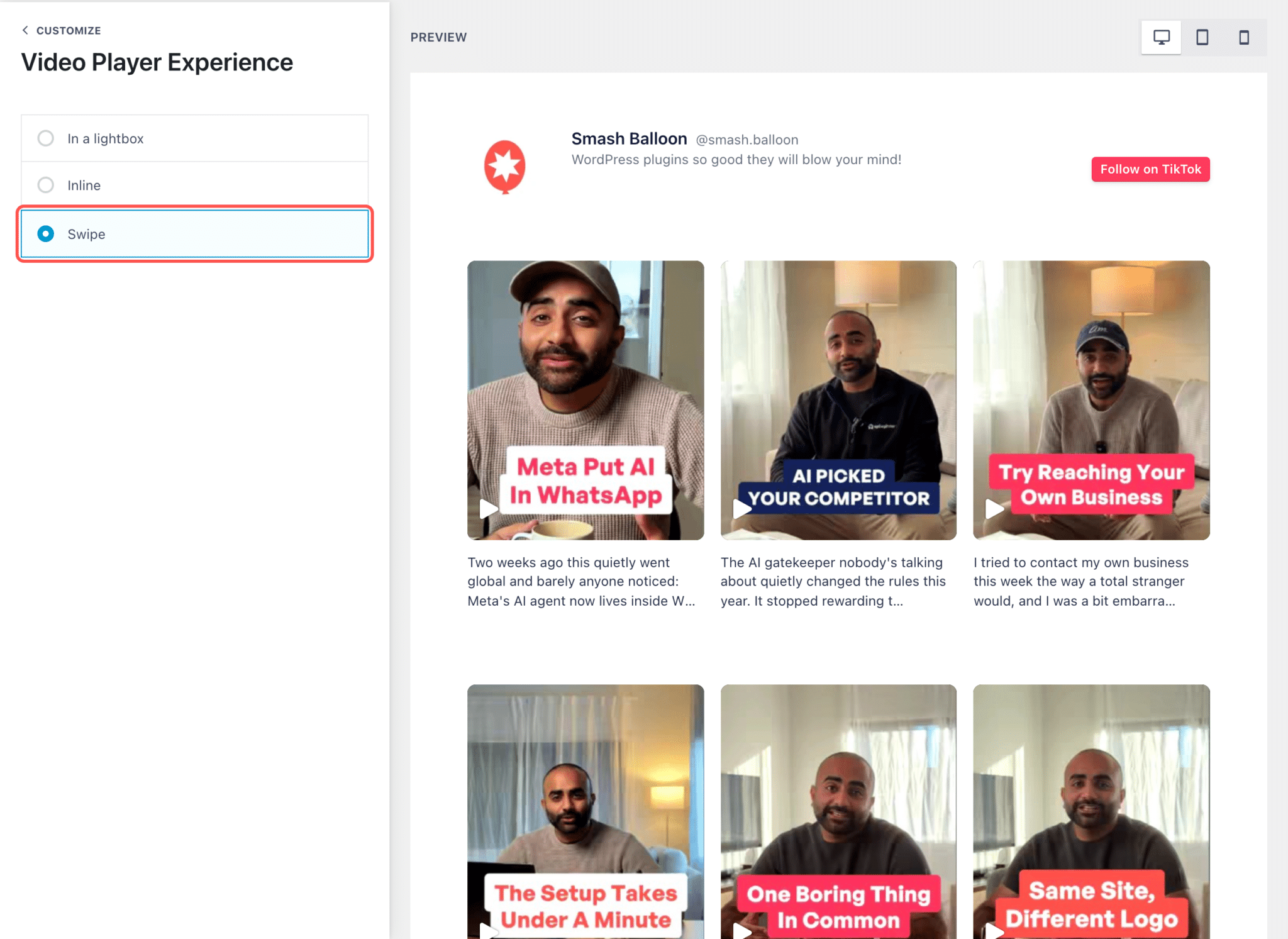
Swipe View works with the Grid, List, and Masonry layouts. If your feed is a Carousel or Gallery, switch it to one of those first. And if you change templates later, pick Swipe again.
The step-by-step version with every screenshot is in Let Visitors Swipe Through Your TikToks on Your Website. Want to show a handful of videos at once? See how to embed multiple TikTok videos on one page.
How Do I Embed YouTube Shorts on My Website With Swipe?
In Smash Balloon YouTube Feed Pro 2.10.0, create a new feed, choose the Shorts feed type, and set the layout to Swipe View. Your Shorts get their own feed, separate from your longer videos.
- Update YouTube Feed Pro to 2.10.0. It’s listed as Feeds for YouTube Pro in your plugins.
- Go to YouTube Feed » All Feeds, click Add New, choose Shorts, and add your channel by its @handle.
- In the feed editor, open Feed Layout, select Swipe View, and click Save.
- Click Embed and choose Add to a Page.
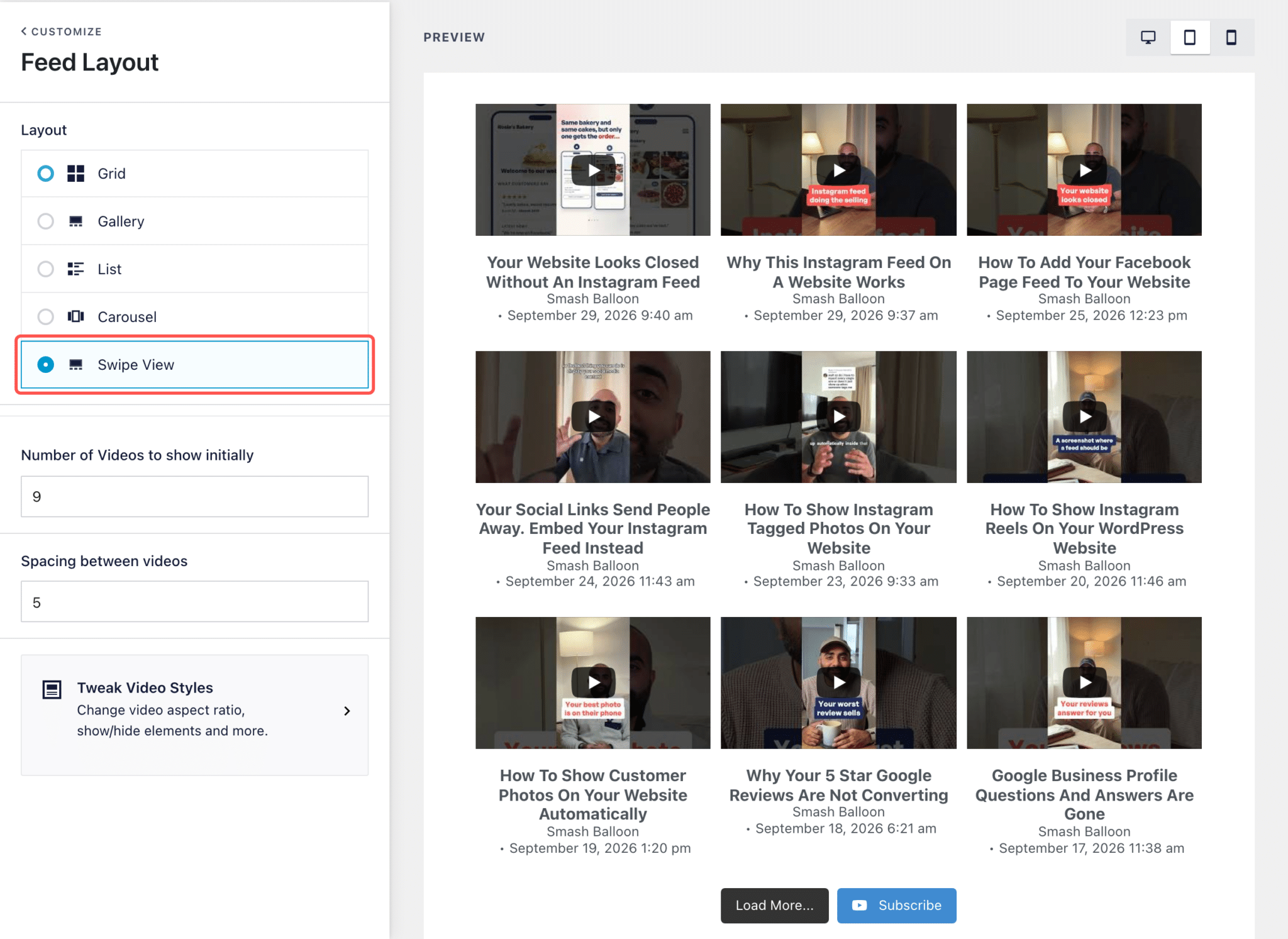
You’ll need a YouTube API key, a free key from Google that lets the plugin pull in your videos. The plugin asks for it during setup if you don’t have one yet.
The full setup, API key and all, is in Give Your YouTube Shorts Their Own Swipeable Feed. More options for Shorts: how to embed YouTube Shorts on your website.
How Do I Show Facebook Reels Full-Screen on My Website?
In Smash Balloon Facebook Feed Pro 4.14.0, go to Facebook Feed » Settings » Advanced and turn on Swipe View for Reels. It’s off until you switch it on, and once it’s on, it works across your whole site.
- Update Facebook Feed Pro to 4.14.0.
- Go to Facebook Feed » Settings, open the Advanced tab, turn on Swipe View for Reels, and click Save Changes.
- Make sure a Timeline feed of your Facebook Page is on a page. If you already show your Page’s posts, your Reels are in that feed.
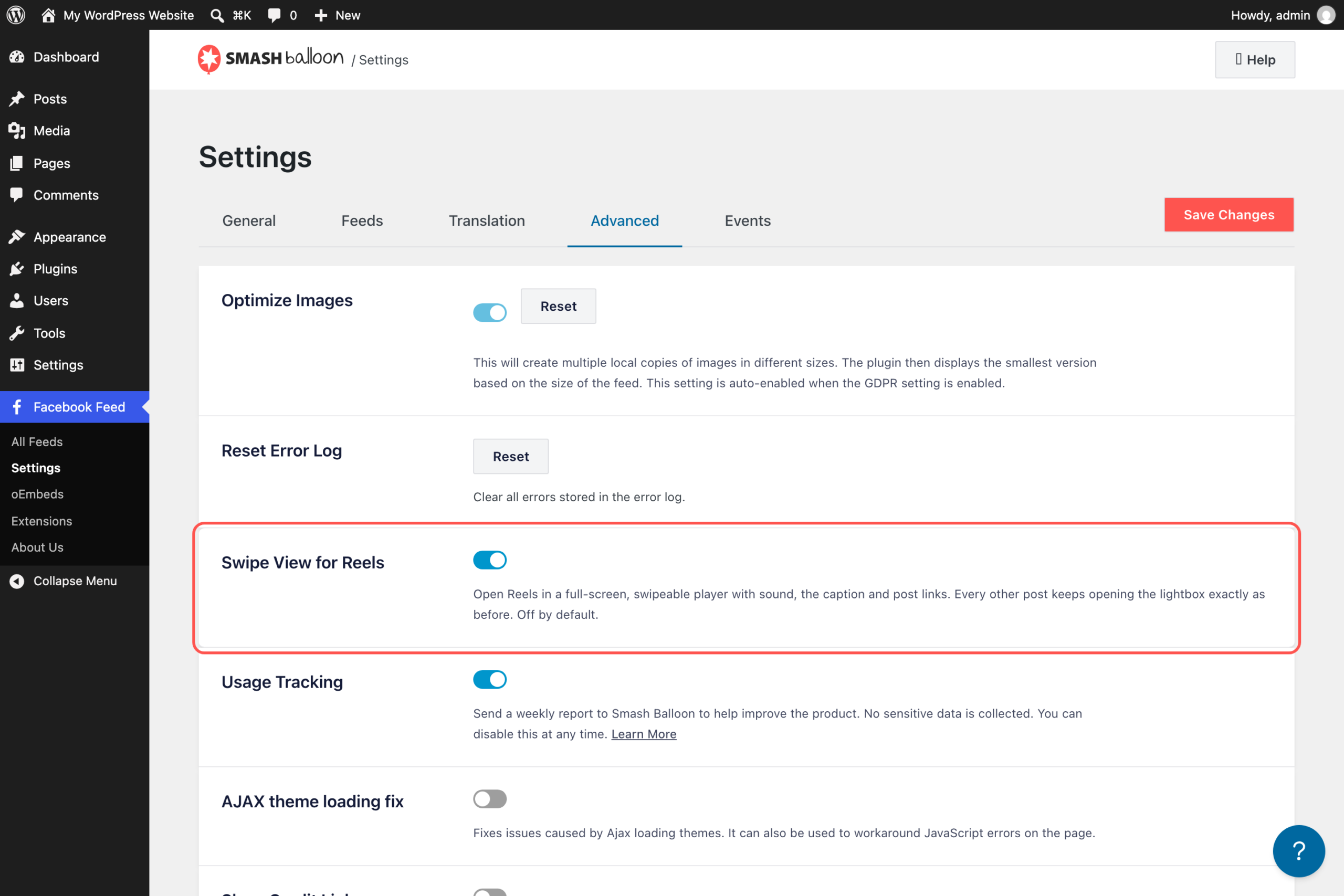
Only Reels open in the swipe player. Photos, links, and regular videos in the same feed keep opening in the pop-up, just like before.
For the rest of the details, see Let Visitors Swipe Through Your Facebook Reels on Your Website. Starting from scratch? Here’s how to embed Facebook Reels on your website.
Want your videos to play like this on your site?
Swipe View comes with every Pro plan, Basic, Plus, and Elite, on Instagram Feed Pro, TikTok Feeds Pro, YouTube Feed Pro, and Facebook Feed Pro. The All Access Bundle includes all four on unlimited sites. Backed by a 14-day money back guarantee.
Get the All Access BundleWhere Should You Put Your Video Feed?
A full-screen video feed works best on the page where someone is deciding something. A few spots I’d start with:
- Your homepage. First-time visitors get to see your face, your space, and your work in a few seconds of video.
- Your booking or order page. A dog groomer’s before-and-afters or a cafe’s new menu items sit right above the Book or Order button.
- Product pages. A 20-second demo answers “how big is it?” or “how does it work?” better than another product photo.
- Your FAQ page. Already filmed a quick how-to? Put it next to the question it answers.
Wherever you put it, the feed keeps itself fresh. Every new video you post shows up on its own, so the page keeps up with you even when you’re too busy to update it.
Can’t I Just Embed Each Video on Its Own?
You can, but you’d be signing up for a lot of copying and pasting. Each embedded video is a single player. There’s no swipe to the next one, and you have to add every new video by hand.
Worried a feed will look bolted on? It doesn’t. Smash Balloon plugins run inside WordPress rather than as an outside widget, and your feed picks up your theme’s fonts and styles, so it looks like part of your site.
You’ll also find SaaS widget tools that pull in social videos. Many of them charge by the month or by the site and load from their own servers, so if their service goes down, the widget can go blank. Smash Balloon keeps a saved copy of your feed in WordPress, so your feed keeps displaying even if a platform has an outage. You can read more about how that backup caching keeps your feed from going blank.
More than 1.75 million users already run Smash Balloon, and your videos are some of the most convincing content you can put in front of them.
Frequently Asked Questions
Do I need a separate plugin for each platform?
Yes. Each platform has its own Smash Balloon plugin: Instagram Feed Pro, TikTok Feeds Pro, YouTube Feed Pro, and Facebook Feed Pro. If you want all four, the All Access Bundle includes every one of them for $299 for your first year.
Which plan includes Swipe View?
Every Pro plan. Basic, Plus, and Elite on each plugin all include it, and so does the All Access Bundle. Basic starts at $49 for your first year.
Will Swipe View change how my feed looks?
No. Your feed keeps its layout on the page, and Swipe View only changes what happens when someone taps a video, which now opens full-screen. On TikTok, Swipe View works with the Grid, List, and Masonry layouts. On YouTube, Swipe View is the layout you pick for a Shorts feed, and it shows your Shorts as tiles on the page.
Can I turn Swipe View off later?
Yes. On Instagram and Facebook, switch it off under Settings » Advanced. On TikTok, pick In a lightbox or Inline under Video Player Experience, and on YouTube, choose another layout for the feed.
Can I show only Reels or Shorts in my feed?
Yes, on Instagram and YouTube. On Instagram, filter the feed to Reels only under Settings » Filters and Moderation, and on YouTube, the Shorts feed type only shows Shorts. On TikTok and Facebook, Swipe View opens only the videos and Reels, and anything else in the feed keeps opening in the regular pop-up.
Start Showing Your Videos Full-Screen Now
The hard part, filming and editing, is already done. Swipe View just gives those videos a better place to play on your own site, full-screen and with sound, with a Follow button right there.
If you’re on one platform, its Pro plugin is all you need. If you post to more than one, the All Access Bundle covers all four, plus every other Smash Balloon plugin, on unlimited sites. It’s backed by a 14-day money-back guarantee, so you can try it on your own videos first.
Let visitors swipe through your videos
Get Instagram, TikTok, YouTube, and Facebook feeds with Swipe View, plus every other Smash Balloon plugin, in the All Access Bundle. Backed by a 14-day money back guarantee.
Get the All Access Bundle