Social Wall
  Feed Analytics

Everyone who’s spent five minutes on TikTok knows the move. Watch a video, flick your thumb up, and the next one’s already playing.
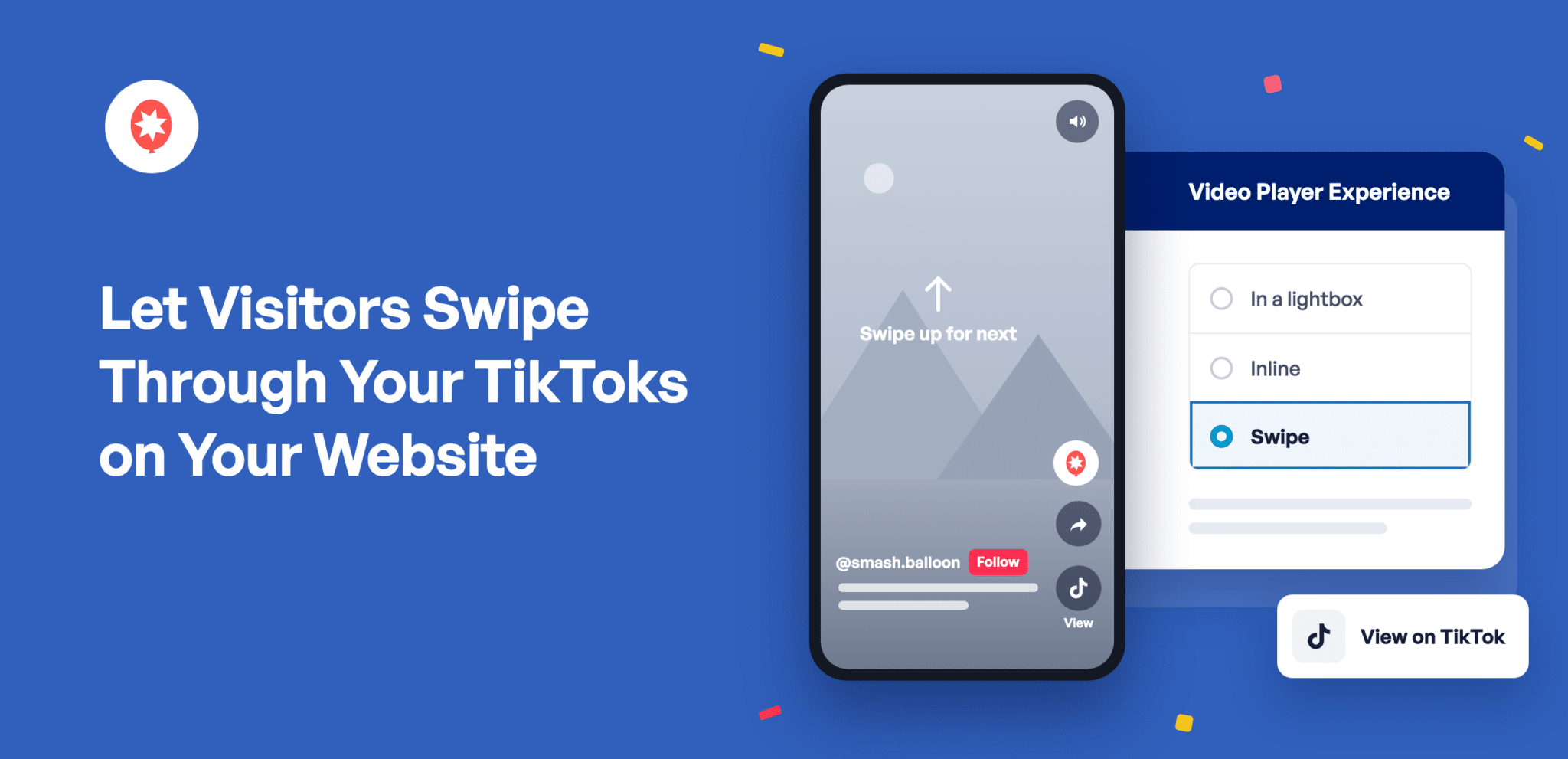
Smash Balloon TikTok Feeds Pro 1.8.0 lets visitors do the same thing on your website. Turn on Swipe View and a tap on any video in your feed opens it full-screen, with sound, and a swipe brings up the next one. They get to binge your videos without ever leaving your page.
TikTok Feeds Pro is the Smash Balloon plugin that puts your TikTok videos on your WordPress site and keeps them coming in on their own, no code needed. Swipe View comes with every Pro plan, Basic, Plus, and Elite, and with the All Access Bundle.
With one setting, you can:
- Let visitors watch your TikToks full-screen, with sound, right on your site
- Keep them watching with a swipe, the way they already use TikTok
- Put your @username and a Follow button in front of every viewer
- Let people share a video or open it on TikTok in one tap
Swipe View came to Instagram Reels, YouTube Shorts, and Facebook Reels in the same round of updates. Posting the same clips everywhere? Here’s how Reels play full-screen, how to give your Shorts their own feed, and how your Facebook Reels play full-screen.
Your TikToks Play Full-Screen, Right on Your Site
A tap opens the video in a tall, full-screen player, edge to edge on a phone and centered on a dark background on a computer. It tries to play with sound straight away, and if a visitor’s browser starts it muted, a Tap to unmute label shows them how to turn the sound on.
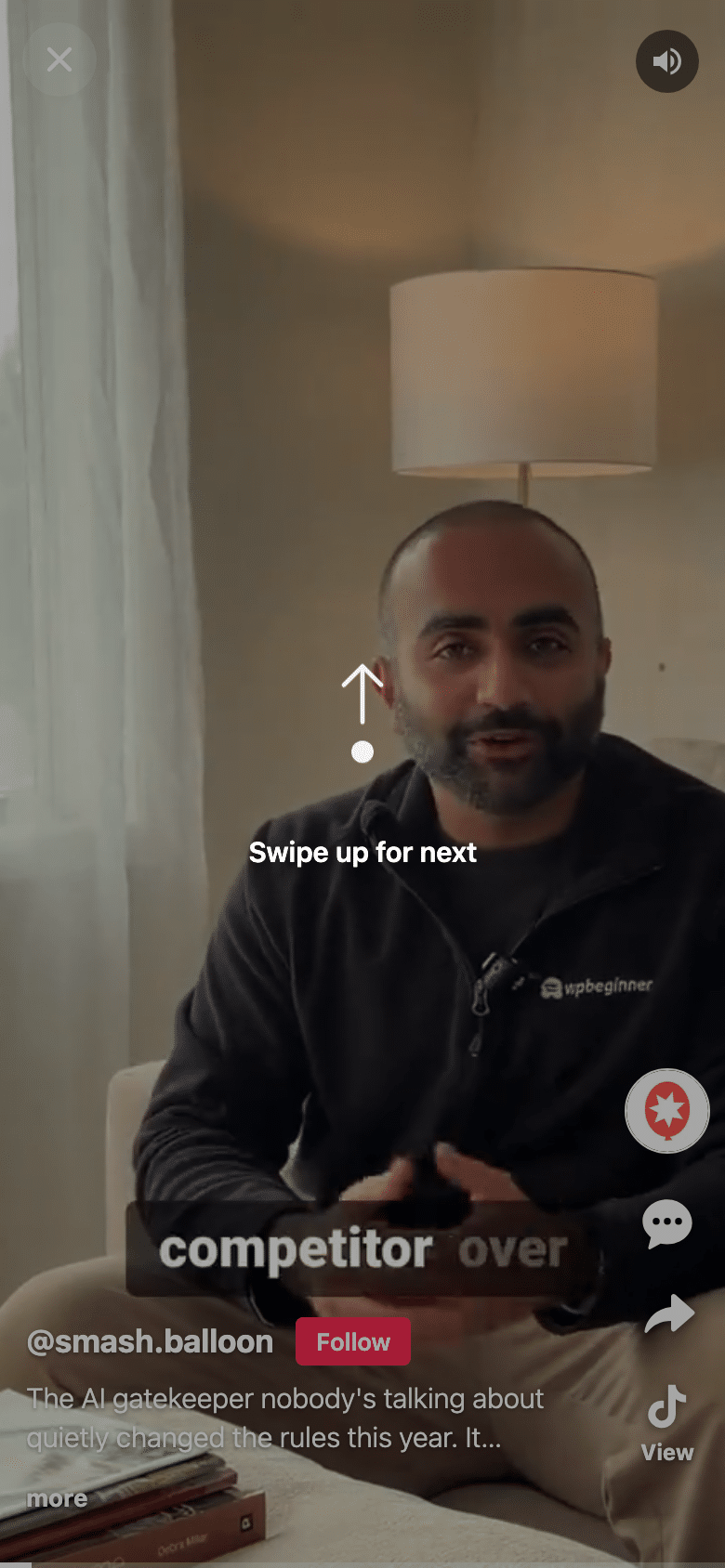
Your videos look and sound the way you made them, on your own page. The first time someone opens one on a phone, a quick Swipe up for next hint shows them what to do.
Visitors Keep Watching With a Swipe
The viewer moves through every video showing in your feed, in the same order, so one video easily turns into a few. It works however people browse:
- On a phone, swipe up for the next video and down to go back.
- On a computer, click the arrows beside the video or use the scroll wheel.
- With a keyboard, the arrow keys move between videos, the space bar pauses, M mutes, and Escape closes the viewer.
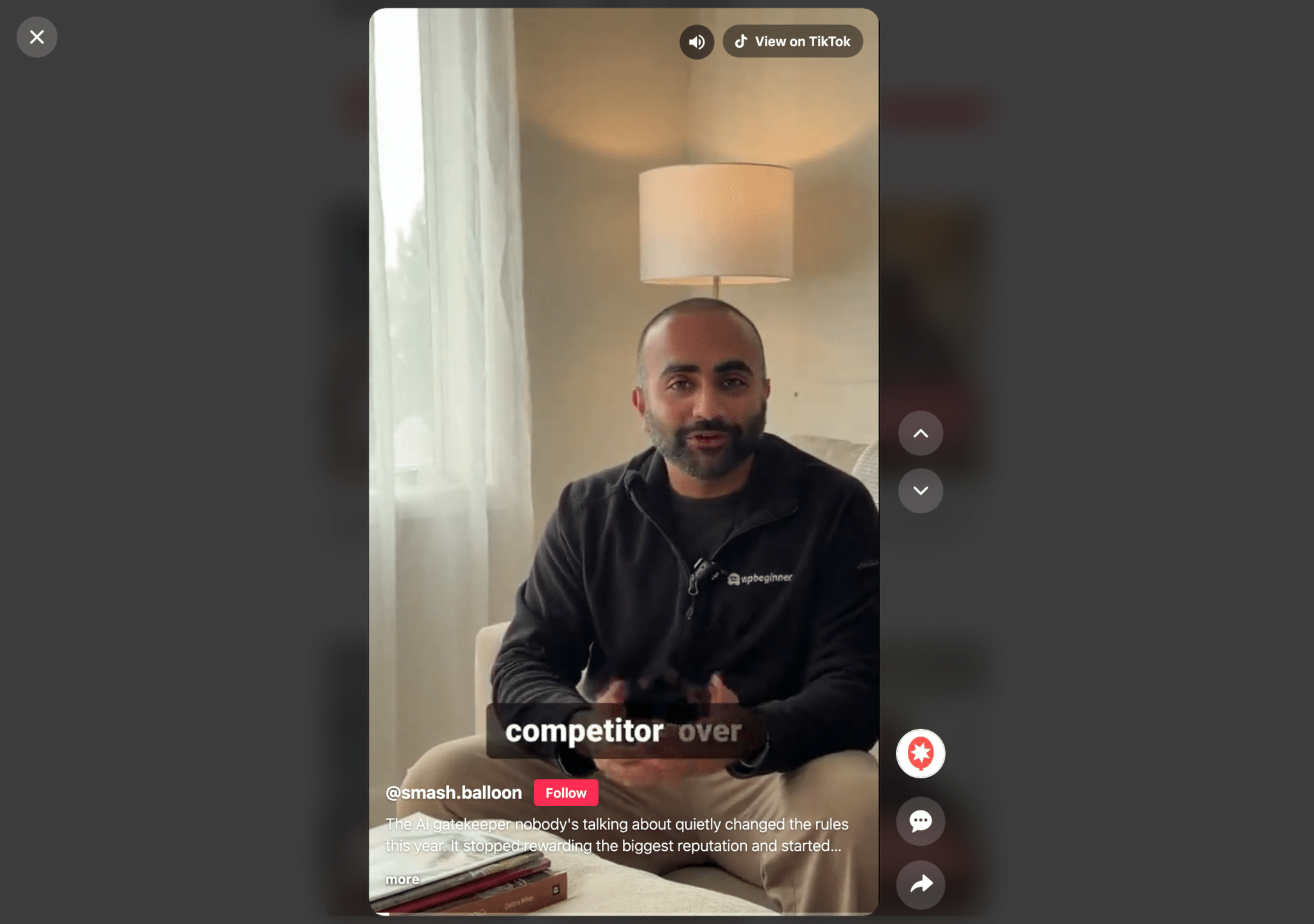
Follows, Shares, and Comments Stay One Tap Away
Your @username and a Follow button sit at the bottom of every video, so anyone who likes what they see can follow you on TikTok without hunting for your profile. Share sends that exact video to a friend, through the phone’s share menu or a copied link on a computer. View on TikTok, shortened to View on a phone, opens the video in TikTok for anyone who wants to like it or leave a comment.
Want your TikToks to play like this on your site?
Swipe View comes with every TikTok Feeds Pro plan, Basic, Plus, and Elite, and with the All Access Bundle. Update to 1.8.0 and switch it on in a minute. Backed by a 14-day money back guarantee.
Get TikTok Feeds ProHow Swipe View Helps Your Business
If you’re already posting on TikTok, here’s what Swipe View can do for you on your own site:
- Give homepage visitors a quick, real look at you and your team. A few swipes tell them more than a paragraph of About Us copy.
- Run a bakery, salon, or gym? Behind-the-scenes clips and before-and-afters play full-screen on the page where people book or order.
- Got product demos on TikTok? Put them on your product pages so shoppers can watch one, then swipe to the next.
- Keep people on your site longer. Every video plays on your page, so watching more doesn’t mean leaving for the TikTok app.
- Grow your following from your website. The Follow button on each video sends interested visitors straight to your TikTok profile.
- Keep your pages fresh without touching them. New videos you post show up in the feed on their own.
Turn On Swipe View in Four Steps
Swipe View is on every TikTok Feeds Pro plan and the All Access Bundle. If you already have a TikTok feed, you can skip straight to step 3.
1. Update to TikTok Feeds Pro 1.8.0
Go to Dashboard » Updates, or Plugins » Installed Plugins, and run the update.
2. Create a Feed With Your TikTok Account
Go to TikTok Feeds » All Feeds and click Add New. Tick your TikTok account, or click Add Source to connect it, then click Next and pick a template.

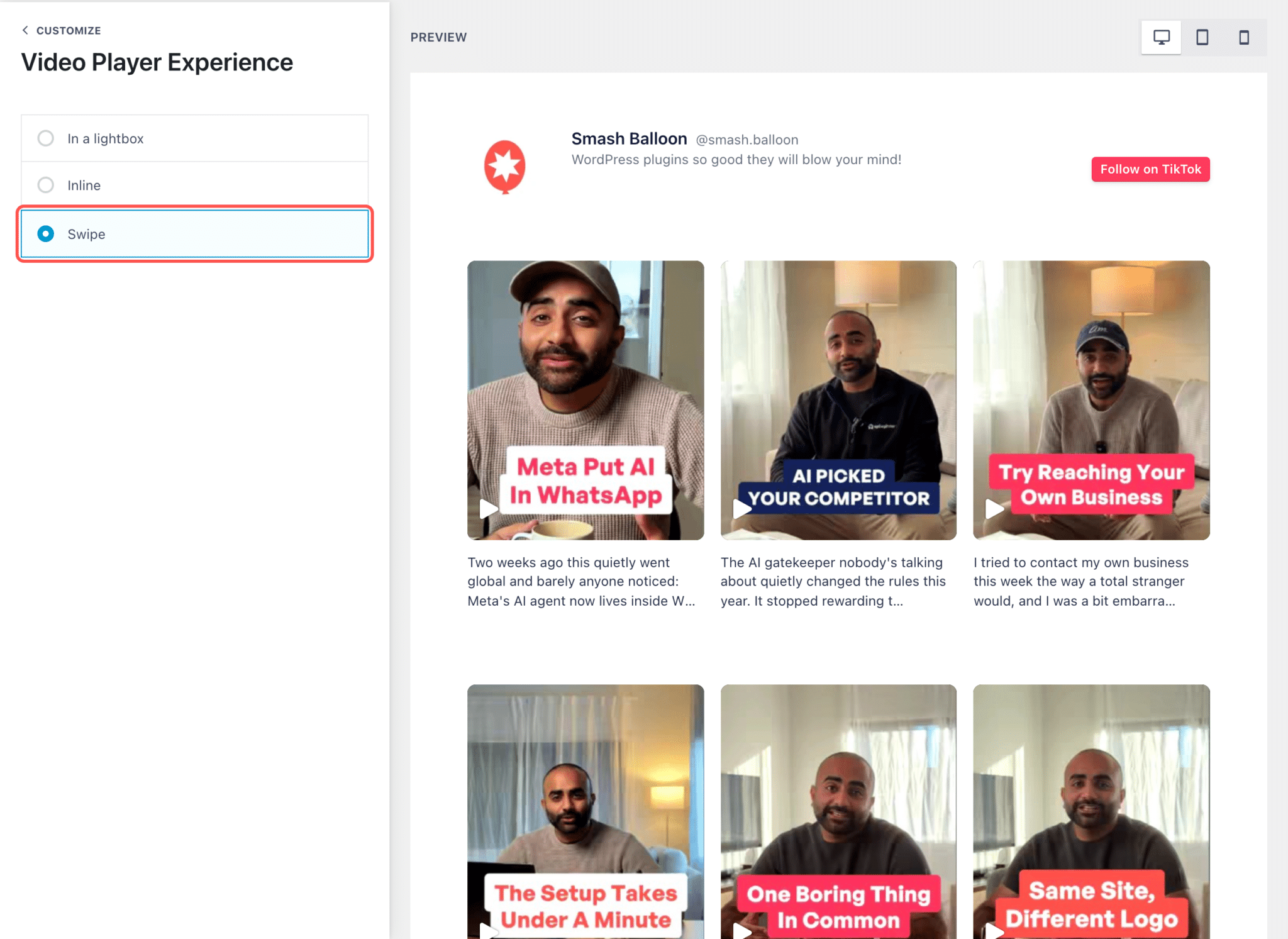
3. Choose Swipe
In the feed editor, open Video Player Experience and pick Swipe, then click Save. Your feed looks the same on the page. Tapping a video now opens the full-screen viewer. Swipe View works with the Grid, List, and Masonry layouts, so if your feed is a Carousel or Gallery, switch it to one of those first. If you switch templates later, pick Swipe again.
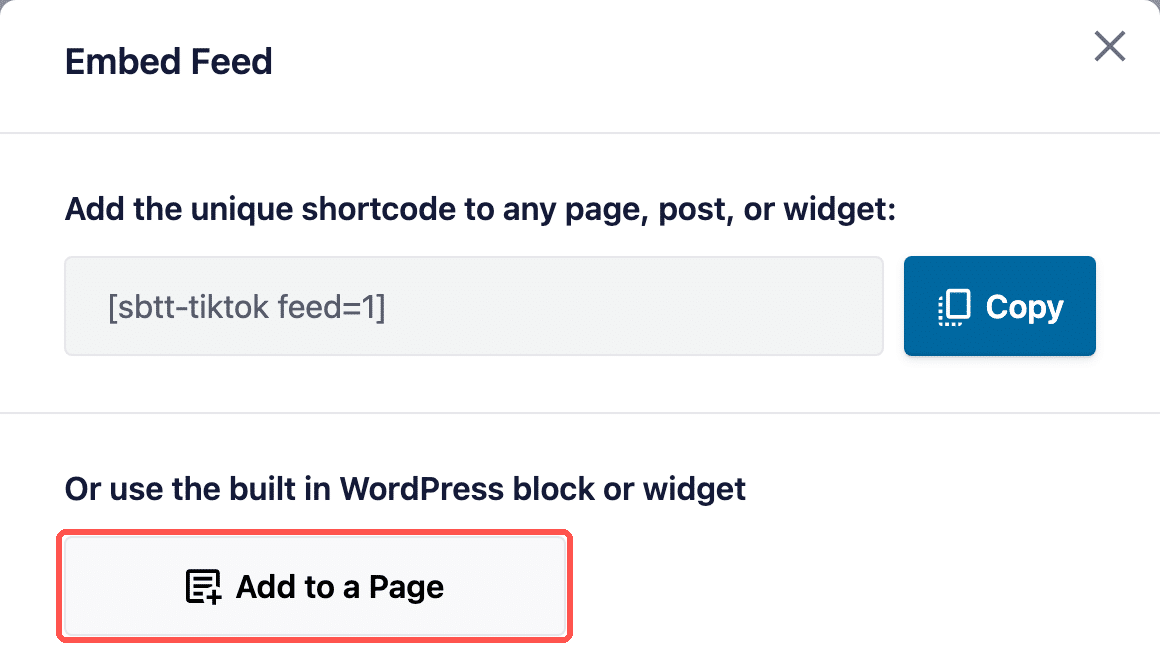
4. Add the Feed to a Page
Click Embed and choose Add to a Page, or copy the shortcode, the short piece of text you paste wherever you want the feed to show up.
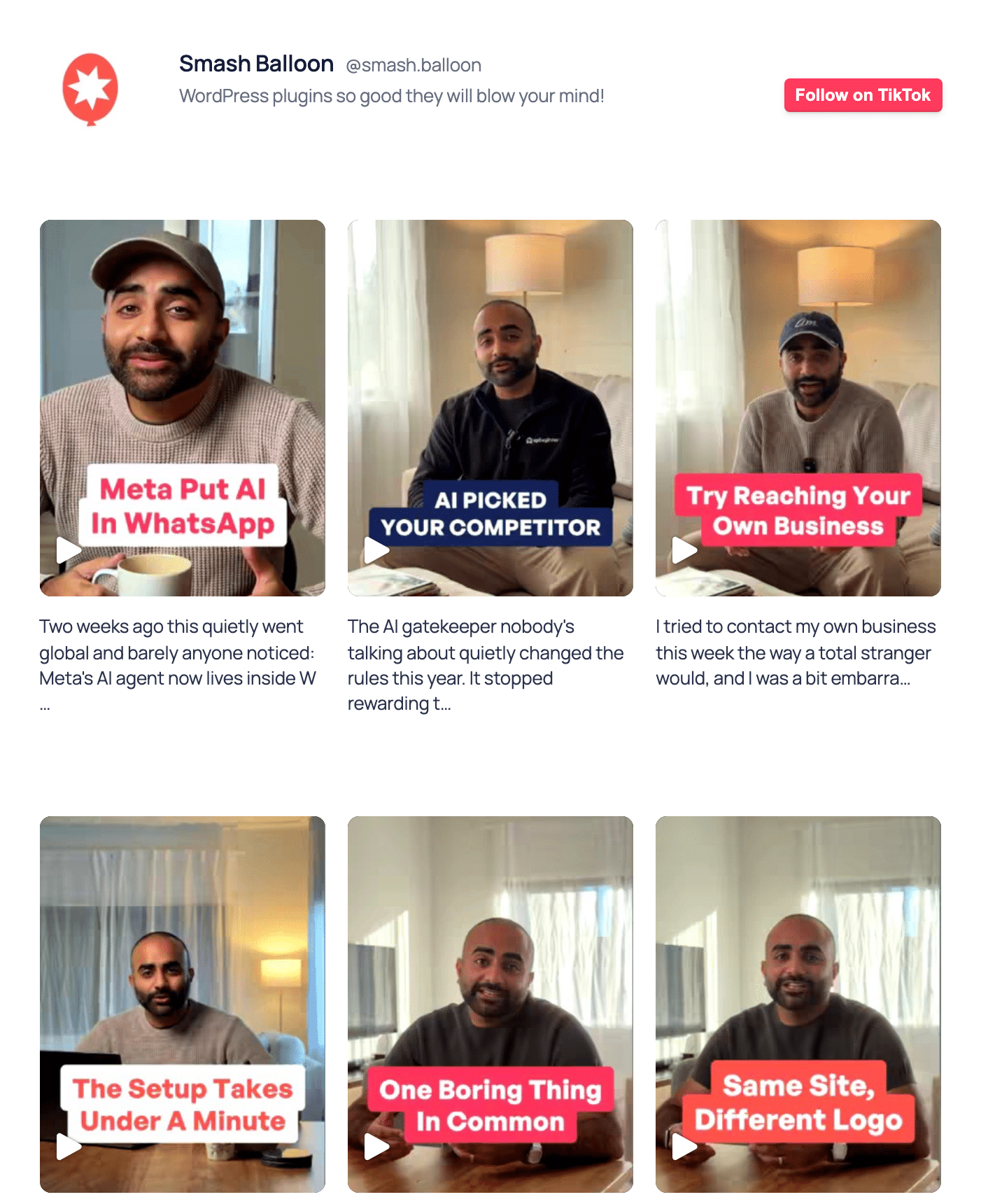
Then open the page and tap any video to try it.
Before You Turn It On
Which plans include Swipe View?
Every TikTok Feeds Pro plan, Basic, Plus, and Elite, plus the All Access Bundle.
Will my feed look different?
No. Your Grid, List, or Masonry feed keeps its layout. Swipe View only changes what happens when someone taps a video. Photo posts still open in the regular pop-up, and Carousel and Gallery feeds keep playing videos their own way.
Does it work on phones?
Yes. On a phone, visitors swipe up and down to move between videos, and Share opens the phone’s own share menu.
What if a visitor’s browser blocks sound?
The video starts muted and a Tap to unmute label appears, so sound is one tap away.
Can I switch back to how videos opened before?
Yes. Open Video Player Experience in the feed editor and pick In a lightbox, which opens videos in a pop-up, or Inline, which plays them right in the feed.
Bring the TikTok Swipe to Your Website
Your TikToks are already made. With Swipe View, the people who visit your site can watch them the way they’d watch them on TikTok, and follow you while they’re at it.
- On TikTok Feeds Pro already? Update to 1.8.0 and pick Swipe under Video Player Experience.
- Using the free Smash Balloon TikTok Feed? Upgrading to Pro adds Swipe View on top of everything you already have.
- New to Smash Balloon? TikTok Feeds Pro puts your TikTok videos on your site in a few clicks.
Let visitors swipe through your TikToks
Swipe View is on every TikTok Feeds Pro plan and the All Access Bundle. Backed by a 14-day money back guarantee.
Get TikTok Feeds Pro