Social Wall
  Feed Analytics

You already do the hard part. You film the Short, edit it, and post it to your channel. Your website can now put every one of those Shorts in front of the people who visit it.
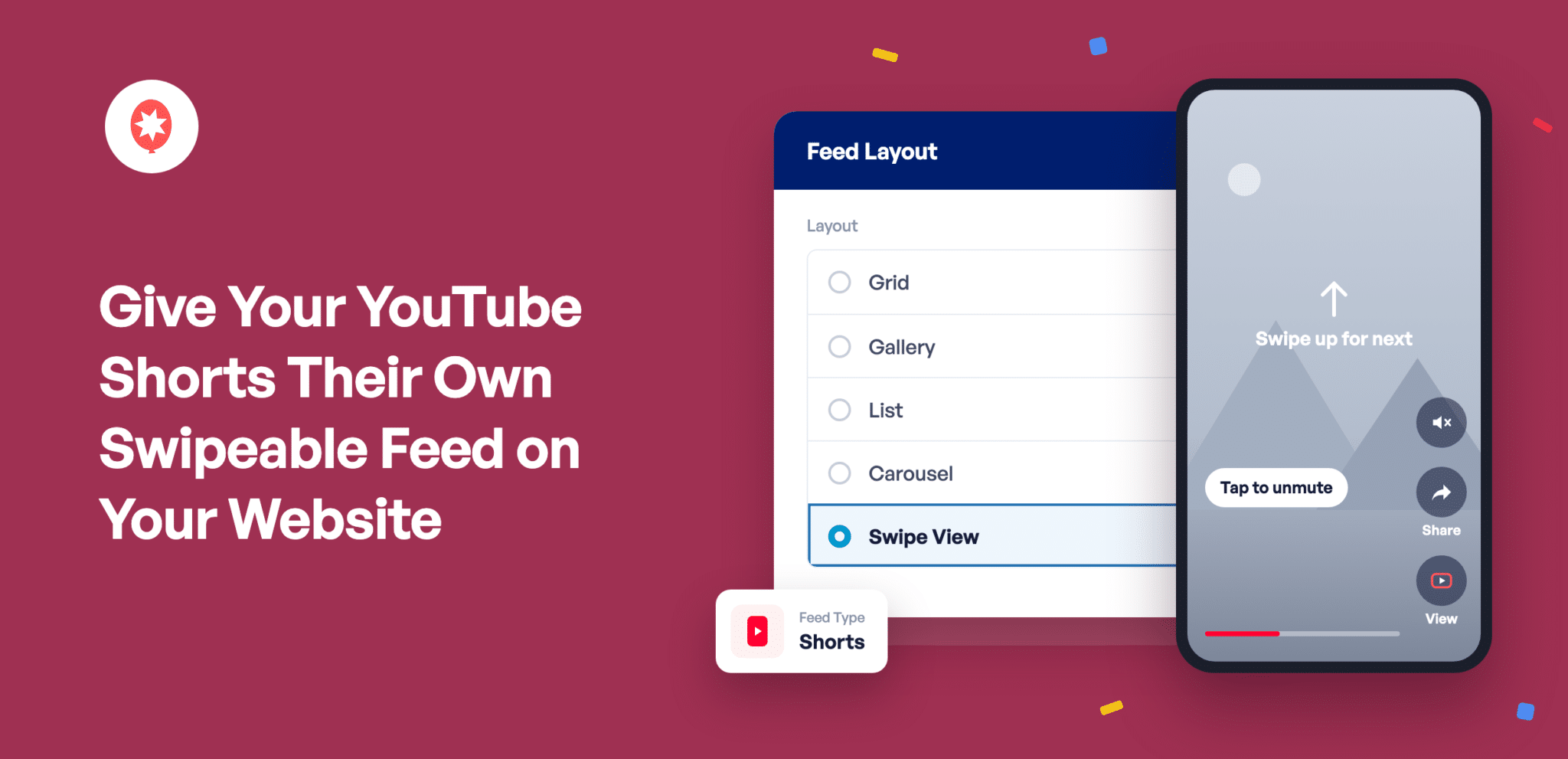
As of version 2.10.0, Smash Balloon YouTube Feed Pro can pull only your Shorts into a feed of their own and play them the way people already watch Shorts: full-screen, sound on, and one swipe to the next. Visitors keep watching on your page, not YouTube’s.
YouTube Feed Pro, if you haven’t used it before, is the Smash Balloon plugin that puts a YouTube channel on a WordPress page and keeps it current with no code. The Shorts feed and its Swipe View come with every Pro plan, Basic, Plus, and Elite, and with the All Access Bundle.
What changes for your site:
- Give your Shorts a feed of their own, apart from your longer videos
- Let visitors watch them full-screen, with sound, without leaving your page
- Keep them watching with a swipe to the next Short
- Make it easy for them to share a Short or find your channel
What Your Visitors See When They Tap a Short
The Short Fills the Screen, Sound On
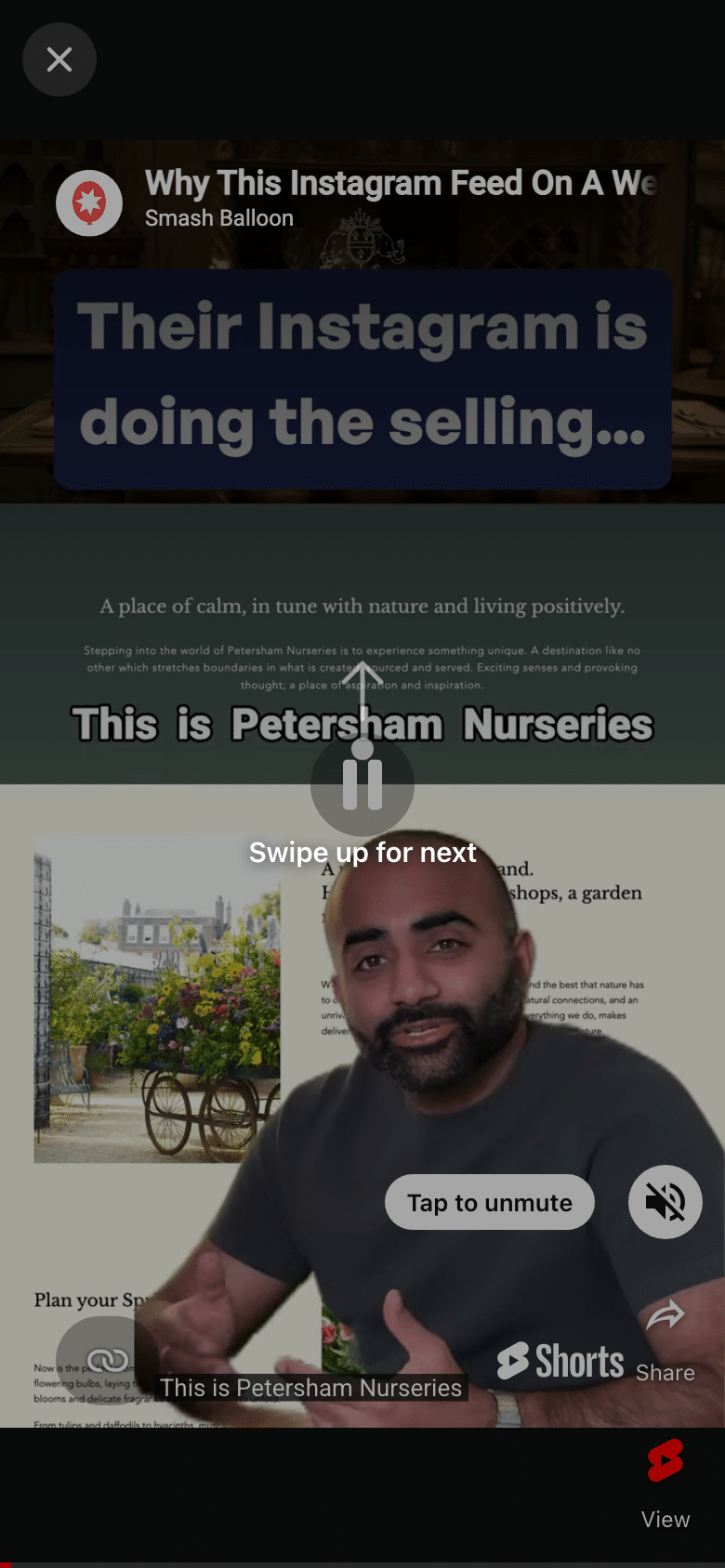
A tap opens the Short in a tall, full-screen player, edge to edge on a phone and centered on a dark background on a computer, and it starts playing with sound. If a visitor’s browser starts it muted, a Tap to unmute label appears so they can turn the sound on with one tap. On a phone, a quick Swipe up for next hint shows them how to move along the first time. Your Shorts look and sound on your site the way you made them.
The Next Short Is One Swipe Away
Visitors move through every Short showing in your feed, in the same order. On a phone, they swipe up for the next one and down to go back. On a computer, they click the arrows beside the video or use the scroll wheel, and keyboard users can use the arrow keys, the space bar to pause, and Escape to close. The next Short is always one swipe away, so visitors see more of what you’ve made in the same visit.
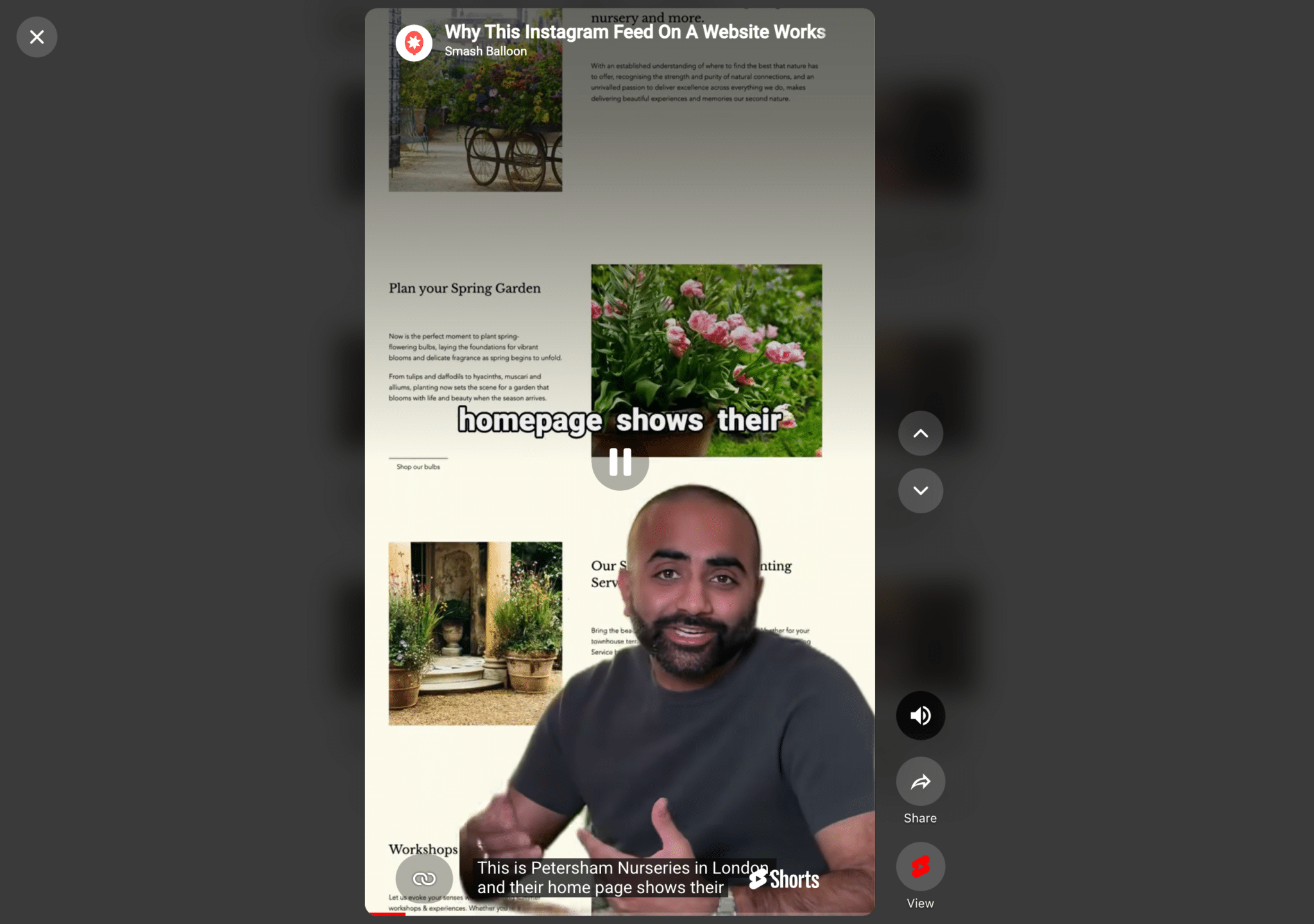
Visitors Can Share Your Shorts or Find Your Channel in One Tap
Share sends that exact Short to someone else, through the phone’s share menu or a copied link on a computer. View opens it on YouTube for anyone who wants to like it or comment, and the Subscribe button under your feed points people to your channel. So your website helps your Shorts reach more people, not fewer.
Instagram Reels, TikToks, and Facebook Reels got the same full-screen treatment in this round of updates. If you post your clips there too, here’s how Reels play full-screen, how visitors can swipe through your TikToks, and how your Facebook Reels play full-screen.
Keep Shorts and Long Videos on Separate Pages
A Shorts feed shows only the Shorts from the channel you choose, newest first. Your tutorials, interviews, and longer uploads stay in your regular YouTube feed, so each page gets the kind of video that fits it.
You add the channel with its @handle, channel ID, or username. When you post a new Short, the feed on your site picks it up on its own.
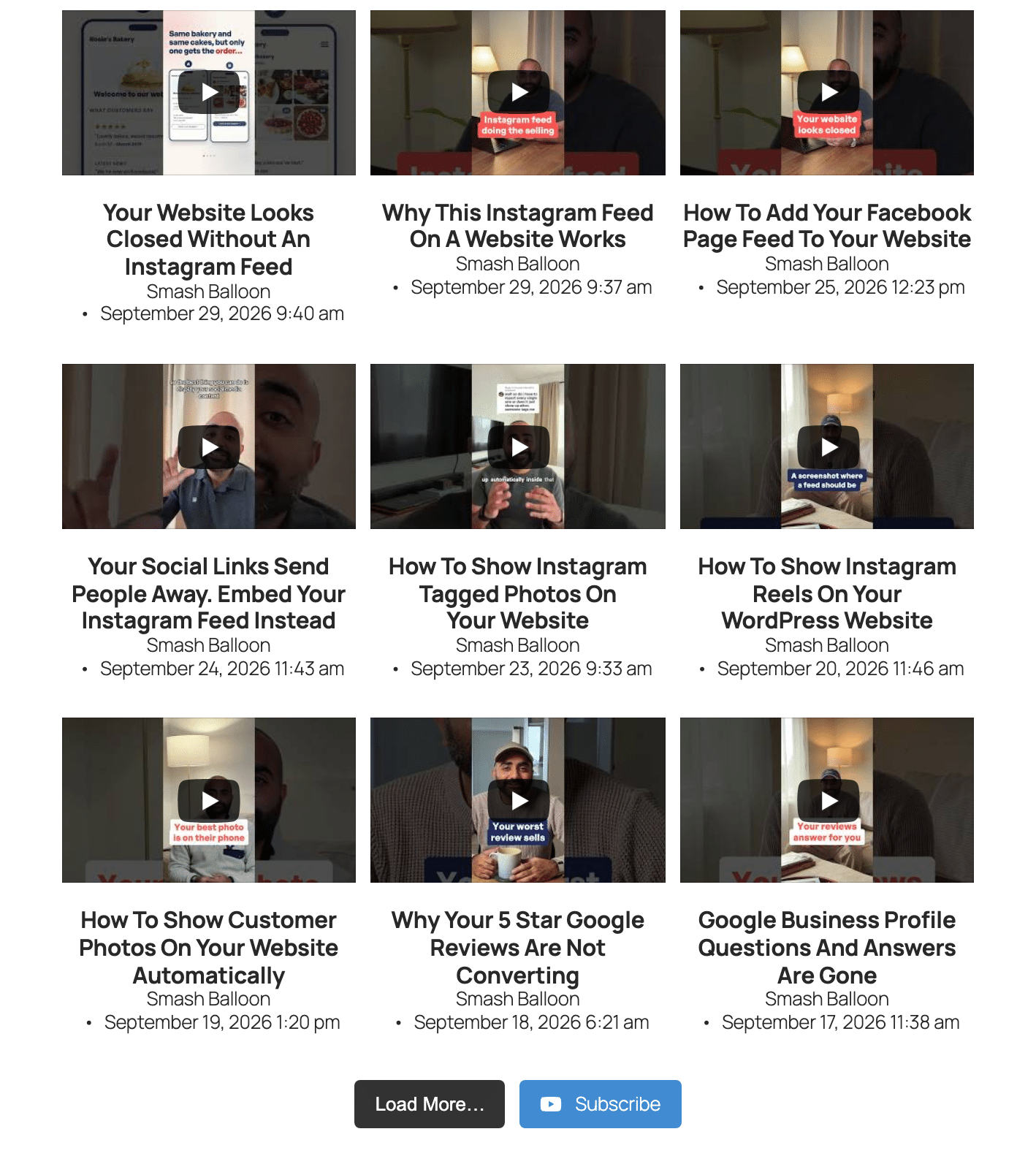
Give your Shorts a home on your site
Every YouTube Feed Pro plan, Basic, Plus, and Elite, includes the Shorts feed and Swipe View, and so does the All Access Bundle. Update to 2.10.0 and set one up in a couple of minutes. Backed by a 14-day money back guarantee.
Get YouTube Feed ProWhat a Shorts Feed Does for Your Business
Introduce your business on your homepage. New visitors can swipe through a few Shorts and get a real look at you and your team before they read a word of your About page.
Demo what you sell right next to the buy or book button. Put 30-second walkthroughs on each listing page, or before-and-afters on a salon’s booking page, and people can watch and decide in the same place.
Answer common questions on your FAQ page. Already explained something in a Short? Customers can watch the answer instead of scrolling for it.
Keep people watching on your site, not YouTube. Every Short plays in the full-screen viewer on your page with the next one a swipe away, so someone who came for one video can watch five without leaving.
Keep your pages fresh without touching them. Post a tip every day and your Shorts feed picks each one up on its own, so the page looks current even in weeks you don’t edit your site.
Give visitors an easy way to follow you on YouTube. The Subscribe button under your feed and View in the viewer mean anyone who liked what they watched can find your channel in one tap.
Set Up Your Shorts Feed in Five Steps
Every YouTube Feed Pro plan and the All Access Bundle includes both, so this works on whichever plan you’re on. You’ll also need a YouTube API key, a free key from Google that lets the plugin pull in your videos. If you don’t have one yet, the plugin asks for it when you click Next, and this guide walks you through getting one.
1. Update to YouTube Feed Pro 2.10.0
Go to Dashboard » Updates, or Plugins » Installed Plugins, and update YouTube Feed Pro, listed as Feeds for YouTube Pro, to 2.10.0.
2. Pick Shorts as Your Feed Type
Go to YouTube Feed » All Feeds, click Add New, choose Shorts, and click Next.
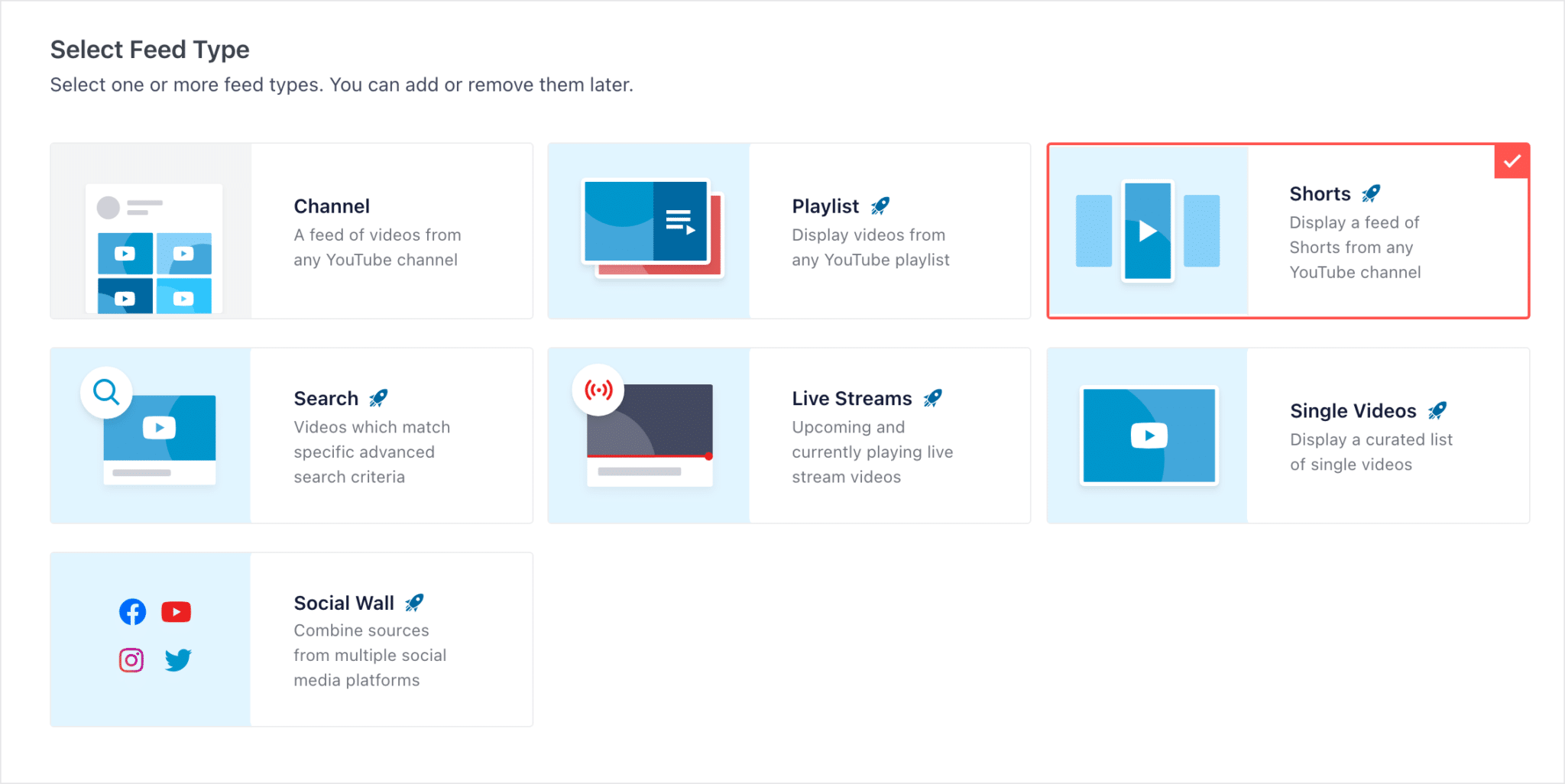
3. Add Your Channel
Type your channel’s @handle, channel ID, or username. Rather not look it up? Click Connect, sign in to YouTube, and the plugin fills it in. Click Next. If your plan includes templates, pick one or keep the Default.
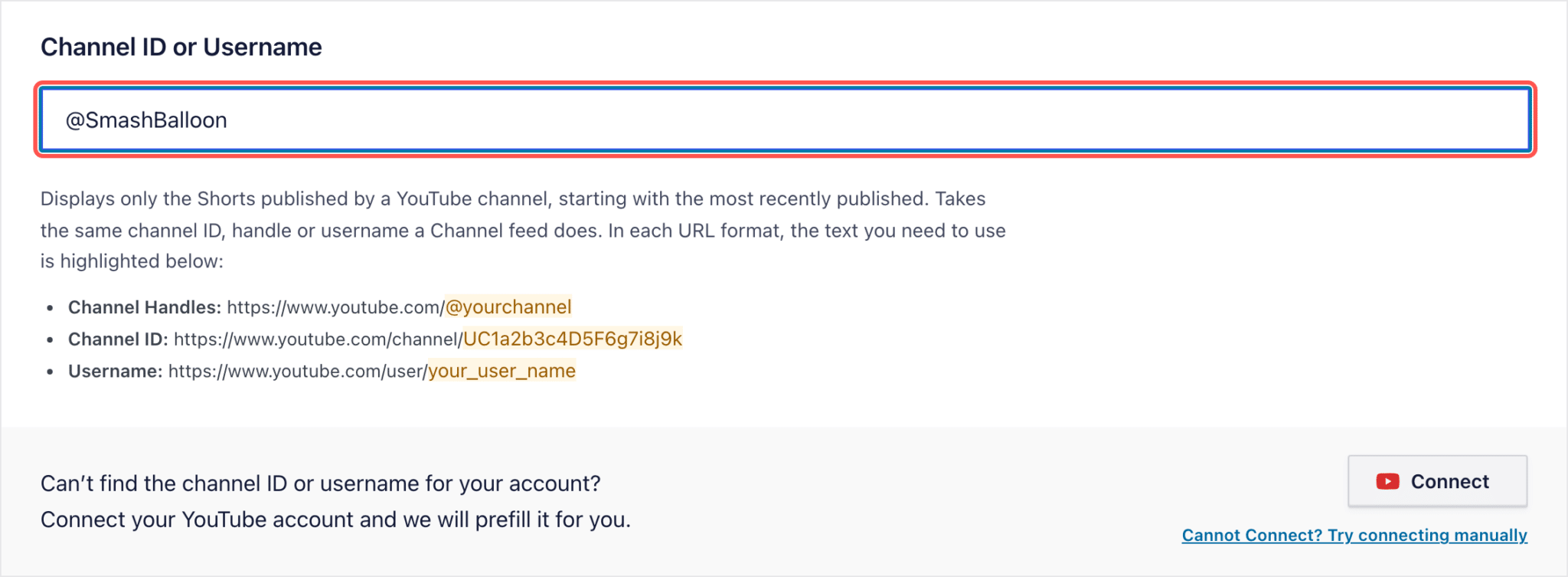
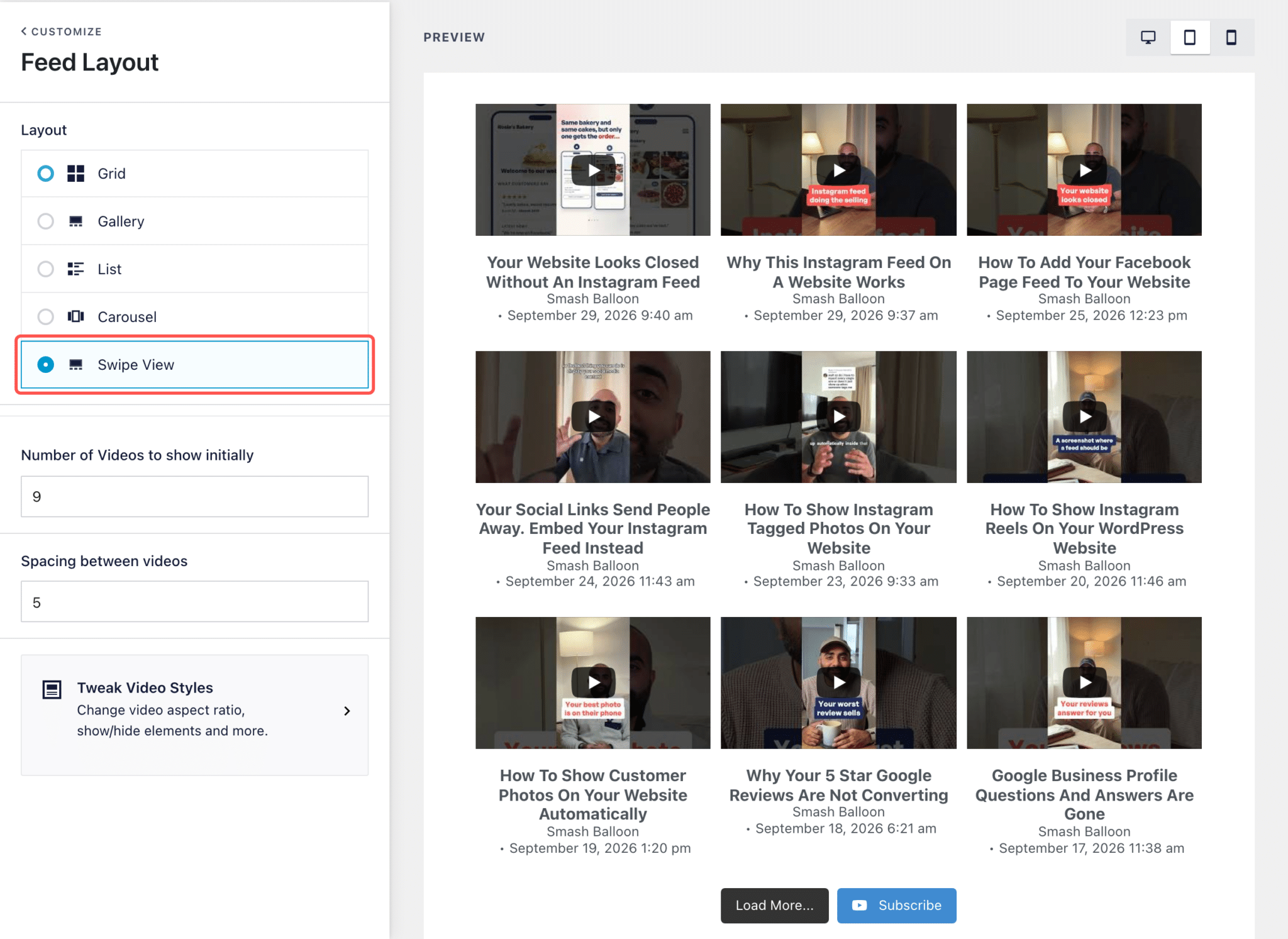
4. Choose Swipe View
In the feed editor, open Feed Layout and select Swipe View, then click Save. The feed keeps its tiles on the page, and a tap now opens the full-screen viewer.
5. Put It on a Page
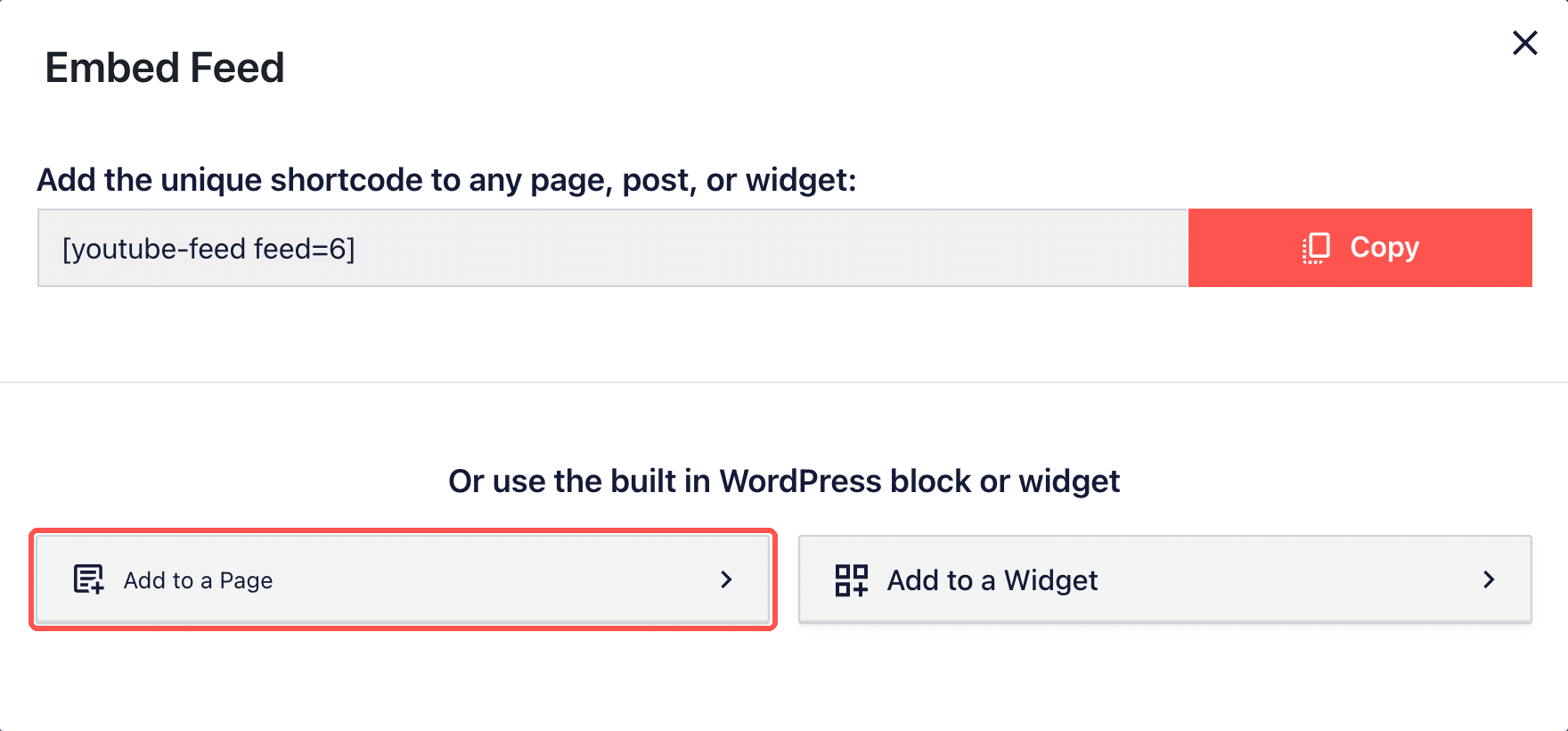
Click Embed and choose Add to a Page. You can also copy the shortcode, the short piece of text you paste wherever the feed should appear. Then open the page and tap a Short.
Quick Answers About Shorts Feeds
Which plan includes it?
All of them. Basic, Plus, and Elite on YouTube Feed Pro, plus the All Access Bundle.
Will my longer videos show up too?
No. A Shorts feed only shows Shorts, and your regular videos stay in your channel feed.
Can my other YouTube feeds use Swipe View?
Swipe View only works on Shorts feeds, so choose it for your Shorts feed and keep your other YouTube feeds on Grid, Gallery, List, or Carousel.
What if a visitor’s browser blocks sound?
The Short starts muted and a Tap to unmute label appears, so sound is one tap away.
Your Next Short Can Play on Your Own Site
The Shorts you’re already posting can keep people on your website, full-screen and with sound, and the feed fills itself in as you post.
Already on YouTube Feed Pro? Update to 2.10.0 and create a Shorts feed from YouTube Feed » All Feeds.
Using the free Smash Balloon YouTube Feed? Upgrading to Pro adds Shorts feeds and Swipe View on top of what you already have.
New to Smash Balloon? YouTube Feed Pro gets your channel and your Shorts onto your site in a few clicks.
Put your YouTube Shorts on your website
The Shorts feed and Swipe View are on every YouTube Feed Pro plan and the All Access Bundle. Backed by a 14-day money back guarantee.
Get YouTube Feed Pro