Social Wall
  Feed Analytics

You clicked into a client’s homepage this morning, and the Instagram feed is gone. In its place: “invalid source.”
Or a blank white space where twelve photos used to sit.
Good news: nothing is broken, and nothing is lost. Meta expires the permission it gives your plugin, and when it runs out, the feed says “invalid source.” Reconnecting takes about two minutes, and your layout and settings come back exactly as you left them.
(Full disclosure: I work at Smash Balloon. The Connect button usually works. This article is for when it doesn’t.)
If you got an email titled “Action Required Within 7 Days,” start with our token expiration guide instead. Everyone else, stay here.
I’ll cover reconnecting Instagram and Facebook, the Connect popup that freezes mid-flow, the Place ID Google rejects for no obvious reason, and why “No posts found” usually isn’t an error at all.
- Quick Answer: What Does "Invalid Source" Mean?
- Why Your Feed Worked for Months and Then Stopped
- Reconnect Your Instagram or Facebook Account
- Fix "Action Required: Reconnect as a Business Account"
- If the Facebook Connect Flow Freezes
- Fix an Invalid Place ID for Google Reviews
- "No Posts Found" Isn't Always an Error
- Reconnect Once and Keep Your Feed Live
Quick Answer: What Does “Invalid Source” Mean?
An “invalid source” error means your plugin lost permission to pull content from the account it’s connected to. The account is fine. The connection between it and your site is not.
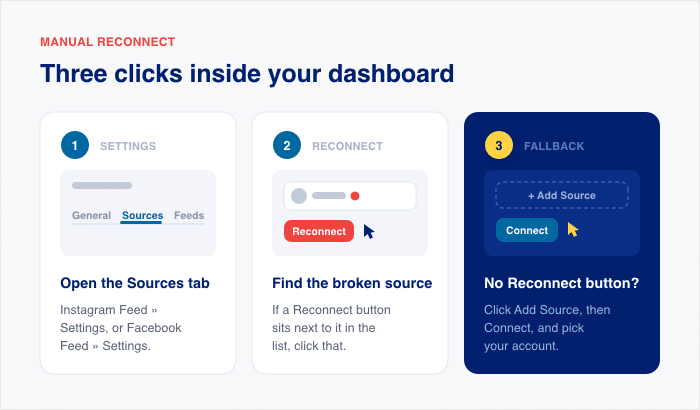
Here’s the fix. Sources live at the plugin level, not inside a single feed.
- Go to Instagram Feed » Settings or Facebook Feed » Settings, then open the Sources tab.
- Find the broken source in the list. If you see a Reconnect button next to it, click that.
- No Reconnect button? Click “Add Source”, then “Connect”, and pick your account.
One timing note. If the account isn’t reconnected within 7 days of deauthorization, the source is removed from the plugin and the cached copy clears.
That clearing is the moment the feed on your live page goes blank. So if your feed is already blank, that’s usually what happened.
The sooner you reconnect, the less you have to redo.
And if you’re already past day 7? It still works. The Reconnect button is gone, so you use Add Source instead. One extra click, same result.
Why Your Feed Worked for Months and Then Stopped
You changed nothing. So what changed?
Nothing broke on your site. The permission key Instagram or Facebook gave the plugin ran out.
That permission is called an access token. Your plugin stores it, uses it to request posts, and shows whatever comes back.
When that happens, the plugin knocks and gets nothing. Your page shows “invalid source.” Smash Balloon’s documentation lists the usual reasons a token dies:
- An admin change on the Page or account. Adding an admin, removing one, or editing an admin’s permissions can break the connection.
- Someone changed the password. Meta treats that as a security event and cuts app access.
- Someone clicked “log out of all devices.” That ends every session, including your plugin’s.
- Meta flagged the activity. A login from a new device or country can trigger a reset.
- The token expired. No event, no cause. It just aged out.
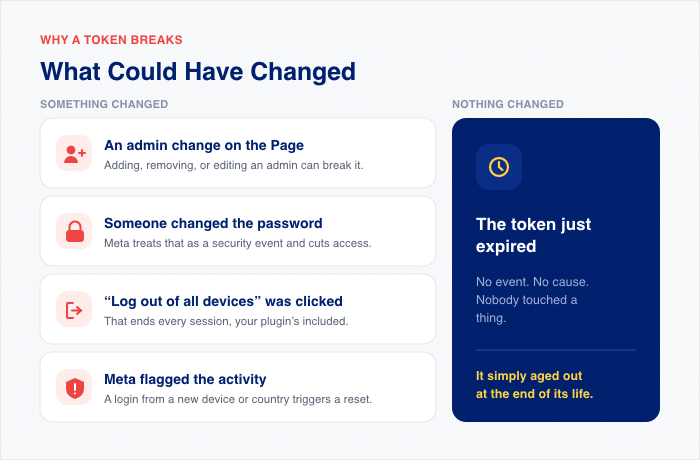
Those last two need no action from anyone. Nobody touched a setting. Meta simply decided the key was old or the login looked unusual.
People assume they broke something, or that a plugin update did. Neither is true.
Instagram and Facebook sources both fail this way, and both report API Error 190 underneath. Removing the source and reconnecting fixes both.
These are the five issues our support team sees most often:
- “invalid source”
- “Action required: reconnect as a business account”
- Facebook connect “freezes”
- “Place ID invalid”
- “No posts found for the sources selected”
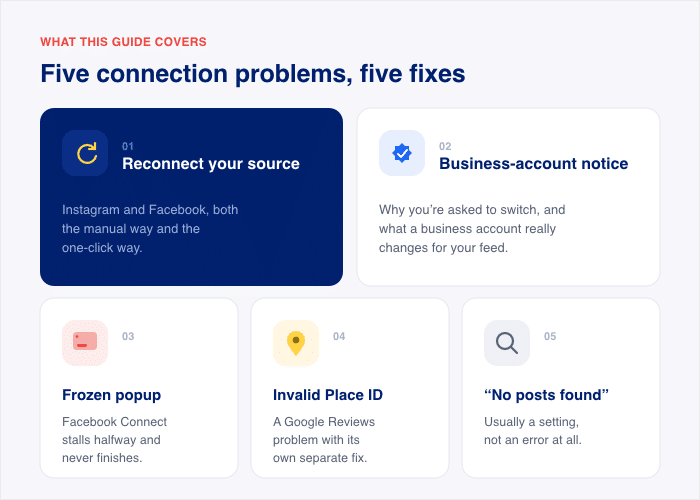
The first three are all token problems wearing different labels. An expired token usually reaches you as “invalid source,” but it can just as easily show up as the business-account notice or a Connect popup that freezes.
The last two are different problems with different fixes, and they each get their own section further down. Skip ahead if that’s what you’re seeing.
So the timeline makes sense once you see it. The feed worked for months because the key worked for months. Then the key expired, and the display caught up.
Reconnect Your Instagram or Facebook Account
Ready to fix your feed source? Here’s how the whole process works:
- Go to Instagram Feed » Settings or Facebook Feed » Settings and open the Sources tab.
- Find the source marked invalid in the list.
- Click the Reconnect button to start the process of adding the source again.
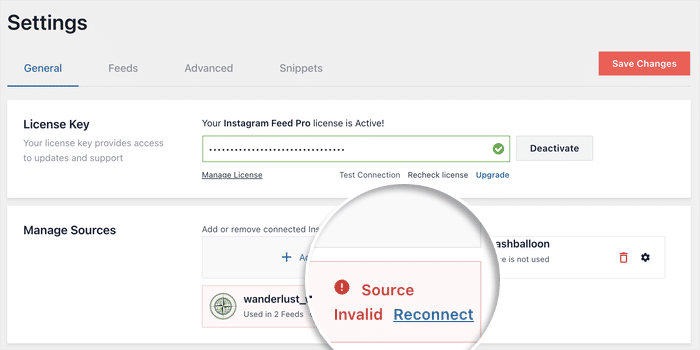
- In case there’s no reconnect button, click the red trash icon and click on Add Source.
- If this is a Facebook source, click on Connect to Facebook and confirm the source again.
- For Instagram, choose your account type. The screen labels these “Basic” and “Advanced”.
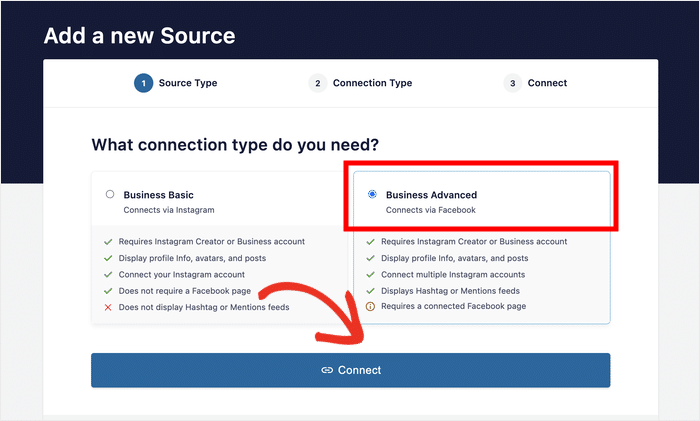
- Confirm permissions on Meta’s screen when it opens.
- Click “Save”.
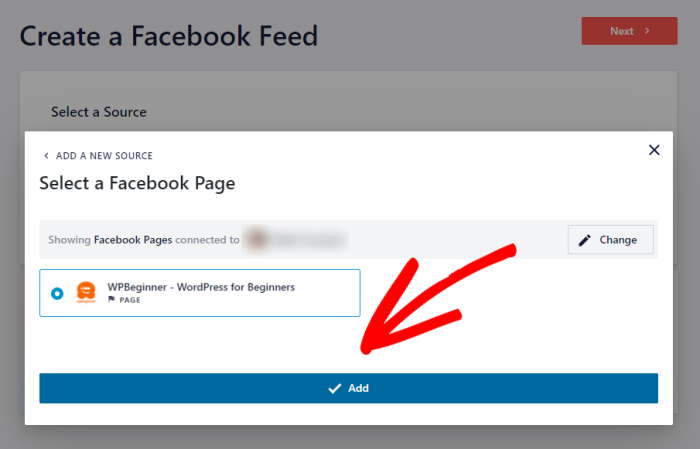
That’s the whole thing. Your feed reloads with fresh posts. Now for the question everyone asks before they click anything: if I reconnect, do I lose my layout?
No. Reconnecting updates the credential and nothing else. Your feed, your design settings, and your shortcode all stay exactly where they are.
Keep Every Feed Connected, Not Just This One
The All Access Bundle puts Instagram, Facebook, and Google Reviews behind one dashboard, with warning emails before any connection expires.
Keep Every Feed LiveFix “Action Required: Reconnect as a Business Account”
Your plugin is showing “Action required: reconnect as a business account.” You clicked Connect, and Instagram still refused.
Here’s why. Since December 4, 2024, Instagram doesn’t allow personal accounts to use its API at all. This means you need a Creator or Business account to access your Instagram feed.
Ready to make the switch and get your social feed back? Here’s what you can do:
- Open the Instagram app on your phone and go to your profile.
- Tap the menu, then Settings and privacy » Account type and tools. This is where Instagram tells you what type of account you have.
- If it says “Personal,” tap “Switch to professional account” and follow the prompts. Pick your category and contact details, and toggle off anything you’d rather keep private.
- Back in WordPress, go to Instagram Feed » Settings and open the Sources tab.
- Delete the old source with the trash icon first. The old source is tied to your personal account and won’t refresh on its own.
- Click “Add Source”, then “Connect”, and select your newly professional profile.
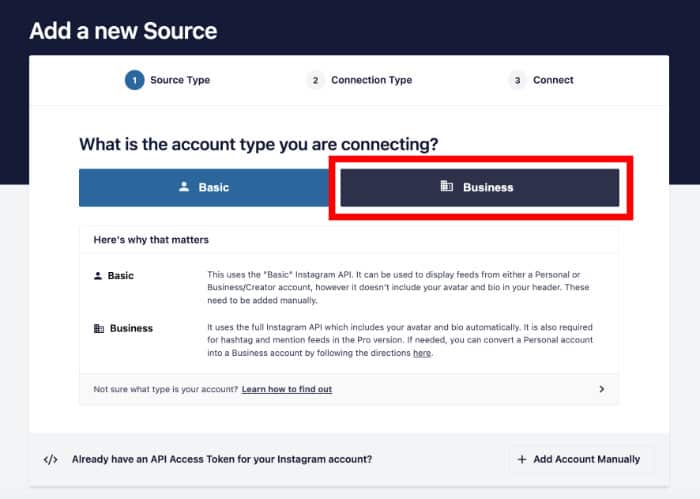
This is the one case where deleting comes first, because the old source points at an account type Instagram no longer accepts.
If you want hashtag or mention feeds, link the professional profile to a Facebook Page. In the Instagram app, tap Edit profile and look for the Page option, or add Instagram from your Facebook Page’s linked accounts settings.
Our guide to adding an Instagram hashtag feed walks through the full setup. Once the source connects, your feed reloads with your posts. Same layout, same design, same shortcode.
If the Facebook Connect Flow Freezes
Head to Plugins » Installed Plugins and look at the version number next to Instagram feed or Facebook feed. If an update is waiting, run it.
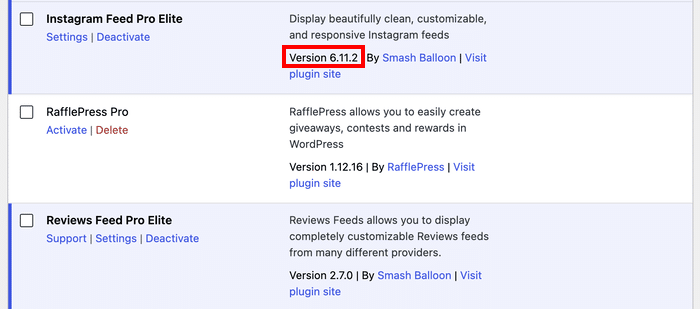
An outdated version can break the Connect button entirely.
Meta changes its login flow often, and older plugin builds point at endpoints that no longer answer. This is a 10-second check that saves you the whole sequence below.
Updated and still stuck? Work through these in order.
- Check you’re logged into the right Meta account. A second account in another tab hijacks the flow.
- Pause your ad blocker for this page. It blocks Meta’s login scripts.
- Allow pop-ups for your site. Chrome: Settings » Privacy and security » Site settings » Pop-ups. Start here if the button does nothing at all.
- Allow third-party cookies for facebook.com and instagram.com. Chrome: Settings » Privacy and security » Third-party cookies. Safari: uncheck Prevent cross-site tracking.
- Try incognito. It rules out extensions, though Chrome blocks third-party cookies there by default, so it won’t test step 4.
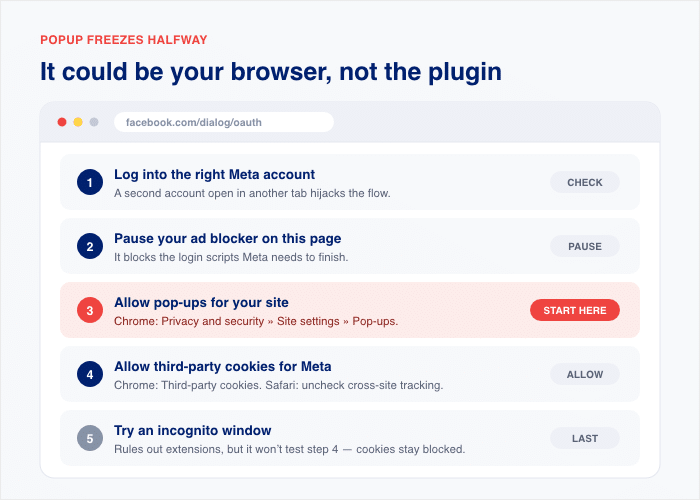
Most people get through on step 2 or step 4. Those two cover the majority of frozen popups our support team sees.
Still stuck after all five? Send us a support request, and we’ll get the source connected with you.
Fix an Invalid Place ID for Google Reviews
You pasted what looks like the right Place ID into your Reviews feed. Google rejected it anyway.
Nine times out of ten, the string got truncated or altered on its way into the field. But sometimes the ID is perfect, and the listing itself is the problem.
If you run a mobile business, like a plumber or a photographer who travels, your Google listing may have no address on it at all.
No physical address means no valid source. Google’s Places API requires one, so the fix isn’t re-copying the ID. It’s adding a physical address to your Google Business Profile, then trying again.
Not a service-area business? Then the error Google returns tells you which problem you have.
- INVALID_REQUEST means the Place ID was truncated or modified during copy-paste. A single missing character breaks it.
- NOT_FOUND means the ID is obsolete. Per Google’s documentation, this happens when a business closes, moves, or its listing merges with another one.
Either way, you need a fresh ID straight from the source.
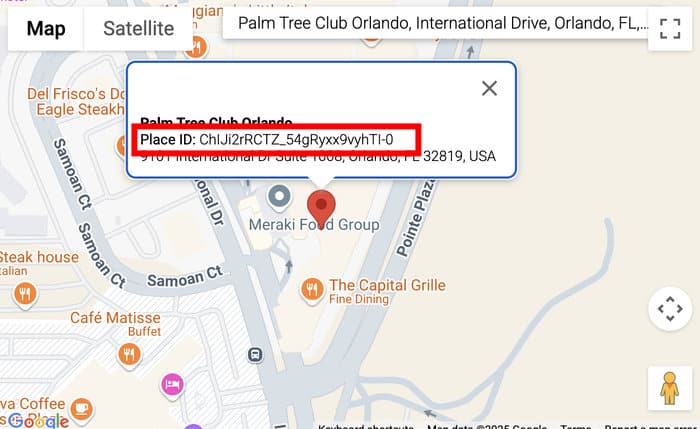
- Open Google’s Place ID Finder tool. This is Google’s own utility, so the ID it gives you is always the current one.
- Type your business name into the search box and select it from the dropdown.
- Copy the full Place ID from the info window. These strings are long, and clipping the last few characters is the single most common mistake here.
- Check that you copied the Place ID and not a CID. If you grabbed a long number out of a Google Maps URL, that’s a CID, and the plugin won’t accept it. Place IDs mix letters, numbers, and dashes.
- Head to Reviews Feed » All Feeds in WordPress, open your feed, and paste the ID into the source field with no spaces before or after it.
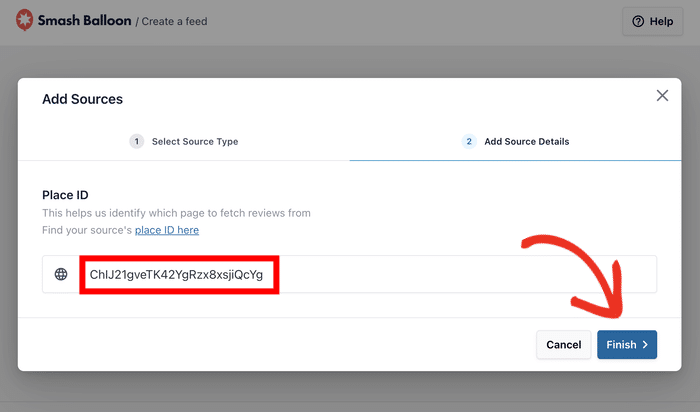
Paste it, save, and your reviews load.
Now, the API key. Current versions of Smash Balloon Reviews Feed Pro connect without one, so most people can skip this part entirely.
But if you added a key at some point, it becomes a second thing that can fail. Check these three in your Google Cloud project.
- The Places API isn’t enabled. A key only works for APIs you’ve switched on for that project.
- An HTTP referrer restriction is blocking your domain. If you locked the key to specific sites, your site’s URL has to be on that list.
- Billing isn’t enabled on the project. Google requires a billing account attached before Places API requests go through.
If you’re setting up a reviews feed from scratch instead of fixing a broken one, our guide to embedding Google business reviews on your website walks through the whole thing in order.
“No Posts Found” Isn’t Always an Error
An empty feed and a broken feed look exactly the same on the page. They’re two different problems.
“No posts found for the sources selected” usually means your feed is working fine. It ran, it asked Instagram for posts, and Instagram sent back nothing.
That’s a very different thing from a failed connection.
Here’s the part that surprises people. A new Recent hashtag feed backfills from top posts the moment you create it, so it shouldn’t sit empty on day one.
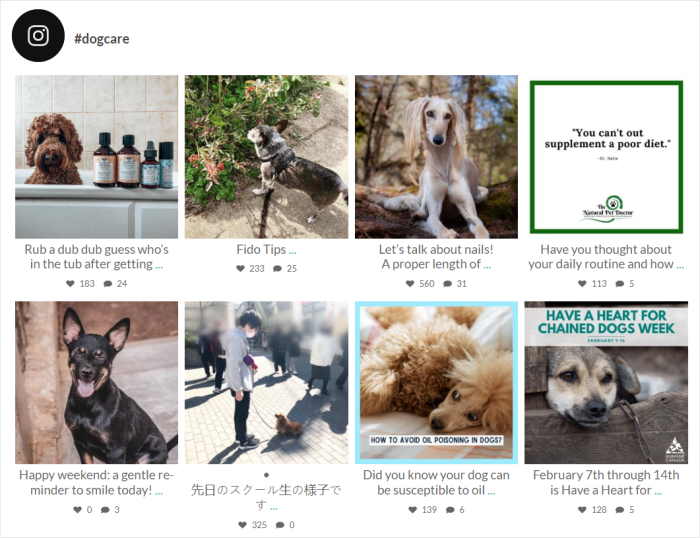
If yours is empty, the cause is upstream of the plugin. You didn’t break anything.
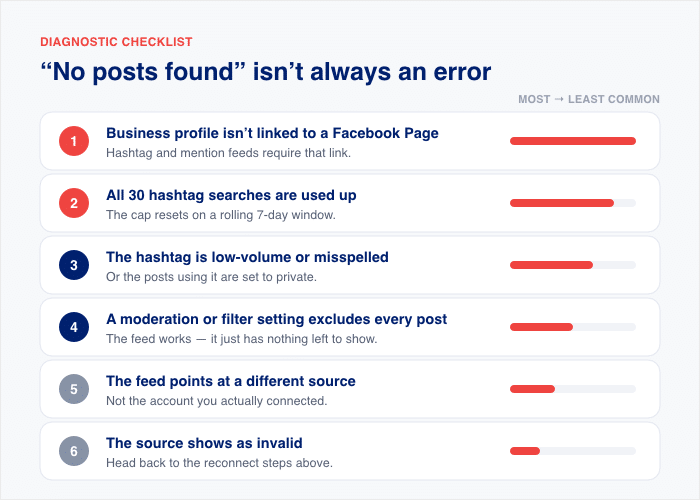
Work down this list in order. It’s sorted by how often our support team sees each one.
- Your business profile isn’t linked to a Facebook Page. Hashtag and mention feeds require that link. This is the single most common cause of an empty hashtag feed.
- You’ve used all 30 hashtag searches for this 7-day window. Instagram caps each profile at 30 unique hashtag searches per rolling week. Once you hit it, new searches return nothing until the window rolls forward.
- The hashtag is misspelled, low-volume, or full of private posts. The API only returns public posts, so a hashtag used mostly by private accounts comes back empty.
- A moderation or filter setting is excluding everything. Check your feed’s Filters and Moderation settings for a word filter or an allow list that’s screening out every post.
- The feed points at a different source than the one you connected. Open the feed, check the Settings » Sources tab, and confirm the right account is ticked.
- The source shows as invalid. Then it isn’t an empty feed at all. Go back to the reconnect steps earlier in this article.
One more thing worth understanding, because it explains a lot of “slow” feeds.
Recent hashtag feeds only pull posts from the last 24 hours as they update. That’s a going-forward limit, not a startup delay.
So a hashtag with three posts a week fills slowly. Nothing is stuck. There simply isn’t much to collect.
If you’re building your first hashtag feed and want the setup done right from the start, our guide to adding an Instagram hashtag feed in WordPress covers the page link and the settings that matter.
And if a feature looks missing rather than broken, that’s often a platform limit too. Our post on Instagram Shopping not being available in your region is a good example of the same pattern.
Frequently Asked Questions
Why does my feed say “invalid source”?
Your feed says “invalid source” because the plugin lost permission to read the connected account. Per Smash Balloon’s documentation, that happens after a token expires, a password change, an admin change on the Page, someone clicking “log out of all devices,” or Meta flagging activity as suspicious. The last few need no action from anyone, which is why the error shows up on sites nobody touched. Reconnect the source under Settings » Sources, and the feed comes back.
Why can’t I connect my Instagram account?
Three things stop the Instagram connection, in the order our support team sees them. An outdated plugin version comes first, so update Instagram Feed before anything else. Next is your browser blocking the popup or its third-party cookies, and last is a personal Instagram account where a Business or Creator profile is required.
What does “reconnect as a business account” mean?
Instagram stopped allowing personal accounts to use its API in December 2024, so the plugin needs a Business or Creator profile for all your feeds. The good news is that switching is free and takes a minute in the app.
Why is my Google Reviews Place ID invalid?
Your Place ID is usually invalid because it got truncated during copy-paste, which returns INVALID_REQUEST, or because the listing is obsolete, which returns NOT_FOUND. Grab a fresh ID from Google’s Place ID Finder and paste the whole string with no stray spaces. If the ID is correct and it still fails, the listing has no physical address, and Google’s Places API requires one. Added an API key at some point? Check that the Places API is enabled on it.
How long does it take for a new hashtag feed to show posts?
A new hashtag feed shows posts right away. A Recent feed backfills from Top posts the moment you create it, so an empty one points to something else. The usual causes are a business profile that isn’t linked to a Facebook Page, or a profile that has used all 30 hashtag searches for its 7-day window. Check those two first.
Will reconnecting delete my feed or its design settings?
No, reconnecting will not delete your feed or any of its design settings. It replaces the credential and nothing else. Your layout, colors, filters, moderation rules, and shortcodes all stay exactly as you left them. The feed simply starts loading posts again.
Reconnect Once and Keep Your Feed Live
“Invalid source” is an expired connection, not a broken plugin.
Nothing on your site was lost. Your feed, its layout, and every setting you picked are sitting right where you left them, waiting for a fresh credential.
Ready to start adding social feeds that engage website visitors?
The All Access Bundle gives you every Smash Balloon plugin in one package, so Instagram, Facebook, and Google Reviews all sit behind the same connection setup you just learned. One reconnect flow, one dashboard, every platform.
Want to stop this from happening again? Read our guide to why Instagram access tokens expire and how to fix them.