Social Wall
  Feed Analytics

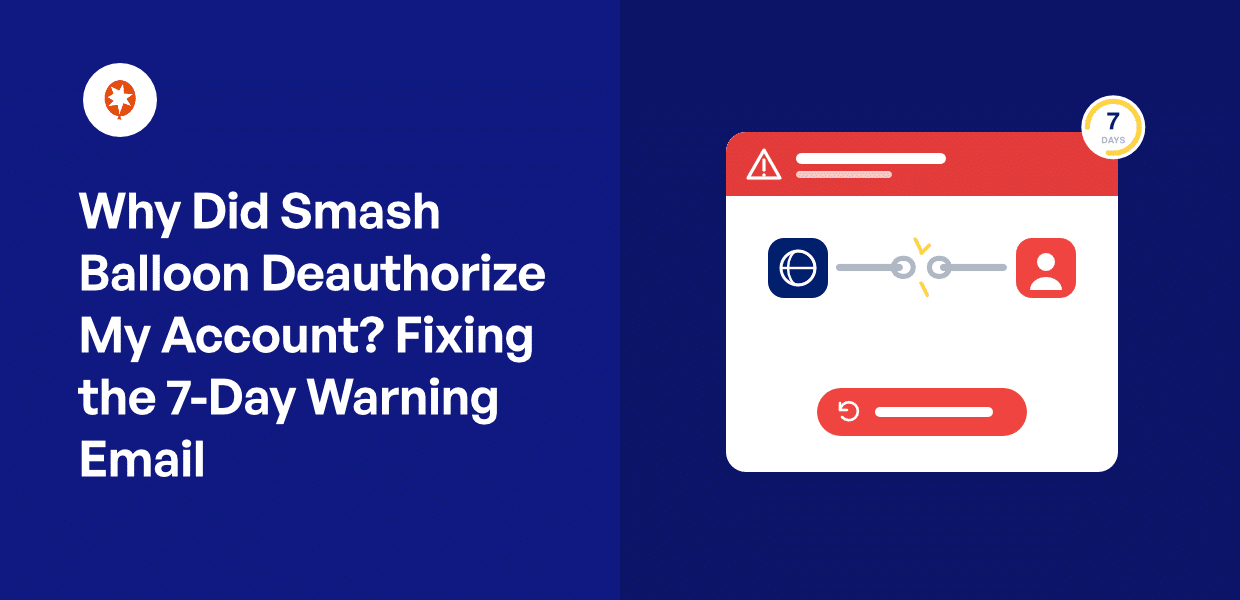
First things first: take a breath. This email is not a security breach, nobody hacked your account, and you didn’t do anything wrong.
If you just opened a message that says “Action Required Within 7 Days. An account admin has deauthorized the Smash Balloon app… due to Facebook data privacy rules,” you’re probably running through a mental checklist right now.
Was I hacked? Is my billing broken? Which admin did this?
The short version: Meta expires access tokens as part of its normal privacy rules, and the email is an early warning that you need to reconnect. The fix takes about two minutes.
Below, I’ll explain what “an account admin has deauthorized” means, walk through the reconnect steps to finish before your deadline, and answer the big question: what happens if you miss the window. (Hint: even that is fixable.)
- What Does "Action Required Within 7 Days" Mean?
- Why You Got This Email (Even If You Didn't Change Anything)
- Why Your Feed Is Probably Still Showing Right Now
- How to Reconnect Your Account Before the Deadline
- What Happens If You Miss the 7-Day Window
- How to Stop This From Happening Again
- The Same Expired Token Causes These Other Feed Problems Too
- Reconnect Once, Then Forget About It
What Does “Action Required Within 7 Days” Mean?
This email means the access token connecting your Instagram or Facebook account to your feed is expiring. Meta expires these tokens as part of its data privacy policies. Nothing is wrong with your site, your plugin, or your security.
The phrase “an account admin has deauthorized” is Meta’s generic wording, and it can fire from a user action, changes on Facebook or Instagram, or even a bug.
In other words, the message often appears even when no human deliberately deauthorized anything. That’s why you couldn’t find any change in your Meta account.
Your feed is probably still displaying right now, too. Smash Balloon keeps a cached copy of your feed data, which buys you time during the warning window. I’ll explain how that works a little further down.
The fix is reconnecting your source inside WordPress, and I’ll walk through every step below.
TL;DR: Your connection to Meta expired. Reconnect it under your feed’s Settings » Sources. It takes about two minutes.
Why You Got This Email (Even If You Didn’t Change Anything)
You got this email because Meta invalidated the access token that connects your account to your feed. Meta does this for security and privacy compliance, and it often happens without anyone touching a single setting.
To put it plainly, the deauthorization can be due to user action, changes on Instagram or Facebook, or even a bug or change on Meta’s side.
That said, some account activity does trigger it. Here are the most common examples, so you can self-diagnose:
- An admin change on your Facebook Page or Instagram account. Adding, removing, or editing permissions for any admin can invalidate the token.
- A password change. Meta treats a new password as a reason to reset app connections.
- Someone clicked “log out of all devices”. This ends every active session, including the one Smash Balloon uses.
- Meta flagged suspicious activity. Logging in from a new device or sharing the account login can be enough to trip this.
- The token simply expired. Tokens have a natural lifespan, and no action is required for one to run out.
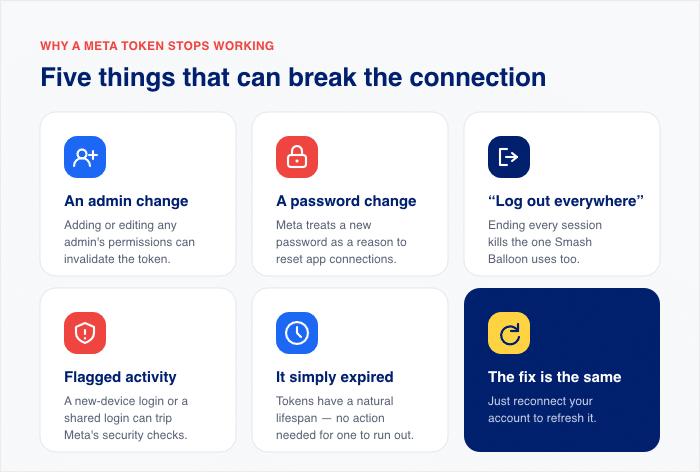
Notice those last two. If you never touched your Meta settings, you’re probably looking at a security flag or a plain expiration. Both happen with zero deliberate action, and both are completely normal.
I see this confusion constantly in the plugin’s WordPress.org support threads. Users ask which admin deauthorized the app, and often the honest answer is nobody did.
One more possibility if you work with a team or an agency: someone else with admin access made a change. A developer logging in from their office or a client updating their password counts as account activity, even if you never heard about it.
Whatever the trigger was, the email itself is a good sign. It’s part of Smash Balloon’s health checks and email notifications system, which watches your connection and warns you before your feed breaks.
Why Your Feed Is Probably Still Showing Right Now
If your feed looks perfectly fine, you might wonder whether the email is even real. It is. Smash Balloon’s backup caching system stores a copy of your feed data locally on your own server.
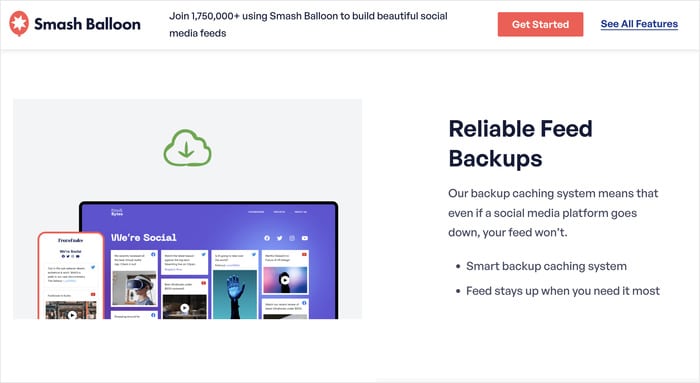
When the connection to Meta breaks, your site keeps displaying that cached copy. This is a deliberate safety net built into the plugin, so your visitors never see a broken feed while you fix the connection.
But a working-looking feed does not mean you can ignore the email. The cache is a buffer, not a fix, and it only holds your feed together during the warning window.
Once the 7 days pass without a reconnect, the plugin clears that cached copy, and the feed goes blank. That delay is exactly why so many site owners miss the connection between the email and the broken feed that shows up days later.
How to Reconnect Your Account Before the Deadline
Reconnecting takes about two minutes, and the whole fix happens inside your WordPress dashboard.
Smash Balloon’s official troubleshooting doc recommends removing the broken source and adding it back fresh, which forces Meta to issue a brand-new access token. Here’s the full process, one step at a time.
Step 1: Log into your WordPress admin area.
You’ll need an account with admin access, since plugin settings are locked to administrators.
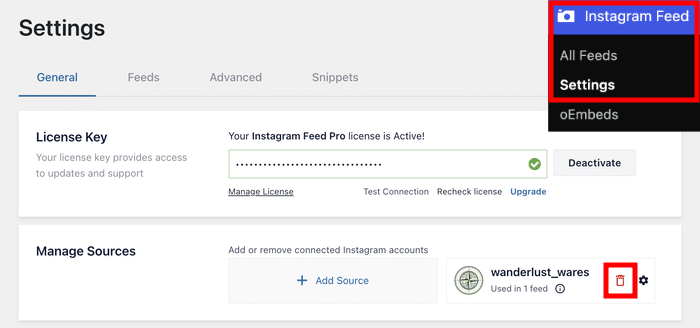
Step 2: Head to Instagram Feed » Settings.
If the email is about a Facebook feed, go to Facebook Feed » Settings instead. You’ll see your connected sources listed here.
Step 3: Click the red trash icon next to the source, then click “Save Settings”.
This removes the expired connection completely. Deleting the old source first matters because reconnecting on top of a dead token can leave the same error in place.
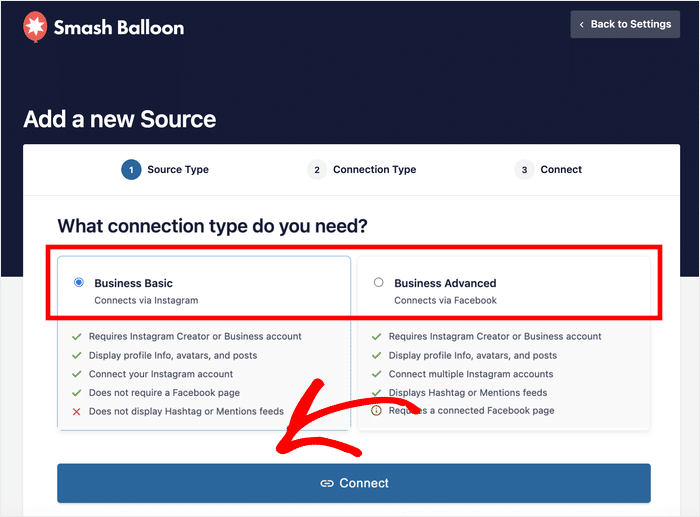
Step 4: Click “Add Source” and pick your account type.
Choose Basic or Advanced to match your Instagram or Facebook account. This tells Smash Balloon which type of Meta login screen to send you to.
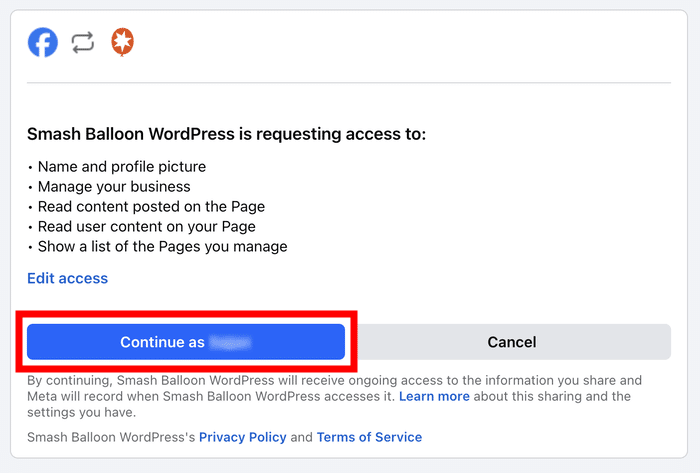
Step 5: Click “Login with Instagram” (or “Login with Facebook”) and approve the permissions.
Meta opens its own login window and asks you to confirm what the app can access. Approving these permissions is what creates the fresh access token.
Step 6: Click “Save Changes”.
That’s it. Your feed now runs on a new token, the warning clears, and your feed is connected again.
A few things worth knowing before you start.
- Log into the right Meta account. You need to connect with the same Facebook or Instagram account that owns the source. I see this trip up agency setups all the time: a developer logs in with their personal Meta account instead of the client’s, and the reconnect fails or pulls the wrong feed.
- Business accounts: check every permission. If you’re connecting a business account, click “Edit Settings” on Meta’s permission screen and make sure every page and permission is toggled on. A single unchecked page can leave your feed half-connected.
- Your customizations are safe. Reconnecting only refreshes the access token. Smash Balloon’s documentation confirms your feed layouts, colors, and settings all stay exactly as you left them.
What Happens If You Miss the 7-Day Window
On day 8, the cached feed data and resized images on your server expire, and the feed on your site goes blank.
That’s the whole consequence. Your visitors see an empty space where the feed used to be, and nothing else on your site is affected.
The “data” in that sentence is the local cached copy of your posts, the safety net I described earlier. Your actual Instagram and Facebook content stays completely untouched, because Smash Balloon only stores a copy of what Meta already hosts.
Your feed settings, layouts, and customizations all survive too.
Here’s the line that matters most: reconnecting after the deadline still fixes everything. Missing day 7 is not a point of no return.
There’s just one extra step. Day 8 also removes the expired source, so after you reconnect your account, you’ll need to re-attach it to your feed under the feed’s Settings » Sources.
This tells the feed which account to pull from again, and your posts reload from Meta right away.
Think of the 7 days as a courtesy window for your visitors, not a countdown to losing anything.
Fix it within the window, and nobody ever sees a broken feed. Fix it after, and the only cost is a blank feed in the meantime, which is just the backup cache being cleared.
How to Stop This From Happening Again
Here’s the honest answer: you can’t fully prevent this. Token expiration is Meta’s policy, not a setting you can turn off, and Smash Balloon’s own documentation confirms tokens can expire from changes entirely on Meta’s side. What you can do is avoid the triggers within your control and make sure you’re never caught off guard.
A few habits make the biggest difference:
- Keep one stable, active admin on your connected Page or account. Admin changes are a top trigger, so coordinate with whoever manages your site before adding or removing anyone.
- Skip the Smash Balloon app during Meta cleanup sessions. If you’re clearing out old apps in your Meta Business settings, removing this app’s permissions kills your connection on the spot.
- Treat the occasional reconnect as normal maintenance. It’s part of how Meta handles privacy, so when the email arrives, think heads-up, not alarm.
- Leave email notifications turned on. That feed health email notification setting is what gives you the 7-day warning instead of a blank feed you discover a week later.
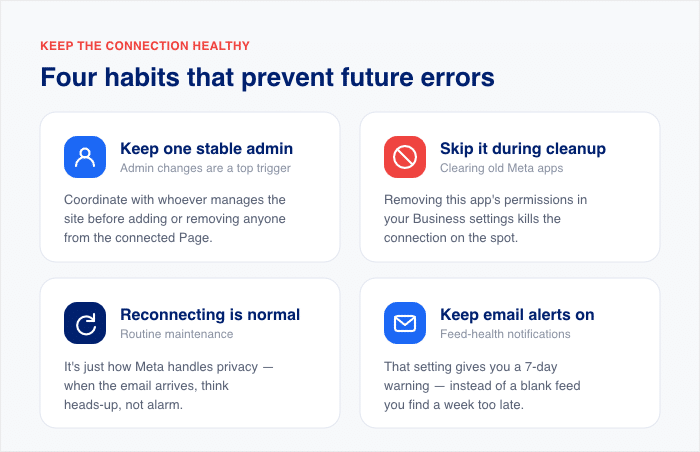
I’d put the most weight on that last one. The warning email is the difference between a calm two-minute fix and a surprise broken feed, and it only works if it can reach you.
It also helps to know this pattern isn’t going away. Meta changes its API rules over time, like when Instagram shut down its Basic Display API, and Smash Balloon absorbs those changes on its end so your feed keeps working.
Your only job is the occasional reconnect, and the cached copy kept your site looking normal while the warning email gave you a full week to reconnect.
This feature is actually built into Smash Balloon Instagram Feed Pro, because Meta is going to keep expiring tokens, and the plugin’s job is to make sure your visitors never find out.
That’s why I’d run Instagram Feed Pro on any site I actually care about. I’m never going to remember to check a feed connection every month, and I don’t want to.
I’d rather get an email before anything breaks and spend two minutes on it. It’s the same reliability that keeps Smash Balloon running on more than 1.75 million sites.
Never Let an Expired Token Blank Your Feed
Instagram Feed Pro emails you before the connection breaks, then keeps a cached copy of your feed live while you reconnect.
Keep My Feed LiveThe Same Expired Token Causes These Other Feed Problems Too
The 7-day email isn’t the only way an expired token shows up. Sometimes there’s no warning at all, and the token trouble appears as a different symptom:
- A feed that’s suddenly blank or won’t load. Start with the reconnect steps above, then see our guide to fixing an Instagram feed that’s not loading.
- An “invalid source” or reconnect error in your Smash Balloon dashboard.
- A feed stuck on old posts that won’t pull in anything new.
If you’re seeing any of these, run the reconnect steps above first. That two-minute fix resolves these token-related symptoms in most cases, and it saves you from deeper troubleshooting you probably don’t need.
One related Facebook embedding issue worth knowing about: broken Facebook embeds. That one isn’t caused by an expired token, since it comes from a separate WordPress and Facebook embedding mechanism, so reconnecting your source won’t fix it.
The fix for that lives in our guide to solving the Facebook oEmbed issue in WordPress.
Frequently Asked Questions
Is the deauthorization email a phishing scam?
No, this email is a legitimate automated notice from the Smash Balloon plugin. That said, it’s smart to verify without clicking any email links. Log into your WordPress admin directly and check your feed’s source status under the plugin settings. If the source shows an error there, the email was real, and this habit of checking in your dashboard instead of clicking email links protects you from actual phishing attempts.
Will reconnecting delete my feed settings or customizations?
No, reconnecting won’t delete any of your feed settings or customizations. The reconnect process only renews the access token between your site and Meta. Your layouts, filters, styling, and moderation settings are all stored in WordPress, so they stay exactly as you left them.
Does this happen with Google Reviews feeds too, or only Instagram and Facebook?
The 7-day deauthorization email you received is specific to Meta, so it only applies to Instagram and Facebook feeds. Any feed built on a third-party platform connection can need re-authentication now and then, since every platform manages its own access rules. But this particular email and its 7-day window come from the Meta token flow.
How often will I need to reconnect my account?
There’s no fixed schedule for how often you’ll need to reconnect. Under normal conditions your token refreshes automatically, and many users never see this email at all. Account changes like a new admin or a password reset are the usual triggers for a forced reconnect. The one documented exception is private Instagram accounts, which Smash Balloon’s documentation says need a refresh roughly every 60 days. For everyone else, expect this occasionally, not monthly.
Why did this happen if I never touched my Meta account settings?
You can get this email without touching anything because Meta can flag activity or expire a token on its own timetable for privacy compliance. And if your Page or account has multiple admins, a change made by any one of them counts as a trigger, even if you personally changed nothing.
Reconnect Once, Then Forget About It
The “Action Required Within 7 Days” email looks alarming, but now you know what it really is: routine token maintenance from Meta, not a breach and not a mistake you made.
The fix is a two-minute reconnect in your feed’s Settings page. And if the deadline slips past you, your feed only goes blank temporarily. Reconnecting still brings everything back, settings and all.
Best of all, your visitors probably never noticed a thing. The backup cache kept your feed displaying normally while the warning email gave you a full week to act.
That safety net is exactly what Instagram Feed Pro is built for.
You get early-warning emails before anything breaks and a cached feed that keeps your site looking polished in the meantime. Reconnect your source, and the plugin handles the rest quietly in the background.