Social Wall
  Feed Analytics

Are your Google reviews actually bringing you customers?
Building a strong local business requires more than just offering great products or services. A glowing online reputation is the secret ingredient that drives foot traffic right to your door.
But here’s a gap most local businesses miss. Your reviews are sitting on Google while your website visitors, the people closest to making a buying decision, have no reason to trust you yet.
They’d have to leave your site, search your business name, read your reviews, and then find their way back. Most of them don’t, and fixing it doesn’t take a marketing team or a big budget.
In this guide, I’ll share the full process of turning your Google reviews into sales and conversions for your brand, including an important step of displaying review feeds on your website.
Once that’s set up, your Google reviews stop being a passive scorecard and start doing actual work.
- Do Google Reviews Help Local Businesses Get Found?
- Why Google Reviews Matter More for Local Businesses
- How to Get a Steady Stream of New Google Reviews (Without Feeling Pushy)
- How to Respond to Google Reviews the Right Way
- The Step Most Local Businesses Skip (And Why It's Costing Them)
- Start Using Your Google Reviews as a Sales Tool Today
- More Guides and Tutorials for Online Businesses
Do Google Reviews Help Local Businesses Get Found?
Yes, Google reviews directly help local businesses get found in search results.
In fact, Google reviews can do 3 things at the same time: build trust with new visitors, signal authority to Google’s local search algorithm, and convert website visitors into paying customers.
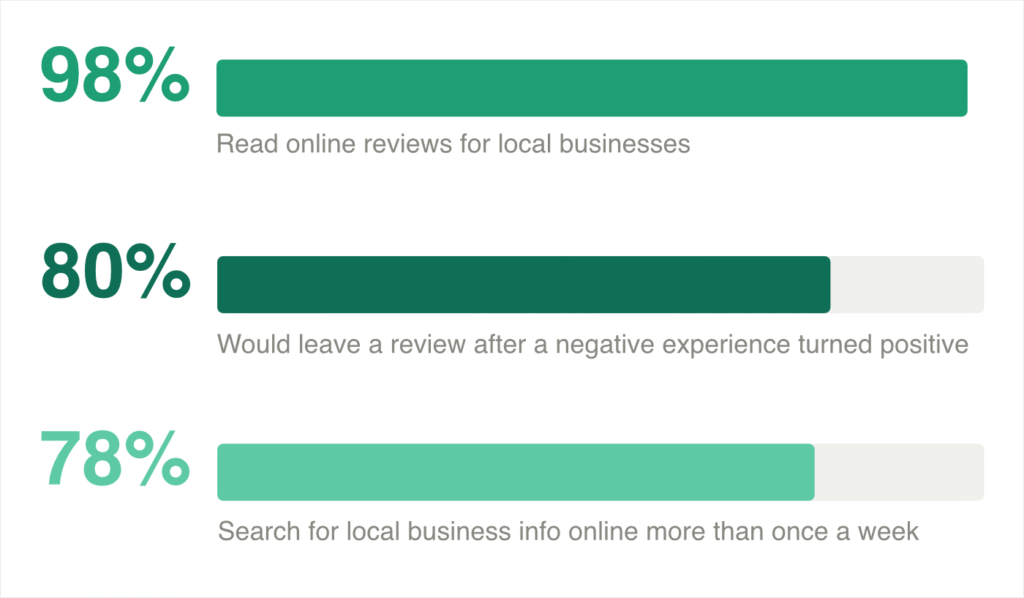
That’s a lot of work for a short paragraph someone typed on their phone.
The trust piece is backed by real numbers. According to BrightLocal’s survey, 87% of consumers used Google specifically to evaluate local businesses before making a decision.
Here’s a brief look at what reviews are actually doing behind the scenes:
- Build Trust with Strangers: A strong rating and recent reviews tell new visitors your business is legitimate before they even read a word of your site.
- Improve Your Local Search Ranking: Google uses review quantity, rating, and recency as signals to decide which businesses show up in the local map results.
- Convert Visitors into Customers: When people see proof that others had a good experience, they feel safer making a decision.
It helps to know where those reviews actually turn up. Google shows them in the Local Pack, the three-business map block above organic results, in your Knowledge Panel when someone searches your name, and on Google Maps.
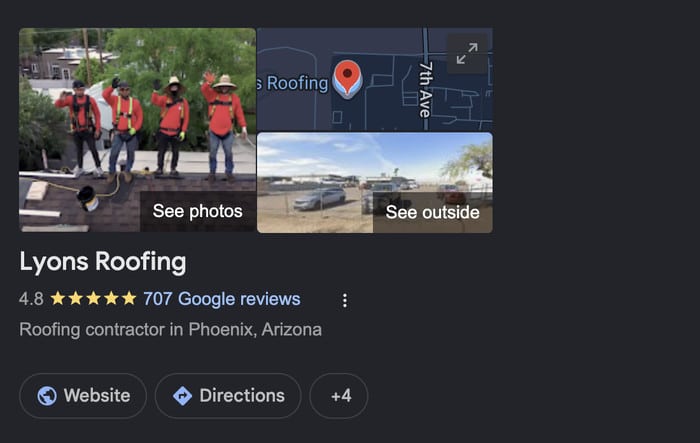
One review sits in three high-intent places at once.
The good news is, you don’t need hundreds of reviews to see results. You just need to use the ones you already have more strategically.
Why Google Reviews Matter More for Local Businesses
Google reviews carry more weight than reviews on any other platform because they show up exactly where buyers are already looking.
When someone searches “plumber near me” or “best Italian restaurant in Denver,” Google surfaces your rating, review count, and recent feedback right inside the search results.
No other platform puts your reputation that close to the moment of decision.
Here is a quick comparison of where each platform fits into the buyer journey:
| Platform | Where Reviews Appear | Best For | Review Volume Needed |
|---|---|---|---|
| Search results and Maps | All local businesses | 15+ to start seeing impact | |
| Yelp | Yelp app, website, and Apple Maps | Restaurants, salons, hospitality | 20+ |
| Facebook business pages | Community-driven and social businesses | 10+ |
Two things about how Google actually uses your reviews are worth knowing, because they change what you aim for.
Google ranks local results on relevance, distance, and prominence. Reviews feed prominence. You can’t move your shop closer to the searcher, and relevance is mostly your Business Profile categories, so reviews are the lever you genuinely control.
Your rating decides whether you appear in “best” searches at all. When someone searches “best dentist” or “best plumber near me”, Google filters to listings rated 4.0 and above. Slipping below four stars doesn’t just look worse, it removes you from a whole category of high-intent local searches.
Expert Tip: For a detailed breakdown, check out our article where we compare Yelp vs Google for businesses.
How to Set Up Your Google Business Profile Correctly
Your Google Business Profile is the foundation of everything else in this guide. If it’s incomplete or inaccurate, your reviews won’t do as much work for you.
The good news is that setting it up correctly takes less than 30 minutes. Here’s how to do it.
Step 1: Claim or create your profile
Head to google.com/business and sign in with your Google account.
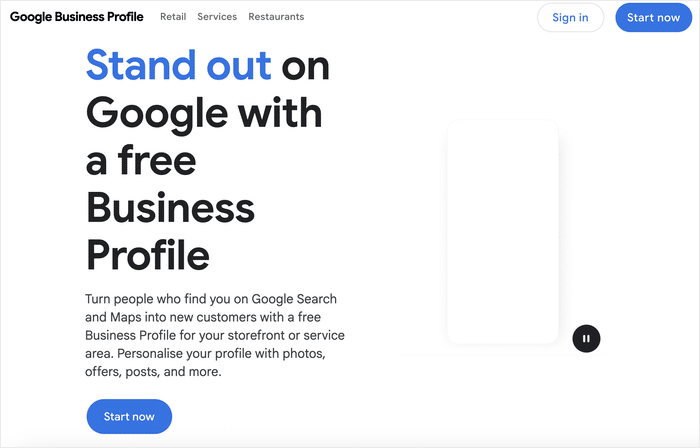
Next, open the add or claim your business page.
You can use the search bar to look for a business or click on the button to add a new one.
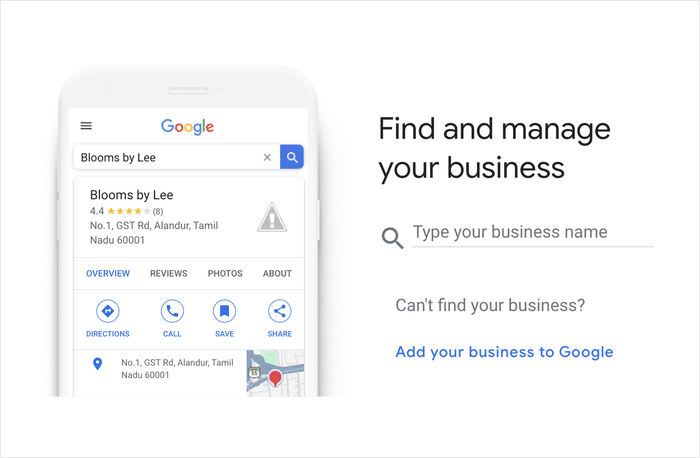
It’s worth checking for an existing listing first, since Google sometimes creates unverified profiles automatically based on publicly available information.
Step 2: Verify your business
Google needs to confirm that your business is real and that you’re the owner.
The most common method is a postcard sent to your business address with a verification code, though some businesses can verify by phone or email.
Until your profile is verified, it won’t show up fully in search results, so don’t skip this step.
Step 3: Fill in every section completely
Once verified, fill out your profile as completely as possible. This includes your:
- Business name (exactly as customers know it)
- Address and service area
- Phone number
- Website URL
- Business hours (including holiday hours when relevant)
- Business category
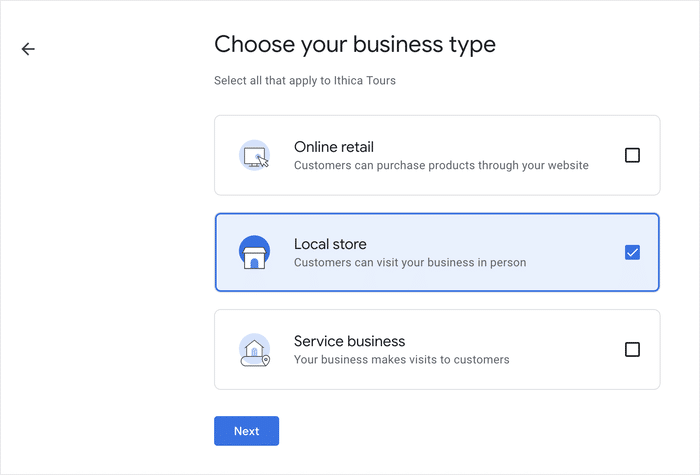
I recommend being very precise with your business category. Choosing “Italian Restaurant” instead of just “Restaurant” helps Google match you to more specific local searches.
Step 4: Add photos
Businesses with photos receive significantly more clicks and direction requests than those without.
First, search for your business on Google.
Then, select your business and click on Photos then select the Add Photos option.
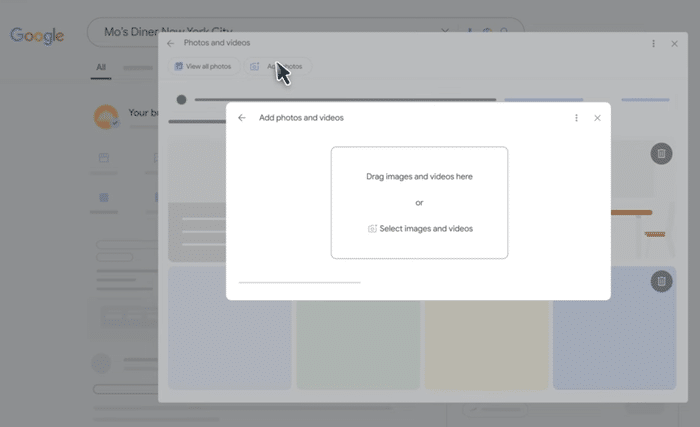
Upload at least a few high-quality images of your location, your team, your products, or your work.
For a restaurant, that means food photos and your dining space. For a contractor, before-and-after project shots work great. For a salon, show your space and some finished styles.
Step 5: Write a clear business description
Use the description field to briefly explain what you do, who you serve, and what makes you different. Keep it natural and focused without worrying about keywords.
A good description for a dental clinic might read: “Family-owned dental practice serving [City] since 2010. We offer general, cosmetic, and pediatric dentistry in a relaxed, welcoming environment.”
Once everything is filled in, your profile is ready to start collecting reviews that actually work for your business.
How to Get a Steady Stream of New Google Reviews (Without Feeling Pushy)
Most business owners avoid asking for reviews because it feels awkward. The truth is, your customers actually expect to be asked.
The key is having a repeatable system instead of relying on memory or courage. Once you build that habit, reviews come in consistently without you having to think about it.
Here are four channels that work well for local businesses:
1. Ask in person when they’re the happiest:
Right after you finish a service and the customer is happiest, make the ask directly.
Keep it simple and human: “If you enjoyed working with us, a quick Google review would mean the world. Here’s a QR code that takes you straight there.”
Print the QR code on a small card and keep a stack at your register or hand them out during checkout.
2. Send a follow-up text or email within 24 hours:
The window closes fast, so reach out the same day or the next morning. Keep it short and include one direct link.
A message like this works well: “We loved working with you, [Name]. Would you mind sharing your experience on Google? It only takes a minute: [link].” That’s it. No long email, no multiple asks.
3. Create and share your Google review link:
Go to your Google Business Profile dashboard, find the ‘Get more reviews’ section, and copy your unique review link.
Then shorten it with a free tool like Bitly so it’s easy to paste into a text or print on a card. A clean, short link gets clicked. A 90-character URL does not.
4. Automate follow-ups through your booking or CRM software:
If your business uses tools like Jobber, HouseCall Pro, or Square, many of them have built-in automations that send a review request after a job is marked complete.
Setting this up once means every finished job triggers an ask without you lifting a finger.
Important (What to Avoid): Never offer discounts, gifts, or any kind of reward in exchange for a positive Google review. Google’s guidelines explicitly prohibit incentivized reviews. You risk having reviews removed or your Business Profile suspended.
The better way is to ask directly and let the customer decide what the review will be.
How to Respond to Google Reviews the Right Way
Most business owners read their reviews and move on. That’s a missed opportunity. When you respond to a Google review, you’re not just talking to the person who left it.
You’re talking to every potential customer who reads that exchange later.
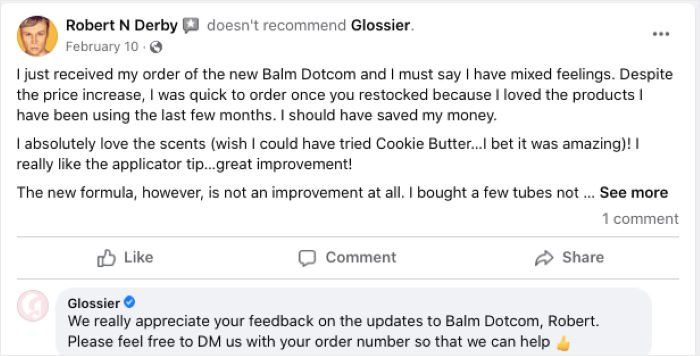
Google also treats active responses as a signal that your business is engaged and well-managed. That can give you a small but real boost in local rankings.
The approach breaks into two simple playbooks: one for positive reviews and one for negative ones. Both matter more than most business owners realize.
Responding to Positive Reviews
A great response to a positive review does three things:
- Thanks the customer by name
- References the specific service or experience they mentioned
- Invites them back or gives them something to look forward to
Generic responses hurt more than they help. If every reply reads, “Thanks so much for your kind words! We appreciate your support!” customers notice.
It feels automated, and Google may flag repetitive response patterns. Personalizing each reply takes an extra 30 seconds and makes a real difference.
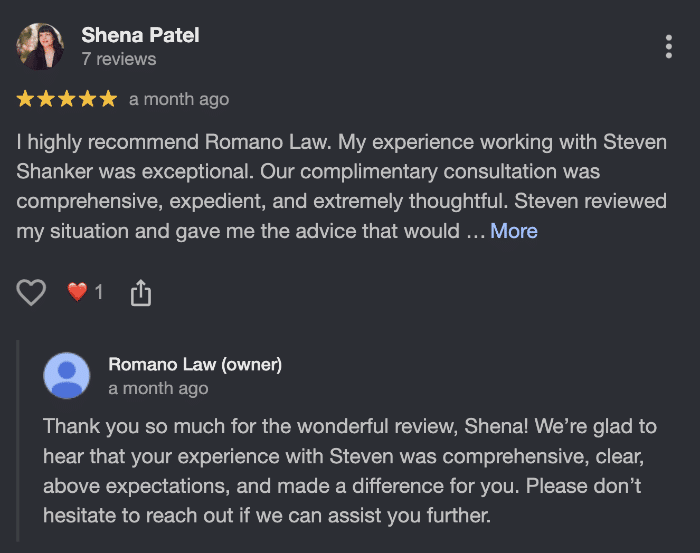
Here is a simple formula to follow every time:
- Thank them by name. Start with “Thank you, [Name]!” to make it feel personal immediately.
- Reference what they mentioned. If they praised your team’s speed, say so: “We’re so glad the same-day service worked out for you.”
- Invite them back. Close with something warm and forward-looking: “We hope to see you again soon” or “Ask for [employee name] next time, and they’ll take great care of you.”
Here is a short template you can adapt:
“Thank you, [Name]! We’re so glad you had a great experience with [specific service/detail they mentioned]. That means a lot to the whole team. We’d love to see you again soon. Don’t hesitate to reach out if there’s anything else we can do for you.”
The good news is, once you write a few of these, the pattern becomes second nature. You’ll spend less time staring at the screen and more time actually connecting with your customers.
Responding to Negative Reviews
A negative review feels personal. It’s not. It’s an opportunity to show every future customer exactly how you handle a problem.
Most business owners either ignore negative reviews or write a defensive response that makes things worse.
The goal of your response is not to win the argument. It is to show the next hundred people who read it that you handle problems professionally and with care.
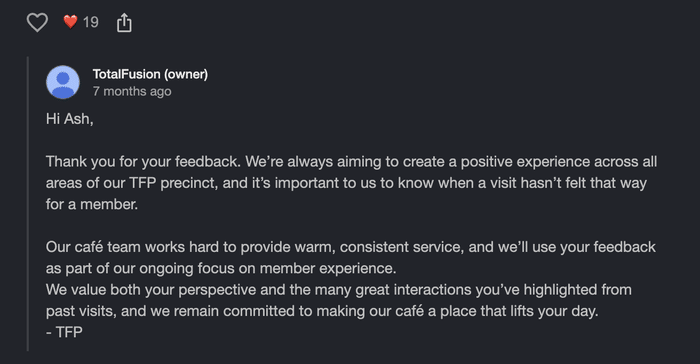
Follow this four-step framework:
- Acknowledge the experience. Don’t dismiss or minimize what the customer went through, even if you disagree.
- Apologize without admitting legal fault. “I’m sorry you had this experience” is honest and safe. It doesn’t assign blame.
- Offer to resolve it offline. Invite them to contact you directly so the conversation can move out of the public thread.
- Include your contact information. Give a phone number or email address so the path to resolution is obvious.
Here is a short template you can adapt:
“Thank you for sharing your feedback, [Name]. I’m sorry to hear your experience didn’t meet your expectations. That’s not the standard we hold ourselves to. I’d love the chance to make this right. Please reach out to us directly at [phone number or email] so we can work toward a solution together.”
Every potential customer who reads your reply will see a business that takes feedback seriously and shows up when it matters.
For more details, you can check out our full guide on how to respond to negative customer reviews.
The Step Most Local Businesses Skip (And Why It’s Costing Them)
Here’s the problem no one talks about: Your Google reviews are sitting on Google but the people most likely to buy from you are landing on your website right now.
In fact, just adding testimonials to a page can increase conversions by 34% or more.
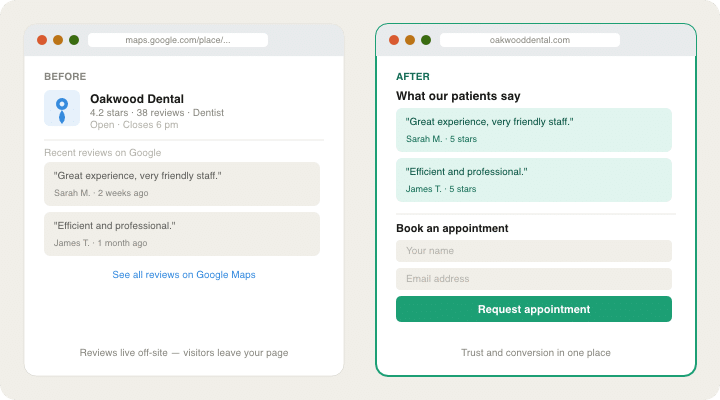
Picture a roofing company whose service page converts poorly. They have 60 Google reviews averaging 4.8, and not one of them appears anywhere on the site. A homeowner comparing three quotes has no reason to believe this one is the safe choice.
Adding the reviews to that page changes nothing about the business. It just moves proof that already exists to the moment someone is deciding. No pricing change, no redesign, no ad spend.
The good news is, you already have the reviews. You don’t need to collect more before you can do this. Here’s exactly how to do it on WordPress with no code required.
How to Display Your Google Reviews on Your WordPress Website
Your existing reviews are ready to display right now. This whole setup takes under 5 minutes, and you won’t need to touch a single line of code.
Once it’s live, every visitor who lands on your site sees real proof that real people trust your business.
Here’s how to do it, step by step.
1. Install and activate Smash Balloon Reviews Feed Pro.
Reviews Feed Pro connects directly to your Google Business Profile and pulls in your reviews automatically.
First, get a copy of the Reviews Feed Pro plugin here.
After that, install and activate the plugin on your site (see our beginner’s guide).
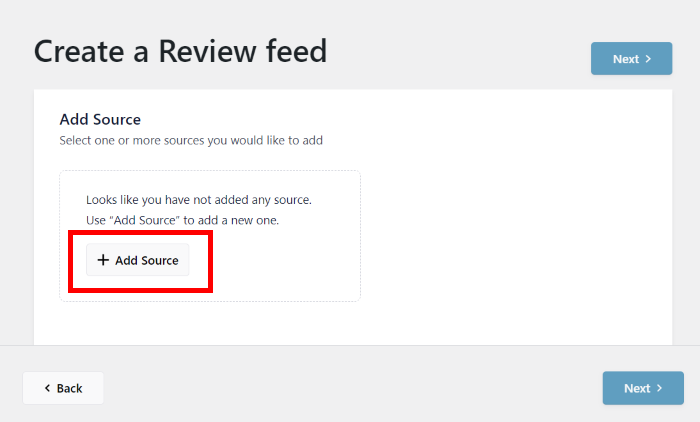
Open Reviews Feed » All Feeds from your dashboard and click on Add New to create your first feed.

From there, you can add a new source for your reviews feed.
Click on Add Source to continue.
2. Connect your Google Business Profile.
From the options, select Google as your source and click on Next.
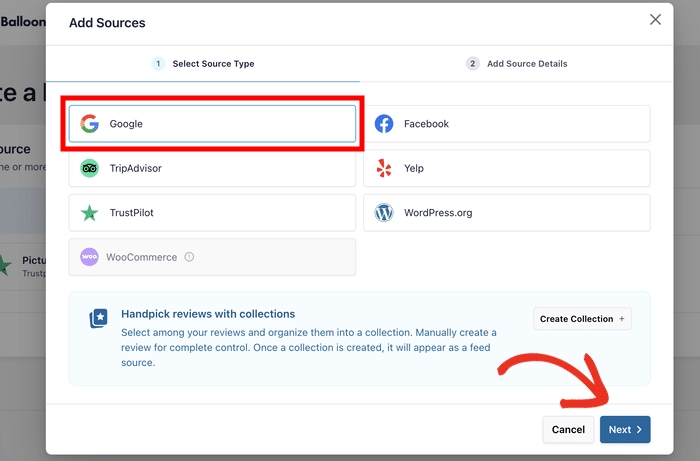
You can now enter your business info on the popup so the plugin knows which reviews to fetch.
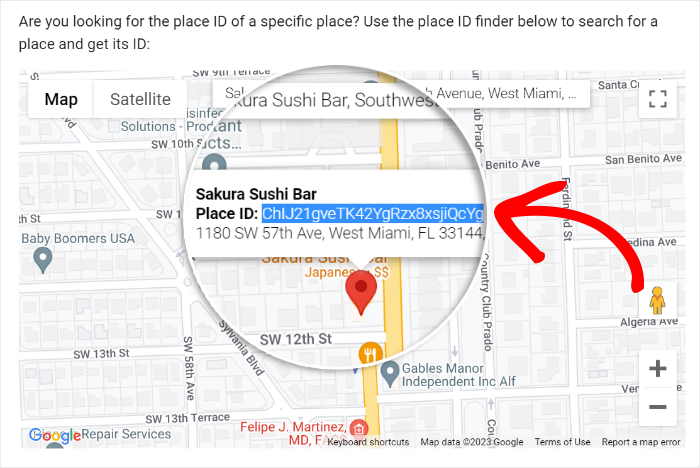
First, open Google’s official Place ID generator and enter your business name and address on the search bar.

On the map, you’ll see your Place ID. This is used to identify which business the feed pulls review for.
Copy this ID and return to your website.
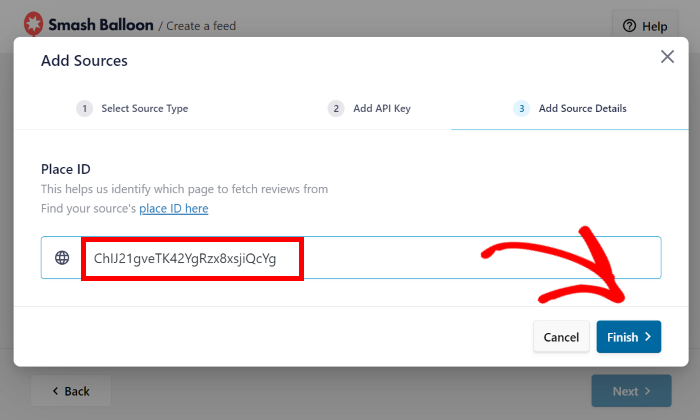
Back on your site, paste the ID into the field and click on Finish.
With that, your business is added as a source for any review feeds you want to create.
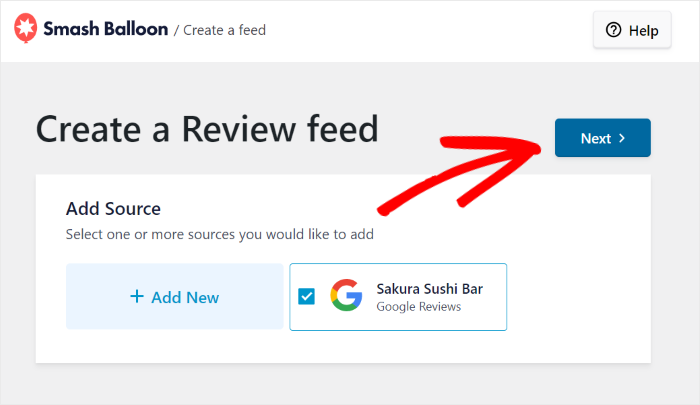
From here, select your new source and click on Next.
You can also select multiple sources here and combine them into one review feed (more on that later).
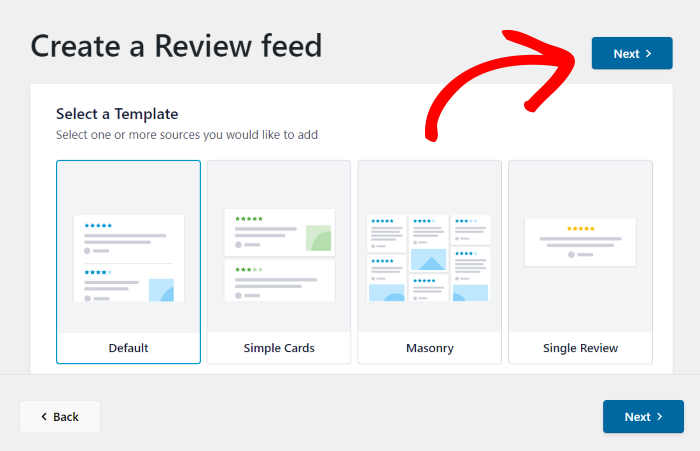
3. Customize how your feed looks.
This is where you shape what your visitors actually see.
First, pick a template that works for the design you have in mind and click on Next.
After that, you’ll see your Google reviews in the visual customizer.
Reviews Feed Pro lets you customize your layout, header, button design, review elements, and more.
Let’s start by selecting a new layout.
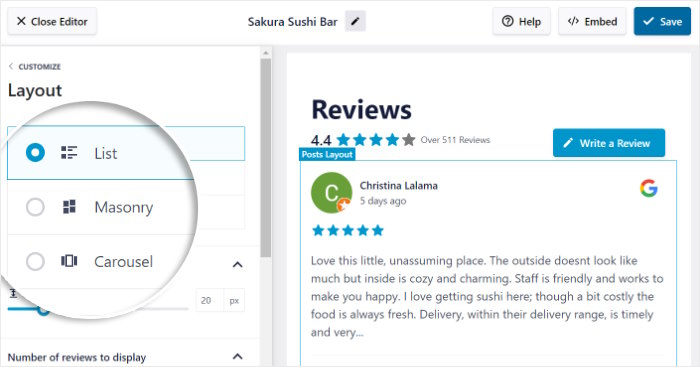
I recommend starting with the list layout if you want each review to be clearly visible.
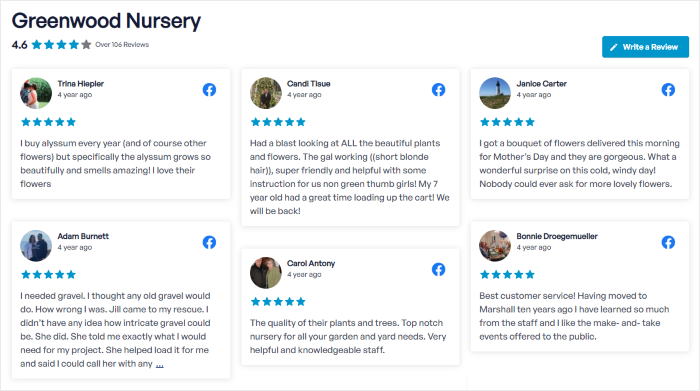
Or, you can go for a grid layout for homepage displays and show multiple reviews at a glance.
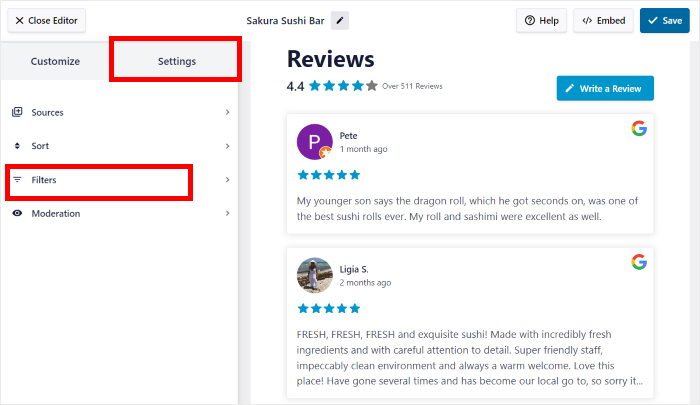
You can also set a minimum star rating filter here. Setting the threshold to four stars means only your strongest reviews surface in the feed.
Click on Settings and use the Filters option in the visual customizer to set this up.
4. Embed the feed on your highest-traffic pages.
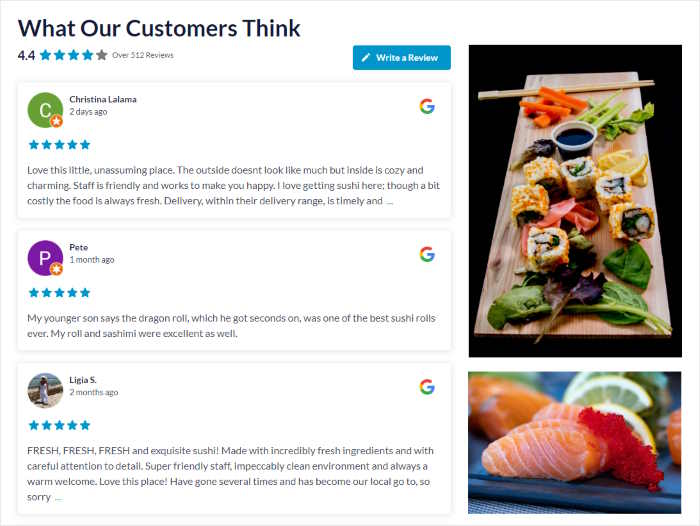
Once your feed is styled, click on Embed and you can add Google reviews to any page or widget area.
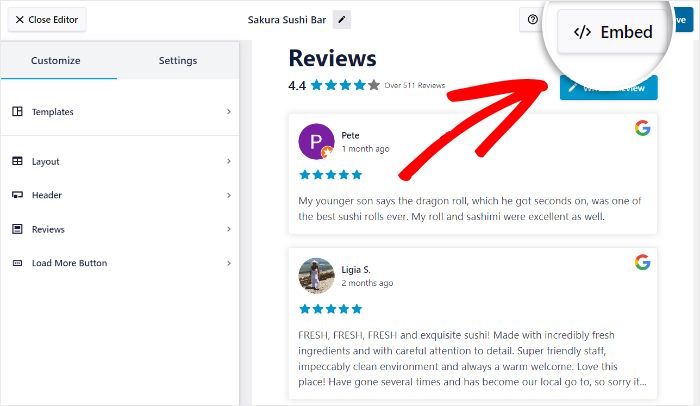
You can use the in-built block to drop it into your homepage, your main service pages, your contact page, and your checkout page if you sell products online.
Each of those pages is a place where a visitor is deciding whether to trust you. Put your best social proof directly in that moment.
Ready to display your Google reviews on your WordPress site automatically?
Get your copy of Smash Balloon’s Reviews Feed Pro today!
Make Your Reviews Readable to Google and AI Tools
When your reviews sit on your website as plain text, humans read them, and search engines mostly don’t. They see words on a page, not a rating. So your 4.8 from 60 reviews never travels with your page into search results.
On the other hand, Reviews Feed Pro writes that rating into your page as schema markup automatically.
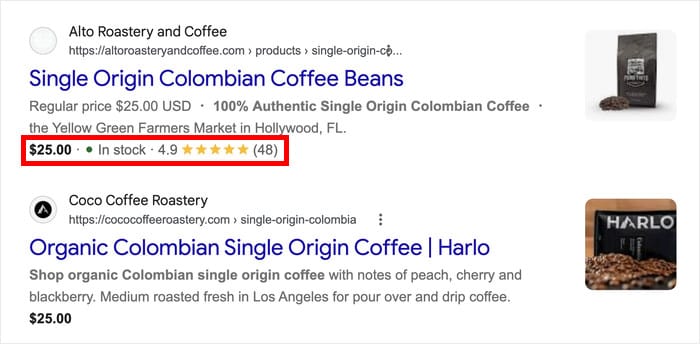
It quietly adds your rating and review count to the page in a format search engines understand. You don’t set anything up, and it works on feeds you built months ago.
Now your page can show star ratings in Google’s search results. Google still chooses whether to actually display them, and it’s pickier about ratings on your own site than it is about product ratings.
Want to check if it’s working? Paste one of your pages into Google’s Rich Results Test and look for review snippets.
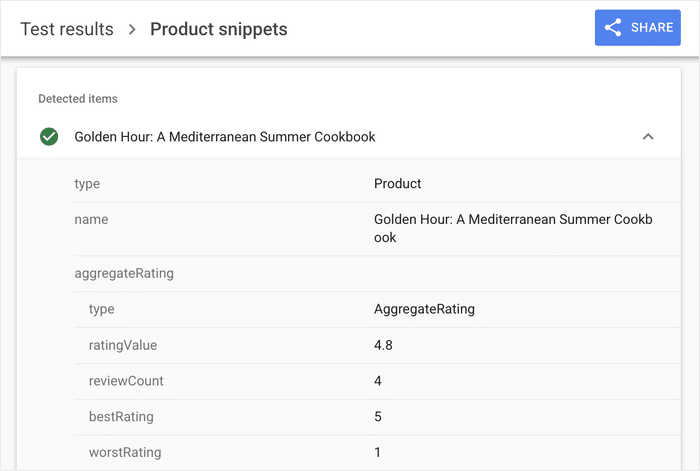
It only takes about a minute, and you’ll see exactly what info Google is getting from your website.
How to Combine Google Reviews with Yelp and Other Platforms
If a visitor sees 47 Google reviews on your site, that’s solid social proof.
But when they see 47 Google reviews, 31 Yelp reviews, and 22 Facebook reviews displayed together, that’s a different conversation.
You’re not asking them to trust one source. You’re showing them your reputation holds up everywhere people look.
The platforms worth combining depend on your business type. Here’s a quick breakdown:
| Business Type | Best Platforms to Combine | Why |
|---|---|---|
| Restaurants and hospitality | Google + Yelp + TripAdvisor | These are the three platforms diners check before booking a table |
| Service businesses (plumbers, landscapers, HVAC) | Google + Facebook + Houzz | Homeowners use all three when vetting contractors for home projects |
| Professional services (accountants, dentists, lawyers) | Google + Trustpilot + LinkedIn | Clients in this space look for credibility signals across professional networks |
You don’t need to display every platform. Pick the two or three that match where your customers actually look.
This is where Smash Balloon Reviews Feed Pro handles the heavy lifting.
Instead of embedding a separate widget for each platform, the plugin pulls reviews from multiple sources into one unified feed. Visitors see your combined review count and a blended average rating at a glance.
To help you leverage social proof properly, Reviews Feed Pro lets you embed reviews from:
- Yelp
- WordPress.org
- Trustpilot
- WooCommerce
- Tripadvisor
You can also apply the same star rating filter across all sources. That way, only your strongest reviews from different platforms will surface in the combined display.
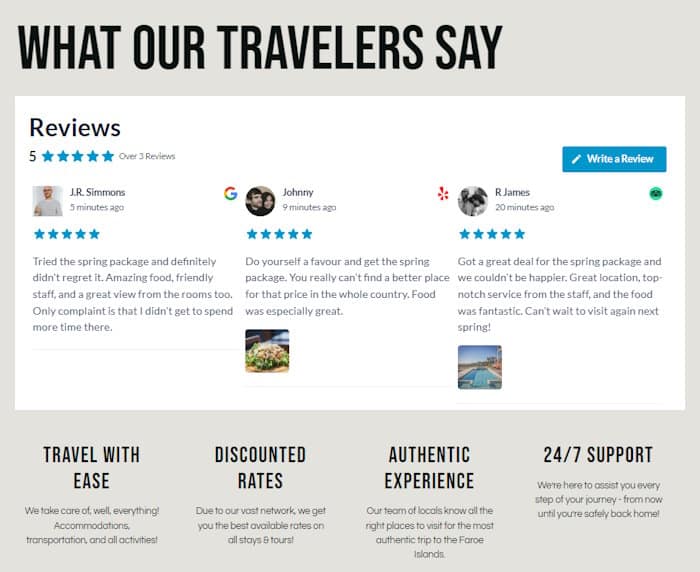
That way, you don’t need to choose which platform to feature. Show all of them together, and the combined display does more work than any single source ever could.
Start Using Your Google Reviews as a Sales Tool Today
Google reviews are your strongest local trust signal, and the habit that builds them is simple: ask every customer at the right moment, every time.
Respond to all of them, good and bad, because every reply is read by the next hundred people deciding whether to call you.
Then put those reviews on your website, where they work on visitors who are already close to buying and describe your rating to search engines at the same time.
You don’t need a marketing team or a budget for any of this. You need a system, and now you have one.
Get Smash Balloon Reviews Feed Pro
Frequently Asked Questions
How many Google reviews do I need to rank in the local pack?
There’s no exact number that guarantees a spot in the local pack. Google weighs review quantity, recency, and your overall star rating together as a package. In competitive markets like major cities, businesses often need 50 or more reviews to rank consistently. In smaller towns, 15 to 20 strong, recent reviews can be enough to show up regularly.
Can I delete a bad Google review?
You can’t delete a legitimate negative review, but you can flag reviews that break Google’s policies, such as spam, fake reviews, or content that’s clearly irrelevant. For real negative feedback, your best move is a thoughtful public response. A well-handled reply shows every future customer who reads it that you take problems seriously and fix them. That matters more than making the review disappear.
How often should I ask for reviews?
Ask every customer, every time, but only at the right moment. The right moment is right after a positive experience, when the feeling is still fresh. Don’t go back to your old customer list and send a batch request all at once. A sudden spike in reviews looks suspicious to Google and can trigger a review audit on your profile.
What’s the fastest way to display Google reviews on WordPress?
The fastest way is to install Reviews Feed Pro by Smash Balloon, connect your business as a source, and follow the guided flow to add reviews to your homepage or service pages. Most users have a live, styled review feed up in under 5 minutes. The good news is you don’t need any coding skills or developer help to make it look polished right out of the box.
More Guides and Tutorials for Online Businesses
- How to Get More WooCommerce Reviews (Without Begging for Them)
- Best Customer Review Plugins for WordPress [Compared]
- How to Deal With Fake Google Reviews of Your Business
- Proven TikTok Strategies Every Small Business Owner Needs to Know
- How to Filter Reviews on Your WordPress Website