Social Wall
  Feed Analytics

You’ve got a WooCommerce store that looks fine. Clean theme, decent product photos, checkout works. And still, visitors land on your product pages, scroll for a few seconds, and leave without buying.
That’s not a pricing problem or a traffic problem. It’s a trust problem.
I manage content and marketing for Smash Balloon, and part of my job is watching how visitors behave on WooCommerce sites before they decide to buy.
What I’ve noticed across dozens of stores: the ones that convert well don’t necessarily have better products. They have more visible proof that real people already bought, used, and liked what’s being sold.
The ones that struggle usually have all their trust signals scattered somewhere else, on Google, on Instagram, in an inbox full of happy customer emails, anywhere except the page where the buying decision actually happens.
Here’s the quick answer: building trust on a WooCommerce store comes down to putting real, specific proof (reviews, customer photos, clear policies, visible security) directly on the pages where people decide whether to buy, instead of leaving it scattered across other platforms.
Below is exactly how I’d do it, in order of impact.
In This Article
- How Do I Build Trust on My WooCommerce Store?
- 1. Put Real Reviews Where Buyers Are Deciding, Not Just on Google
- 2. Show Real Customer Photos, Not Just Product Photos
- 3. Make Your Policies and Contact Info Impossible to Miss
- 4. Add a Click-to-Chat Button So Shoppers Can Ask Before They Buy
- 5. Use HTTPS and Visible Security Signals at Checkout
- 6. Write Product Descriptions That Sound Like a Person Wrote Them
- 7. Show Your Face: Add a Real, Specific About Page
- 8. Send Clear Order Confirmation and Shipping Updates
- 9. Keep Your Site Looking Actively Maintained
- Get Your Reviews Working as Hard as Your Best Salesperson
- Do I Need a Separate Tool for This?
- Frequently Asked Questions
- Start Building Trust Now
How Do I Build Trust on My WooCommerce Store?
Start with your reviews. Pull your Google, Trustpilot, or existing WooCommerce reviews directly onto your product pages, not just your homepage.
Stores that do this typically see the biggest jump in on-page trust because reviews sitting off-site do nothing for a shopper mid-decision on a product page.
Here’s exactly how I’d set that up, plus eight more ways to close the trust gap, some of which take less than 10 minutes.
- Stores that display reviews directly on product pages see a bigger jump in on-page trust than stores that only have reviews on Google or Yelp.
- A review mix that includes some 3- and 4-star ratings converts better than an all-five-star feed, because it reads as real.
- Browsers now flag any non-HTTPS checkout as “not secure” before a shopper even reaches your product page.
- Smash Balloon Reviews Feed Pro sets up in under 5 minutes and pulls reviews from Google, Trustpilot, WooCommerce, and more into one feed.
- Backup caching keeps your reviews and social feeds visible even during a platform outage, so your site never shows a blank feed.
1. Put Real Reviews Where Buyers Are Deciding, Not Just on Google
This is the one most store owners get wrong. They have great reviews. They’re just in the wrong place.
If your reviews live only on Google, Trustpilot, or inside WooCommerce‘s default review tab that nobody scrolls down to find, they’re not doing any work.
A shopper deciding whether to buy is looking at your product page, not opening a new tab to go check your Google rating.
Every click away from your page is a chance for them to get distracted, compare you to a competitor, or just lose momentum and leave.
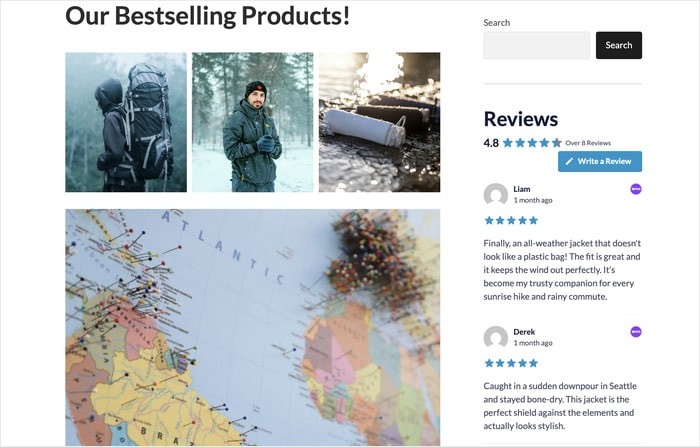
The fix is to display your reviews directly on the page, styled to match your site, right around the add-to-cart button.
I’ve seen this done well with Smash Balloon Reviews Feed Pro, which pulls reviews from Google, Trustpilot, WooCommerce, and a handful of other platforms into one feed you place wherever it matters most.
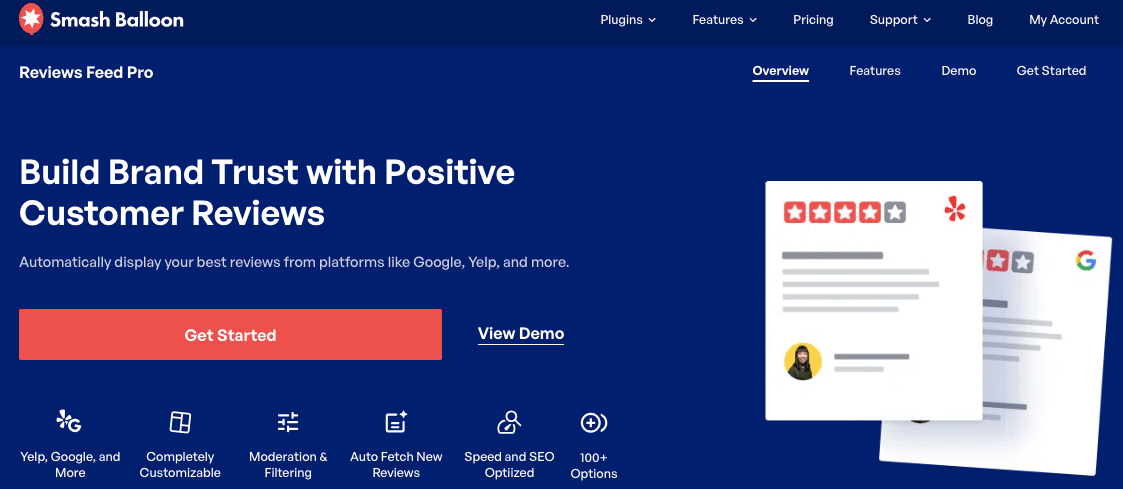
If you’re specifically starting from your existing WooCommerce reviews, this guide to displaying WooCommerce reviews walks through it, and this tutorial on embedding WooCommerce reviews covers the actual setup.
Personally, I’d rather show 15 real reviews with three stars mixed in than a suspiciously perfect five-star average with nothing else visible. Shoppers can tell the difference, and a few honest, specific reviews build more trust than a wall of vague praise.
Worried you don’t have enough reviews yet to make this worth doing?
You probably have more than you think.
Between your Google Business Profile, any Trustpilot reviews, and your existing WooCommerce reviews, most stores that have been running for even a few months already have enough to start.
And this piece on getting more WooCommerce product reviews has specific ways to grow that number if you’re starting light.
2. Show Real Customer Photos, Not Just Product Photos
Product photos show what you’re selling. Customer photos show what happens after someone buys it. Both matter, but only one of them is proof.
If customers are already tagging you or posting photos with your products on Instagram, that’s user-generated content sitting on a platform most of your shoppers will never open.
Pulling it onto your product pages closes that gap. Shoppable Instagram feeds link individual customer posts directly to the product being shown, so a shopper can see a real photo and go straight to buying it, no extra steps.
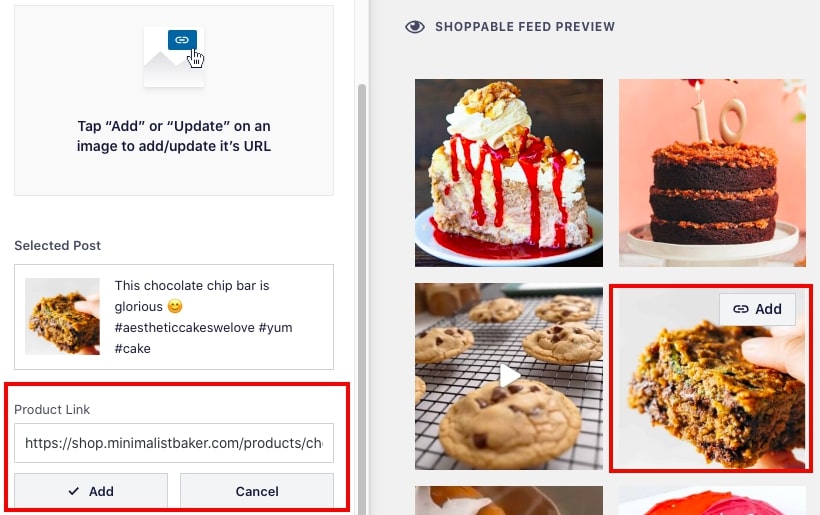
What I’ve noticed with stores that do this well: the UGC doesn’t need to be polished. A slightly imperfect photo of a real customer using the product is usually more convincing than a studio shot, because it reads as unsponsored.
If you don’t have much tagged content yet, this guide on building a UGC gallery in WordPress is a good starting point for pulling together what you already have.
No expertise in Instagram’s API or a developer to wire this up? You don’t need either. The setup connects through your existing Instagram account, and the feed auto-updates every time a new photo gets tagged.
3. Make Your Policies and Contact Info Impossible to Miss
If a shopper has to hunt for your return policy or can’t find a real way to contact you, that hesitation shows up as an abandoned cart, not a support ticket.
Your shipping timeline, return window, and a way to actually reach a person should be visible from the product page and the cart, not buried three clicks deep in a footer link. This costs nothing to fix. It’s a matter of putting information you likely already have written somewhere more visible.
One thing that’s easy to miss here: vague policies feel untrustworthy even when they’re generous.
“Returns accepted” is weaker than “Return within 30 days, no questions asked.” A number tells a shopper you’ll actually stand behind it. Vague language just sounds like a policy nobody wants to enforce.
4. Add a Click-to-Chat Button So Shoppers Can Ask Before They Buy
A shopper on the fence about a purchase often has one specific question, sizing, compatibility, shipping to their country, standing between them and checkout.
If the only way to ask it is a contact form that gets answered in two days, most shoppers won’t wait. They’ll leave and buy from whichever store answers first.
The fix here isn’t a live chat dashboard you have to staff.
It’s a button that takes a shopper straight from your product page into a real conversation on WhatsApp, Messenger, Telegram, or Instagram chat, wherever they already check messages.
WPChat does exactly this: one click, no inbox to manage, no team chat software to log into.
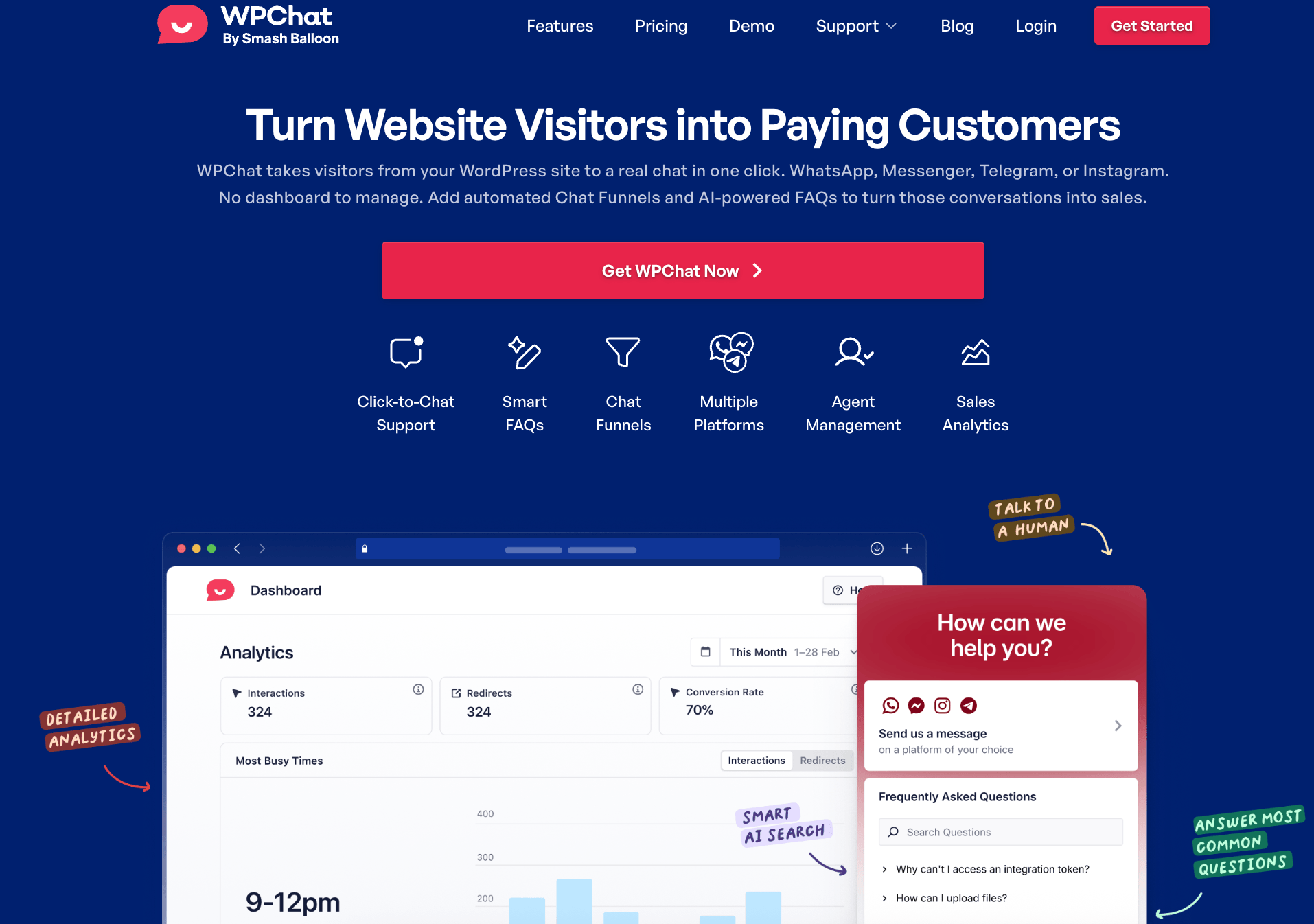
The question gets asked and answered where the shopper already is, not in a queue they have to wait on.
5. Use HTTPS and Visible Security Signals at Checkout
This one seems obvious, and I’d skip mentioning it except I still see stores without it.
If your store isn’t running on HTTPS, browsers flag it as “not secure” right in the address bar, and that warning alone is enough to end a checkout before it starts.
Beyond the certificate itself, small visible signals at checkout, accepted payment icons, a security badge near the card fields, matter more than they should, precisely because shoppers are pattern-matching for anything that looks off.
Cart abandonment is where a lot of this quietly shows up.
If checkout feels uncertain in any way, whether that’s a missing security signal or an unclear total, shoppers leave without ever telling you why. This breakdown of reducing WooCommerce cart abandonment covers more of what happens in that specific moment.
6. Write Product Descriptions That Sound Like a Person Wrote Them
Generic descriptions read as generic trust. “High-quality materials, built to last” could describe anything, which means it tells a shopper nothing.
Specific descriptions do the opposite. “Stitched with a reinforced seam that holds up after 100+ washes” is a claim someone can picture, and claims a shopper can picture are the ones they believe.
The assumption is that more adjectives make a product sound better. It mostly doesn’t.
What actually builds confidence is specificity: exact materials, exact dimensions, exact use cases, and where it makes sense, a photo or short video showing the product in actual use rather than styled on a white background.
7. Show Your Face: Add a Real, Specific About Page
An About page that says “we are passionate about quality and customer service” could belong to literally any store. It tells a shopper nothing about who they’re actually buying from.
A specific story does the opposite. Who started the store, why, and what you actually do differently, even a couple of sentences with real detail beats a paragraph of generic mission language.
A real photo of you or your team goes further than most people expect. Shoppers are more willing to trust a business when there’s an actual person behind it, not just a logo and a checkout button.
8. Send Clear Order Confirmation and Shipping Updates
Trust doesn’t stop at checkout. The period right after a customer pays, when they’re wondering if the order actually went through, is one of the most anxious moments in the entire buying experience.
A clear confirmation email immediately after purchase, followed by a shipping notification with real tracking information, answers that anxiety before it turns into a support email or a chargeback.
If your confirmation emails are vague or delayed, customers start to wonder if the order registered at all, and that doubt shows up as more support tickets, not less.
9. Keep Your Site Looking Actively Maintained
A store that looks abandoned reads as untrustworthy even if the products are great and the checkout works fine.
Stale product photos, a blog that stopped publishing two years ago, or social proof that hasn’t updated in months all say the same thing to a new visitor: nobody’s minding this place.
The fastest way to fix this without creating more ongoing work for yourself is to connect feeds that update on their own.
Reviews and social content that refresh automatically mean your site keeps looking current without you logging in to manually swap anything out.
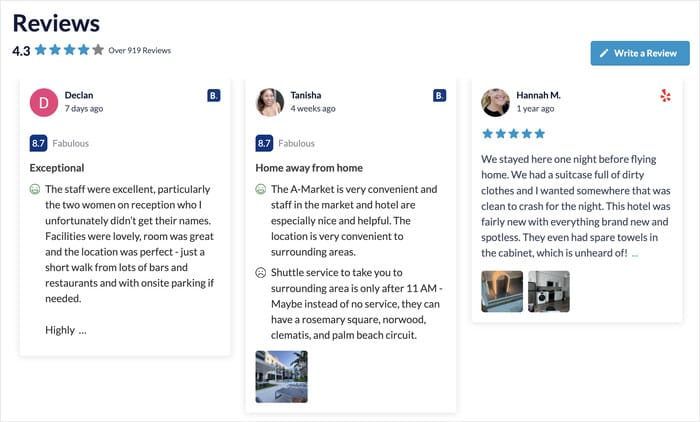
This matters even more during a platform outage. If Instagram or a review platform goes down for a few hours, a plugin without backup caching shows a blank feed right when a visitor happens to be looking, which reads far worse than no feed at all.
Get your reviews and customer photos working as trust signals on every product page, not just the ones you remember to update.
Get Your Reviews Working as Hard as Your Best Salesperson
Every tactic above works. But the fastest one to set up, and the one with the clearest payoff, is putting your existing reviews to work on the pages where buying decisions actually happen.
Smash Balloon Reviews Feed Pro pulls your Google, Trustpilot, WooCommerce, Yelp, and Facebook reviews into one feed, styled to match your site, and drops it wherever you want: product pages, your homepage, right above the add-to-cart button.
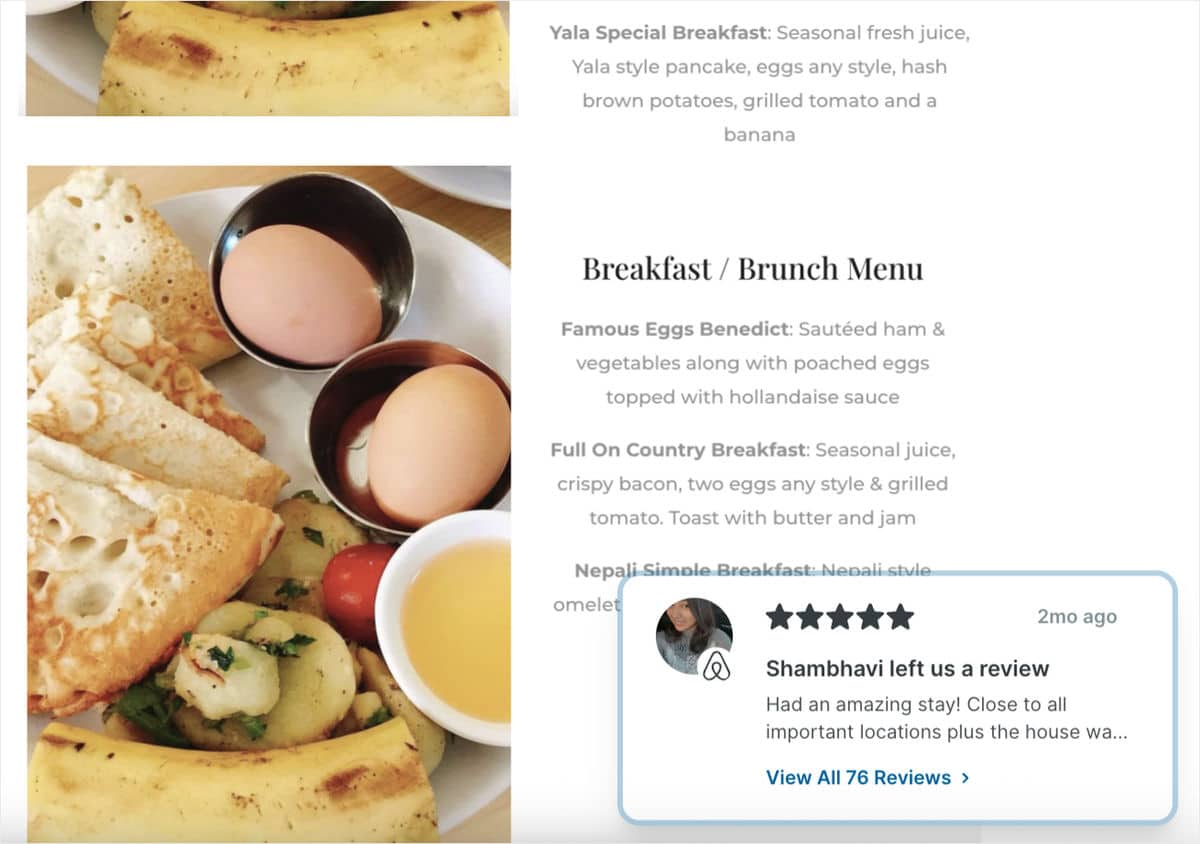
No coding required, and it’s ready to go in under 5 minutes.
- Pulls reviews from Google, Trustpilot, WooCommerce, Yelp, Facebook, and more into a single feed
- Updates automatically, so you never manually copy a new review onto your site again
- Backup caching keeps reviews visible even if a review platform goes down
- Filter and moderate which reviews show, so your feed reflects your best work
- Backed by a 14-day money-back guarantee
Do I Need a Separate Tool for This?
You’ll find a handful of SaaS widget tools that do something similar to what I’ve described above, pulling reviews or social content into a feed on your site.
The difference worth knowing about before you pick one: most of them are not built specifically for WordPress. They generate an iframe that loads from their own hosted servers, not from your site directly.
That distinction shows up in three places:
Page speed, because an iframe from someone else’s server is slower than content rendered natively in WordPress.
Visual fit, because a generic embed tool doesn’t automatically match your theme’s fonts and colors the way a WordPress-native plugin does.
And reliability, because if the SaaS tool has downtime, your feed goes blank along with it.
Already running one of those tools? Switching isn’t the hassle it sounds like.
Smash Balloon connects to the same accounts, Google, Trustpilot, WooCommerce, Instagram, and the setup takes about the same amount of time as the tool you’re replacing.
Worried about handing over access to your reviews or social accounts? Smash Balloon is a WordPress plugin, not a third-party platform your data routes through, and this page on Smash Balloon’s safety and data handling covers exactly what it does and doesn’t access.
Smash Balloon helps website owners turn real social content into trust signals that increase credibility and conversions. It’s used by over 1.75 million websites, and you can see more of what that looks like in practice on this page of social proof statistics.
If you want the fuller comparison against other tools before deciding, this breakdown of Smash Balloon alternatives covers it in more depth.
Frequently Asked Questions
Do trust badges actually increase WooCommerce conversions?
Yes, though the effect is smaller than reviews and specific product photos. A security badge near the checkout button reduces hesitation for shoppers who are already close to buying, but it won’t fix a store with vague policies or no visible reviews. Think of trust badges as reinforcement, not a fix on their own.
How many reviews do I need before displaying them helps?
More than zero is the honest answer. Even 5 to 10 specific, detailed reviews on a product page outperform having no reviews visible at all. The volume matters less than whether the reviews are specific and visible where the buying decision happens.
Does showing negative reviews hurt trust?
No, and hiding them can backfire. A product page with only five-star reviews and nothing else reads as curated or fake to a lot of shoppers. A mix that includes a few three- or four-star reviews, especially ones that mention a specific tradeoff, reads as more honest and typically converts better.
Is HTTPS really necessary for a small WooCommerce store?
Yes, without exception. Most browsers now flag any non-HTTPS site as “not secure” directly in the address bar, and that warning appears before a shopper even reaches your product page. It’s one of the few trust factors that isn’t optional or gradual, it’s binary.
Should I display reviews from every platform or just one?
Combining reviews from multiple platforms, Google, Trustpilot, WooCommerce, into one feed generally builds more trust than showing just one source, because it signals your reputation holds up consistently across places you don’t control. This guide on displaying reviews from multiple platforms on one page covers how to set that up without it looking cluttered.
Start Building Trust Now
None of this requires a redesign or a developer.
Pull your existing reviews onto your product pages, show real customer photos where you have them, tighten up your policies, and make sure your checkout looks as secure as it actually is. Each one closes a small gap between what a shopper needs to feel confident and what your site currently shows them.
Start with reviews. It’s the highest-leverage change on this list, and it’s the one most stores are leaving unused right where it would matter most.
Get Started with Reviews Feed Pro!