Social Wall
  Feed Analytics

You paste your license key, click Activate, and instead of a confirmation message, you get… nothing. A blank white page.
Or maybe an error saying your license “does not work with the website token,” or an “expired” notice minutes after you renewed. If that’s you right now, take a breath. Your site isn’t broken, and neither is the plugin.
Most customers activate without any issue, so you’ve landed in the small group with a quick, well-documented fix. Nothing on your site is at risk, and no data has been lost.
Below are five fixes in the order you’d want to try them, with the exact clicks for each one. Most people are back up and running by Fix 2, and the whole thing usually takes about five minutes.
- Why Does My Smash Balloon License Show a Blank Page?
- Fix 1. Confirm the License Key Is Correct
- Fix 2. Match the Activation URL to Your Live Site
- Fix 3. Deactivate and Reactivate the License
- Fix 4. Recheck Your License
- Fix 5. Still Blank? Check Your Browser and Security Plugins
- If You Just Upgraded and Your Site Doesn't Reflect It
- When to Contact Support Instead
- Get Back to a Working Feed in Minutes
Why Does My Smash Balloon License Show a Blank Page?
A blank page usually comes down to one of four things: a browser or security plugin hiding the license screen, a mismatched activation URL, a stale license cache, or a connection error between your site and ours.
The URL mismatch is the most common, and it happens when the plugin was activated on staging before the site moved to its live domain.
In my experience, most people assume the license key itself is broken. It almost never is. The key is fine, and every fix happens right inside the plugin’s license settings, found under Settings » General in your Smash Balloon plugin.
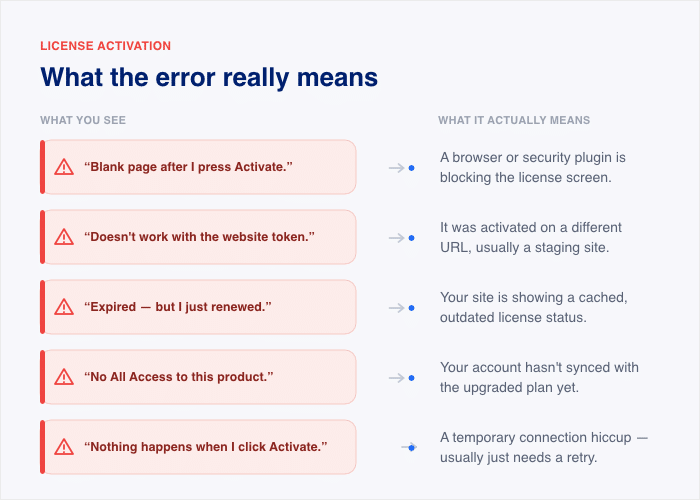
Match your exact symptom to its most likely cause below, then jump straight to that fix:
- “I get a blank page after I press Activate.” Your browser or a security plugin is likely blocking the license screen from loading. Go to Fix 5.
- “It says the license does not work with the website token.” The license was activated on a different URL, usually a staging site. Go to Fix 2.
- “It says expired, but I just renewed.” Your site is showing a cached, outdated license status. Go to Fix 4.
- “It says no All Access to this product.” Your site has not synced with your upgraded plan yet. Go to the “If You Just Upgraded” section.
- “Nothing happens at all when I click Activate.” A temporary connection hiccup is the usual cause here. Go to Fix 3.
If none of those sound quite right, start at Fix 1 and work down the list. Each one takes a minute or two, so you’ll know quickly which cause applies to your site.
Fix 1. Confirm the License Key Is Correct
Before anything else, let’s rule out the simplest cause: a key that got pasted with a typo or an extra space. It takes about a minute to check.
Here’s how to do it:
- Log in to your Smash Balloon account at smashballoon.com and open your account dashboard. Copy the license key directly from there instead of retyping it. If you copied the key from your purchase email earlier, a trailing space may have come along with it, and that’s enough to stop activation.
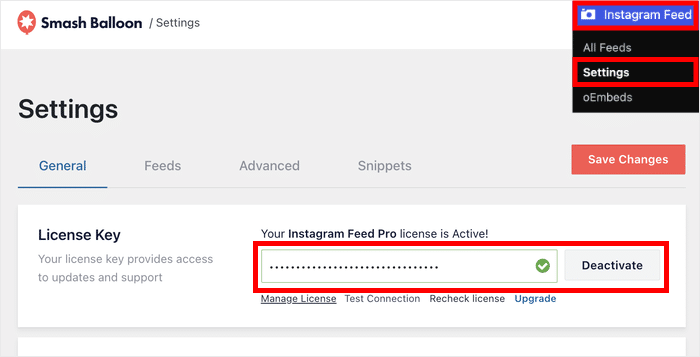
- Head to the license field in WordPress. Go to your Smash Balloon plugin, then Settings » General, and find the “License Key” field. Delete whatever is in the box, paste the fresh key, and click “Activate”.
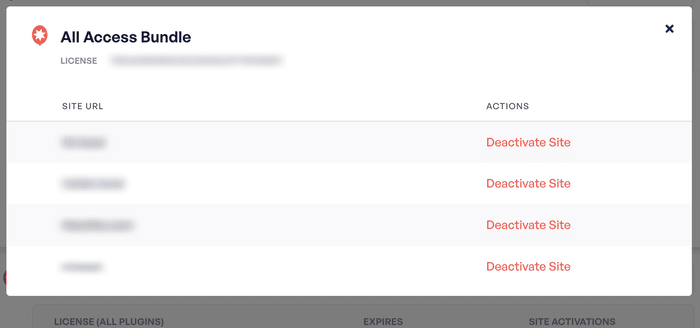
- Check your site activations. Back in your Smash Balloon account, open the Downloads tab and click “View Sites” to open the “Site Activations” section.
- Smash Balloon shows your available website slots, where the first number is how many sites are using the license. If you’re at the limit, deactivate an old or unused site there first. This frees up a slot so your current site can activate.
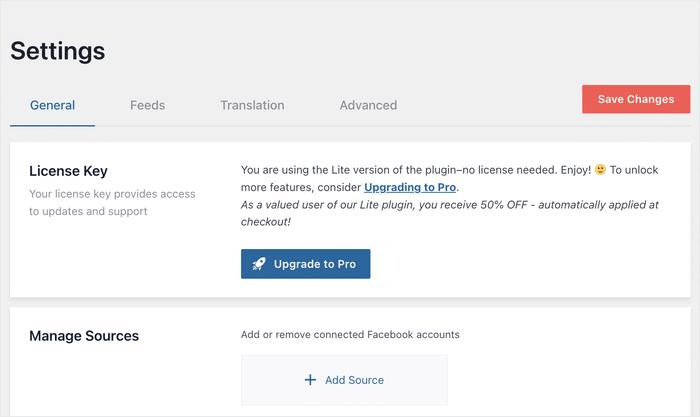
One quick callout: if that section shows an “Upgrade to Pro” button instead of a field to paste your key, you’re still on the free Lite version.
Install the Pro plugin from your account dashboard first, your key only works there.
If the key is correct and you have an open slot but activation still fails, the key isn’t the problem.
Move on to Fix 2, which is where most people find their answer.
Fix 2. Match the Activation URL to Your Live Site
This is the fix that solves the problem for most people, and it explains the confusing “website token” error in plain terms.
Here’s what happened behind the scenes. When you activate a license, Smash Balloon registers it to one specific site URL.
If you set up the plugin on a staging site and then launched, the license server still thinks your license lives at the staging address.
So when your live domain checks in, the server doesn’t recognize it. That’s the entire mystery behind the “license does not work with the website token” message. Your key is fine, it’s just pointed at the wrong address.
The fix is to release the license from the staging site, then activate it on the live one. Here’s what to do:
- Log in to your staging site’s WordPress dashboard. This is the site where you originally set up the plugin.
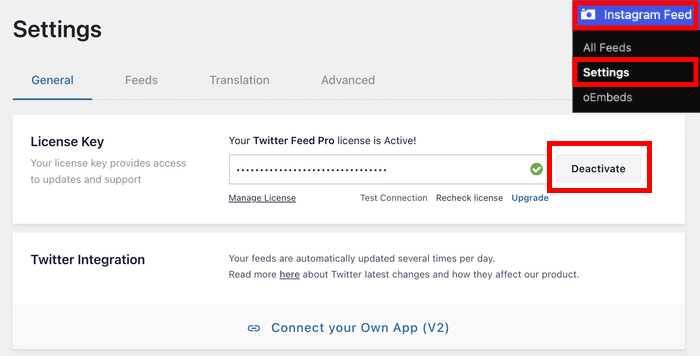
- Open your Smash Balloon plugin and go to Settings » General. You’ll find the “License Key” field there.
- Click “Deactivate”. This tells the license server to release the staging URL and free up the activation for your live site.
- Log in to your live site’s WordPress dashboard. Head to the same Settings » General screen in your Smash Balloon plugin.
- Paste your license key and click “Activate”. The server now registers your live URL, and the token error goes away.
If you no longer have access to the staging site, you can do the same thing from your Smash Balloon account.
Open the Downloads tab, click “View Sites”, and deactivate the staging URL from the “Site Activations” list there instead.
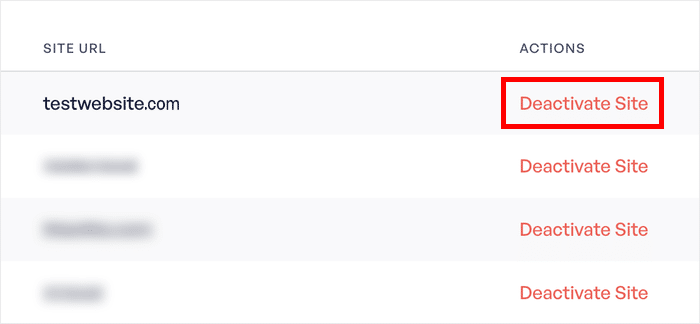
One important exception: some staging setups never use an activation slot at all. According to Smash Balloon’s license documentation, these URLs don’t count against your site limit:
- localhost
- Private IP addresses in the 10.x, 172.16 through 172.31, and 192.168.x ranges
- Domains ending in .dev or .local
- Subdomains starting with dev., staging., or test. (for example, staging.yoursite.com)
If your staging site matches one of those, it never claimed a slot in the first place. That means the URL mismatch isn’t your problem, and you’ll want to move on to Fix 3.
Once your live site shows the license as active, you’re done. Your feeds will keep running exactly as you built them on staging, since the license only controls updates and support, not your feed settings.
Fix 3. Deactivate and Reactivate the License
Sometimes the activation attempt just failed quietly, often from a brief connection hiccup between your site and the license server. The fastest cure is a clean handshake: deactivate the license, then activate it again.
This forces your site to run a fresh check with the license server instead of reusing the failed one. It takes under a minute.
Here’s how to do it:
- Open your Smash Balloon plugin and go to Settings » General. You’ll see the “License Key” field with your key in it.
- Click “Deactivate”. This releases the activation so you can register it fresh.
- Click “Activate”. Your key is still in the field, so this sends a brand-new activation request. If the earlier failure was a connection blip, this fresh attempt usually goes straight through.
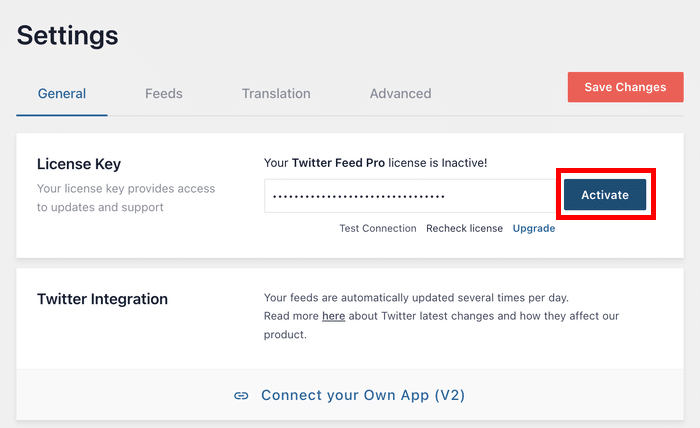
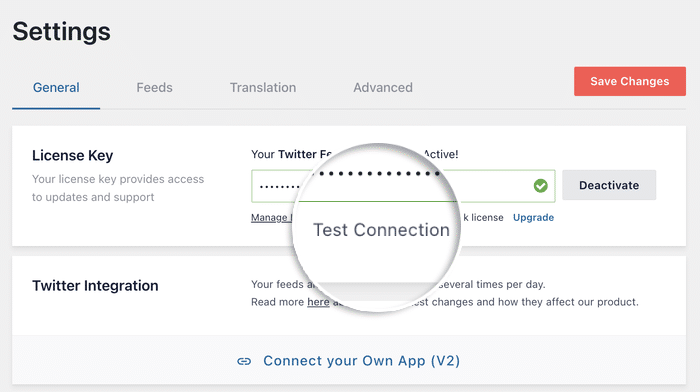
While you’re on this screen, look for the “Test Connection” button. It’s a built-in diagnostic that checks whether your site can reach the license server at all.
If the test passes but activation still fails, your key or its registered URL is the issue, so revisit Fixes 1 and 2.
If the test fails, something on your site is blocking the connection, and Fix 5 is where you’ll find the culprit.
One gotcha worth knowing: your license status lives in two places, and they can disagree. Your Smash Balloon account dashboard shows what’s actually registered on the license server, while the status inside WordPress comes from your own site’s database.
That means WordPress can keep saying “active” even after the server no longer has your site registered. When the two don’t match, trust your account dashboard.
After you reactivate, open the Downloads tab on your account page and check “Site Activations” to confirm your site is really on the list.
If the clean handshake worked, your feeds are back in business. If the status still looks wrong or outdated, rechecking your license from the settings page can be the fix.
Fix 4. Recheck Your License
If your license says “expired” right after you renewed, this is your fix. The status you’re seeing is old cached information, not your real license status.
Here’s why this happens. Your Smash Balloon plugin saves a local copy of your license status so it doesn’t have to check the license server every time a page loads.
That’s good for site speed, but it means your site can keep showing an outdated “expired” for a while after a renewal or plan upgrade goes through.
Clearing the cache tells your site to throw out that saved copy and pull a fresh status straight from the license server. Here’s how to do it:
- Open your Smash Balloon plugin and go to Settings » General. This is the same screen where your license key lives.
- Click the “Recheck license” button. You’ll find it in the row directly beneath the license key field, sitting alongside “Test Connection” and “Manage License”. This forces a brand-new status check with the license server.
- Refresh the page. Your license status should now match what your Smash Balloon account shows, with the “expired” notice gone.
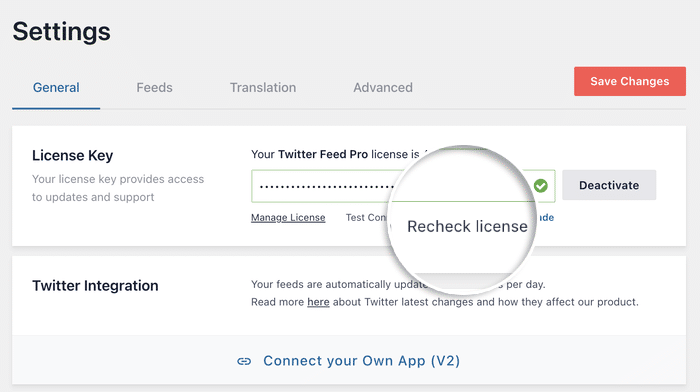
I recommend making this your first stop any time the license status inside WordPress disagrees with your account dashboard. It’s one click, and it settles the question of whether you’re looking at a real problem or just stale data.
If the status still shows expired after a recheck, your site may not be reaching the license server at all. Fix 5 covers what blocks that connection.
Fix 5. Still Blank? Check Your Browser and Security Plugins
If the license screen itself loads blank, or the “Test Connection” button from Fix 3 failed, the license isn’t the problem at all.
Something is blocking the page or the activation request, and it comes from one of two places: your browser or another plugin on your site.
The good news is that neither one means anything is broken. The page is fine, it’s just being hidden or blocked. Let’s check both.
Your Browser’s Content Blocker Is Hiding the Page
Ad-blocking extensions like AdBlock and AdGuard can blank out the plugin’s settings screen entirely. The blocker sees something on the page it doesn’t like and hides the whole interface.
In other words, the page loaded fine. Your browser just wasn’t showing it to you.
Here’s how to check:
- Turn off your ad blocker. Click the extension’s icon in your browser toolbar and pause it, or add your site to its whitelist so it stays off for your dashboard only.
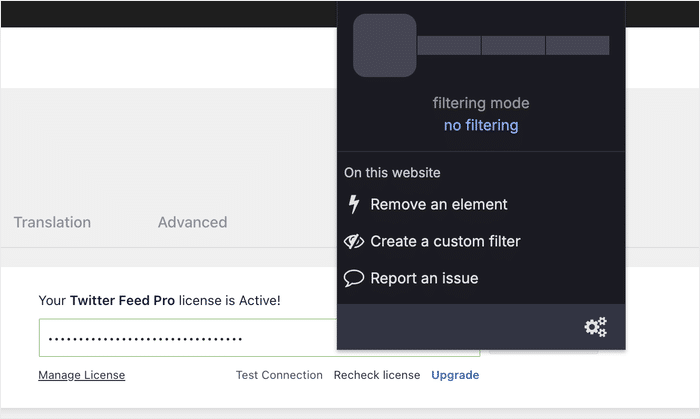
- Refresh the Smash Balloon settings page. If the blocker was the cause, the full interface appears right away, license field and all.
- Activate your license as usual. Head to Settings » General, paste your key, and click “Activate”.
I recommend the whitelist option over turning the blocker off completely. It keeps your ad blocker working everywhere else while letting your own dashboard load normally.
If the page still comes up blank with the blocker off, try a different browser or a private window. That rules out your browser entirely and points to the second cause.
A Security or Maintenance Plugin Is Blocking the Request
In some cases, there are two types of plugins that can stop the activation request before it ever reaches the license server.
- iThemes Security. This plugin has a setting called “Filter Suspicious Query Strings in the URL”. It’s meant to block shady requests, but it can catch the license activation request too. You’ll need to turn that setting off temporarily, activate your license, then turn it back on.
- Maintenance mode and coming-soon plugins. These plugins put a wall in front of your site while you build it. That wall can also block the connection between your site and the license server. Deactivate the plugin from Plugins » Installed Plugins, activate your license, then switch it back on.
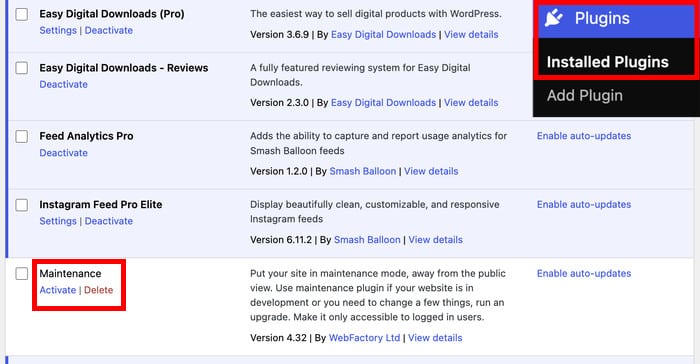
In both cases, the pause only needs to last a minute or two. Once your license shows as active, your security settings and coming-soon page can go right back up without affecting the activation.
After either fix, click “Test Connection” on the Settings » General screen one more time. A passing test confirms your site can reach the license server, which means activation will now go through.
One License Key for Every Feed You Run
The All Access Bundle covers Instagram, Facebook, X, YouTube, TikTok, and reviews under one key, so there’s only one activation to manage.
Unlock Every Feed PluginIf You Just Upgraded and Your Site Doesn’t Reflect It
If you upgraded to the All Access Bundle and your site now says “no All Access to this product”, you’re in the right place. The same goes for a Pro upgrade that isn’t showing its new features yet.
Your upgrade went through. The problem is that your site hasn’t caught up with your new plan, and that happens for one of two reasons.
The first reason is a plan-sync delay. The license server needs a moment to register your new plan, and your site may still be holding on to the old status it saved before you upgraded.
The fix is to force a fresh sync from the license page. Here’s how:
- Open your Smash Balloon plugin and go to Settings » General. This is the same license screen from the earlier fixes.
- Click “Recheck license”. This pulls your new plan status straight from the license server, exactly like in Fix 4.
- If the status still looks wrong, click “Deactivate”, then “Activate”. This runs the clean handshake from Fix 3 and registers your site against the upgraded plan.
If the resync didn’t do it, the second reason is a plan-type mismatch. Upgrading your license doesn’t swap the plugin files installed on your site.
That means your site can be running the old plugin build while your account holds an All Access license. The key is valid, but the installed plugin doesn’t match it, so the new features stay hidden.
You’ll need to install the upgraded plugin build yourself. Log in to your Smash Balloon account, open the Downloads page, and download the plugin version that matches your new plan.
Then head to Plugins » Add New in WordPress, click “Upload Plugin”, and install the file you just downloaded.
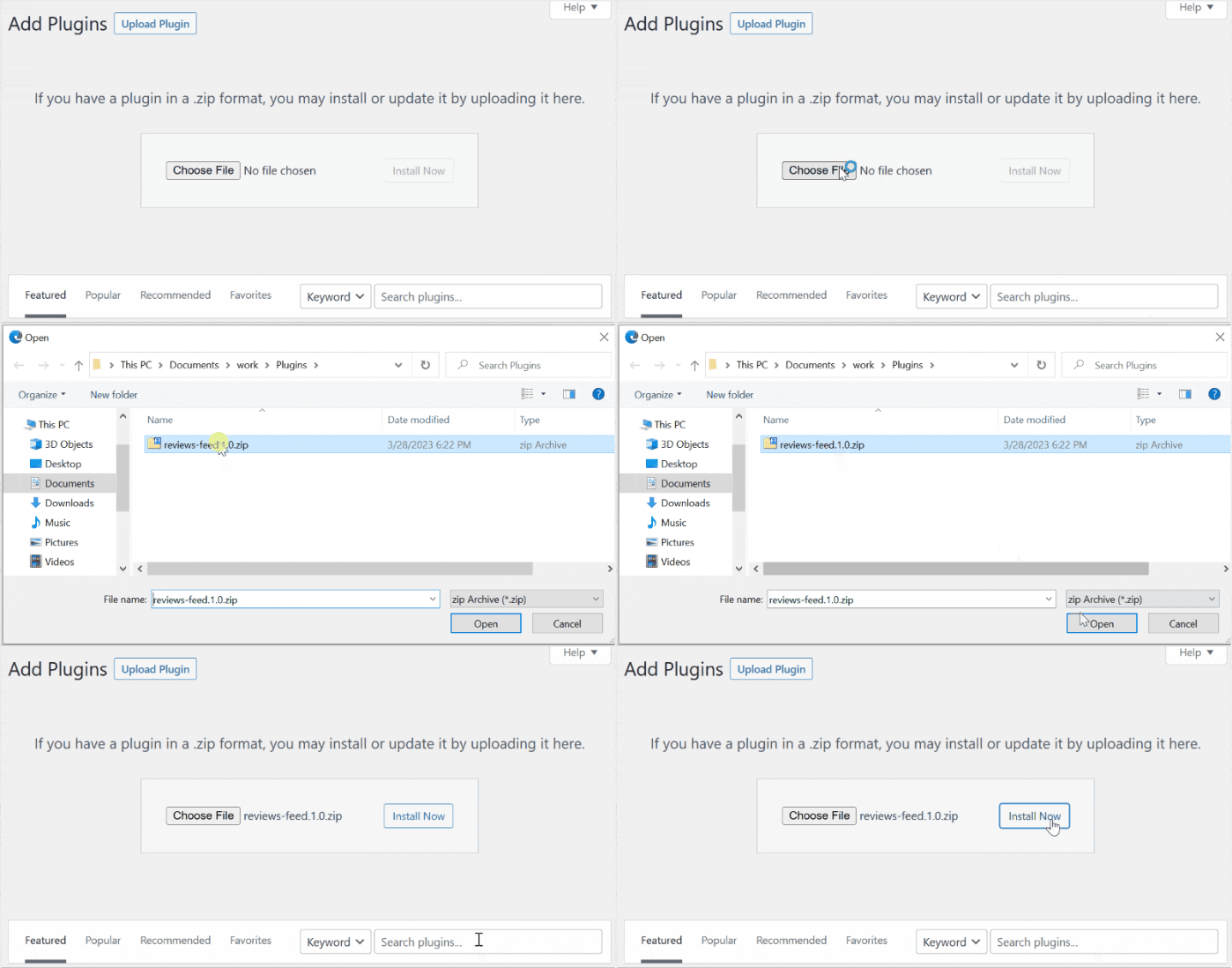
Once it’s active, go back to Settings » General and activate your license key against it.
I’ve seen this trip up plenty of people who upgraded to unlock one specific feature. They assume the upgrade flips a switch on their site, when it really unlocks a new download in their account.
After the upgraded build is installed and the key is active, your new plan features appear right away. No settings are lost in the swap, since your feeds and their options stay in your site’s database.
When to Contact Support Instead
The five fixes above cover the causes you can solve yourself. A few problems live at the server level, though, and this is where you can reach the support team for help.
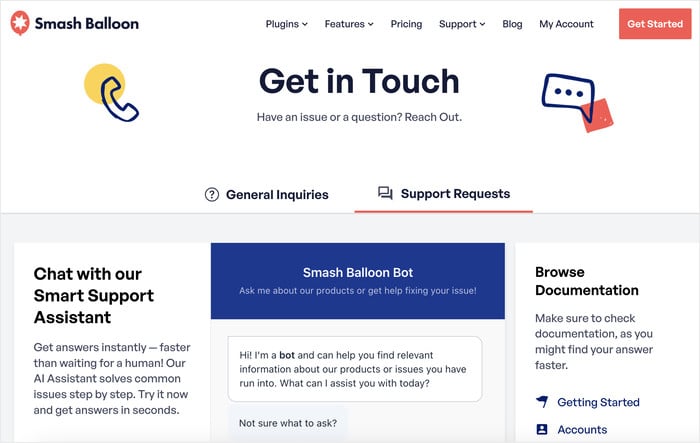
Here’s when to skip straight to a ticket:
- Your entire dashboard is blank, not just the plugin screen. If every page in wp-admin shows a white screen, that’s usually a PHP error on your server, not a license issue. The Smash Balloon team can help you read the error, but your host may need to get involved too.
- Your host’s firewall is blocking the connection. Support can give you the address for your host to allowlist.
- All five fixes failed. If the key is correct, the URL matches, the clean handshake ran, the cache is cleared, and nothing is blocking the connection, something on the license server side needs a human to look at it.
A good ticket gets you a fast answer, so include four things: your license key, your site’s URL, which of the five fixes you already tried, and a screenshot of the error or blank screen. This lets the support team skip the basics and go straight to your specific case.
Smash Balloon’s support team aims to respond in under 100 minutes. That’s quicker than most people spend hunting through forums, so filing a ticket is often the fastest path once you’ve worked through the fixes above.
While you wait, it’s worth setting up feed health checks and email notifications. That way the plugin warns you the next time a feed has a problem, and you find out before your visitors do.
Frequently Asked Questions
Why does my license say it doesn’t work with my website token?
The token error means your license is tied to a different site URL than the one trying to use it. This almost always happens after a move between staging and live, since the activation still points at the old address. Fix 2 walks you through matching the activation URL to your live site.
Can I use one license key on multiple sites?
Yes, you can use one key on as many sites as your plan allows. Your Smash Balloon account shows the count as something like “1 / 5” in Site Management, so you can see exactly how many slots are in use. Dev and staging domains like localhost, .dev, .local, dev., staging., and test. don’t use up a slot, and you can move an activation between sites anytime.
Does moving my site to a new domain break my license?
No, moving to a new domain doesn’t break your license, but the activation URL no longer matches your site. Deactivate the license on the old URL, or remove it from Site Management in your account, then activate it on the new domain.
Do I need to reactivate my license after a WordPress or plugin update?
No, you don’t need to reactivate after a WordPress or plugin update. Your activation carries through updates on its own. If the status looks wrong afterward, click “Recheck license” or “Test Connection” on the Settings » General screen and it will correct itself.
My screen is blank but I don’t see a license error. What else could it be?
A blank screen with no license error usually means something is hiding or blocking the page, not a license problem. The two common causes are a browser content blocker hiding the plugin interface and a security or maintenance plugin blocking the request, both covered in Fix 5. If every page in wp-admin is blank, that’s a server-level issue, so head to the support steps in the section above.
Get Back to a Working Feed in Minutes
A blank page after activating your Smash Balloon license is a known issue with a known order of fixes: check the key, match the activation URL to your live site, run a clean deactivate and reactivate, recheck the license, and rule out browser or plugin blockers.
Most people are done at Fix 2, and nothing on your site was ever broken. The license simply needed to point at the right place.
The license was the last hurdle, and now the fun part starts. Head over to our guide on how to embed your Instagram feed on your website and put that fresh activation to work.
And if you want every Pro plugin under the license you just activated, the All Access Bundle covers Instagram, Facebook, X, YouTube, TikTok, and reviews feeds with a single key.