Social Wall
  Feed Analytics

If you’ve ever pasted a link into your TikTok bio, you know the frustration. The link just sits there as plain text.
And when you go looking for the “Website” field in Edit Profile? It’s nowhere to be found.
You’re not doing anything wrong. TikTok hides that option behind a requirement most tutorials never mention. That missing detail sends thousands of creators down a rabbit hole of settings menus every single day.
At Smash Balloon, we help over 1.75 million website owners connect their social media to their sites, so we’ve answered this exact question more times than we can count.
We dug into TikTok’s requirements, tested both ways to unlock the link field, and found the smartest place to send that traffic once you do.
This guide will show you how to add a clickable link to your TikTok bio, even if you don’t have 1,000 followers.
Then I’ll share how to turn that one link into a page that promotes everything you do: your shop, your YouTube, your Instagram, all of it.
- How to Add a Link in TikTok Bio (Quick Answer)
- Why Put a Link in Your TikTok Bio?
- How to Add a Link to Your TikTok Bio (Step by Step)
- The Problem: TikTok Only Gives You One Link
- The Easiest Way to Add Multiple Links to Your TikTok Bio
- Benefits of Using Social Wall Pro for Your Link in Bio Page
- How to Embed Multiple Social Feeds on Your Site
- Start Turning Your TikTok Traffic Into Sales Now
How to Add a Link in TikTok Bio (Quick Answer)
Need the fast version? Here it is.
- Open TikTok and tap Profile in the bottom right.
- Tap Edit profile and select Links.
- Select Website.
- Paste your URL and tap “Save”.
That’s the whole process. But here’s the catch: you need 1,000 followers or a Business Account to see the “Website” option at all.
If that field is missing from your profile, you’re not doing anything wrong. TikTok just hasn’t unlocked it for you yet.
The good news? There’s a workaround that makes it possible. I’ll walk you through both paths below.
Why Put a Link in Your TikTok Bio?
Here’s the frustrating truth: TikTok won’t let you put clickable links in your video captions. So your bio link becomes the only free, permanent link to your own site.
Think about what happens without one. A viewer loves your video, wants more from you, and… hits a wall. Nowhere to go. Your bio link fixes that.
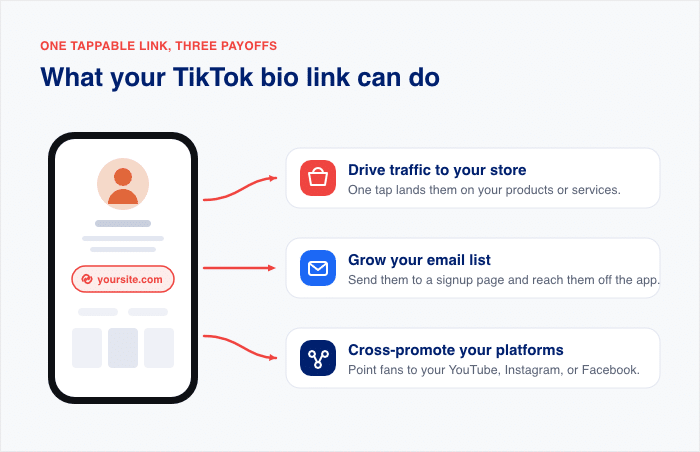
Here’s what a clickable bio link can do for you:
- Drive traffic to your store or site. Viewers tap once and land on your products or services.
- Grow your email list. Send followers to a signup page so you can reach them off the app.
- Cross-promote your other platforms. Point TikTok fans to your YouTube, Instagram, or Facebook.
One warning before we start. Typing a URL into your bio text does nothing. It shows up as plain words, not a tappable link. Visitors would have to copy it by hand and paste it into their browser. Almost nobody does that.
I’ve seen plenty of creators lose months of traffic to this exact mistake. The real clickable link lives in a separate “Website” field, and that’s what we’ll unlock next.
Expert Tip: Want to showcase important links on Instagram as well? Check out our list of the best link in bio tools for Instagram.
How to Add a Link to Your TikTok Bio (Step by Step)
Can’t see the “Website” field on your profile? Here’s why.
TikTok only shows that field to two groups. You need 1,000 followers or a registered Business Account.
That means you have two paths to a clickable link. Pick the one that fits your account, and I’ll walk you through each.
Option 1: If You Have 1,000+ Followers
Already past 1,000 followers? The “Website” field is waiting for you in Edit Profile.
Here’s how to add your link:
- Open TikTok and tap Profile in the bottom right corner.
- Tap Edit profile under your bio.
- Tap the “Links” option.
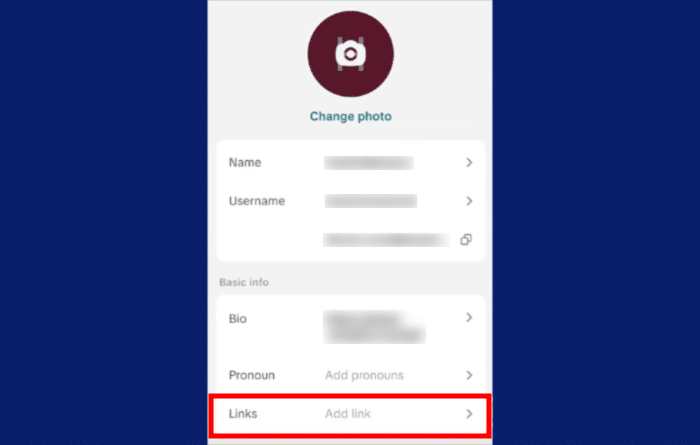
- Select Website from the list.
- Paste your full URL, including the https:// part.
- Tap “Save” to lock it in.
One more step before you celebrate. Test the link.
Open your profile in a logged-out browser or ask a friend to check it. Tap the link and make sure it loads the right page. This catches typos before your followers find them.
Option 2: Switch to a Business Account (No Follower Minimum)
Don’t have 1,000 followers yet? You can still get a clickable link.
Switching to a Business Account unlocks the “Website” field with no follower minimum. The switch itself is free, and you just need to prove to TikTok that you have a real business.
Here’s how to do it:
- Open TikTok and tap Profile in the bottom right.
- Tap the three lines in the top right corner.
- Tap Settings and privacy.
- Tap Account and select Business verification.
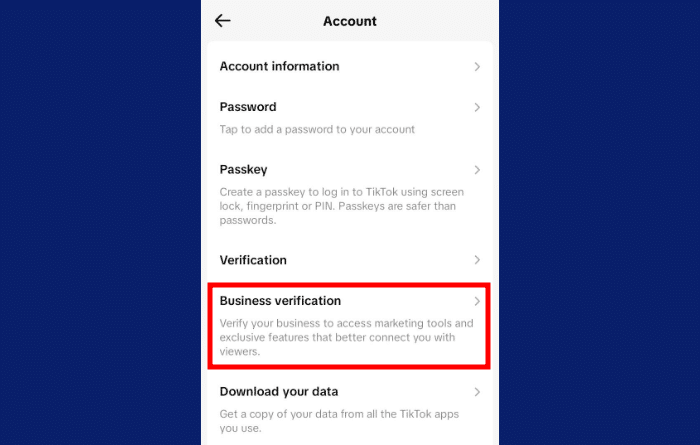
- Agree to the Terms of Service and click on the Get started button.
- Enter your business info, like address, and company website.
One heads-up here. TikTok may ask you to complete Business Registration first. That means submitting a business license or ID, and creators report the review can take 24 to 48 hours.
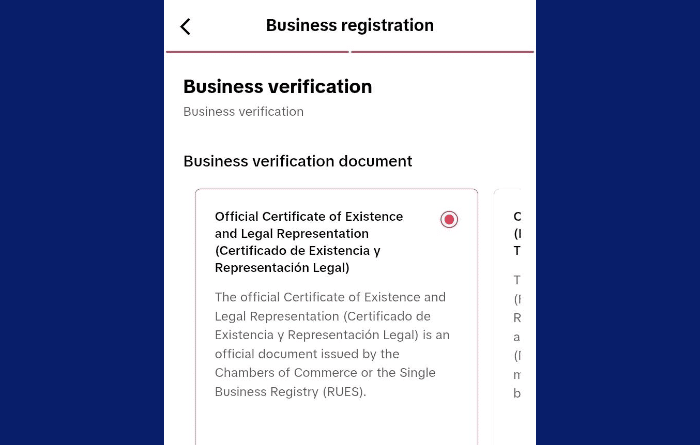
Once your Business Account is active, go back to Edit profile. Then follow the steps from Option 1 to add your website link.
Before you switch, know the trade-off. Business Accounts lose access to some trending commercial sounds, since TikTok limits them to its Commercial Music Library.
If your content leans on viral audio, weigh that against getting your link early. For most small businesses sending traffic to a store, the link wins.
The Problem: TikTok Only Gives You One Link
Your link is live. Now comes the hard part.
Think about everything you want to promote. Your online store. Your YouTube channel. Your Instagram. Maybe a newsletter signup too. TikTok gives you exactly one link for all of it.
So which one gets the spot? Pick your shop, and you miss out on YouTube subscribers. Pick your newsletter, and nobody finds your products. Every choice leaves money on the table.
Most creators solve this with Linktree or a similar service. You’ve seen these pages before. A plain list of buttons on someone else’s domain, holding all your links in one place. It works, and the basic plans are free.
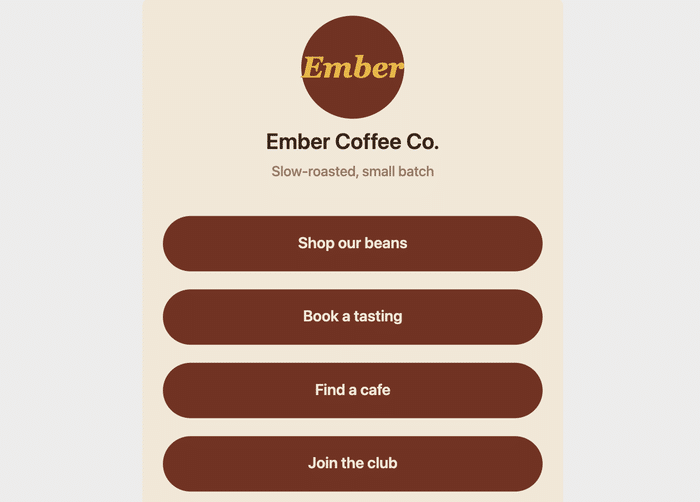
But here’s what you give up when you rent that page:
- Their branding sits on your page. Free plans show the service’s logo to every visitor you send there.
- You can’t fix downtime. If their servers go down, your only TikTok link leads nowhere until they fix it.
- Customization is limited on free plans. Your page looks like everyone else’s, not like your brand.
- The page’s own SEO value lands on their domain. Visitors still reach your store, but the link page itself builds up authority for their site, not yours.
There’s a better way. Build your link in bio page on your own website. It’s a simple page you own, brand, and control completely. Every visitor lands on your domain, sees your design, and stays in your world.
Next, I’ll show you the easiest way to set that up.
The Easiest Way to Add Multiple Links to Your TikTok Bio
You have two ways to build a link in bio page on your own site.
The first is the manual route. You create a new WordPress page, add a button for every link, and style it all by hand. Then comes the upkeep.
Post a new video? Update the page. Launch a product? Update the page. Every change on every platform means another round of edits.
It works. But it turns your link page into a chore you do forever.
The second way takes minutes: use Social Wall Pro to build the page for you.
Full disclosure: Social Wall is our plugin. We built it at Smash Balloon, where over 1.75 million website owners use our tools to connect social media to their sites.
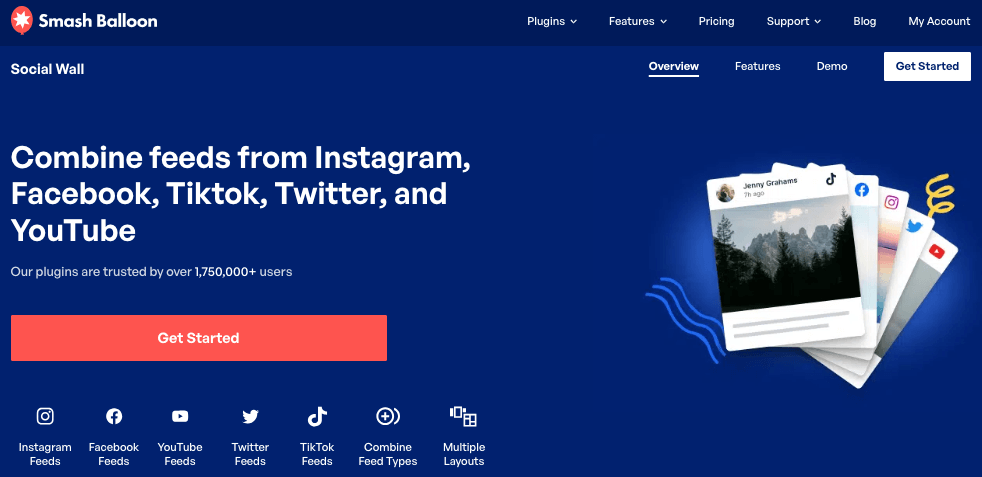
Here’s what makes it different. A plain list of links is a dead end. Visitors tap one button, and that’s it. Social Wall Pro turns your page into something better: live social feeds.
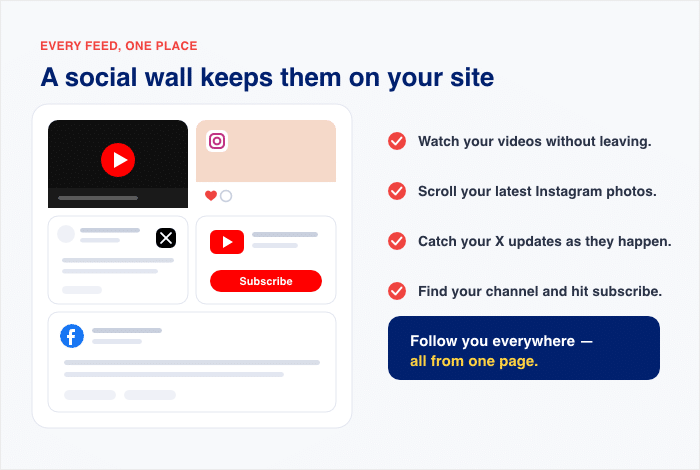
Instead of static buttons, your page shows your actual content from TikTok, Instagram, X (Twitter), YouTube, and Facebook. All combined into one wall, right on your own site.
Think about what that means for a TikTok follower who taps your bio link:
- They can watch your videos without leaving your website.
- They can scroll your Instagram posts and see your latest photos.
- They can catch your X (Twitter) updates as they happen.
- They can find your YouTube channel and hit subscribe.
- They can follow you everywhere, all from one page.
The best part? The wall updates itself. You post on TikTok or Instagram like normal, and your feeds pull in the new content automatically. No manual edits. Ever.
You set it all up from your WordPress dashboard with simple menus and a live preview. No coding needed.
So your one TikTok link now leads to everything you do. And the page doing all that work sits on your domain, wearing your brand.
Benefits of Using Social Wall Pro for Your Link in Bio Page
Why choose Social Wall Pro over a basic list of buttons? Here’s what your link in bio page gains.
Keeps Visitors on Your Site Longer
A static link list gets one tap, and then the visitor leaves. A social wall gives them fresh content to scroll.
Visitors stick around to watch your embedded videos and browse your posts. More time on your site means more chances to click your shop or signup form.

Builds Social Proof and Credibility
Live feeds show real activity at a glance. New posts, real engagement, active accounts.
That’s a much stronger trust signal than a bare list of buttons. Visitors can see you’re worth following before they tap a thing.
Works Seamlessly with WordPress
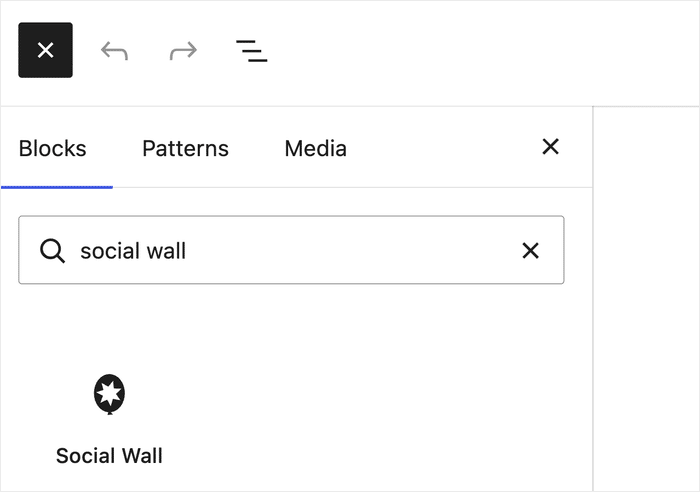
Social Wall Pro is a native WordPress plugin. You set everything up right from your dashboard and embed the social walls with an in-built block.
There’s no code to touch at any point. You can build your entire link in bio page even if you’re not a tech wizard.
Matches Your Brand Exactly
Remember those locked-down Linktree templates? Social Wall Pro gives you the opposite.
From the live editor, you control the layouts, color palette, button design, and more. Your link page looks like your brand, not like everyone else’s.
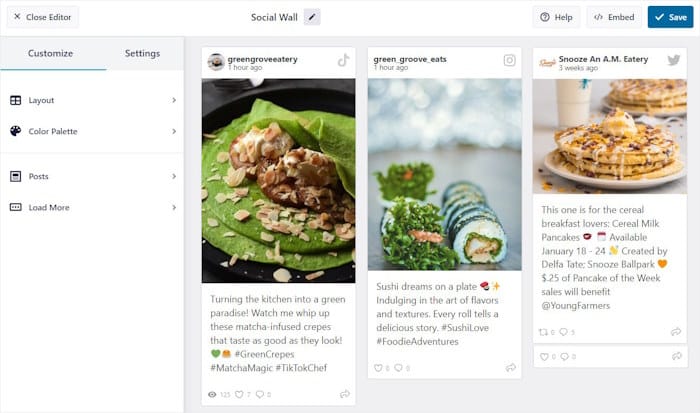
On top of that, your social walls will automatically copy your website’s theme right out of the box. So creating a beautiful wall that matches your site is quick and easy.
Puts User-Generated Content Front and Center
Your customers are already posting about you. Social Wall Pro can display those posts and mentions alongside your own feeds.
That turns your link page into a wall of testimonials. New visitors see happy customers the moment they arrive.
How to Embed Multiple Social Feeds on Your Site
Ready to build your link in bio page? The setup only takes a few minutes.
Here’s how to set up Social Wall Pro on your WordPress site:
- Install the plugin. Go to your Dashboard » Plugins » Add New. Upload the plugin file, then click Activate.
- Connect your sources. Social Wall Pro reads your existing feeds from Instagram Feed Pro, YouTube Feed Pro, TikTok Feeds Pro, X (Twitter) Feed Pro, and Facebook Feed Pro.
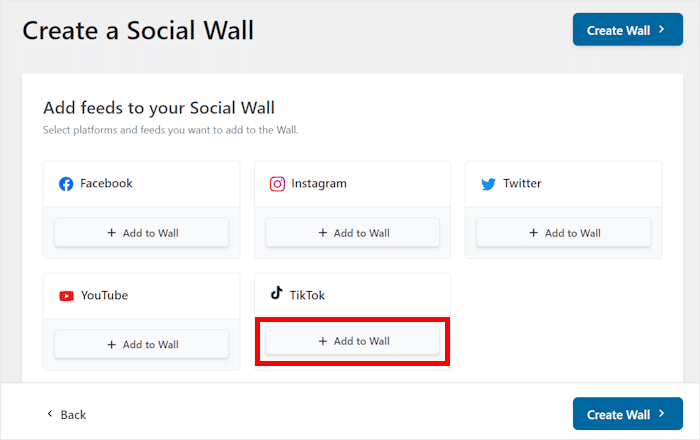
- Select your sources. Choose which platforms appear in your wall. For example, TikTok + Instagram + YouTube.
- Choose a layout. Pick the style you like, such as a masonry grid or card style.
- Customize the styling. Adjust your colors, spacing, and header. The wall also inherits your theme’s styling by default.
- Embed your wall. Add it to any page using the shortcode or Gutenberg block. Then hit publish.
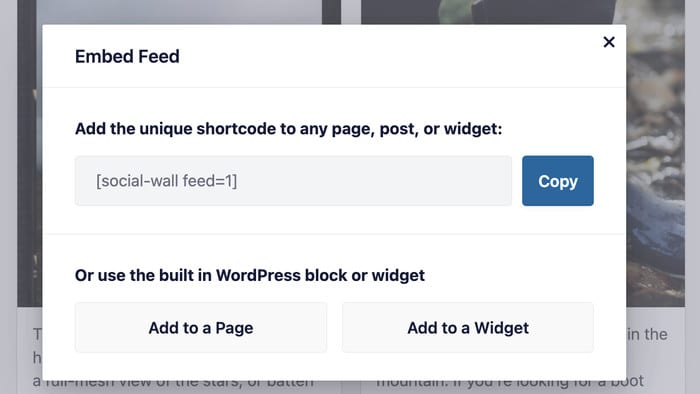
That’s it. No coding needed at any step.
Want to learn more before you dive in? We break it all down in our guide on what a social wall is.
It covers how social walls work and why they’re so good at driving engagement, even if you’re not a tech wizard.
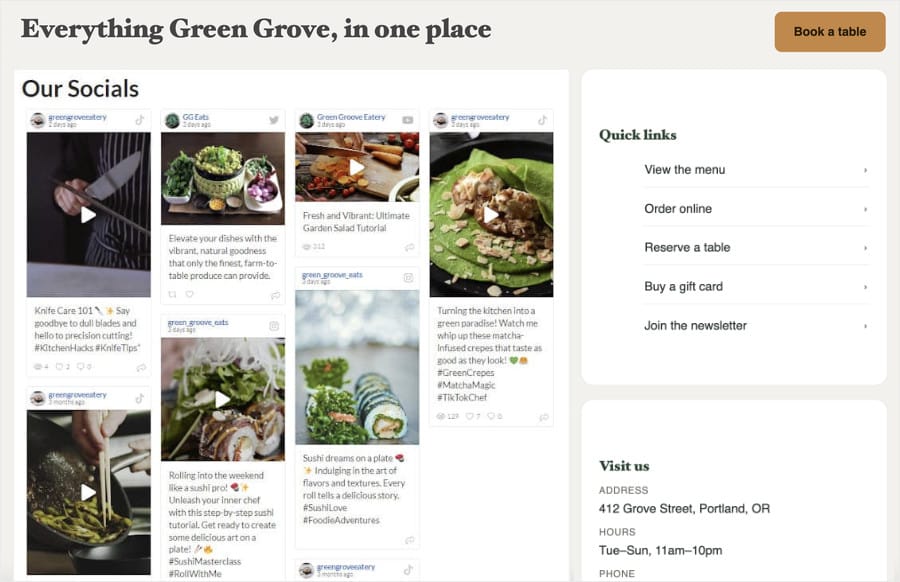
Once your page is live, head back to TikTok. Paste that page’s URL into the “Website” field you unlocked earlier, and your one bio link now leads to everything you do.
Turn One Bio Link Into a Live Hub
Social Wall Pro combines your TikTok, Instagram, YouTube, X (Twitter), and Facebook feeds into one page on your domain. All Access includes it and every feed plugin it needs.
Build My Link PageFrequently Asked Questions
Why can’t I add a link to my TikTok bio?
You can’t add a link because your account doesn’t meet TikTok’s requirements yet. The “Website” field only appears once you have 1,000 followers or a Business Account. Fix it by growing past 1,000 followers or switching account types in Settings and privacy » Account.
How do I add a link without 1,000 followers?
You can add a link without 1,000 followers by switching to a Business Account. Go to Settings and privacy » Account » Switch to Business Account, then add your URL through “Edit profile”. There’s no follower minimum on this path.
Can I add a bio link from a PC?
Adding a bio link from a PC is limited right now. TikTok’s desktop site doesn’t offer the full set of profile editing options that the app does. Your safest bet is to add the link from the TikTok mobile app.
How many links does TikTok allow in your bio?
TikTok allows exactly one clickable website link in your bio. That’s why a link in bio page on your own site matters so much. It turns that single link into a doorway to everything you do.
Start Turning Your TikTok Traffic Into Sales Now
Adding a link to your TikTok bio comes down to one requirement. You need 1,000 followers or a free Business Account, and the “Website” field appears in Edit profile.
But that link only pays off if you point it somewhere smart. Send it to a page you own on your WordPress site, not a rented Linktree page wearing someone else’s brand.
And Social Wall Pro is the easiest way to build that page. It turns your one link into a live hub of everything you post. Your feeds update themselves, visitors stick around longer, and the whole page wears your brand.
Ready to give your one bio link a real job? Grab the All Access Bundle and get every Smash Balloon social feed plugin plus Social Wall Pro in one package.