Social Wall
  Feed Analytics

When I first started using Oxygen Builder, I loved how much control it gave me over my website design. But I quickly hit a roadblock when it came to adding X (Twitter) content.
On top of taking a lot of time, the default WordPress methods either looked terrible or didn’t match the custom design I’d built in Oxygen.
If you’re running an Oxygen Builder site and want to showcase your X (Twitter) content, you’re probably facing the same frustration.
Adding your X (Twitter) profile properly can boost engagement and keep your site content fresh, but most solutions don’t play well with Oxygen’s custom approach.
I’ll show you the exact method I use to integrate X (Twitter) profiles into Oxygen Builder sites. This 5-step process works every time and takes just minutes to complete.
Simplest Way of Adding X (Twitter) Feeds to Oxygen Websites
Oxygen Builder is a popular WordPress page builder that gives you complete control over your website design.
Unlike traditional WordPress themes, Oxygen lets you build custom layouts without touching code.
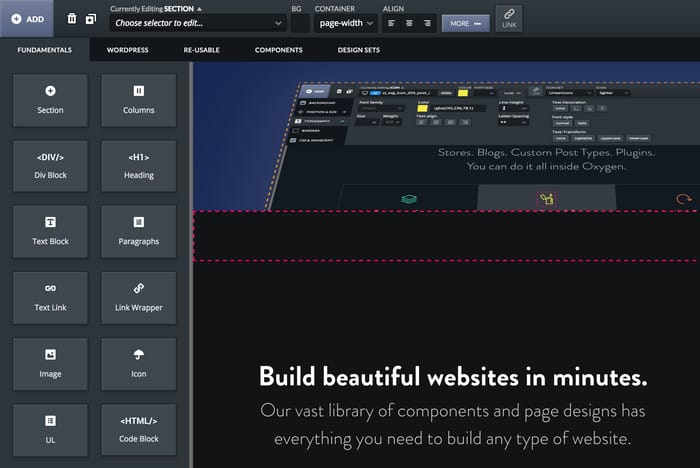
However, this custom approach means standard WordPress methods for adding social media content often don’t work properly or look out of place.
So, you might end up with an X (Twitter) profile feed that just doesn’t fit your website after spending a lot of time and effort embedding X (Twitter) content manually.
Instead, you can use a WordPress plugin to automatically fetch your X (Twitter) content and add it to Oxygen Builder.
Out of all the X (Twitter) feed plugins out there, I went with X (Twitter) Feed Pro for this guide.

There are a few reasons why X (Twitter) Feed Pro stands out from the competition:
- Compatibility: X (Twitter) Feed Pro works perfectly with Oxygen Builder and other popular site builders.
- Shows Fresh Content: The plugin will keep your feed updated with your latest X posts automatically.
- Lightweight: Since this tool is built for speed, your Oxygen website will load just as fast as ever.
- Matches Your Website: Your feeds will automatically copy the design of your Oxygen Builder website right out of the box.
- Highly Customizable: You also get pre-built templates along with a live customizer to design your X (Twitter) profile feed in detail.
Another great reason to pick this tool is the quality of customer support. To check for yourself, you can look at the user reviews here and see what people think of the support team.

There are a lot of features to work with, and it’s easy to pick up and use. And below, I’ll walk you through the steps of adding an X (Twitter) profile to Oxygen websites.
How to Add an X (Twitter) Profile to Oxygen Builder
In the steps below, I’ll show you how easy it can be to add X (Twitter) content to your Oxygen Builder site with the help of X (Twitter) Feed Pro.
Step 1: Install & Activate X (Twitter) Feed Pro
First, you can get the X (Twitter) Feed Pro plugin here before installing it to your website.
In case you don’t know how, take a look at this step-by-step guide on how to install and activate WordPress plugins.
Step 2: Create an X (Twitter) Feed
You can get started from your WordPress dashboard now.
Open the Twitter Feed » All Feeds menu and then click on the Add New button.
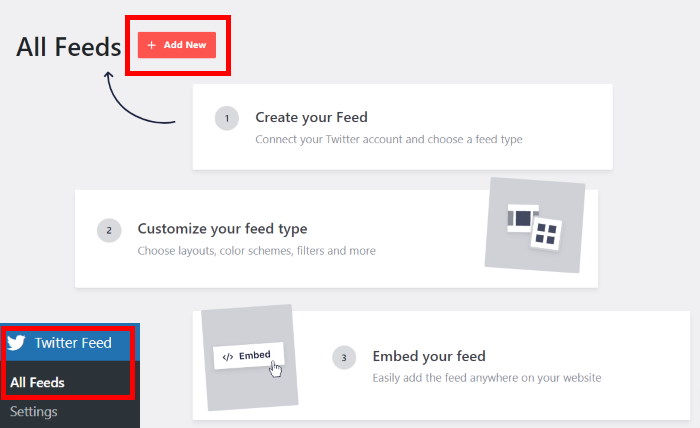
After doing that, you can choose the type of X (Twitter) feed you want to make:
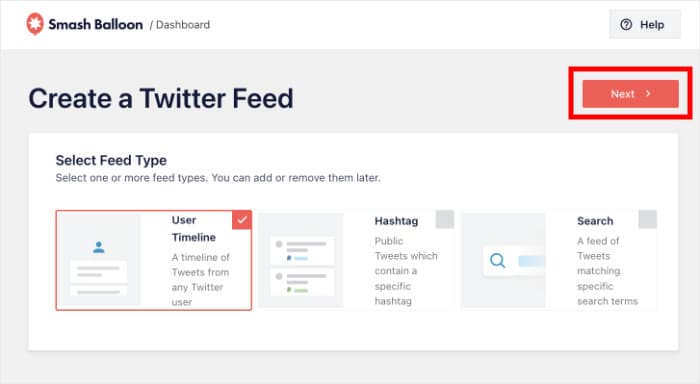
- User Timeline: Show X posts from a chosen X (Twitter) profile
- Hashtag: Display the X posts that have your selected hashtags
- Search: Pick your search terms and embed the search results
I’ll pick User Timeline here, but the process is the same for feed type.
Once you select your feed type, click on Next.
Step 3: Connect Your X (Twitter) Profile
Connecting your X (Twitter) profile means the plugin can fetch the relevant X posts and display them on your site. It’s a quick and easy process, too.
To get started, click on the Connect button on the popup.
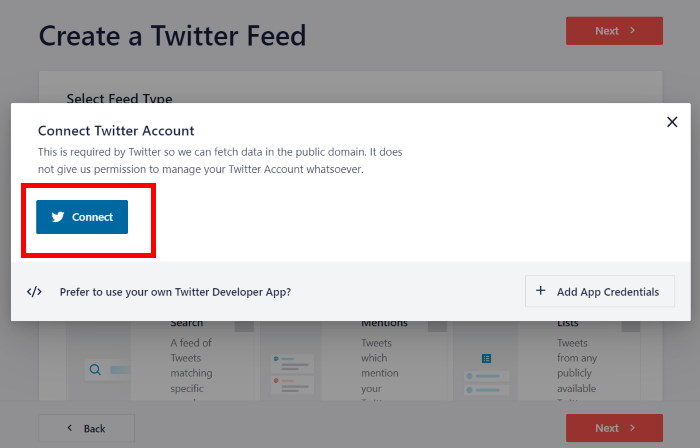
Once you do that., the plugin will open X (Twitter) on your web browser.
From here, click on Authorize app to connect your profile.
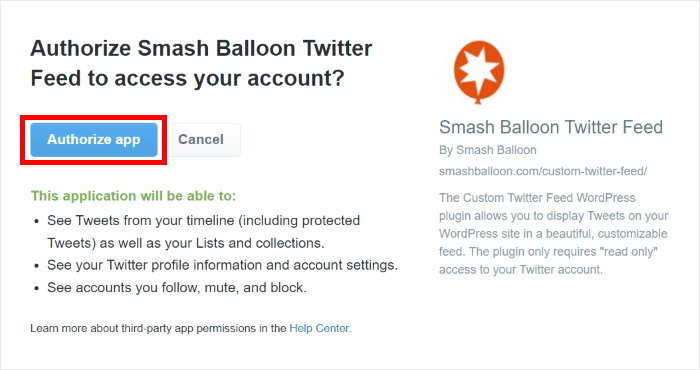
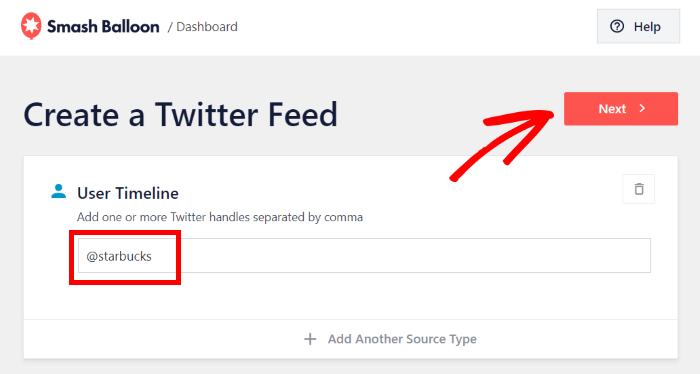
Doing that will bring you back to your website. Now, you can choose the X (Twitter) profile, hashtag, or search term for your feed.
I’ll enter an X (Twitter) handle for this example.
Just enter the information here and click on Next.
Step 4: Customize Your X (Twitter) Feed
Your newly created X (Twitter) profile feed will automatically copy the design of your Oxygen website. It can be a huge time saver if you’ve carefully picked the design and color scheme for your website.
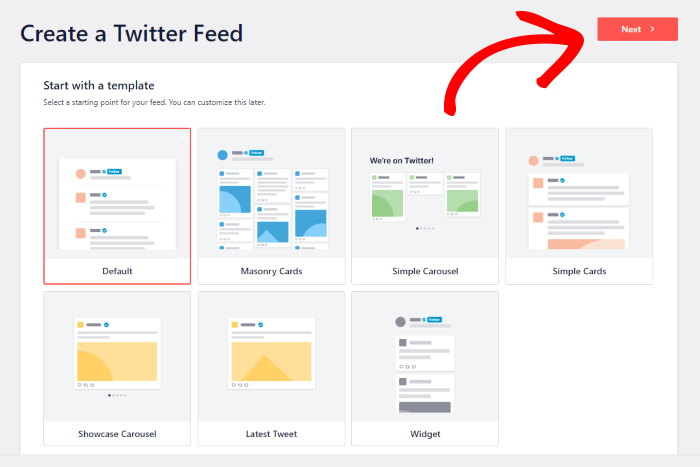
On top of that, you can import a template to quickly change the design of your X (Twitter) feed.
You can choose from 7 different options with unique layouts.
- Default
- Masonry cards
- Simple carousel
- Simple cards
- Showcase carousel
- Latest X Post
- Widget
After you pick a template, click on Next.
After importing a template, you can use the live editor to customize the design even more.
You can change your layout, header, button design, font size, color scheme, and more from this editor.
I’ll take you through some interesting options so you can see how this works.
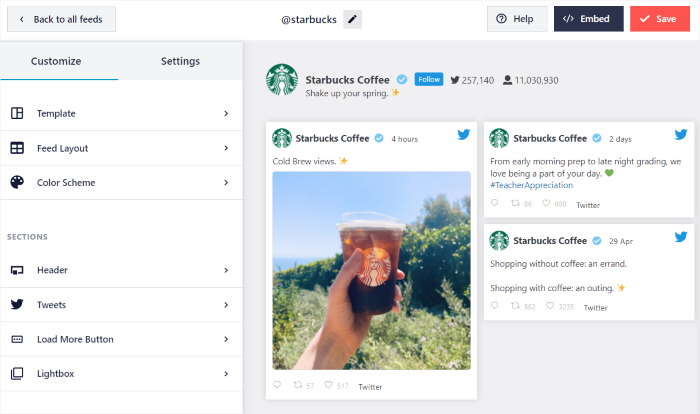
Let’s start by changing the layout of the X posts.
Open the Feed Layout option from the left to get started.
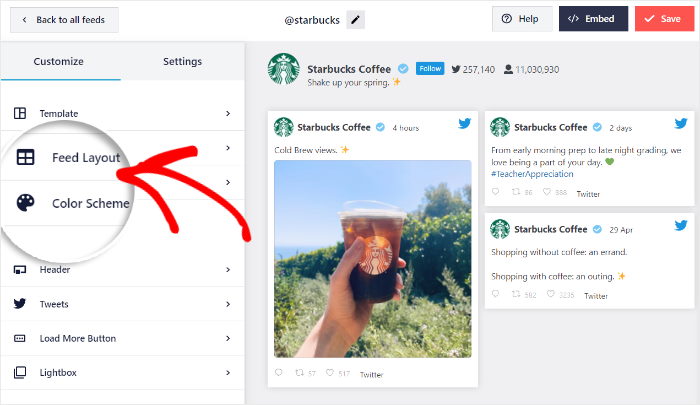
After you do that, the panel on the left will show you further customization options.
For the layout, you can pick from 3 different layouts for your feed:
- List: Display your X (Twitter) profile in a single column like in the official website
- Masonry: Use rows and columns to display tons of X posts at once
- Carousel: Embed the X posts on your site as an interactive slideshow
Pick your layout and click on Save to confirm your changes.
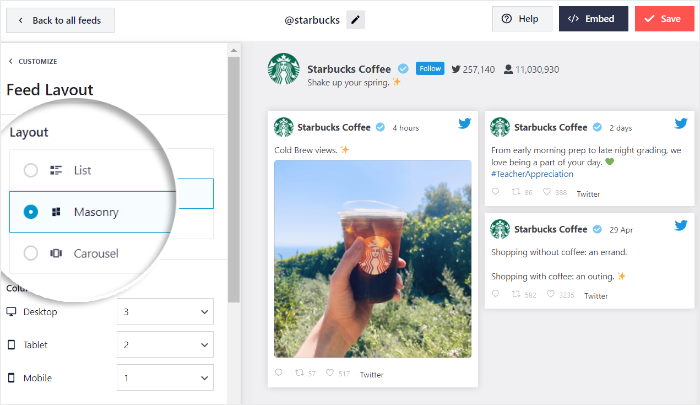
You can also change other layout options from here, like the number of rows and columns. Just remember to save the changes once you’re done.
To continue, you can click on the Customize.
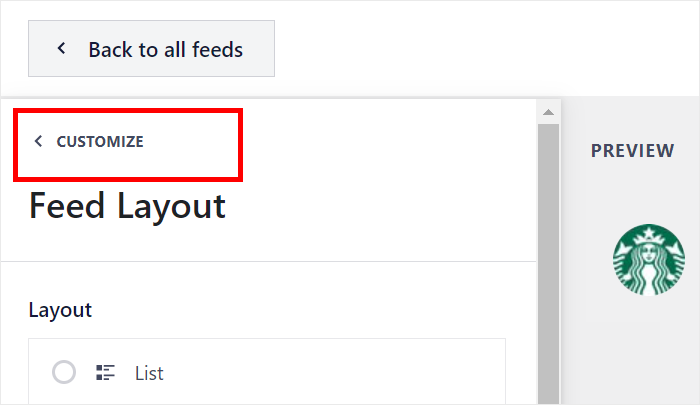
Now that we’ve set up the layout, I’ll show you how to customize the colors.
From the panel on the left, select the Color Scheme option.
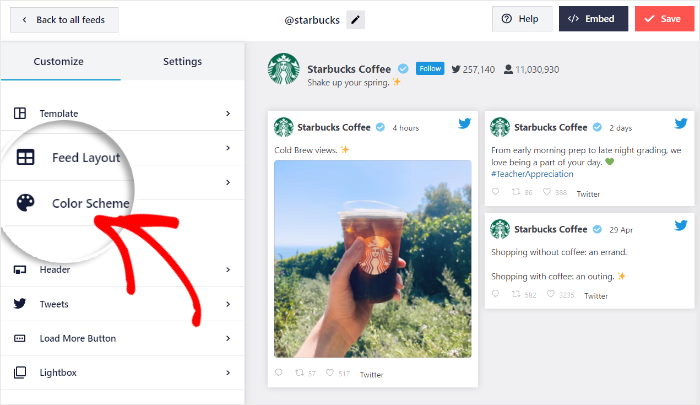
To help you quickly change the colors, you can select a color scheme that you prefer:
- Inherit from Theme: Copy the colors of your Oxygen website
- Light: Light background with a dark font
- Dark: Dark background along with a light font
- Custom: Manually pick the colors yourself
Like before, remember to Save the changes once you’re done setting up the colors.

You can use the remaining options to customize your X (Twitter) feed in detail. As you can see, the live editor is pretty easy to use, and you can easily keep track of all your changes.
Once you Save your design, it’s time to move on to the final step.
Step 5: Embed X (Twitter) Profile on Oxygen Builder
You can start embedding this X (Twitter) feed by clicking on the Embed button at the top.
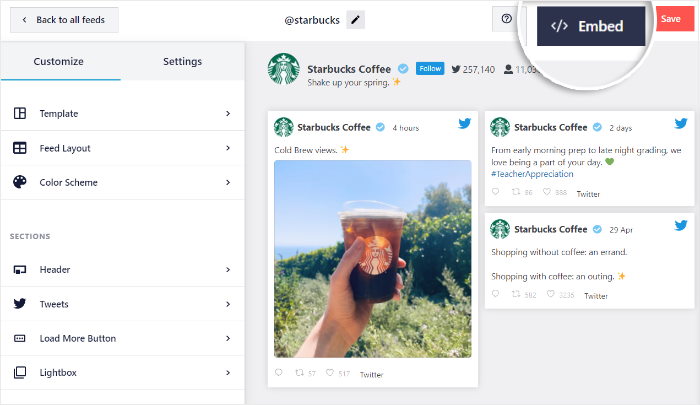
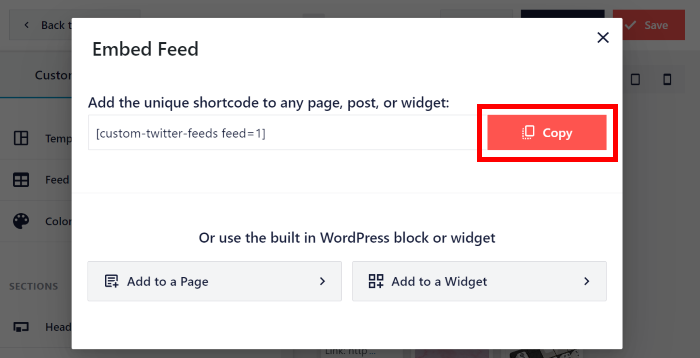
This opens a popup with all the embed options for your X (Twitter) feeds. You can add this feed to your page, sidebar, or footer from here.
For Oxygen Builder, you can click on Copy instead.
If there’s a specific Oxygen Builder page where you want the X (Twitter) feed, you can open it now.
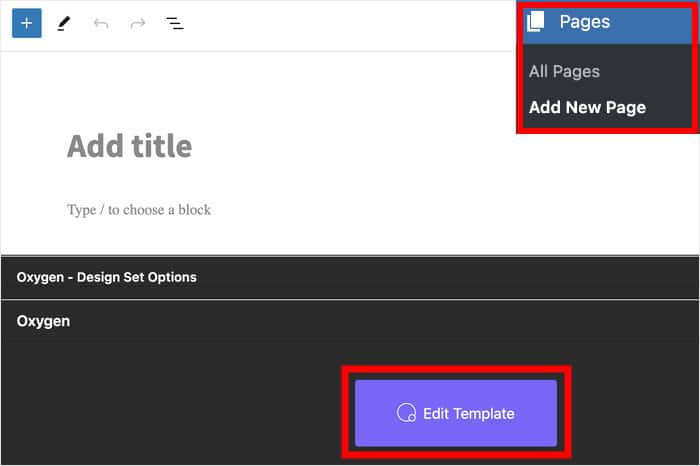
To use a new page instead, open the Pages » Add New menu from your dashboard area.
Then click on Edit Template to open the page in Oxygen Builder.
To add content to this page, you can click on the plus (+) icon in the top-left corner.
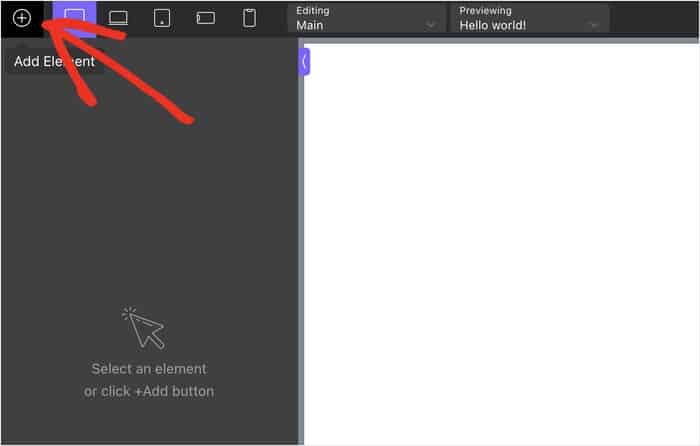
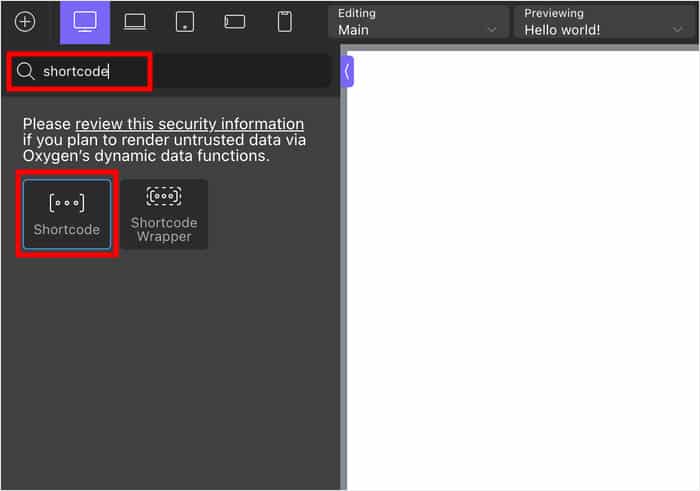
After clicking on that, you’ll see a new panel with a search bar.
Just type “shortcode” into the bar, then click on the Shortcode block below.
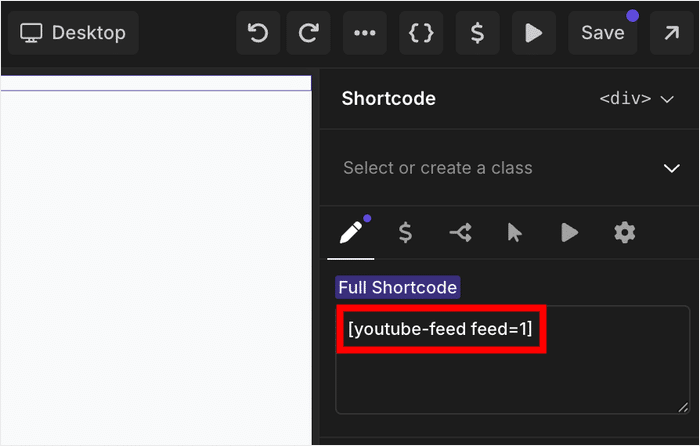
Now, look for the Full Shortcode field and paste your shortcode from earlier.
Once you do that, X (Twitter) Feed Pro will automatically embed the X (Twitter) profile on this page.
Feel free to add any other content you want on this page. Oxygen Builder is pretty user-friendly, and you can do a lot without touching a single line of code.
Once you’re happy with how it looks, you can publish it, so your visitors can check out the X posts.

With that, you now have an X (Twitter) profile feed on your Oxygen Builder website. By showing relevant X posts, you can keep visitors interested and grow your social media presence at the same time.
Plus, you can also use the plugin to embed positive product reviews, show user-created content, and more. As you can see, X (Twitter) Feed Pro can be a great addition to your social media marketing toolkit.
To try it out for yourself, you can grab your copy of X (Twitter) Feed Pro here.
If you want to get more out of X (Twitter), you can check out our list of the best X (Twitter) marketing tools.
Other Social Media Guides and Tutorials
- How to Embed TikTok Videos on Your Oxygen Builder (Easy Guide)
- Top Ways to Make Money on X (Twitter) With Ease (Expert’s Pick)
- How to Embed Your YouTube Videos on Oxygen Builder (Easy Guide)
- Proven Tips to Help You Get More X (Twitter) Followers for FREE