
If you’re feeling stuck after seeing that “Instagram Shopping is not available in your region” error message, I’ve got good news.
You can still sell through Instagram (even if Shopping isn’t available in your region) by creating shoppable feeds for your website.
I know how disheartening it feels to watch competitors in other countries easily tag products while you are stuck on the sidelines.
Fortunately, I found a legitimate way to build something even better on my own site. Not only did this method have no geographical restrictions, but I also gained complete control over my sales process.
In this guide, I’ll walk you through exactly how to set this up in under 5 minutes. Here’s what we’ll cover:
- What Is Instagram Shopping?
- The Better Alternative: Add a Shoppable Instagram Feed to Your Website
- Step-by-Step: Creating a Shoppable Instagram Feed with Instagram Feed Pro
What Is Instagram Shopping?
Before we dive into the solution, let’s quickly cover what Instagram Shopping actually is and why you might not have access to it in your region.
Instagram Shopping Explained in Plain English
Instagram Shopping is a feature that lets businesses tag products directly in their Instagram posts and stories.

When someone taps on a tagged product, they see details like the price, description, and a link to buy it.
Think of it as turning your Instagram feed into a digital storefront. Instead of just posting pretty pictures, you can add clickable product tags that take customers directly to your checkout page.

Which Countries Currently Have Instagram Shopping Access?
As of 2026, Instagram Shopping is available in the following regions:
| Region | Supported Countries |
|---|---|
| North America | Canada, United States |
| Latin America | Brazil, Mexico |
| Europe | Denmark, France, Germany, Italy, Netherlands, Norway, Spain, Sweden, Switzerland, Ukraine, United Kingdom |
| Asia-Pacific | Australia, India, Indonesia, Japan, Korea, Taiwan, Thailand |
The list of supported countries changes occasionally as Instagram expands the feature.
However, many regions—particularly in Africa, Eastern Europe, Central Asia, and parts of South America—still don’t have access.
Instagram’s Shop Approval Process
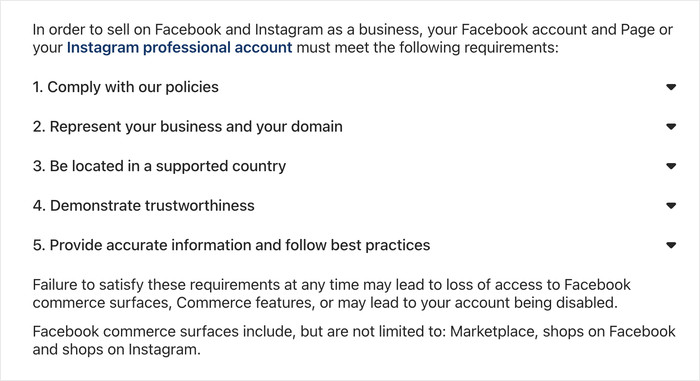
Even if Instagram Shopping is available in your country, getting approved isn’t guaranteed.
Instagram can reject shop applications without detailed explanation, and they reserve the right to disable shops at any time if they believe you’ve violated their commerce policies.
This is exactly why building your own shoppable Instagram feed on your website gives you more control, flexibility, and long-term stability.
You own your website, you set the rules, and you can sell on your own terms.

If you’re serious about building a sustainable online business, you can see how you can add shoppable Instagram feeds below.
The Better Alternative: Add a Shoppable Instagram Feed to Your Website
Instead of waiting for Instagram to approve your region or dealing with their restrictions, you can create a shoppable Instagram feed directly on your WordPress website.
The real advantage here is ownership. When someone shops through Instagram, they’re Instagram’s customer first and yours second.
On your website, you control the entire experience from browsing to checkout.
What You’ll Need to Get Started
Setting up a shoppable Instagram feed is straightforward. Here’s what you’ll need:
- An Instagram Business Account: You’ll need to convert your personal Instagram account to a business account (here’s how to do it for free instantly).
- A WordPress Website: This is where you’ll display your shoppable feed. Check to make sure you have admin access to your site before getting started.
- Instagram Feed Plugin: This lets you connect your Instagram account to your website and make your posts shoppable. You can use Instagram Feed Pro for the easiest option.
- Products to Sell: You can set up product pages on your website where customers can complete their purchases.
In case you’re not selling products on your website yet, you can check out this guide on setting up WooCommerce.
Step-by-Step: Creating a Shoppable Instagram Feed with Instagram Feed Pro
Now let’s get your shoppable Instagram feed set up. I’ll walk you through every step so you can have this running on your website in about 5 minutes.
Step 1: Install the Instagram Feed Plugin
First, you’ll need to get Instagram Feed Pro on your WordPress site.

Here are a few reasons why I went with this tool for this beginner’s guide:
- Quick and easy setup with absolutely no coding
- Full control over the design of your Instagram content
- Advanced filters to make sure you’re showing the posts you want
- Convenient way to link product pages to Instagram posts
- Lightweight design so your online store loads as fast as ever
You can get a copy of Instagram Feed Pro here to get started.
Once you have the plugin, install and activate it on your online store. Here’s a beginner’s guide in case you need help.
Step 2: Create a New Instagram Feed
Now that the plugin is active, let’s create your first Instagram feed.
Go to Instagram Feed » All Feeds in your WordPress dashboard. You’ll see a page showing all your feeds (which will be empty if this is your first time).
Click the Add New button in the top right corner. This opens the feed creation wizard.

On the next screen, you’ll see several feed type options.
Click on User Timeline since you want to display posts from your Instagram account.
Then click the Next button to continue.

Step 3: Connect Your Feed to Instagram
Before your feed can display any content, you need to connect it to your Instagram business account.
You’ll see a page asking you to add a source. Click the Add Source button.

A popup will appear showing different connection types.
Select Business Advanced as your connection type — this gives you access to the shoppable features.
Click the Connect button to begin the authentication process.

This will open a new window asking you to connect with Facebook (Instagram requires this for business accounts).
Now, select Connect with Facebook and log in with your Facebook credentials if prompted.

Then click on Continue to grant the necessary permissions.

Next, you’ll see a list of your Instagram business pages.
Pick the Instagram business page you want to connect and click on Add.

Once the connection is successful, you’ll be redirected back to WordPress.
Click on Next to continue setting up your feed.

On the theme selection screen, choose a theme that matches your website’s style. Don’t worry—you can customize this later.
Just click on the Next button to move forward.

Now, you can pick from a collection of layout templates. This changes how the Instagram posts are displayed on your website.
Select a template you like and click on Next.

Step 4: Enable Instagram Shopping
The plugin will now put the Instagram feed together and open it in the visual customizer.

This is where the magic happens — turning your regular Instagram feed into a shoppable one.
In the feed settings, go to the Settings tab at the top.
Look for the Shoppable Feed option in the left sidebar and click on it.

You’ll see a toggle switch to enable the shoppable feature. Click on Enable to turn it on.
Find an Instagram post in your feed preview and click the Add button that appears on it.

A popup will open asking for product details.
In the Product Link field, enter the URL of the product page on your website where you want customers to go.
Click on the Add button to save the product link for that post.

You’ll see a small shopping bag icon appear on the post, indicating it’s now shoppable.
Just repeat the step to add links to other Instagram posts as well.
I recommend starting with your 6-8 best-selling products so customers see your most popular items first.
Finally, click on Save to store your changes and finalize all your feed settings.
Step 5: Customize Your Shoppable Instagram Feed
Now let’s make your feed look perfect for your website.
First, click the Customize tab at the top of the feed builder.

This opens all the design and layout options on the left panel. You can check the live preview on the right to track your changes.
From here, click on the Feed Layout in the left sidebar.

Here you can select how your Instagram feed appears:
- Grid
- Carousel
- Masonry
- Highlights

For shoppable feeds, I recommend the grid layout with 3-4 columns because it looks clean and professional while making products easy to browse.

If you want to showcase one specific product more, you can use the highlights layout instead.

Select your preferred Instagram feed type and click on Save to apply your layout choice.
Next, click the Customize button on the top left to access more design options.

This time, we can change the colors of this shoppable Instagram feed.
To do that, click on Color Scheme in the settings panel.

Choose a color scheme that matches your website’s branding.
You can select from preset color combinations or create a custom scheme.

Click on Save to apply your color choices.
You can use the remaining customization options to change other parts of your Instagram feed as well. Then click Save one more time to finalize your design.
After that, your shoppable Instagram feed is now ready to be added to your website.
Step 6: Embed Your Shoppable Instagram Feed on Your Website
The final step is placing your shoppable feed where visitors can see it. You can add it to a page, sidebar, or footer — wherever makes the most sense for your site.
Enable Instagram Shopping on a Page
To start selling using Instagram posts on a page, first, click the Embed button at the top.

Doing that will show all the embed options for your shoppable Instagram feed.
Select Add to a Page from the options that appear.

You’ll see a list of your existing pages.
Choose the page where you want your shoppable feed to appear and click on Add.

This opens the WordPress block editor for that page. Feel free to add other details here if you like.
To enable Instagram shopping on this page, click the plus (+) icon to add a new content block.

In the search box, type “instagram” to filter the available blocks.
Finally, select the “Instagram Feed” block from the results to embed the feed.

The block will automatically display your shoppable Instagram feed. You can preview how it looks by scrolling through the page.
Once you’re happy with the placement, click on Update to make your shoppable feed live on your website.

Enable Instagram Shopping on a Sidebar or Footer
If you want your feed to appear in a sidebar or footer instead, the process is slightly different.
First, open the feed in the live editor once more.
You can do that by going to Instagram Feed » All Feeds in your WordPress dashboard.
Then click on the shoppable feed you just created.

After that, click the Embed button at the top of the screen.
Like before, you can then see all the ways to embed the shoppable Instagram feed.
This time, select Add to a Widget from the options.
You’ll be taken to the Widgets page of your website.

Click on the Sidebar panel to add your feed to a sidebar.
If you want to embed it in your footer instead, click the Footer panel.
I’ll go with the sidebar for this tutorial.

Click the plus (+) icon to add a new widget to your chosen area.
Similar to a page, just select the Instagram Feed widget to embed it.

With that, the widget will automatically display your shoppable feed. When everything looks good, click on Update to publish your changes.
Your shoppable Instagram feed is now live on your website, ready to let you drive sales and grow your business.

Best Practices for Shoppable Feeds
- Invest time in creating eye-catching images. Natural lighting, clean backgrounds, and lifestyle shots showing products in use can help a lot.
- Instead of just describing the product, explain how it solves a problem or improves someone’s life, and include phrases like “limited stock” or “new arrival.”
- To drive traffic to your site, you can add a link to a page with the shoppable feed in your Instagram bio.
- Try experimenting with new layouts and designs to see which design your website visitors prefer.
And there you go!
As you can see, Instagram Shopping’s geographical restrictions don’t have to limit your ability to sell products through Instagram.
By creating a shoppable Instagram feed on your WordPress website, you gain complete control over your sales process, and your customers get a seamless shopping experience.
Ready to enable Instagram shopping on your website? Get started with Instagram Feed Pro today!
More Instagram Marketing Tips & Tricks
- How to Use Instagram for Your Business (Expert Tips That Work)
- Instagram Marketing Tips PROVEN To Grow Your Business
- How to Add Instagram Chat to Your Website (Step-by-Step Guide)
- Quick Guide: Embed Instagram Feeds in WordPress Like a Pro



