
When I help clients set up their review sections, I see a common problem. They’ve got a reviews widget installed, but it’s pulling in everything unfiltered.
You’ll see a spammy one-star review right next to the “Buy Now” button, a complaint about the wrong address, or a three-star review that sounds nice but feels like a warning.
What’s frustrating is that most clients have already searched their Google Business dashboard for a fix and found nothing.
I’ll show you two ways to do this: a manual method with custom code, and a quicker, no-code option using Smash Balloon’s Reviews Feed plugin.
You’ll learn how to display only your most impactful reviews, without writing a line of code if you don’t want to.
- Can You Filter Reviews on WordPress? (Quick Answer)
- Why Your Unfiltered Reviews Feed Is Hurting Your Sales
- What Does "Filtering Reviews" Actually Mean?
- Method 1: Filters Reviews the Manual Way (Custom Code)
- Method 2: Filter Reviews in WordPress the Easy Way (Reviews Feed Pro)
- What Star Rating Should You Filter By?
- How to Filter Reviews from Multiple Platforms at Once
- Start Showing Your Best Reviews Today
- Next Steps: More Online Marketing Guides and Tutorials
Can You Filter Reviews on WordPress? (Quick Answer)
Yes, you can filter which reviews appear on your WordPress site without affecting your reviews on Google or Facebook.
Your original reviews stay exactly where they are, completely untouched.
TL;DR
- What filtering means here: Choosing which reviews display on your WordPress site, not removing them from Google or Facebook
- Two available methods: Custom code (manual) or a WordPress plugin (no code)
- Recommended minimum star rating: 4 stars
- Recommended tool: Smash Balloon Reviews Feed Pro
Why Your Unfiltered Reviews Feed Is Hurting Your Sales
According to the Spiegel Research Center, just five curated reviews can increase purchase likelihood by 270%. That’s the power of well-placed social proof.

Now flip that around.
If five good reviews can lift conversions by 270%, what is one bad review doing right next to your “Buy Now” button?
It’s not neutral. It’s actively working against every other review on the page.
I’ve seen this play out on client sites more times than I can count. A business has 40 great reviews and 2 bad ones.
But the bad ones are the first thing a visitor reads because they’re the most recent. The whole feed falls apart because of two reviews out of 42.
You worked hard to get the positive reviews, and the goal is to make sure those are the ones doing the selling.
What Does “Filtering Reviews” Actually Mean?
You’ve probably already searched inside your Google Business dashboard looking for a filter option.
That’s because Google doesn’t let you filter what shows on your site. That option simply doesn’t exist there.
Here’s the distinction that clears up most of the confusion:
| Platform Moderation | On-Site Filtering | |
|---|---|---|
| What it is | Flagging, reporting, or responding to reviews on Google or Facebook | Choosing which reviews appear on your WordPress site |
| Where it happens | Inside your Google Business or Facebook account | Inside your WordPress dashboard |
| Does it affect the original review? | Yes, if a report is actioned by the platform | No, never |
| Who controls it? | The platform (Google, Facebook) | You |
Filtering what appears on your WordPress site is completely separate from anything that happens on Google, Facebook, or any review platform.
All you’re controlling is your own website. That’s well within your rights as a site owner, and it’s exactly what this tutorial covers.
Method 1: Filters Reviews the Manual Way (Custom Code)
You can filter reviews without a plugin. It just involves a lot more steps than most people expect.
Here’s what the manual route actually looks like, broken down honestly.
- Get a Google Places API key. You’ll need to create a project in Google Cloud Console and enable the Places API. This requires a Google account and a billing method on file.
- Write a PHP function to call the API. This function makes a request to Google’s endpoint and pulls back your review data as a JSON object.

- Add conditional logic to filter by rating. You’ll write code that checks each review’s star rating and skips anything below your threshold.
- Cache the results. Google’s API has rate limits. Without caching, your site will hit those limits fast. You’ll need to store results temporarily using WordPress transients or a similar method.
- Render the output in a template. The filtered reviews need to be formatted and displayed somewhere on your site. That means writing the HTML output by hand.
- Repeat the whole setup. Do it again for Facebook, Yelp, or any other platform you use. Some will require even more expensive API access.
That’s six steps before a single review appears on your site. And most of those steps require developer-level knowledge.
Method 2: Filter Reviews in WordPress the Easy Way (Reviews Feed Pro)
This is where Reviews Feed Pro by Smash Balloon shines. Over 1.75 million WordPress sites use Smash Balloon’s plugins, and Reviews Feed Pro has a solid 4.8-star rating from its users.
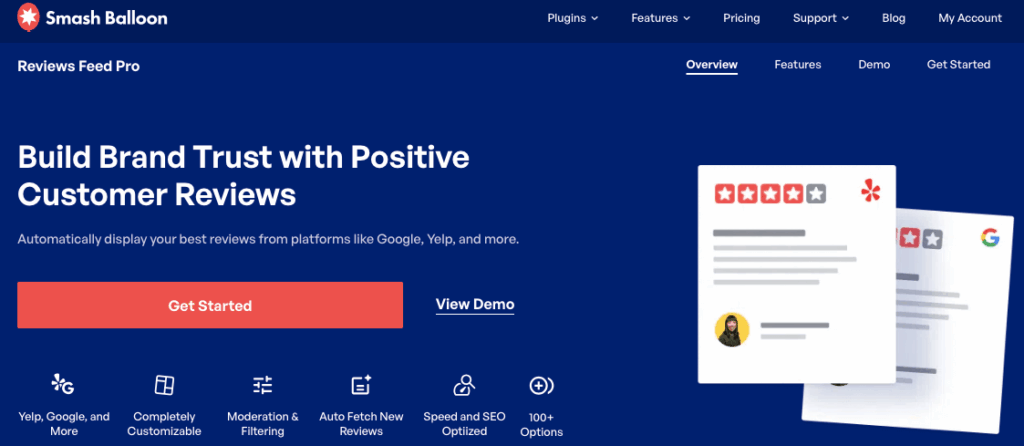
You can get it set up in under 5 minutes, without writing a single line of code, and it pulls reviews from Google, Facebook, and other major platforms and displays them on your site.
After that, you can freely customize how your reviews will look and filter them.
If you’ve been looking for a straightforward way to filter your reviews without touching any code, this is it.

Step 1: Install and Activate the Plugin
To get started, install and activate Reviews Feed Pro (see this beginner’s guide on how to install a WordPress plugin).
Once activated, you’ll see a new Reviews Feed menu item appear in your WordPress dashboard.
Step 2: Connect Your Review Source
With the plugin active, go to Reviews Feed » Add New in your WordPress dashboard.

This is where you create a new review feed and connect the platforms your reviews are coming from.
Click Add Source to get started.

You’ll see a list of supported platforms on a popup. Whichever option you pick, the process of setting review filters is the same.
For now, let’s start by selecting Google from the options and clicking on Next.

To tell the plugin which business to pull reviews from, you can use the Place ID.
Open the official Place ID Generator that was created by Google.
After that, look for your business in the search bar on the map.

Once you’ve tracked down your business, look for the Place ID field on its info popup.
Copy this value and return to your website.

Finally, paste the ID you just copied and click on Next.
After you do that, your business will be added as a source.

To confirm this new source, click on the Okay button.
Now, your Google Business profile will appear in your sources list.

Simply select it at your source from here and click on the Next button.
You can also add more sources and select them to combine reviews into one feed.

Step 3: Set Your Minimum Star Rating
Give the plugin a few seconds to set up your feed, and you’ll see the option to pick a design template.
This just changes the design of the reviews on your website and doesn’t affect your filters at all.
So, pick a template you like and click on Next.

Next, you’ll see the live editor for your new reviews feed. Using the options on the left, you can customize your:
- Layout: Choose from list, masonry, or carousel layout for your reviews
- Header: Enable or disable the header and customize its elements
- Review Elements: Show or hide the review elements and pick the design for each one
- Load More: Pick how the Load More button at the bottom will look on your site

Every time you make a change, you’ll see the live preview on the right.
Test out the design options and click on Save to confirm your changes.
Once you’re done setting up the design, click on the Settings tab at the top.
From the options on the left, select Filters.

The left panel will let you pick which star ratings to show on your WordPress reviews feed.
For best results, you can set it to show 4-star and 5-star reviews using the checkboxes.

After all, the Spiegel Research Center found that the credibility sweet spot for online reviews sits between 4.0 and 4.7 stars, not a perfect 5.0.
Step 4: Filter by Words and Character Count
Still in the Filter tab, scroll down to find the By Words section on the left.
You can use the word filter in 2 ways here:
- Only show reviews containing: Select keywords and only show reviews with the words
- Do not show reviews containing: block any review that contains specific keywords

This is useful in more situations than you might expect.
For example, you could block the name of another brand your customers sometimes confuse you with, or the name of a location you’ve closed.
If you scroll down, you can find the By Character Count section.

This lets you set a minimum or maximum character count for your reviews.
For example, you can hide all reviews that are shorter than 30 characters so all reviews look detailed.
You can also set a maximum length of 150 characters so your reviews feed will fit perfectly on your sidebar.
After you set the filters, click on the Save button.
Step 5: Embed your Filtered Review Feed
Finally, you can click on the Embed button at the top to start adding the reviews feed to your website.

On the popup, simply choose between a page and a widget for the location of your feed.
For both options, you get a convenient WordPress block to embed your feed.

After you pick a location, the plugin will redirect you to the page or the widget management page.
Just select the Reviews Feed block, and the plugin will automatically display the feed there.

With that, you’re ready to boost conversions and grow your business by showcasing your best reviews.

What Star Rating Should You Filter By?
Should you show only five-star reviews? Actually, no.
A perfect 5.0 average is one of the first things that makes shoppers suspicious. Real businesses get the occasional 4-star review, and most consumers know that.
A wall of nothing but five-star ratings reads as curated to the point of being untrustworthy.
According to research, the optimal rating range for driving purchases is 4.0 to 4.7 stars, not 5.0.

A spread of 4-star and 5-star reviews within that range actually increases trust compared to a perfect score.
Shoppers feel like they’re seeing a real picture of your business, not a highlight reel.
Here’s how the different averages tend to land with shoppers:
How to Filter Reviews from Multiple Platforms at Once
Showing reviews from multiple platforms tells visitors that your reputation holds up across the board.
It’s a stronger signal of trust than a single-source feed, because it shows consistency rather than a carefully picked sample from one place.
The good news is that Reviews Feed Pro supports review feeds for the biggest platforms out there:
- Google Business
- Yelp
- Trustpilot
- Tripadvisor
- WooCommerce
- WordPress.org

You create separate review feeds for each platform, or combine multiple sources for a single review feed with a variety of reviews.
After that, you can use the steps above to set your minimum star rating, your keyword filters, and your moderation settings for any review feed you like.
Just like that, you can have review feeds that pull from everywhere your customers are talking about you, with the same quality controls applied throughout.
Start Showing Your Best Reviews Today
Filtering your reviews is about presenting your best social proof so you create a great first impression and actually convert visitors.
You’re making sure the hard work you’ve put into earning good reviews is what people see first.
All you have to do is set your filters once, and Reviews Feed Pro handles everything in the background.
Ready to filter reviews in WordPress with ease? Get started with Reviews Feed Pro today!
Next Steps: More Online Marketing Guides and Tutorials
- How to Embed WooCommerce Reviews on Your WordPress Website
- How to Get More Comments on Instagram Posts
- How to Add Social Media Chat to Your Website (Easy Guide)
- Proven TikTok Strategies Every Small Business Owner Needs to Know



