
Fake Google reviews are frustrating. I’ve seen businesses work incredibly hard to build a stellar reputation, only to have it dragged down by reviews that are completely made up.
The good news? You’re not powerless. After researching how businesses of all sizes handle this problem, I’ve put together the most effective strategies for dealing with fake reviews.
As you can see, with the right methods, you can make sure your brand has a strong enough review presence that a few bad actors can’t hurt you.
In this post, I’ll walk you through 5+ proven ways to protect your business reputation from fake Google reviews.
By the end, you’ll know exactly what to do the next time a suspicious review shows up on your listing.
- What Are Fake Google Reviews? (And Why They're a Serious Problem)
- How to Deal With Fake Google Reviews: A Quick Overview
- Method 1: Flag the Fake Review in Google Business Profile
- Method 2: Respond to the Fake Review Publicly (And Why It Matters)
- Method 3: Escalate to Google Business Profile Support
- Method 4: Report the Review via Google Maps
- Method 5: Encourage a Wave of Genuine Reviews to Dilute Fake Ones
- Method 6: Display Your Best Authentic Reviews on Your Website With Reviews Feed Pro
- Method 1: Flag the Fake Review in Google Business Profile
- Your Fake Review Action Plan: A Summary
- More Online Marketing Guides and Tutorials
What Are Fake Google Reviews? (And Why They’re a Serious Problem)
A fake Google review is any review that doesn’t reflect a real customer experience.
That includes reviews posted by people trying to hurt your business, reviews from non-customers, automated spam reviews, and paid reviews that violate Google’s policies.
According to research by Capital One Shopping, more than 99% of American consumers read online reviews before making purchases, so the stakes are real.

On top of that, research shows that even a single fake 1-star review can drive away a significant portion of potential customers before they ever contact you.
Types of Fake Google Reviews to Watch For
Not all fake reviews look the same. Here’s a quick breakdown of the most common types:
- Competitor-planted reviews: A rival business posts a damaging review to lower your star rating and redirect customers to themselves.
- Disgruntled ex-employee: A former staff member leaves a negative review as an attempt to hurt your business.
- Spam or bot reviews: Automated accounts post low-quality or irrelevant reviews, often as part of a broader spam campaign.
- Mistaken identity: Someone confuses your business with another location and leaves a negative review that was never meant for you.
- Paid fake reviews: Paid reviewers post glowing feedback that doesn’t reflect a genuine experience, which violates Google’s review policies.
How to Deal With Fake Google Reviews: A Quick Overview
Here’s the full action plan in one place. Each method is covered in detail below, but if you need a fast answer right now, this summary has everything you need.
- Flag the review in Google Business Profile: Use Google’s built-in reporting tool to formally notify Google that a review violates its policies and request removal.
- Respond to the fake review publicly: Post a calm, professional reply so future customers can see your side of the story, even if the review stays up.
- Escalate to Google Business Profile Support: If flagging doesn’t work within two weeks, contact a Google support agent directly to push for a manual review.
- Report the review via Google Maps: Use Google Maps as a separate, parallel reporting path that can sometimes trigger a faster review queue.
- Encourage a wave of genuine reviews: Proactively ask happy customers to leave real reviews so that fake ones get buried under authentic 5-star feedback.
- Embed your best reviews with Reviews Feed Pro: Take full control of your reputation by showcasing your top genuine reviews directly on your site, where you set the rules.
Method 1: Flag the Fake Review in Google Business Profile
Your first move should always be to flag the review inside your Google Business Profile dashboard. This is Google’s official process for reporting reviews that violate its policies.

Don’t worry if you’ve never done this before. The steps are simple, and I’ll walk you through every click.
Here’s how to flag a fake review step by step:
- Go to business.google.com and sign in to your Google Business Profile account.
- Click on ‘Reviews‘ in the left-hand menu to see all your reviews.
- Find the fake review you want to report.
- Click the three-dot menu icon (⋮) next to that review.
- Select ‘Report review‘ from the dropdown menu.
- Choose the violation type that best describes the fake review, such as ‘Not a customer,’ ‘Conflict of interest,’ or ‘Off topic.’
- Click ‘Report‘ to submit your flag to Google.
Important: Google does not guarantee removal. The review may stay visible for weeks or even months while it is under review. Don’t be discouraged if nothing changes right away. This is completely normal, and the next methods will help you take action in the meantime.
What Happens After You Flag a Review?
After you submit a flag, Google’s automated system takes over. It checks whether the review violates Google’s review policies.
You can check the status of your flagged review by going back to the ‘Reviews‘ section in your Google Business Profile dashboard. Google will update the status there as the review moves through the process.
If the review is still visible after two weeks with no update, it’s time to escalate. Method 3 covers exactly how to do that.
Method 2: Respond to the Fake Review Publicly (And Why It Matters)
Many business owners focus only on getting a fake review removed. But here’s something just as important: even if the review stays up, a well-crafted public response can seriously reduce the damage it does.
When a potential customer sees a suspicious review alongside a calm, professional response from the business owner, it actually builds trust.
It shows you are attentive, reasonable, and confident in your reputation.
What to Say (and What NOT to Say) in Your Response
The way you respond matters just as much as the fact that you respond. Here’s a simple guide to keep you on the right track:
| DO Say This | DON’T Say This |
|---|---|
| Acknowledge that other customers may be reading | Accuse the reviewer of lying or being fake |
| Invite them to contact you directly to resolve the issue | Get defensive or emotional in your tone |
| Keep your response to 2 to 3 sentences | Write a long, detailed wall of text |
| Use a polite, professional tone throughout | Use sarcastic or dismissive language |
| Refer to your business by name for brand visibility | Make assumptions about who the reviewer is |
A Fake Review Response Template You Can Copy
You don’t need to write your response from scratch. Use this ready-made template and simply swap in your own details:
Thank you for your feedback. We take all reviews seriously, but we are unable to find any record of your visit or experience with [Business Name]. We’d love the opportunity to look into this further. Please reach out to us directly at [Contact Email] so we can help resolve any concerns.
This response works because it stays neutral and professional. It does not admit fault, does not attack the reviewer, and signals to future customers that you are responsive and trustworthy.
I recommend keeping this template saved somewhere easy to access. That way, you can respond quickly the next time a suspicious review appears without having to think too hard about the wording.
Method 3: Escalate to Google Business Profile Support
If flagging the review doesn’t result in any action within two weeks, here’s how to escalate directly to Google.
This step is one that many business owners skip, simply because they don’t know it exists.
Reaching a real support agent gives you the chance to explain the situation in more detail and push for a manual review of your case.

Note that support options can vary depending on your region and your account history.
However, the steps below will work for most Google Business Profile users.
How to Contact Google Business Profile Support (Step by Step)
- Go to support.google.com/business and sign in to your Google account.
- Click on ‘Contact Us’ or look for the ‘Get Support’ option on the page.
- Type a brief description of your issue in the search box. Use the phrase “policy violation review” in your description. This helps route your request to the correct support team.
- Google will suggest some help articles. Scroll past these and look for the option to ‘Contact Support’ directly.
- Choose your preferred contact method. Depending on your account, you may see options for live chat, email, or callback.
- When speaking or writing to the support agent, clearly explain that the review violates Google’s review policies. Mention the specific violation type, such as “conflict of interest” or “not a customer,” and provide any evidence you have.
- Ask the agent to escalate the review for a manual evaluation if the automated system has not acted on your flag.
Expert Tip: You can also post your issue in the Google Business Profile Help Community. Google product experts and sometimes Google staff members respond publicly there. This can be a useful extra step if direct support is slow to respond.
How to Use the Google Business Profile Review Management Tool
Google also offers a dedicated review management interface directly inside your Business Profile dashboard.

This tool gives you a clearer view of all your flagged reviews and their current status. Here’s how to access and use it:
- Sign in to your Google Business Profile at business.google.com.
- Click on ‘Reviews‘ in the left-hand menu.
- Look for the ‘Review Management‘ option or a filter that lets you view ‘Reported reviews‘.
- Here you can see every review you have flagged, along with its current moderation status.
- If a flagged review shows no change in status after two weeks, use this view to gather the review details you’ll need when contacting support.
This tool is easy to overlook, but checking it regularly keeps you informed about where each flagged review stands.
It also helps you build a clear record of your reporting history, which is useful if you ever need to escalate further.
Method 4: Report the Review via Google Maps
Here’s a reporting path that many business owners don’t know exists. You can also flag a fake review directly through Google Maps, and this works separately from the Google Business Profile dashboard.
Some SEO professionals report that flagging via Maps can sometimes trigger a separate review queue, which may result in faster action.

While Google hasn’t officially confirmed this, it’s a widely recommended best practice in the local SEO community and worth doing alongside your Business Profile flag.
The steps are similar to Method 1, but the path through the interface is different. Here’s how to report a fake review via Google Maps:
- Open Google Maps in your browser and search for your business by name.
- Click on your business listing to open your full Google Business Profile.
- Scroll down to the ‘Reviews‘ section on your listing.
- Find the fake review you want to report.
- Click the three-dot menu icon (⋮) next to that review.
- Select ‘Report review‘ from the menu that appears.
- Choose the violation type that best matches the fake review, such as ‘Off topic‘, ‘Conflict of interest‘, or ‘Not a customer‘.
- Click ‘Report‘ to submit your flag.
It’s worth doing this step even if you’ve already flagged the review through your Business Profile dashboard.
Think of it as sending two separate complaints through two different doors. The more signals Google receives that a review is problematic, the better your chances of getting it removed.
Method 5: Encourage a Wave of Genuine Reviews to Dilute Fake Ones
While you wait for Google to act on your flags, there’s something powerful you can do right now. You can start actively collecting more genuine reviews from your real customers.
The math is simple: if you have 4 fake 1-star reviews mixed in with 50 genuine 5-star reviews, your overall rating stays strong and the fake ones lose their impact.
According to BrightLocal’s Consumer Review Survey, consumers read an average of 10 reviews before feeling able to trust a business.
The more authentic reviews you have, the more confident potential customers will feel choosing you over a competitor.
Ethical and Effective Ways to Ask for More Reviews
The key word here is ethical. Google strictly prohibits offering incentives like discounts, freebies, or gifts in exchange for reviews.
Doing so can get your listing penalized or suspended.
The good news is that you don’t need incentives. Most happy customers are willing to leave a review when asked at the right moment. Here are the most effective ways to do it:
- Send a post-purchase email with a direct link to your Google review page. Timing matters here. Sending this within 24 hours of a purchase or visit works best.
- Add a review request to your receipt or invoice. A simple line like “Loved your experience? Leave us a review on Google” with a short link goes a long way.
- Add a Google reviews feed to your website with a button to let users add new reviews.

- Use an SMS review request tool. Text messages have much higher open rates than email, making them a great way to reach customers quickly.
- Add a ‘Leave Us a Review‘ link to your email signature. This turns every email you send into a passive review request without any extra effort.
- Ask in person at the point of service. A genuine, face-to-face request from a staff member is often the most effective method of all.
For more ideas on building your review count, we also have a guide with the best ways to get more reviews on Yelp.
Method 6: Display Your Best Authentic Reviews on Your Website With Reviews Feed Pro
All the methods above focus on fighting fake reviews on Google’s platform. But here’s the thing: you don’t have full control over what appears there.
What you do have full control over is your WordPress website.
By displaying your best genuine reviews directly on your WordPress site, you build trust with visitors before they even think to check Google.
Why Displaying Reviews on Your Website Beats Waiting for Google
Relying solely on Google to manage your reputation means handing control to a platform you don’t own. Here’s why putting reviews on your website is a smarter long-term play:
- Your website is real estate you fully control. No algorithm changes or moderation delays can affect what your visitors see there.
- Social proof on your site increases conversions. Research from Nielsen shows that 92% of consumers trust recommendations from others over direct brand messaging.
- You can highlight reviews that speak to specific customer concerns. Instead of showing every review, you can feature the ones that directly address the questions your customers ask.
- It works around the clock without depending on Google. Your review feed keeps building trust with every visitor, 24 hours a day, regardless of what’s happening on your Google listing.
You take control of the narrative on your turf while showing the best your brand has to offer. This is where tools like Reviews Feed Pro come in.
What Is Reviews Feed Pro and How Does It Work?
Reviews Feed Pro is a WordPress plugin developed that allows you to pull in and display Google reviews directly on your WordPress website.
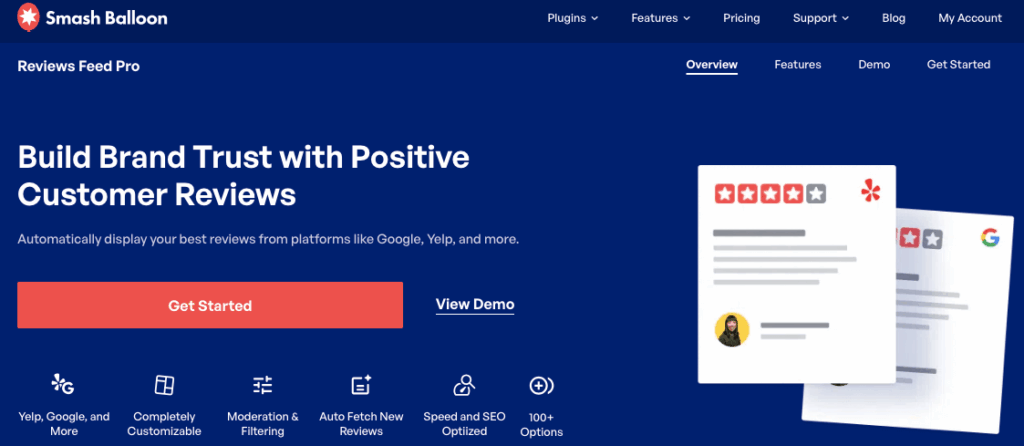
Think of Reviews Feed Pro as a tool that fetches your online reviews and displays them on your website.
Since the tool is on your site, you can freely add filters and control which reviews are displayed.
That means you can only let through the reviews that reflect your business at its best. Here’s how you can do this in less than 5 minutes:
- Get Reviews Feed Pro and install it on your website.
- Create a new reviews feed for your business.
- Grab your brand’s Place ID here and add this info to your feed.

- Filter your reviews by star ratings, words, or minimum word count.
- Use a handy WordPress block to add this feed anywhere on your site.

That’s it. Once it’s set up, your best reviews appear automatically on your site without any manual work.
Now, users can also see that you pay attention to what your customers have to say, which makes them more likely to leave reviews.

For a full guide, check out this tutorial on how to embed Google reviews on your WordPress site.
Your Fake Review Action Plan: A Summary
Dealing with fake reviews can feel overwhelming, but you now have a clear, step-by-step plan to follow. Here’s a quick recap of everything covered in this guide:
- Flag the fake review in Google Business Profile. Use the three-dot menu next to the review to report it and select the most accurate violation type from Google’s list.
- Respond to the fake review publicly. Post a calm, professional reply using the copy-paste template from Method 2 so future customers see your side of the story.
- Escalate to Google Business Profile Support. If flagging hasn’t worked within two weeks, contact a Google support agent directly and use the phrase “policy violation review” to get routed to the right team.
- Report the review via Google Maps. Use this parallel reporting path as an additional flag that may trigger a separate review queue and speed up the process.
- Encourage a wave of genuine reviews. Ask happy customers to leave real reviews through email, SMS, invoices, and in-person requests so that fake ones get buried under authentic 5-star feedback.
- Display your best reviews on your WordPress website with Reviews Feed Pro. Pull your top genuine Google reviews onto your site, filter out anything below 4 stars, and build trust with every visitor around the clock.
Dealing with fake reviews is frustrating, but you have more tools at your disposal than you might think.
By following this plan, generating real reviews, and taking control of your website’s reputation with Reviews Feed Pro, you can start building a trustworthy online presence.
Ready to display reviews on your website? Get your copy of Reviews Feed Pro today!
More Online Marketing Guides and Tutorials
- WooCommerce Reviews Not Showing? Here’s How to Fix It
- How to Filter Reviews on Your WordPress Website
- How to Add Social Media Chat to Your Website (Easy Guide)
- Proven TikTok Strategies Every Small Business Owner Needs to Know



