Social Wall
  Feed Analytics

Want to show your latest Facebook posts on your Oxygen Builder site without copying embed codes by hand?
Your Facebook page already has the proof new visitors look for: real posts, photos and reviews from people who know your business. Putting it on your site lets that proof do the convincing for you.
I’ll show you the exact way I add a live Facebook feed to an Oxygen Builder page, start to finish, with a screenshot for every step.
I work on the team behind Smash Balloon Facebook Feed Pro, so I’ll show you the exact settings I use to make a Facebook feed look like a natural part of an Oxygen page.
How Do I Embed a Facebook Feed in Oxygen Builder?
To embed a Facebook feed in Oxygen Builder, install Smash Balloon Facebook Feed Pro, connect your Facebook page, and copy the feed’s shortcode. Then add Oxygen’s Shortcode element to your page and paste it in. The whole setup takes about 5 minutes and needs no code.
In this Article:
Easiest Way to Embed Facebook Feeds in Oxygen Builder
If you want a Facebook feed that looks like part of your site and keeps itself up to date, a plugin is the simplest route. Here’s what Smash Balloon Facebook Feed Pro does for you:
- Your feed is live in minutes. A guided setup walks you through connecting your page and picking a layout, so you’re not wrestling with embed codes.
- Visitors see proof, not just a link. Show your timeline posts, photos, albums, events, videos or reviews right on the page where people are deciding to trust you.
- It fits your Oxygen design. The feed picks up your site’s fonts and colors automatically, and the live customizer lets you fine-tune it without guessing.
- You never have to update it. New Facebook posts appear on your site on their own, so your page always looks active.
- Help is there if you need it. Every license includes support from the Smash Balloon team.
Ready to put your Facebook page to work on your site? Get Smash Balloon Facebook Feed Pro.
Why Put Facebook Feeds on Your Oxygen Builder Website?
Here’s why adding Facebook content to your Oxygen Builder site can be a smart move:
- Grow Your Facebook Page: Showing off your Facebook posts directly on your website is a great way to get more likes, comments, and followers.
- Boost Your Sales: You can display real customer reviews from Facebook on your product pages to directly boost your conversions and sales.
- Keep Visitors Hooked: By sharing cool Facebook photos or videos, you can grab people’s attention and make them stay on your site longer.
- Improve Your SEO: Embedding Facebook posts with the right keywords can help your website rank higher in search results, so your brand reaches more people.
How to Embed Facebook Feeds on Oxygen Builder (5 Easy Steps!)
Ready to get started? Just follow these simple steps, and you’ll have an awesome Facebook feed ready to go online in no time!
Step 1: Install and Activate Smash Balloon Facebook Feed Pro
First, get your copy of Facebook Feed Pro right here. Once you have it, go ahead and install and activate the plugin on your WordPress website, which runs Oxygen Builder.
If you need a bit more help with this part, check out our guide on how to install WordPress plugins.
Step 2: Create Your Facebook Feed for Oxygen Builder
Now, go to the Facebook Feed » All Feeds menu in your WordPress dashboard.
Click on the Add New button to kick things off.
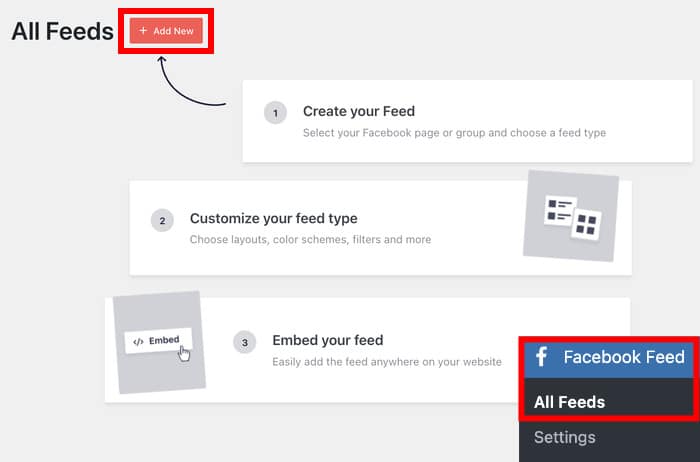
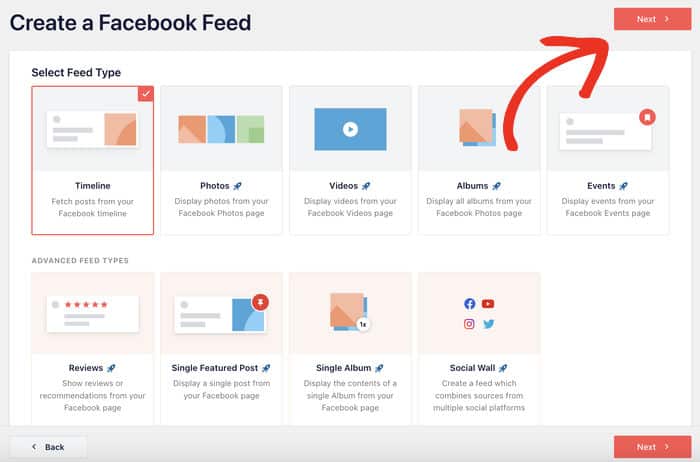
Once you do that, Facebook Feed Pro will ask you what type of feed you want to make:
- Timeline
- Photos
- Videos
- Albums
- Events
- Reviews
- Single Featured Post
- Single Album
For this guide, we’ll pick the Timeline option. After you choose, click Next.
Step 3: Connect Your New Feed to Facebook
After creating your feed, it’s time to link up your Facebook page. This helps the plugin automatically pull in your latest posts to keep your feed fresh.
So, click the Add New button to continue.
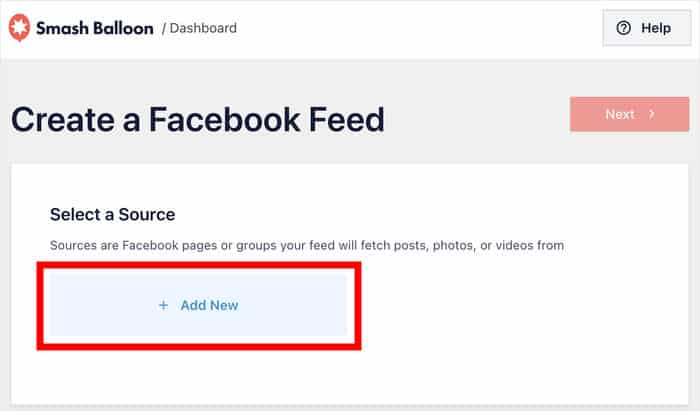
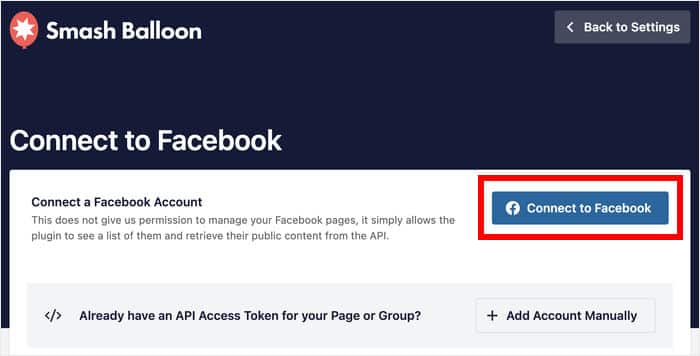
After doing that, click on the Connect to Facebook button.
This will open Facebook on your web browser so you can connect your page easily.
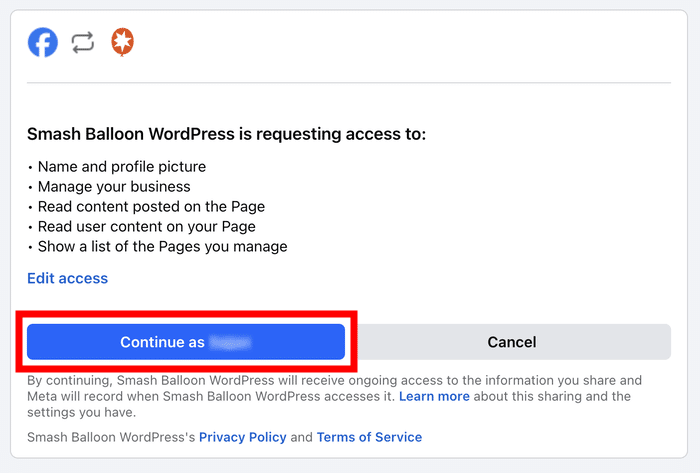
The plugin will open Facebook and ask for “read-only” access. This means it can see your info but can’t change anything, so it’s totally safe!
Click on the Continue button to connect.
You’ll be back on your website after that.
From here, select the Facebook pages that you want to connect and click on Add.
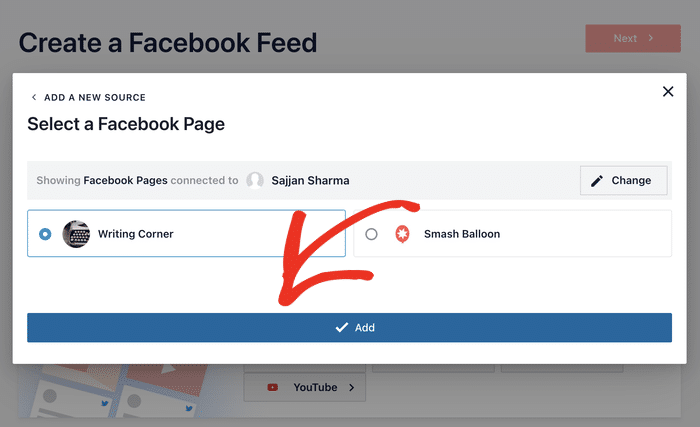
Your account is now added as a source. You can quickly pick it for new feeds without leaving your site.
Select this source and click on Next to move on.
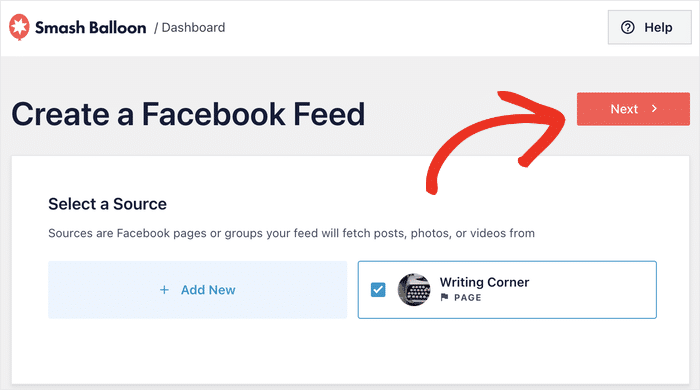
Step 4: Customize Your Facebook Feed
Now for the fun part: making your Facebook feed look just right for your Oxygen Builder site! Plus, you can do this in a few simple clicks.
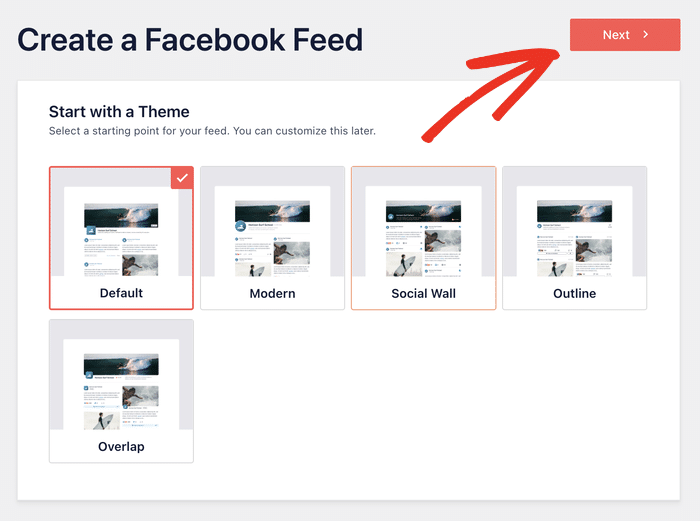
Pick a Theme
You can choose from 5 different themes, each with its own cool design:
- Default
- Modern
- Social Wall
- Outline
- Overlap
Pick your favorite theme from the options, then click Next.
Choose a Template
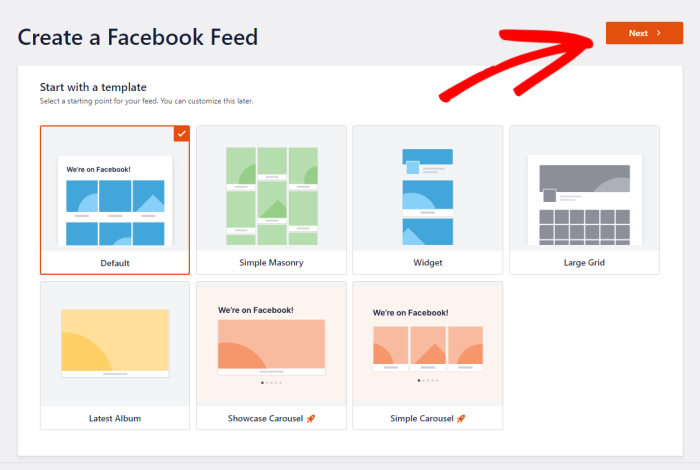
After your theme, pick a template. This changes how your posts and the header look in your new social feed.
Like before, select a template and click Next.
Use the Visual Customizer
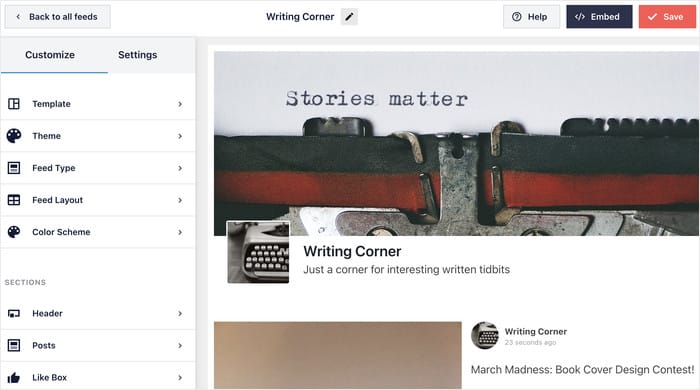
Facebook Feed Pro will then show you your feed in the visual customizer. Here, you can change things like the layout, colors, header, buttons, and more.
On the right, you’ll see a live preview, which is super handy for tracking changes!
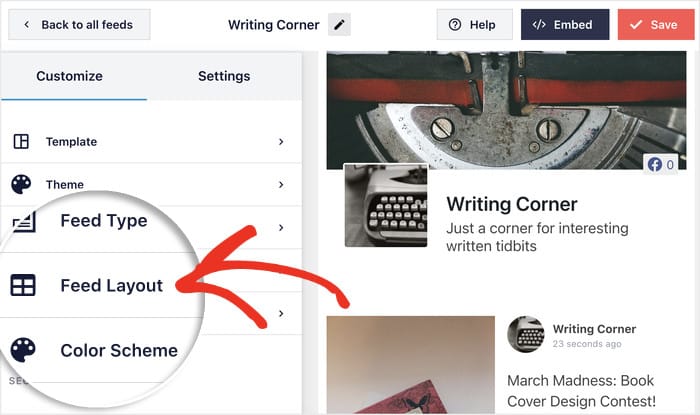
To get started, let’s change the layout of the Facebook posts here.
Click on the Feed Layout option on the left.
You’ve got 4 different ways to show Facebook posts on your feed:
- List: Shows posts in a single column. Great for placing focus on each Facebook post.
- Masonry: Use multiple columns to show your Facebook posts. Perfect for displaying lots of content.
- Carousel: Lets people swipe through your posts like a Facebook carousel. It makes your Oxygen Builder site more interactive.
Once you pick a layout, click the Save button.
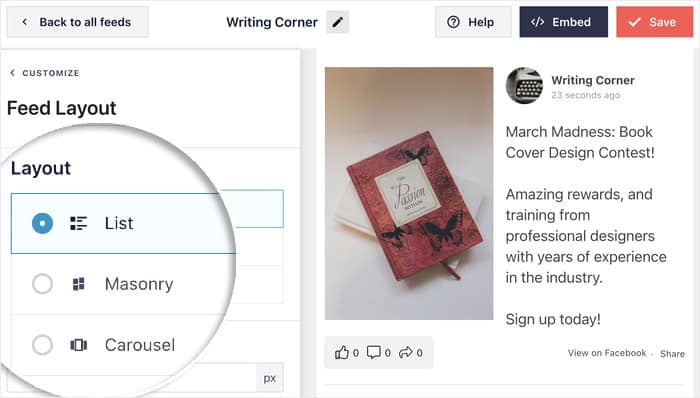
You can also change the number of posts and other options from here.
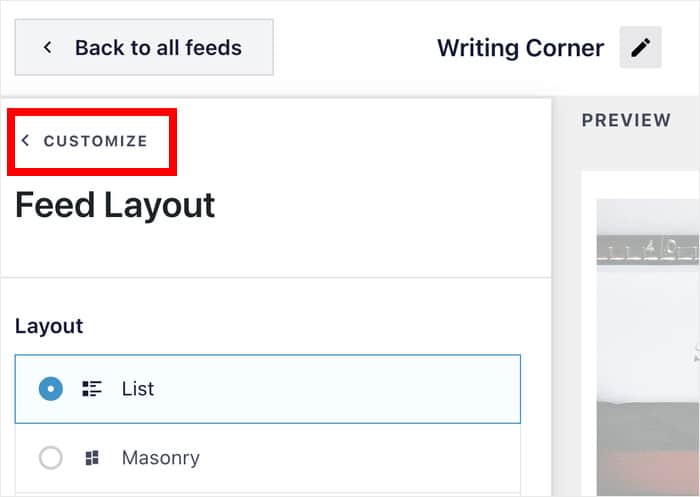
Once you’re done setting up the layout, click on the Customize button.
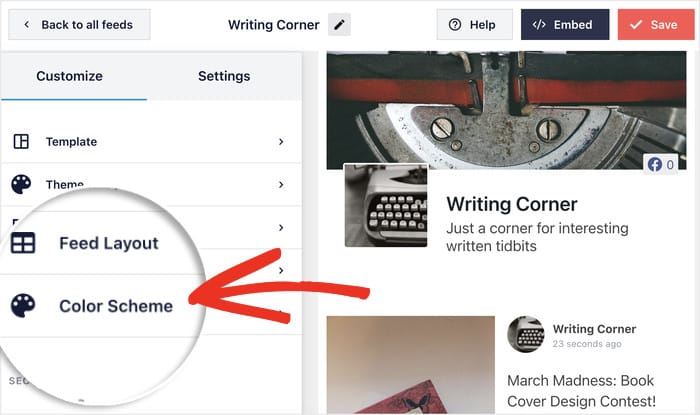
Want to switch up the colors of this Facebook feed?
Select the Color Scheme option on the left.
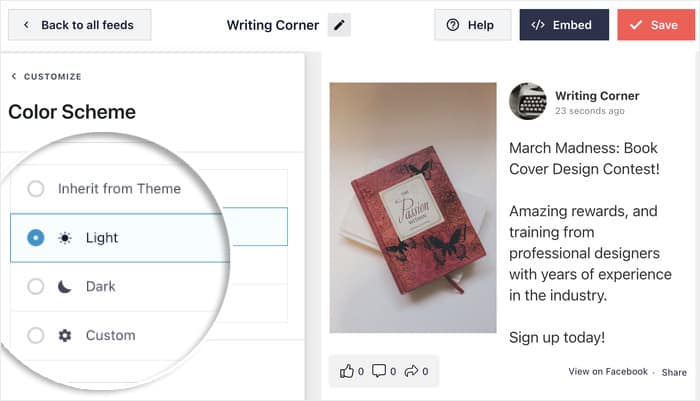
With this plugin, you can pick from 4 different color schemes:
- Inherit from Theme: Copies the colors from your Oxygen Builder site.
- Light: A bright white background with dark text.
- Dark: A dark background with lighter text.
- Custom: Lets you pick all the colors yourself.
After setting your colors, click the Save button.
You can keep checking out the other customization options – like post style, header style, button design, and more.
When you’re happy with the design, click on Save before moving on to the next step.
Step 5: Embed Facebook Feed on Oxygen Builder
Ready to add your Facebook feed to Oxygen Builder?
Click the Embed button in the top-right corner.
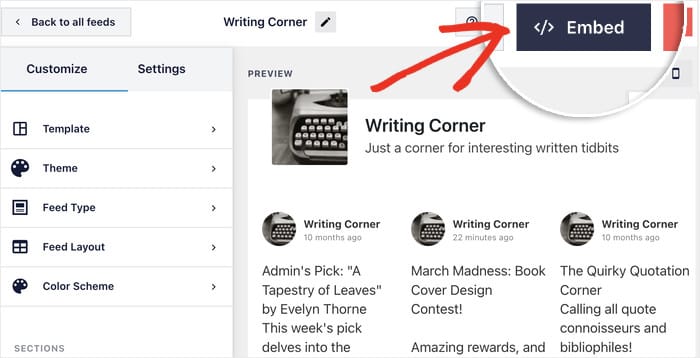
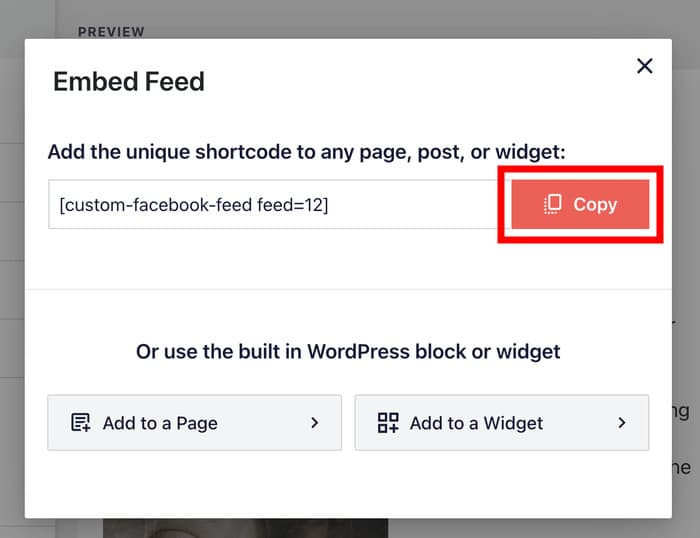
A small pop-up will show you different embed options. You can add Facebook feeds to your pages, sidebar, or footer from here.
For Oxygen Builder, you can just click on Copy.
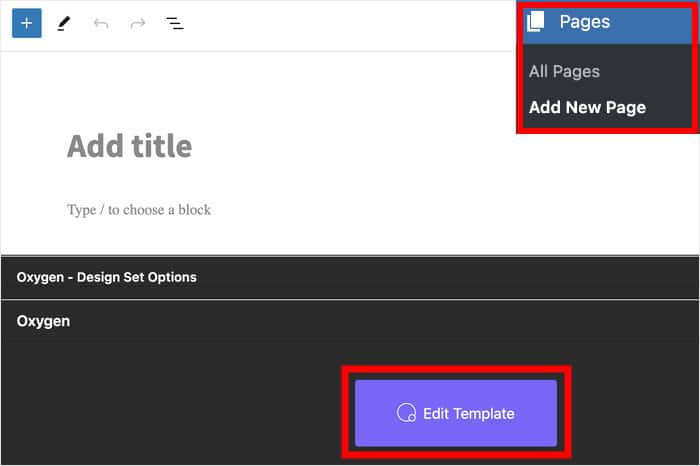
Now, open the Oxygen Builder page where you want your Facebook feed to appear.
Don’t have one? You can create a new one by going to Pages » Add New in your dashboard, then clicking Edit Template.
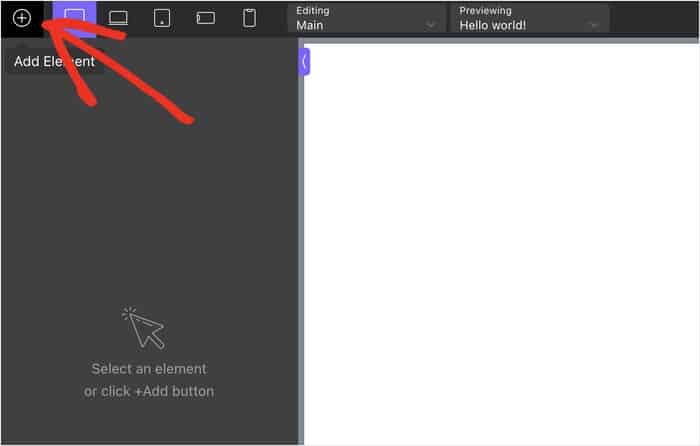
Once you’re in Oxygen Builder, click the plus (+) icon in the top-left corner to add content to this page.
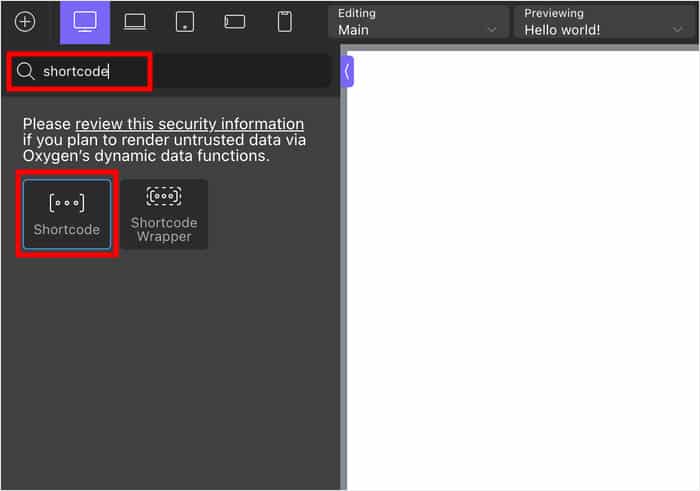
Type “shortcode” into the search bar at the top.
Next, drag the Shortcode block and drop it on your page to the right.
This will open additional options for the Shortcode block.
Simply paste the shortcode you copied earlier into the Full shortcode field.
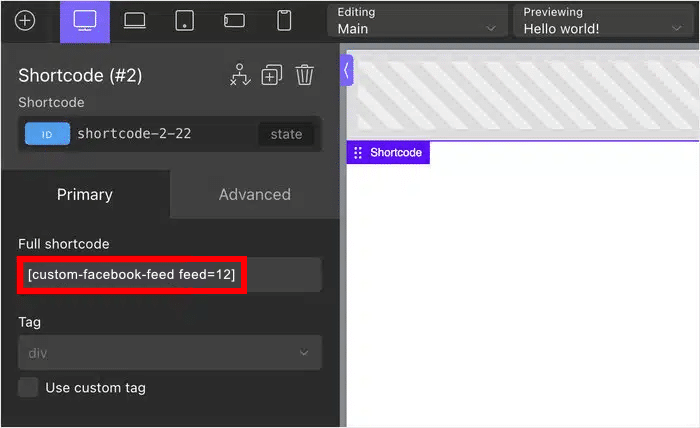
Finally, publish the page, and just like that, your Facebook feed will be live on your Oxygen Builder site.
If you open the page on your website now, you can see how your Facebook content will look to your visitors.

And that’s all there is to it!
Just follow these steps, and you’ll easily embed beautiful Facebook feeds on your Oxygen Builder website.
You’re now ready to connect with your visitors, help sell your products, give your SEO a boost, and so much more.
Thanks to Facebook Feed Pro, making your Oxygen Builder site work seamlessly with Facebook is super simple.
Ready to start adding Facebook feeds with total ease? Grab your copy of Facebook Feed Pro today!
Turn your Facebook page into proof on every page
Show a live, self-updating Facebook feed on your Oxygen site in about 5 minutes, with no code.
Add my Facebook feedFrequently Asked Questions
Does Facebook Feed Pro work with Oxygen Builder?
Yes. You create your feed in Smash Balloon Facebook Feed Pro, copy its shortcode, and drop it into Oxygen’s Shortcode element. The feed then picks up your site’s styling and updates on its own.
Do I need to know code to embed a Facebook feed in Oxygen?
No. The only thing you paste is a short shortcode the plugin gives you. There’s no HTML, JavaScript or Facebook API setup involved.
What kinds of Facebook content can I show?
You can show your Facebook page’s timeline posts, photos, albums, events, videos and reviews, depending on the feed type you pick when you create the feed.
Will new Facebook posts show up on my Oxygen site automatically?
Yes. Once your Facebook page is connected, new posts appear in the feed on their own, so you never have to edit the Oxygen template again.
Can I make the Facebook feed match my Oxygen design?
Yes. The feed inherits your theme’s fonts and colors by default, and the visual customizer lets you change the layout, header, buttons and spacing with a live preview.
More Awesome Social Media Feed Tutorials & Hacks
- How to Embed Your YouTube Videos on Oxygen Builder (Easy Guide)
- How to Add Your Twitter/X Profile to Oxygen Builder (Easy Guide)
- Steps to Embed Instagram Feed on Oxygen Builder (+ Screenshots!)
- How to Embed TikTok Videos on Your Oxygen Builder (Easy Guide)
Get your Facebook feed live today
Try Smash Balloon Facebook Feed Pro risk-free. If it isn’t the right fit within 14 days, you get 100% of your money back.
Get Facebook Feed Pro