Social Wall
  Feed Analytics

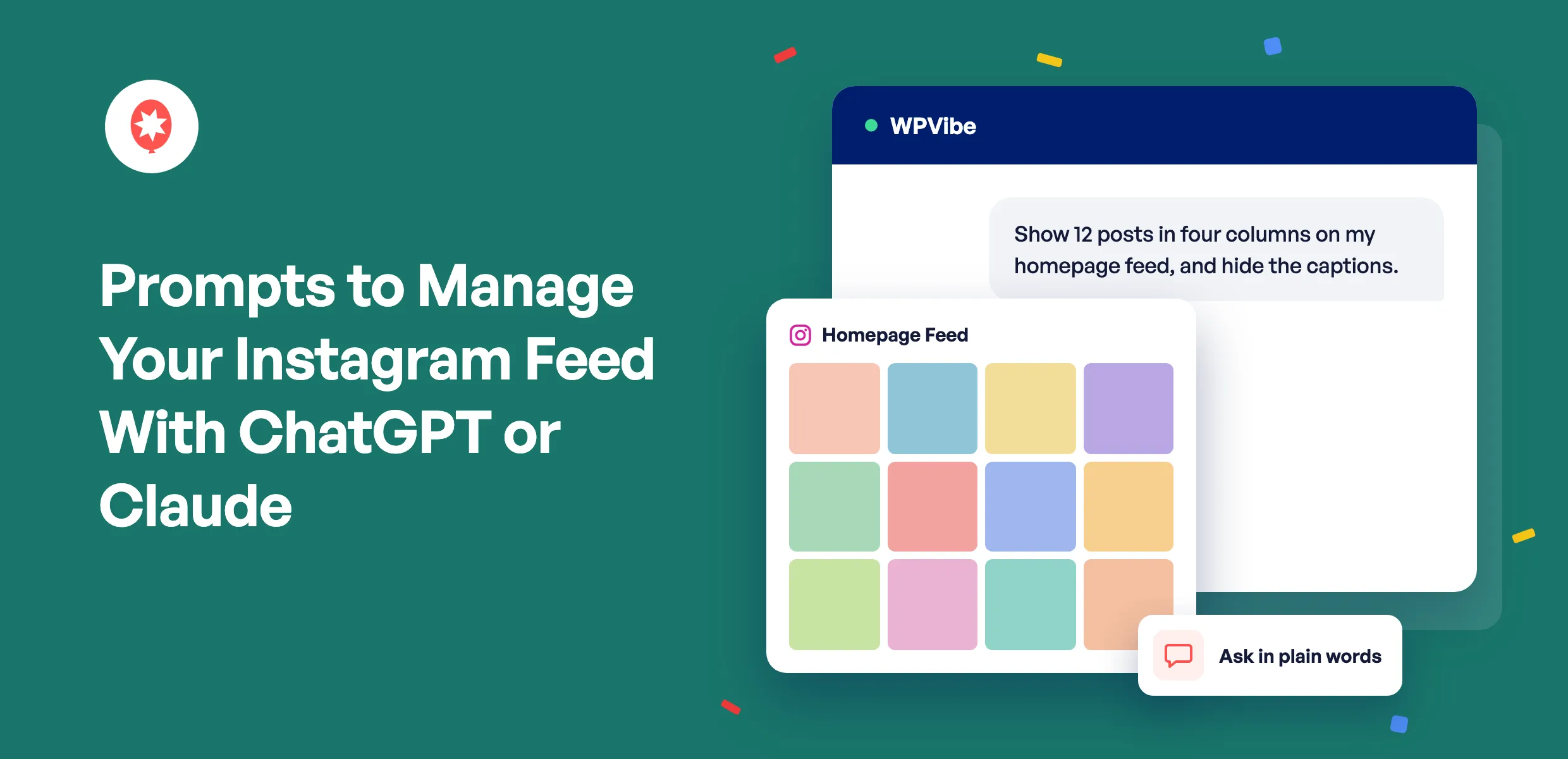
Once ChatGPT or Claude is connected to your WordPress site, the hard part isn’t the setup. It’s knowing what to ask.
How Do You Manage Your Instagram Feed With ChatGPT or Claude?
To manage your Instagram feed with ChatGPT or Claude, connect your AI to your WordPress site with Smash Balloon Instagram Feed Pro 6.14.0 and the free WPVibe plugin, then ask in plain words. Switch on MCP Write Access first, and a prompt like “Show 12 posts in four columns on my homepage feed” changes the feed for you. Your AI can create feeds, change layouts, columns, colors, headers, and captions, find shortcodes, check which Instagram accounts need reconnecting, and adjust speed settings. AI Agents comes with every Instagram Feed Pro plan, starting with Basic at $49 for your first year.
This is about the Instagram feed on your WordPress website. Your AI changes how your posts look there, and it doesn’t post to Instagram or edit your captions in the app.
Smash Balloon Instagram Feed Pro is a WordPress plugin that shows your Instagram posts, Reels, and stories on your website with no code, and it’s part of Smash Balloon, used by more than 1.75 million people.
Below are the prompts I’d copy first, grouped by the job you’re trying to get done. Swap in your own feed name and send it.
What Can ChatGPT or Claude Change in My Instagram Feed?
Your AI can change most of the settings you’d normally click through in the feed editor. That covers layout, columns, number of posts, colors, the header, captions, likes, buttons, hover effects, and the carousel. It can also create new feeds from accounts you’ve already connected, tell you which accounts are connected, and update plugin-wide settings like how often your feed refreshes.
What it can’t do is just as useful to know, so there’s a section on that further down.
A few tips that make every prompt below work better:
- Name the feed. “My homepage feed” or “the Contact page feed” tells your AI which one to change.
- Ask for a list first if you’re not sure what your feeds are called.
- Ask for several changes in one message. Your AI applies them together.
- In ChatGPT, click + in the message box and choose WPVibe first, so it answers from your site.
Which Prompts Should I Use for My Instagram Feed?
Start with the group that matches what you want to fix today. Each prompt works on its own, so copy it, change the feed name, and send it.
Prompts to Find Your Feeds and Shortcodes
A shortcode is the short piece of text you paste where a feed should appear. These prompts help you find the right one without opening WordPress.
- “List my Instagram feeds and their shortcodes.”
- “Which Instagram account does my homepage feed show?”
- “What are the current settings on my Contact page feed?”
The first one is the best place to start with any new chat, since it gives your AI the names it needs for everything else.
Prompts to Change Your Instagram Feed Layout and Columns
Layout prompts are the ones I use most. Your AI can switch between grid, carousel, masonry, and highlight layouts, and set columns separately for desktop, tablet, and mobile.
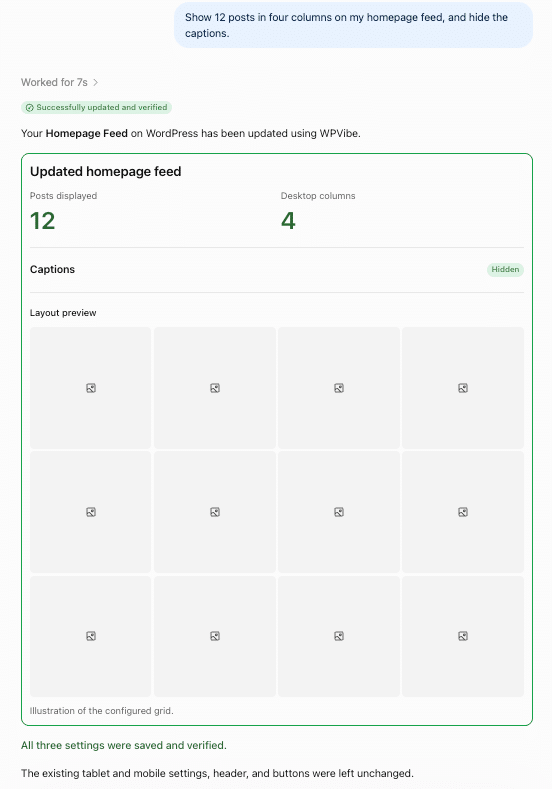
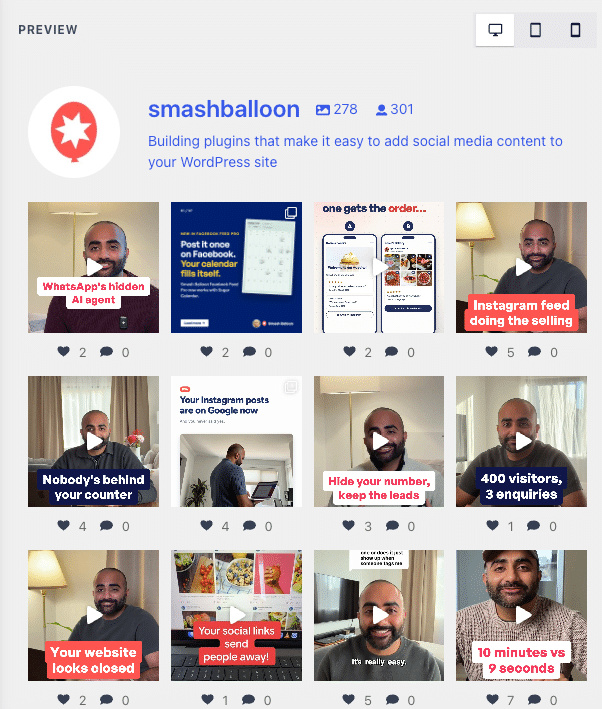
- “Show 12 posts in four columns on my homepage feed, and hide the captions.”
- “Switch my homepage feed to a carousel with arrows and autoplay.”
- “On mobile, show 2 columns and 6 posts on my homepage feed.”
- “Make the images on my shop feed portrait, 4:5, with less space between them.”
- “Sort my homepage feed by most likes instead of newest first.”
Here’s my feed right after that first prompt, with 12 posts in four columns and the captions gone.
Prompts to Match Your Instagram Feed to Your Brand Colors
Your AI can set a light, dark, or custom color palette, or have the feed follow your theme’s colors. With a custom palette, you can give it hex codes for the background, text, links, and buttons.
- “Give my homepage feed a custom color palette: white background, #222222 text, and #1b2a8a buttons.”
- “Switch my blog sidebar feed to the dark palette.”
- “Make my homepage feed use my theme’s colors.”
- “Change the Follow on Instagram button text on my homepage feed to ‘Follow us.'”
If your brand colors live in a style guide, paste them into the chat and ask your AI to use them. It’s quicker than copying hex codes into a color picker one at a time.
Prompts for Your Instagram Feed Header, Captions, and Likes
These prompts control what shows around your photos. The header is the strip with your profile picture, name, and bio at the top of the feed.
- “Use the centered header on my homepage feed and show my follower count.”
- “Replace the bio in my homepage feed header with ‘Fresh bakes daily in Austin.'”
- “Show my Instagram stories in the header of my homepage feed.”
- “Show captions on my shop feed, cut off at 50 characters, and hide the like counts.”
- “Turn on the Load More button on my homepage feed and change it to ‘See more posts.'”
Stories in the header work with Instagram Business accounts.
Prompts to Create a New Instagram Feed
Your AI can create a new feed from any Instagram account that’s already connected to your site, then give you its shortcode.
- “Create a new Instagram feed called Austin Location from my @yourbakery account, with 9 posts in three columns.”
- “Create a feed for my About page from @yourbakery and give me the shortcode.”
- “Change my homepage feed to show both of my connected accounts.”
Need an account that isn’t connected yet? Ask “Give me a link to connect a new Instagram account.” Your AI hands you a link that works once and expires after 15 minutes, and you connect the account yourself in your browser.
Prompts to Highlight Certain Instagram Posts
The highlight layout shows some posts bigger than the rest. You choose which ones by a pattern, like every 5th post, by hashtag, or by post ID.
- “Switch my homepage feed to the highlight layout and make every 5th post bigger.”
- “Highlight posts with #newarrivals in my shop feed.”
The hashtag option is handy for launches. Tag your Instagram posts with a campaign hashtag, and they stand out in the feed on your site.
Watch one message restyle an Instagram feed
See ChatGPT switch a real feed to two posts per row with the like counts hidden, then pick the Instagram Feed Pro plan that fits. AI Agents comes with every plan.
See the DemoPrompts to Fix an Instagram Feed That Stopped Updating
Your AI can see which connected accounts have an error and when each account’s connection expires. That makes it a quick first check when your feed looks stuck.
- “List my connected Instagram accounts and tell me if any have an error or expire soon.”
- “Which of my feeds use the account with the error?”
- “Give me a link to reconnect my Instagram account.”
Your AI never sees your Instagram login or the keys that connect your account, so reconnecting still happens in your browser. If your feed still isn’t showing new posts after that, here’s how to fix an Instagram feed not showing new posts.
Prompts to Make Your Instagram Feed Load Faster
These prompts change plugin-wide settings, so they affect every Instagram feed on your site.
- “Check how often my Instagram feeds refresh and set it to every 12 hours.”
- “Refresh my Instagram feeds once a day at 3 am.”
- “Only load the Instagram Feed CSS on pages that show a feed.”
- “Save my Instagram feed images as WebP.”
How often to refresh depends on how often you post. If you post a few times a week, once or twice a day keeps the feed current. If you post several times a day, every hour or 30 minutes is better.
What Can’t My AI Change in Instagram Feed Pro?
Some things stay with you on purpose. Your AI starts off able to look but not change anything, and these limits hold even after you switch on MCP Write Access.
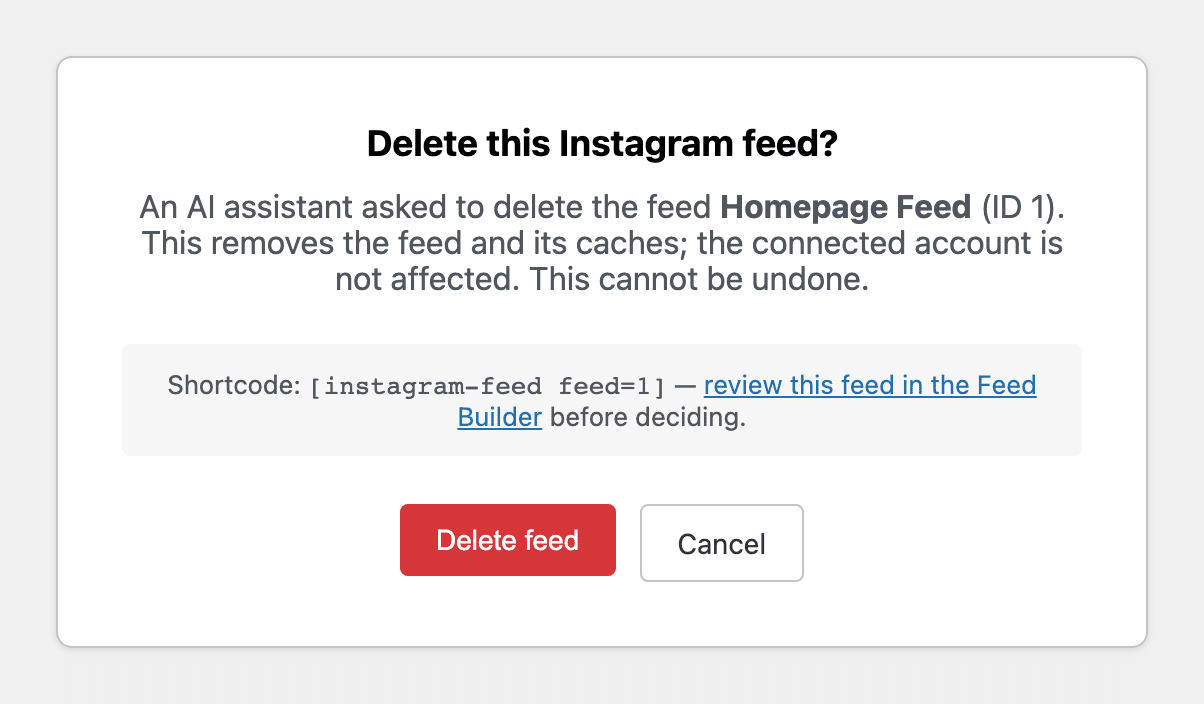
- Deleting a feed. Your AI can only ask. You get a link, see exactly which feed and shortcode it means, and click Delete feed or Cancel. The link only works once.
- Your GDPR setting. It has legal consequences, so you change it yourself under Instagram Feed » Settings » Feeds.
- Error notices. Your AI can’t hide the admin notices that tell you a feed has a problem.
- Your Instagram login and account keys. Your AI never sees them, and new accounts are connected by you in your browser.
- Hashtag feeds, filters, and moderation. You set those up in the feed editor, and your AI works with feeds that show your connected accounts’ own posts.
- Settings outside your plan. Your AI gets the same options you see in the feed editor, so it won’t switch on something your plan doesn’t include.
Is It Faster to Ask AI or Use the Feed Editor?
It depends on the job. The feed editor is better when you want to see each change as you make it. Asking your AI is faster when you know what you want, need several changes at once, or are already working in the chat.
| Instagram Feed Pro feed editor | ⭐ Asking ChatGPT or Claude with Smash Balloon Instagram Feed Pro | |
|---|---|---|
| Best for | Trying looks and seeing a live preview | Changes you can describe in a sentence |
| Several changes at once | Click each setting in its tab, then save | ✅ One message, like “12 posts, four columns, no captions” |
| Finding a shortcode | Open Instagram Feed » All Feeds | ✅ Ask “List my feeds and their shortcodes” |
| Checking account errors | Open Settings and look at each source | ✅ Ask which accounts have an error or expire soon |
| Deleting a feed | Click delete in WordPress | ✅ Your AI sends a link, and you confirm in your browser |
| Cost | Included with every Pro plan | Included with every Pro plan, plus the free WPVibe plugin |
I use both. I ask my AI for the change, then open the feed editor if I want to fine-tune how it looks.
How Do I Connect ChatGPT or Claude to My Instagram Feed?
Update to Instagram Feed Pro 6.14.0, install WPVibe from Instagram Feed » Settings, connect your AI from the WPVibe screen, and switch on MCP Write Access. You need WordPress 6.9 or newer, and your site’s address has to start with https://.
- Go to Instagram Feed » Settings. On the General tab, find AI Agents and click Install WPVibe for free.
- Click Open WPVibe, then Check site connectivity.
- Pick Add to ChatGPT, Claude setup guide, or Cursor and other clients, and sign in to your free WPVibe account.
- Back in Instagram Feed » Settings, switch on MCP Write Access and click Save Changes.
- Ask your AI “List my Instagram feeds and their shortcodes.” The first time, type your site’s address, click Authorize WPVibe, then click Yes, I approve of this connection in your WordPress admin.

The full walkthrough, with a screenshot for every step, is in the WPVibe announcement. Want to see a real change first? Watch one ChatGPT message restyle a live Instagram feed.
Frequently Asked Questions
Can ChatGPT manage my Instagram feed on WordPress?
Yes. With Smash Balloon Instagram Feed Pro 6.14.0 and the free WPVibe plugin, ChatGPT can create Instagram feeds, change their layout, columns, colors, header, and captions, and find shortcodes on your WordPress site. You switch on MCP Write Access before it can make changes.
Can Claude edit my Instagram feed?
Yes. Claude connects to your WordPress site through WPVibe the same way ChatGPT does, using the Claude setup guide on the WPVibe screen. Once it’s connected, the same prompts work in Claude, and Cursor and other AI clients work too.
Is it safe to let AI change my Instagram feed?
Instagram Feed Pro starts your AI off able to look but not change anything, and you choose when to switch on MCP Write Access. Even then, deleting a feed needs your confirmation in your browser, your GDPR setting stays read-only, and your AI never sees your Instagram login or account keys.
Which Instagram Feed Pro plan includes AI Agents?
AI Agents comes with every Smash Balloon Instagram Feed Pro plan, Basic, Plus, and Elite, and with the All Access Bundle. Basic is $49 for your first year. WPVibe is free, and so is its starter plan.
Can ChatGPT post to my Instagram account?
No. With Smash Balloon Instagram Feed Pro and WPVibe, ChatGPT manages the Instagram feed on your WordPress site, like its layout, colors, and which accounts it shows. Posting, captions, and comments still happen in the Instagram app.
Start Managing Your Instagram Feed From Your Chat Now
If your AI is already open in a tab, your Instagram feed can be one more thing you handle there. A few saved prompts cover most of the changes you’d usually click through by hand.
Pick a group above, try one prompt on a feed you don’t mind changing, and build from there. Every Instagram Feed Pro plan includes AI Agents and comes with a 14-day money-back guarantee.
Hand your Instagram feed to your AI
Every Smash Balloon Instagram Feed Pro plan includes AI Agents, starting with Basic at $49 for your first year. Try it with your own feeds, backed by a 14-day money-back guarantee.
Get Instagram Feed Pro