Social Wall
  Feed Analytics

Your YouTube feed worked fine for weeks. Today it’s just empty white space where the grid used to be. No error message. Nothing to even Google.
If you’ve ever hit this, you’ve probably already tried the usual fixes. Hard refresh. Re-saving the feed. Swapping the shortcode for the block. You even checked your channel on YouTube, and the videos are clearly still there.
Your plugin almost certainly isn’t broken. Full disclosure, I work at Smash Balloon, and I’ve seen this exact pattern before. Nine times out of ten it traces back to a speed or caching plugin, and the fix takes under five minutes.
You can tell in five seconds which cause you’re dealing with. Below are the exact settings, paths, and clicks to get your videos back.
In this Article:
- Quick Answer: Why Is My YouTube Feed Blank?
- The Real Cause: Your Speed Plugin Is Stripping the Feed's JavaScript
- Two Toggles Inside the Plugin Worth Trying
- Check Your YouTube API Connection
- When Only Your Playlist or Live Stream Is Blank
- Clear Your Feed's Cache (Do This Last)
- Frequently Asked Questions
- Get Your YouTube Feed Loading Again Now
Quick Answer: Why Is My YouTube Feed Blank?
Most blank YouTube feeds come down to one thing. A caching or speed optimization plugin is deferring, delaying, or lazy-loading the JavaScript that builds your feed.
Work through these three fixes in this order:
- Exclude Smash Balloon’s scripts from your optimization plugin.
- Check your YouTube API connection.
- Clear the feed’s cache.
Before you touch anything, look at what your page is actually showing you. That tells you which fix you need.
| What you see | What it points to |
|---|---|
| Empty space, no message | Script conflict, stale cache, or placement |
| Visible error text on the page | API key or channel connection |
Error text looks like Error 400: API key not valid. Please pass a valid API key. or API Error 403: Daily Limit for Unauthenticated Use Exceeded. If you see either one, skip ahead to the API connection section.
Empty white space with no message? Start with the script exclusions. That’s where almost every case lands.
This same pattern hits other networks too. If your other feeds went dark at the same time, here’s how to fix an Instagram feed that won’t load.
First, Check It in a Private Window
Before you change a single setting, check the page in an incognito or private window.
Here’s why. Logged-in admins usually get served the uncached version of a page. Your visitors get the optimized one.
So the feed can look perfect to you and be blank for everyone else. It can also look blank to you when it already came back for everybody else.
That one check tells you whose version is actually broken. Do it again after every fix in this article.
The Real Cause: Your Speed Plugin Is Stripping the Feed’s JavaScript
YouTube Feed Pro builds your video grid and player with JavaScript. Defer that JavaScript, delay it, or lazy-load it, and the feed container still loads on the page. It just loads empty.
That’s why you see white space instead of an error. Nothing crashed. The scripts that draw your videos never ran.
Three settings cause almost every case of this.
Look for Defer JS Execution, Delay JavaScript, and Lazy load iframes in your optimization plugin. WP Rocket, LiteSpeed Cache, Perfmatters, and Autoptimize all have some version of these.
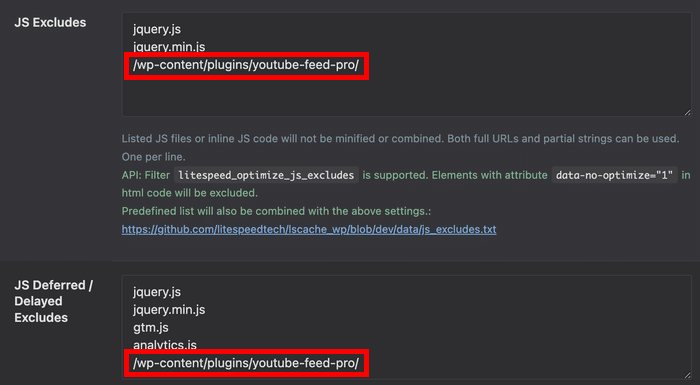
Here’s the good news. You don’t turn any of them off. You just tell them to skip Smash Balloon’s files.
The Path to Exclude
You’ll need to add one directory path to your optimization plugin. Which path depends on the version you’re running.
| Version | Path |
|---|---|
| Pro | /wp-content/plugins/youtube-feed-pro/ |
| Free | /wp-content/plugins/feeds-for-youtube/ |
Read that free path twice before you paste it. The folder is feeds-for-youtube, not youtube-feed.
This trips up more people than anything else in this article. A wrong path doesn’t throw an error and doesn’t change a thing. Your feed stays blank, and it looks like the fix simply didn’t work.
Add It to All Three Lists
One list isn’t enough. Your path needs to go into three separate exclusion fields:
- JavaScript and minify exclusions
- Delay JavaScript execution exclusions
- Lazy load exclusions
Miss any one of the three and your feed stays blank. I’ve watched people add the path to the minify list, see nothing change, and give up before they ever touch the delay JS box.
Here’s where those fields live in the most common plugins.
| Plugin | Where the fields live |
|---|---|
| WP Rocket | File Optimization (lists 1 and 2), Media (list 3) |
| Autoptimize | JavaScript optimization exclusion field |
| Perfmatters | Assets for script exclusions, plus the delay JS and lazy load boxes |
Then finish the job in order: save your settings, purge the optimization plugin’s cache, and reload the page in a private window.
Why the Feed Shows on Some Pages But Not Others
Per-page optimization rules. WP Rocket and Perfmatters both let you change optimization settings on individual pages, and those rules override your global settings.
So your homepage feed loads while your landing page feed sits empty. Open the page in the editor and check its optimization panel for a stray toggle you set weeks ago and forgot.
Placement can hide a feed too. A shortcode inside a page builder text widget, or a feed tucked into a tab or accordion, may never render.
Two Toggles Inside the Plugin Worth Trying
Still blank after the exclusions? YouTube Feed Pro has two settings built for exactly this.
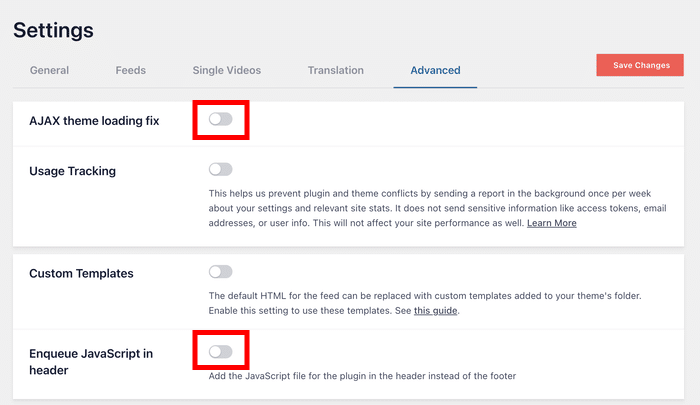
Head to YouTube Feed » Settings » Advanced.
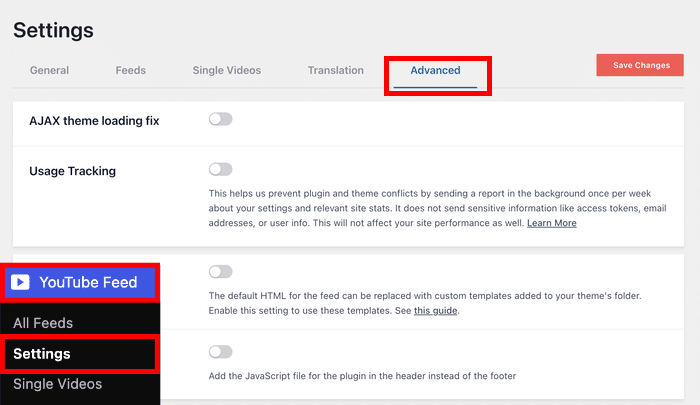
Turn on “AJAX theme loading fix” first, save, and check the page again.
If nothing changes, turn that one back off and try “Enqueue JavaScript in header” instead.
Only leave a toggle on if it fixes your feed.
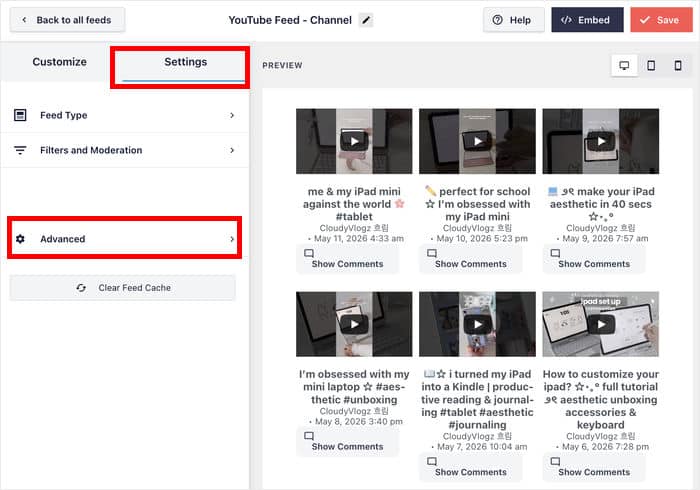
If the feed frame shows up but the videos inside don’t, the per-feed version is what you want.
First, open the YouTube feed in the live customizer. Then click on the Settings tab and select Advanced.
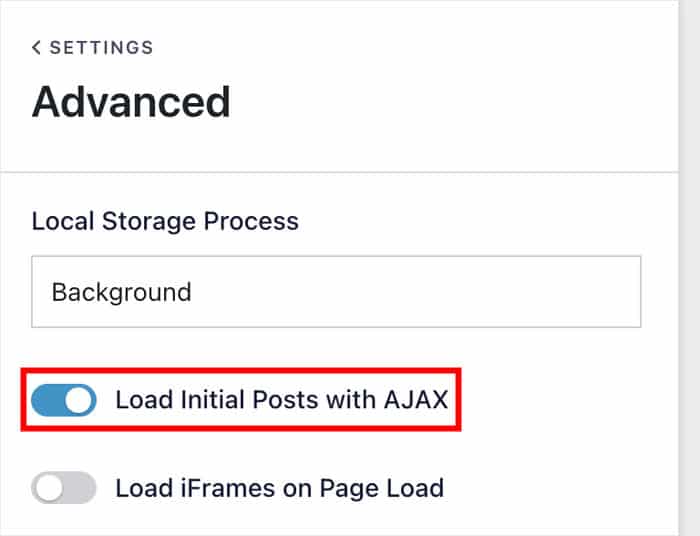
Then open Advanced and turn on Load Initial Posts with AJAX.
Want to know what these toggles actually do? I explain them in more detail in this guide on why a YouTube video plays twice.
Check Your YouTube API Connection
Seeing actual error text on your page instead of empty space? That changes the diagnosis completely.
Error text points at your API key or your channel connection, not your speed plugin.
Here’s how to reconnect your channel: go to YouTube Feed » Settings » General and connect your channel again, then check the feed in a private window.
If the error names your API key, paste a fresh key into the API Key field in this screen and click Update.
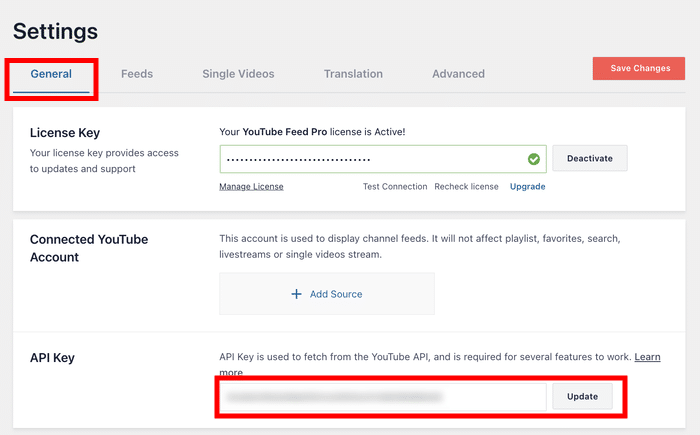
One thing that saves a lot of frustration: a new or corrected API key can take up to 15 minutes to start working.
Give it the full 15 minutes before you try anything else. After the 15 minutes, save your settings again before checking the feed.
Worried about your design? Reconnecting your source does not reset the layout you built in the feed customizer. Your columns, colors, and header settings all stay exactly where you left them.
If the error mentions an invalid source, that’s a different flavor of the same connection problem. Here’s what an invalid source error means and how to clear it.
When Only Your Playlist or Live Stream Is Blank
Your channel feed loads fine, but your playlist feed is empty? That’s a different problem with a different fix.
Here’s what’s actually happening. An API key is required for feed types such as Playlist and Search. So playlist feeds require an API key to pull in any videos at all.
Your live stream feed is a Search-type feed under the hood. That’s why it fails in exactly the same way, and why a blank live stream section usually shows up right alongside a blank playlist.
Five things cause an empty playlist or live stream:
- The key was never added
- The key is invalid or was pasted with an extra space
- The key has gone over its daily limit
- You pasted the full playlist URL where only the playlist ID belongs
- Your moderation filters are excluding every video in the feed
Those last two are worth a second look. They produce the same empty playlist on a perfectly good key, and both return “No videos found.”
The rest land you in the same place. An empty feed where your videos should be and the fix for the key itself is the API key steps from the section above.
Head back to YouTube Feed » Settings » General, paste a fresh key into the API Key field, and click Update.
Then give it up to 15 minutes before you open your YouTube feed to check it.
Clear Your Feed’s Cache (Do This Last)
Why is this step last instead of first? Because doing it first wastes it.
Your plugin doesn’t rebuild the feed on every page load. It saves a copy and serves that copy to your visitors.
So the blank version keeps showing even after you fix the real cause. Your exclusions are right, your API key is valid, and the page still looks broken.
That’s why I do this after the other steps, never before. It’s the move that makes everything you just fixed actually show up.
Head to YouTube Feed » Settings » Feeds. Next to the Caching dropdown, click Clear All Caches to flush the saved copy.
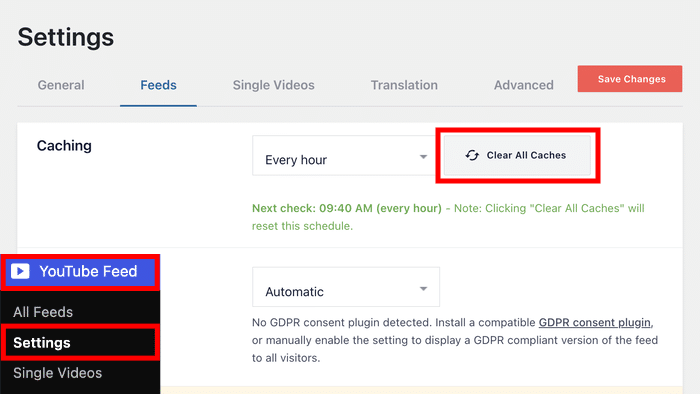
Look at that Caching setting while you’re there. It runs on an interval and shows you the next check time on screen.
That’s your answer for why a correct fix stays invisible: your feed is waiting for that next check. Clicking Clear All Caches resets the schedule and pulls fresh data now.
Then reload the page in a private window and check it one more time.
If the feed loads now but a video acts up when you click play, that’s a separate issue. Here’s what to do when YouTube autoplay isn’t working.
Frequently Asked Questions
Why did my YouTube feed suddenly go blank?
In the overwhelming majority of cases, a speed plugin is the cause. You or your host installed or reconfigured one in the last week or two.
Head back to the exclusion steps above and add your plugin’s directory path to all three lists.
Why is my playlist not showing any videos?
While your connected account is used for channel feeds, you need an API key to display feeds for your playlists, favorites, searches, livestreams, or single videos.
If the key is missing or invalid, the playlist comes back empty. So, the fix is to add the key here properly.
Aside from the API key, you can also check and see if your playlist ID is pasted correctly and if your moderation filters aren’t too strict.
Will clearing my cache delete my feed settings?
No, clearing your feed cache will not delete anything you built. It only flushes the stored copy of your videos so the plugin pulls fresh ones.
Your layout, colors, and Feed Customizer settings all stay exactly as they are.
Does this affect the free version too?
Yes, the free version hits the same problem with the same fix. The only thing that changes is the directory path you exclude.
Use /wp-content/plugins/feeds-for-youtube/ for the free version and /wp-content/plugins/youtube-feed-pro/ for Pro.
Note the free folder is feeds-for-youtube, not youtube-feed.
Get Your YouTube Feed Loading Again Now
A YouTube feed not loading in WordPress is almost always a script that got optimized away. The fix is one exclusion path added to three separate lists.
Work through it in this order. Exclude the plugin’s directory, check your connection, then clear your feed’s cache last.
Reload the page in a private window after each step. That way you always know which change actually did the work.
Ready to get your videos back on the page? Grab YouTube Feed Pro and new videos show up on their own.