Social Wall
  Feed Analytics

Double-loading isn’t something most feed owners ever run into. But if you’ve clicked a video in your embedded YouTube feed and watched it load twice, or seen a second player appear next to the one you wanted, you also know it’s not your imagination. It happens on the same page, every single time. Random glitches don’t repeat like that.
The good news: uncommon doesn’t mean unknown. This one has a specific cause and a settings-level fix. No code, no rebuild, no developer.
Most advice you’ll find for this symptom is about the YouTube app or a browser extension, which is exactly why hours of searching haven’t helped. On a feed you embedded yourself, it’s a different problem with a different fix.
Below: what causes the doubling, how to prove whether it’s your theme or your plugin without touching your image galleries, and the two settings that stop it.
In this Article:
- Why Do My Feed Videos Load Twice?
- What's Actually Happening When a Video Loads Twice
- Update Your Plugin First — It's a Diagnostic, Not Busywork
- How to Tell If It's Your Theme or Your Plugin
- The Two Settings That Stop Double-Loading
- Clear Your Caches in the Right Order
- Videos That Play Once, the Way They're Supposed To
Why Do My Feed Videos Load Twice?
Your feed’s JavaScript is starting the video player twice. Something on your page triggers that startup a second time, usually a theme that loads content by AJAX after the page has already loaded, or a script that fires in the wrong order. It’s a script conflict on your own page, not a YouTube setting.
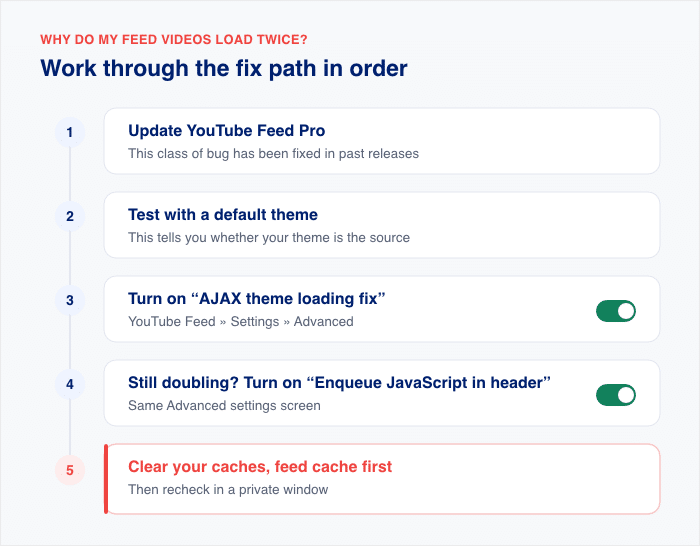
Here’s the fix path, in order:
- Update YouTube Feed Pro. This class of bug has been fixed in past releases.
- Test with a default theme. This tells you whether your theme is the source.
- Turn on “AJAX theme loading fix” at YouTube Feed » Settings » Advanced.
- If the doubling continues, turn on “Enqueue JavaScript in header.”
- Clear your caches, starting with the feed’s own cache, and recheck in a private window.
What’s Actually Happening When a Video Loads Twice
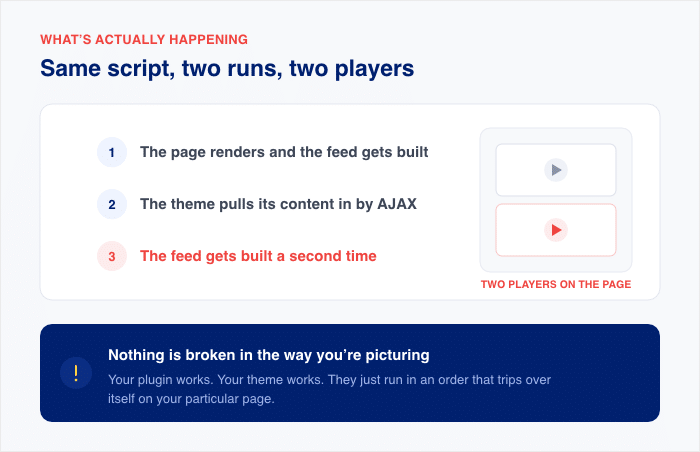
Your feed’s JavaScript builds the video player once when the page loads. Then something on the page runs that same script again, and now you have two players where you wanted one.
The most common trigger is a theme that pulls content in by AJAX after the page has already rendered. The feed gets built, the theme loads its content, and the feed gets built a second time. Same script, two runs, two players.
This is almost always something on your page rather than something on YouTube’s end. One way to sanity-check it: if the cause were on YouTube’s side, the same video would tend to double up wherever it appears, not just here.
In practice, it shows up on one page, on one site, every time you load it.
The other thing worth knowing: nothing here is broken in the way you’re probably picturing. Your plugin works, your theme works, and the two of them just run in an order that trips over itself on your particular page.
That’s why the fix is a toggle. You’re changing when a script loads, not what it does. I’ve found this is the part that surprises people most, because a symptom this strange feels like it should need a developer. It doesn’t.
Update Your Plugin First — It’s a Diagnostic, Not Busywork
Before you touch a single setting, update YouTube Feed Pro. Head to Plugins » Installed Plugins and update if one is waiting for you.
This isn’t filler advice. Updating rules out an entire category of already-fixed player bugs in one click, which means you learn something either way.
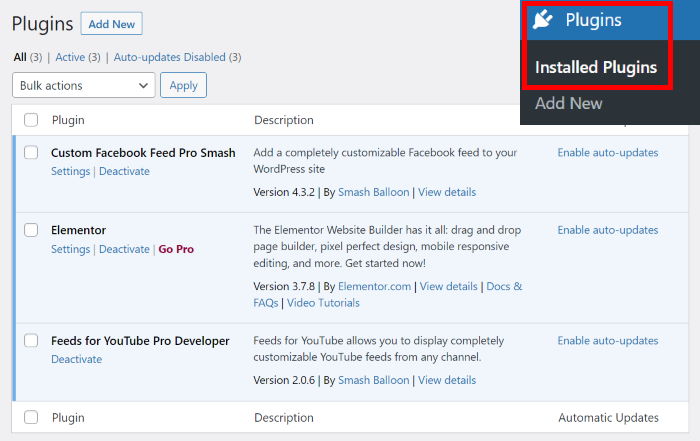
If the doubling stops, you’re done. If it doesn’t, you’ve cleared the easiest cause off the list and you can move on to testing your theme.
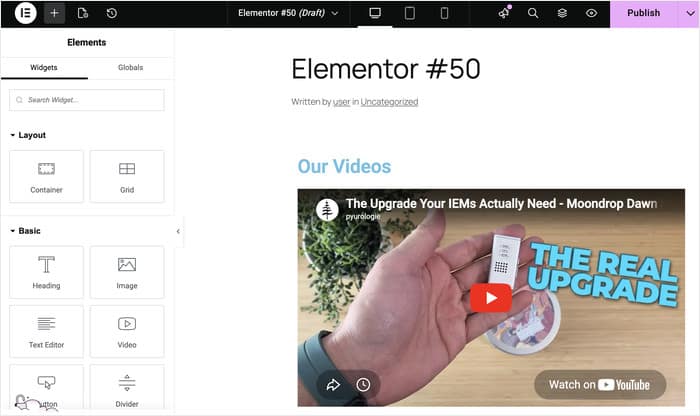
There’s a real example of this in the YouTube Feed Pro changelog. An update fixed a problem where running a Smash Balloon YouTube feed alongside Elementor’s own video widget caused issues on the same page, though some feed features stay limited on those pages.
That’s the same kind of conflict you’re dealing with. Two scripts building players on one page, tripping over each other, resolved by a plugin update. It’s the reason this step goes first.
If you’re building your pages in Elementor, that overlap is worth a closer look. Our guide to Elementor YouTube videos not working covers page builder script conflicts in more detail.
One thing before you decide the update didn’t help. Clear your caches and reload the page in a private browsing window, then check again.
I’ve seen plenty of people write off a working fix because they were looking at a saved copy of the old page. Your caching plugin, your host, and your browser all hold onto versions of your page, and any one of them can show you the problem after it’s already gone.
How to Tell If It’s Your Theme or Your Plugin
You can answer this in about five minutes with a default theme test.
Read this first, because it’s the part that stops most people from running the test: switching themes does not touch your feed settings. Those live in the database with the plugin. Switch back and your feed is exactly as you left it, same layout, same videos, same options.
Here’s the test:
- Do this on a staging site if you have one. If you don’t, pick a quiet traffic window.
- Head to Appearance » Themes and switch to Twenty Twenty-Five. If your setup won’t run it, use Twenty Twenty-One instead.
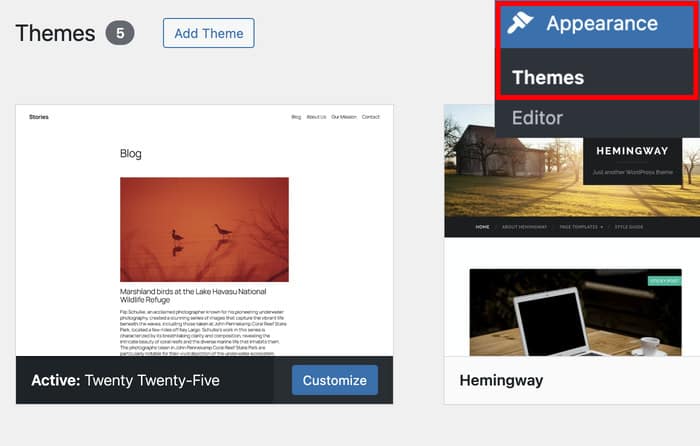
- Load the page with your feed on it and click a video.
- If the doubling stops, your theme is the source. If it continues, something else on the page is, and either way, the fix in the next section is where you go next.
Then switch back to your own theme. That’s the whole test.
One aside if you’re only seeing this on a phone. Touch devices can register a tap and a click as two separate handlers, so a video may double on mobile and behave perfectly on your laptop.
The test above won’t tell you much in that case, so skip ahead to the settings fix below.
One more thing, because it’s the first place people go looking: you don’t need to disable your theme’s lightbox. Your image galleries are safe.
A confirmed theme conflict gets fixed with a plugin setting, not by switching off a feature you use everywhere else on your site.
For a fuller walkthrough of testing theme conflicts, our guide on what to do when your feed stops working after a theme change covers the same procedure in more detail.
The Two Settings That Stop Double-Loading
The fix lives at YouTube Feed » Settings » Advanced, and here’s the part that changes everything: both toggles ship turned off by default. If you’ve never opened this tab, you haven’t already ruled these out.
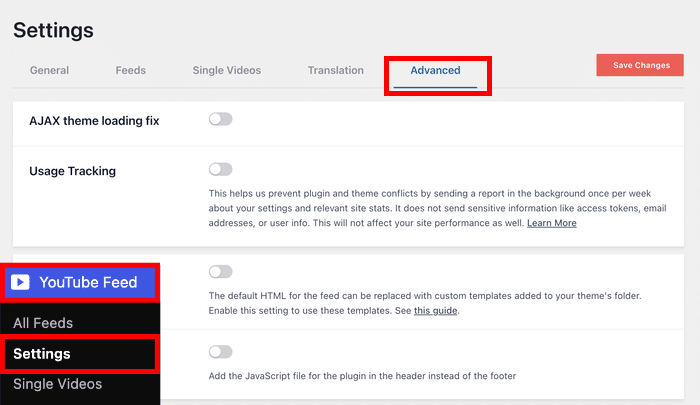
That’s the difference between “I’ve tried everything” and “I haven’t tried the thing that actually fixes it.”
There are two of them, and they do different jobs.
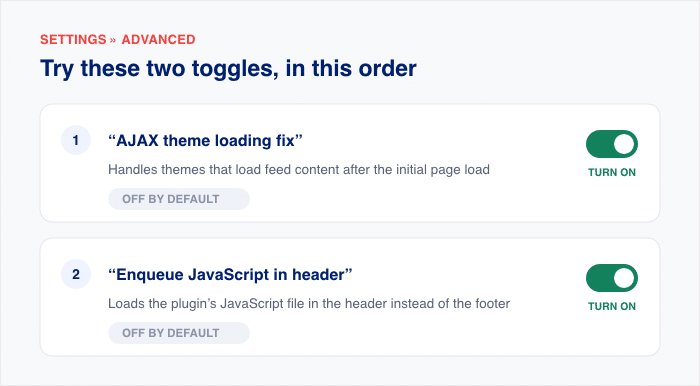
| Order | Toggle | What it does | Default |
|---|---|---|---|
| 1 | “AJAX theme loading fix” | Handles themes that load feed content after the initial page load | Off |
| 2 | “Enqueue JavaScript in header” | Loads the plugin’s JavaScript file in the header instead of the footer | Off |
Work through them one at a time.
Turn on “AJAX theme loading fix” first. Click “Save Changes”, clear your caches, then load the page again and click a video.
If the doubling has stopped, you’re done. Leave the second toggle alone.
If it’s still happening, come back and turn on “Enqueue JavaScript in header”. Save, clear caches, and recheck the same way.
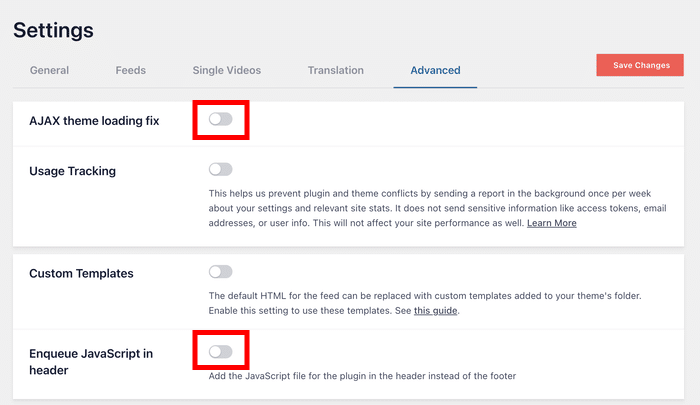
I’d resist the urge to flip both at once. It’s tempting, but if the doubling stops, you won’t know which setting did it, and you’ll be guessing later if anything else changes on your site.
Both of these are simple on and off switches. If you don’t like the result, turn them back off, and your site is exactly where it started, with your feed keeping its layout, its settings, and its videos. Nothing is rewritten, nothing is permanent, and nothing is lost.
One known interaction worth flagging: if turning on the AJAX fix makes your lightbox render at the bottom of the page and you’re running Borlabs Cookie for consent, that combination is documented.
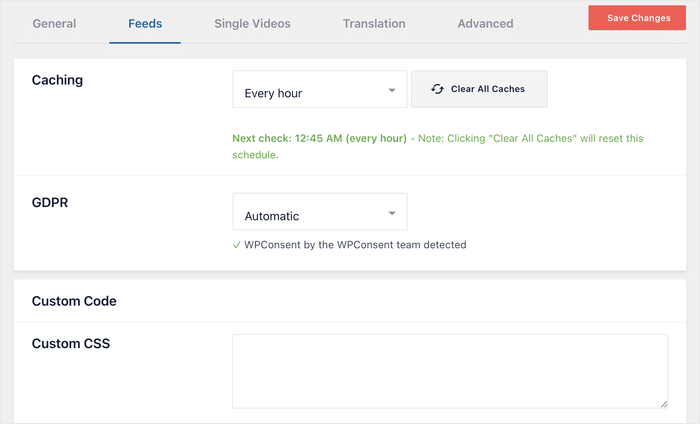
Your GDPR setting sits on the Feeds tab, set to “Automatic”.
And if you’re wondering where custom styling fits in, you don’t need to touch your child theme. YouTube Feed Pro has its own “Custom CSS” and “Custom JavaScript” fields at YouTube Feed » Settings » Feeds » Custom Code.
This is the kind of thing YouTube Feed Pro is built to handle for you: a script timing conflict that would otherwise mean hiring a developer, solved with a toggle you can turn on in ten seconds.
Clear Your Caches in the Right Order
A correct fix can look like a failed one. You flip the toggle, reload the page, see the video double up again, and decide the setting didn’t work. What you’re actually looking at is a saved copy of the old page.
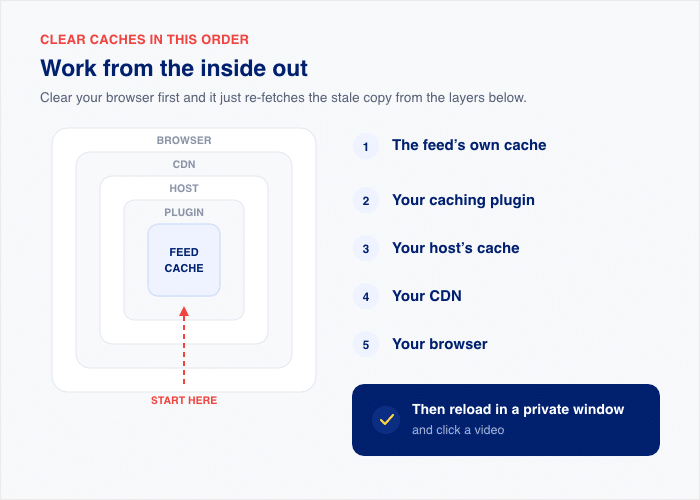
Work from the inside out. If you clear your browser first, it just re-fetches the stale copy from the layers below it, which are still holding onto it.
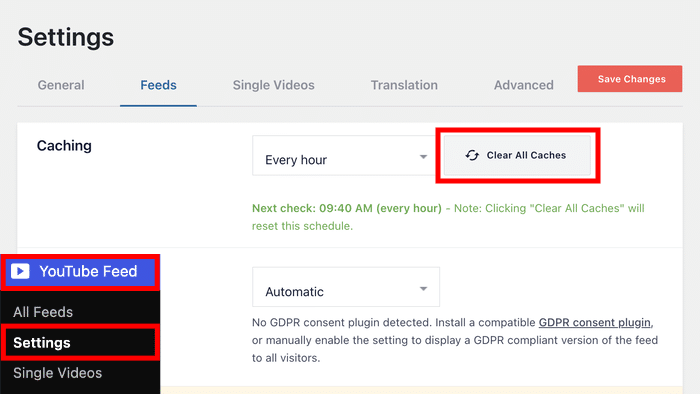
- Clear the feed’s own cache at YouTube Feed » Settings » Feeds using “Clear All Caches”.
- Clear your caching plugin.
- Clear your host’s cache.
- Clear your CDN.
- Clear your browser.
- Reload the page in a private window and click a video.
That last step matters. A private window ignores what your browser has already stored, so you’re seeing the page the way a first-time visitor sees it.
Your feed also refreshes on its own schedule, set to every hour by default on that same Feeds tab. Clearing the cache resets that timer and pulls fresh content right away.
Fix the doubling once, then stop thinking about it
Smash Balloon YouTube Feed Pro gives you the Advanced settings that solve script conflicts with a toggle instead of a developer. Backed by a 14 day money back guarantee.
Get YouTube Feed ProFrequently Asked Questions
Why does my YouTube video play twice when I click it?
Your video plays twice because your feed’s JavaScript is initializing the player twice on the same page. The usual trigger is a theme that loads content by AJAX after the page has already rendered, so the feed gets built once, then built again. You can stop it with two toggles at YouTube Feed » Settings » Advanced: “AJAX theme loading fix” and “Enqueue JavaScript in header”.
Does updating the plugin fix double-loading videos?
Updating the plugin often fixes double-loading videos, and it’s the first thing to try. The YouTube Feed Pro changelog includes a fix for running a Smash Balloon YouTube feed alongside Elementor’s own video widget, which was a documented case of two players conflicting on one page. Head to Plugins » Installed Plugins and update before you change any settings.
Is this a bug or a setting I can control?
It’s both, and that’s good news, because neither half needs a developer. The bug half is the easier one: some past plugin versions had player bugs that have since been fixed, so updating clears those. The rest is a script conflict you control yourself with two settings on the Advanced tab, both of which ship turned off by default.
Will disabling my theme’s lightbox fix it, and will it break my image galleries?
You don’t need to disable your theme’s lightbox, so your image galleries are safe. The fix for double-loading is a plugin setting, not a theme feature you have to switch off. Your lightbox keeps working everywhere else on your site, exactly as it does now.
Is this the same as my video not autoplaying?
No, autoplay is a separate problem with a separate fix. Whether a video plays on click or on its own is controlled at Customize » Video Experience » “When does video play?”, which has nothing to do with double-loading. If your video isn’t starting by itself, our guide to YouTube embed autoplay not working is the one you want.
Why does it only happen on my phone and not my laptop?
Double-loading can show up on your phone alone because touch devices sometimes register a tap and a click as two separate handlers, which can fire the player’s initialization twice. This is uncommon, and there’s no separate mobile setting to change. Start with the same two toggles at YouTube Feed » Settings » Advanced and recheck on your phone in a private browsing window.
Videos That Play Once, the Way They’re Supposed To
Double-loading isn’t a YouTube problem. It’s a script timing conflict on your own page, and it’s fixed with a settings toggle rather than a rebuild.
Here’s the whole path, in order:
- Update YouTube Feed Pro at Plugins » Installed Plugins.
- Test with a default theme to see whether your theme is the source.
- Turn on “AJAX theme loading fix” at YouTube Feed » Settings » Advanced.
- If it’s still doubling, turn on “Enqueue JavaScript in header”.
- Clear your caches from the inside out, then recheck in a private window.
If your video isn’t playing at all, that’s a different problem, and our guide to WordPress video not playing walks through the wider set of causes.
The Advanced tab you just used is where the rest of your feed’s behavior is controlled too. YouTube Feed Pro gives you those settings, so a script conflict stays a two-minute toggle.
Ready to stop double-loading for good? Get YouTube Feed Pro and keep your feed playing exactly the way you set it up.