Social Wall
  Feed Analytics


Want those star ratings to show up along with your site in Google search results?
You’ve probably noticed competitors flashing bright yellow stars under their listings, and you’re wondering why your site doesn’t get the same treatment.
I’ve heard from so many small business owners who can’t make sense of the search results page.
Their real, hard-earned reviews are sitting on their website, but the stars never show up where buyers actually decide which link to click.
Most guides hand you a chunk of JSON-LD code and walk away, which is also the fastest way to land in trouble with Google’s new review snippet policy.
I’ll show you the safe, plugin-based way to actually get customer reviews and make sure they show up in the search results page.
You’ll also learn how to test your markup with the Rich Results tool, so you can confirm everything works before the next crawl hits.
- Star Ratings in Google Search: The Short Answer
- Why Star Ratings Disappear (Even When Your Schema Looks Right)
- What You Need Before You Start
- How to Get Star Ratings in Google Search Results (Complete Guide)
- How to Test Your Star Ratings Before Google Crawls Your Site
- How Long Until Star Ratings Actually Show Up?
- Start Showing Star Ratings in Google Search Now
Star Ratings in Google Search: The Short Answer
To get star ratings in Google search results, collect real customer reviews from a trusted source, display them on a relevant page of your site, and add valid aggregateRating schema markup that matches what’s on the page.
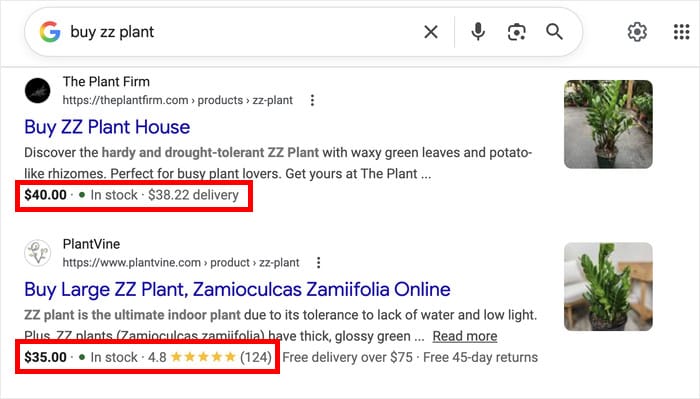
Here’s what each step looks like in practice:
- Have a Page that Qualifies: Product pages qualify, and so do recipes, courses, books, and events. Remember that Google only shows stars when the reviews are about a specific item, not the business as a whole.
- Collect Real Customer Reviews: For an online store, that means product reviews left directly on your product page by real customers. They need to be visible to anyone who visits.
- Add Rating Markup: This is the code that tells Google your star rating. The number in your code has to match the number visitors see on the page. If they don’t match, Google won’t show the stars.
All three pieces need to line up. If one is missing or doesn’t match the others, Google may quietly hide your stars, even when your setup looks correct on the surface.
Why Star Ratings Disappear (Even When Your Schema Looks Right)
Most site owners assume that adding review schema is enough to trigger star ratings. It isn’t, and the reason traces back to a major policy update Google rolled out in September 2019.
That update changed how Google treats review snippets. Google announced that “self-serving” reviews would no longer qualify for rich results.
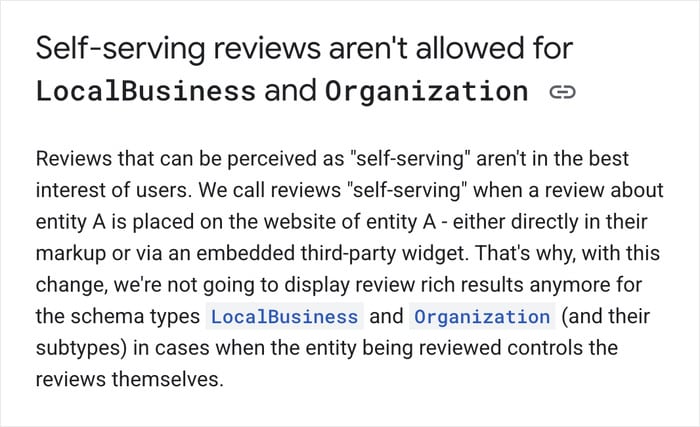
In plain terms, Google won’t show stars for reviews that the business controls and publishes about itself. Here’s what else can cause a snippet to fail:
- Pasted schema with no visible reviews on the page. Google’s structured data guidelines require that the rating in your schema match content a visitor can actually see.
- SEO plugins that auto-generate a 5-star rating. Some generic SEO plugins create an
aggregateRatingvalue out of thin air, often defaulting to 5 stars. Google reads this as a self-serving review and disqualifies the snippet. - Reviews on a third-party site: Even if you have hundreds of Google or Yelp reviews, Google’s crawler won’t pull them into your snippet, so you’ll have to leverage them to get reviews that qualify.
Here’s how each scenario looks side by side:
| What You Did | What Google Sees | Result |
|---|---|---|
| Pasted schema with no visible reviews on the page | Invisible content claim | Snippet rejected |
| SEO plugin auto-generates a 5-star rating | Self-serving review | Snippet rejected |
| Real reviews on a product page with matching schema | Verified content | Stars appear |
Look at the bottom row. That’s the only setup where your stars show up, because the schema points to reviews a visitor can read on the page.
Every other version gets filtered out before it reaches the search results.
So the fix comes down to three things on the same page: real reviews, visible to readers, described by matching schema. Get those lined up, and the stars follow.
What You Need Before You Start
Before you install anything, get these pieces in place so the setup goes smoothly:
- A WordPress site you control. You’ll need admin access to add a plugin and edit pages.
- At least 5 to 10 genuine reviews. These are reviews collected on your product page from real customers. We’ll show you how to get these.
- A product or service page where the reviews logically belong. Stars should appear on a page that matches what people are reviewing, not a random spot on your site.
- A free Google Search Console account. You’ll use this later to request indexing once your reviews are live on the page.
Don’t worry if you’re just getting started with reviews. The steps below still apply, and you can focus on collecting a handful of real reviews before you embed the feed.
How to Get Star Ratings in Google Search Results (Complete Guide)
Once you have everything ready, the rest of the setup follows a clear path. Each step below builds on the last, so work through them in order.
Part 1: Get Reviews on Your Product Page
Google only rewards star ratings when the underlying reviews come from a genuine source. That means authentic reviews from real customers who’ve bought from you.
Enable Product Reviews on Your Website
If you’re using WooCommerce, the review system is already built in. You just need to make sure it’s switched on.
From your dashboard, open the WooCommerce » Settings menu and click on the Products tab.
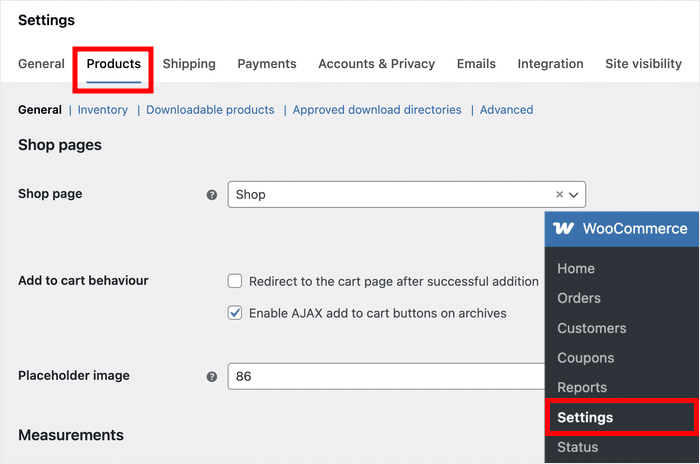
Scroll down to the Reviews section and make sure that “Enable product reviews” is turned on.
While you’re there, turn on “Enable star rating on reviews” as well.
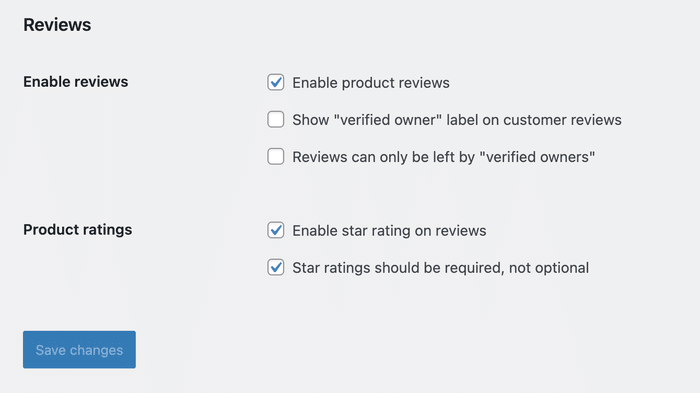
Once that’s saved, a review form will appear at the bottom of every product page.
Customers can leave a star rating and written feedback directly on the product page, which is exactly where you need them.
Note: Not using WooCommerce? Most ecommerce platforms have a native review system in a similar spot. You just need to turn it on and start collecting user reviews.
To learn more, you can check out our full guide with different ways of collecting WooCommerce reviews.
Display Review Feeds and Collect More Reviews
Out of this entire guide, getting your reviews is the hard part.
Reviews Feed Pro makes it easier by showing your existing reviews on the product page and giving customers a direct way to leave new ones.
Once you install and activate the plugin, you can create a feed that pulls your WooCommerce product reviews and displays them in a clean, readable format on the product page.
Customers who land on the page see real reviews from real buyers before they decide to purchase. With more customers, you get more chances to collect user reviews.
Plus, the feed also includes a handy “Write a Review” button so visitors can quickly review a product after buying something.

The plugin also includes a recent review popup that shows a small notification when a new review comes in.
It runs in the corner of the page and works as a live social proof signal for anyone browsing your store.

What all this does is build the review count that your schema will point to in Part 2, and it makes the product page more convincing for visitors in the meantime.
Note: If you’re not using WooCommerce, Reviews Feed Pro can display reviews from trusted third-party sites like Yelp, Google Reviews, Trustpilot, and more. This lets you build trust, get more sales, and end up with more customer reviews.
Embed the Feed on Your Product Page
Here’s how you can create a new reviews feed using the plugin:
- First, grab a copy of Reviews Feed Pro and install it on your website.
- Open the Reviews Feed » All Feeds menu from your dashboard and click on Add New.
- Click on Add Source, then select your source before clicking on Next.
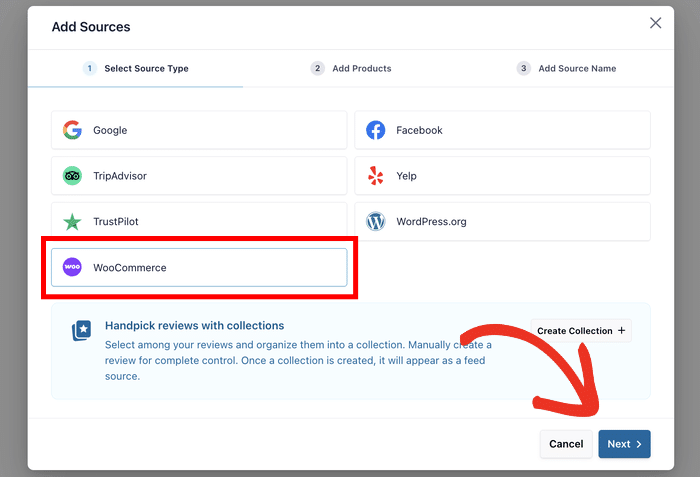
- For other review platforms, paste a link to your brand’s page. For WooCommerce, select the product, pages, category, or tags whose reviews you want to show.
- Select a template that matches the design you have in mind and click on Next.
- Using the live editor, freely change the design of your reviews feed.
- Finally, click on the Embed button and select where you want to show the reviews.
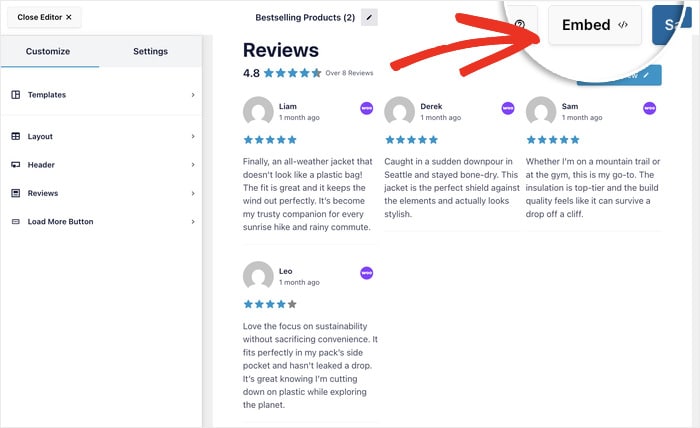
Once your feed is set up, you need to place it on the actual product page where the reviews live.
This matters because Google checks that the reviews in your schema are visible to anyone who visits that page. A feed sitting on a separate testimonials page won’t count.
For a step-by-step guide, you can take a look at this post on how to add social media reviews to your website.
After you’ve embedded the reviews, that’s Part 1 done. Your product page now has real customer reviews displayed and a clear path for new ones to come in.
In Part 2, you can connect those new reviews to your search listing with schema markup.
Part 2: Add Schema Markup So Google Shows the Stars
Now you need to tell Google about them in a language it can read. This means Google can pull your rating directly into the search results.
Install AIOSEO and Enable Product Schema
AIOSEO (All in One SEO) is a WordPress plugin that handles the schema markup side of this setup.
It’s what puts your rating data into a format Google’s crawler can read and pull into search results.
Once you install and set up the plugin, open the product page where you want the schema to work.
Scroll down to find the Schema section at the bottom and click on Generate Schema.
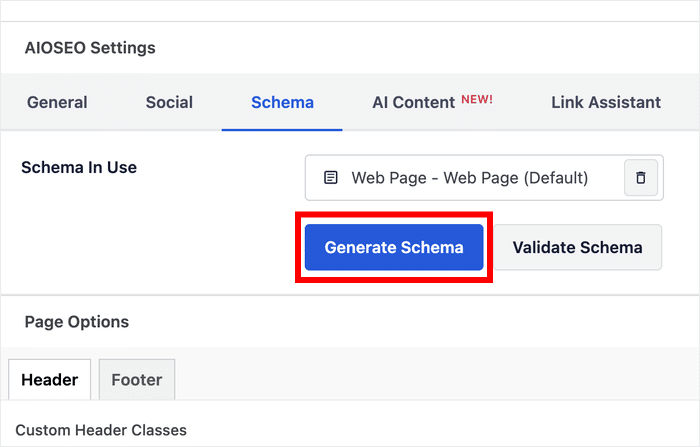
Now, from the schema options, select Product, and you’ll see more fields available.
For WooCommerce sites, you can enable the Autogenerate Fields option, and the plugin will fill everything in.
Otherwise, you can simply enter the data for your product reviews here, and AIOSEO will convert them into Google-friendly schema data.
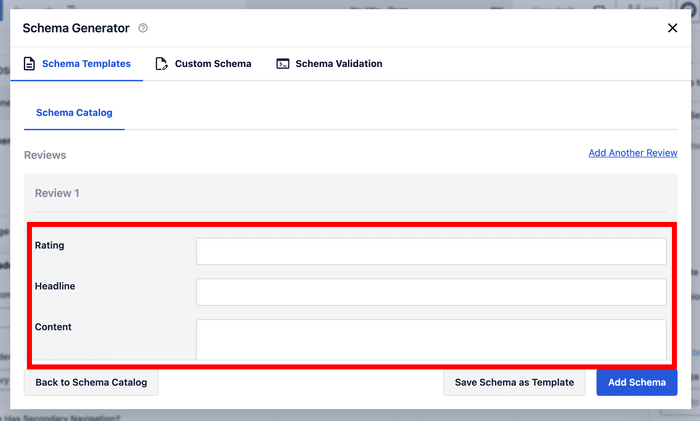
After entering all the details, click on Add Schema, and you’re good to go.
For more details, you can consult this guide on adding product review schema to a page using AIOSEO.
Check That Your Rating Matches What’s on the Page
Before you ask Google to crawl your page, do one quick check.
Open your product page as a visitor and look at the star rating and review count displayed on the page. Then go back to your AIOSEO schema settings and confirm those numbers match exactly.
For WooCommerce, the plugin can do this automatically with the Autogenerate Fields feature. If you enabled that, you can skip this step.
Request Indexing in Google Search Console
Google won’t show stars until it re-crawls your updated page. You can wait for that to happen on its own, or you can speed it up with a free tool from Google.
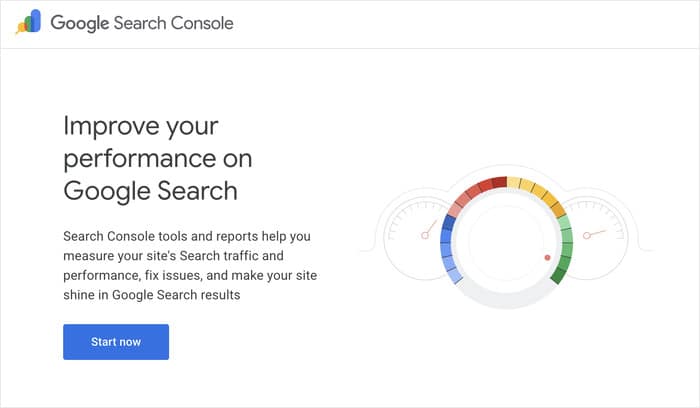
Follow these steps to request indexing:
- Open Google Search Console and select your property.
- Click the URL Inspection tool at the top of the page.
- Paste the URL of the page where you embedded your feed.
- Click “Request Indexing” once the page status loads.
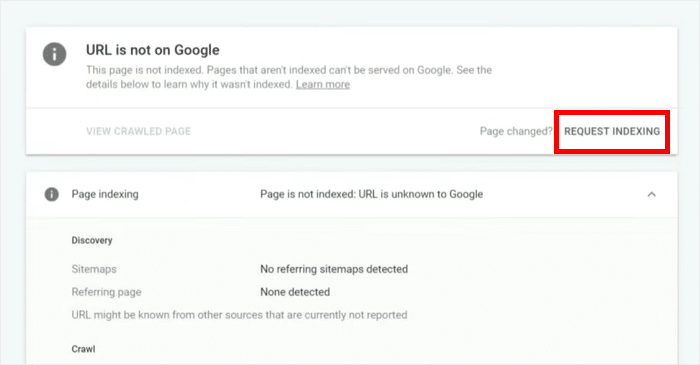
Organic recrawls usually take 3 to 14 days, which is a long time to wait when your stars are ready to show.
But manual indexing through Search Console often cuts that window down to a few days, sometimes less.
How to Test Your Star Ratings Before Google Crawls Your Site
You don’t have to guess whether your schema is working. These tools let you check your setup before Google ever sees it, and each one catches a different type of problem.
Run these checks in order. Each one digs a little deeper than the last.
1. Google’s Rich Results Test
The Rich Results Test is the official tool Google uses to preview your page. It tells you exactly what Google will and won’t pick up when it crawls your site.
Here’s how to run the check:
- Open the Rich Results Test in a new tab.
- Paste the URL of the page where you embedded your reviews feed.
- Click “Test URL” and wait for the results to load.
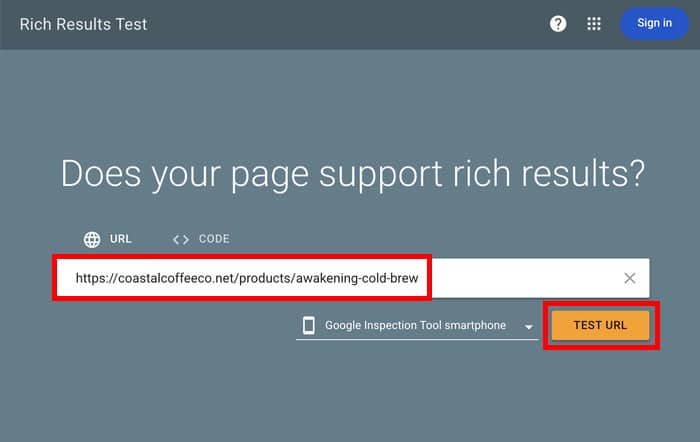
- Look for “Review snippets” in the list of detected items.
- Review any warnings or errors flagged under that section.
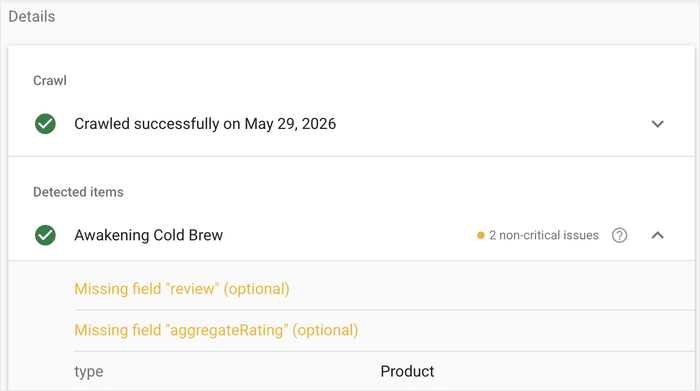
A green check next to “Review snippets” means your page is eligible for stars. Warnings won’t block your snippet, but errors will, so fix those before you move on.
Troubleshooting Common Errors
If the tool flags an issue, this table covers the most common error messages and how to clear them:
| Error Message | What It Means | How to Fix |
|---|---|---|
| Missing field “name” | The schema doesn’t identify what’s being reviewed | Add a product or business name to the page where the feed is embedded |
| Review snippet disqualified for self-serving content | Google flagged the rating as written by the owner | Make sure you’re using genuine product reviews on a product page |
| No review snippets detected | Google can’t find any review markup on the page | Confirm that AIOSEO snippets for the product page are working correctly |
| Missing field “author” | The schema doesn’t credit who wrote each review | Reconnect your review source so reviewer names sync correctly |
| Invalid value in field “ratingValue” | The rating is outside the 1 to 5 range or formatted wrong | Check the rating value reads as a number between 1 and 5, using a dot not a comma (4.5, not 4,5) |
If the Rich Results Test gives you a green check, you’re done. All you have to do is wait, and the stars will appear on Google’s next crawl.
2. Schema.org Validator
Some structural issues slip past Google’s tool but still cause problems down the road. The Schema.org Validator catches those by checking your markup against the official schema specification.
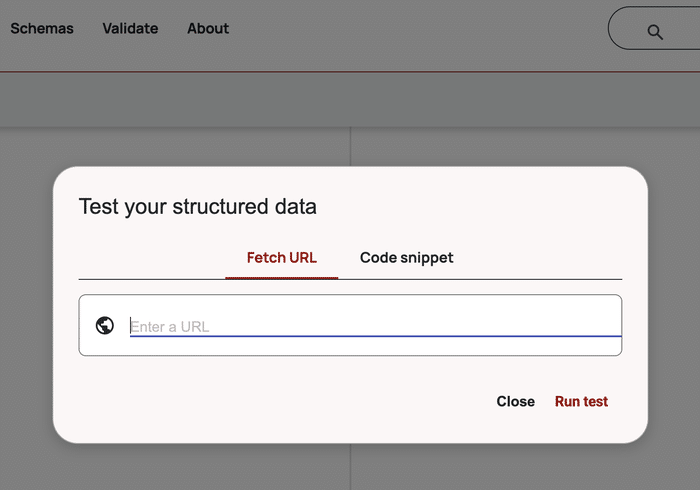
Run your URL through the validator and look for:
- Missing required fields like
name,reviewBody, orauthor - Incorrect data types (a string where a number belongs, for example)
- Nested properties that don’t match the schema.org spec
If the validator returns a clean report, your markup is structurally sound. AIOSEO generates schema that passes both tools by default, so you should see a clean result on the first try.
How Long Until Star Ratings Actually Show Up?
Star ratings usually appear 3 to 14 days after Google’s next crawl of your updated page. New sites or pages without existing search authority can take longer, sometimes up to a month, before stars show up in the listing.
Several factors decide where you land in that window:
- Crawl frequency on your site. Established sites with regular publishing get crawled more often, so updates surface faster. New sites may wait a week or more between crawls.
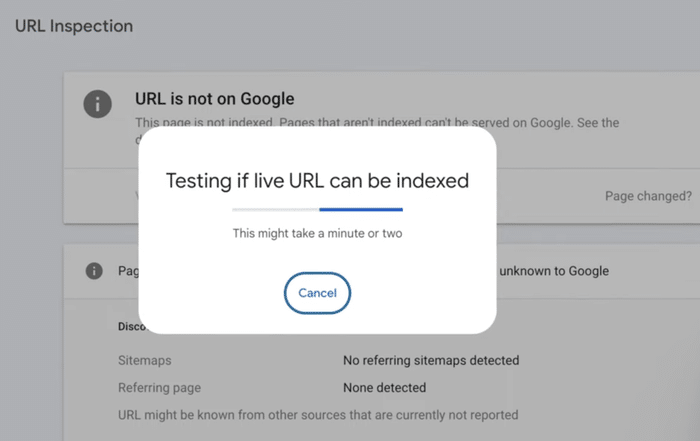
- Whether you requested indexing manually. Submitting the page through the URL Inspection tool in Google Search Console pushes your page to the front of the crawl queue.
- Whether the page has internal links pointing to it. Pages linked from your homepage, menu, or popular posts get recrawled sooner than orphaned pages.
- Google’s discretion. Not every eligible page earns stars. Google decides which snippets to show based on query, page quality, and search context.
If your stars still aren’t showing after 30 days, work through these checks:
- Re-run the page through Google’s Rich Results Test to confirm the markup is still valid.
- Open Google Search Console and check the “Manual Actions” report for any review snippet penalties on your site.
The good news is, once your stars appear for one page, future pages with the same feed setup tend to qualify much faster.
Start Showing Star Ratings in Google Search Now
Star ratings come down to 3 things working together: real customer reviews, having reviews displayed where Google can see them, and valid schema markup that matches what’s on the page.
Get all three right, and Google can reward your listing with the yellow stars buyers look for before they click.
You don’t need to touch a line of code to get there. Two plugins handle the work between them:
- Reviews Feed Pro displays your product reviews in a clean layout and gives customers a one-click way to leave more, with a Write a Review button and a recent-review popup that builds trust while they browse.
- AIOSEO reads those reviews from your store and generates the AggregateRating schema automatically, keeping the numbers in sync with what’s on the page.
Get Reviews Feed Pro and take the first step toward star ratings in search.