Social Wall
  Feed Analytics


I kept hearing the same thing from other WordPress site owners: manual YouTube embeds are heavier than they look, they break more often than you’d expect, and they quietly slow your pages down.
After hearing about it for so long, I’ve decided to put it to a test and see just how accurate all those complaints are.
I’ll show you exactly what a native YouTube embed can’t do on your site, from the one-video ceiling to the silent failures you can’t control, plus the real before-and-after numbers from my own test.
By the end, you’ll know where the native embed falls short, and how to display your entire channel on your site, fast and updating itself automatically.
- The Short Answer: 4 Things the Native Embed Can't Do
- Why "It's Just Slow" Misses the Real Problem
- The Native Embed Shows One Video — Not Your Channel or Playlist
- The Embed That Fails Silently: "Video Unavailable" and "Restricted From Playback"
- What WordPress Site Owners Actually Report Before They Switch
- How a Feed Plugin Solves What the Embed Can't
- Before and After: A Real Page-Weight Test
- The Bottom Line: Show More Than One Video
The Short Answer: 4 Things the Native Embed Can’t Do
The native embed shows one hand-picked video, never auto-updates, can break silently, and weighs your page down. Those are the four walls, and only one of them is the speed cost every guide names.
According to Swarmify, the default YouTube embed adds 1.5 to 3 seconds of load time, 1.3 to 2.6 MB of page weight, and 20-plus HTTP requests.
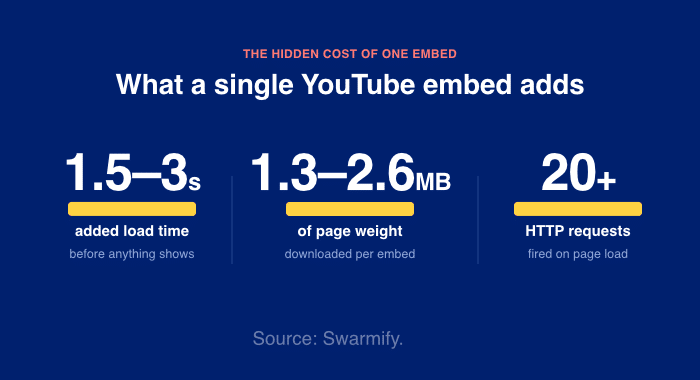
As you can see, the speed problem is definitely real. But it’s also the smallest of the four problems.
Speed you can measure and manage. The other three limits are built into how the native embed works, and no setting on your end turns them off. Here they are, plain and simple:
- It shows one hand-picked video. There’s no way to drop in a whole channel or a playlist as a single block. You paste videos one at a time, by hand.
- It never auto-updates. Post a new video, and your page stays frozen. You have to go back and embed the new clip yourself, every single time.
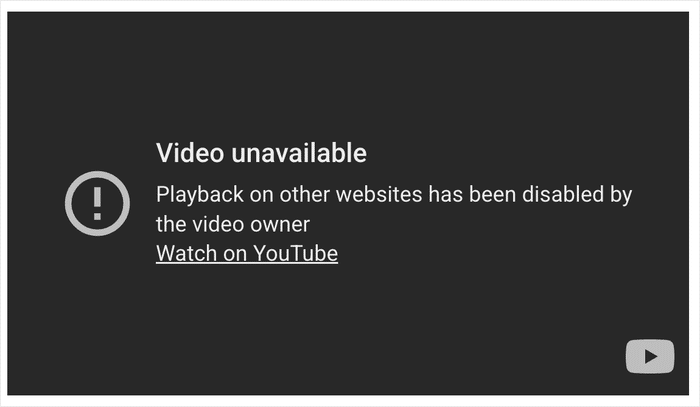
- It breaks silently. A video that plays fine on YouTube can show “Video unavailable” or “restricted from playback” once embedded, and the video owner controls that setting, per YouTube Help. You can’t override it.
- It weighs your page down. Each embed pulls in the scripts and requests behind those baseline numbers above.
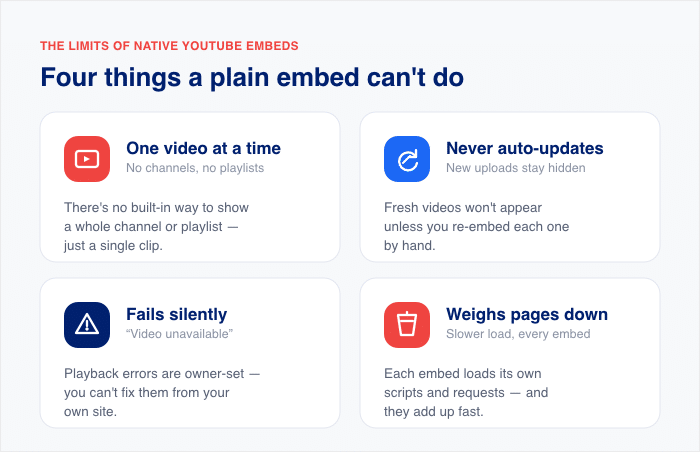
If you skim nothing else, that’s the whole picture. The native embed is fine for one video. Ask it to feature your channel, keep itself current, or stay reliable, and it hits a wall.
Why “It’s Just Slow” Misses the Real Problem
Most articles about YouTube embeds stop at one point: embeds slow your site, so lazy-load them and move on. The advice is not wrong. It is just half the story.
I fell for that framing myself for a long time. Speed is something we all notice immediately, but while it gets all the attention, the harder problems get skipped.
A perfectly lazy-loaded embed still shows one video. It still won’t add your new uploads on its own. It still throws “Video unavailable” the moment the video owner turns off embedding, and YouTube Help confirms that setting is theirs, not yours.
So speed is a symptom, not the disease. The real limit is structural. It is baked into how a single iframe works, and no amount of tuning changes it.
Fix the speed, and you still can’t put your channel on a page. That is the wall. The rest of this article takes it down, one piece at a time.
The Native Embed Shows One Video — Not Your Channel or Playlist
Open YouTube’s Share » Embed panel and look at the code you get. Buried in that iframe is a single video ID. That ID is the whole design. The native embed is built to show one video, the one you copied, and nothing else.
That works fine until you want to feature your channel.
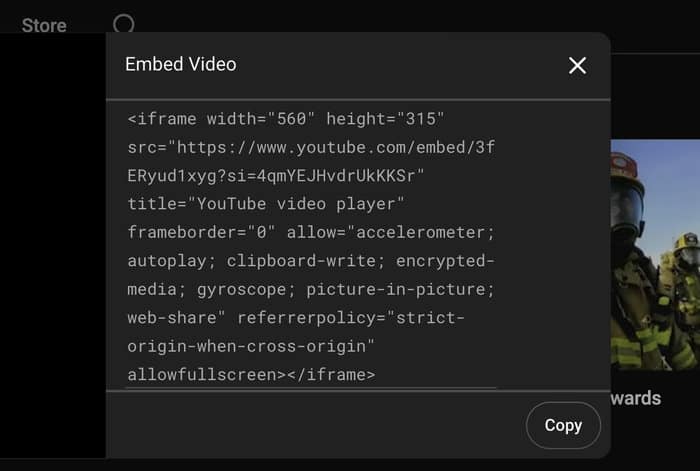
Say you post videos every week, and you want a page on your site that shows them off. The native embed has no setting for “show my channel.” It has no setting for “show this playlist.” It only knows the one video ID you pasted.
So you do it by hand. You copy the embed for video one and paste it. You copy video two and paste it. You keep going for every clip you want on the page.
Then you do it again next week and the week after that.
Here is the part that catches people off guard. Once those embeds are on your page, they sit there frozen. Post a fresh video to YouTube, and your page does not change.
To add the new video, you go back into WordPress, grab the new embed code, and paste it in yourself every single time you upload. This is the first wall, and it is the biggest one.
The Embed That Fails Silently: “Video Unavailable” and “Restricted From Playback”
Here is the wall that catches people off guard. A video plays perfectly on YouTube, you embed it on your site, and on your live page, it shows an error instead.
Nothing is wrong on your end. The video owner set a rule that blocks the embed, and you cannot override it from your site, according to YouTube Help.
Here are the exact messages you might see in place of the video:
- “Video unavailable”
- “Watch on YouTube”
- “Video unavailable. This video is restricted from playback on certain sites”
- “Video unavailable. The uploader has not made this video available in your country”
- “Playback on other websites has been disabled by the video owner”
These errors are controlled by the video owner or the rights holder, not by you. Whoever owns the video decides whether it can play off of YouTube, and they can turn embedding off whenever they want.
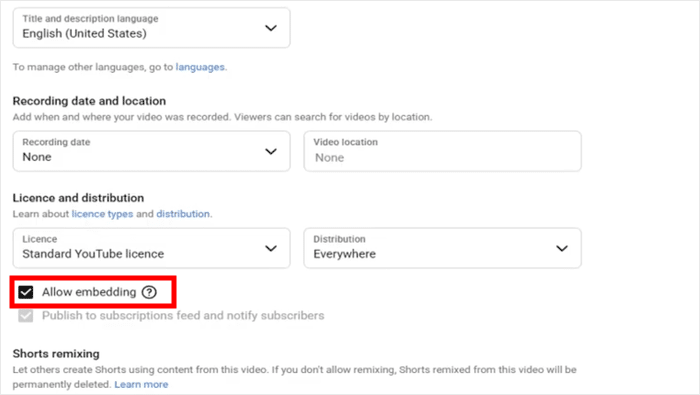
So this is the second wall. The native embed can break through no fault of your own, it breaks silently, and you have no control over the setting that broke it.
What WordPress Site Owners Actually Report Before They Switch
If you have hit these walls, you are not alone. The same complaints come up again and again.
Smash Balloon builds social feed plugins that are used by millions of websites, and its YouTube Feed plugin alone runs on more than 100,000 active installs on WordPress.org.

Looking through the comments people have made when switching to plugin embeds, three complaints stand out.
I find this part reassuring, and I think you will too. The problems you are running into are not something you did wrong. They are built into the native embed, and thousands of other owners have run into the exact same ones.
Here are the three and why the native embed causes each one:
| What owners report | Why the native embed causes it |
|---|---|
| “Some of my videos show an error instead of playing.” | The video owner turned off embedding, and the native embed has no way around that setting. |
| “I can’t show my whole channel or playlist as one block that stays current.” | The native embed is tied to a single video ID, so it can’t pull from a channel or update on its own. |
| “The last thing I tried broke my theme layout.” | A raw iframe uses a fixed size that does not always fit the space your theme gives it, so it can spill or shrink. |
That last one answers a question a lot of people ask after a bad experience: why did my last video plugin break my theme layout? Often it comes down to sizing.
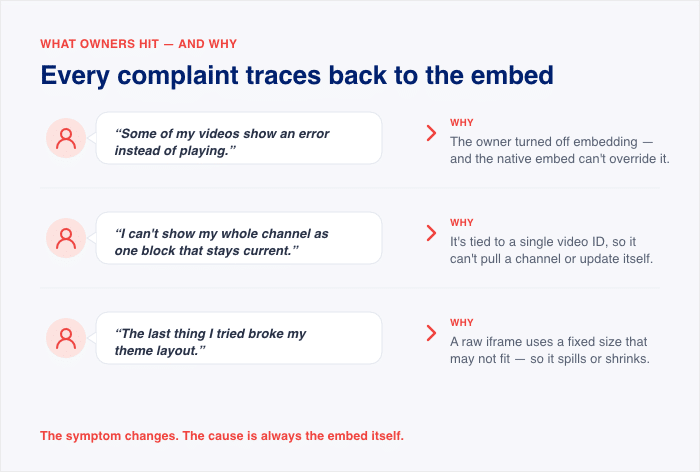
A native iframe is not built to flex with your theme, so it can push past its column or leave odd gaps on smaller screens.
Notice the pattern in all three. None of these are speed problems. They are about control, updates, and fit, and they are the reasons owners give right before they switch to a feed.
Now that you can see the shape of the problem, the fix is easier to understand. The next section shows how a feed plugin closes each of these gaps.
How a Feed Plugin Solves What the Embed Can’t
On WordPress, this is where YouTube Feed Pro comes in as the solution. Smash Balloon’s feed plugin displays your channel, playlists, and single videos on your site, and it maps to each wall we covered above.
Let me walk through how it closes each gap.
- It shows your whole channel. Once you embed a YouTube channel feed or playlist feed, it displays every video in one block. This is the fix for the one-video ceiling.
- It keeps itself current. Upload a new video to YouTube, and the feed adds it on its own. No going back into WordPress to paste a fresh embed every week. This is the fix for the frozen, manual re-embedding problem.
- It fits your theme. The plugin is designed to match your existing theme, so the feed sits in your layout instead of spilling past its column or shrinking on smaller screens. This is the fix for the “the last plugin broke my layout” complaint.

- It loads faster. Smart lazy loading holds off on loading the YouTube player until a visitor actually engages with a video, so the heavy scripts only load when someone clicks. This is the fix for the page weight and load time cost, and I measured what it does in the next section.
- It stays reliable. A backup caching system keeps your feed showing even if YouTube has downtime. This is insulation against the silent-failure problem from earlier.
Here is each native embed wall next to how the feed handles it.
| Native embed limitation | How the feed handles it |
|---|---|
| Shows one video, tied to a single video ID | Displays your whole channel or playlist as one feed |
| Never updates, so you re-embed by hand after every upload | Adds new uploads automatically once you set the feed |
| Loads heavy player scripts on every page view | Smart lazy loading holds the player back until a visitor engages |
| Fails silently when the owner blocks embedding | Backup caching keeps the feed showing through downtime |
| Fixed iframe size that can break your layout | Built to match your existing theme and fit the space |
That is the mechanism. Every wall the native embed puts up, the feed has a direct answer for. What I have not shown you yet is the proof, the actual numbers from a real page. That comes next.
Show Your Whole Channel, Not One Frozen Video
YouTube Feed Pro displays your channel or playlist in one block, adds new uploads on its own, and holds the player back until someone clicks.
Show My Whole ChannelBefore and After: A Real Page-Weight Test
Here is the proof I promised. I wanted to see whether lazy loading actually does what everyone claims, so I ran the test myself instead of trusting the numbers other people quote.
The setup was simple. I built one WordPress test site and put four videos on a single page.
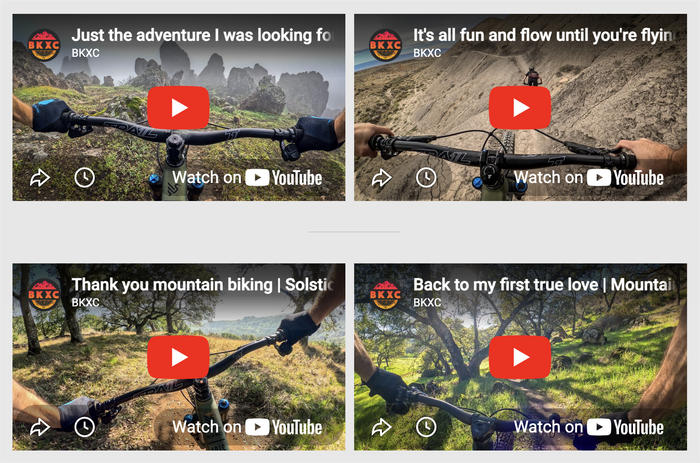
First I loaded them as raw YouTube iframe embeds, the same “Share to Embed” code you would paste in yourself.
Then I showed the same four videos through YouTube Feed Pro with smart lazy loading turned on. I measured both pages with Pingdom.

These are my own results from one test site. They are not vendor claims, and your numbers will vary with your theme, your host, and your videos. But the direction is hard to miss.
| Measurement | Raw YouTube embeds | YouTube Feed Pro (lazy loading) | Change |
|---|---|---|---|
| Load time | 2.60s | 1.49s | 43% faster |
| HTTP requests | 145 | 61 | 58% fewer |
| Page weight | 7.0 MB | 1.9 MB | 73% lighter |
The page weight number is the one that made me stop and look twice.
On the raw embed page, youtube.com was 68.88% of the total page weight all on its own. That is 4.7 MB pulled in from YouTube before a visitor clicked anything.
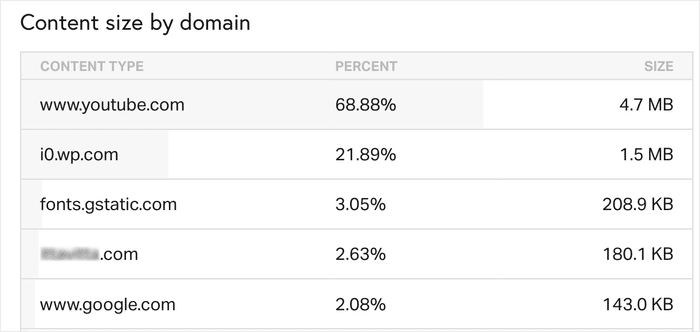
On the feed page, YouTube’s footprint dropped under 1% of the page size and 3.28% of the requests.
The reason is the mechanism from the last section, working in real numbers. With lazy loading, the feed shows a thumbnail image first and holds the full YouTube player back until someone clicks a video.
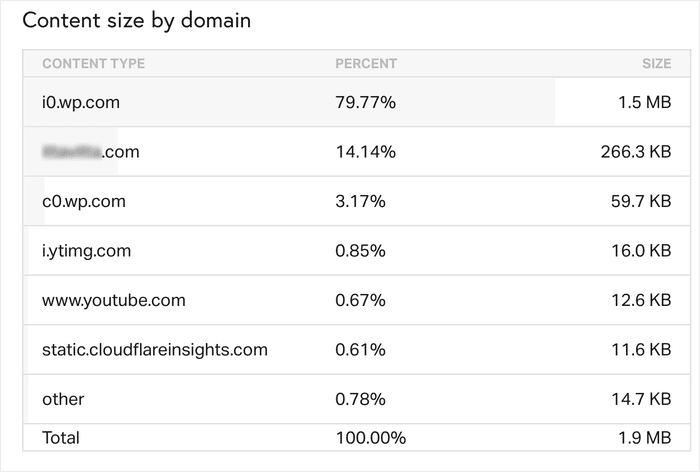
The heavy scripts only load for visitors who actually want to watch. Everyone else gets a light, fast page.
So to answer the question directly: yes, embeds slow your site enough to matter, and lazy loading fixes it. Four raw embeds pushed my page to 7.0 MB and 2.60s.
The same four videos through a feed with smart lazy loading came in at 1.9 MB and 1.49s.
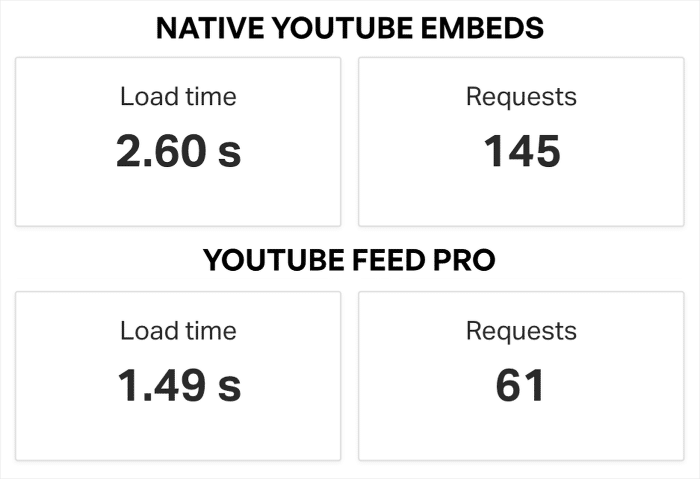
That is the difference between carrying YouTube’s full weight on every page view and loading it only when a visitor asks for it.
Frequently Asked Questions
Am I allowed to embed YouTube videos?
Embedding a YouTube video is not usually a copyright problem. An embed is a link to the video on YouTube, not a copy stored on your site, so you are pointing at the original rather than hosting it. Keep in mind that the video owner can still turn off embedding whenever they choose, which stops the video from playing on your page.
Why does my embedded YouTube video say “video unavailable”?
Your embedded video says “video unavailable” while it still plays on YouTube because watching and embedding are two separate permissions. Per YouTube Help and developer reports on Stack Overflow, the owner can allow viewing on YouTube and still block playback on other sites. That setting lives on the owner’s side, so there is no fix you can apply from your own site.
Can I show a whole YouTube channel or playlist on one page?
You cannot show a whole channel or playlist on one page with the native embed, because each native embed is tied to a single video ID inside one iFrame. A feed plugin does this in one block by pointing at your channel or playlist instead of a single video. That is why owners switch to a feed when they want more than one video.
Will my site update automatically when I post a new video?
The native embed will not update on its own, so a new upload means going back into WordPress and pasting a fresh embed by hand. For your feed to update automatically, you’ll have to use a plugin like YouTube Feed Pro instead.
Do YouTube embeds really slow down WordPress?
Yes, manual YouTube embeds slow your site enough to matter, and using a plugin can fix it. In my Pingdom test, four raw embeds pushed one page to 7.0 MB and 2.60s, with youtube.com alone accounting for 68.88% of the page weight. The same four videos through YouTube Feed Pro with smart lazy loading came in at 1.9 MB and 1.49s, because the full player only loads when a visitor clicks.
The Bottom Line: Show More Than One Video
The native embed’s real limit is not just speed. It shows one video, never updates, fails silently when the owner blocks embedding, and bloats your page. A feed-based approach removes all four at once.
It displays your whole channel or playlist in one block, adds new uploads on its own, keeps showing through downtime, and loads light.
I saw the difference in my own tests, and you can test it out yourself to confirm. Swapping raw embeds for a feed took one page from heavy and slow to light and fast, and that was the same four videos either way.
You get more content on the page and a smaller footprint at the same time.
Ready to show more than one video? Start displaying your feed today with Smash Balloon YouTube Feed Pro.
For a step-by-step guide, check out this tutorial on how to embed a YouTube feed on your WordPress website.