Social Wall
  Feed Analytics

If you’ve ever pasted Instagram’s embed code into a page, watched it work fine for a few months, then found a blank white gap where the feed used to be, you already know the problem this post is about.
Most people running a social feed on WordPress hit some version of it. The feed goes blank, and there’s nothing in your dashboard to fix. It ignores your theme’s fonts, so it always looks slightly bolted on.
Or it keeps rendering happily for months while the posts in it get older and older, because updating it was always a manual job and that job fell off the list.
None of that shows up on day one. Both approaches look fine on day one.
So this comparison is about month six. What each one loads on every page view, what each one shows when the source stops answering, and where the fix lives when the feed breaks: your dashboard, or someone else’s.
In this Article:
- Social Feed Plugin vs Embed Widget: The Short Answer
- Wait, Is an Embed Widget the Same Thing as a Social Feed?
- What Actually Breaks After the Feed Is Already Working
- I Tested Social Feeds and Widgets: Here's What I Found
- Does the Feed Look Like It Belongs on Your Site?
- How a Plugin Feed Keeps Rendering When the Platform Doesn't
- So Which One Should You Use?
- The Real Difference
Social Feed Plugin vs Embed Widget: The Short Answer
Both take about ten minutes to set up. That’s why setup is the wrong thing to compare.
A social feed plugin stores your feed data inside your WordPress install and renders it with your site’s own code. An embed widget renders from somewhere you don’t control.
Almost everything that goes wrong later traces back to that one split.
| Social feed plugin | Embed widget | |
|---|---|---|
| Where the feed data lives | Inside your WordPress install | On the platform’s servers |
| What renders on the page | Your site’s own HTML and CSS | A block or iframe loaded from elsewhere |
| When the source is unreachable | Keeps rendering from local data | Blank space where the feed was |
| Who can fix it when it breaks | You, in your dashboard | Whoever owns the thing that broke |
That last row is the one I’d pay attention to. When an embed breaks, the broken piece usually isn’t on your site at all, so there’s no setting for you to change and nothing to do but wait.
Wait, Is an Embed Widget the Same Thing as a Social Feed?
Short answer: no, they’re different things even if they’re both used to embed social media content.
Instagram’s embed code is the snippet you copy from a single post. A YouTube or Twitter/X iframe works the same way. You grab the code from the platform, paste it into your page, and the platform serves the content.
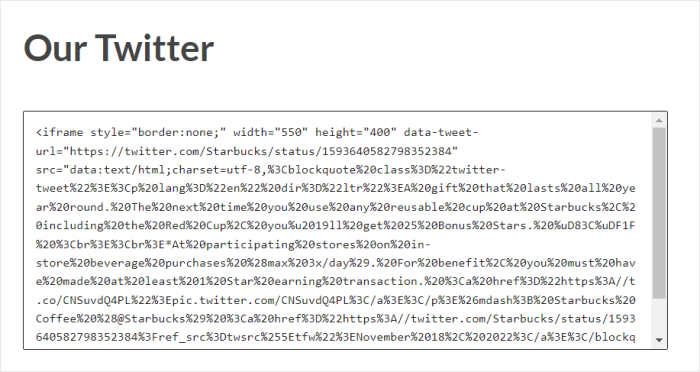
That last part is the whole story. What’s sitting on your page is just a placeholder that tells the browser where to go get it.
So on every page load, your visitor’s browser requests your page from your host, reads that placeholder, then makes a second request somewhere else entirely.
Your post appears only after that round trip completes, and not one moment sooner.
A social feed works the other way around. A plugin connects to your account, pulls your posts into your WordPress install, and stores them there. When someone loads the page, the feed is already in it. Nothing to go fetch, nobody to wait on.

The other difference is what you’re putting on the page in the first place. An embed is one post, frozen at the moment you pasted it. A feed is an ongoing set of posts that updates itself as you publish.
That’s why the two get compared but rarely swapped. One is for showing a specific post. The other is for showing whatever you posted last.
What Actually Breaks After the Feed Is Already Working
Almost every site owner I talk to about feeds describes the same arc. Setup went fine. Something went wrong months later. And when they went to fix it, they found there was nothing in their dashboard to fix.
Three versions of that story come up again and again. What’s interesting isn’t the failure itself. It’s who was able to do anything about it.
The Blank Space Where the Feed Used to Be
This is the one with the longest silent tail. The feed stops rendering, and what’s left is empty space where the posts used to be.
Nobody gets an alert when that happens. WordPress doesn’t know the feed is gone, because as far as your install is concerned, nothing on your site changed.
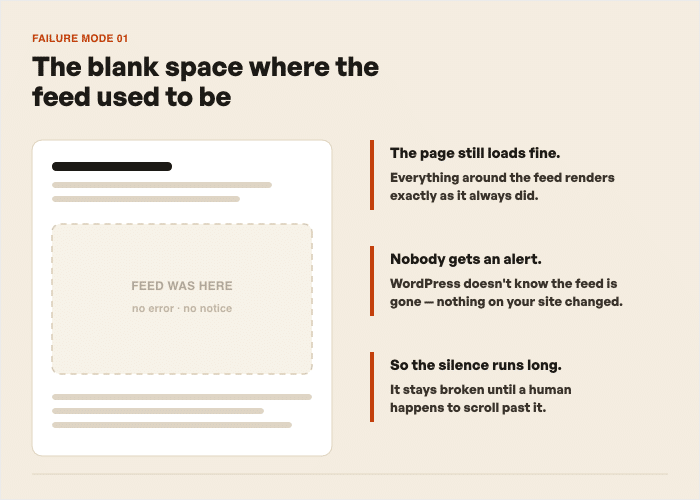
So people find out by accident. A visitor mentions it. Or they’re editing that page for an unrelated reason months later and notice the gap.
The Feed That Ignores Your Theme
This one isn’t a failure. It’s a slow irritation that turns into a project.
The owner notices the feed looks bolted on. Wrong font, wrong link color, corners too round or not round enough. Their site has a look, and the feed clearly isn’t part of it.

So they try to restyle it, and that’s where it stops. The styling isn’t in their theme customizer or their block settings, because the markup isn’t theirs. It arrived already styled from wherever it loaded.
The Feed That Went Stale Without Failing
This is the nastiest one, and it’s worth separating from the blank block.
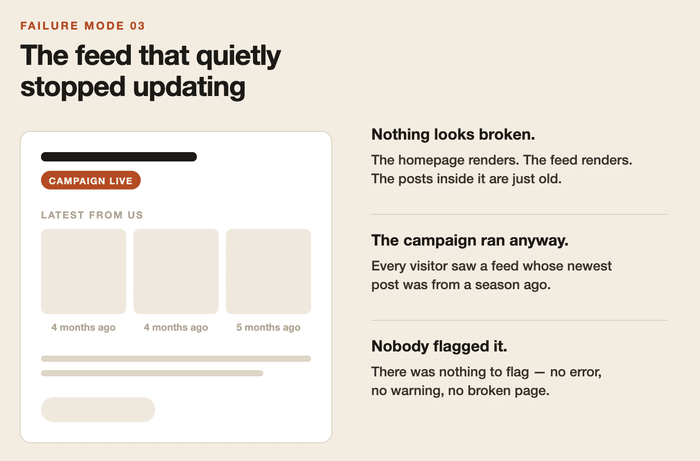
A blank block is visible. Something is obviously missing, so sooner or later someone reports it. A stale feed shows you nothing at all. The feed renders. The images load. The layout looks right.
The posts are just three months old.
This happens because an embedded feed isn’t a feed. It’s however many posts you embedded on the day you built the page, and it stays those posts.
Publish a new video, and it goes to your channel, not to your site. The only way it reaches your page is if you go back, copy another embed code, and paste it in.
Which is fine in month one. In month eight, it’s a chore that quietly fell off the list, and nobody notices because nothing broke.
I’ve seen this land badly. The site’s running a campaign, the homepage is showing a feed, and the newest post in it is from a season ago. Every visitor saw it. Nobody flagged it, because there was nothing to flag.
That’s the pattern under all three. The blank space, the mismatched styling, the stale posts. In each case, the thing that needed doing wasn’t something your dashboard could do for you.
So, you either wait it out, live with it, or change how the feed gets on the page in the first place.
I Tested Social Feeds and Widgets: Here’s What I Found
Everything up to this point has been about where the feed data lives. This is the section where that turns into numbers.
I set up two pages on a WordPress staging site. Same theme, same page template, same placement in the layout. One page ran raw embeds.
The other ran a Smash Balloon plugin feed. Same content, same post count. Then I measured both with PageSpeed Insights, Chrome DevTools, and Pingdom.
Start with the whole page, because that’s the part nobody expects.
| Raw embed page | Plugin embed | |
|---|---|---|
| Page size | 8.4 MB | 1.1 MB |
| Requests | 176 | 42 |
An 8.4 MB page isn’t a slow page. It’s a page that’s downloading something enormous, and the feed is the only thing on it big enough to explain that. So I broke the payload down by domain to see who was actually sending it.
Embed page, content size by domain:
| Domain | Size | Share of page |
|---|---|---|
| www.youtube.com | 7.5 MB | 91.31% |
| fonts.gstatic.com | 292.3 KB | 3.56% |
| www.google.com | 211.5 KB | 2.58% |
| c0.wp.com | 71.4 KB | 0.87% |
Read that top row again. YouTube sent 91.31% of that page. My WordPress install contributed the theme, the copy, the images I’d uploaded, and roughly nothing else by weight. The page was mostly somebody else’s servers.
Plugin feed page, same domains contacted:
www.youtube.com—widgetapi.jsat 9 KiB andiframe_apiat 4 KiB, and neither one loads the player until someone clicksi.ytimg.com— thumbnails, around 49-57 KiB each
That’s the whole external footprint. The plugin page still talks to YouTube, it just doesn’t hand over the page to it. The player arrives when a visitor asks for a video, not before.
DevTools tells the same story from the third-party angle, and adds the part that actually hurts.
| Third-party cost | Raw embed page | Plugin feed page |
|---|---|---|
| YouTube payload | 8,772 KiB | 457 KiB |
| Main thread time | 6,036 ms | — |
| Total Blocking Time | 4,510 ms | 0 ms |
Payload down about 95%. But the number I’d point at is Total Blocking Time going from 4,510 ms to 0 ms, because that one isn’t about download size at all.
That’s the browser’s main thread being occupied executing third-party JavaScript, which is time your page can’t respond to a tap or a scroll. Four and a half seconds of it, on a page that “looked fine.”
Rolled up into the score people actually run:
| Before (iFrame embed) | After (plugin feed) | |
|---|---|---|
| PageSpeed mobile | 49 | 72 |
| PageSpeed desktop | 52 | 99 |
| Mobile Speed Index | 15.1s | 4.9s |
Mobile Speed Index is the one to sit with. 15.1s to 4.9s is the difference between a page that fills in while someone waits and a page that’s mostly there when they arrive.
It’s the same mechanism as the others: the embed page’s feed lived on servers I don’t control, so every visitor paid the full cost of fetching it, and there was no setting in my dashboard that could make it cheaper.
The plugin page served the feed from data already in the WordPress install, so the only thing left to fetch was the media a visitor actually asked for.
Expert Tip: If you want to learn more, we have a guide on whether social media feeds will slow down your website where we go into more detail.
Does the Feed Look Like It Belongs on Your Site?
Here’s the question I hear most often about embeds, usually phrased with some frustration: why does this thing look nothing like the rest of my site?
Same two staging pages, same theme active on both. I dropped a feed created using Smash Balloon and compared it to the manual embed from earlier.

The plugin feed picked up the theme. Its headings use the font the theme sets, and its links use the color the theme sets, because that markup renders through your site’s own stylesheet like any other content on the page.
The embed feed didn’t. It arrived with typography and colors decided somewhere else, and it applies them no matter what your theme says.
That’s the whole mechanism. One feed is styled by your site. The other is styled before it reaches your site.
How a Plugin Feed Keeps Rendering When the Platform Doesn’t
Everything above this line is the problem. This section is the mechanism that answers it. Here’s how each piece maps to a failure you’ve already read about.
It Keeps a Local Copy of Your Feed
With a high-quality social feed plugin like Smash Balloon, you get a backup caching system that stores your feed data inside your WordPress install.
When Instagram goes down or the API stops answering, the plugin has something to render from. Your feed keeps displaying instead of leaving a gap.
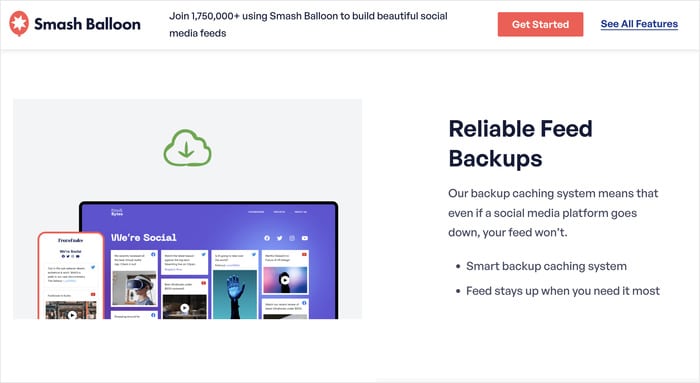
That’s the difference the whole post turns on. The plugin page has your posts sitting in the database, so it has something to render when the platform doesn’t answer.
But the embed page has a placeholder and an address, and if nothing comes back from that address, nothing renders.
It Doesn’t Load Third-Party Iframes
Smash Balloon feeds render without loading third-party iframes that slow down pages.
That’s why the plugin page contacted fewer outside domains and weighed 1.1 MB against the embed page’s 8.4 MB. There’s no request chain because there’s nothing to fetch.
It Uses Lazy Loading and Smart Caching
Images load as the visitor scrolls to them, and cached feed data means your server isn’t calling the API on every page view.
This is the Total Blocking Time result: 4,510 ms on the embed page, 0 ms on the plugin page.
The Fix Is in Your Own Dashboard
No coding required. The feed settings sit in your WordPress admin next to everything else you manage.
This is the one I’d weigh heaviest. Even in the rare chance that something goes wrong, you open a screen you already have access to or contact the support team. With manual embeds, you’re left waiting on infrastructure you don’t control.
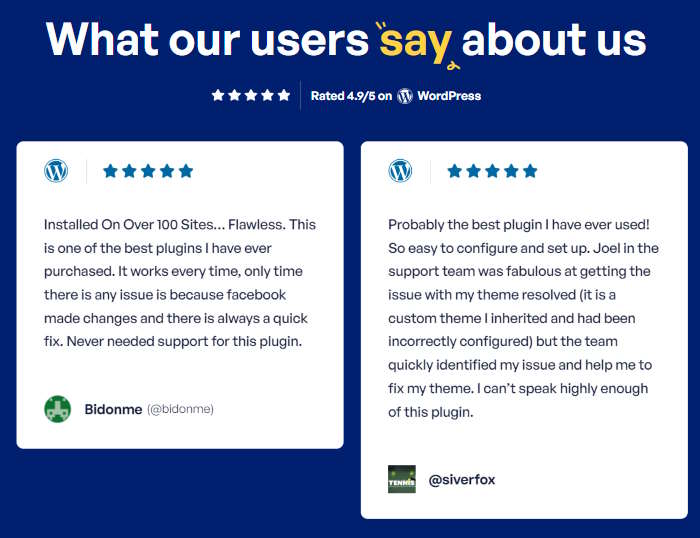
Around 1.75 million people run Smash Balloon feeds on their WordPress sites, which is worth knowing mostly because it means the failure modes above have been hit and handled at scale.
So Which One Should You Use?
The question that decides this isn’t which one is easier to set up. It’s this: when the feed breaks, is the fix in your dashboard or someone else’s?
Here’s how I’d answer it, split by what you’re actually building.
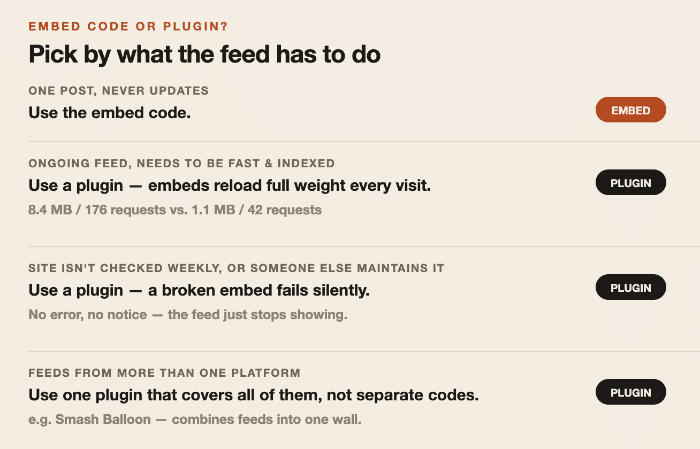
- You’re embedding one post or one video inside an article. Use the platform’s embed code. It’s a single piece of content that isn’t meant to update, so the basic but limited option wins.
- You’re running an ongoing feed on a page you want fast and indexed. Use a plugin. The performance numbers earlier in this post are the reason: 8.4 MB against 1.1 MB, 176 requests against 42. A live feed loads on every single visit, so whatever it costs, it costs you repeatedly.
- You don’t log into your site every week, or a client or freelancer maintains it. Use a plugin. The failure mode here is silence. No error notice; the feed just stops showing, and the page keeps loading fine.
- You’re running feeds from more than one platform. Use a plugin, and use one that covers all of them. Separate embed codes for different sites means things that can break in five different ways. The Smash Balloon Social Wall lets you create feeds for all these platforms and even combine them into a social wall.
The Real Difference
Both seem pretty similar at the start, but the difference shows up on the day something goes wrong. When I made both feeds’ source unreachable, the plugin page kept displaying posts from data stored in the WordPress install.
The embed page had nothing local to fall back on. That’s the real difference. One approach keeps your feed data on your own server and the fix in your own dashboard. The other keeps both somewhere you can’t reach.
If you’re running an ongoing feed, Smash Balloon Instagram Feed Pro is a great place to start, and you can create feeds for the #1 visual platform out there.
Running feeds from more than one platform? The All Access Bundle covers Instagram, Facebook, YouTube, and X in one settings screen.