Social Wall
  Feed Analytics

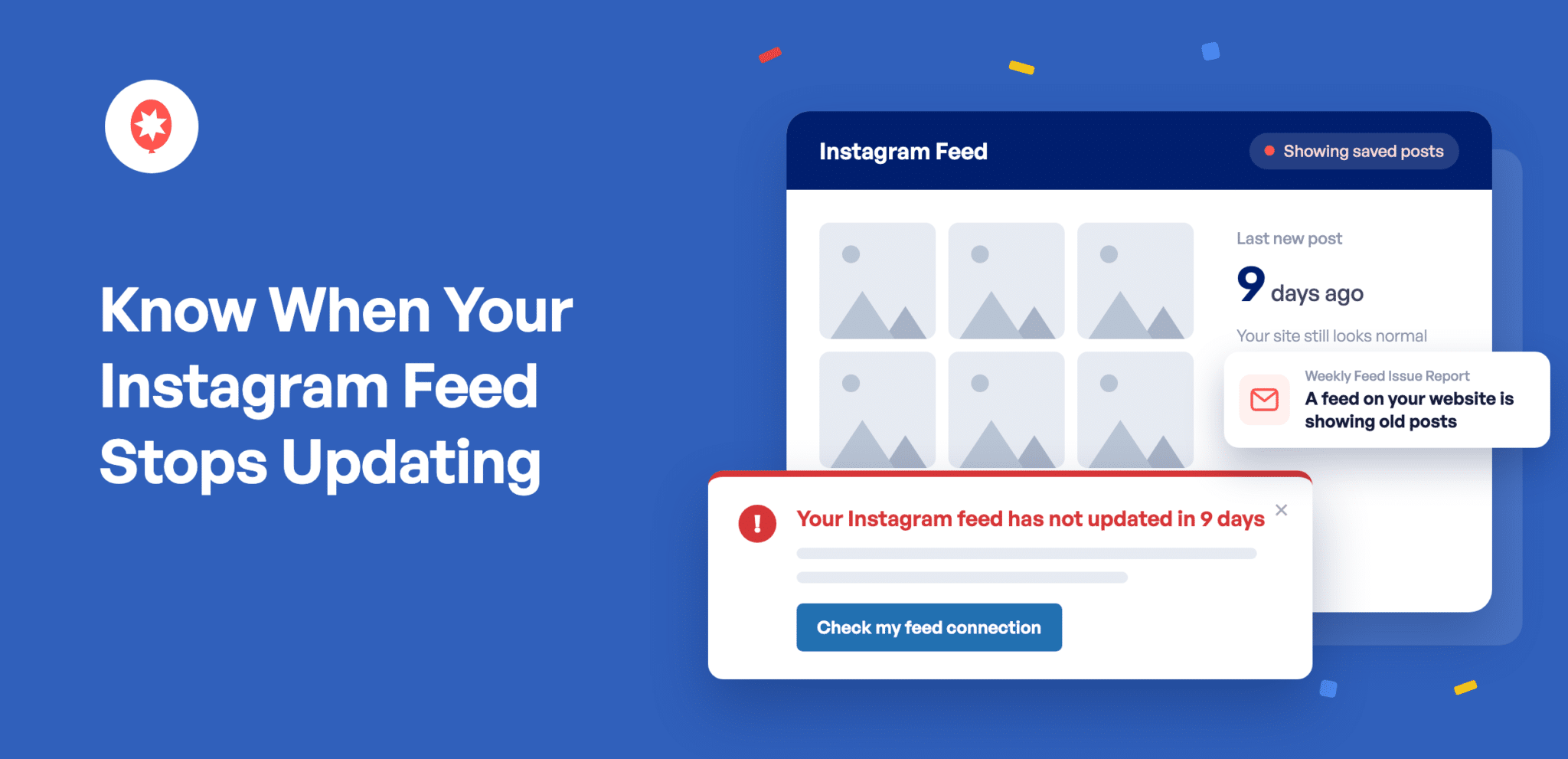
Your Instagram feed is sitting on your homepage right now, nine posts, looking exactly the way you set it up. But when did it last pull in a new post? It might have been three weeks ago, and nothing on the page would tell you.
That’s by design. When Instagram can’t be reached, Smash Balloon Instagram Feed keeps showing the posts it already saved, so your page never goes blank in front of a visitor. What 6.13.0 adds is a heads-up when that’s been going on for a while.
After a week on saved posts, you’ll see a notice in your WordPress dashboard, and the same warning lands in your weekly email, so you’ll hear about it even if you don’t log in. If it’s still stuck at three weeks, the notice gets more urgent.
There’s nothing to set up. It’s on by default in the free plugin and in every Instagram Feed Pro plan.
New to Smash Balloon? Instagram Feed pulls your Instagram posts onto your WordPress site and keeps them up to date on their own. Instagram Feed Pro adds more layouts and styling, a lightbox, which opens a post full size without taking anyone off your page, and Shoppable Feed, which links a photo straight to the product in it.
Here’s what you can do starting today:
- See a notice in your WordPress admin when a feed has been showing saved posts for a week
- Get a stronger warning if the same feed is still stuck three weeks later
- Hear about a stuck feed in your weekly Feed Issue Email Report, without logging in
- Stay connected through Instagram rate limits, with nothing to reconnect
- Make your feed, lightbox and carousels easier to use for visitors on a keyboard or screen reader, on Instagram Feed Pro
Your Feed Tells You When It’s Showing Older Posts
Here’s the tricky part. A feed running on saved posts looks exactly like one that’s pulling in new posts every hour. It has the same grid, the same layout and the same nine photos, so nothing on the page gives it away.
So now your feed keeps an eye on that for you, and tells you when something’s off.
See the First Notice After a Week of Saved Posts
Once a feed has been showing its saved copy for seven days, you’ll see a notice in your WordPress dashboard with the number right in the heading: “Your Instagram feed has not updated in 9 days.” It appears on every admin screen, not just inside the plugin, so you don’t have to go looking for it. Click “Check my feed connection” and you’ll land right on your settings.
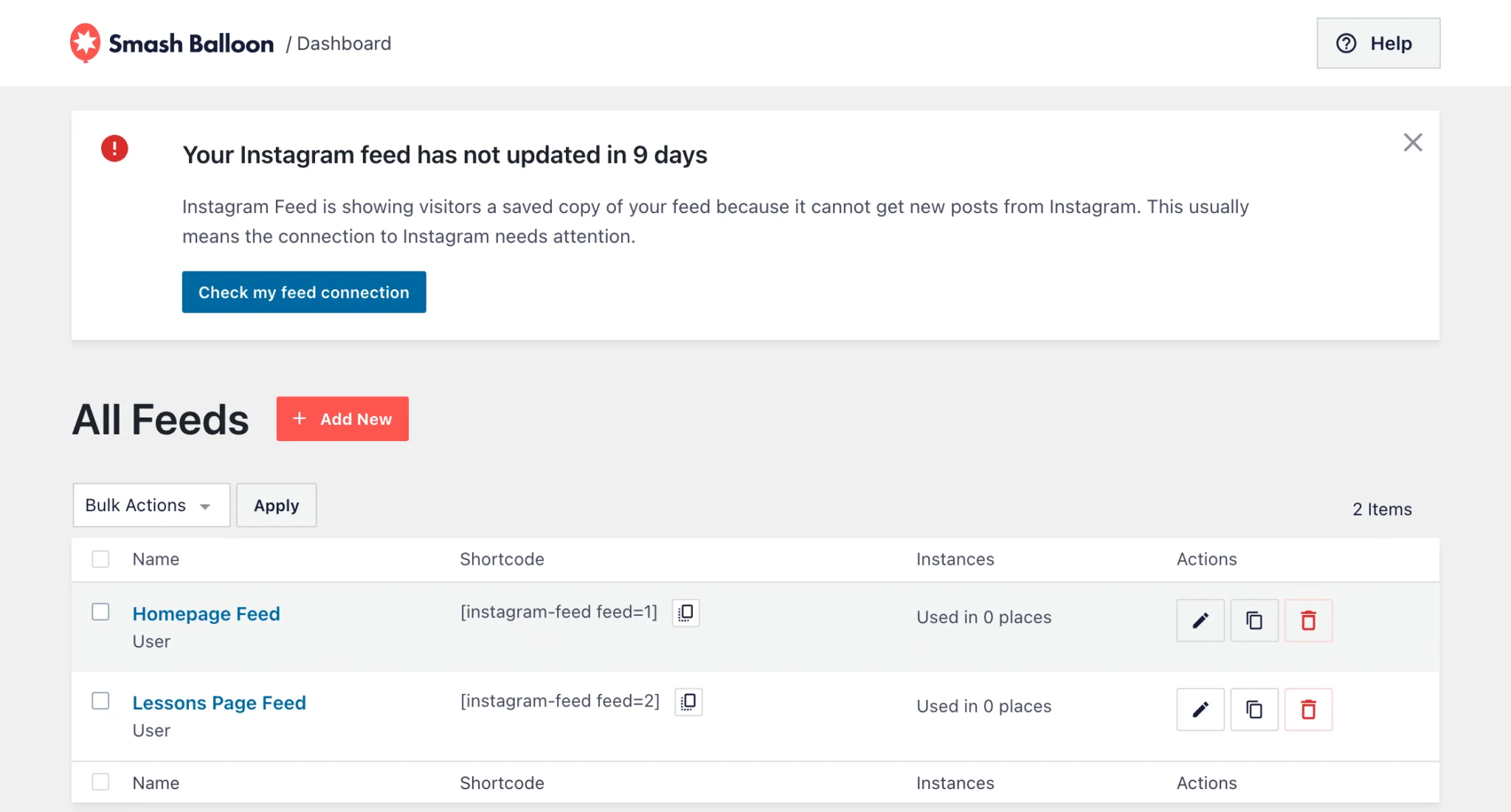
Seven days is the default, and if you’d rather hear sooner, a developer can shorten it for you. As soon as the feed pulls in fresh posts, the notice clears on its own.
Here’s what that looks like day to day:
- Post your daily specials on Instagram? You’ll know within a week if your homepage stops showing the new ones.
- Your class schedule lives in your Instagram captions, so a stuck feed means old times on your site. The notice gives you the chance to fix the connection before anyone plans around them.
- Because the notice sits on every admin screen, you’ll spot it while you’re writing a post or updating a plugin, without opening your feed settings.
The Warning Escalates If the Connection Stays Down
If it’s still stuck after three weeks, the notice gets more urgent. The heading changes to “Action needed: your Instagram feed has been showing old posts for 24 days,” and it spells out why this one’s easy to miss: your website still looks completely normal.
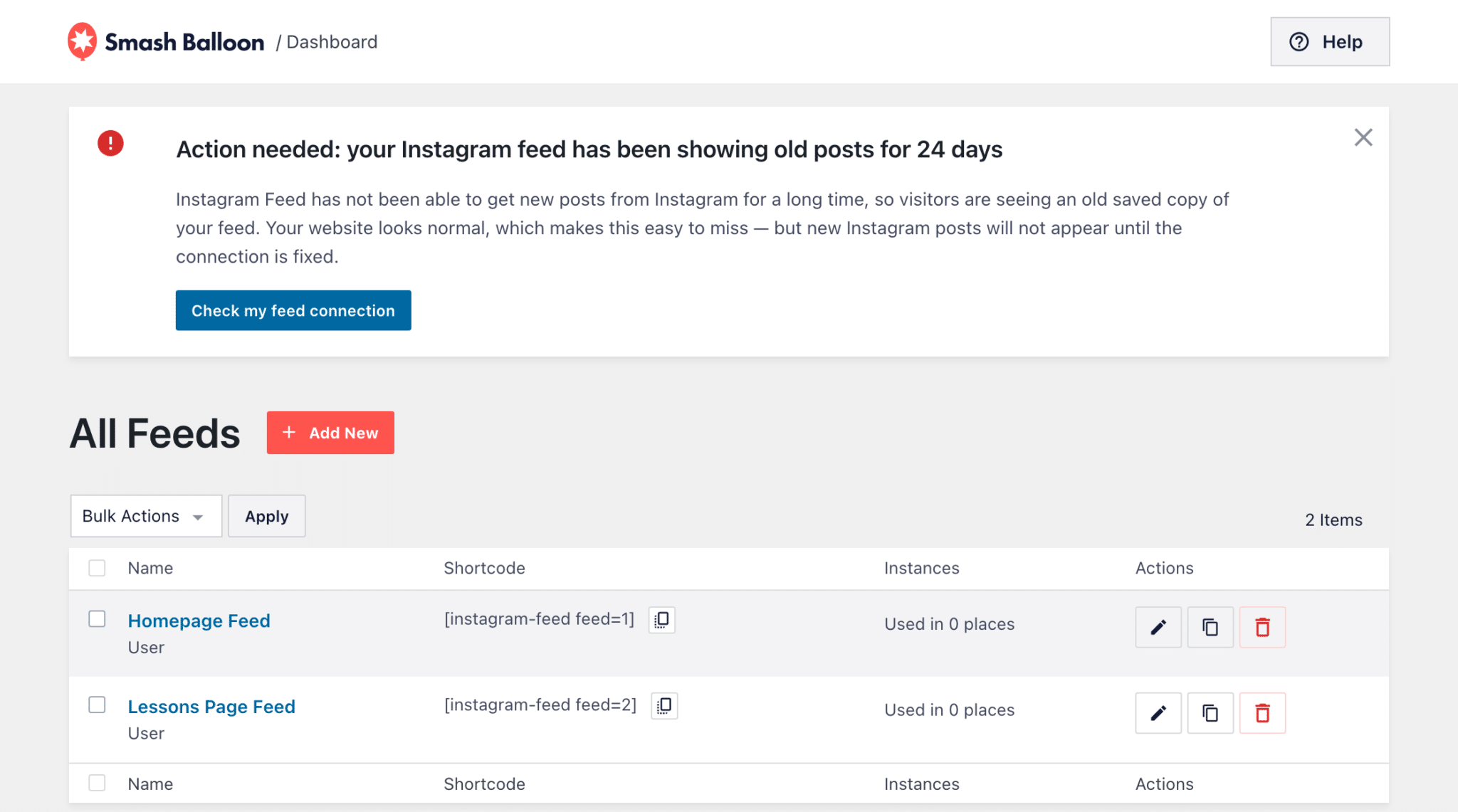
The two notices are tracked separately, so dismissing the first one won’t hide the second. If you dismiss the urgent one while the feed’s still stuck, it comes back the following week. And if more than one feed is affected, the notice tells you how many.
Get the Same Warning by Email Every Week
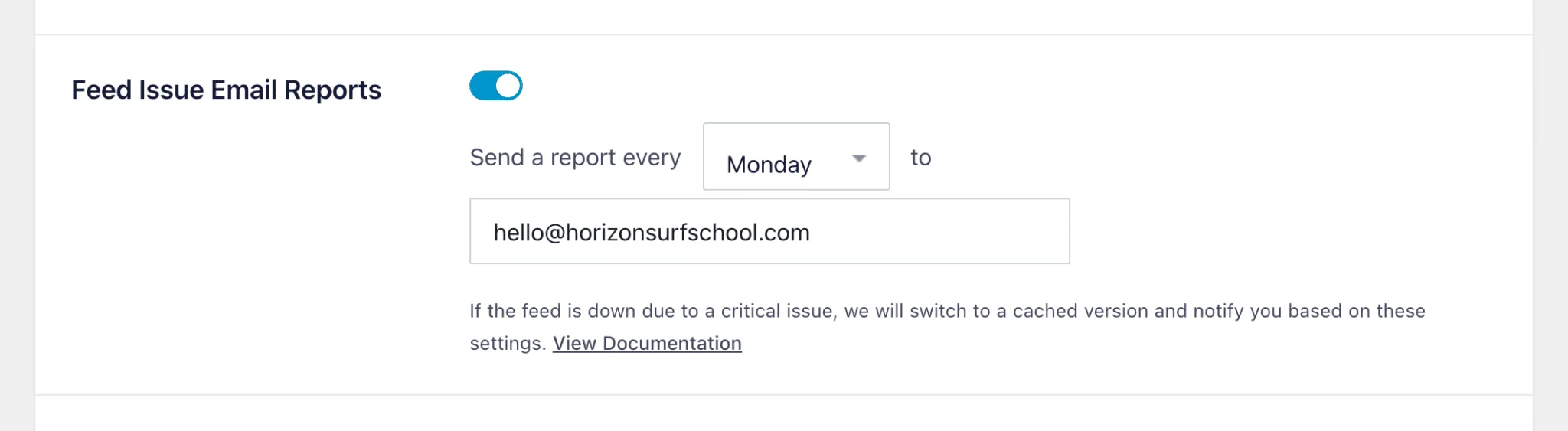
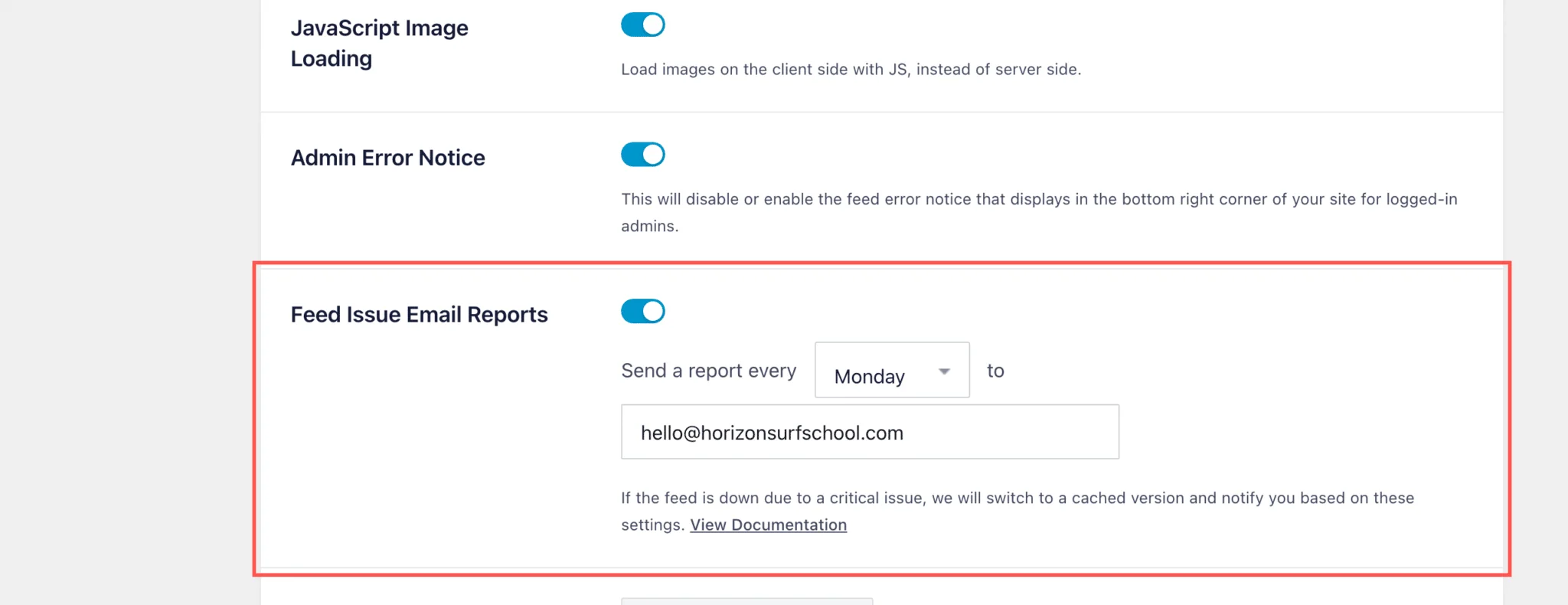
Don’t log in every day? You don’t need to. The weekly Feed Issue Email Report now tells you when a feed’s running on saved posts, the same way it already tells you about a broken connection. It arrives on the day you choose, at whatever addresses you give it.
You’ll find it under Instagram Feed, then Settings, then the Advanced tab, in the Feed Issue Email Reports box.
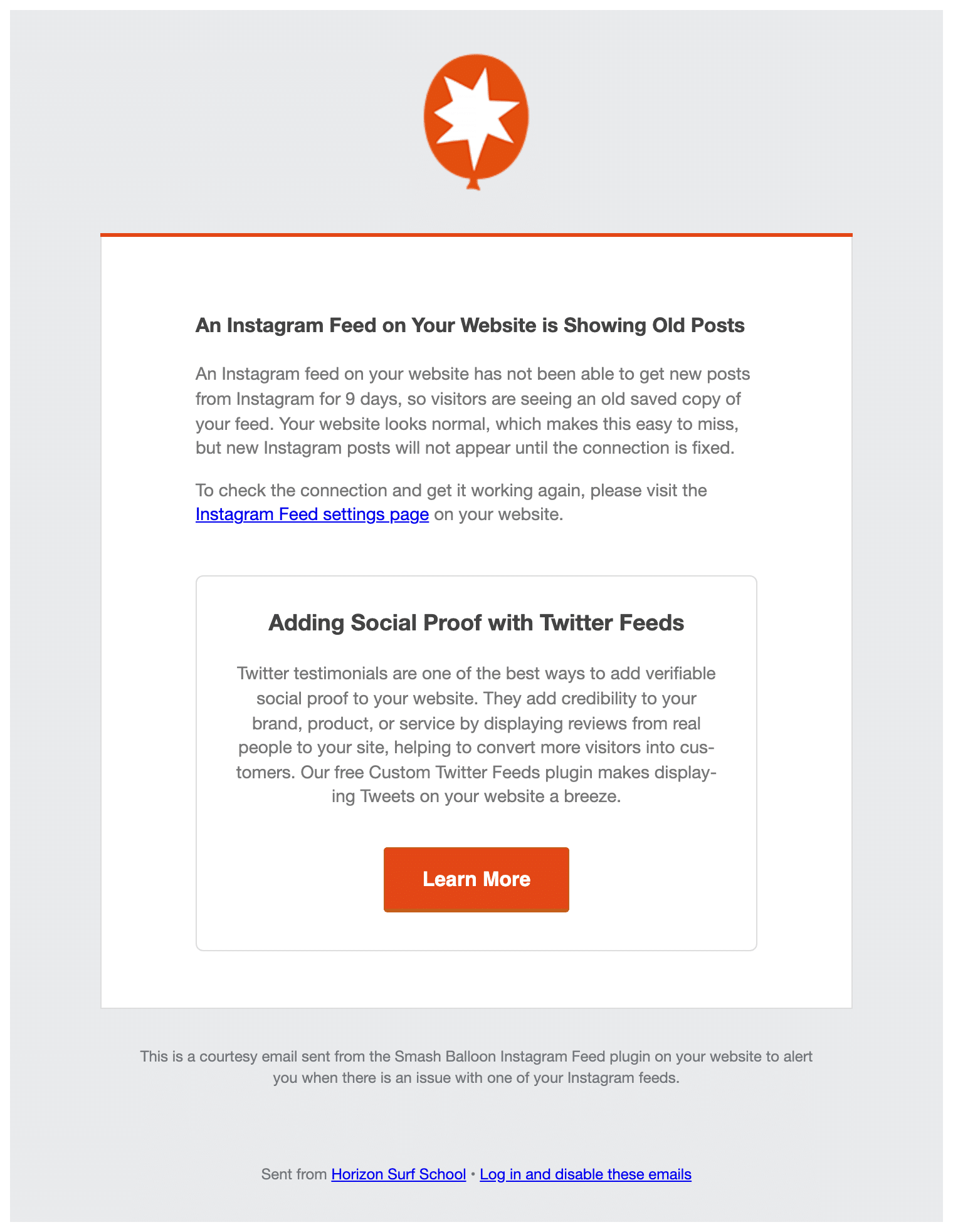
The email tells you which site, how many days, and where to go to fix it.
You can add more than one address, which comes in handy:
- Looking after client sites? Add your own address to each site’s report, and a stuck feed on any of them lands in your inbox.
- Copy in whoever runs your Instagram account, since they’re often the person who needs to log back in.
- Add your developer or freelancer too, so they hear about it the same day you do.
Ready to do more with your Instagram feed?
Instagram Feed Pro adds the lightbox, Shoppable Feed, more layouts including a scrolling carousel, and the keyboard support covered below. More than a million sites already use Smash Balloon Instagram Feed, and Pro comes with a 14-day money back guarantee.
Get Instagram Feed ProInstagram Rate Limits Keep Your Connection Valid
Instagram limits how often any app can ask it for data, then picks back up once the limit resets. When your feed hits that limit, it treats it as the short pause it is: your connection stays valid, your saved posts keep showing, and the feed tries again on its own. You won’t need to reconnect or reauthorize anything.
Your Feed Works for Keyboard and Screen Reader Visitors
Most of this section is for Instagram Feed Pro. The last part, about building a feed with your keyboard, is in the free plugin too.
Not everyone who visits your site uses a mouse. Some people get around a page with just their keyboard, and some use a screen reader. With Instagram Feed Pro 6.13.0, they can Tab to each post and press Enter to open it. When a post opens, focus moves into the lightbox, so a screen reader reads out what just opened. Posts scrolling into a looping carousel can be reached too, while the ones off screen stay out of the way, and the focus outline looks the same everywhere, so it’s always clear where you are.
Here’s what that means for your visitors:
- Someone browsing with only a keyboard can reach your newest post and open it, the same as anyone with a mouse.
- Selling through Shoppable Feed? Every product photo can be reached by keyboard, so those shoppers can get through to the product too.
- When a visitor opens a post, their screen reader reads it out, so they know exactly what they’re looking at.
Building a feed with your keyboard is smoother in both the free plugin and Pro. With a color picker open, Tab moves through the page as you’d expect, and switching settings sections no longer pulls you back into the picker.
Tested and Supported on WordPress 7.1
Waiting for your plugins to catch up before updating to WordPress 7.1? Your Instagram feed is ready. Both the free Smash Balloon Instagram Feed and Instagram Feed Pro 6.13.0 are tested and supported on it.
How to Update to Instagram Feed 6.13.0 (in 2 Minutes)
The notices, the urgent warning, the weekly email, the rate limit handling and the keyboard improvements in the feed builder are all in the free Smash Balloon Instagram Feed and every Instagram Feed Pro plan. The keyboard and screen reader improvements on your live feed and in the lightbox come with Instagram Feed Pro 6.13.0, on every plan.
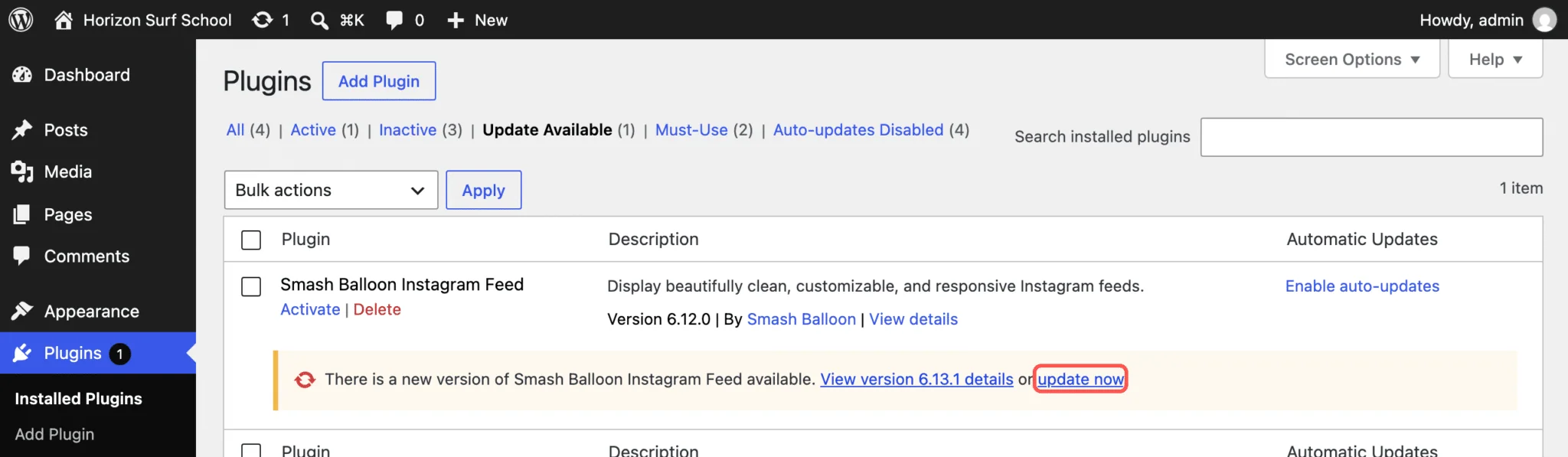
Step 1: Update the plugin. In your WordPress dashboard, go to Dashboard, then Updates, or to Plugins, then Installed Plugins. Update Smash Balloon Instagram Feed to 6.13.0 or later, and Instagram Feed Pro to 6.13.0 or later too if you use it.
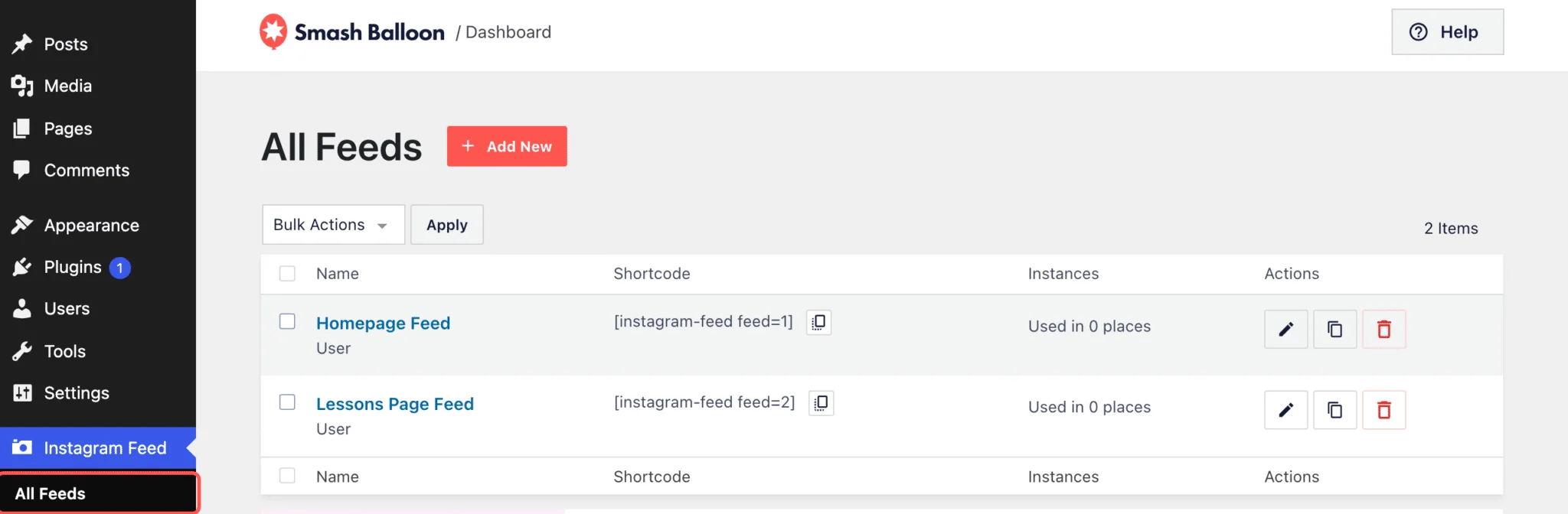
Step 2: Check your feed status. Go to Instagram Feed, then All Feeds. If a feed has been showing saved posts for a week or more, you’ll see the notice at the top of the screen. No notice means nothing’s stuck, which is exactly what you want to see.
Step 3: Set up your weekly report. Go to Instagram Feed, then Settings, then Advanced, and find Feed Issue Email Reports. It’s on by default, so check the day works for you and add any extra addresses, separated by commas.
That’s it. The notices show up when you need them and stay out of your way when you don’t.
Frequently Asked Questions
Do I need Instagram Feed Pro to get the stale feed notice?
No. The notice, the urgent warning and the weekly email are all in the free Smash Balloon Instagram Feed 6.13.0 and every Pro plan. Instagram Feed Pro 6.13.0 also improves keyboard and screen reader support on your live feed and in the lightbox.
How long does a feed have to be stuck before I hear about it?
Seven days for the first notice and 21 days for the urgent one, counted from the age of the posts your visitors are seeing. A developer can change either one for you.
What happens if I dismiss the first notice and the feed stays stuck?
You’ll still get the urgent warning, because the two are tracked separately. And if you dismiss the urgent one while the feed’s still stuck, it comes back the following week.
Do I need to reconnect my Instagram account after updating?
No. Update the plugin and your existing connections carry over. Rate limits are treated as a short pause, so your account stays connected while the limit resets.
Start Catching Stuck Feeds Before Your Visitors Do
You’ve already done the work of connecting your account, building your feed and styling it to match your site. Now your feed keeps you posted on how it’s doing, too.
Update from your WordPress dashboard and your feeds will start reporting their own status, on the free plugin and on Pro. Check that the weekly report is going to an inbox someone reads. Go ahead with the WordPress 7.1 update if you’ve been holding off. And if you’re on Instagram Feed Pro, open a page with your feed on it and press Tab to try it without a mouse.
And you get all that without:
- Checking every feed by hand each week
- Guessing whether a quiet feed is a slow week or a stuck connection
- Logging into WordPress just to check that a feed is still updating
Let your feed tell you how it’s doing
Instagram Feed 6.13.0 is out now for the free plugin and every Instagram Feed Pro plan. Pro adds the lightbox, Shoppable Feed, and this release’s keyboard and screen reader improvements on your live feed, and it’s backed by a 14-day money back guarantee.
See Instagram Feed Pro PlansUsing Smash Balloon on a site where accessibility matters? Leave a comment and let us know which part of this update helps you most.