
If you’ve ever set up WooCommerce reviews only to find them mysteriously missing from your product pages, you’re not alone.
I’ve seen this frustrate countless store owners who do everything right. Their customers leave reviews, the settings look correct, but nothing shows up.
Here’s the thing: WooCommerce reviews are powerful for your business. They build trust, boost conversions, and even help with SEO.
When they’re not showing, you’re leaving real money on the table.
I’ve dug deep into this problem, tested the most common culprits, and mapped out every fix that actually works.
In this guide, I’ll walk you through exactly why your WooCommerce reviews might not be showing and how to fix each issue step by step.
- Why WooCommerce Reviews Stop Showing (And the Smarter Fix)
- Why WooCommerce's Default Reviews System Falls Short
- The Better Solution: Display WooCommerce Reviews With Reviews Feed Pro
- Ready to Fix the WooCommerce Reviews? Here's Every Solution
- Fix 1: Enable Reviews in WooCommerce Settings
- Fix 2: Check Per-Product Review Settings
- Fix 3: Check WordPress Discussion Settings
- Fix 4: Approve Reviews Stuck in the Moderation Queue
- Fix 5: Adjust the Verified Buyers Only Restriction
- Fix 6: Resolve a Theme Conflict
- Fix 7: Resolve a Plugin Conflict
- Fix 8: Clear Your Cache
- Fix 9: Recover a Review Caught by the Spam Filter
- WooCommerce Reviews Troubleshooting Checklist
Why WooCommerce Reviews Stop Showing (And the Smarter Fix)

WooCommerce reviews stop showing for a handful of predictable reasons. The most common culprits are a disabled setting, a pending moderation queue, or a theme conflict.
We’ll walk through every fix below. But before that, it’s worth knowing that most of these issues exist because WooCommerce’s default review system is designed to be basic and functional.
There’s a better way to display reviews that sidesteps many of these issues entirely.
So, what exactly are WooCommerce reviews?
WooCommerce reviews are star ratings and written feedback that customers leave on your product pages after purchase.
They appear below the product description and are one of the most important trust signals on any eCommerce store.

By default, WooCommerce only displays these reviews on individual product pages. There’s no customization, no filtering, and no way to show them anywhere else on your site.
The most common reasons WooCommerce reviews are not showing include:
- Reviews are disabled in WooCommerce settings
- Reviews are stuck in the moderation queue awaiting approval
- The Verified Buyers Only restriction is blocking reviewers
- A theme conflict is hiding the reviews tab
- A plugin conflict is suppressing the reviews section
- A caching plugin is serving a stale version of the page
- Star ratings are disabled separately from review text
- The review was caught by the spam filter
We’ll cover every fix below. But first, if you want to skip the troubleshooting and get a more powerful reviews display system set up in minutes, jump to the Reviews Feed Pro section. It solves the problem permanently.
Why WooCommerce’s Default Reviews System Falls Short
After helping thousands of store owners troubleshoot WooCommerce, we’ve noticed a pattern. The same review display problems keep coming back.
The reason isn’t bad luck. It’s that the default WooCommerce reviews system is built for basic functionality, but there’s a lot of room to improve.

According to a BrightLocal study, 88% of consumers trust online reviews as much as personal recommendations. That’s a striking number.
Yet most WooCommerce stores are hiding their best reviews on a single product page tab that many shoppers never even scroll to.
Here’s a clear look at what the default WooCommerce reviews tab can and cannot do:
| What the Default WooCommerce Reviews Tab Does | What It Cannot Do |
|---|---|
| Shows reviews on the product page | Cannot display reviews on your homepage |
| Lists reviews chronologically | Cannot filter or highlight your best reviews |
| Allows star ratings | Cannot show reviews in a grid, carousel, or masonry layout |
| Works out of the box | Cannot automatically update in real time |
| Cannot match your brand’s visual design | |
| Cannot display reviews from multiple products in one feed |
The pattern is clear. The default system gives you just enough to get started, but not enough to actually grow trust across your store.
Below, we’ll fix whatever is broken in your current setup. Then we’ll show you how Reviews Feed Pro by Smash Balloon replaces these limitations with a system that actually works for your store.
The Better Solution: Display WooCommerce Reviews With Reviews Feed Pro
If you’re frustrated with WooCommerce’s default reviews system, you’re not alone. The good news is that there’s a purpose-built solution that solves the problem completely.
Reviews Feed Pro is a WordPress plugin by Smash Balloon that lets you collect your WooCommerce product reviews and display them in fully customizable feed layouts.
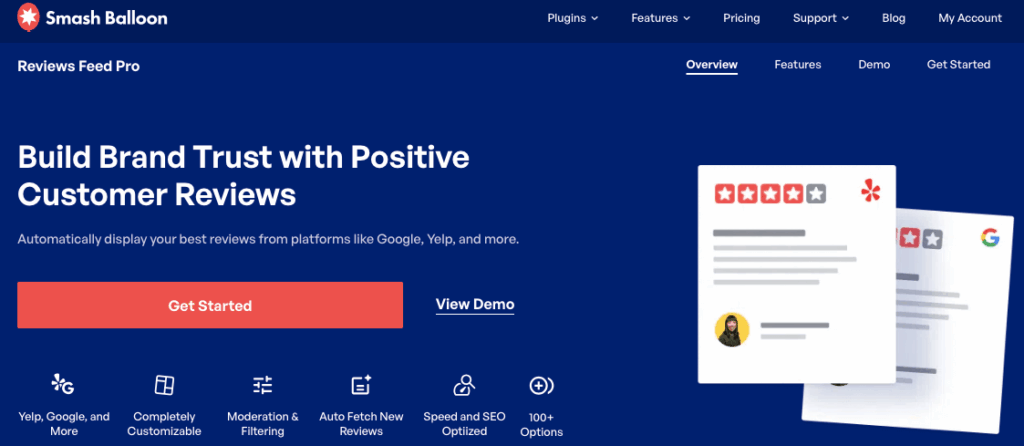
That means you can have customer reviews on your homepage, landing pages, sidebar, checkout page, or any post without writing a single line of code.
And it’s not just WooCommerce either. You can display reviews from Yelp, Google, Trustpilot, WordPress.org, Tripadvisor, and Facebook using this tool.

We’ve tested Reviews Feed Pro extensively, and what stands out is how much control it gives store owners who have zero development experience.
You’re not just fixing a broken tab. You’re building a review display system that actively works for your conversions.
What Reviews Feed Pro Does That WooCommerce Cannot
Here’s a side-by-side look at how Reviews Feed Pro compares to WooCommerce’s built-in reviews system:
| Feature | Default WooCommerce | Reviews Feed Pro |
|---|---|---|
| Display reviews on product pages | Yes | Yes |
| Display reviews on the homepage | No | Yes |
| Display reviews on any page or post | No | Yes |
| Filter by star rating (show only 5-star reviews) | No | Yes |
| Custom layouts (grid, list, masonry, carousel) | No | Yes |
| Real-time automatic updates | No | Yes |
| Match your brand’s design | No | Yes |
| Display reviews from multiple products in one feed | No | Yes |
| Works even if the default tab has conflicts | No | Yes |
That last row matters. Reviews Feed Pro pulls your reviews directly and displays them through its system.
So even if your default WooCommerce reviews tab is broken due to a theme or plugin conflict, Reviews Feed Pro will still display your reviews correctly.
How to Set Up Reviews Feed Pro (Step by Step)
Setting up Reviews Feed Pro is straightforward, even if you’ve never used a reviews plugin before. Here’s exactly what to do:
- Step 1: Install and activate Reviews Feed Pro.
- Step 2: Navigate to Reviews Feed » All Feeds and click on Add New
- Step 3: Select the products, categories, or tags you want to display reviews for.

- Step 4: Choose a feed template
- Step 5: Customize your feed’s layout, header, review elements, buttons, and more.

- Step 6: Click on Embed and choose the page or widget area to display the reviews.
The entire setup takes under 5 minutes, and you don’t need to touch any code at any point. Just like that, you’ll have full control over your reviews.

For a deeper walkthrough, see our full guide on how to embed WooCommerce reviews.
Ready to Fix the WooCommerce Reviews? Here’s Every Solution
If you need your default WooCommerce reviews tab working, whether alongside Reviews Feed Pro or on its own, here are the fixes for every common cause, in order of likelihood.
Fix 1: Enable Reviews in WooCommerce Settings
Estimated fix time: Under 1 minute
This is the most common cause of missing reviews. WooCommerce has a dedicated reviews settings screen, and if the main toggle is off, no reviews will show anywhere on your store.
To check this, go to WooCommerce » Settings » Products in your WordPress dashboard.

Now scroll down to the Reviews section, and you’ll see three key checkboxes:
- Enable product reviews: This is the master switch. If this box is unchecked, reviews are completely disabled across your entire store. Make sure this is checked first.
- Show verified owner label on customer reviews: This adds a “Verified buyer” label next to reviews left by customers who actually purchased the product. It’s a trust signal and safe to leave enabled.
- Reviews can only be left by verified owners: If this is checked, only customers with a completed order for that product can submit a review. We’ll cover this in more detail in Fix 5.

Once you’ve confirmed the settings are correct, click on Save Changes at the bottom of the screen. This ensures your updates take effect immediately.
Fix 2: Check Per-Product Review Settings
Estimated fix time: Under 1 minute
This is one of the most overlooked causes of missing reviews. Even if your global WooCommerce settings are perfectly configured, reviews can still be disabled at the individual product level.
To check this, go to Products » All Products in your WordPress dashboard.

Open a product from here and scroll down to the Product Data section. You’ll see a row of tabs running along the top of that panel.
Click the Advanced tab and look for the checkbox labeled Enable reviews.

If this box is unchecked, reviews will be disabled for that specific product regardless of your global settings.
Check the box and then click on Update to save your changes.
💡 Pro Tip: If you manage a large store, it’s worth spot-checking a few products at a time. This setting can accidentally get unchecked during bulk edits or product imports.
Fix 3: Check WordPress Discussion Settings
Estimated fix time: Under 2 minutes
This is a cause that most troubleshooting guides miss entirely, so it’s worth checking early.
In your dashboard, the WordPress Discussion Settings control how all comments across your site behave.
This includes WooCommerce product reviews, which use the WordPress comment system under the hood.
💡 Pro Tip: If reviews suddenly stopped working after a WordPress update or a settings change, this is often the reason why.
Head to Settings » Discussion in your WordPress dashboard.
Look for the setting that says, Allow people to submit comments on new posts. Make sure this checkbox is enabled.

It may seem unrelated to WooCommerce, but because reviews run on the same system as WordPress comments, this setting can quietly disable them across your entire store.
Once you’ve confirmed the setting is on, scroll down and click on Save Changes.
Fix 4: Approve Reviews Stuck in the Moderation Queue
Estimated fix time: Under 2 minutes
Sometimes reviews aren’t missing at all.
They’re just waiting for your approval since WordPress can hold reviews in a moderation queue for a few common reasons.
Go to Comments » Pending in your WordPress dashboard. If reviews are listed there, click on Approve to make them live instantly

If you check the product page, you can confirm if the review is visible for everyone now.
⚡ Future Tip: You can also prevent this from happening in the future. Just go to Settings » Discussion and review your moderation settings.
Fix 5: Adjust the Verified Buyers Only Restriction
Estimated fix time: Under 2 minutes
If the Reviews can only be left by verified owners setting is enabled in WooCommerce, only certain reviewers will be able to leave a review.
Here’s exactly who qualifies and who doesn’t:
| Reviewer Scenario | Review Visible? |
|---|---|
| Logged-in verified buyer | Yes |
| Guest buyer with matching order email | Yes |
| Logged-in user who did not purchase | No |
| Guest with non-matching email | No |
If legitimate customers are being blocked, you have two options.
The first option is to leave the restriction enabled and ask affected customers to log in with the email address they used to place their order.
This keeps your reviews verified and trustworthy.
The second option is to uncheck this option in WooCommerce » Settings » Products » Reviews.

This opens reviews to anyone, which means more reviews overall, but also a higher risk of spam submissions.
Both approaches are valid. The right choice depends on how much you prioritize review volume versus review authenticity.
Fix 6: Resolve a Theme Conflict
Estimated fix time: 5 to 10 minutes
Some WordPress themes include settings or code that hides the WooCommerce reviews tab.
The fastest way to find out if your theme is the cause is to temporarily switch to a default theme.
Go to Appearance » Themes and activate either Storefront or Twenty Twenty-Five.

Then visit one of your product pages. If the reviews tab reappears, your active theme is the cause.
From here, you have two resolution paths:
- Check your theme settings for an option labeled something like Disable reviews tab or Hide product tabs.
- Contact your theme developer and let them know the WooCommerce product reviews aren’t showing up on your site.
Fix 7: Resolve a Plugin Conflict
Estimated fix time: 5 to 15 minutes
Another plugin on your site may be interfering with WooCommerce reviews. This is more common than most store owners realize.
The most common culprits include Elementor, Divi, aggressive caching plugins, and security plugins that filter WordPress comments.
To test for a plugin conflict, follow these steps:
- Go to Plugins » Installed Plugins in your WordPress dashboard.
- Deactivate all plugins except WooCommerce.

- Visit a product page and check if reviews are now showing.
- If they are, reactivate your plugins one by one, checking the product page after each one.
- When reviews disappear again, you’ve found the conflicting plugin.
While it’s completely safe, remember that your online store might stop working during the testing period.
So, you can switch your website to maintenance mode.
Once you identify the conflicting plugin, check if it has a setting that affects comments or reviews. If not, reach out to the plugin’s support team with your findings.
Fix 8: Clear Your Cache
Estimated fix time: Under 2 minutes
If your reviews are configured correctly but still not appearing, a cached version of your page may be the issue.
Your caching plugin could be serving an older version of the page before the reviews were enabled or approved.
Here’s how to clear your cache depending on which plugin you’re using:
| Caching Plugin | How to Clear Cache |
|---|---|
| WP Rocket | WP Rocket » Dashboard » click ‘Clear Cache’ |
| WP Super Cache | Settings » WP Super Cache » click ‘Delete Cache’ |
| W3 Total Cache | Performance » Dashboard » click ‘Empty All Caches’ |
| LiteSpeed Cache | LiteSpeed » Manage » click ‘Purge All’ |
If you’re using Cloudflare, log in to your Cloudflare dashboard and purge the cache for your domain.
If your site is hosted on WP Engine, SiteGround, or Kinsta, check your hosting dashboard for a built-in cache clearing option, as host-level caching can also serve stale pages.
Finally, don’t forget to clear your browser cache or check the page in an Incognito/Private window to ensure you aren’t seeing a locally saved version of the page.
Fix 9: Recover a Review Caught by the Spam Filter
Estimated fix time: Under 2 minutes
WordPress and the Akismet plugin can silently move reviews to the spam folder without notifying you.
This means a legitimate customer review could be sitting in your spam queue right now without you knowing.
To check, go to Comments » Spam in your WordPress dashboard.
If you find reviews there, hover over the review and click Not Spam. Then click Approve to make the review live on your product page.

It’s worth checking this folder periodically, especially if you notice that reviews from certain customers never seem to appear on your store.
WooCommerce Reviews Troubleshooting Checklist
Use this checklist as a quick reference any time your WooCommerce reviews stop showing. Work through each item in order and check it off as you go.
- Enable reviews in WooCommerce » Settings » Products
- Check WordPress Discussion Settings at Settings » Discussion
- Approve any pending reviews in Comments » Pending
- Adjust the Verified Buyers Only restriction if needed
- Run a theme conflict test (switch to Storefront temporarily)
- Run a plugin conflict test (deactivate all, reactivate one by one)
- Clear your caching plugin’s cache
- Check Cloudflare or host-level cache if applicable
- Confirm star ratings are enabled in WooCommerce » Settings » Products
- Check Comments » Spam for any filtered reviews
- Check per-product review settings (product edit page » Advanced tab)
- Consider Reviews Feed Pro for a more reliable, flexible display system
Once your reviews are displaying correctly, the next step is making them work harder for your store.
Reviews Feed Pro by Smash Balloon lets you take those same reviews and display them on your homepage, landing pages, and anywhere else your customers need that extra nudge to convert.
For a complete walkthrough on getting the most out of your WooCommerce reviews, see the complete guide to displaying WooCommerce reviews.
And that’s it!
WooCommerce reviews can stop showing for several reasons, but every one of them is fixable.
Working through the checklist above in order will help you identify the cause quickly and get your reviews back up without unnecessary frustration.
Once your reviews are showing correctly, consider taking things a step further with Reviews Feed Pro.
It gives you the flexibility to display your reviews anywhere on your site, in layouts that match your brand, and without touching a single line of code.
Ready to show WooCommerce review feeds on your site? Get Reviews Feed Pro today!



