
When I started helping local businesses improve their online presence, I noticed something interesting: most had solid Yelp reviews but weren’t using them on their websites.
They were missing out on easy conversions because visitors couldn’t see their social proof right where they were browsing.
Adding a Yelp review button to your website does two powerful things. It builds instant trust with new visitors who see real customer experiences. And it makes it easier for happy customers to leave reviews, which helps your local SEO rankings.
The best part? You don’t need to hire a developer or mess with complicate the right WordPress plugin, you can add a professional-looking Yelp review button in under 10 minutes.
Here’s exactly how to do it, step by step:
- Why You Should Add a Yelp Review Button to Your Website
- Best Way to Add Yelp Review Button to Your Website
- Step-by-Step: Adding a Yelp Review Button to Your WordPress Site
Why You Should Add a Yelp Review Button to Your Website
Adding a Yelp review button to your website can transform how potential customers view your business. Here’s why it matters:
- Boost Your Sales: When potential customers see real reviews from other people, they’re much more likely to choose your business over competitors.
- Encourage New Reviews: Happy customers often want to leave reviews but can’t remember where to find your Yelp page, and a button makes it easy for them.
- Build Trust Through Social Proof: Displaying your reviews directly on your site shows you’re confident in your service and builds trust in visitors.

- Boost Local SEO Rankings: Search engines notice when your business gets regular reviews, which can help you show up higher in local search results.
- Works on Any Budget: You don’t need to hire a developer or buy expensive software—just install a plugin and spend 10 minutes setting it up.
Best Way to Add Yelp Review Button to Your Website
While you can add a simple review button to your site, I’ve found that displaying your existing Yelp reviews alongside that button works much better.
Here’s why this matters: when visitors see real reviews from other customers, they’re much more likely to leave their own review.

It’s basic psychology—people trust what others say about your business, and seeing positive feedback creates momentum.
That’s why I recommend using Reviews Feed Pro. Using this tool, you can showcase your best Yelp reviews directly on your website with a prominent button encouraging new reviews.
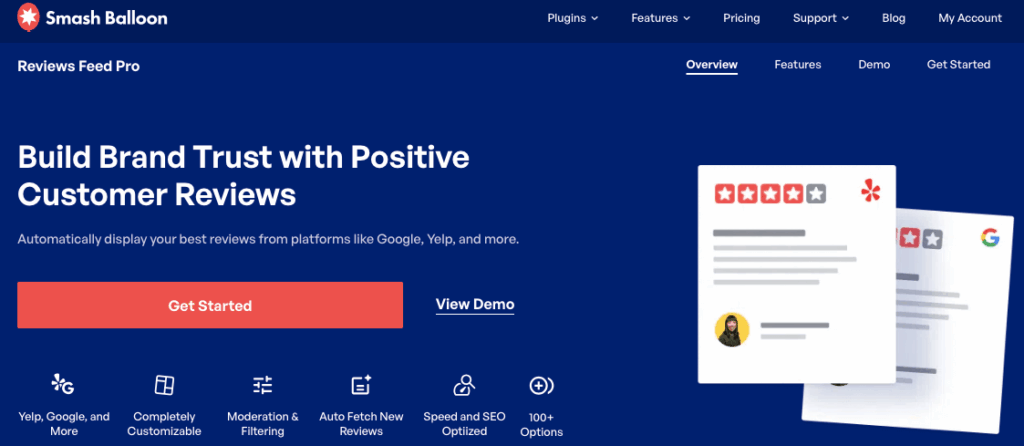
This approach works because visitors get to see your social proof first. They read authentic experiences from real customers, which builds trust and makes them more comfortable engaging with your business.
Then, when they’re already feeling positive about what they’ve read, the review button is right there waiting for them. It’s like having your happy customers do the selling for you before.

Another great thing about Reviews Feed Pro is that it supports the biggest review sites out there. So, you can show buttons and user reviews from:
- Yelp
- Tripadvisor
- Trustpilot
- WordPress.org
As you can see, it’s a great tool for leveraging social proof for easy online growth.
Ready to add Yelp review button to your site? Get started with Reviews Feed Pro today!
Step-by-Step: Adding a Yelp Review Button to Your WordPress Site
Now I’ll show you exactly how to set up your Yelp review button step by step. We’re going to walk through this together, so don’t worry if you’re not tech-savvy—I’ve made sure every detail is covered.
Step 1: Install and Activate Reviews Feed Pro
First, you’ll need to get a copy of Reviews Feed Pro from here.
Once you’ve purchased the plugin, install and activate it on your WordPress site. If you need help with this part, see this beginner’s guide.
Don’t worry—this plugin is designed to work smoothly with WordPress right out of the box.
Step 2: Create Your Yelp Reviews Button
Now that the plugin is installed, let’s create your first Yelp review feed.
Open the Reviews Feed » All Feeds menu from your WordPress dashboard. Then, click on the Add New button.

Since it’s your first time using the plugin, you’ll see an option to Add Source — click that button.

From here, you can choose the review platform to connect your button to. This includes the biggest platforms out there:
- Tripadvisor
- Yelp
- Trustpilot
- WordPress.org
Select the Yelp option from the list of available platforms and click Next.

Step 3: Connect Your Yelp Button to Your Business Page
Now you need to tell the plugin which Yelp business page to pull reviews from.
To find your Yelp business URL, open Yelp.com in a new browser tab and search for your business.

Once you find your business page, copy the full URL from your browser’s address bar—it will look something like yelp.com/biz/your-business-name.
Back in the Reviews Feed Pro setup, paste the URL of your Yelp business page into the field provided.

Click on Finish to save your connection.
Then, click the Next button to confirm the source and move forward.

After that, the plugin will automatically create a Yelp button that you can add to your website. Plus, this also shows your Yelp reviews below the button to encourage visitors to leave new reviews.
Pro Tip: Make sure you’re copying the URL of your actual business page. The URL should include /biz/ followed by your business name.
Step 4: Customize Your Yelp Review Button
Now comes the fun part—making your review feed and button look exactly how you want it.
You’ll see several template options with different designs.
Click on the template whose design you prefer, then click the Next button.

With that, you’ll see the Yelp button in the live feed editor. Below the button, you can see the existing Yelp reviews that people have left for your business.
To customize the button and the reviews, you can use the options on the left.

Let’s take a look at a few of the customization options.
On the left side of your screen, click on the Layout option.

Here, you can choose how your reviews will be displayed: List, Masonry, or Carousel.
Once you’ve selected your layout, click the Save button.

Then, click the small Customize button to return to the main options screen.
From here, you can customize other parts of the review feed below your Yelp review button. Remember to click on Save to confirm your changes afterwards.

Now, let’s set up moderation so you can control which reviews appear on your site. Go to the Settings tab at the top of the screen.
So, click on the Moderation option and then enable moderation by clicking the toggle.

You’ll see options for Allow List or Block List — this lets which specific reviews you want to show or hide.
Select the reviews you want to display (or block), then click Save once you’re happy with your choices.

As you can see, it’s super easy to choose the reviews that show up below your Yelp reviews button. For even more control, you can filter the reviews by star rating or keywords.
Step 5: Embed the Yelp Review Button on Your Website
Now that your review button looks perfect, it’s time to add it to your website. Reviews Feed Pro gives you two ways to do this, so you can choose what works best for your site layout.
Look for the Embed button in the top right corner and click on it.

Method 1: Add the Yelp Review Button to a Page
If you want your reviews to appear on a specific page (like your homepage or a dedicated reviews page), this method is for you.
Click on the Add to a Page button.

Select the page where you’d like to show your Yelp business reviews and button, then click the Add button.

After you do that, WordPress will open that page in the editor.
Click on the plus (+) icon to add a new content block.

Look for the “reviews feed” block in the block menu and click on it to insert it into your page.
Finally, click on Update to save your changes.

With that, you can open this page and check out how your Yelp reviews and the button will look to your visitors.

Method 2: Add the Yelp Review Button to the Sidebar or Footer
If you’d prefer your reviews to appear site-wide in your sidebar or footer, use this method instead.
Go to Reviews Feed » All Feeds from your WordPress dashboard (if the customizer isn’t already open).
From here, select the review button that you just created.

Like before, you can click on the Embed button at the top.
This will let you see all the ways you can display the Yelp content on your website.
This time, click on the Add to a Widget button on the popup.

Choose either Sidebar or Footer depending on where you want your reviews to appear.

Add a new WordPress widget by clicking the plus icon (+).
Look for the Reviews Feed widget and click on it to add it to your chosen location.

Finally, click on Update to save your widget settings and check out your website to test the Yelp button.
As you can see, Reviews Feed Pro can make it super easy to add buttons and Yelp reviews to your website — even with no coding experience.

And there you go!
Now you know the easiest way of adding a Yelp review button to start collecting more reviews and building trust with potential customers.
Your Yelp review button will work quietly in the background, making it easy for happy customers to share their experiences while showing new visitors the social proof they need to pick your business.
Ready to boost your Yelp presence? Get your copy of Reviews Feed Pro here!
Want an easy way to connect with your website visitors? Take a look at this tutorial on adding WhatsApp chat to your website.



