Social Wall
  Feed Analytics


Displaying search results from X (Twitter) on your website is a powerful way to showcase social proof and keep your content looking fresh.
It engages your visitors by showing them what others are saying about your brand or topic right now.
But figuring out how to do this can feel a bit technical. You might worry that it requires complex coding or dealing with the official X (Twitter) API.
Thankfully, there is a much simpler way. In this guide, I will walk you through five easy steps to embed X (Twitter) search results directly onto your WordPress site without any code.
What We’ll Cover:
Why Display X (Twitter) Search Results on Your Website?
- Build Social Proof: When visitors see positive X posts about your brand or industry, it creates immediate credibility and trust before they even read your main content.
- Keep Your Content Fresh: Search feeds update regularly with new X posts, so your website always shows current conversations without you having to manually add content.
- Boost Engagement: Interactive social content encourages visitors to scroll through X posts and click on interesting posts, keeping them on your page longer.
- Showcase Industry Expertise: By displaying X posts about your industry topics, you position yourself as connected to current trends and conversations in your field.
- Display Authentic Content: Real X posts from real people feel more genuine than traditional testimonials or marketing copy, making your brand appear more approachable and trustworthy.
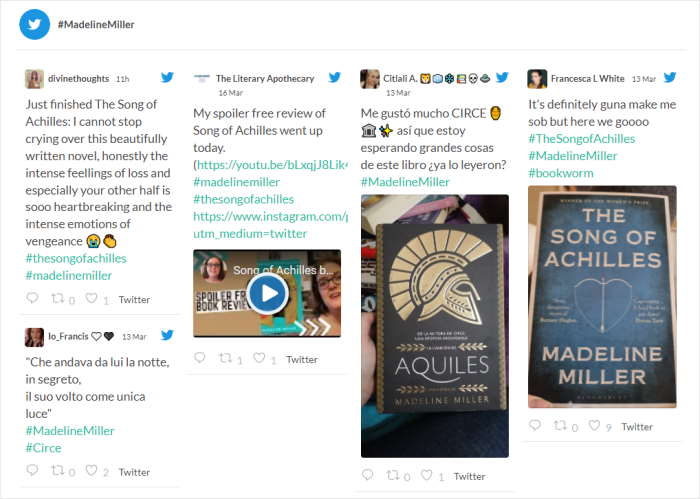
Simplest Way to Embed X (Twitter) Search Results on Your Website
Let me be honest about the traditional ways to add X (Twitter) content to your website. The manual approach is frustrating and time-consuming.
You’d have to find individual X posts you want to display, copy their embed codes one by one, and paste them into your WordPress posts or pages.
That’s exactly why X (Twitter) Feed Pro by Smash Balloon exists.

It handles all the technical complexity while giving you a simple, visual way to create professional X (Twitter) feeds.
Here’s what makes X (Twitter) Feed Pro the smart choice:
- You can create beautiful X (Twitter) feeds using a simple point-and-click interface that anyone can master.
- All your feeds refresh automatically with new X posts, so your content stays current without any manual work.
- The plugin optimizes loading speeds by storing X post data efficiently, preventing your website from slowing down.
- You can display X (Twitter) live broadcasts, timeline feeds, hashtag feeds, search results, or lists.
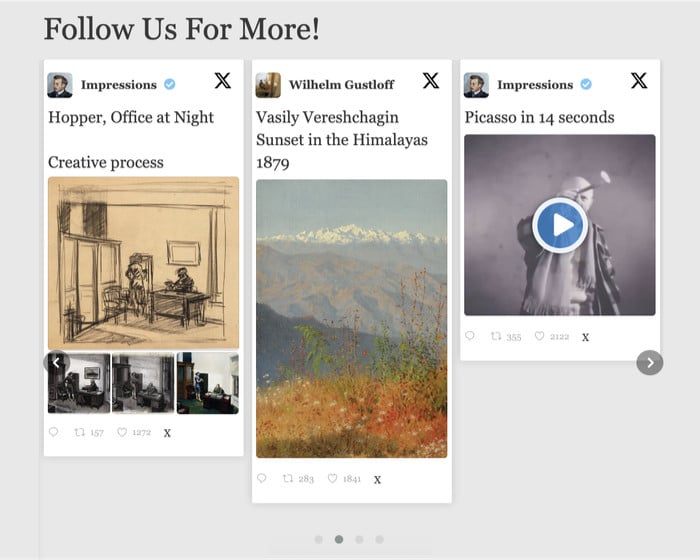
- All X (Twitter) feeds adapt to look perfect on all devices and will even copy your website’s design automatically.
- You can import templates or use the live customizer to change how your X posts look on your website.
- Get help from WordPress experts who understand both the plugin and social media integration.
The best part?
You won’t need to mess with complicated API keys or developer settings. X (Twitter) Feed Pro takes care of all those technical connections automatically.
Try out X (Twitter) Feed Pro here, and you can see how simple X (Twitter) integration can be.
What You’ll Need Before Getting Started
Before we dive into embedding X (Twitter) search results, let’s make sure you have everything ready to go. This will help the process go smoothly without any hiccups.
Here’s what you’ll need:
- Admin access to your WordPress dashboard (WordPress.org, not .com)
- Any active X (Twitter) account (even a basic free account works perfectly)
- The X (Twitter) Feed Pro plugin by Smash Balloon
- About 5 minutes of your time
How to Embed X (Twitter) Search Results on Your Website
Ready to get started? Just follow the 5 steps below, and you can have a beautiful feed with X (Twitter) search results on your website.
Step 1: Install and Activate X (Twitter) Feed Pro
Since we’re using the easy method, you can get the X (Twitter) Feed Pro plugin here.
After you have the plugin, install and activate it on your website (see our beginner’s guide).
Step 2: Create Your New X (Twitter) Search Feed
You’ll see a new menu labelled X (Twitter) Feed on your WordPress dashboard.
To continue, open the X (Twitter) Feed » All Feeds menu and then click on Add New.
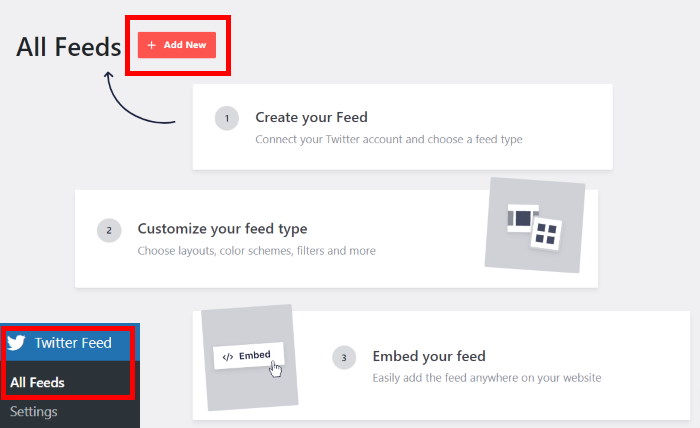
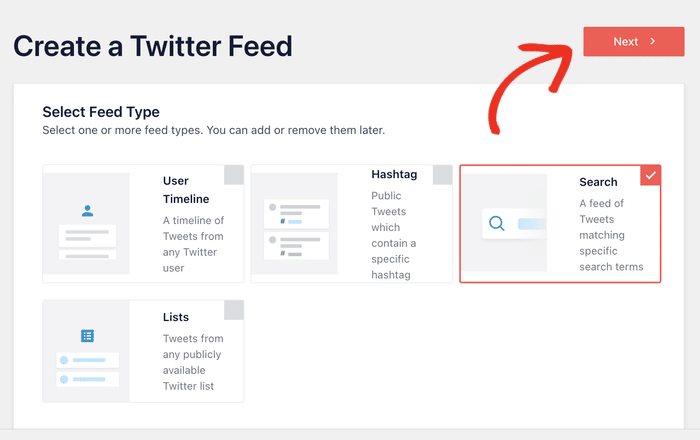
After you do that, you can see several feed types to choose from.
You’ll see options like X (Twitter) timeline feed, hashtag feed, list feed, and the one we want — search feed.
Select the Search feed type and click on Next.
Step 3: Authorize the Plugin with Your X (Twitter) Account
If this is your first time creating an X (Twitter) feed, you’ll see a popup that lets you connect your X (Twitter) account.
This lets the plugin fetch the X posts and keep your X (Twitter) search results feed updated.
To proceed, click on the Connect button.
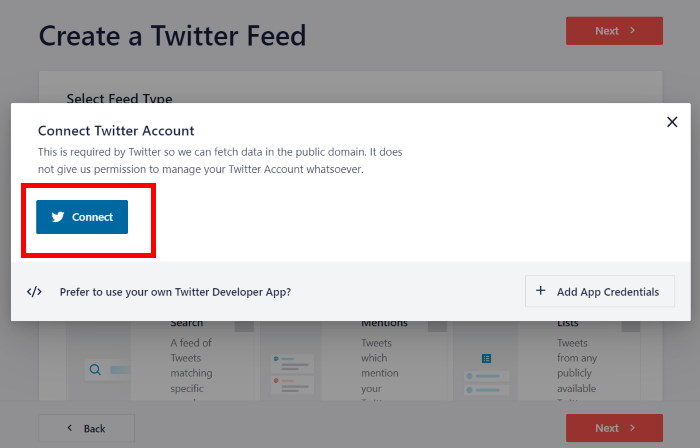
After that, you’ll be redirected to X (Twitter), where you can grant read-only access to your X (Twitter) account.
You can also see the exact permissions listed right there.
Just click on the Authorize app button to continue.
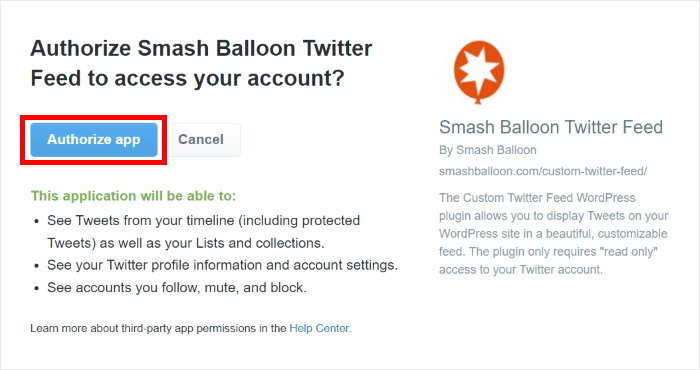
The plugin will bring you back to your website. Now that you’ve connected to X (Twitter), you can create new feeds without leaving your site.
Note: You’re only granting permission to view and display X (Twitter) info, and the plugin cannot make any changes. So, it’s 100% safe.
Once your account is connected, you can specify exactly what content you want to display.
In the field, simply enter the X (Twitter) search term that you want and click on Next.
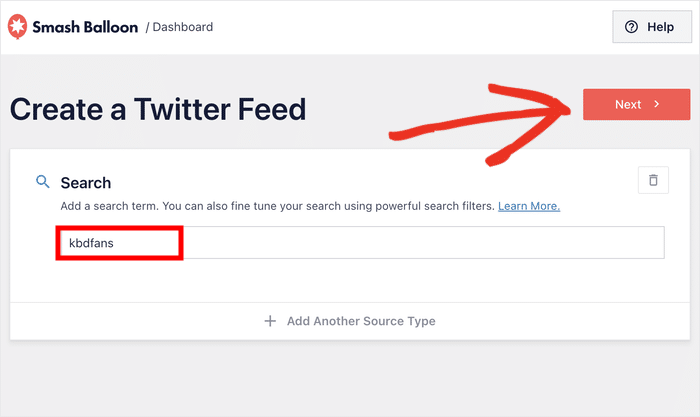
I recommend going with a specific term so you’re only showing relevant X (Twitter) content on your website.
Step 4: Customize Your X (Twitter) Search Feed Display
This is where the magic happens – you get to make your X (Twitter) feed look exactly how you want.
Right out of the box, your X (Twitter) search results will automatically copy your website’s design. On top of that, you’ll be guided through different ways of customizing it.
Choosing Your Feed Template
X (Twitter) Feed Pro offers 7 different templates, and each one works best for different types of websites and layouts.
Pick a template from the options and click on the Next button.
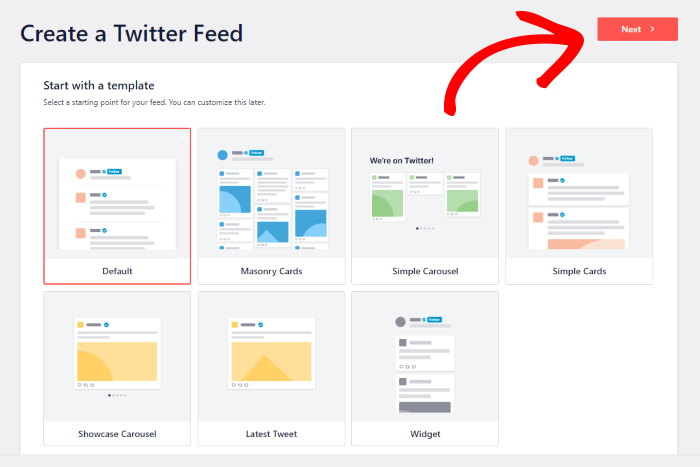
I’ll go with the default template for this tutorial since it’s pretty versatile.
After picking the template, the plugin will put together your X (Twitter) search results into a feed and open the live customizer.
It’s pretty simple: use the options on the left to customize the X (Twitter) feed, and track your changes on the right.
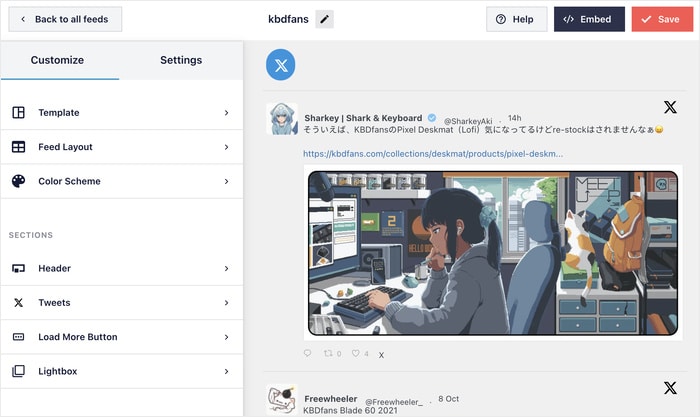
Since there are a LOT of options here, I’ll showcase a few major ones so you can see how the customizer works.
Configuring Your Layout
You can control exactly how many X posts appear in your feed and how they’re arranged.
First, click on the Feed Layout option on the left.
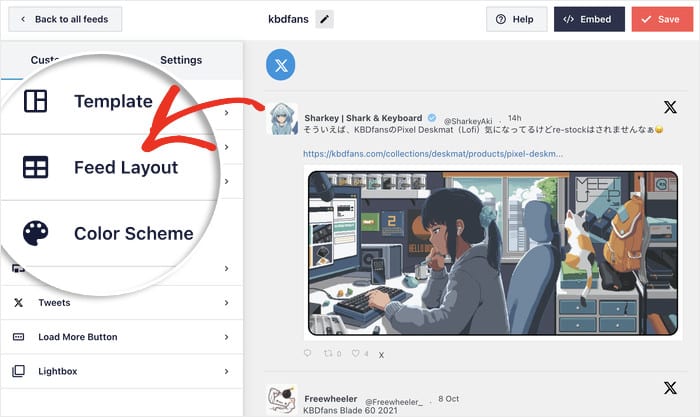
You can now see 3 feed layouts that you can choose from:
- List: Similar to the default X (Twitter) layout with X posts in a single column.
- Masonry: Use different columns and display tons of X posts at once.
- Carousel: Show the search results in a slideshow carousel.
After you select the layout, click on Save to confirm the new design.
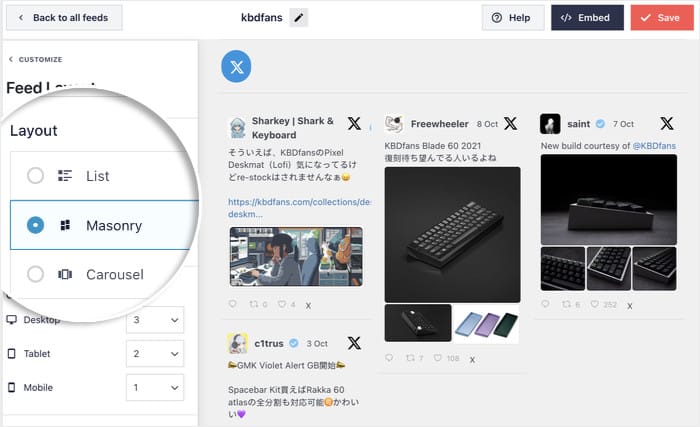
You can also set the number of X posts per page (I usually start with 6-9 for most websites) and choose how many rows or columns to display.
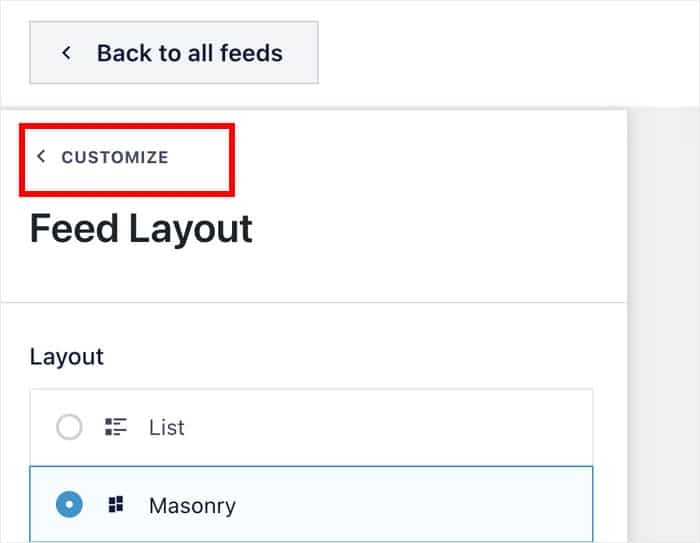
Once you’re done editing the layout, click on the Customize button to return to the main page again.
Setting Up Feed Headers
The header section appears at the top of your feed, and you can pick how it looks or even keep your feed header-free.
First, click on the Header option on the left.
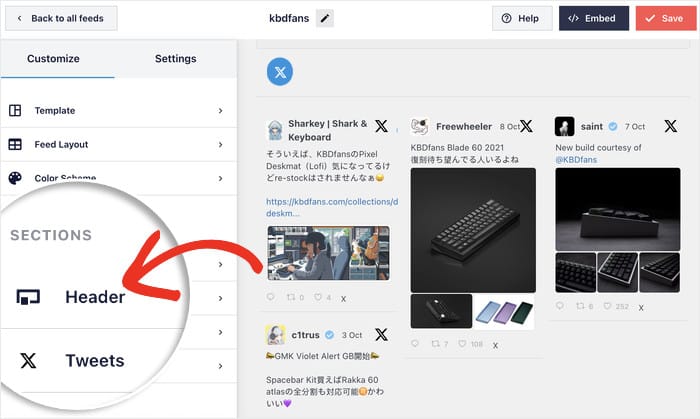
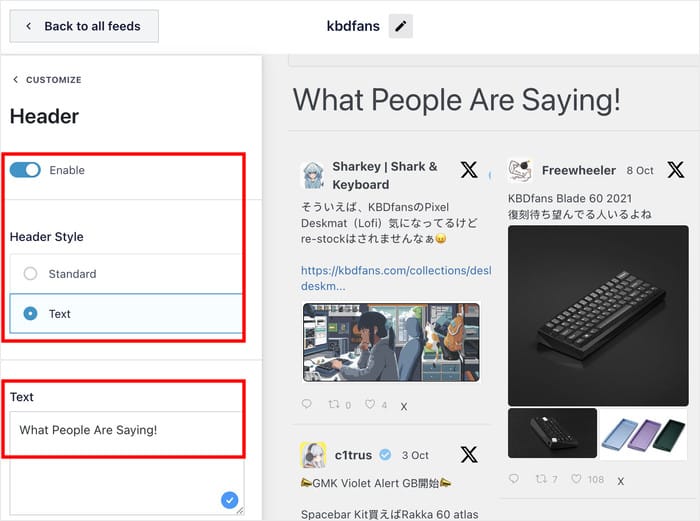
At the top, you can find the option to Enable or Disable the header.
Under that, you can pick from 2 header styles:
- Standard: For a search feed, this shows a simple X (Twitter) logo. But on a timeline feed, it shows your X (Twitter) info.
- Text: Type out a heading to showcase at the top of your X (Twitter) feed.
For this example, I’ll use the Text style and type a heading to show above the feed.
Like before, click on Save to keep the changes.
Using the remaining options, you can adjust color schemes, fonts, spacing, X post style, and more without touching a single line of code.
The best part is that all these changes happen instantly in the preview, so you can experiment until everything looks just right.
Step 5: Embed Your X (Twitter) Search Feed on Your Website
Now that your feed looks perfect, it’s time to add it to your website. X (Twitter) Feed Pro lets you start doing this from the live customizer.
First, click on the Embed button at the top of your X (Twitter) customizer.
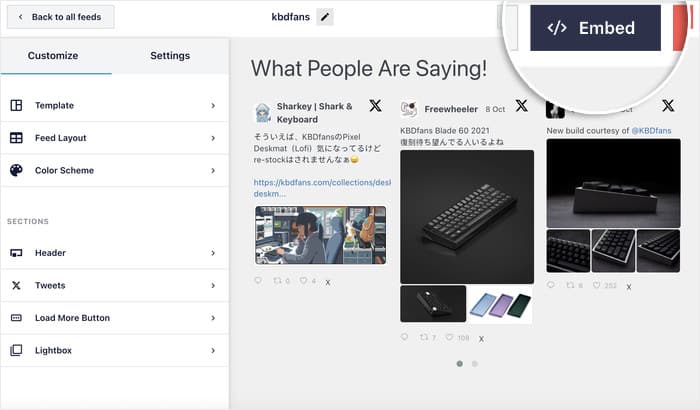
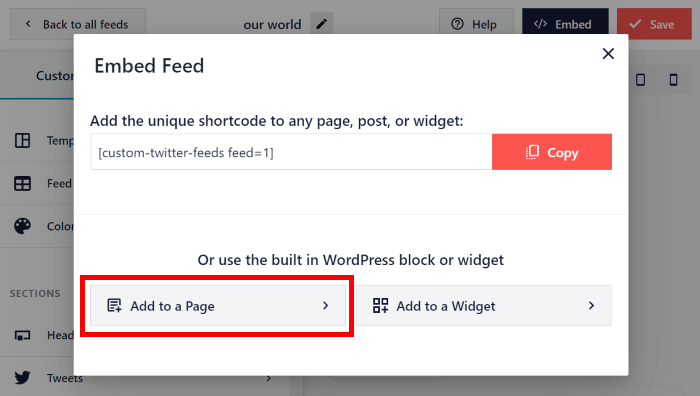
On the popup, you can choose from different embed options and find the way that works best for you.
- Add to a Page: Show X (Twitter) search results on a web page.
- Add to a Widget: Display your X posts on a sidebar or footer.
- Copy: Add the shortcode manually to embed the feed anywhere you like.
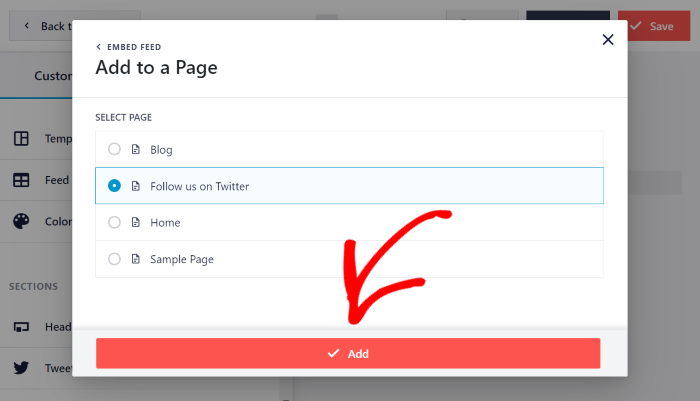
For this guide, I’ll go ahead and click on Add to a Page here.
After that, you’ll see a list of the published WordPress pages on your website.
Select a page you want to use and click on Add.
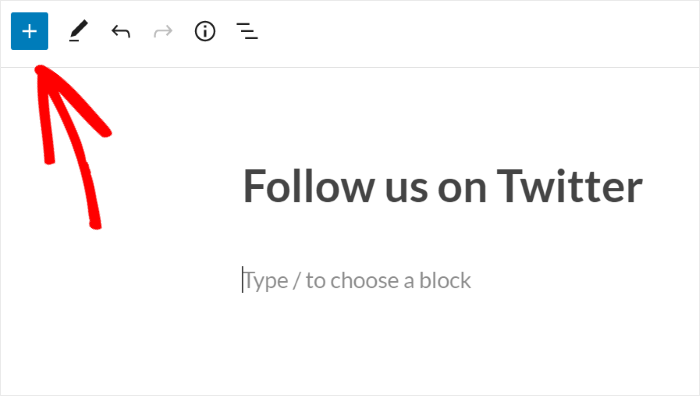
Doing that will open the editor for the page you just selected.
First, click the plus (+) icon to add a new block.
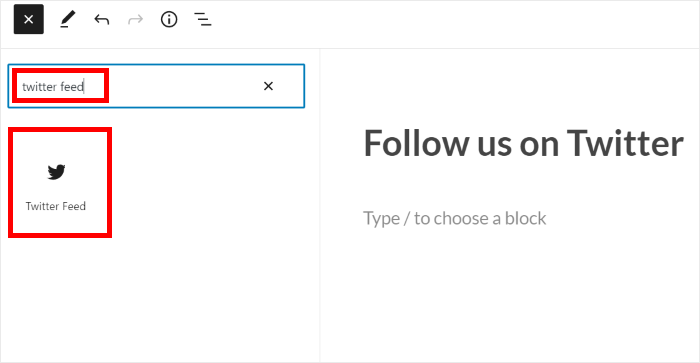
Search for “Twitter Feed” to look for the X (Twitter) Feed Pro block in the search bar at the top.
On the search results, click on the X (Twitter) Feed block to add it to the page.
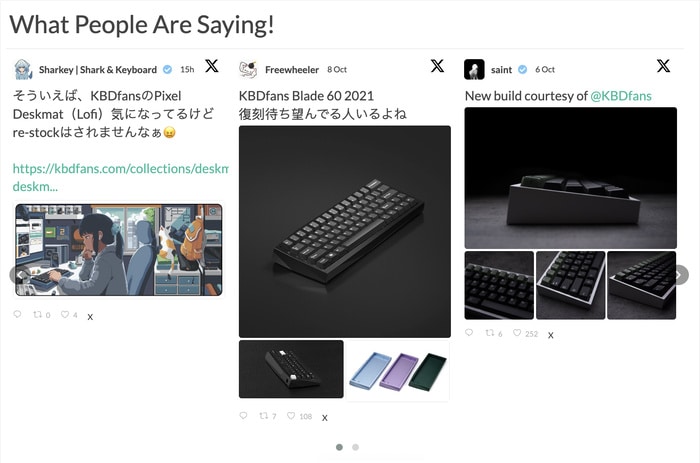
Just like that, your X (Twitter) search results will be added to this WordPress page.
The widget method is pretty similar as well. You can add the X (Twitter) Feed block wherever you want on your sidebar or footer, and the plugin handles the rest.
Once you Update the page, open it to see how your new X (Twitter) search results look.
And that’s it!
You’ve successfully learned how to embed live X (Twitter) search results on your WordPress website the easy way using X (Twitter) Feed Pro.
Don’t forget to monitor X (Twitter) for more fitting search terms to display on your website.
Plus, you can use the plugin to embed other types of X (Twitter) feeds to boost your engagement and supercharge your X (Twitter) presence even more.
Ready to start embedding X (Twitter) content? Get X (Twitter) Feed Pro from here today!
For a complete approach to social media integration, take a look at our list of the best social media wall examples for your website.