Social Wall
  Feed Analytics


Your WooCommerce reviews are some of the most powerful selling tools you have.
I’ve watched small business owners pour everything into their stores only to have those reviews disappear into individual product pages that most visitors never scroll to.
Even with a beautiful Elementor website created for your business, your reviews are still stuck to your product pages.
This means so much useful social proof is just sitting there waiting to be used.
That’s why I’ve created this step-by-step guide after testing out different methods. Here, I’ll show you the easiest way to display WooCommerce reviews on your Elementor site.
- Here's the Short Answer
- Why Your WooCommerce Reviews Won't Show Up in Elementor
- Method 1: The Manual Way (Elementor's Built-In Widget)
- Method 2: The Easy Way Using Reviews Feed Pro
- How to Display WooCommerce Reviews on Elementor (Step by Step)
- What Happens to Your Reviews If You Uninstall the Plugin?
- Start Displaying Your WooCommerce Reviews on Elementor Today
- More WooCommerce Marketing Tips and Guides
Here’s the Short Answer
Don’t have time to read the whole guide? Here’s what you need to know.
- The Easy Way: Install Reviews Feed Pro by Smash Balloon. Connect your WooCommerce store. Customize your feed. Then paste the shortcode into any Elementor page. That’s it. Works on your homepage, landing pages, sidebars — anywhere you want.
- The Manual Way: Elementor has a built-in WooCommerce Reviews widget. But it only works inside a WooCommerce Single Product template in Elementor Pro. It won’t work on a regular page.
Two quick answers before we go further:
- Does this work with free Elementor? Yes. The plugin method works with the free version.
- Do I need to know how to code? No. Not a single line.
Why Your WooCommerce Reviews Won’t Show Up in Elementor
WooCommerce reviews aren’t designed to travel freely around your site.
Instead, reviews are attached to individual products, not to your site as a whole. WooCommerce has no native way to display them anywhere except on the product they belong to.
If you’re using Elementor‘s reviews widget for WooCommerce, it comes with a major limitation.

You’ll have to use the WooCommerce Single Product template in Elementor Pro for this to work, which isn’t flexible enough for a lot of users.
Now that you know the limitation, here’s how you can display the reviews on your Elementor site. I’ll show you this method along with a much easier alternative below.
Method 1: The Manual Way (Elementor’s Built-In Widget)
Elementor does have a built-in WooCommerce Reviews widget. Let me walk you through exactly how it works and where its limited.
What you’ll need first:
- Elementor Pro (not the free version)
- An existing WooCommerce store with products

Here’s how to use it:
- Go to your WordPress dashboard and open Elementor » Theme Builder.
- Click Add New and choose Single Product as the template type.
- Open the template in the Elementor editor.
- In the widget panel on the left, search for Product Reviews.
- Drag the widget into your template layout.
- Assign the template to the product or products you want it to apply to.
- Save and Publish.
The widget will now display reviews on whichever product pages you assigned the template to.
Note: A lot of tutorials suggest editing your theme’s content-single-product.php file directly. That technically works but if your theme updates, it can wipe your changes clean.
Here’s the problem with this method.
You can only use this widget inside a WooCommerce Single Product template. So, this widget can’t pull reviews from multiple products into one feed.
This method works if your goal is styling the reviews section on your product pages. It doesn’t solve the problem of making those WooCommerce reviews more visible to your website visitors.
For that, you need a different approach. That’s where Method 2 comes in.
Method 2: The Easy Way Using Reviews Feed Pro
Created by the team at Smash Balloon, Reviews Feed Pro is the best plugin for aggregating and displaying customer reviews on your website, including Elementor sites.

Here’s what makes it the right tool for this job:
- Pulls reviews from all your WooCommerce products into one feed. You’re not limited to a single product. You can show reviews different products, tags, and categories in a feed.
- Works on any Elementor page. You can show reviews on your homepage, landing page, sidebar, about page, and more.
- No code, no theme edits, no developer. Setting up this tool and creating beautiful review feeds only takes a few minutes with zero coding needed.
- Compatible with free Elementor. You don’t need Elementor Pro to make this work.
- Total control over your reviews. Set up filters, moderate your feed, and make sure you’re showing high-quality reviews to visitors.
With over 1.75 million users and a rating of 4.9/5, Smash Balloon has a proven track record of creating effective plugins that bring results.
Here’s exactly how to set it up.
How to Display WooCommerce Reviews on Elementor (Step by Step)
Step 1: Install and Activate Reviews Feed Pro
First, get a copy of the plugin here. After that, install and activate it on your WordPress website.
You can check out this tutorial on installing WordPress plugins if you need help with this step.
Once activated, you’ll see a new Reviews Feed menu item in your WordPress dashboard.
Step 2: Create a WooCommerce Review Feed
Click Reviews Feed » All Feeds in your dashboard. Then click on Add New.
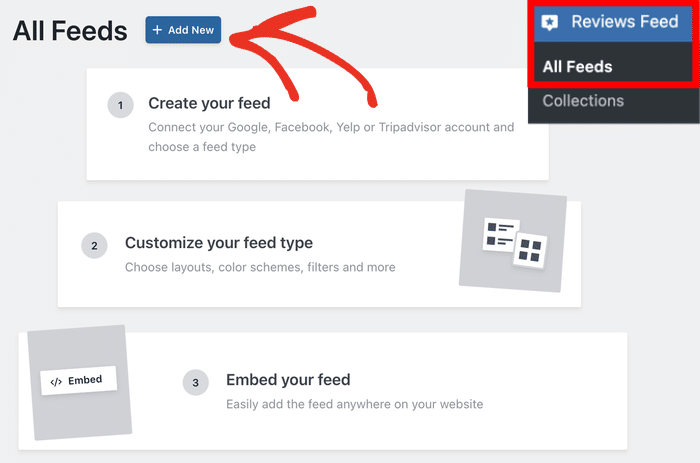
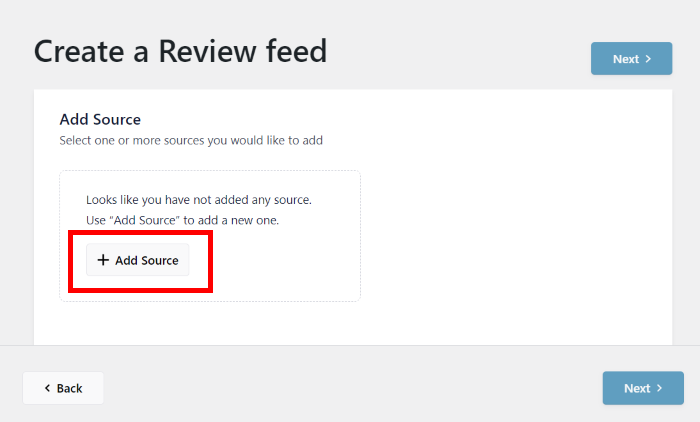
If you’re using the plugin for the first time, you’ll be asked to choose a source.
Click on Add Source to do that.
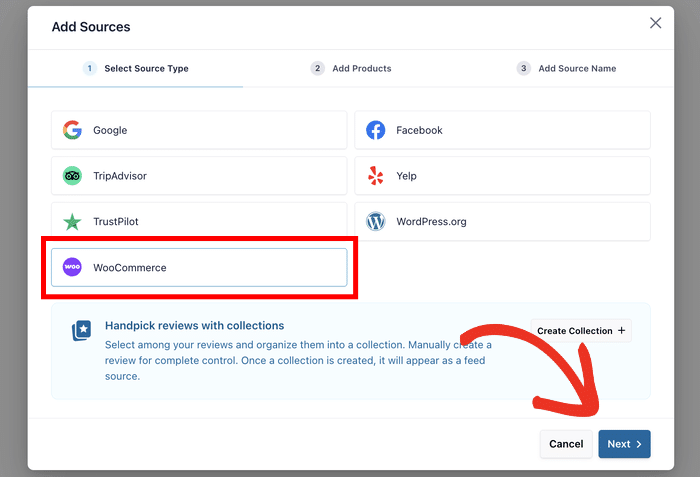
On the popup, you can see all the review platforms supported by Reviews Feed Pro.
For now, select WooCommerce on the popup and click Next.
Since the plugin reads reviews directly from your database, all your reviews are ready to be pulled right away.
Note: The plugin is only viewing the reviews that are already there so its 100% safe. So, if you ever uninstall Reviews Feed Pro, your reviews will remain unaffected.
Step 3: Choose Which Reviews to Display
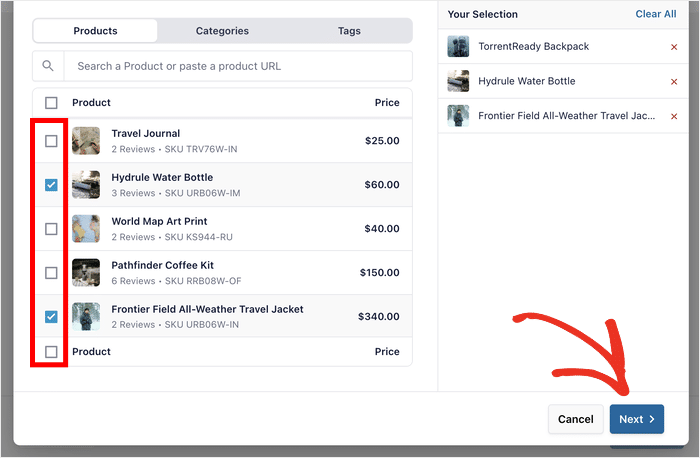
You’re not limited to reviews from one product. Instead, you can pull reviews from any product page, category or tags.
Use the tabs at the top to choose between Posts, Categories, and Tags.
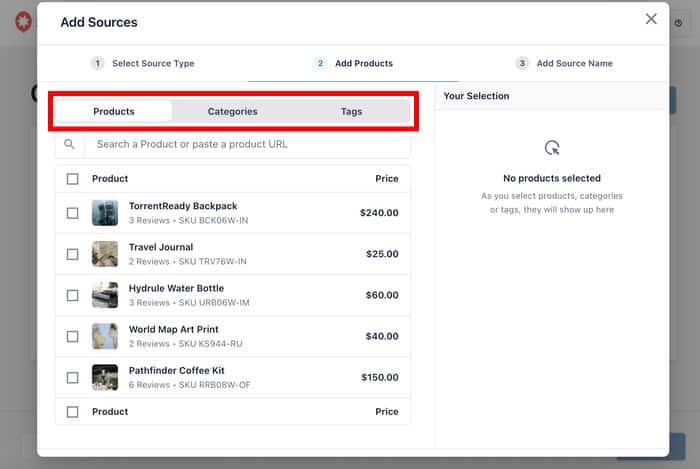
For each option, you can use the checkboxes to select the reviews you want to pull.
Click on Next after you select the ones to use for this WooCommerce reviews feed.
Step 4: Customize the Layout
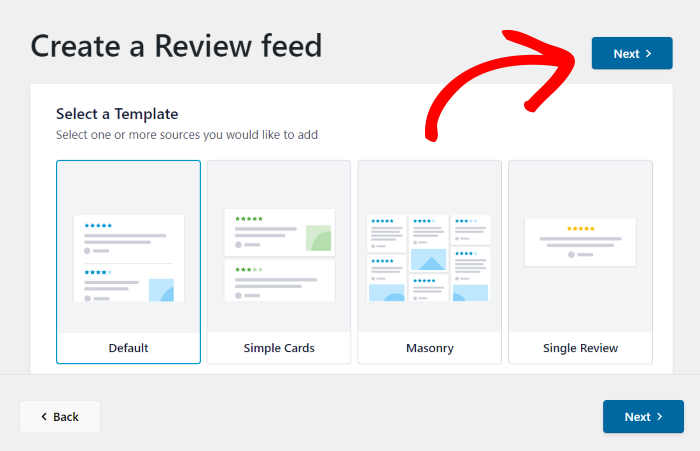
After you select the source, the plugin will put the feed together and ask you to select the template.
Each template will display your WooCommerce reviews in a unique way:
- Default
- Simple cards
- Masonry
- Single review
- Showcase testimonial carousel
- Carousel
- Grid carousel
Click on Next after selecting a template.
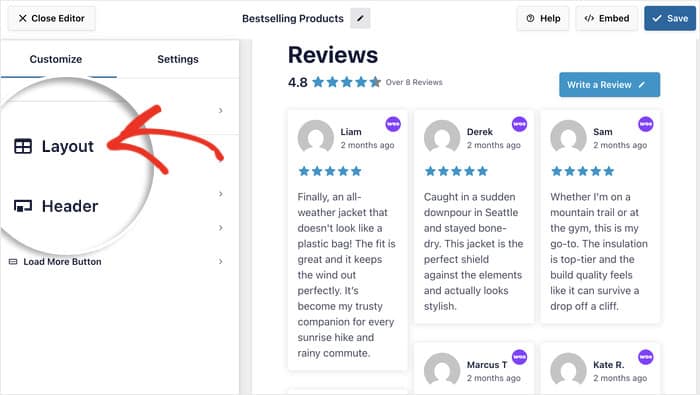
Next, you’ll see the visual customizer for the plugin.
It’s pretty similar to the Elementor editor and has a live preview for easier editing.
Click the Layout option on the left to set up the layout of your WooCommerce reviews.
You’ll see four layout options: Grid, Masonry, and Carousel.
I recommend Grid or Masonry for homepage sections since they look polished and use space well.
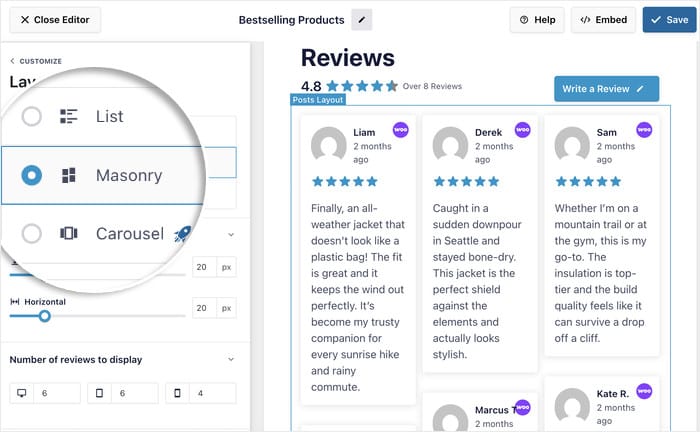
If you want to show a lot of reviews in an interactive way, then Carousel is a great option.
From here you can also control:
- How many reviews are displayed
- The number of columns in your feed
- Visible length of the reviews
Click on Save to confirm the changes you’ve made here.
You can also change the header, button, review elements, and more using the other design options.
Step 5: Add Filters to WooCommerce Reviews
Reviews Feed Pro gives you control over what shows up so you can be sure that your WooCommerce review feeds are displaying high-quality social proof.
Click on the Settings tab at the top and select the Filters option.
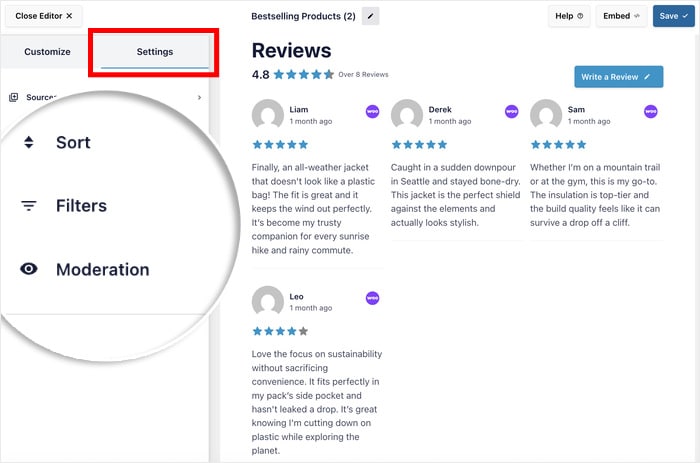
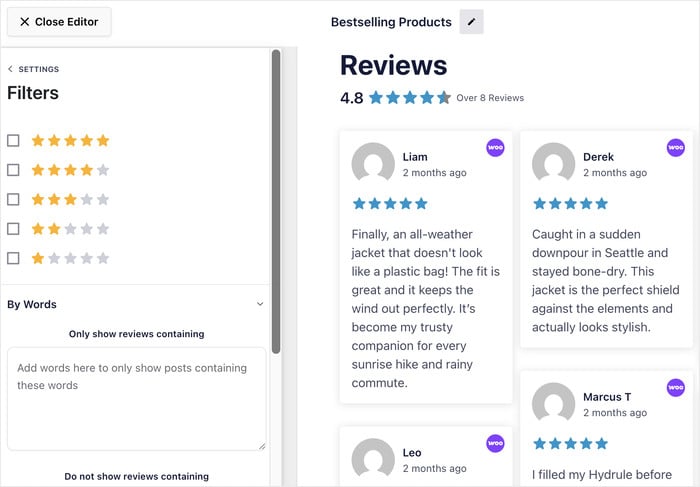
From here, you can set a minimum star rating so only your 4- and 5-star reviews show up.
You can also limit reviews by keyword for more control over the reviews that are displayed.
Step 6: Add WooCommerce Reviews to Elementor
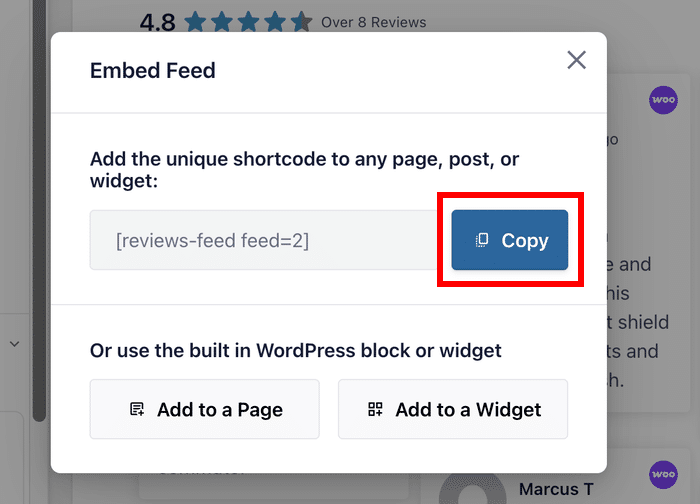
Once your feed looks the way you want, click Save and then Embed.
On the popup, you’ll see a shortcode for your new WooCommerce reviews feed.
Copy that shortcode.
Now open the Elementor page where you want your reviews to appear.
This can be your homepage, a landing page, an about page, or any page at all.
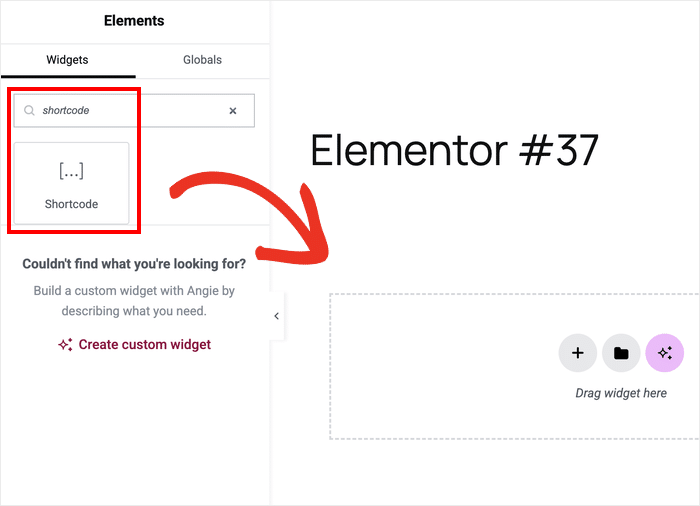
Search for the Shortcode widget in the Elementor panel on the left.
Then, drag it into your page layout wherever you want the reviews to appear.
Paste your shortcode into the shortcode field on the left.
Doing that will automatically embed the WooCommerce reviews feed on this Elementor page.
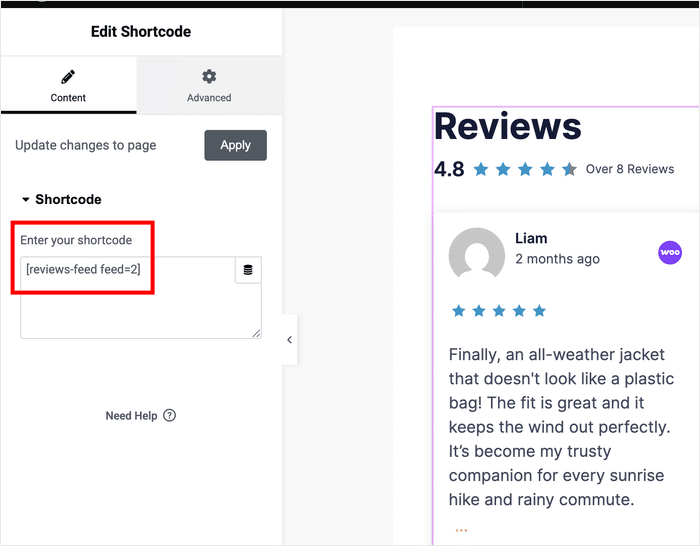
Finally, click on Publish or Update and your reviews are live on your website.
Plus, this works with free Elementor. You don’t need Elementor Pro for this step. The Shortcode widget is available in the free version.

Pro Tip: Products with reviews convert at up to 270% higher rates according to a study by the Spiegel Research Center. Those reviews were already there. Now your visitors can actually see them.
What Happens to Your Reviews If You Uninstall the Plugin?
Your WooCommerce reviews are safe since they live in your WordPress database and Reviews Feed Pro just reads them.
It doesn’t store them, own them, or control them in any way.
If you uninstall the plugin, one thing disappears: the feed display itself. The shortcode stops working. The widget goes blank.
But every single review your customers left is still in your database completely untouched.
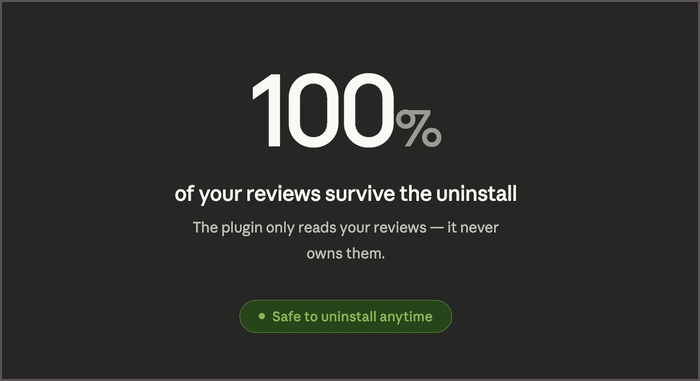
Want to reinstall the plugin later? Everything reconnects exactly as it was. Your reviews are still there waiting.
Start Displaying Your WooCommerce Reviews on Elementor Today
Just like that, you can start showing customer reviews on your Elementor site.
According to research, 93% of consumers say reviews influence their purchase decisions and if those reviews aren’t visible, you’re losing out on potential sales.
Reviews Feed Pro makes this super easy to fix. Activate the plugin, select the reviews to pull, set up the design, and paste your shortcode.
You can have a reviews feed live in under 5 minutes.
Get started with Reviewws Feed Pro and display WooCommerce reviews the easy way.
More WooCommerce Marketing Tips and Guides
- WooCommerce Review Plugins: Complete Comparison Guide
- Best Customer Review Plugins for WordPress [Compared]
- Social Media Marketing Tips for Small Businesses (+ Examples)
- Proven TikTok Strategies Every Small Business Owner Needs to Know