Social Wall
  Feed Analytics


Tired of scrambling for something to post?
If you run a small business, you probably don’t have an Instagram problem. You have a time problem. Content takes too long to make, so it doesn’t get made. You post twice one week, then go quiet for ten days.
Maybe you’ve tried batching before and quit by post four, stuck staring at a blank caption box. That’s normal, and it isn’t your fault.
This isn’t a fringe habit anymore. 83% of marketers say generative AI helps them produce far more content than they could without it.
In my time at Smash Balloon helping thousands of businesses show their social content online, I’ve seen exactly where batching breaks down.
The issue is never just ideas or tools. It’s that the whole pipeline, from ideate to caption to design to schedule, sits scattered across five tabs and eats a full weekend. So it doesn’t happen.
This guide gives you one repeatable system instead. You’ll ideate, caption, design, and schedule a full month of on-brand posts in a single focused session. The good news is the AI does the heavy lifting, even if you’re starting from scratch today.
Here’s everything we’ll cover:
- The Short Answer: How to Create Instagram Content With AI
- Which AI Tools Do You Actually Need?
- Why Batching Beats Posting Day to Day
- Before You Batch: Set Your 3 to 5 Content Pillars
- Step 1: Use AI to Generate 30 Instagram Content Ideas in 15 Minutes
- Step 2: Use AI to Write All 30 Instagram Captions in Under an Hour
- Step 3: Create Your Visuals in Batches
- Step 4: Schedule the Whole Month at Once
- Step 5: Let Your Website Show Every Post Automatically
- Track Which Posts Actually Drive Traffic
- Start Batching Your Instagram Content Today
The Short Answer: How to Create Instagram Content With AI
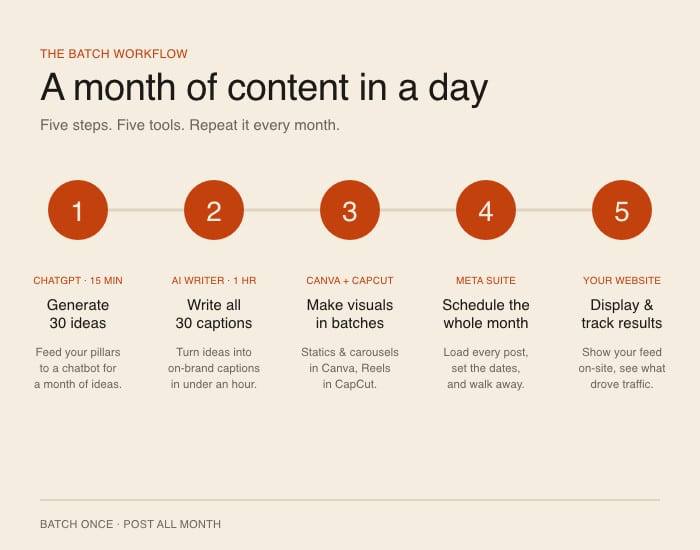
Yes, you can create a month of Instagram content with AI in one session. Set your content pillars, use AI to generate 30 ideas and captions, design visuals in Canva and CapCut, then schedule everything at once in Meta Business Suite.
The five steps below walk through it in order.
- Generate 30 post ideas with AI. Feed your pillars to a chatbot and get a month of ideas in about 15 minutes.
- Write all 30 captions with AI. Turn those ideas into on-brand captions in under an hour.
- Create your visuals in batches. Design static posts and carousels in Canva, then build Reels in CapCut.
- Schedule the whole month at once. Load every post into Meta Business Suite and set the dates.
- Let your website show every post automatically and track what works. Display your feed on your site with no re-uploading, then see which posts brought traffic.
Here’s what you get back: hours every week that used to disappear into daily posting, and a system that keeps running with almost no upkeep.
What used to eat a whole weekend now fits into one focused session. You sit down once, and your month is done.
Which AI Tools Do You Actually Need?
Three tools cover the whole month. You probably have two of them already.
| Ideas and captions | Static posts and carousels | Reels | |
|---|---|---|---|
| Use | ChatGPT, Gemini, or Claude | Canva Magic Studio | CapCut |
| Cost | Free tier works | Free, Pro from $15/mo | Free |
| No footage? | Not applicable | Not applicable | Use InVideo instead |
| Time for a month | About 75 min | 2 to 3 hours | 1 to 2 hours |
The tool matters less than the prompt. An all-in-one generator will hand you 30 posts that sound like everyone else’s 30 posts. The prompts in Steps 1 and 2 are what make the output sound like you, and they work in any of the three chatbots.
Why Batching Beats Posting Day to Day
Batching wins because it removes the one thing that kills consistency: decision fatigue. You make all your content choices once, then you stop thinking about it for a month.
The cost of not batching shows up in the data. Buffer’s analysis of over two million Instagram posts found a measurable “no-post penalty,” where weeks with zero posts saw follower growth fall about 0.08 standard deviations below the account’s normal rate.
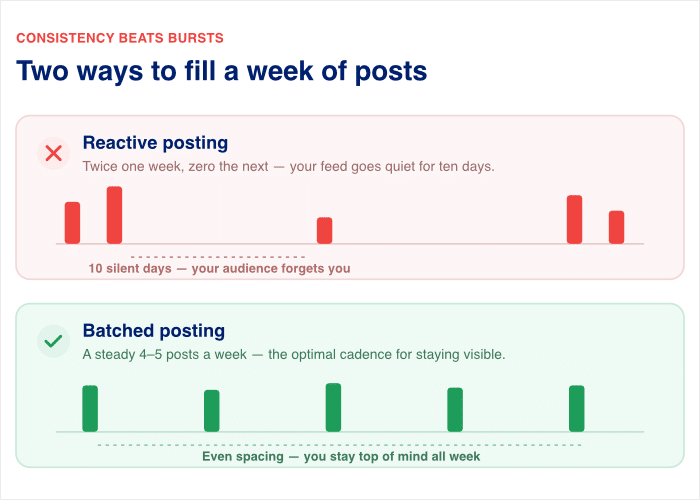
Go quiet for a week and you don’t just pause, you slide backwards. Here’s the difference in practice:
- Reactive posting: You post twice some weeks, then zero the next. Your feed goes quiet for ten days, and your audience forgets you.
- Batched posting: You hit a steady 4 to 5 feed posts per week, which is generally the optimal schedule for staying visible.
I’ve seen this pattern over and over with the businesses we work with at Smash Balloon. The ones who stay consistent aren’t more disciplined. They just decided everything up front.
The good news is you only have to make these decisions once a month.
Before You Batch: Set Your 3 to 5 Content Pillars
Not sure what to even post about each day? This is the step that prevents the “ran out of ideas by post four” wall.
Content pillars are the recurring themes your audience expects from you. Think of them as buckets. Every post you make drops into one of them.
Without pillars, batching turns into random content. You write three posts, run dry, and quit. With pillars, you always know what comes next, because each theme gives you a clear lane to fill.
Here’s what pillars look like for two common business types:
- Restaurant: food photography, behind-the-scenes, customer stories, seasonal specials, team moments
- Product business: product in use, customer results, educational tips, behind-the-scenes, promotions
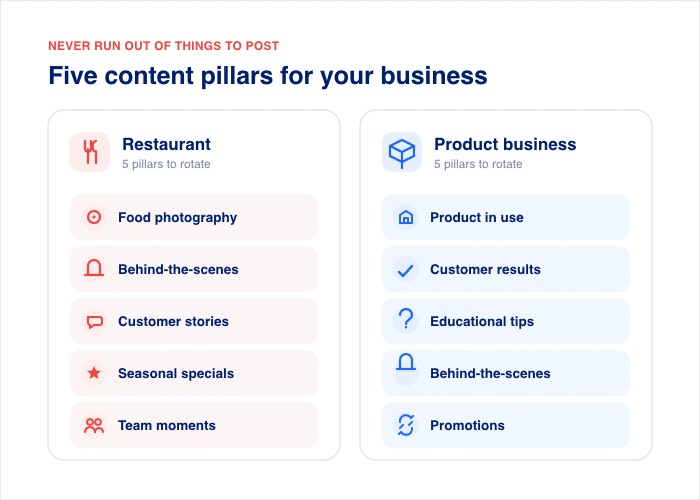
Notice the cap. Stick to 3 to 5 pillars and no more. Go past five and the system gets unmanageable, which is the exact overwhelm you’re trying to avoid.
Now write your pillars down before you open any AI tool. This matters because these themes feed every prompt that follows, from your ideas to your captions.
I always tell the businesses we work with at Smash Balloon to do this first. The ones who skip it spend their whole session second-guessing what to post.
Even if you’re just getting started, picking three themes is enough to begin.
Step 1: Use AI to Generate 30 Instagram Content Ideas in 15 Minutes
Staring at a blank planner and no clue what to post? This is where the system starts paying off.
Open ChatGPT, Gemini, or Claude and paste in one prompt. Your pillars do the steering, so the ideas come back on-brand instead of random.
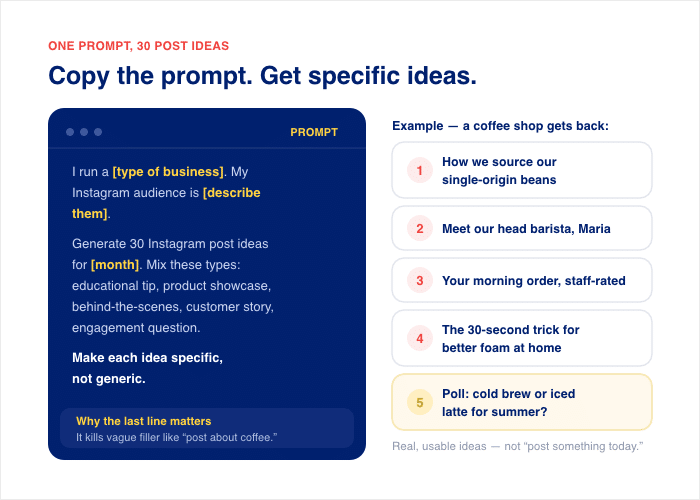
Here’s the exact prompt to copy and paste. Just swap in your details:
I run a [type of business]. My Instagram audience is [describe them]. Generate 30 Instagram post ideas for [month]. Mix these types: educational tip, product/service showcase, behind-the-scenes, customer story, engagement question. Make each idea specific, not generic.The “make each idea specific” line matters most. It stops the AI from handing you vague filler like “post about coffee” and pushes it toward real, usable ideas.
Say you run a coffee shop. Here are five ideas the prompt returns:
- How we source our single-origin beans
- Meet our head barista, Maria
- Your morning order, rated by our staff
- The 30-second trick for better foam at home
- Poll: cold brew or iced latte for summer?
See the difference? Each one names a specific topic you can shoot and caption today. That’s what good output looks like.
You don’t have to use ChatGPT for this. Gemini and Claude work just as well, so use whichever you already have open.
If the first batch feels off, type “give me 10 more, focused on behind-the-scenes.” The AI keeps going until you have 30 you like.
Don’t focus too much on perfect ideas right now. You’ll refine them in the next step, where they turn into captions.
Step 2: Use AI to Write All 30 Instagram Captions in Under an Hour
Dreading the blank caption box more than the ideas? This is where most people stall, so let’s make it fast.
You’ll feed each idea into the same chatbot, one at a time. The trick is giving the AI your specific idea, audience, and tone, not asking for a generic caption.
Here’s the exact formula to copy and paste:
"Write an Instagram caption for this post: [idea]. Audience: [describe]. Tone: [conversational/professional/playful]. Include a call to action to [book/shop/comment]. Keep it under 150 words. No hashtags yet."Won’t AI captions sound generic or robotic? They do when you ask for a generic caption. They don’t when you fill in every bracket above.
See the difference for that coffee shop’s “30-second foam trick” idea:
- Generic prompt (“write a caption about coffee foam”): “Great coffee starts with great foam! Try our tips today. ☕ #coffee”
- Full formula: “Café foam at home in 30 seconds? Grab a jar, add warm milk, shake hard for 20 seconds, then microwave for 10. Pour it over your espresso and you’ve got latte-shop texture before your commute. Try it tomorrow and tag us in your cup.”
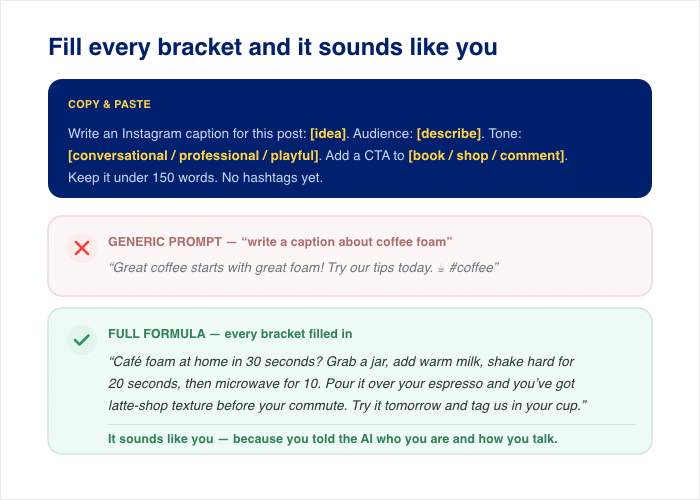
The second one sounds like you because you told the AI who you are and how you talk.
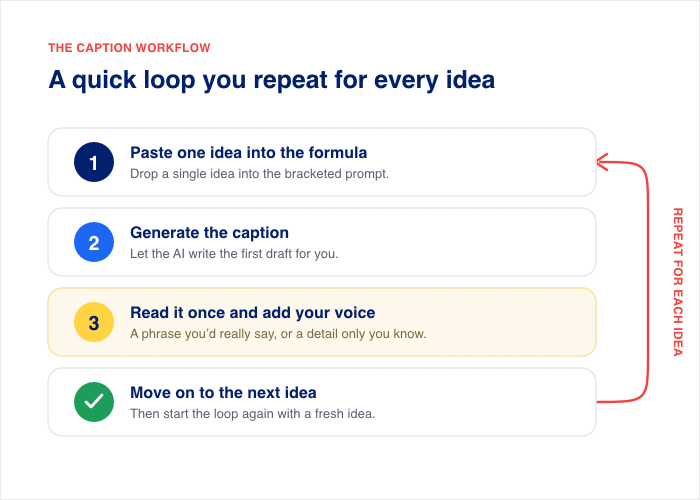
Work through all 30 ideas in this quick loop:
- Paste one idea into the formula.
- Generate the caption.
- Read it once and add your voice (a phrase you’d really say, a detail only you know).
- Move on to the next idea.
Skip hashtags while you write. Doing both at once slows you down.
Instead, do one hashtag pass now that you’re finished. Paste your 30 captions into the chatbot in one go and ask for 5 to 8 relevant hashtags per post, or run them through Flick or Later’s hashtag finder.
Keep the list in the same document as your captions so everything is in one place when you schedule.
Step 3: Create Your Visuals in Batches
Worried this is the part where you have to film 30 videos? You don’t.
A realistic month is 4 to 6 Reels plus a mix of carousels and images. That’s it. You do not need to point a camera at yourself 30 times.
Reels and carousels do different jobs, so use both. Reels reach roughly 2.25 times more people than other formats, while carousels lead on engagement and saves, at 0.50% against 0.48% for Reels and 0.33% for static posts (Socialinsider, 2026).
Pick your path below based on what you’re making, then knock out each type in one sitting.
Static Posts and Carousels: Canva Magic Studio
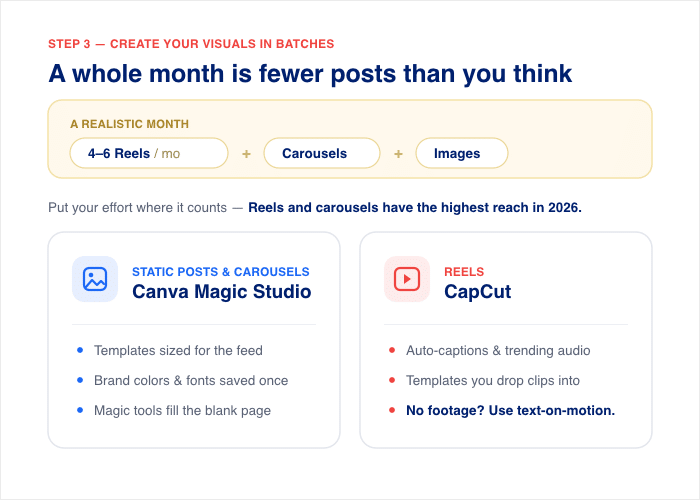
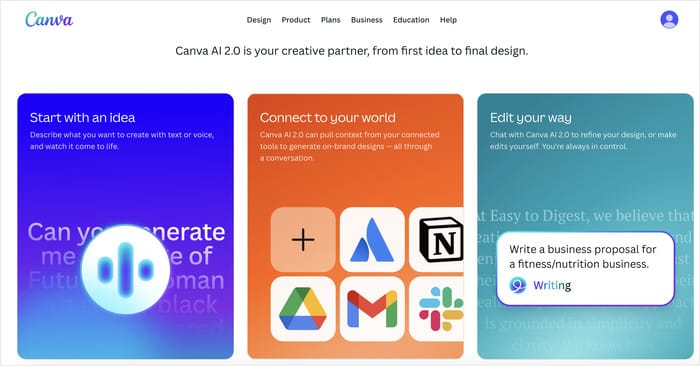
Open Canva once and make every graphic in a single session. Batching your design work this way is what keeps the momentum going.
Start from a template in your brand colors so every post looks like it belongs to you. Then move down your caption list and build each graphic.
Here’s the batch session step by step:
- Open Canva and search for an “Instagram Post” or “Instagram Carousel” template.
- Set your brand colors and fonts once, so every design stays consistent.
- Use Magic Write to draft text overlays for each graphic from your post idea.
- Duplicate the template for your next post and swap the text and image.
- Repeat until every static post and carousel is done.
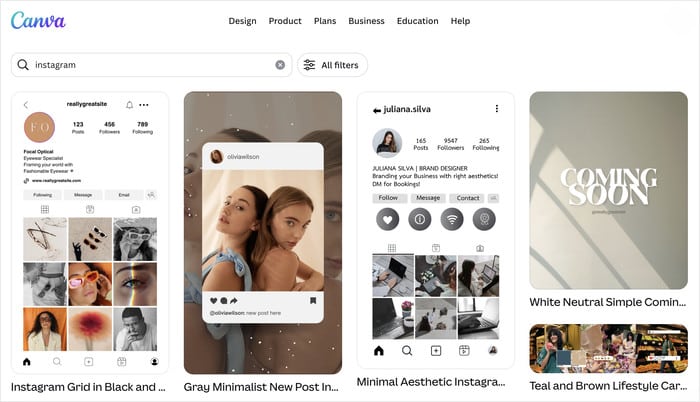
The trick is to never close the tab. You’re in design mode, so stay there until the whole batch is finished.
Even if you’re not a designer, the templates do the heavy lifting, and Magic Write handles the words.
Generating Images With AI (and When Not To)
Canva’s templates handle most of your month, but for posts where you need an image that doesn’t exist yet, generate it. Adobe Express, Canva’s Magic Media and Piktochart all take a text prompt and return an Instagram-sized image.
Where this works: backgrounds, abstract visuals, illustrated concepts for educational posts, seasonal graphics.
Where it doesn’t:
- Anything showing your actual product. A generated approximation of what you sell reads as dishonest the moment someone receives the real thing.
- Anything showing your team or premises. Same problem, bigger trust cost.
- Photorealistic people. Instagram labels AI-generated imagery, and a labeled fake person on a small business account does more harm than a plain text graphic.
Here’s a reliable prompt structure:
Create a square Instagram image. Subject: [what you want shown]. Style: [flat illustration / photographic / minimal graphic]. Colors: [your brand colors]. Leave the top third empty for text overlay.That last line saves you the most time. Generate with space for your text already built in, and the graphic drops straight into Canva.
Reels: CapCut (and a No-Footage Option)
Reels sound like the hard part, but they split into two simple cases. Pick the one that matches what you have.
If you have raw footage:
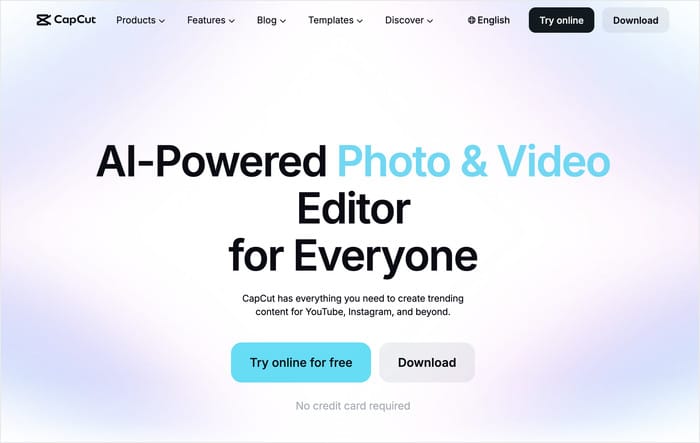
- Import your clips into CapCut.
- Use auto-cut to trim the dead space and rough edges automatically.
- Turn on auto-captions to add on-screen text from your audio.
- Drop in a trending sound and export.
If you have no footage:
Don’t worry if you hate being on camera. Text-to-video tools turn a caption into a Reel without you filming anything.
- Open InVideo, Canva’s video tools, or CapCut’s text-to-video feature.
- Paste your post idea or caption as the script.
- Let the tool match your words to stock clips, then swap out any that feel generic.
- Add on-screen captions, since most people watch without sound.
- Drop in a trending sound and export.
Two things make these look less like stock filler. Replace at least half the suggested clips with ones you picked yourself, and keep each clip under three seconds so the pacing feels deliberate rather than slideshow-ish.
This is the most AI-native part of the whole workflow, and it’s the step most small business owners skip because they assume Reels means filming themselves.
Step 4: Schedule the Whole Month at Once
Captions written, visuals ready, and still posting by hand every day? Not anymore.
For the simplest option, you can use the Meta Business Suite, Instagram’s own scheduling tool. It’s free with no post limit, so you can load all 30 posts at once and schedule up to 75 days out.
Stick to the cadence that keeps you consistent: 4 to 5 feed posts per week. That’s enough to stay in front of your audience without burning through your whole batch in two weeks.
Here’s your scheduling pass, start to finish:
- Connect your Instagram account in Meta Business Suite.
- Add each caption and attach its matching graphic or Reel.
- Set publish times using the platform’s recommended windows.
- Space posts at 4 to 5 per week across the month.
- Add your hashtags from the batch you built in Step 2.
- Review the full queue once, then confirm the schedule.
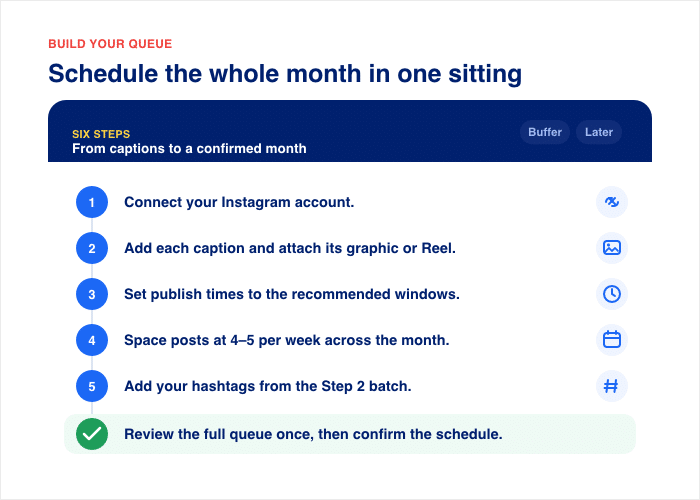
This is the payoff. What used to be 30 separate “what do I post today” moments is now one focused session you do once.
Once it’s scheduled, you can close the app and not think about posting for a month.
One last thing before you hit schedule. Tag each post with a tracking link so you can see which ones send people to your website later. That single step is what turns next month’s guesswork into real numbers.
Your AI Instagram Content Calendar
Here’s what 30 posts across 4 to 5 per week actually looks like. Map your pillars onto this grid and you’ll see the gaps before you start designing.
| Week | Mon | Wed | Thu | Fri | Sat |
|---|---|---|---|---|---|
| 1 | Educational tip | Product in use | Reel | Customer story | Engagement question |
| 2 | Behind-the-scenes | Educational tip | Product in use | Reel | Customer story |
| 3 | Engagement question | Behind-the-scenes | Educational tip | Product in use | Reel |
| 4 | Customer story | Engagement question | Behind-the-scenes | Educational tip | Promotion |
Two things to notice. The pillars rotate rather than clustering, so your feed never looks like five product posts in a row. And there are five Reels across the month, which matches the 4 to 6 target from Step 3 without you filming 30 videos.
Copy this grid into a spreadsheet, drop your 30 ideas into the cells, and your batching session has a finish line.
Step 5: Let Your Website Show Every Post Automatically
What if every post you just scheduled showed up on your website too?
Your content shouldn’t live only on Instagram. You spent a day building a month of posts, so make them work in two places at once. This is the step that makes all that batching pay off twice.
Here’s the quick win. With Smash Balloon’s Instagram Feed Pro, you can auto-display your batched content on your website. No copy-pasting, no manual updates. Every post appears the moment it goes live.
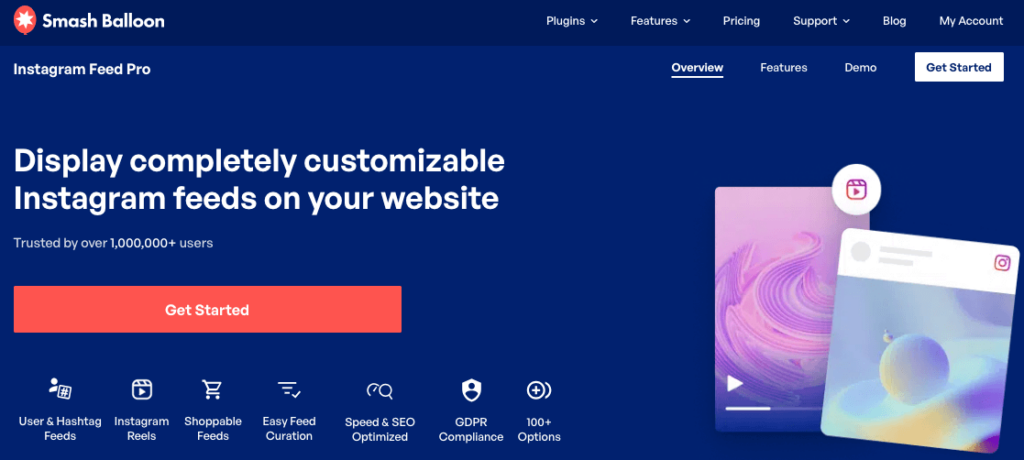
Setting it up takes three steps:
- Install Instagram Feed Pro on your WordPress site.
- Connect your Instagram account.
- Embed the feed on your homepage or about page.
That’s it. From that point on, every post in your monthly batch shows up on your site automatically the moment it publishes. You set this up once, and it benefits every month after.
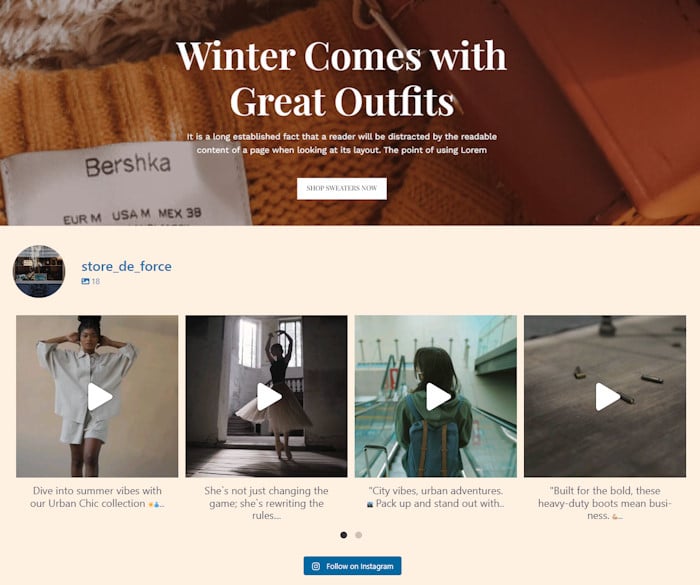
Here’s why it matters. Visitors who find you on Google see your live Instagram content and follow you there. Visitors who find you on Instagram land on a site that matches the brand they just followed.
Once I schedule a month ahead, do my new posts appear on my website too? Yes. Once it’s set up, your new scheduled posts appear on your site on their own, with no extra work from you.
If you want a closer look at the embed step, our guide on how to display your Instagram on your website walks through it.
Make Every Batched Post Work Twice
Instagram Feed Pro shows your scheduled posts on your website the moment they publish, with no copy-pasting after the one-time setup.
Show My Posts on My SiteTrack Which Posts Actually Drive Traffic
How do you know which of these posts actually brought people to your site?
Batching is your production system. It makes the content. But it can’t tell you what worked, and that’s a problem. Without that feedback, you’re guessing next month’s pillars instead of knowing them.
Here’s the gap. You scheduled 30 posts, but which ones sent people to your website? Which ones just got likes and went quiet? Guessing next month means repeating posts that flopped.
MonsterInsights closes the loop. It connects Google Analytics to your WordPress dashboard and shows your social traffic in plain English. Three features do the heavy lifting:
- Social Media Report: Right inside your WordPress dashboard, it shows which platforms send you traffic, how long those visitors stay, and whether they convert. No spreadsheets, no separate logins.
- Built-in UTM URL builder: Tag each batched post with a tracking link before you schedule it. This is that one step from Step 4. Now you know exactly which post drove which result.
- Feed the data back: Take what the report tells you and refine next month’s content pillars. The posts that brought traffic become the topics you make more of.
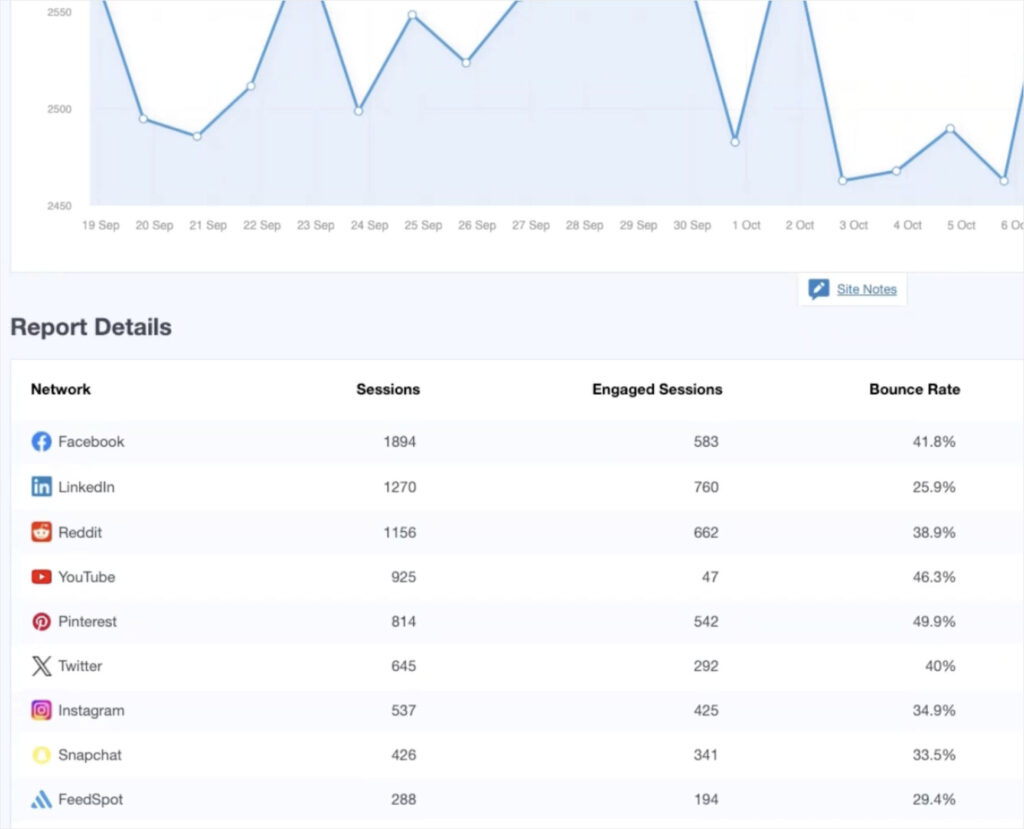
This is the payoff for tagging your links earlier. You batch the content, tag it, schedule it, and a month later the report tells you what to do more of.
Frequently Asked Questions
Will AI captions sound generic or robotic to my followers?
They will if you ask for a generic caption, but they won’t if you use the full formula from Step 2. Fill in every bracket with your business, your voice, and a detail only you know. Then read each caption once and add a phrase you’d really say.
How many Reels vs. images do I really need for a month?
Aim for 4 to 6 Reels and fill the rest of the month with carousels and images. Reels and carousels have the highest reach and engagement in 2026, so put your effort there first. You don’t need to film 30 videos to keep your feed full.
Do I have to use ChatGPT, or do Gemini and Claude work?
You don’t have to use ChatGPT. Gemini and Claude both work for generating ideas and writing captions, so pick the one you like. The formula matters more than the tool, so use the same prompts in any of them.
Will my new scheduled posts automatically appear on my website?
Yes, once you connect Smash Balloon’s Instagram Feed Pro. After the one-time setup, every post in your batch shows up on your site the moment it publishes. You won’t copy and paste a thing.
How do I know which posts brought people to my site?
Use the MonsterInsights Social Media Report alongside UTM tags. Tag each post with a tracking link before you schedule it, then check the report inside your WordPress dashboard. It tells you which posts sent visitors to your site so you can make more like them.
Start Batching Your Instagram Content Today
A full month of Instagram content is one focused session away. It’s not a weekend-every-week grind. You ideate, caption, design, schedule, and then let the work pay you back.
Here are the five steps you just learned:
- Set your pillars: Pick 3 to 5 topics so every post has a clear job.
- Ideate and caption: Generate 30 ideas in 15 minutes, then write all 30 captions in under an hour.
- Design in batches: Build your graphics in Canva and your Reels in CapCut, one sitting each.
- Schedule the month: Drop all 30 posts into Meta Business Suite at 4 to 5 per week.
- Show and measure: Display every post on your website automatically, then track which ones drive traffic.
That fifth step is what makes each batch work twice. Add Smash Balloon’s Instagram Feed Pro once, and every post in your monthly batch shows up on your website the moment it publishes. No copy-pasting, no extra work after setup.
You can also add OptinMonster to capture email from the Instagram traffic now landing on your site.
The good news is you set this up once and reap the benefit every month. Start your next batch today.