Social Wall
  Feed Analytics

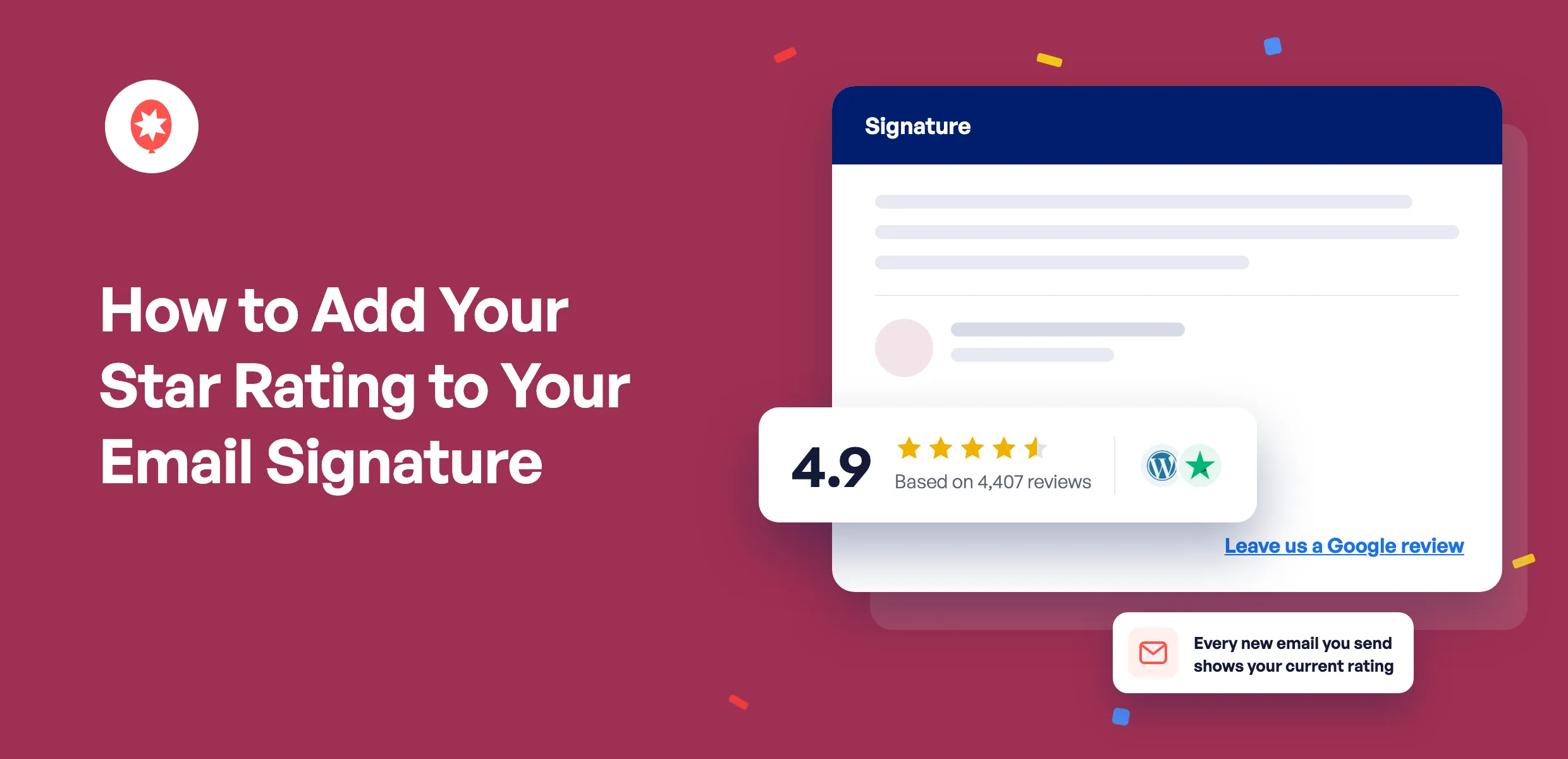
Every quote, booking confirmation, and follow-up you send lands in front of someone who’s still deciding whether to trust you. Your reviews could help with that, but they’re sitting on Google or Trustpilot, not in the email.
To add your star rating to your email signature, build a Trust Badge in Smash Balloon Reviews Feed Pro, click Copy badge for your signature, and paste it into your Gmail or Outlook signature settings. The badge is an image served from your own website, so every new email you send shows your current rating, and it can combine Google, Trustpilot, Yelp, and other review sites into one number. Trust Badges come with the Reviews Feed Pro Plus and Elite plans.
Smash Balloon is a set of WordPress plugins that show your reviews and social media feeds on your website with no code, and more than 1.75 million users run it.
I set this up while writing the Trust Badges announcement, and the part I like most is that you never type a rating in by hand.
Why Put Your Star Rating in Your Email Signature?
Your star rating is proof from other customers, and email is where a lot of buying decisions get made. A rating in your signature puts that proof in every message without you having to ask for it.
Where I think it helps most:
- Quotes and proposals, where the reader is comparing you with someone else and a 4.8 from 300 reviews gives them a reason to pick you.
- Booking confirmations, so a new customer feels good about the choice they just made.
- First-contact emails, where someone who’s never heard of you can see that other people trust you.
- Follow-ups, as a quiet nudge that doesn’t need a sales line.
What Are the Ways to Show Reviews in an Email Signature?
There are four common ways to show reviews in an email signature. They differ most on whether the rating keeps itself up to date.
| Screenshot of your stars | A “Read our reviews” link | Review widget service | ⭐ Recommended: Smash Balloon Reviews Feed Pro Trust Badge | |
|---|---|---|---|---|
| Does the rating update on its own? | ❌ No, you retake and repaste it every time it changes | ⚠️ There’s no rating to update, only a link | ✅ Yes, from the service’s servers | ✅ Yes, the image comes from your own site and keeps up as new reviews come in |
| Can it combine Google, Trustpilot, and other sites? | ⚠️ Only if you design it yourself | ❌ No, one link per review site | ⚠️ Depends on the service and plan | ✅ Yes, one rating weighted by how many reviews each site has |
| What shows if the email client blocks images? | ⚠️ Whatever alt text you remember to add | ✅ The link text | ⚠️ Depends on the service | ✅ Alt text you control: a pasted badge uses its name, and the HTML snippet spells out your rating, like “Rated 4.9 out of 5 from 4,407 reviews” |
| What does it cost? | ✅ Nothing | ✅ Nothing | ⚠️ Many charge by the month | Part of Reviews Feed Pro Plus, $99 for your first year, which also puts the badge on your website |
| Best for | A one-off email | Asking customers to leave a review | Businesses without a WordPress site | WordPress sites that want one badge for the site and email |
If you just want to ask for reviews, a link is fine. If you want people to see your rating at a glance, and you don’t want to redo it every time a review comes in, the badge is the one I’d pick.
How Do I Add My Star Rating to My Email Signature?
In Smash Balloon Reviews Feed Pro, go to Reviews Feed » Trust Badges, create a badge, and use Embed in an Email to copy it for your signature. It takes a few minutes if your review sites are already connected.
A few things to know before you start:
- Trust Badges are on Reviews Feed Pro Plus and Elite, and the All Access Bundle.
- You need at least one review source connected, and you can connect one while you create the badge.
- The badge’s rating comes from your connected reviews, so it’s never typed in by hand.
- The same badge can go on your website and in your email signature, and editing it once updates both.
1. Create a Trust Badge
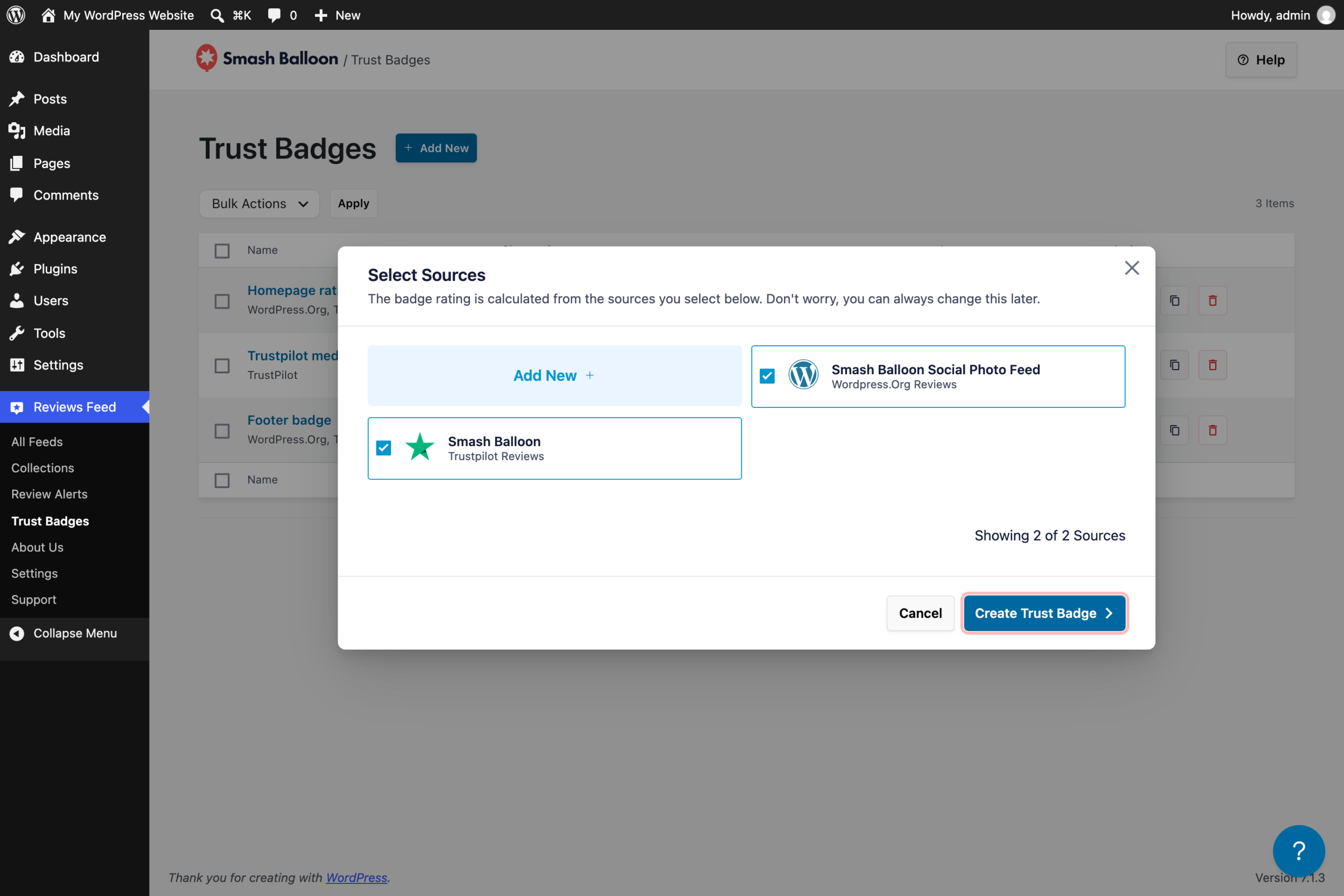
Go to Reviews Feed » Trust Badges and click Add New. Tick the review sites you want in the rating, like Google and Trustpilot, then click Create Trust Badge. Then click the pencil next to the badge’s name at the top of the editor and give it a clear name, like “Our Google and Trustpilot reviews.” Do this before you copy the badge, since that name is what shows if an email client blocks images.
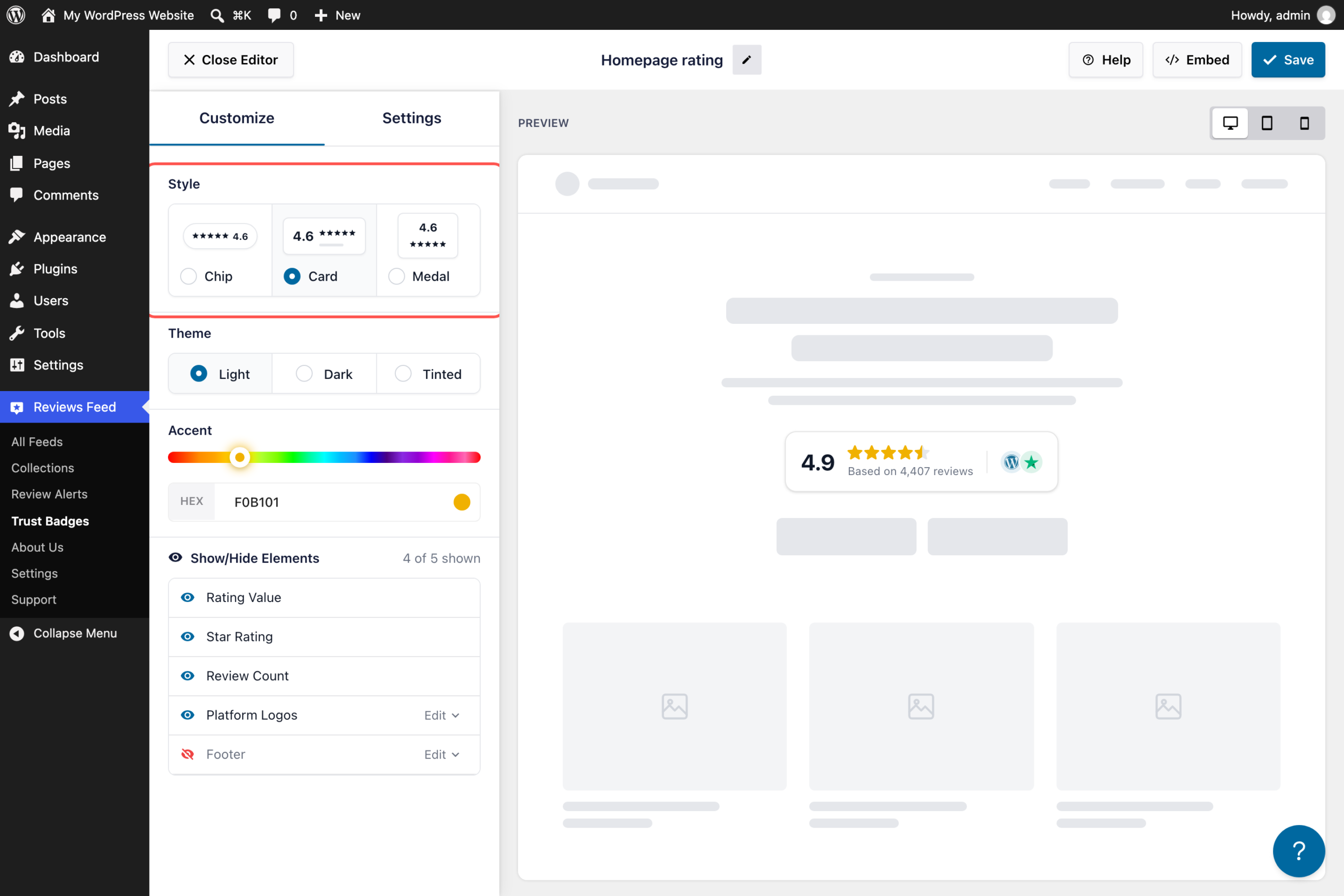
2. Pick a Style That Reads Well Small
Under Customize, choose Chip, Card, or Medal, then a Light, Dark, or Tinted theme. For a signature, I’d go with Chip or Card. They’re wide and short, so they sit neatly under your name instead of taking over the email. Click Save when the preview looks right.
3. Copy the Badge for Your Signature
Click Embed, then Set up under Embed in an Email. Click Copy badge for your signature.
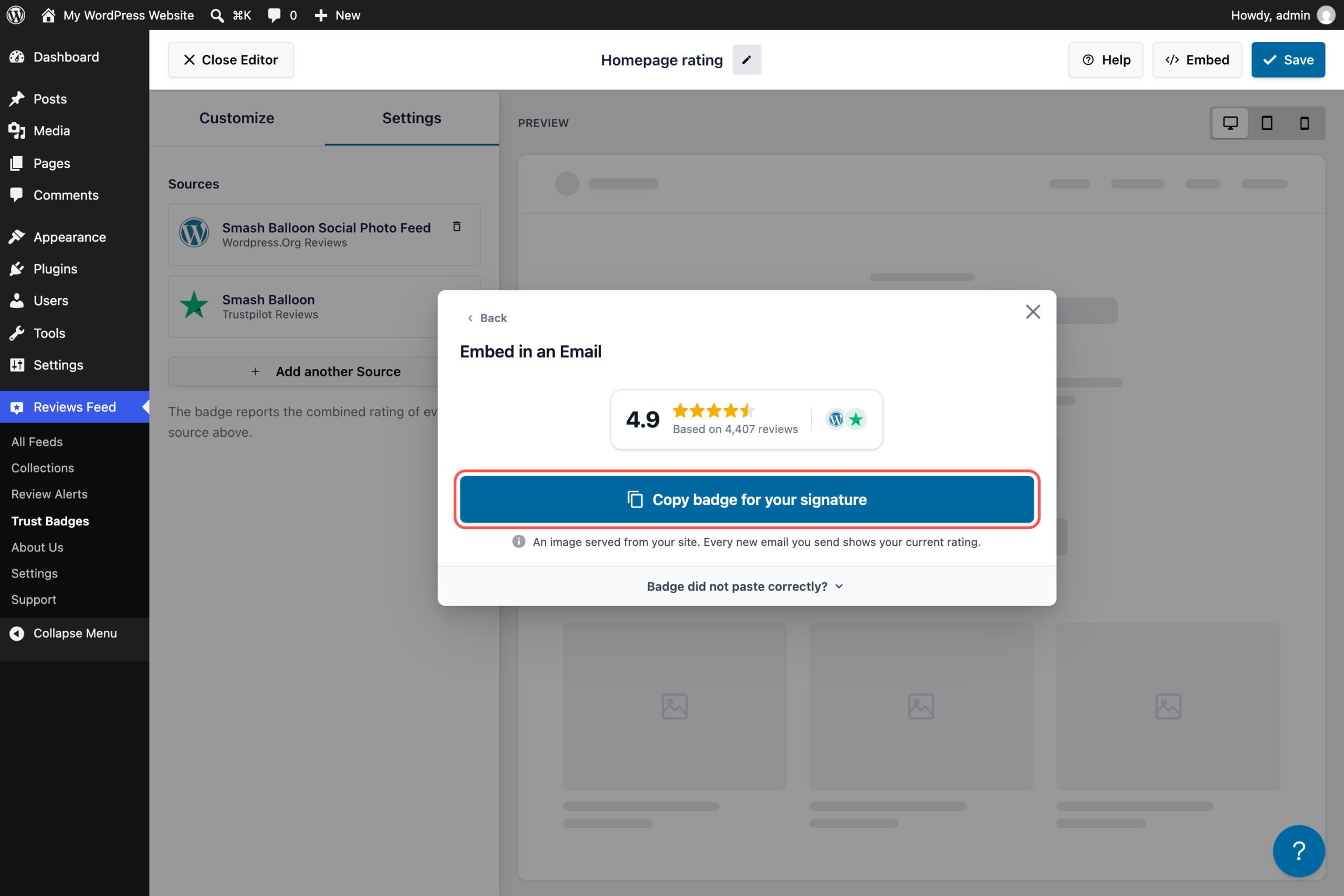
Did the badge paste in as code, or does your email tool want something different? Open Badge did not paste correctly? in the same window. It has two copy buttons, one for an HTML snippet if your editor has a source view, and one for the image URL if your tool only takes an image link.
4. Paste It Into Your Email Signature
Open your email signature settings, paste the badge under your name, and save. In Gmail that’s Settings, then See all settings, then Signature. In Outlook it’s Settings, then Accounts, then Signatures.
How Do I Paste the Badge Into Gmail, Outlook, and Other Email Tools?
Paste the badge into your signature editor and save. The badge already links to your website’s homepage, so anyone who clicks it lands on your site. If you’d rather send people straight to your reviews page, you can change that link in your signature editor, and the steps below show you how.
How Do I Add My Google Reviews or Rating to a Gmail Signature?
- In Gmail, click the gear icon, then See all settings.
- On the General tab, scroll to Signature and click Create new, or edit the one you have.
- Paste the badge where you want it, usually under your name and title.
- The badge already links to your homepage. To point it at your reviews page instead, highlight the badge, click the link icon, and paste your reviews page address.
- Scroll to the bottom and click Save Changes.
How Do I Add My Star Rating to an Outlook Signature?
- In new Outlook or Outlook on the web, select Settings, then Accounts, then Signatures.
- Select Add signature, give it a name, and paste the badge into the box. To change one you already have, select Edit signature next to it.
- The badge already links to your homepage. To change that, select the badge, add your reviews page link, then select Save.
Using classic Outlook for Windows? Go to File, then Options, then Mail, then Signatures, and paste the badge into the Edit signature box.
What If My Email Tool Doesn’t Accept a Pasted Image?
Open Badge did not paste correctly? in the Embed in an Email window. Copy the HTML snippet if your tool has an HTML or source view, or copy the image URL if it only takes an image link. Both point to the same badge image, so it still shows your current rating. The snippet doesn’t include a link, so add one in your email tool if you want the badge to be clickable.
How Do I Add a Google Review Button to My Email Signature?
If you want people to leave a review rather than see your rating, add your Google review link. Google Business Profile gives you a link you can share to ask customers for reviews. To get it, go to your Business Profile, select Read Reviews, then Get more reviews, and click Copy. Then add it to your signature as text like “Leave us a Google review,” or set it as the link on your badge. You can have both: the badge shows your rating, and the link asks for the next review.
Put your star rating in every email you send
Trust Badges come with Smash Balloon Reviews Feed Pro Plus and Elite. Build one badge for your signature and your website, and it keeps up with your reviews on its own. Backed by a 14-day money-back guarantee.
Get Reviews Feed ProCan I Show My Google Reviews and Trustpilot Rating Together?
Yes. A Trust Badge can combine as many connected review sites as you like into one rating, weighted by how many reviews each site has. A site with 4,000 reviews counts for more than one with 20, and the logos on the badge show where the rating comes from.
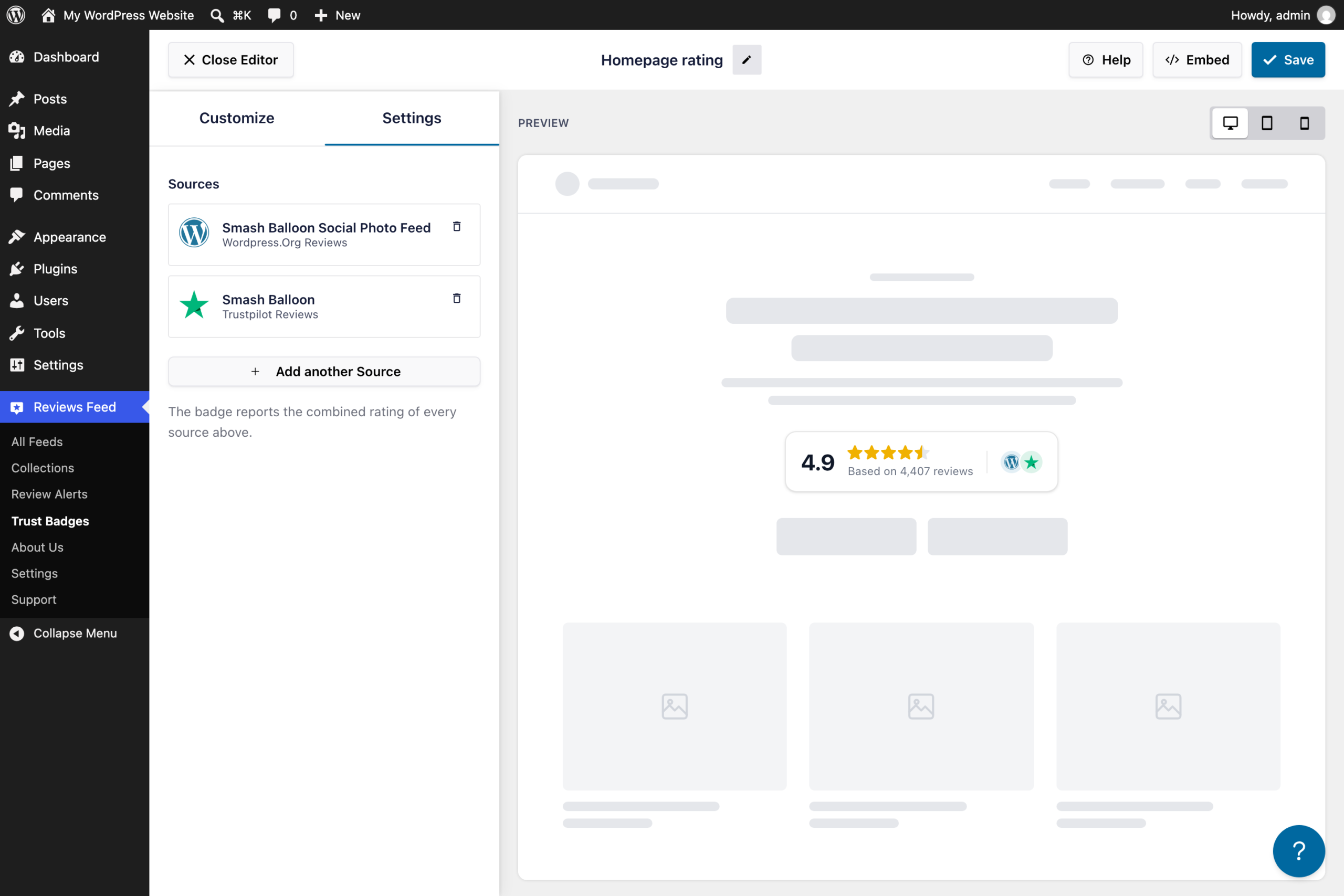
Plus covers Google, Yelp, Facebook, Trustpilot, WooCommerce, Easy Digital Downloads, and AliExpress. Elite adds Tripadvisor, Booking.com, Airbnb, and WordPress.org. One exception: a badge that only uses Booking.com keeps Booking’s 0 to 10 score instead of switching to stars.
Worried a combined number looks like you’re hiding a weaker site? The logos are right on the badge, so anyone can see exactly which sites it covers. If you want to grow the number behind it first, these ways to get more Google reviews are a good place to start.
Once the badge exists, you can put the same one on your website too, under a headline, next to a Buy button, or in your footer. The full rundown of styles and placements is in the Trust Badges announcement. And if you’d rather show full reviews on a page, here’s how to embed Google reviews in WordPress.
Frequently Asked Questions
Does the star rating in my email signature update automatically?
Yes. The badge is an image served from your own website, so when Smash Balloon Reviews Feed Pro picks up new reviews, the badge in your signature follows. Every new email you send shows your current rating, without you repasting anything.
Can I add my Google review stars to my email signature?
Yes. Connect your Google reviews in Smash Balloon Reviews Feed Pro, create a Trust Badge with Google as a source, and copy it into your signature. You can add Trustpilot, Yelp, or other sites to the same badge for one combined rating.
What do people see if their email blocks images?
That depends on how you added it. If you used the HTML snippet, they see alt text that states your rating in words, like “Rated 4.9 out of 5 from 4,407 reviews.” If you pasted the badge with Copy badge for your signature, they see the badge’s name, so give it a clear one, like “Our Google and Trustpilot reviews.”
Which plan do I need for an email signature badge?
Trust Badges are included in Reviews Feed Pro Plus and Elite, and the All Access Bundle. Plus is $99 for your first year and covers 5 websites.
Can I make the badge in my signature clickable?
Yes, and it already is. When you use Copy badge for your signature, the badge comes with a link to your website’s homepage. To send people to your reviews page instead, select the badge in your Gmail or Outlook signature editor, change the link, and save.
Start Showing Your Rating in Every Email Now
You’ve already earned those reviews. A Trust Badge puts them in front of every person you email, and it updates on its own when the number changes.
Build the badge once, paste it into your signature, and use the same badge on your website if you like. Reviews Feed Pro Plus is backed by a 14-day money-back guarantee, so you can try it with your own reviews first.
Show your rating before anyone goes looking
Reviews Feed Pro Plus combines your Google, Trustpilot, Yelp, and Facebook reviews into one badge for your emails and your site. Backed by a 14-day money-back guarantee.
Get Reviews Feed Pro