Social Wall
  Feed Analytics

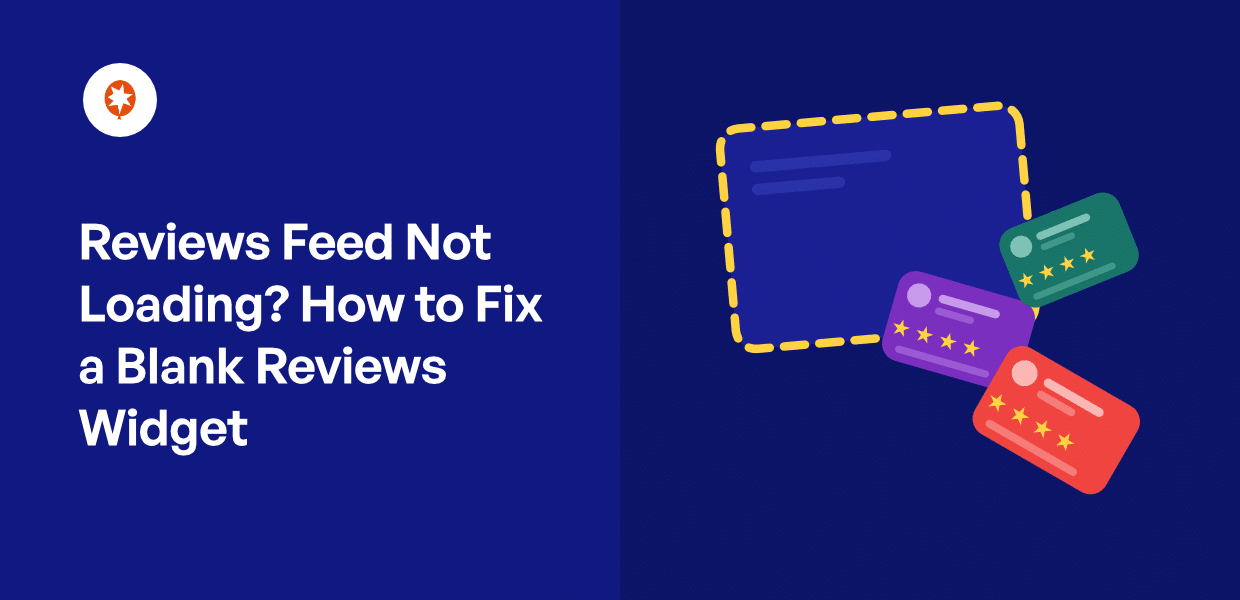
You’ve built the page carefully. The reviews section sits right where visitors decide whether to trust you, and today it’s a blank space.
Maybe it went completely empty overnight. Or maybe it still loads, but with three reviews instead of the twelve you had last week. Either way, you didn’t touch anything, and that’s usually the clue.
A reviews feed pulls from Google, Facebook, Yelp, and the rest, so when one of those accounts changes something on their end, the feed goes quiet without a word.
You’ve probably already reconnected the source, hard-refreshed a few times, and switched off a plugin or two hoping something would snap back. The frustrating part is that five different things can leave you with the same blank space, and two of them aren’t breakage at all.
Below, they’re sorted by symptom, fastest check first. You’ll know which one is yours in about two minutes, and you won’t waste an afternoon fixing the wrong thing.
In this Article:
Why Is My Reviews Feed Blank?
Three causes explain most blank reviews feeds: your license tier doesn’t include the platform you’re trying to display, the connection to that platform stopped working on the platform’s end, or a site-optimization plugin is stripping out the scripts your feed needs to run.
None of those require you to have broken anything. The first one means the feed never had permission to pull those reviews. The second happens when a bill goes unpaid or a password changes on the review platform.
The third is a side effect of a speed plugin doing exactly what you installed it to do.
One more thing worth naming: if your feed shows only a handful of reviews, that may just be how the reviews arrive, and a new feed fills out on its own.
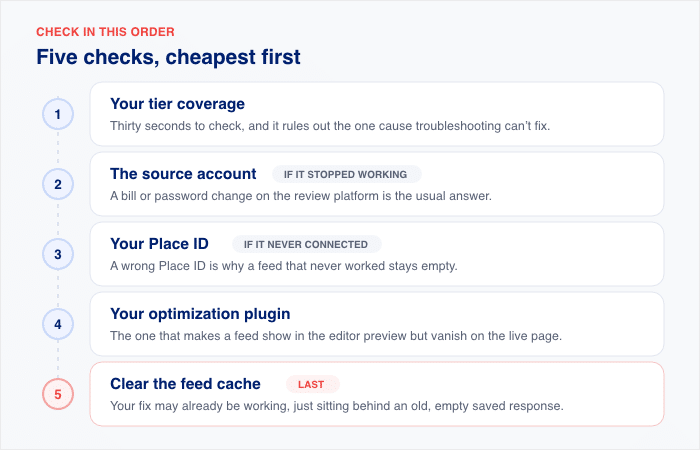
So work through them in this order:
- Tier coverage first. It takes thirty seconds to check and rules out the cause you can’t fix by troubleshooting.
- Then the source account, if the feed was working and stopped. A bill or password change on the review platform is the usual answer.
- Then your Place ID, if the feed never connected at all. A wrong Place ID is the reason a feed that never worked stays empty.
- Then your optimization plugin. This is the one that makes a feed show in the editor preview but vanish on the live page.
- Clear the feed cache last. Your fix may already be working and just sitting behind an old, empty saved response.
Confirm Your Review Platform Is Included at Your Tier
Before you troubleshoot anything, check that your license covers the platform you’re trying to display. If it doesn’t, the feed has nothing to pull and no error message to explain why.
This is the fastest thing on the list to rule out.
Here’s what each Smash Balloon Reviews Feed Pro tier includes:
| Tier | Review sources |
|---|---|
| Basic | Google, Yelp |
| Plus | Everything in Basic, plus Facebook, Trustpilot, WooCommerce, AliExpress, Easy Digital Downloads |
| Elite | Everything in Plus, plus TripAdvisor, WordPress.org, Booking.com |
The free version is more limited. It pulls up to 10 reviews from a single source, and that source has to be Google or Yelp.
So if you’re on Basic and trying to show Trustpilot reviews, the feed will stay blank no matter how many times you reconnect. Same with TripAdvisor on Plus.
To check which tier you’re on, head to Reviews Feed » Settings and click “Manage License”. You can also log in at smashballoon.com/account.
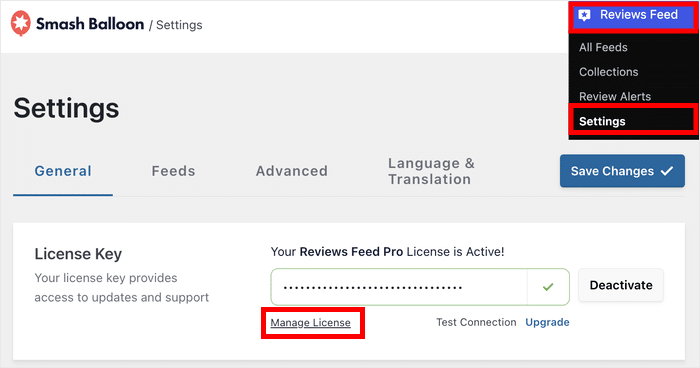
One thing to watch for: the Settings screen tells you whether your license is active, not which tier it is. An active license and the right tier are two different things, and a feed can fail on the second while the first looks perfectly fine.
In case your tier does cover the platform, you can move on to the next section.
If you’re on Plus and Trustpilot still isn’t showing, our guide on embedding Trustpilot reviews covers the connection steps, and displaying WooCommerce reviews does the same for WooCommerce. If your tier doesn’t cover the platform, upgrading is the fix.
Fix a Google Place ID That Won’t Connect
If your Google feed never connected in the first place, the Place ID is where to look. This is a setup problem, not a live-feed problem. A feed that worked yesterday and went blank today has a different cause.
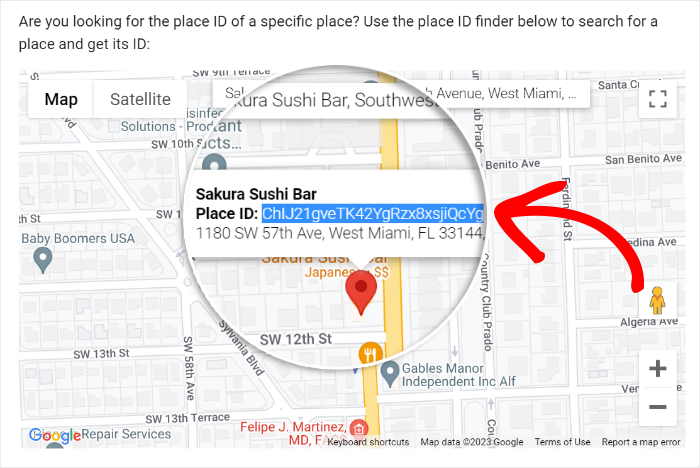
Grab your Place ID from the Place ID Finder in Google Maps Platform. Search for your business name, click your listing on the map, and Google shows the Place ID in a small box you can copy.
That box is the only place you should copy it from. Here’s where people go wrong:
- A trailing space. The ID looks right but carries an invisible space at the end, and the connection fails. Double-check the value after pasting.
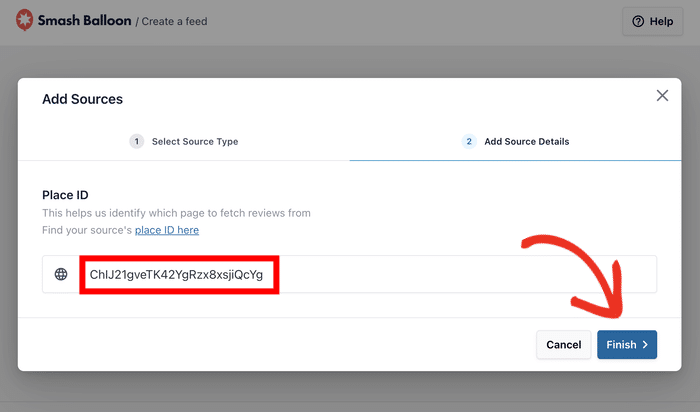
- The CID from your Maps URL. The long number in a Google Maps web address is not your Place ID. It looks like an ID, but the plugin can’t use it.
- The wrong listing. If you run more than one location, Google will happily hand you the Place ID for a different branch. Check the address in the finder before you copy.
Now the cause most people never find. Google’s API requires the business listing to have a physical address set. Without one, the connection fails, and you see “Unknown error occurred!” on screen, which tells you nothing about why.
The fix is to add an address to your Google Business Profile listing, then paste the same Place ID again.
You don’t need a new one. I’d start here if your Place ID looks correct and you’ve already checked it twice, because a service-area business with no street address hits this constantly.
For the full setup walkthrough, see our guide on how to show Google reviews on your website.
An API key is optional for Google and Yelp, and required for TripAdvisor. If you’re using one with Google and see “Error 400: API key not valid”, the key itself is the problem, not your Place ID.
Check that the key has no restrictions applied and that the Places API is enabled on your Google Cloud project.
Once you’ve corrected either one, clear your feed’s cache so the plugin fetches fresh reviews instead of serving the old empty response.
Exclude Smash Balloon From Your Optimization Plugin
Does your feed look fine in the Elementor or block editor preview, then vanish on the live page? Or show up on one page and not another?
A preview like this one is not proof the feed works. Before you change a single setting, open the page in a private browsing window.
If the feed shows while you’re logged in but not for visitors, you’re being served an uncached version, and they’re getting the optimized one. That tells you whose version is actually broken.
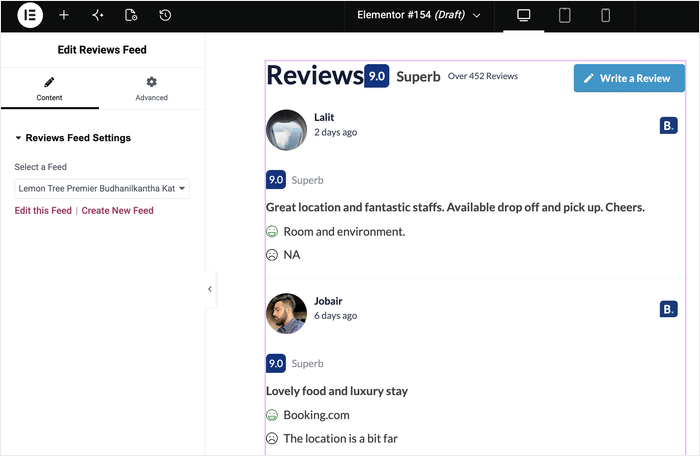
Speed plugins minify JavaScript, defer it, delay it until a visitor interacts with the page, and lazy load elements below the fold. Any one of those can strip out the script your reviews feed needs to render.
Editor previews don’t run those optimizations, which is why the feed looks perfectly healthy while you’re building the page.
The fix is exclusion, not deactivation. You don’t have to choose between your page speed score and your reviews.
Start with the plugin’s directory path. Copy the one that matches your version:
- Pro:
/wp-content/plugins/reviews-feed-pro/ - Free:
/wp-content/plugins/reviews-feed/
That path needs to go in three separate lists. Most people add it to one, see no change, and give up. Missing any of them leaves your feed blank:
- JavaScript and minify exclusions
- Delay JavaScript execution exclusions
- Lazy load exclusions
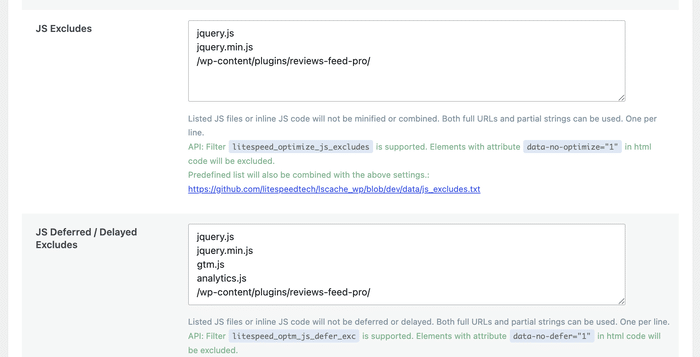
Here’s where those fields live in the popular optimization plugins:
- WP Rocket: File Optimization for lists 1 and 2, Media for list 3.
- Autoptimize: the JavaScript optimization exclusion field.
- Perfmatters: Assets for script exclusions, plus the delay JS and lazy load exclusion boxes.
Save your changes, purge your optimization plugin’s cache, then reload the live page in a private window. The old optimized page is still being served until you purge.
Will this slow your site down? The excluded scripts are small, and Reviews Feed already stores your reviews locally rather than calling Google or Facebook on every page load, so there was never much for a speed plugin to optimize away.
The exclusion applies to Smash Balloon only. Everything else on your site keeps its speed treatment.
If the exclusions don’t do it, there’s one more lever inside the plugin. Open Reviews Feed » Settings » Advanced and turn on Enqueue JavaScript in head.
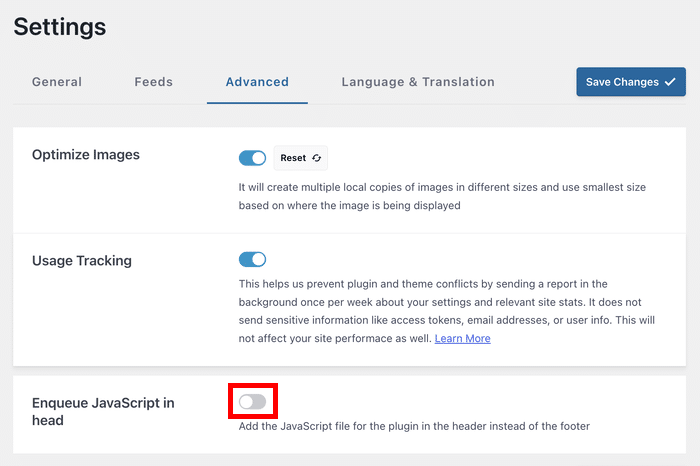
That moves the feed’s script from the footer to the header, which resolves some timing conflicts the exclusion lists can’t reach.
This same conflict shows up on other feed types. Our guide on fixing an Instagram feed that won’t load walks through the same pattern.
Clear Your Feed’s Cache
Save this one for last. Once you’ve worked through the fixes above, clearing the cache is what makes them show up on your live page.
Your reviews feed saves a copy of what it pulled last time so pages load fast without asking Google or Facebook for reviews on every visit. That copy is the cache, and it can sit there holding an empty result.
This is why a fix can look like it failed. You corrected the Place ID or excluded the scripts from your speed plugin, you reloaded the page, and the section is still blank.
The plugin is serving you a saved response from before the fix.
Head to Reviews Feed » Settings » Feeds and click “Clear All Caches”.
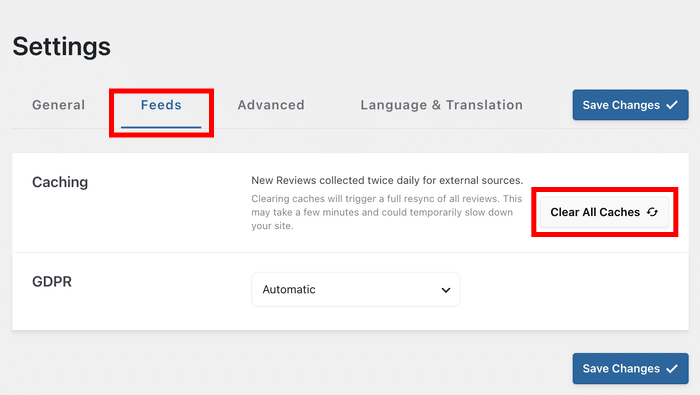
Then reload your live page in a private browsing window. The plugin fetches fresh reviews from the source, and if your fix worked, they show up.
Sometimes the stale cache is the whole problem. If a review platform had a brief hiccup while your feed was fetching, the plugin saved that empty response and kept serving it long after the platform recovered. In that case, clearing the cache is all it takes.
If the feed is still blank after clearing the cache, you know the fixes above didn’t land. Work back up the list and check each one.
Fix it once, then let the plugin watch it for you
Smash Balloon Reviews Feed Pro stores your reviews locally, so your feed keeps showing them even when Google or Facebook has a bad day. Backed by a 14 day money-back guarantee.
Keep My Reviews ShowingFrequently Asked Questions
Why did my reviews feed suddenly go blank?
A feed that goes blank on its own is almost always a bill or a password, not your site. Google Cloud requires billing to be enabled on your project, and if it lapses, the reviews stop. A Facebook Access Token is invalidated by an account password change or a deleted app, which shows up as API Error 190, and the fix is reconnecting the source rather than editing a key. Yelp keys can expire too, now that Yelp charges for them.
Why can’t I see Trustpilot reviews in my feed?
Trustpilot reviews need the Plus tier or higher. If you’re on Basic, the feed renders nothing at all instead of showing an error, which is exactly why it reads as broken rather than as a licensing limit. Click Manage License in Reviews Feed » Settings, or check smashballoon.com/account, before you spend time on the connection itself.
Why won’t my Google Place ID connect?
Most people describe this as an invalid Place ID, but the plugin says “Unknown error occurred!” instead. The usual cause is that your Google Business Profile listing has no physical address set, which Google’s API requires. The other two are copying the CID from your Maps URL instead of the actual Place ID, and a trailing space picked up during the copy and paste.
Does a caching plugin break my reviews feed?
A caching plugin can break your reviews feed, though it’s usually the optimization settings rather than page caching itself. Deferred JavaScript, delayed JavaScript, and lazy loading all strip out the scripts the feed needs to render. Add /wp-content/plugins/reviews-feed-pro/ to your plugin’s JavaScript, delay JS, and lazy load exclusion lists, then purge the cache.
Does this affect the free version too?
The free version can go blank for all the same reasons, plus one of its own. Free covers Google and Yelp only, up to 10 reviews from a single source, so anything outside that shows nothing. Upgrading fixes the problem only if your tier is the cause. An expired connection, a plugin conflict, or a stale cache behaves the same way on every tier.
Reviews That Keep Building Trust, Automatically
A blank reviews section costs you more than a broken layout. It sits on the page where visitors decide whether to trust you, and an empty space says nothing on your behalf.
Check your tier first, because it takes thirty seconds and rules out the most common false alarm. Then work back down through the sections in order until the feed comes back.
Worth remembering that a platform your tier doesn’t cover was never going to render. That one isn’t breakage, and no amount of reconnecting will change it.
Smash Balloon Reviews Feed Pro pulls reviews from Google, Yelp, Facebook, Trustpilot, and more into one feed that matches your theme and updates on its own. It stores reviews locally, so your feed keeps showing them even when a platform goes down.
Connect your source once, place the feed, and new reviews appear as customers leave them. That’s the part that saves you from checking on it every week.
Get Smash Balloon Reviews Feed Pro today »