Social Wall
  Feed Analytics

If you’re watching 7 out of 10 shoppers bail before they buy, you’re not alone.
In my experience, I’ve seen it up close, and the fix is rarely what people expect. Most store owners assume it’s a price problem.
But in reality, it’s usually a trust problem.
A lot of hesitant shoppers don’t trust the product, the store, or the checkout process enough to hand over their payment details.
Closing that trust gap doesn’t require a developer, a full store redesign, or a large marketing budget.
In this guide, I’ll show you exactly why shoppers are leaving your WooCommerce store and the specific changes you can make today to bring them back.
- How Do You Reduce WooCommerce Cart Abandonment?
- Why Shoppers Really Abandon WooCommerce Carts
- Fix 1: Add Customer Reviews to the Pages Where Doubt Lives
- Fix 2: Replace Stock Photos with Real-Customer Instagram UGC
- Fix 3: Give Shoppers Instant Answers Before They Leave
- Fix 4: Quick Technical Fixes That Remove Checkout Friction
- Fix 5: Win Back the Carts You Still Lose
- Fix 6: Measure Whether Your Changes Are Actually Working
- Where to Put Social Proof in Your Checkout Funnel
- Start Reducing Your WooCommerce Cart Abandonment Today
- More Online Business Guides and Tutorials
How Do You Reduce WooCommerce Cart Abandonment?
You reduce WooCommerce cart abandonment by closing the trust gap first, then removing checkout friction, then recovering the carts you still lose. The average cart abandonment rate is 70.22% according to the Baymard Institute, and three of the top causes are trust-related.
Here’s the short version of what works:
- Show real reviews on product pages, below the description and above the Add to Cart button, where hesitation actually happens.
- Replace stock photos with customer photos so shoppers see the product in real life, not in a studio.
- Answer pre-purchase questions instantly with a chat widget and a pre-loaded FAQ.
- Remove checkout friction: guest checkout, upfront shipping costs, fewer form fields.
- Recover the carts you still lose with automated push notifications, which reach shoppers who never gave you an email address.
- Measure one change at a time so you know which fix moved the number.
Most guides stop at the checkout page. The fixes below go further, and I’ll walk you through the exact setup for each one with screenshots.
Why Shoppers Really Abandon WooCommerce Carts
There are two main reasons why carts are abandoned, and understanding the difference changes everything about how you fix them.
| Friction Problems | Doubt / Trust Problems |
|---|---|
| Too many form fields | No customer reviews visible |
| Forced account creation before checkout | No recognizable payment badges |
| Surprise shipping costs at checkout | Generic or stock product photos |
| Slow page load times | No return policy visible on the page |
| Confusing multi-step checkout flow | No way to ask a quick pre-purchase question |
Friction makes checkout annoying. Doubt makes checkout feel risky. Most store owners fix the annoying part and wonder why sales don’t improve.
Trust problems are harder to fix than friction problems, but they’re also higher-impact. A shopper who trusts your store will push through a slightly clunky checkout.
A shopper who doesn’t trust your store will leave no matter how smooth the process is.
What the Cart Abandonment Data Actually Shows
When you set aside shoppers who were just browsing, these three causes show up consistently among shoppers who actually intended to buy:
- No Trust in the Site: 19% of shoppers abandoned because they didn’t trust the site with their credit card information.
- No Visible Return Policy: 15% abandoned because the returns policy wasn’t satisfactory.
- No Upfront Cost Clarity: 14% abandoned because they couldn’t see or calculate the total order cost upfront.
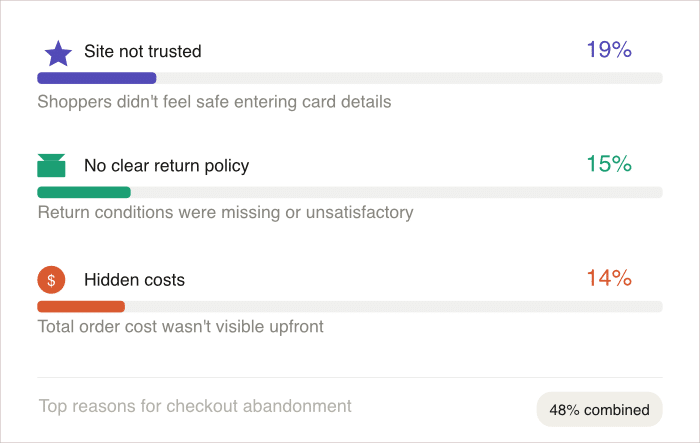
According to Baymard Institute, the average cart abandonment rate sits at 70.22%.
For every $10 of cart value your store creates, you’re losing roughly $7 in potential revenue. That’s the majority of your store’s potential revenue lost due to these three reasons.
What you’ll find in the sections ahead are specific, actionable fixes tied to each of these trust gaps.
Fix 1: Add Customer Reviews to the Pages Where Doubt Lives
Your shopper is on your product page, almost convinced, and then they open a new tab to Google your store name followed by “reviews.” That tab is where you lose them.
Your product pages already have reviews, but almost nobody sees them because they sit buried below the fold.
If you’re not getting many in the first place, that’s a separate problem worth fixing, and here’s how to get more WooCommerce reviews without pestering your customers.
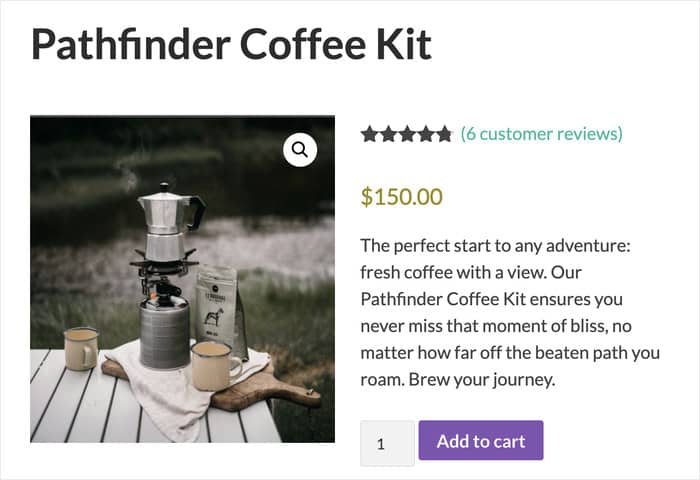
Keeping reviews on your own site solves this directly. When shoppers can see real feedback without leaving your store, they’re more likely to stay and keep shopping.
Smash Balloon Reviews Feed Pro fixes this by letting you display those existing WooCommerce reviews as a styled feed anywhere on your pages.
WordPress does have a native review block, and it’s worth understanding how the native block differs from a reviews plugin before you pick one. Unlike the native review blocks, this plugin lets you embed reviews from:
- A specific product page
- An entire product category
- Your selected product tags
As a bonus, Reviews Feed Pro also supports pulling in reviews from trusted external sources like Google, Facebook, and Yelp, adding extra credibility for first-time visitors.
Don’t worry if you’ve never installed a WordPress plugin before, this one takes about 5 minutes to set up.
How to Set It Up on Your WooCommerce Store
Install and activate Reviews Feed Pro on your site. Once activated, you’ll see a new Reviews Feed menu item in your WordPress dashboard.
- Create a New Feed: Go to Reviews Feed » All Feeds and click Add New. This is where you choose your review source.
- Select Your WooCommerce Source: When prompted, select WooCommerce as your source. You can then pull reviews from a specific product page, a product tag, or an entire product category.
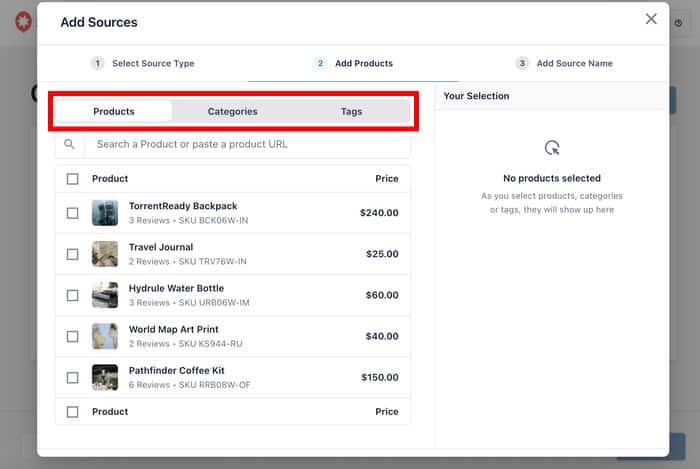
- Customize the Feed Display: Use the visual feed editor to set your layout, adjust colors, customize review elements, and more.
- Filter Your Reviews: Click on Settings and select Filters to get started. Set a minimum star rating and filter by word count or keywords.
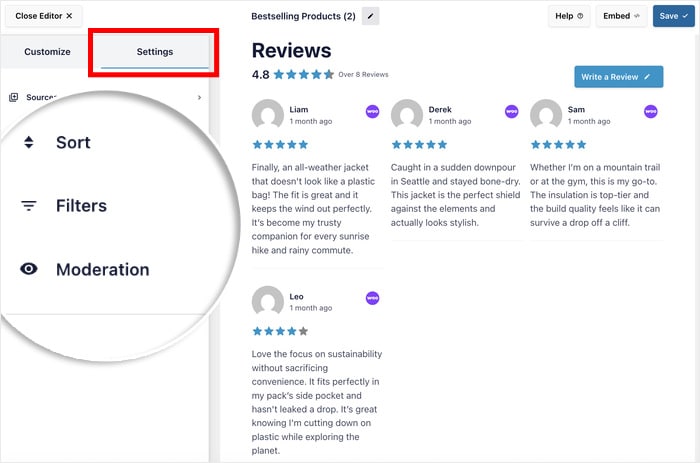
- Embed the Review Feed: Click Embed inside the feed editor. Choose between a page and a widget, then use the dedicated Reviews Feed block to embed it.
From there, you can save and preview your new WooCommerce reviews feed and see how it looks to your visitors.

For more details, check out this guide on how to embed WooCommerce reviews on your website.
Pro Tip: Put the feed below the product description and above the Add to Cart button. That’s where the hesitation happens, and that’s exactly where real customer reviews do their best work.
Fix 2: Replace Stock Photos with Real-Customer Instagram UGC
Stock-style photos tell shoppers what a product looks like. Customer photos tell them what it looks like in real life.
UGC (user-generated content) reduces doubt at the product page stage because it works like a recommendation from a friend.
Take a fitness gear brand as a practical example. Before UGC, their product pages showed clean studio shots.
After pulling a branded hashtag feed onto their product pages, shoppers saw real customers wearing the gear and talking about how they work.

The page went from answering “what does it look like?” to answering “will it work for me?” That shift is what UGC does.
The tool for this fix is the Smash Balloon Instagram Feed plugin.
It displays tagged or hashtagged Instagram posts as a responsive feed on your product pages, no code required.
How to Pull a Branded Hashtag Feed into WooCommerce
- Install and activate the Instagram Feed plugin. You’ll see a new Instagram Feed menu item in your WordPress dashboard.
- Go to Instagram Feed » All Feeds and click on Add New. Follow the on-screen prompts to connect your Instagram business account.
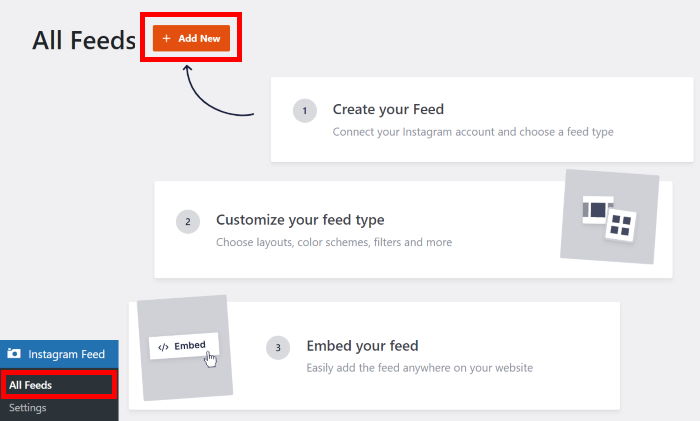
- When choosing your feed type, select either a hashtag feed using your branded hashtag or tagged posts.
- Select your feed theme and template to instantly create a beautiful Instagram feed with a unique design.
- Set your feed Layout. A grid layout works well on product pages. You can adjust the number of columns and rows to fit neatly within your product page template.
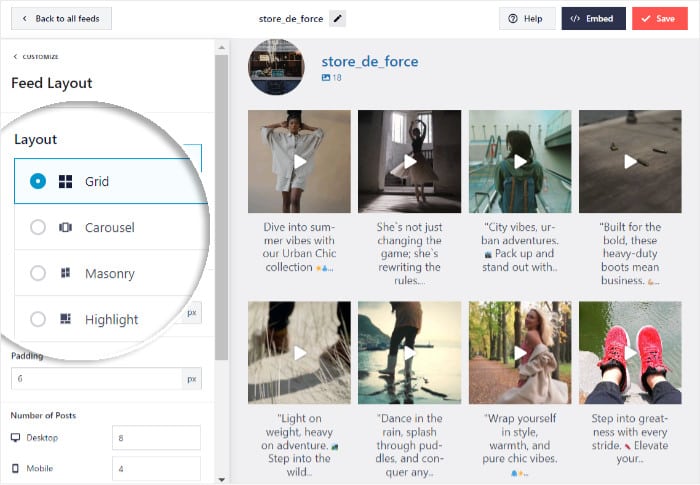
- Use the moderation settings inside the feed editor to review and approve posts before they appear on your site.
- Click Embed inside the feed editor. A popup appears with the option to add the feed to a page or widget area.
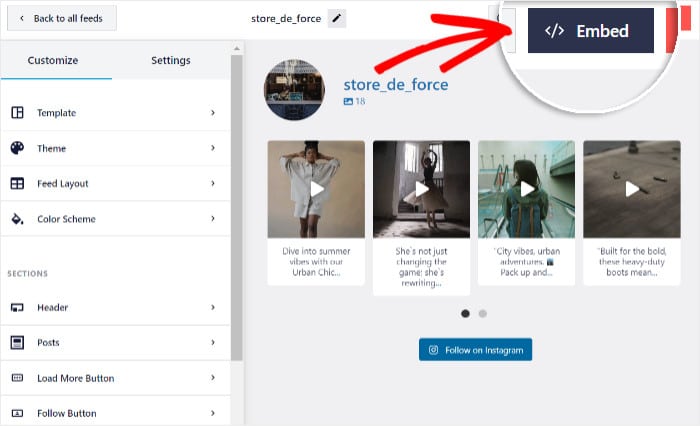
After that, Update your product page and check to see that the feed loads correctly and looks good on your site.
For best results, place the feed near the bottom of the product page, after the product description and below the Add to Cart button.

Shoppers who scroll that far are seriously considering buying, so give them the UGC nudge right there.
Fix 3: Give Shoppers Instant Answers Before They Leave
Most WooCommerce stores offer a contact form, a phone number, or an email address.
None of those give a hesitant shopper what they actually need, which is an answer in the next 30 seconds.
Shoppers who have a pre-purchase question don’t wait for an email reply. They leave and rarely come back. The questions that kill conversions most often are:
- Delivery Time: How long will this take to arrive?
- Return Policy: What happens if it doesn’t fit or work?
- Compatibility: Will this work with what I already have?
- Size and Fit: How do the sizing options work?
The tool for this fix is WPChat. It adds a lightweight chat widget to your store that connects shoppers to platforms they already use.
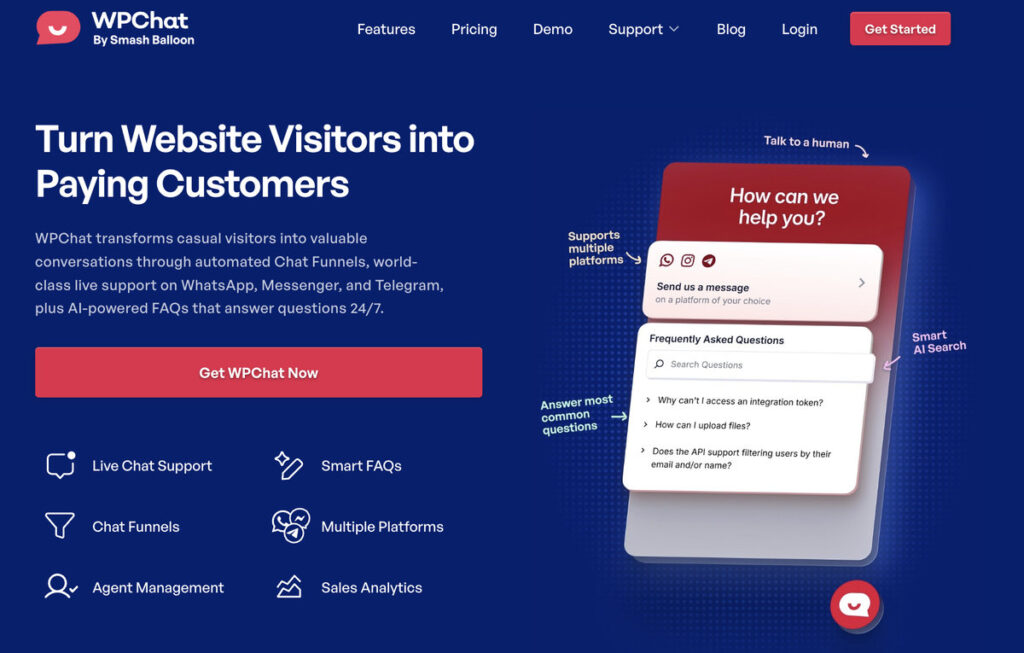
So, you get to have chat options for trusted platforms like WhatsApp, Facebook Messenger, Instagram DM, and Telegram.
WPChat also includes a built-in FAQ feature.
You can pre-load answers to your most common pre-purchase questions. So, shoppers get an instant answer even before they type a single word.
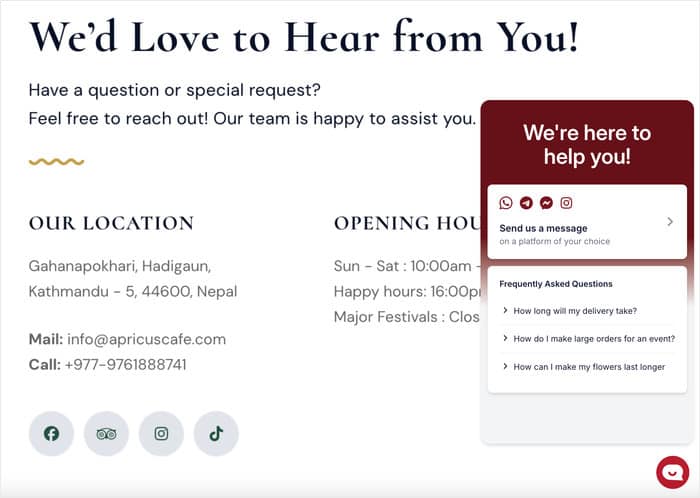
Don’t worry, you don’t need to be available 24/7. A well-built FAQ in the widget handles most questions automatically.
Tip: Add a chat widget that routes to WhatsApp or Messenger, where your customers already are. There’s no new inbox to monitor, no extra staff needed, and you can manage everything from your phone.
How to Set Up WPChat on WooCommerce
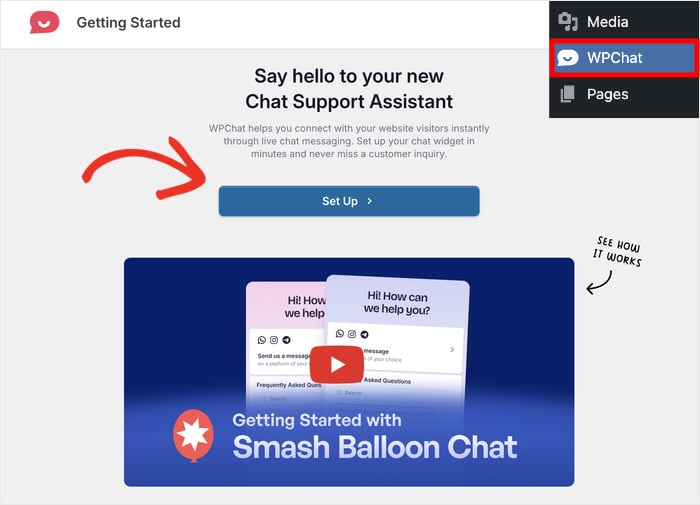
- Install and activate WPChat and click on the WPChat menu on your dashboard.
- Click on Set Up and choose your messaging platform before entering your account details or phone number, depending on the platform.
- Set the widget visibility. You can show it everywhere (with exceptions) or choose specifically where to show it.
- Go to WPChat » Frequent Questions and click on Add Question to start adding FAQs.
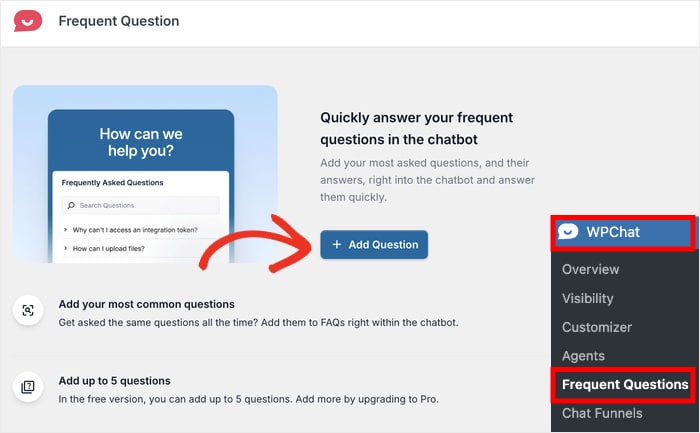
- Good starting points include your shipping speed, return policy, a link to your size guide, and product compatibility information.
- Open the WPChat » Agents menu and Edit your default chat agent. You can create different agents for each person or create a single one for the whole team.
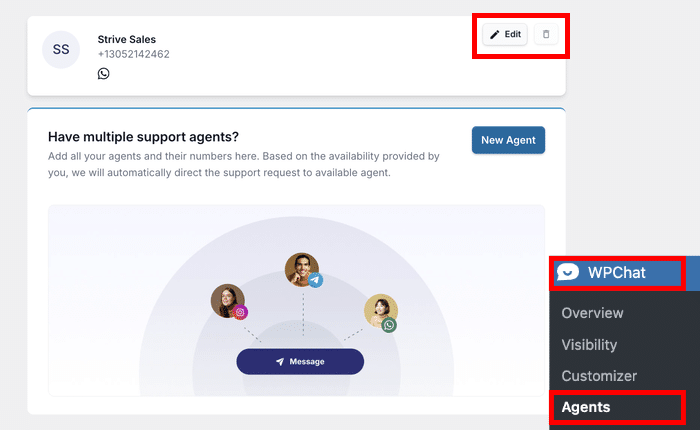
You can even set up available times for chat agents to make sure the messages reach someone who’s online and ready to reply.
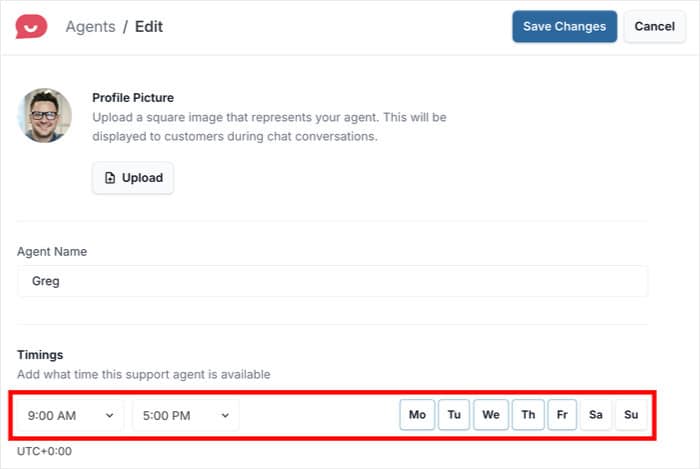
Finally, open your website and test out your new widget. Try checking how it works on desktop and mobile, and make sure your contact info is correct.
There’s a lot more you can do with this tool from here. You can check analytics to make sure it’s bringing results and create chat funnels to generate leads.
For a step-by-step guide, check out this tutorial on enabling an FAQ widget for WooCommerce.
Fix 4: Quick Technical Fixes That Remove Checkout Friction
Once you’ve fixed the trust gap, a few technical friction points can still slow shoppers down. Work through this list after your trust signals are in place:
- Enable Guest Checkout: Remove the forced account creation requirement so shoppers can buy without registering. You’ll find it under WooCommerce » Settings » Accounts & Privacy.
- Show Shipping Costs Early: Display shipping costs on the cart page so there are no surprises at checkout.
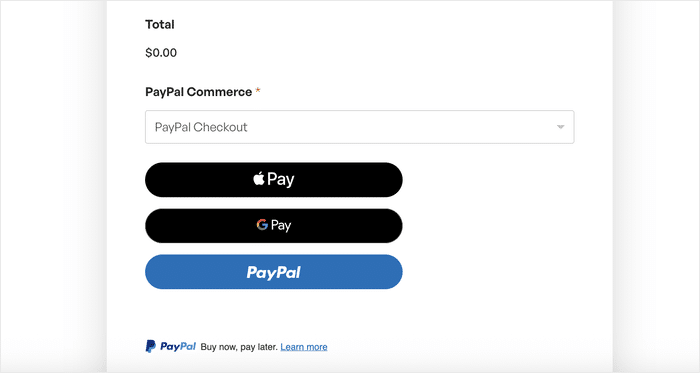
- Add Multiple Payment Methods: Offer PayPal, Apple Pay, and Google Pay alongside standard card payments so shoppers can pay their preferred way.
- Reduce Form Fields: Cut your checkout form down to the minimum fields actually required to complete the order.
- Display a Return Policy Link: Add a clear, visible return policy link directly on the cart page where shoppers can find it before they commit.
- Add a Progress Indicator: Show shoppers exactly where they are in a multi-step checkout so the process feels manageable.
- Speed Up Your Checkout Page: Compress images and use a caching plugin to keep your checkout page loading fast.
These are supporting fixes, not the root cause. If your trust gap is unaddressed, fixing form fields won’t move the needle much.
Fix 5: Win Back the Carts You Still Lose
Even with perfect trust signals and a frictionless checkout, some shoppers will still leave. They get interrupted, they want to think about it, they want to check one more store first.
Most store owners try to solve this with abandoned cart emails. Here’s the problem with that plan: an abandoned cart email only works if you already have the shopper’s email address.
On a typical WooCommerce store, the majority of people who abandon never reach the email field at all. They add to cart, browse a bit, and close the tab. There’s no email to send anything to.
This is where I’d point you to PushEngage, a push notification plugin with a direct WooCommerce integration.
A shopper opts in with a single click on a browser prompt, no email address, no form, no account. When they leave with items in their cart, they get a notification on their device that takes them straight back to the cart.
Its WooCommerce cart abandonment recovery ships as a three-step sequence sent at 45 minutes, 4 hours, and 24 hours after the cart is abandoned, and PushEngage reports it recovers up to 14% of abandoned WooCommerce carts.
The sequence stops the moment someone completes their purchase, so nobody gets nagged about an order they already placed.
Push Notifications vs Abandoned Cart Emails vs Doing Nothing
| Push notifications ⭐ Recommended | Abandoned cart emails | No recovery at all | |
|---|---|---|---|
| Can you reach a shopper who never gave you their email? | ✅ Yes, they opt in with one browser click before checkout | ❌ No, they’re unreachable | ❌ No |
| How fast does the reminder land? | ✅ Within 45 minutes, straight to their device | ⚠️ Whenever they next check their inbox, often hours later | ❌ Never |
| Does it end up in a promotions tab or spam folder? | ✅ No, it appears as a device notification | ⚠️ Often, which is why open rates hover around 40% | ❌ N/A |
| How much setup does it take? | ✅ Toggle on a pre-built sequence, roughly 10 minutes | ⚠️ Design templates, write copy, set intervals | ✅ None, but you recover nothing |
| Does it stop once the shopper buys? | ✅ Yes, automatically | ⚠️ Depends on the plugin, some keep sending | ❌ N/A |
| Do you need a developer? | ✅ No | ✅ No | ✅ No |
| Best for | Any WooCommerce store where most abandoning shoppers are anonymous, which is most stores | Stores with a large existing email list and repeat buyers | Nothing. There’s no store this is right for. |
Which should you pick? Honestly, this isn’t either/or. If you already run abandoned cart emails, keep them, they work well on the customers you’ve already got. Push notifications simply cover the much larger group emails can’t reach. If you’re starting from zero and only have time to set up one thing, start with push notifications, because they work on the anonymous first-time visitor who makes up most of your abandoned carts.
Why Mobile Cart Abandonment Is a Different Problem
Mobile cart abandonment runs approximately 10 to 15 percentage points higher than desktop. Two specific reasons explain why mobile abandonment is worse:
- Mobile shoppers are more likely to get interrupted mid-session by a notification, a call, or simply switching apps.
- Small screens make trust signals harder to see and interact with.
On desktop, a review section sits right there in the natural scroll flow. On mobile, it’s often buried below a fold the shopper never reaches.
The good news is, both the Reviews Feed and Instagram Feed plugins work perfectly on mobile by default.
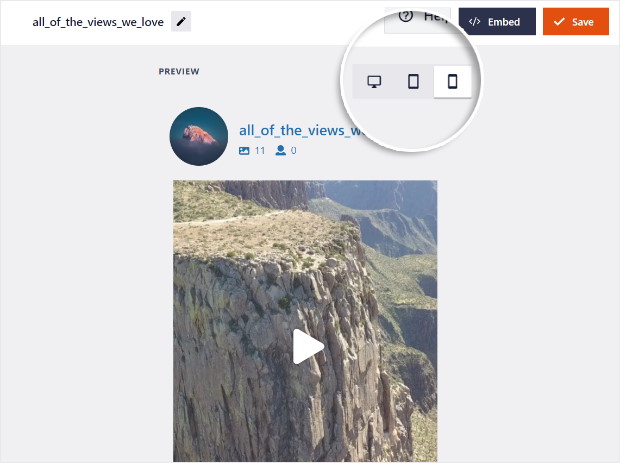
They reflow automatically on smaller screens without any extra configuration on your end.
Before you call your mobile experience fixed, run through this quick checklist:
- One-Column Checkout: Is your checkout page displaying as a single column on mobile?
- Trust Badges Above the Fold: Can shoppers see your security and payment badges without scrolling?
- Chat Widget on Mobile: Did you set up a chat widget so mobile visitors can use familiar apps to talk to you?
- Readable Review Feeds: Are your review feed and Instagram feed working correctly on your phone?
- Page Load Speed: Does your checkout page load in under 3 seconds on a mobile connection?
Fixing mobile trust signals often takes less time than you’d think, and it can pay off once your mobile visitors see the changes.
Fix 6: Measure Whether Your Changes Are Actually Working
Making changes without measuring them is how you end up doing a lot of work and still not knowing what fixed it.
Set up a simple measurement framework before you start making changes, not after. Here’s a straightforward 4-step approach:
- Set Up a WooCommerce Funnel in Google Analytics: Track three distinct events in sequence: Add to Cart, Checkout Initiated, and Purchase. This gives you visibility into exactly where shoppers drop off.
- Record Your Baseline Before Making Any Changes: Screenshot your current abandonment rate with the date noted. You need a before number to compare against so you know the changes work.
- Make One Change at a Time: Wait at least 1 week before evaluating each change, assuming your store gets reasonable traffic. Changing multiple things at once makes it impossible to know what worked.
- Compare Cart and Checkout Abandonment Separately: A drop in cart abandonment means your product page trust signals worked. A drop in checkout abandonment means your checkout-stage fixes worked.
WooCommerce’s native reports show abandoned cart counts if you have a recovery plugin installed, but for funnel visibility, Google Analytics is more reliable.
You don’t need a data science background to read a funnel report. If the line goes down, something you did worked.
Where to Put Social Proof in Your Checkout Funnel
Most store owners add a reviews widget to their homepage and call it done.
The homepage isn’t where shoppers abandon the cart. That usually happens in the product and cart pages.
Every stage of your checkout funnel produces a different type of doubt. The fix for each stage is different too. Here’s a simple placement map to match the right proof to the right moment:
| Funnel Stage | Where Doubt Lives | Best Proof Type | Where to Place It |
|---|---|---|---|
| Product Page | Doubt about product quality | Customer reviews + Instagram UGC feed | Below product description, above Add to Cart |
| Cart Page | Doubt about store trustworthiness | Aggregate star rating + trust badges + return policy snippet | Sidebar or below cart totals |
| Checkout Page | Doubt about payment security | Payment logos + SSL badge + brief testimonial | Above the Place Order button |
The pattern here is simple. Match the type of doubt to the type of proof. Payment anxiety needs security signals. Product anxiety needs real-world evidence.
You don’t need to implement all three stages at once. Start with the product page, where most of the abandonment actually happens, and work your way down the funnel from there.
Frequently Asked Questions
What is a good cart abandonment rate for a WooCommerce store?
Below 20% of placed carts is strong for most WooCommerce stores. Metorik’s 2026 report across more than 6,000 WooCommerce stores found 21% of placed carts were abandoned, with clothing highest at 34%. Note that this is a different measure from the widely quoted 70% figure, which counts all sessions rather than placed carts. Compare yourself against your own baseline first, not against a headline number.
Does WooCommerce track abandoned carts by default?
No. WooCommerce doesn’t record abandoned carts out of the box, which is why most store owners have no idea what their rate actually is. You need either a recovery plugin or a Google Analytics funnel tracking Add to Cart, Checkout Initiated, and Purchase as three separate events.
Can I recover a cart if the shopper never entered their email address?
Yes, with web push notifications. Subscribers opt in with a single browser click and never hand over an email address, so you can send a cart reminder to someone who was completely anonymous. This is the main thing push notifications do that abandoned cart emails structurally cannot.
Why is my mobile cart abandonment so much higher than desktop?
Two reasons. Mobile shoppers get interrupted mid-session by calls, notifications, and app switching far more than desktop shoppers do. And on a small screen, trust signals like reviews and payment badges usually sit below a fold nobody reaches. Fix the second problem by moving your review feed above the Add to Cart button on mobile, and handle the first with an automated push notification that brings interrupted shoppers back.
Start Reducing Your WooCommerce Cart Abandonment Today
Cart abandonment is rarely about price. Most shoppers leave because they don’t trust the product, the store, or the process enough to hand over their payment details.
The fastest fix is closing that trust gap, with reviews, real-customer UGC, and instant answers, on the exact pages where doubt lives.
Here are your immediate next steps:
- Install a Reviews Feed: Embed Reviews Feed Pro below your product descriptions to surface your existing WooCommerce reviews where shoppers actually see them.
- Set Up an Instagram UGC Feed: Use a branded hashtag to pull real customer photos onto your product pages with the Smash Balloon Instagram Feed plugin.
- Audit Your Product Pages: Check whether any social proof is visible above the fold on your product pages. If a shopper has to scroll to find a single review, that’s your first problem to fix.
- Add a Chat Widget: Set up WPChat with 3 to 5 pre-written FAQs covering your most common pre-purchase questions before you go live.
As a start, try adding live reviews to your website today. On top of the reviews on your site, you can also pull social proof from the biggest platforms out there.
Get started with Reviews Feed Pro and have your first review feed live in minutes.
More Online Business Guides and Tutorials
- How to Get More WooCommerce Reviews (Without Begging for Them)
- Best Customer Review Plugins for WordPress [Compared]
- Proven TikTok Strategies Every Small Business Owner Needs to Know
- WooCommerce Review Plugins: Complete Comparison Guide
- Yelp vs Google Reviews: Which Is Right For Your Business?