Social Wall
  Feed Analytics

If you run a WooCommerce store, you already know reviews can make or break a sale. Shoppers trust other shoppers.
But getting customers to actually leave a review? That’s where most store owners hit a wall.
They either feel awkward asking or just don’t know the best way to do it without coming across as desperate.
I’ve spent a lot of time researching what actually works when it comes to collecting WooCommerce reviews.
The good news is, you don’t need to chase customers down or send a dozen follow-up emails.
There are simple, proven strategies that make the process feel natural for you and your customers.
In this guide, I’ll walk you through the most effective ways to get more WooCommerce reviews using actionable tips.
- How to Get More WooCommerce Reviews: The Short Answer
- Why WooCommerce Reviews Matter More Than You Think
- Step 1: Get Your WooCommerce Review Settings Right First
- Step 2: Ask for Reviews at the Right Time (Timing Is Everything)
- Step 3: Make Leaving a Review Completely Frictionless
- Step 4: Ask for Reviews the Right Way (Without Breaking the Rules)
- Step 5: Respond to Every Review (This Alone Generates More Reviews)
- Step 6: Display Your Reviews Where They Drive the Most Sales
- Your WooCommerce Review Strategy: The Complete Checklist
- More Online Marketing Guides and Tutorials
How to Get More WooCommerce Reviews: The Short Answer
- Enable reviews in your WooCommerce settings so your store is ready to collect and display them on every product page.
- Send automated follow-up emails to customers 7–14 days after delivery, after they’ve had time to actually use what they bought.
- Link customers directly to the review form so they don’t have to hunt for it themselves.
- Keep the review form simple since a single star-click is all it takes to get someone started.
- Offer an incentive, like a post-review discount coupon or loyalty points, to encourage participation.
- Respond to every review publicly since this signals to future customers that you’re a store owner who listens.
- Display your reviews strategically across your site so they work harder to build trust and drive sales.
We’ll walk through each of these strategies in detail below, including the exact tools and settings to use.
Why WooCommerce Reviews Matter More Than You Think
Reviews are one of the most powerful sales tools your WooCommerce store has, and they’re completely free.
According to BrightLocal’s survey, 98% of consumers read online reviews before making a purchase. So, almost every visitor to your store is already looking for them.
On top of that, the Spiegel Research Center found that products with reviews can boost conversion rates by up to 270%.
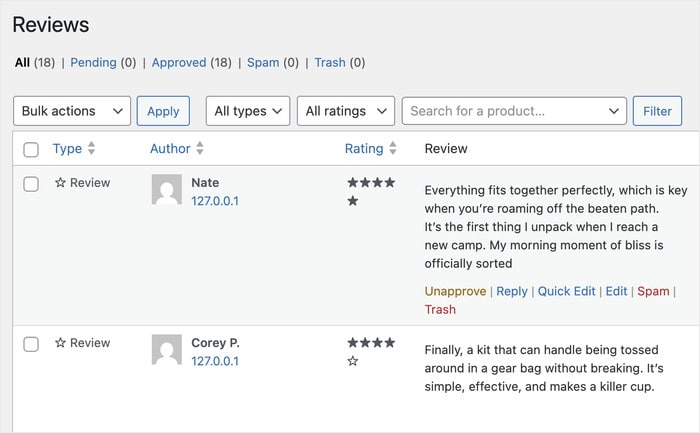
Despite how important reviews are, only about 5–10% of happy customers will leave one without being asked.
The Real Reason Customers Don’t Leave Reviews (It’s Not What You Think)
Here’s something most store owners get wrong: they assume customers don’t leave reviews because they don’t care or they’re too lazy.
In reality, most happy customers fully intend to leave a review. They think, “I’ll do that later,” and then life gets in the way.
The real problem is the effort required to find the right page, click the right tab, and figure out what to write. So, every strategy in this guide is designed to remove those steps.
What a Strong Review Profile Actually Does for Your WooCommerce Store
Building a steady stream of reviews isn’t just about social validation. It has real, measurable effects on three key areas of your business.
1. Conversion Rate Impact
- Products with reviews consistently outsell those without them. Even just 5 reviews on a product can dramatically increase a shopper’s confidence to buy.
- Reviews reduce the perceived risk of purchasing from a store a customer hasn’t bought from before.
2. SEO & Search Visibility
- Reviews can unlock rich snippets in Google search results. Those gold star ratings in search results have been shown to improve click-through rates, meaning more people click your listing.
3. Customer Trust & Brand Perception
- A store with 50 honest reviews feels far more trustworthy than one with none, even if the products are identical.
- Reviews give new visitors social proof that real people have bought from you and had a good experience.
- Responding to positive and even negative reviews shows visitors that you’re a reliable, customer-focused brand.
The bottom line is that investing time in your review strategy pays off across your entire business, not just your product pages.
Step 1: Get Your WooCommerce Review Settings Right First
Before you ask a single customer for a review, make sure your store is actually set up to receive and display them correctly.
This is the step most guides skip straight past, but it’s the foundation everything else is built on.
Think of it this way: if you send a perfectly timed review request email but your store isn’t configured to accept reviews, all that effort goes nowhere.
The logical order is always configure first, then collect, then amplify.
How to Enable Reviews in WooCommerce
Enabling reviews in WooCommerce takes less than two minutes. Here’s exactly where to go and what to turn on.
- Step 1: In your WordPress dashboard, go to WooCommerce » Settings.
- Step 2: Click the Products tab at the top of the settings page.
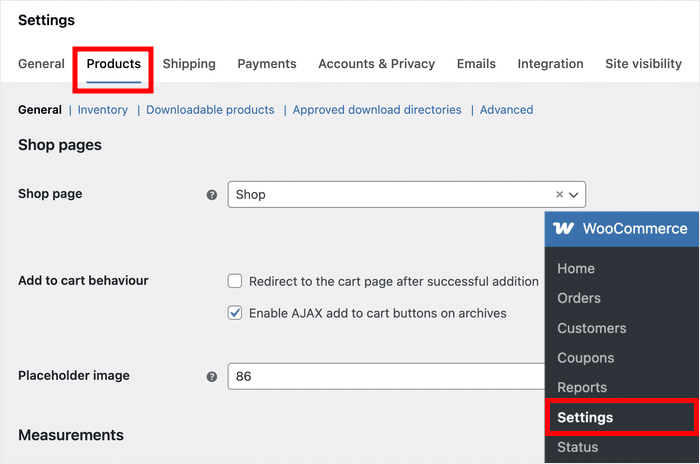
- Step 3: Scroll down until you see the Reviews section.
- Step 4: Check the box next to Enable product reviews to turn the review system on.
- Step 5: Below that, check the option that says Enable star rating on reviews.
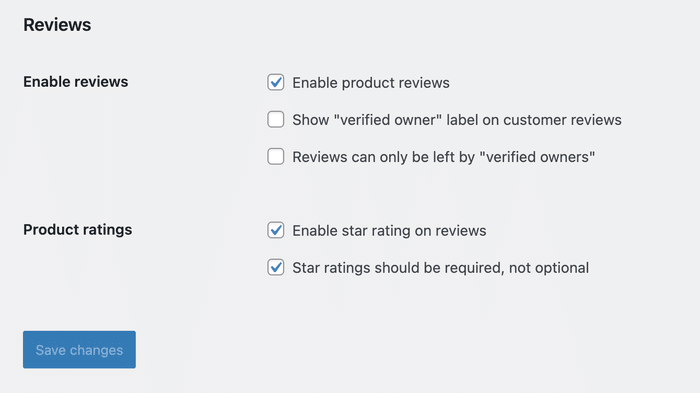
- Step 6: Look for the ‘Verified owner’ option and check the box next to Reviews can only be left by “verified owners”.
- Step 7: Once you’re happy with your selections, click the Save Changes button at the bottom of the page.
If you enable verified owner reviews, a new review can only be left by a customer who actually purchased the product through your store.
This does two important things: it tells shoppers that every review they read comes from a real buyer, and it blocks spam accounts from flooding your product pages with fake feedback.
Should You Enable Star Ratings? (Yes, and Here’s Why)
Yes. Always enable star ratings.
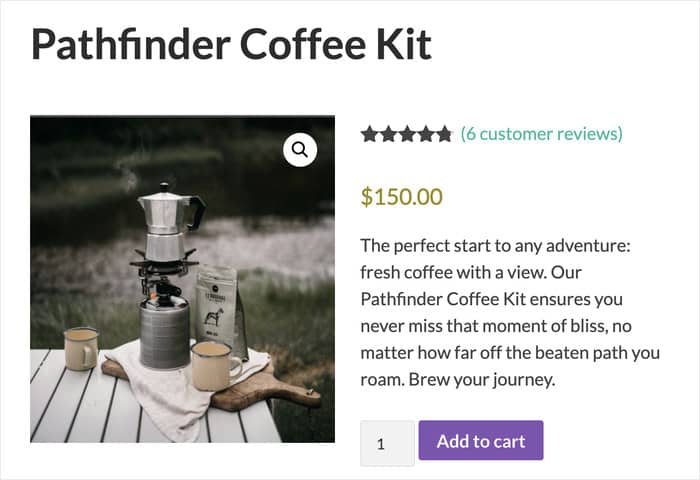
Here’s why it’s a non-negotiable setting for any WooCommerce store:
- Visual credibility: Star ratings give shoppers an instant, at-a-glance signal of product quality with no reading required.
- Rich snippet eligibility: With the right setup, star ratings can appear directly in Google search results, making your listings stand out from competitors.
- Higher click-through rates: Listings that display star ratings in search results consistently attract more clicks than those that don’t.
Step 2: Ask for Reviews at the Right Time (Timing Is Everything)
The single biggest mistake WooCommerce store owners make when asking for reviews is doing it too soon, like in the order confirmation email.
Asking for a review right after checkout is like asking someone to rate a restaurant before they’ve tasted the food.
The customer has no experience to share yet, and the request feels tone-deaf rather than helpful.
Timing your review request correctly is one of the easiest wins available to any store owner. It costs nothing extra and can dramatically increase the number of responses you get.
The Best Time to Send a Review Request Email
The right send time depends entirely on what your customer bought.
A digital download can be reviewed within a day or two, but a handmade physical product needs two to three weeks to arrive, be used, and be appreciated.
Here’s a simple timing framework to follow based on product type:
| Product Type | Recommended Ask Timing |
|---|---|
| Digital downloads | 1–3 days after purchase |
| Physical goods (standard shipping) | 7–14 days after estimated delivery |
| Physical goods (custom/handmade) | 14–21 days after estimated delivery |
| Subscription products | After the first usage cycle (30 days) |
The key word in that table is “estimated delivery” and not “order date.” Always base your timing on when the customer is likely to have the product in hand, not when they clicked ‘Buy.’
How to Automate Review Request Emails in WooCommerce
Here’s the good news: you don’t have to manually send review request emails to every customer. Email automation handles it for you automatically.
AutomateWoo is a dedicated WooCommerce automation plugin that lets you set up timed review request emails triggered by order status or delivery date.

Step 3: Make Leaving a Review Completely Frictionless
The easier you make it to leave a review, the more reviews you’ll get.
Earlier in this guide, we established that friction is the real villain keeping your happy customers silent. This step is where you actually eliminate it.
The strategies below are small changes that take minutes to implement but can make a significant difference in how many customers follow through.
Simplify the Review Form Itself
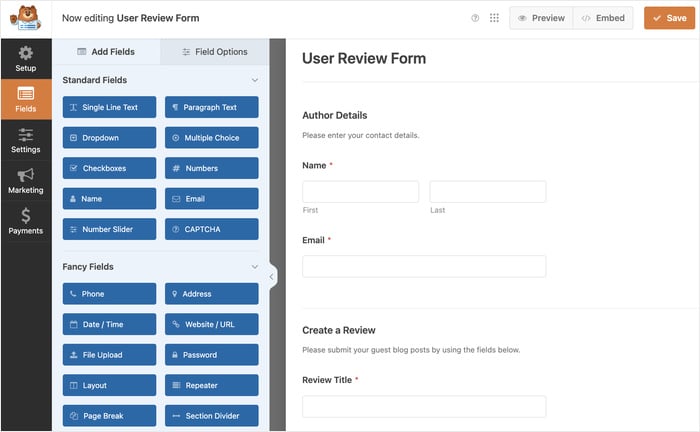
Even after a customer clicks your direct review link, a complicated or intimidating form can still stop them in their tracks. Here are the quick wins that make the biggest difference:
- Keep the form visible without scrolling on mobile. This means the customer can see the form the moment the page loads, without needing to scroll down to find it.
- Use star-click to start the review. Letting customers begin by simply clicking a star rating reduces the “blank page” intimidation of staring at an empty text box.
- Set a low minimum character count. Requiring just 10–20 characters is enough to ensure the review is meaningful without making it feel like homework.
- Remove unnecessary form fields. Stick to name and email only, and don’t ask for a review title unless you genuinely need it. Every extra field is another reason to abandon the form.
Over 60% of e-commerce browsing happens on mobile devices, according to Statista. That makes mobile-first design non-negotiable for your review form.
Use a Dedicated WooCommerce Reviews Plugin
While WooCommerce includes a basic review system, a dedicated reviews plugin gives you more control over how reviews are collected, displayed, and managed.
The built-in WooCommerce review system is fine for getting started, but it has real limitations.
You can’t easily customize the form layout, control where reviews appear on your site, or pull in reviews from other platforms.
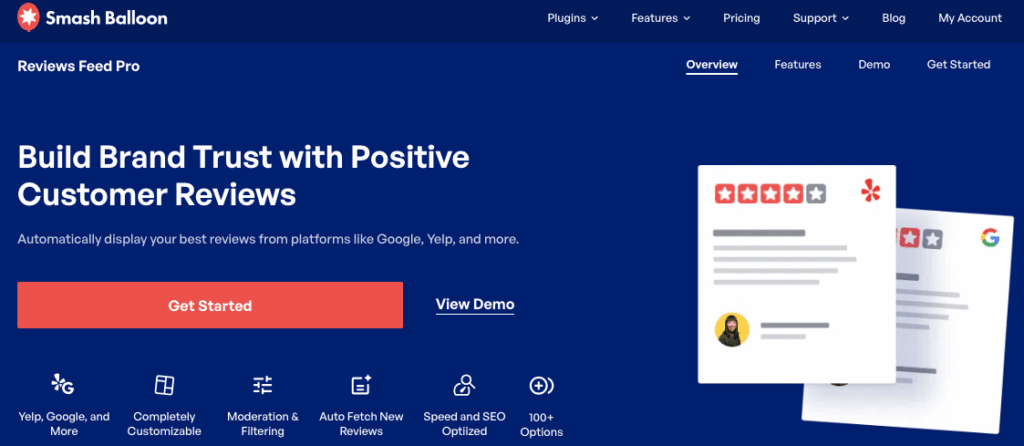
A dedicated plugin like Reviews Feed Pro fills those gaps by making it easy to display beautiful reviews on your website. We’ll cover this in detail in Step 6.
For more options, see our guide on the best WooCommerce review plugins for your store.
Step 4: Ask for Reviews the Right Way (Without Breaking the Rules)
Let’s address a misconception right away: offering incentives for reviews is not manipulative.
Done correctly, it’s a standard, widely accepted practice used by some of the biggest e-commerce brands in the world. The key word is “correctly.”
According to the Federal Trade Commission (FTC), store owners have to disclose when reviews have been incentivized.
“The rule does not prohibit giving incentives for reviews, as long as there isn’t an express or implied requirement that the reviews have to express a particular sentiment.
But remember that failing to disclose incentives could be a violation of the FTC Act.”
– Federal Trade Commission
You can ask for reviews in exchange for a discount, coupon, or free product. That’s completely legal and common practice.
What’s not allowed is requiring a positive review in exchange for the reward. The review must always be honest, regardless of what incentive you offer.
You can find the full details in the FTC’s endorsement guidelines.
Ethical Incentive Ideas That Actually Work
Here are four incentive strategies that encourage genuine reviews without crossing any ethical or legal lines:
- Post-review coupon. Offer customers a discount code after their review is submitted and not before. Sending the coupon after the review is posted shows that they’re not required to give a positive review.
- Loyalty points. If your store uses a points or rewards program, awarding points for leaving a review is a natural and low-friction incentive. The WooCommerce Points and Rewards plugin makes it straightforward to set this up.
- Entry into a giveaway. “Review any product this month and enter to win [X]” can let customers share their honest experience for a chance to win.
- Early access. Offer reviewers first access to new products, upcoming sales, or exclusive content. This works especially well for returning customers who already have a relationship with your brand.
What NOT to Do When Asking for Reviews
Knowing the pitfalls is just as important as knowing the tactics. Here’s what to avoid:
❌ Never ask for a “positive” review. Always ask for an “honest” review.
❌ Don’t gate review access. Requiring customers to create an account or log in before leaving a review kills participation.
❌ Avoid sending review requests too frequently. More than two follow-up emails is widely considered spam.
❌ Don’t delete negative reviews. Respond to them professionally instead.
❌ Never use fake or purchased reviews. The risks are severe, and your store might get taken down.
Step 5: Respond to Every Review (This Alone Generates More Reviews)
Most guides tell you to respond to reviews to manage your reputation.
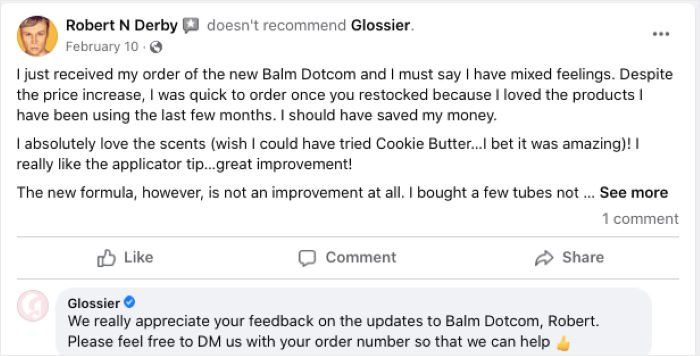
That’s true, but there’s a more powerful reason: publicly responding to reviews signals to every future customer that you’re a store owner who listens.
Think about it from a customer’s perspective.
If someone sees that the store owner thoughtfully responded to every review, they feel far more confident that their review will be read and valued.
How to Respond to Negative WooCommerce Reviews (Template Included)
Here are two ready-to-use response templates: one for negative reviews and one for positive ones:
Negative Review Response Template:
Hi [Customer Name],
Thank you for taking the time to share your experience. I’m sorry to hear it didn’t go as expected.
What you’ve described isn’t the standard we hold ourselves to, and I completely understand your frustration.
I’d really like to make this right for you. Please reach out to us directly at [email/contact link] so we can look into this personally and find a solution.
We appreciate your feedback, and it genuinely helps us improve.
— [Your Name], [Store Name]
Positive Review Response Template:
Hi [Customer Name],
Thank you so much! We’re so glad [specific product or detail they mentioned] worked so well for you. It’s exactly what we had in mind when we designed it.
We hope to see you back soon, and please don’t hesitate to reach out if there’s ever anything we can help with.
— [Your Name], [Store Name]
To learn more, you can check out our complete guide on how to respond to negative reviews online.
Step 6: Display Your Reviews Where They Drive the Most Sales
Here’s the step most WooCommerce guides completely skip: once you have reviews, where and how you display them matters as much as having them.
For online stores, customer reviews are your most powerful form of social proof. The more visible your reviews are, the harder they work.
The Best Places to Show WooCommerce Reviews on Your Store
Different placements serve different purposes. Here’s a quick reference guide to where reviews do their best work and why:
| Location | Strategic Purpose | Impact |
|---|---|---|
| Product page (default tab) | Reduce purchase hesitation at the point of decision | High |
| Homepage / Hero section | Build brand credibility for first-time visitors | High |
| Checkout page | Reduce cart abandonment anxiety | High |
| Sidebar widget | Ambient trust-building across the entire site | Medium |
| Dedicated “Reviews” landing page | SEO + social proof hub for email/ad campaigns | Medium |
| Pop-up or slide-in | Interrupt-based trust signal for hesitant shoppers | Medium |
As you can see, the product page, homepage, and checkout page are where your reviews will do the most immediate work.
If you’re just getting started with strategic display, prioritize those three locations first.
How to Display WooCommerce Reviews Beyond Your Product Pages
Here’s the challenge tab. If you want to show reviews on your homepage, a landing page, or a checkout page, the default system simply can’t do it.
That’s where a dedicated plugin comes in.
Out of all the options, Reviews Feed Pro turned out to be the best plugin for displaying WooCommerce reviews and growing conversions.
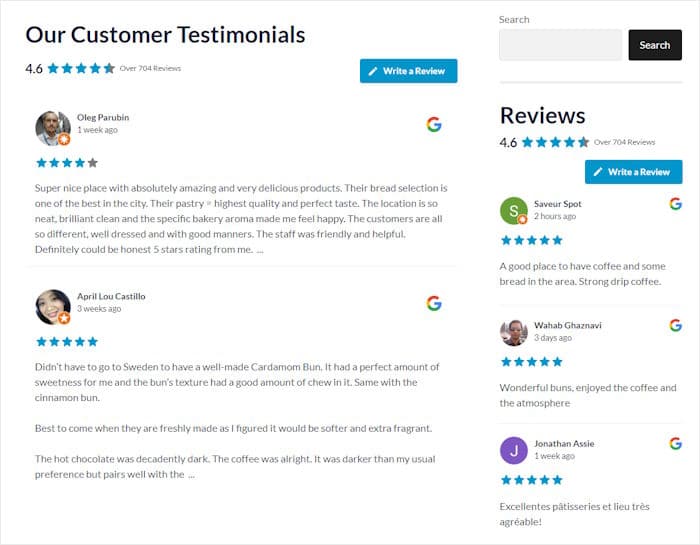
This WordPress plugin lets you pull your WooCommerce reviews and display them anywhere on your site.
In just minutes, you can show a collection of your best reviews in an eye-catching feed. On top of that, you can also show important reviews as popups on your online store.
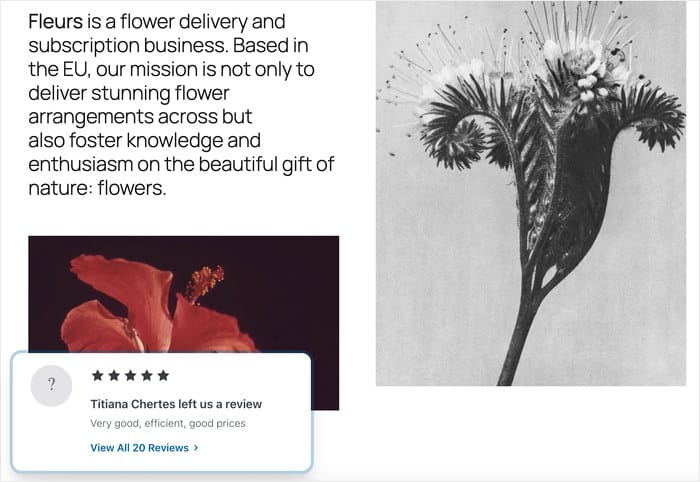
So, you get multiple ways to leverage reviews and build customer trust using this one single plugin.
Here’s what it does that the default WooCommerce display can’t:
- Pulls reviews from multiple sources, not just WooCommerce, but also Google, Yelp, Tripadvisor, Facebook, and more, all in one feed.
- Customizable layouts, so you can choose from a grid, list, or carousel to match your site’s design.
- Filter to show only your best reviews, so you’re always putting your strongest social proof front and center.
- Real-time updates, which means new reviews appear automatically without any manual refresh needed.
For a full walkthrough on setting this up, check out our complete guide to displaying WooCommerce reviews on your website.
Your WooCommerce Review Strategy: The Complete Checklist
You now have everything you need to build a review system that works.
Use this checklist as your master action plan, and you can come back to it any time to check your progress.
| ☐ | Action | Tools / Notes |
|---|---|---|
| ☐ | Enable reviews in WooCommerce Settings | WooCommerce » Settings » Products |
| ☐ | Enable star ratings | Same settings panel |
| ☐ | Set up automated post-purchase review emails | AutomateWoo or another automation plugin |
| ☐ | Configure send timing based on product type | 7–14 days post-delivery for physical goods |
| ☐ | Simplify your review form for mobile users | Remove unnecessary fields, enable star-click to start |
| ☐ | Decide on your incentive strategy | Post-review coupon, loyalty points, or giveaway entry |
| ☐ | Set up a review response workflow | Aim for a 48-hour response window |
| ☐ | Display reviews on your homepage and key landing pages | Reviews Feed Pro by Smash Balloon |
The beauty of building a review system is that most of the work happens once.
You configure your settings, set up your automated emails, create your direct review links, and put your display strategy in place, and then the system runs itself.
Every new sale becomes an opportunity for a new review without you having to lift a finger.
You’ve already done the hard part by reading this guide and understanding the strategy. Now it’s just a matter of putting each piece in place.
Ready to put your reviews to work across your entire site? Get started by getting Reviews Feed Pro for your site today!
More Online Marketing Guides and Tutorials
- WooCommerce Review Plugins: Complete Comparison Guide
- How to Deal With Fake Google Reviews of Your Business
- WooCommerce Reviews Not Showing? Here’s How to Fix It
- How to Embed WooCommerce Reviews on Your WordPress Website