Social Wall
  Feed Analytics

Connecting with visitors instantly is key to boosting sales, which is why adding social media chat to your website is so important.
However, connecting the different social media apps to WordPress can seem technically difficult if you’re not a coder.
I’ve seen many business owners struggle with a complex live chat tool that required a steep monthly fee and constant monitoring.
By switching to a simple plugin like WPChat, they were able to easily start chatting with visitors using popular social media platforms.
I want to help you achieve that same level of simplicity on your site. In this guide, I will walk you through the easiest method to add these chat platforms to your site without any code.
Why Add Social Media Chat to Your Website?
Adding social media chat to your website makes it easier for visitors to reach you instantly using apps they already use every day.
Here is why adding social media chat helps your business:
- Increase Engagement: Studies show that 73% of customers prefer messaging over email for customer service. So, it’s a free or low-cost way to provide excellent customer service.
- Respond from Anywhere: You can answer customer questions directly from your phone even after they’ve browsed away from your website.
- Build Trust: Visitors feel more comfortable using apps they already know and trust. They don’t need to create new accounts or remember another login.
- Send Follow-Up Messages: You can easily send messages to people in the future to promote sales, announcements, or important notifications.
- Mobile-Friendly: Since most users browse on their phones, clicking your chat button seamlessly opens their social media chat app, removing friction.
Social Media Chat Widget vs. Traditional Contact Forms
Contact forms are another common way of letting customers reach out to you. Before we continue, let’s see how social media chat compares to contact forms:
| Feature | Contact Forms | Social Media Chat |
|---|---|---|
| Response Time | Hours to days (email-based) | Minutes to hours (real-time messaging) |
| User Convenience | Must fill out multiple fields and wait | Click and start chatting immediately |
| Notification Method | Email notifications (often missed) | Push notifications on phone (hard to miss) |
| Conversation History | Separate email threads, easy to lose | Stored in messaging app with full history |
| User Trust | New way of communicating for users | On platforms they already use and trust |
While contact forms work well for formal inquiries, social media chat widgets excel at quick questions and real-time support.
For beginners, social media chat is often easier to manage since you can respond directly from your phone using apps you have already installed.
What is WPChat? (The Easiest Way to Add Social Media Chat)
WPChat is a WordPress plugin that lets you add a customizable chat widget to your website so visitors can start conversations.
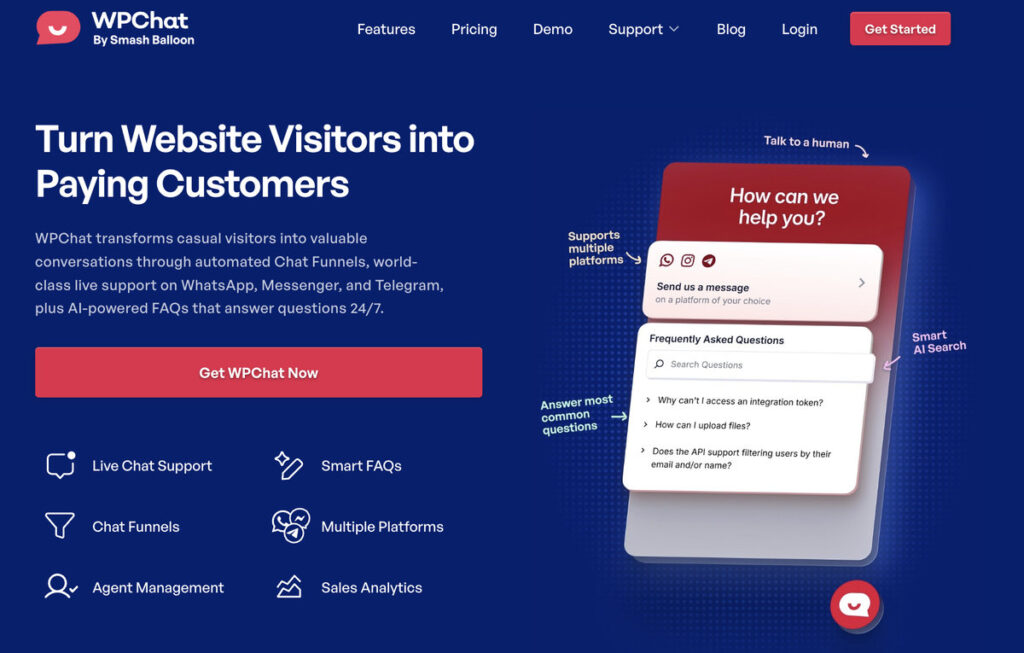
The widget connects to the biggest social media messaging platforms out there: WhatsApp, Facebook Messenger, Instagram, and Telegram.
It’s the simplest way to add professional social media chat functionality to WordPress without any coding.
Using the chat widget, your visitors can open their favorite app on their phone or computer and start chatting with you instantly.
Key Features of WPChat
- Multi-platform Support: Visitors can choose their preferred app, which increases the likelihood they’ll actually reach out.
- Create Chat Agents: Add team members with their name, photo, and contact information, making it easy to distribute customer inquiries.
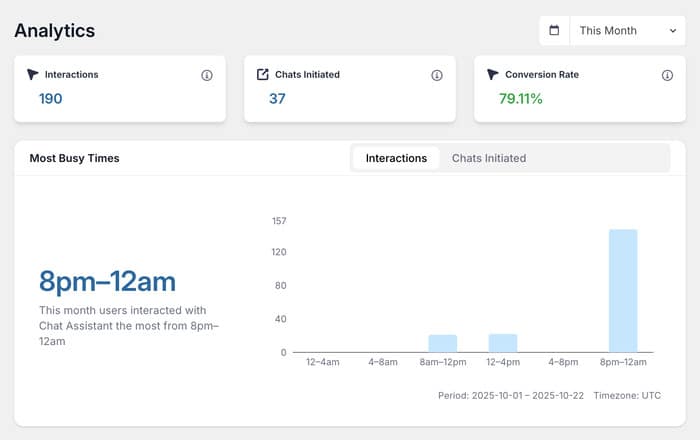
- Detailed Analytics: Check the analytics to see useful insights about your social media chat widget, agents, and more.
- Visibility Options: Show the widget on all pages or only specific ones, giving you complete control over where it appears.
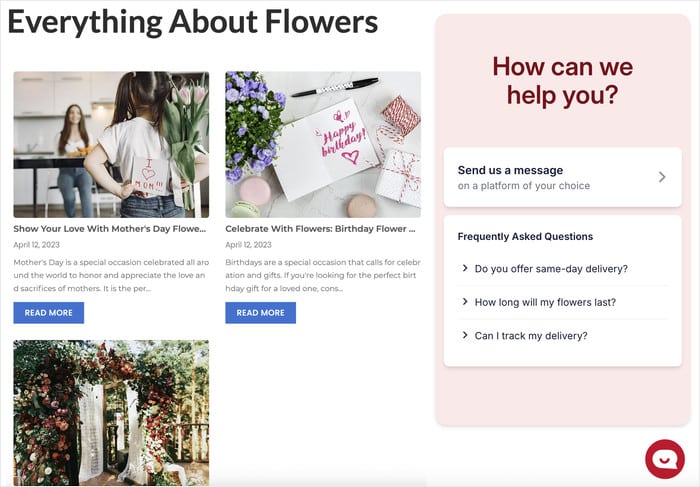
- FAQ Support: Reduce the load on your support team with FAQs that instantly answer common questions from your widget.
- Mobile-Friendly Design: The widget automatically adapts to work perfectly on smartphones and tablets, where most messaging happens.
- Customizable Chat Widget: Match the widget’s colors and design to your brand, so it looks like a natural part of your website.
Ready to add social media chat to your site? Get WPChat now and set it up in just minutes!
5 Steps to Add Social Media Chat to Your Website
In this tutorial, I’ll walk you through the exact process I used to add social media chat to my test website. The entire setup took me 5 minutes, and I’ll show you every click along the way.
Before you start, make sure you have:
- A WordPress site with admin access
- Your social media account usernames or phone numbers
- A copy of WPChat (you can get it here)
Let’s get started.
Step 1: Install and Activate WPChat on Your Website
First, you’ll need to get a copy of WPChat here in case you haven’t already.
Once you’ve purchased it, install and activate the plugin on your website.
If you need help installing WordPress plugins, you can check out this beginner’s guide.
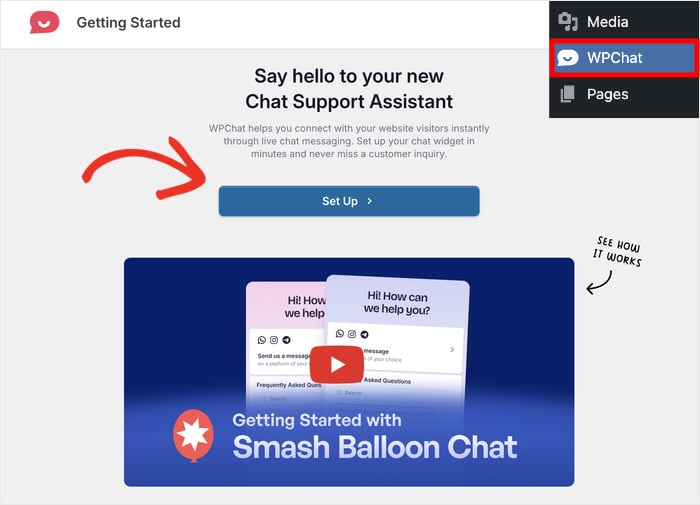
Now, you’ll see a new WPChat menu item appear in your WordPress dashboard sidebar.
Step 2: Connect Chat Widget to Social Media
Now that WPChat is activated, it’s time to connect it to your social media accounts.
Navigate to the WPChat menu in your WordPress dashboard, and you’ll see a welcome screen.
Click on the Setup button to get started.
On the next screen, you’ll see options to connect different social media platforms.
You don’t have to connect all the platforms right now, just select the ones you want to use.
Adding Your Contact Information
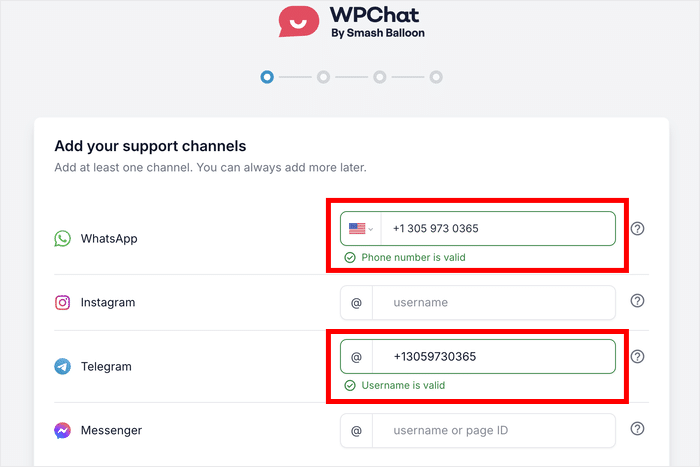
For WhatsApp and Telegram, you’ll need to enter your phone number.
Make sure to include your country code (for example, +1 for the United States).
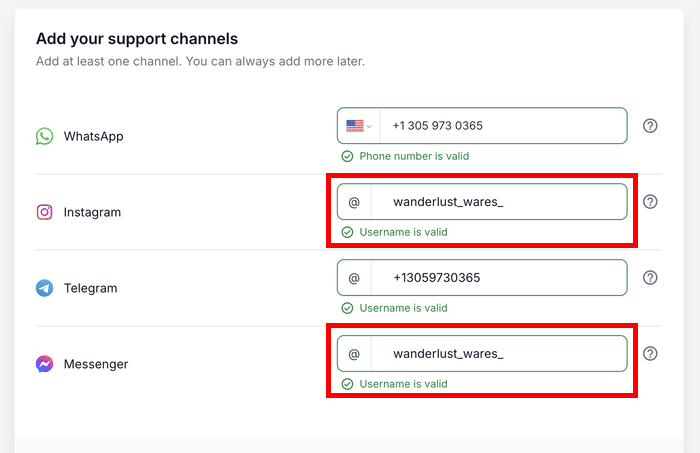
For Instagram and Facebook Messenger, you’ll need to enter your username.
This is the part that comes after instagram.com/ or facebook.com/ in your profile URL.
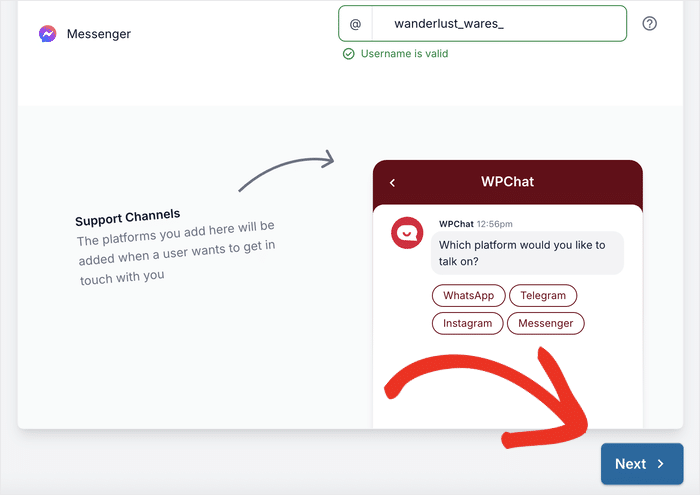
Once you’ve entered the information for platforms you want to connect, click on the Next button.
Picking a Visual Theme
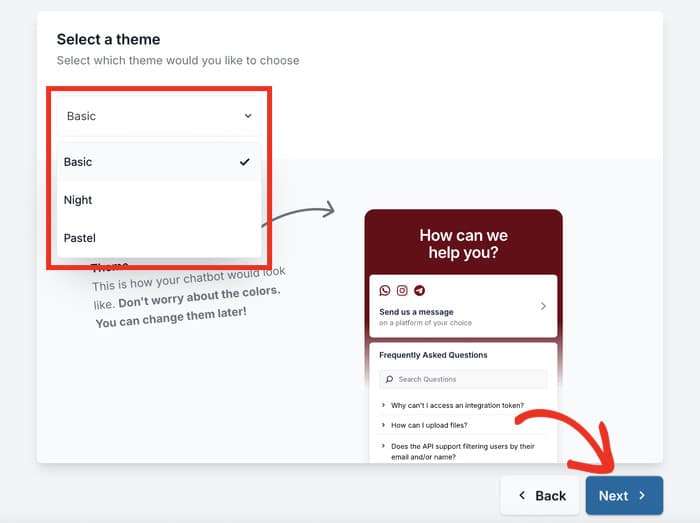
On the next screen, you’ll see three visual theme options: Basic, Night, and Pastel.
Each theme has a different color scheme and style. You can click on each theme to preview how it will look on your website.
Once you’ve selected your theme, click the Next button to continue.
Step 3: Pick Location for Social Media Chat Widget
Now you need to decide where the chat widget will appear on your website. WPChat gives you 2 main options for displaying your widget:
- Display on all pages, which will show your chat widget on every page of your website.
- Display only on specific pages, which gives you more control over exactly where the widget appears.
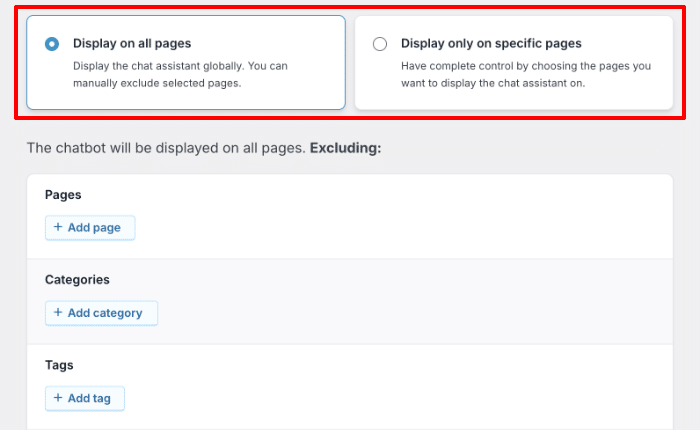
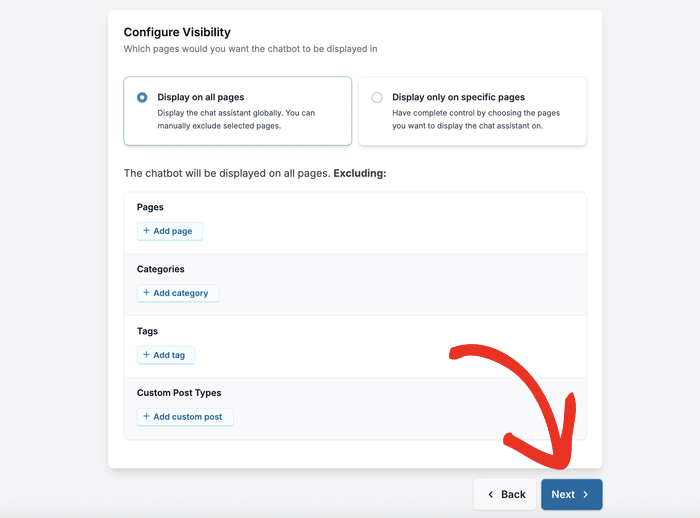
You can then scroll down to use the filters that let you include or exclude the chat feature from specific parts of your site.
Select the individual pages, post categories, tags, and even custom post types in the filters below.
Once you’ve configured your display settings, click on the Next button.
On the final setup screen, you’ll need to enter your WPChat license key. You can find this in your WPChat dashboard.
Paste the license key into the field and click on the Complete Setup button.
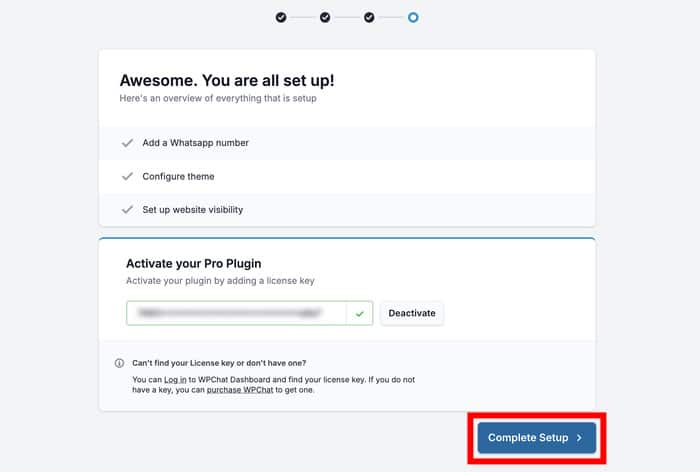
Your chat widget is now installed and ready to be customized further.
Step 4: Customize Your New Chat Widget
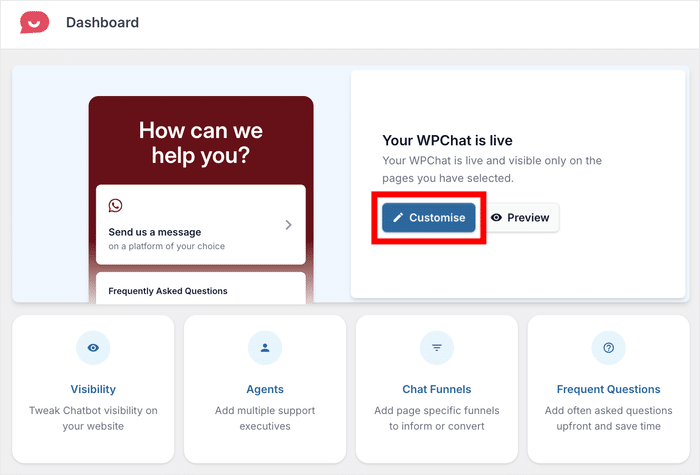
After completing the setup, you’ll land on the WPChat dashboard. Now it’s time to make the chat widget match your brand and website design.
Click on the Customize button to open the widget customization screen.
You’ll see customization options on the left side and a live preview of your chat widget on the right side.
This live preview updates instantly as you make changes, so you can see exactly how your widget will look to visitors.
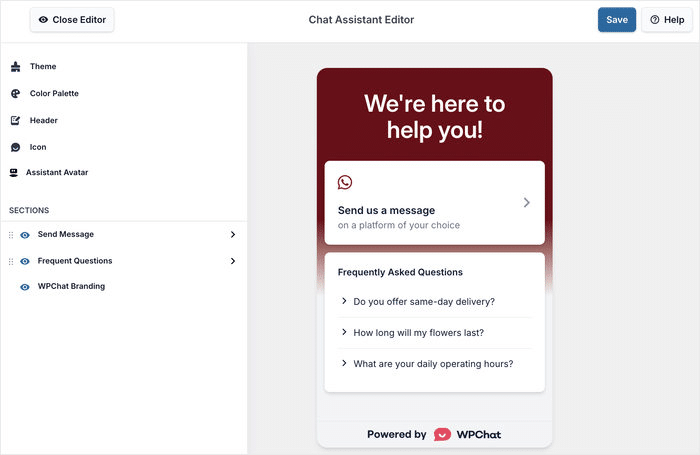
It’s helpful to keep an eye on this preview as you work through the settings.
Choosing Your Color Scheme
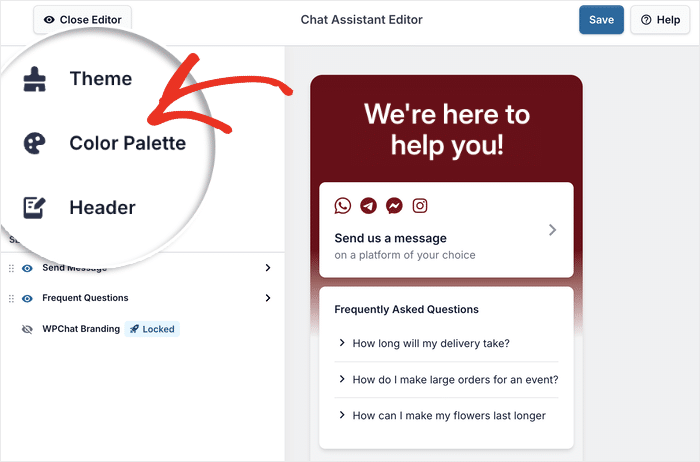
Click on Color Palette from the options menu on the left to get started.
You’ll see several pre-made color schemes that you can choose from. Simply click on any pre-made scheme to apply it instantly.
If you want to use your own colors instead, you can select the Custom option.
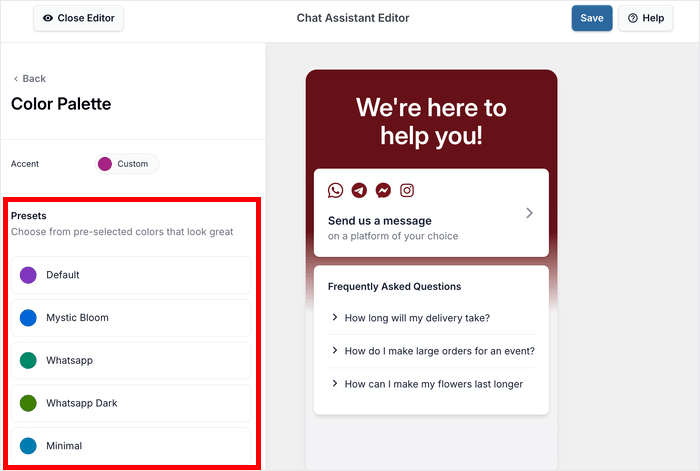
Once you’re happy with your colors, click the Save button at the top.
Customizing the Header Text
Click the Back button to return to the main customization menu.
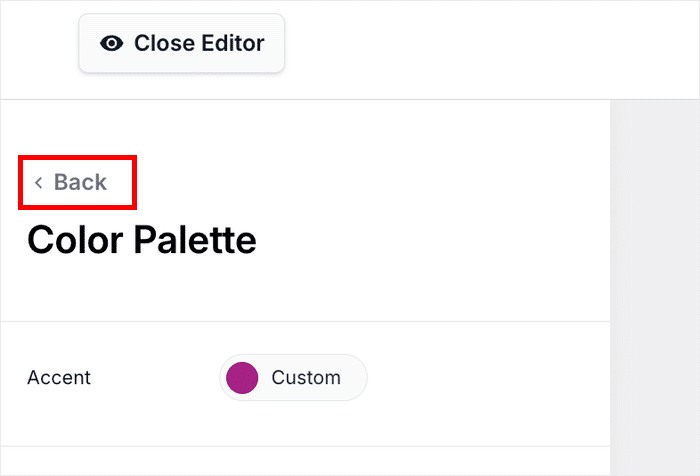
You’ll see the main customization panel on the left once again.
From here, click on the Header option from the list.
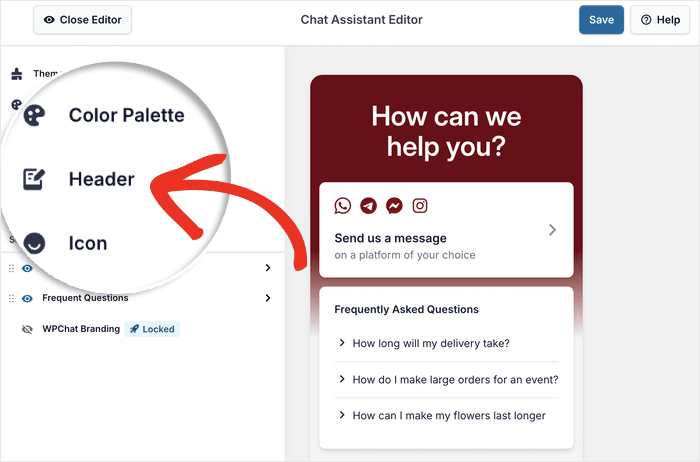
This is where you can enter the heading text that appears at the top of your chat widget.
I recommend something welcoming and clear, like “Chat With Us” or “Let’s Talk!”
Enter your heading text in the field on the left.
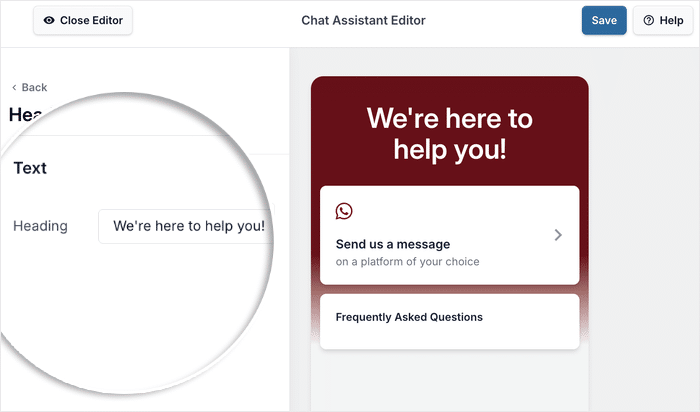
Once you’ve entered your heading, click on Save to store your changes.
Expert Tip: If you don’t have a specific greeting in mind for the heading, you can just leave this as it is.
This is just a demonstration of the available customization options. From this editor, you can change your avatar, visible sections, font, floating icon design, and more.
Just remember to Save your changes afterward.
Step 5: Set Up Chat Agents for Your Widget
Before you finish, it’s time to create chat agents for your new widget. These agents are basically a representation of your support team.
When visitors start the chat, the plugin will automatically redirect them to an available chat agent.
Expert Tip: Don’t worry—you don’t need to be online 24/7. Since these messages go to your social apps, you can reply whenever you see the notification.
Navigate to WPChat » Agents in your WordPress dashboard, and you’ll see a default chat agent that was created for you.
Click on the Edit button next to the agent to start the setup.
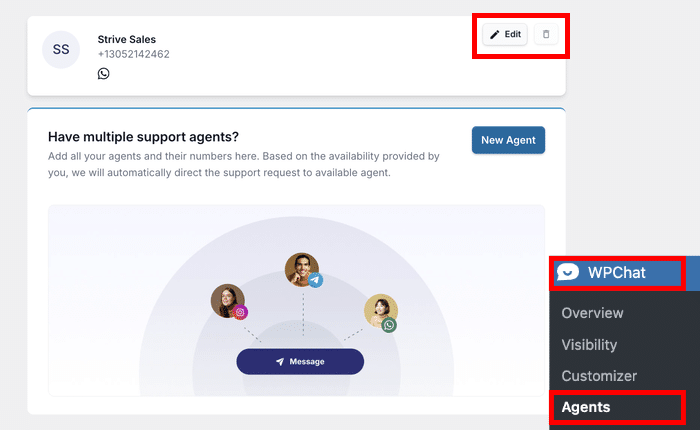
First, you can personalize the agent so people feel like they’re being redirected to a real person’s chat.
Click the Upload button and select a fitting picture from your media library.
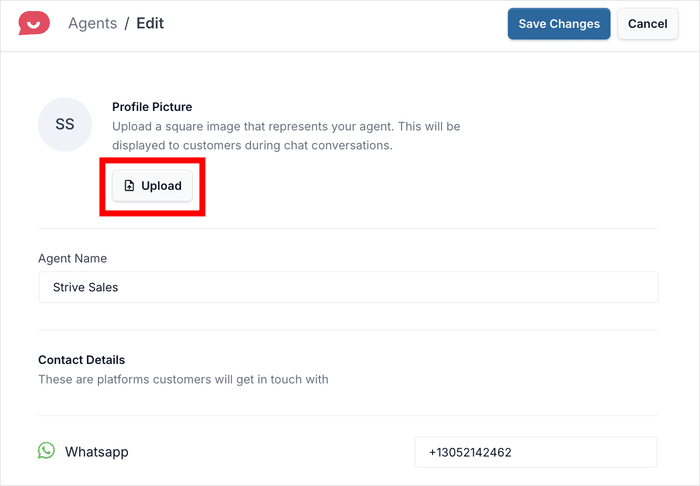
This can be a company logo, or a professional headshot of the support agent.
Now, enter a Name for your chat agent in the name field.
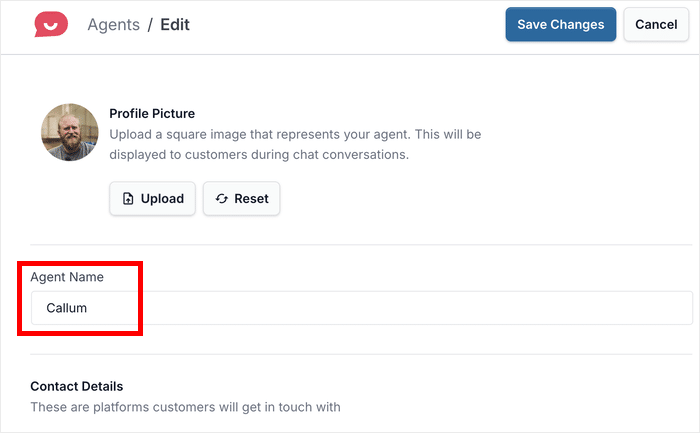
This could be your own name, a team member’s name, or something like “Support Team” if you prefer to keep it general.
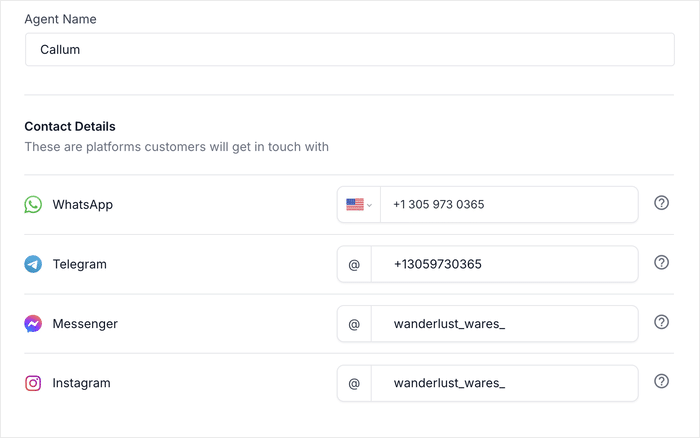
Under that, you can change the contact details for this chat agent.
Finally, click on Save Changes, and you’re done setting up your first agent.
You can now test out your chat widget to see how it works for your visitors. Open your website and browse to a page where you chose to show the chat option.
From here, you can just click on the chat widget, pick a platform you like, and WPChat will redirect you to the chat automatically.
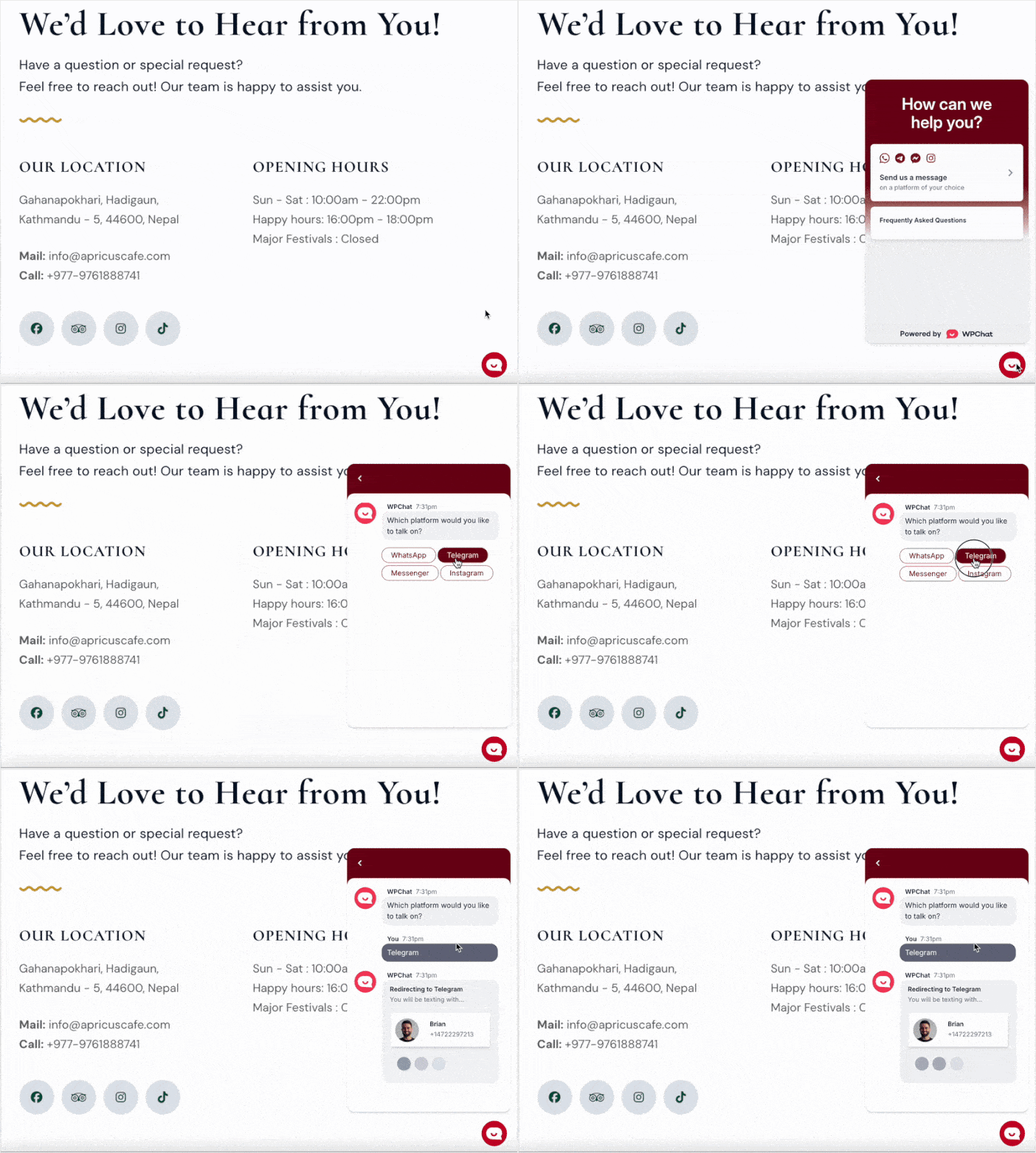
And that’s it!
By adding social media chat to your site, you give visitors the freedom to reach you using the apps they already prefer. This leads to faster responses, higher engagement, and better customer relationships.
With a tool like WPChat, you can set up a professional chat widget in just minutes without any coding knowledge.
Ready to start chatting with your website visitors? Get your copy of WPChat today!
Moving Forward
To get even more out of your social media chat widget, you can check out the following guides:
- How to Enable an FAQ Widget for Your Website in Just 5 Steps
- How to Add WhatsApp Chat to Your WordPress Website
- Best WhatsApp WordPress Plugins to Connect With Your Visitors
- How to Integrate Telegram Chat into Your WordPress Website