Social Wall
 Feed Analytics


Your visitors want to see you in action before they reach out. How you teach a class. What a finished remodel looks like. How your product works in a customer’s hands.
You’ve already answered all of that on YouTube. A videos page puts those answers on your own website, right where people are making up their minds, and each new upload joins the page on its own.
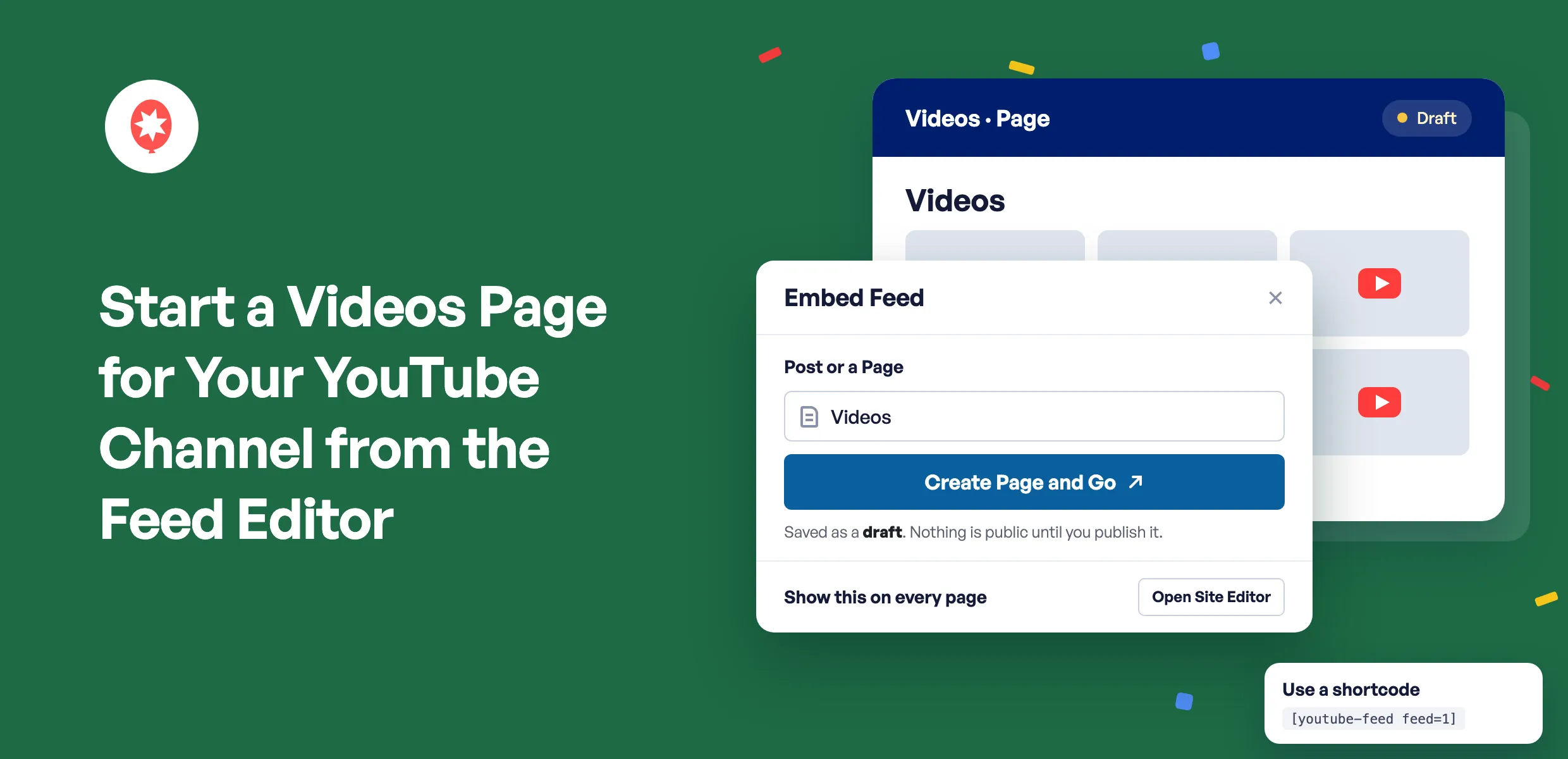
And you don’t need to be techy to set it up. In Smash Balloon YouTube Feed, you hit Embed, name a new page or find one that’s already on your site, and it opens with your videos sitting right there. All that’s left is to save.
Here’s what you get out of it:
- One place to send people. Start a fresh videos page for your channel, then link it from your menu or your emails.
- Your videos where visitors already are. Add them to your homepage, a services page or a blog post, so people can watch without leaving the page they came for.
- Nothing goes public before you’re ready. A new page is saved as a draft, and you can add your videos to pages you haven’t published yet.
- Your latest videos on every page. Pop them into your site footer once, and there’s a shortcut that takes you straight to the right screen.
Smash Balloon YouTube Feed puts your YouTube channel’s videos on your WordPress site and keeps adding new uploads as you post them.
It comes as a free plugin and as YouTube Feed Pro. Everything here works with both. Pro is for when you want more to fill that page with, like a Shorts feed your visitors can swipe through or your best playlist.
Start a Videos Page for Your Channel
A videos page gives people one place to watch everything you’ve made. Add it to your menu, link it at the end of your emails, and it shows your newest uploads up top.
Here’s how it goes. In the feed editor, click Embed, then click the search box and choose Create a new page at the very bottom. Call it something like Videos or Watch Our Videos and click Create Page and Go.
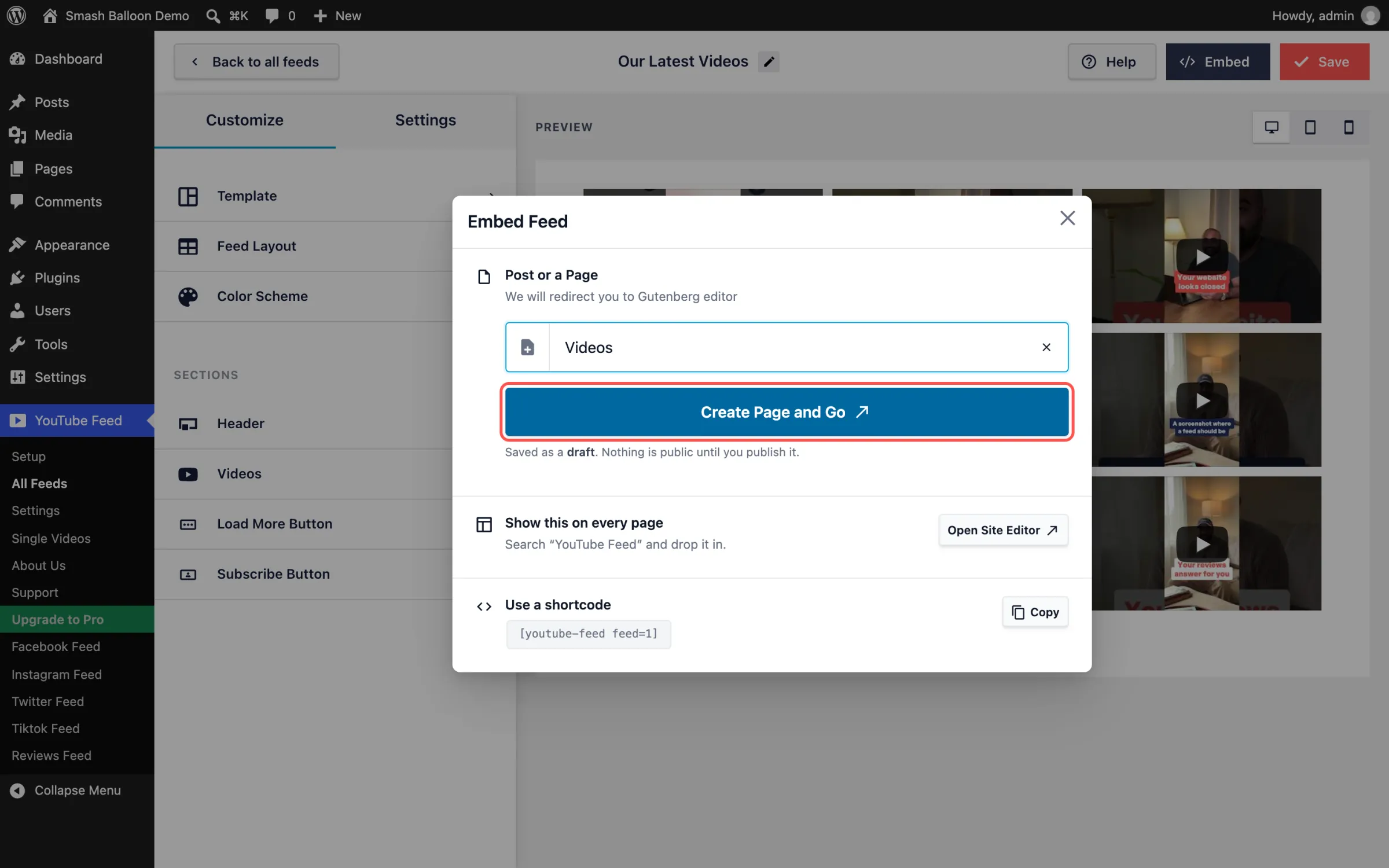
WordPress opens your new page, and your videos are already on it. You’ll see them inside a YouTube Feed block. Think of a block as one building piece of a page, and this one holds your videos.
No one can see the page yet. It starts out as a draft, so take your time and write a short welcome line first. Click Save draft as you go, and Publish when you’re ready for visitors to see it.
Or Drop Your Videos onto a Page You Already Have
Already have a page that gets plenty of visitors? Your videos can go right there, next to what people are already reading. Think your homepage, a services page, or a blog post about your newest tutorial. Type its name in the search box and it’ll pop up.
- Still working on a page? You’ll find it in the list with a Draft label, so your videos are ready the moment it goes live
- Your blog posts are there too, so a post can end with your latest videos for readers who want more
- Can’t remember the full name? Type the part you do remember and it’ll find the page
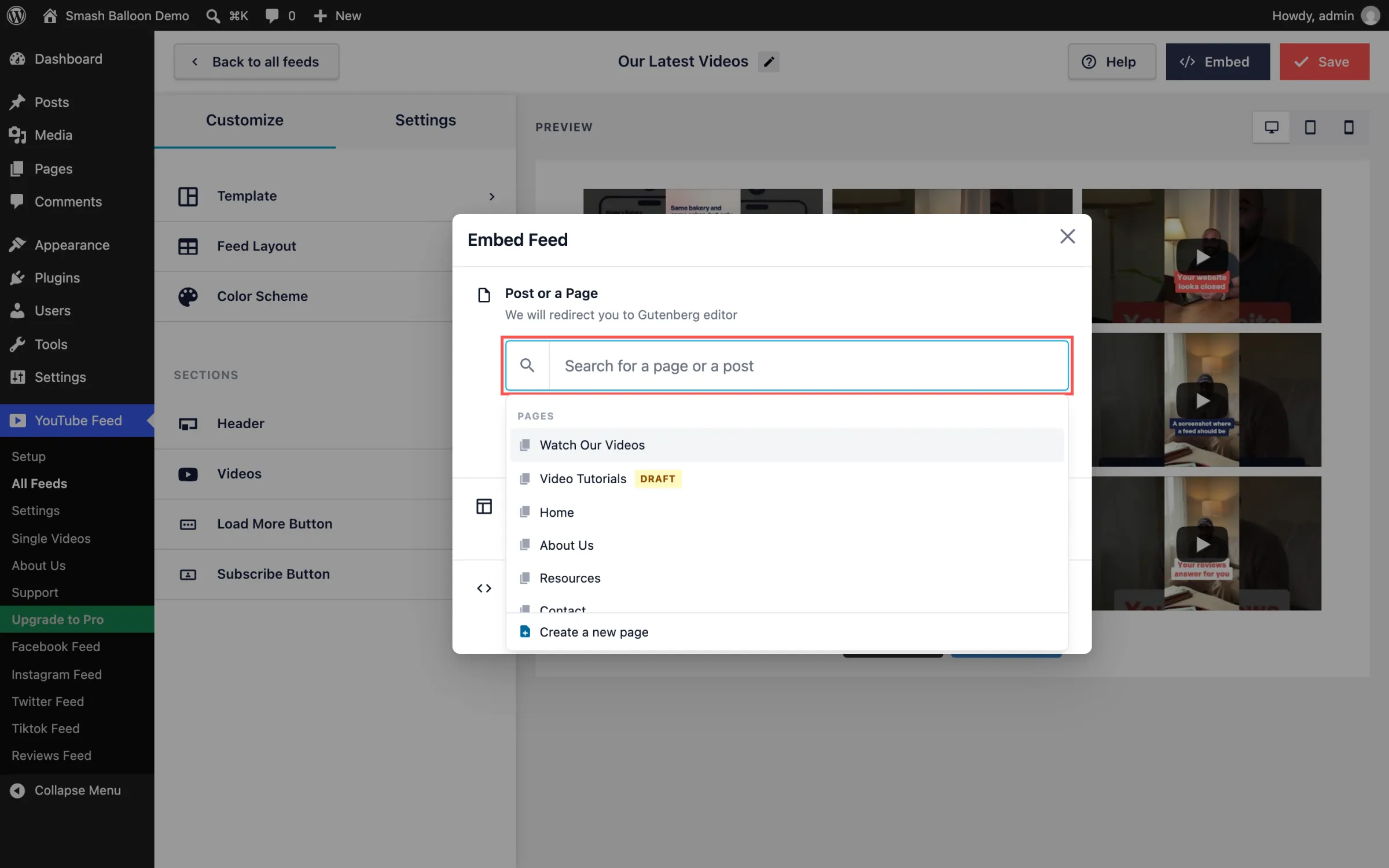
Pick a page, then click Add and Go to Page. It opens in a new tab with your videos already added. Feel free to look around, because nothing on your live site changes until you hit Save.
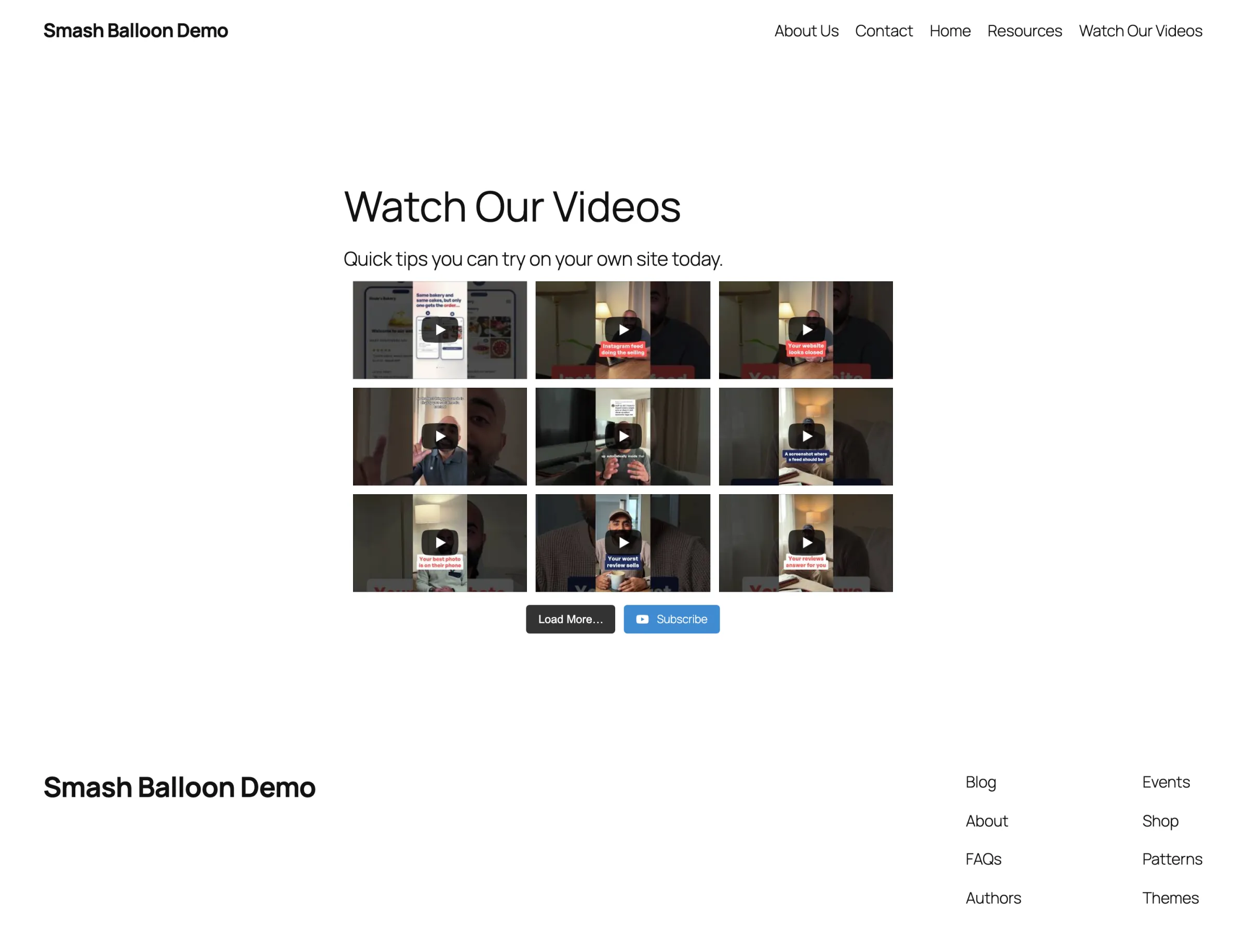
Here’s the Watch Our Videos page on a test site after saving, showing videos from Smash Balloon’s own YouTube channel.
Want more ways to show your videos?
YouTube Feed Pro adds Shorts feeds visitors can swipe through, playlist feeds, carousels, video comments and more, on top of everything in the free plugin. Backed by a 14-day money-back guarantee.
Get YouTube Feed ProShow Your Channel Across Your Whole Site
Like the idea of your newest videos in your site footer, so they’re there on every page? The Open Site Editor button in the Embed window takes you straight there. It’s the screen where you edit the parts of your site that repeat on every page, like the footer.
Find the “YouTube Feed” block, place it in your footer once, and that’s every page covered. This option shows up on most newer WordPress themes, including the default ones WordPress comes with.
Don’t see that button? Your theme likely has a classic sidebar, so you’ll get Add to a Widget in that spot. Widgets are the small boxes WordPress lets you place in a sidebar or footer, and that’s where your videos will go.
Building with SeedProd, Elementor or Divi? Head to Use a shortcode at the bottom of the window. The shortcode is a short line of text that tells WordPress where to show your videos. Click Copy and paste it into your builder.
How to Add Your YouTube Feed to a Page (YouTube Feed 2.12.0)
Want the quick version, start to finish? Here it is. Page search, drafts in the list and Create a new page come with YouTube Feed 2.12.0, in the free plugin and on every YouTube Feed Pro plan.
Step 1: Open the Embed Window
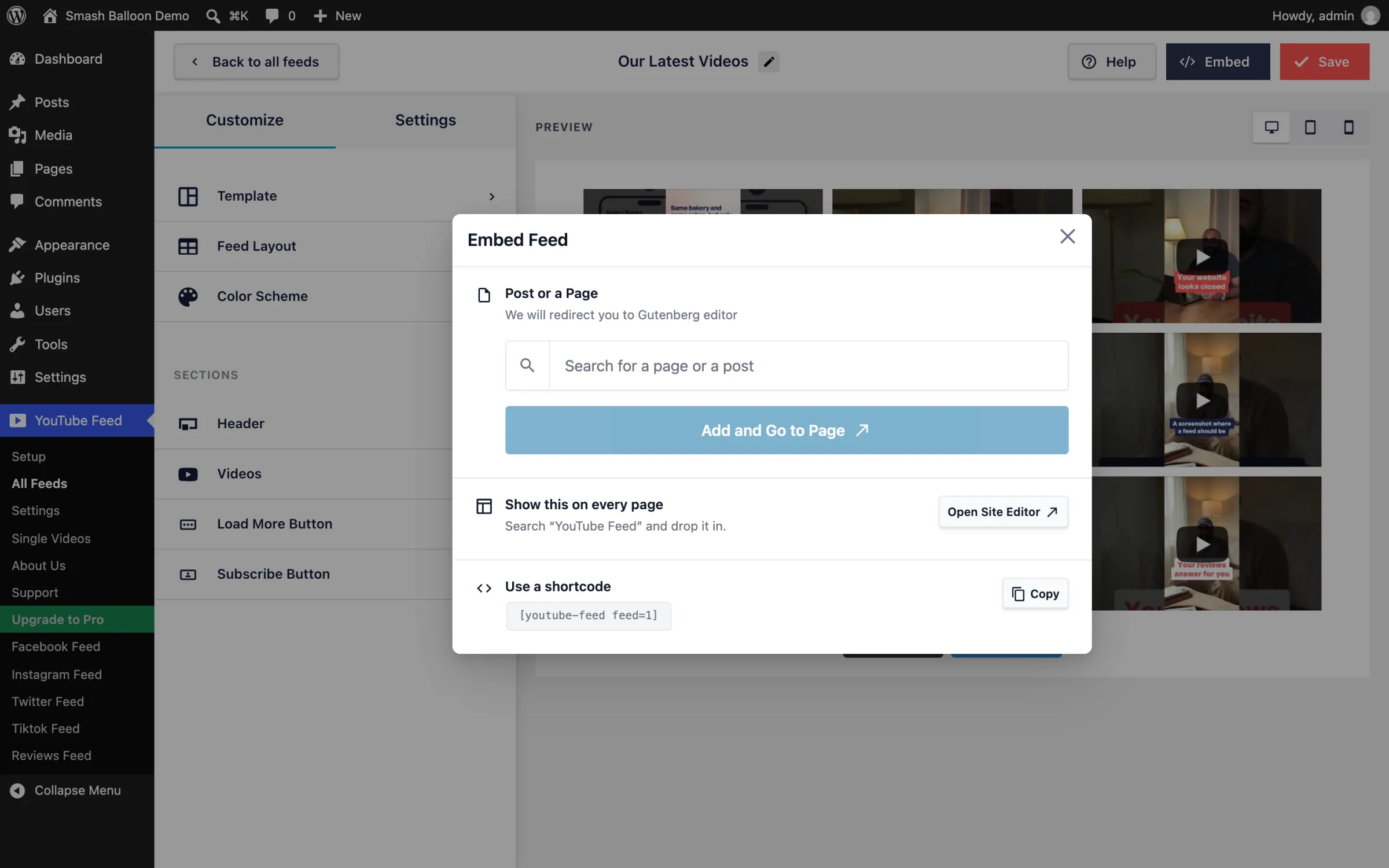
Go to YouTube Feed » All Feeds in your WordPress dashboard and open the feed with your channel’s videos. Then click Embed in the top right of the feed editor.
Step 2: Choose Where Your Videos Go
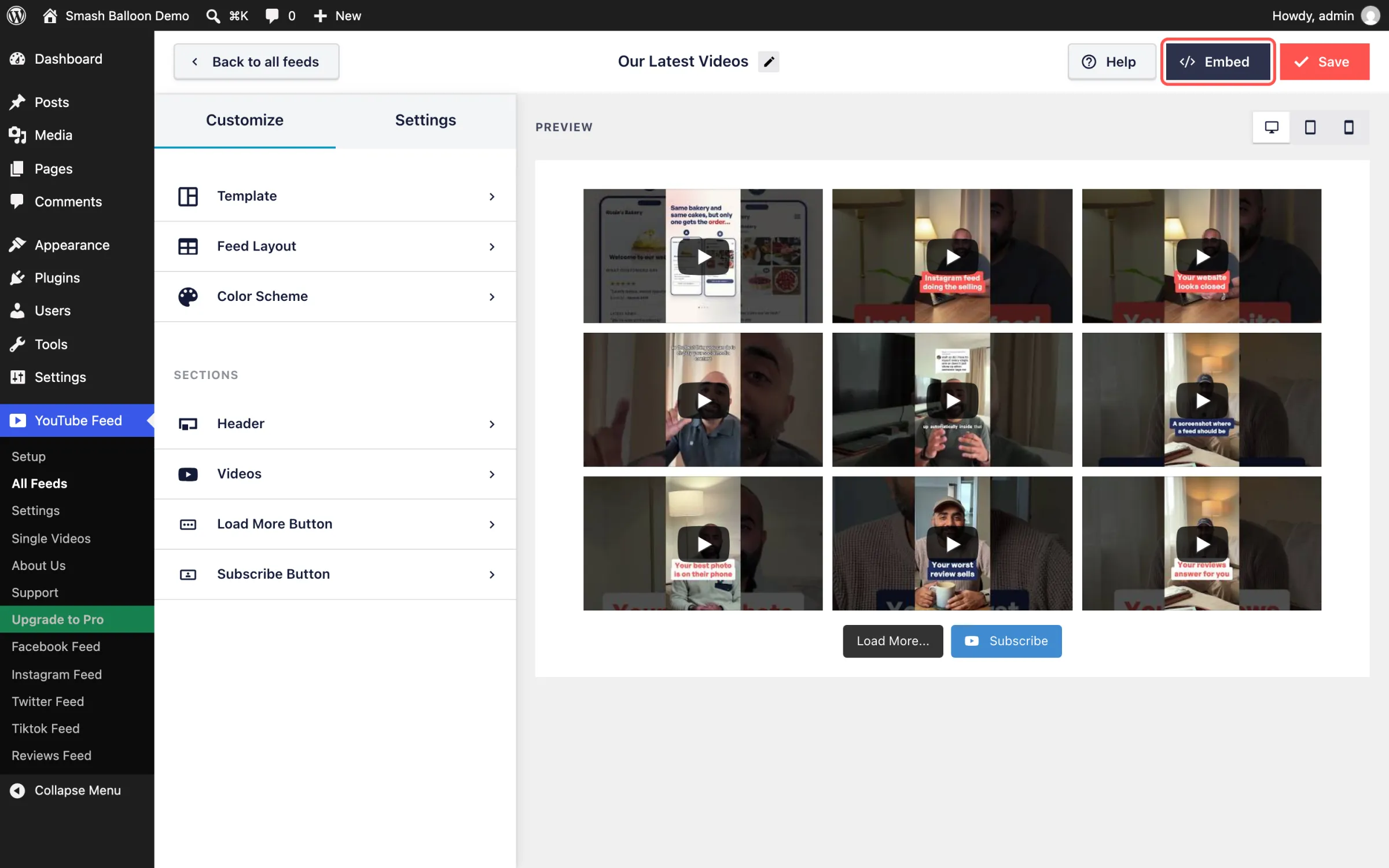
Under Post or a Page, click into the search box. Pick a page or post from the list, or start typing its name. For a fresh page, choose Create a new page.
Step 3: Click Add and Go to Page
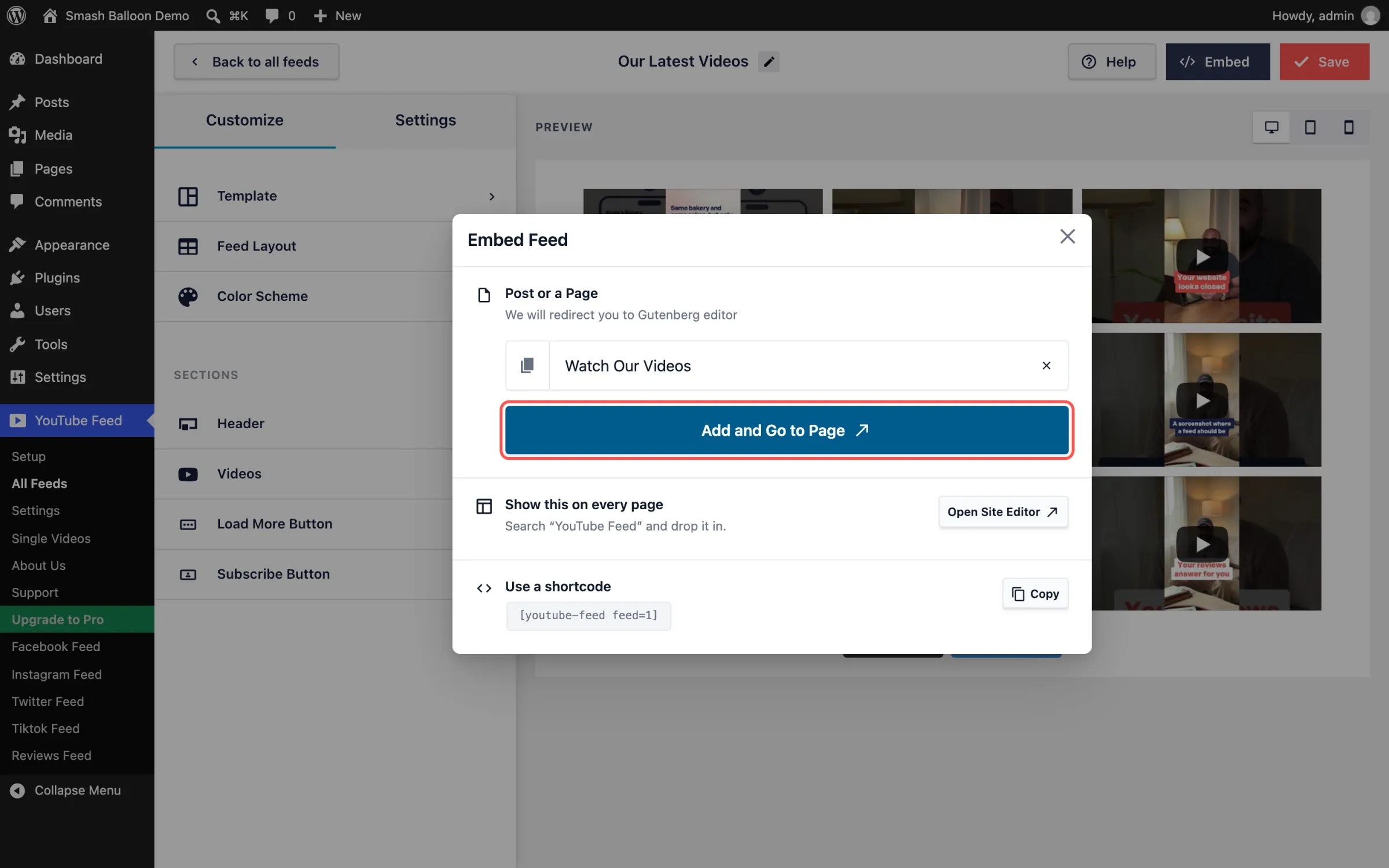
Once you’ve picked a page, click Add and Go to Page. Your page opens for editing in a new browser tab, so the feed you were working on stays open in the first one.
Step 4: Save Your Page
Your videos are on the page already, inside a YouTube Feed block at the bottom. Want them higher? Move the block up, then click Save. On a page that’s already published, visitors see your videos as soon as it saves.
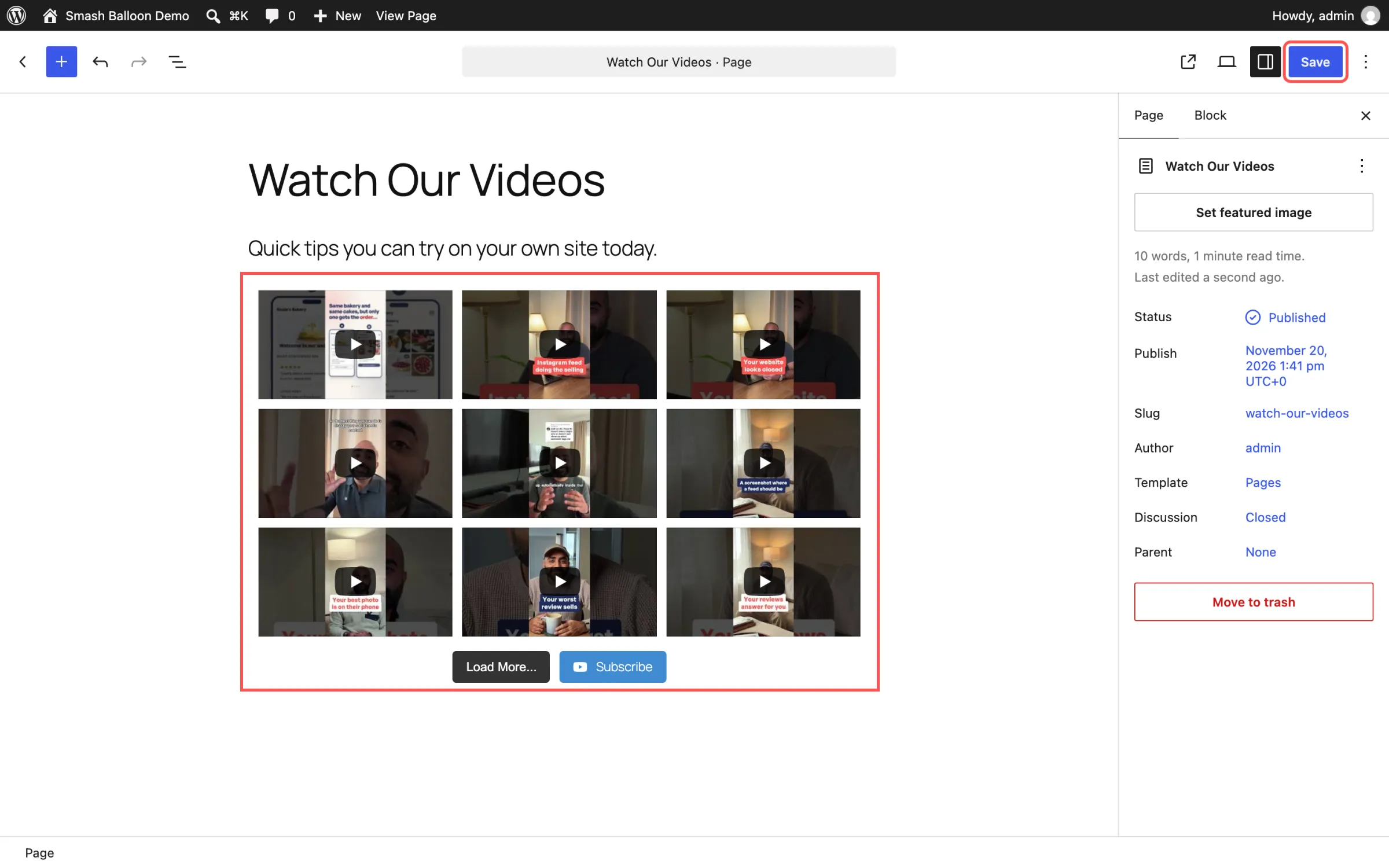
That’s it. Open the page and there are your videos, ready to play, and new uploads will join them on their own.
More to Show on Your Videos Page with YouTube Feed Pro
Nothing changes about the feeds you’ve already made. When you want more to put on that page, here’s what each YouTube Feed Pro plan adds, and each one includes the plan before it:
- Basic: Shorts your visitors can swipe through, a feed of any playlist, single videos you pick by hand, a carousel to flick through, the comments under each video, and a Subscribe button under the player
- Plus: feeds built from a YouTube search, a button that appears when a video ends to send viewers to your product or page, ready-made feed templates, and the option to turn each video into its own WordPress post
- Elite: a feed for your live streams, filtering to choose which videos appear, and Feed Analytics to see how your feeds are doing
So your videos page can also feature your Shorts, a favorite playlist, or your next live stream.
Frequently Asked Questions
Is this in the free YouTube Feed plugin?
Yes. The free Smash Balloon YouTube Feed and every YouTube Feed Pro plan both have the Embed Feed window. Pro adds Shorts with Swipe View, playlists, carousels and more to the feeds you embed.
Does Create Page and Go publish anything?
No. It creates your page as a draft, and visitors won’t see it until you click Publish.
Can I still copy the shortcode?
Yes. You’ll find it under Use a shortcode in the Embed window. It’s handy for SeedProd, Elementor, Divi and other page builders. It’s also the way to add your videos if your site uses the Classic Editor, which doesn’t have blocks.
Which WordPress version do I need?
WordPress 5.8 or newer. On older versions, the Embed button copies your feed’s shortcode for you to paste instead.
Give Your Videos a Home on Your Website
Your videos already show people what it’s like to work with you. Put them on a page of your own website, and every visitor gets to watch, not only the ones who find you on YouTube.
Update to Smash Balloon YouTube Feed 2.12.0, open a feed, click Embed, and choose where your videos should go.
On YouTube Feed Pro, just update the plugin from your dashboard. Using the free plugin? Get the latest version on WordPress.org, and have a look at what Pro adds when you want even more from your videos.
Bring your Shorts and playlists too
YouTube Feed Pro adds Shorts with Swipe View, playlist feeds, carousels and more to the feeds you embed, and every plan lets you set up your videos page right from the feed editor. Backed by a 14-day money-back guarantee.
Get YouTube Feed Pro