Social Wall
 Feed Analytics


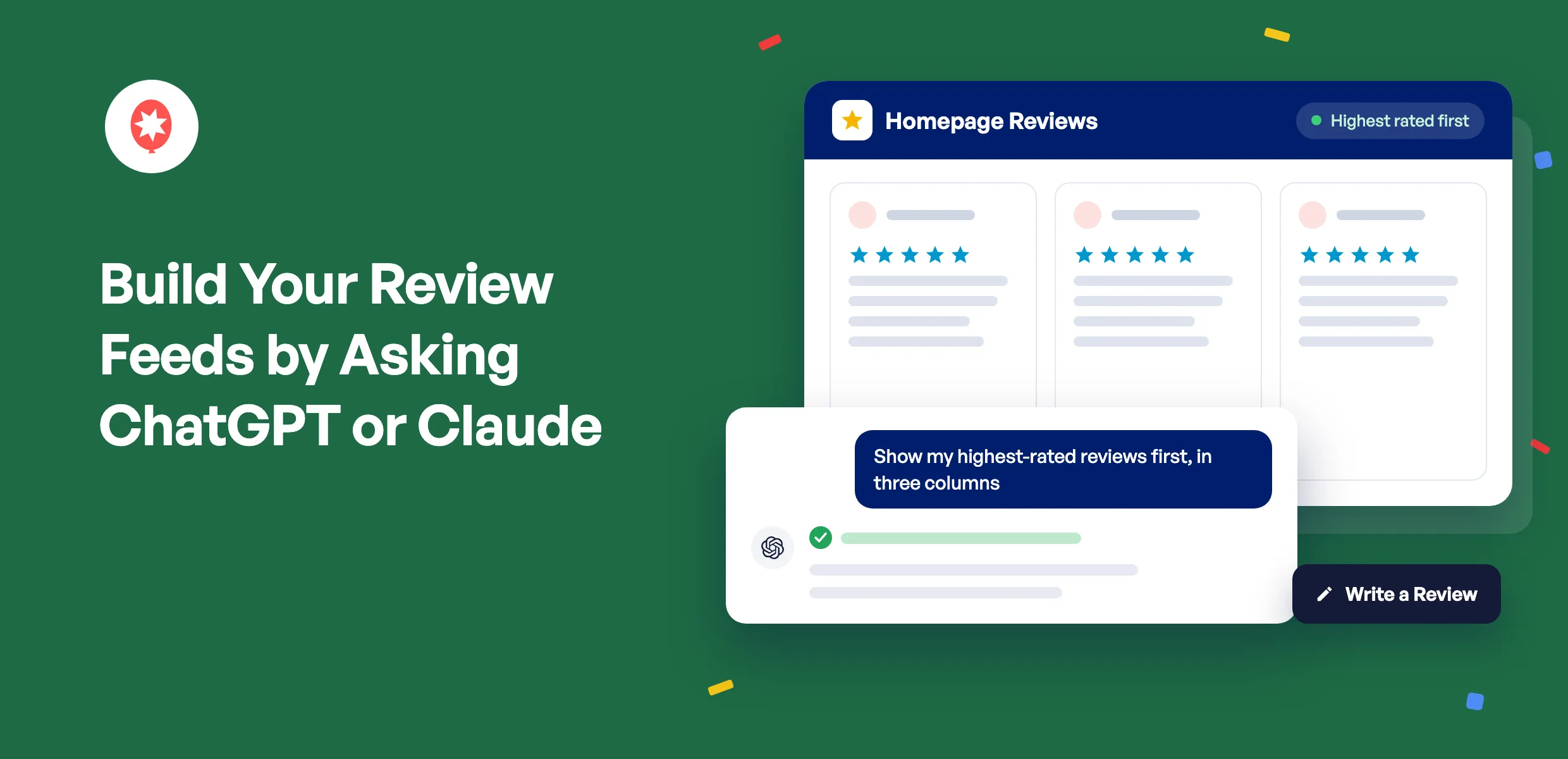
Your best reviews do the most good near the top of the page. You can now ask ChatGPT or Claude to put them there, build a new reviews feed from your Google or Yelp listing, and send visitors straight to the page where they can leave you a review.
Smash Balloon Reviews Feed shows your customer reviews on your WordPress site and keeps them up to date on its own. Version 2.16.0 adds AI Agents to every Reviews Feed Pro plan, so your AI can also filter by star rating and work with your reviews from Trustpilot, Facebook, Tripadvisor, and more. You’ll find it in the free plugin, too.
Here’s what you can do starting today:
- Build a new reviews feed from a Google or Yelp listing you’ve connected
- Show your highest-rated reviews first, in the layout you want
- Point the Write a Review button anywhere you collect reviews
- On Pro, show only your 5-star reviews, or hide ones that mention a word you’d rather not feature
- Approve any feed deletion your AI asks for, right in your browser
Put Your Best Reviews First
Here’s a Reviews Feed Pro feed of WordPress.org reviews, newest first, one review per row.
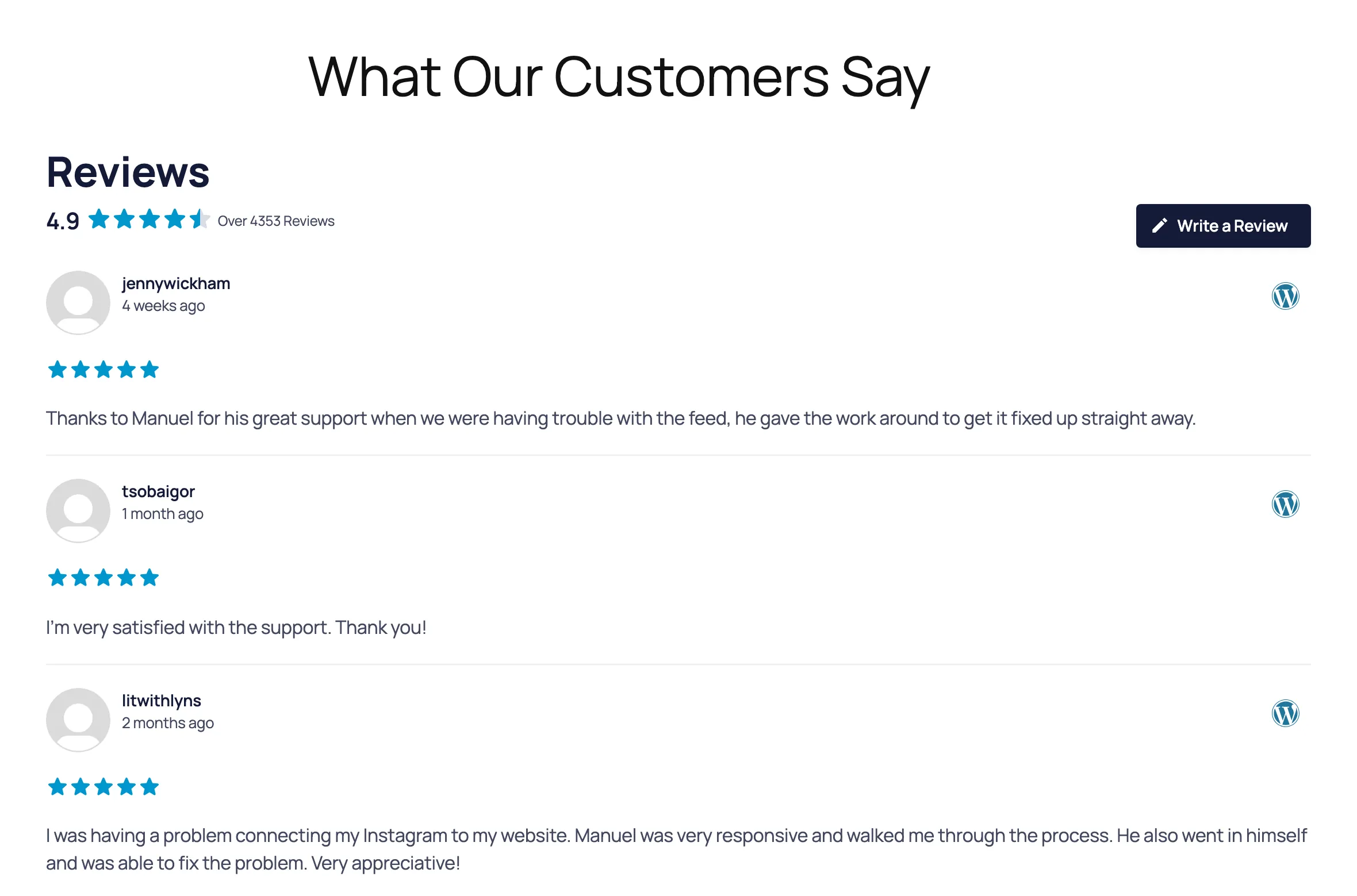
Now ask for your highest-rated reviews first, in three columns as cards, six at a time. This is the same feed a moment later. Your AI changes just what you asked for, so the header, rating, and buttons don’t move.
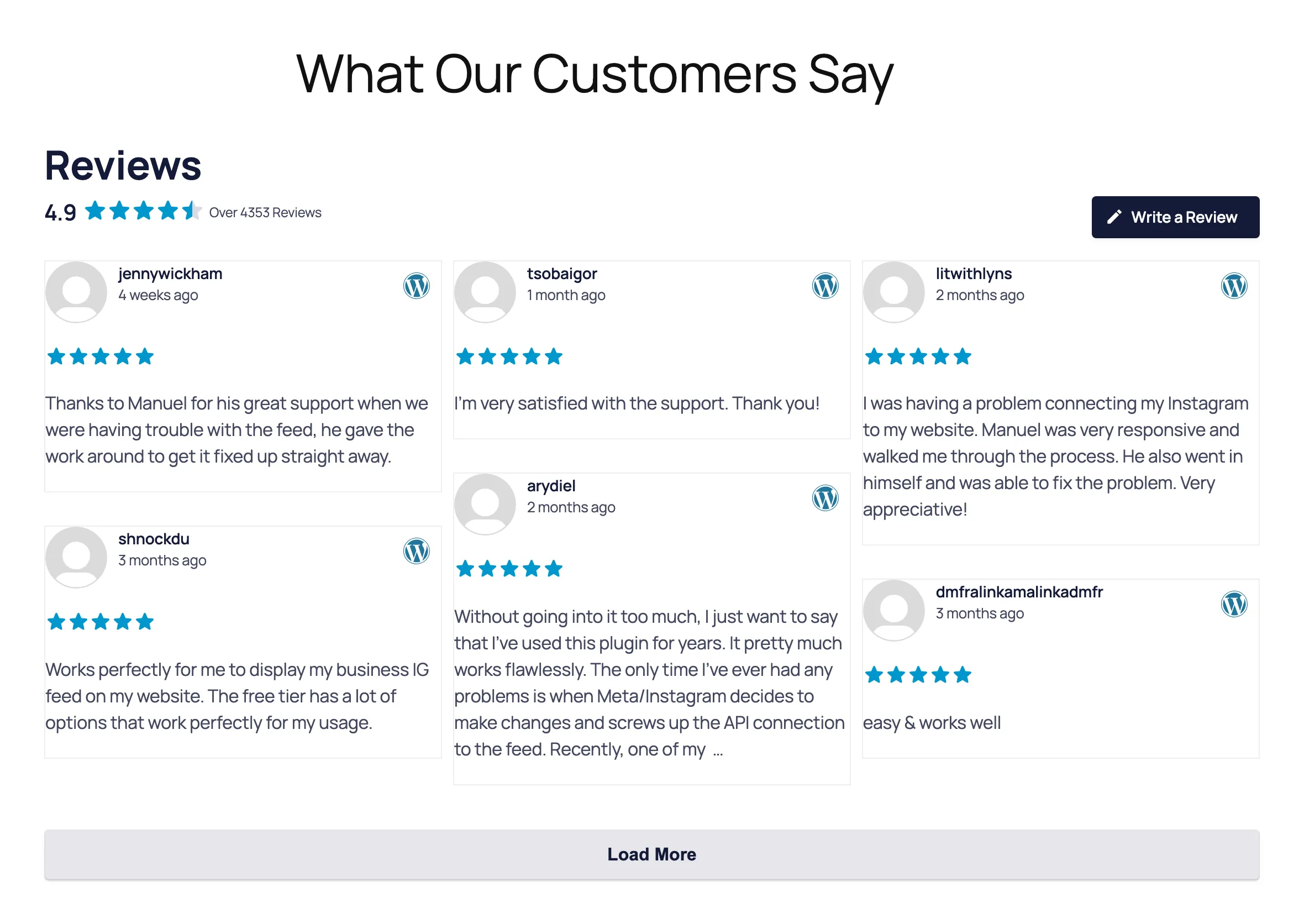
Everything in that feed comes from Reviews Feed Pro: the average rating in the header, the Load More button, and reviews from WordPress.org, one of the sources on the Elite plan. The free plugin takes the same request for your Google or Yelp reviews.
Send Happy Customers Where You Want Their Reviews
Every reviews feed has a Write a Review button in its header, and it starts out linked to the review page for your feed’s first source, like your Google listing. Want reviews somewhere else? Ask your AI to point it at any web address, like your Yelp page or a review form on your own site.
Hand Off the Rest of Your Review Chores
You don’t need special wording. Here are a few more requests to try:
- Prefer variety over highest-first? Ask for a random order instead, so the same review isn’t always the first one people see.
- Opening a second location? Once its Google listing is connected, ask for a new feed from it. You’ll get back the shortcode to drop on that location’s page.
- Want the feed to match your brand? Ask for your star color by its hex code. Color changes show once you open the feed in the Feed Builder and click Save.
On Reviews Feed Pro, you can go further. Ask for only your 5-star reviews, hide reviews that mention a word you’d rather not feature, skip the one-line reviews so the detailed ones get the space, or switch to a carousel that rotates through your best reviews.
Settings That Cover All Your Feeds
A couple of switches apply to every reviews feed on your site, and your AI can flip those as well. One is review schema markup, the data that tells search engines about the reviews on your page. It’s on by default. The other is GDPR mode, which keeps review images hidden until a visitor agrees to them.
Show reviews from every place your customers leave them
Reviews Feed Pro adds Facebook, Trustpilot, WooCommerce, and AliExpress reviews on Plus, and Tripadvisor, Airbnb, Booking.com, and WordPress.org reviews on Elite, and every plan includes AI Agents. Covered by our 14-day money back guarantee.
Get Reviews Feed ProNothing Changes Without Your Say
Reviews Feed’s AI tools begin in read-only mode. They can view your feeds, settings, and connected review sources, while your API keys, license key, and source tokens stay out of their reach. Editing only opens up after you turn on a single switch in Settings, and switching it off takes that access away again.
New review sources, like a second Google listing, get added by you in your WordPress dashboard. Your AI sticks to the sources that are already connected.
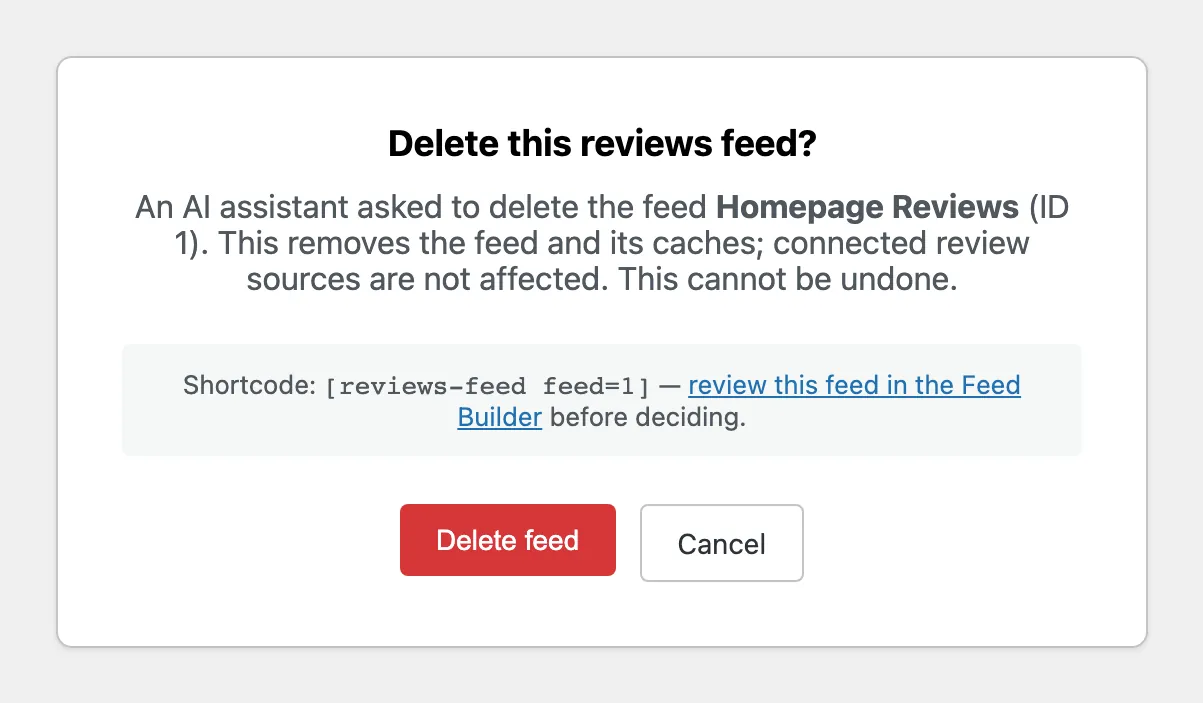
A feed only gets deleted when you say so. Your AI can request it, but what you receive is a confirmation link. It opens in your browser, shows which feed it’s about, and waits for you to choose Delete feed or Cancel. The link is good for one use and runs out after 15 minutes.
Elsewhere on your site, WPVibe, the free plugin that ties your AI to WordPress, asks you in the chat to OK anything destructive first.
Get Connected in Four Quick Steps
To follow along, you’ll want Smash Balloon Reviews Feed 2.16.0 on the free or Pro version, WordPress 6.9 or newer, and at least one review source already connected. WPVibe only links up over a secure connection, so your site needs an https:// address.
WPVibe is built by SeedProd, which belongs to the same family of WordPress products as Smash Balloon. Reviews Feed sets it up for you.
WPVibe comes free with Reviews Feed
Nothing extra to download. Reviews Feed adds WPVibe with one click from its Settings page, on the free plugin and on every Pro plan, and WPVibe has a free starter plan. Just getting started with Smash Balloon? Begin with the free Reviews Feed.
Get Reviews Feed FreeStep 1: Turn On WPVibe in Reviews Feed
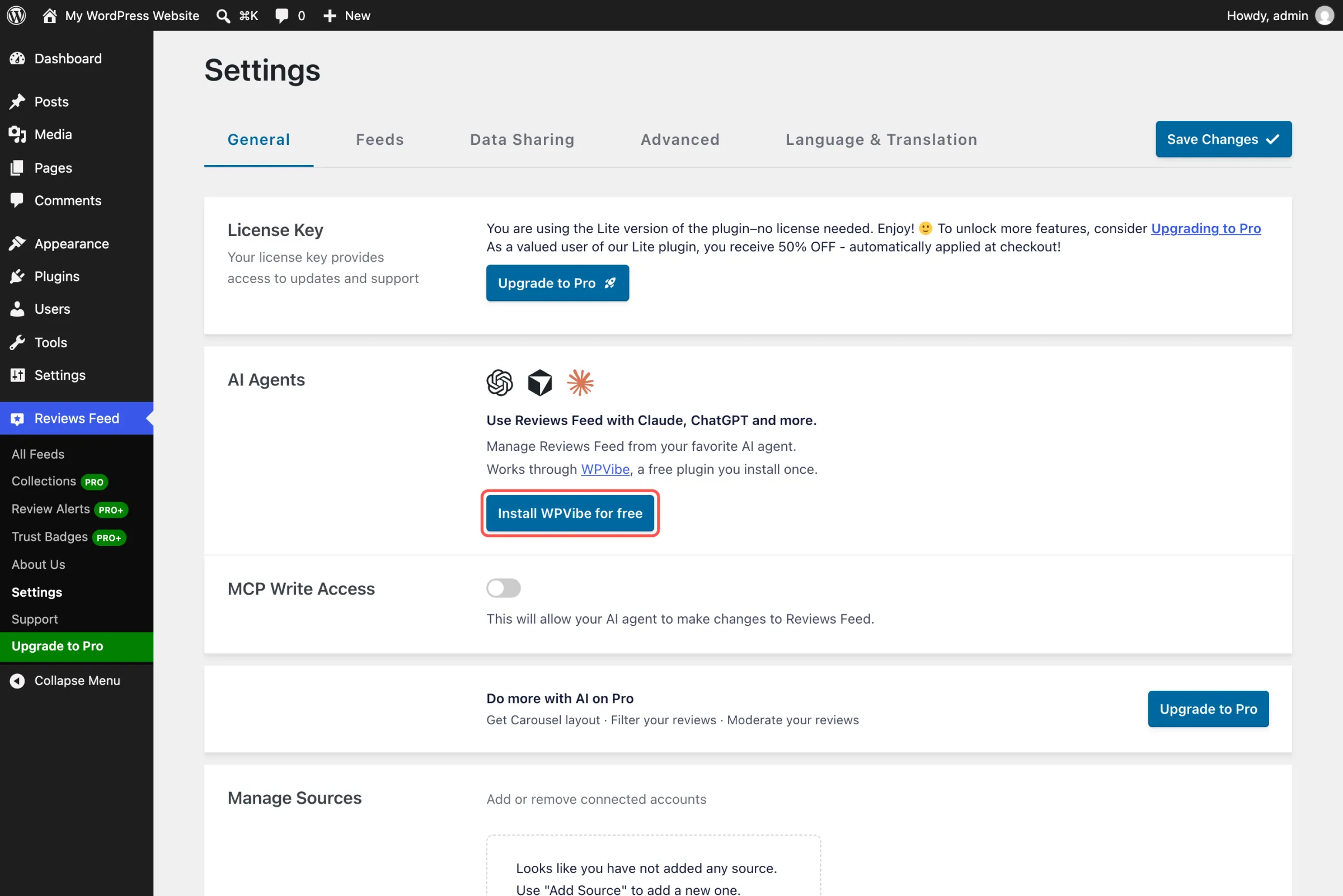
Once you’re on 2.16.0, head to Reviews Feed » Settings. In the AI Agents box, click Install WPVibe for free. When the box tells you WPVibe is connected, click Open WPVibe.
Step 2: Choose Your AI
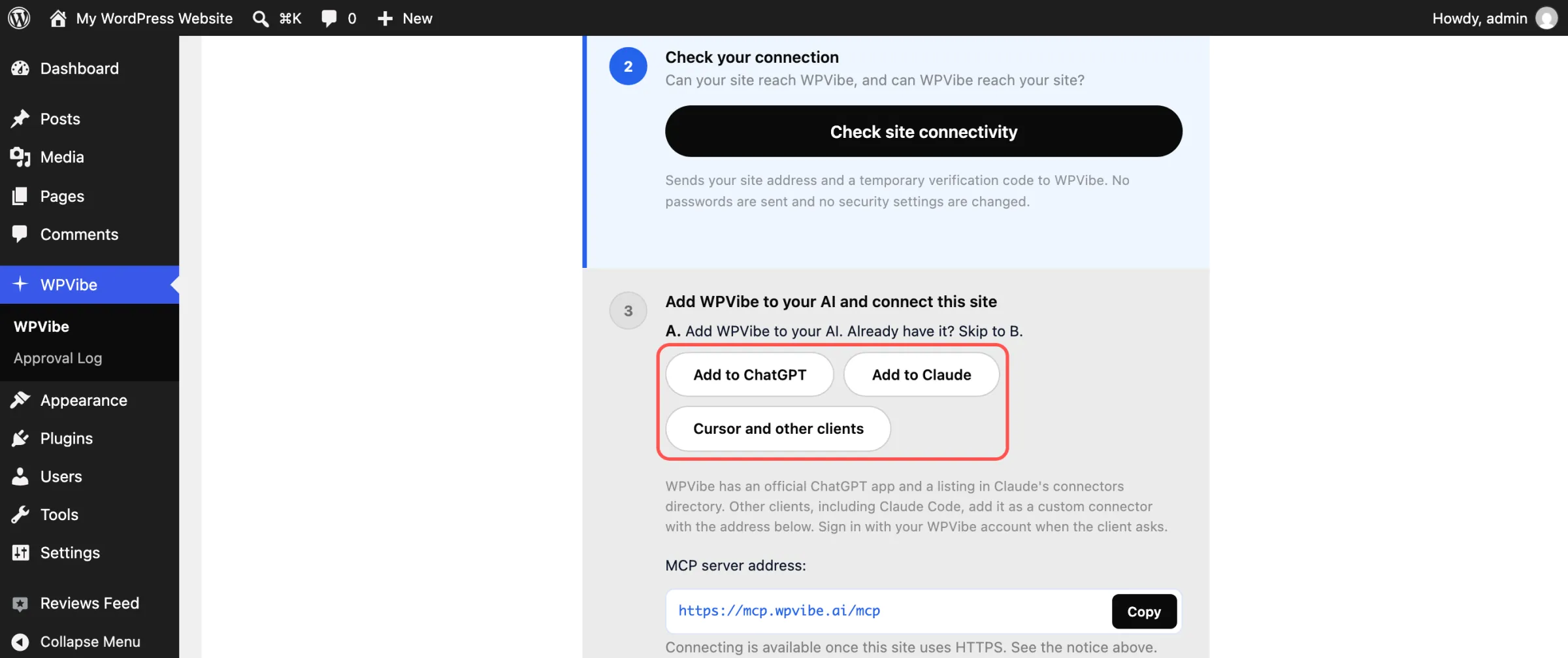
WPVibe shows a setup checklist. Click Add to ChatGPT or Add to Claude, or Cursor and other clients if you work in Cursor. You’ll sign in to WPVibe with your email, and creating an account costs nothing.
Step 3: Approve It in WordPress
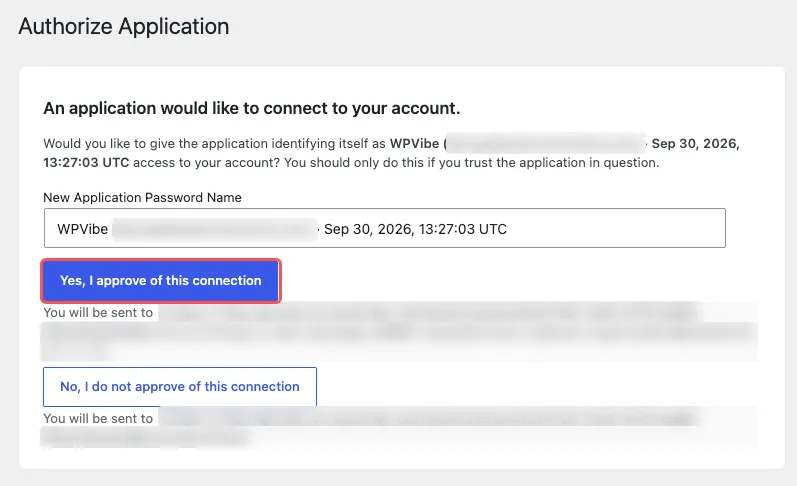
Paste the message WPVibe gives you into your AI chat. WordPress then asks whether WPVibe is allowed to connect to your account. Click Yes, I approve of this connection, and you’re set when your AI replies with your site’s name and address.
Step 4: Give Your AI Permission to Edit
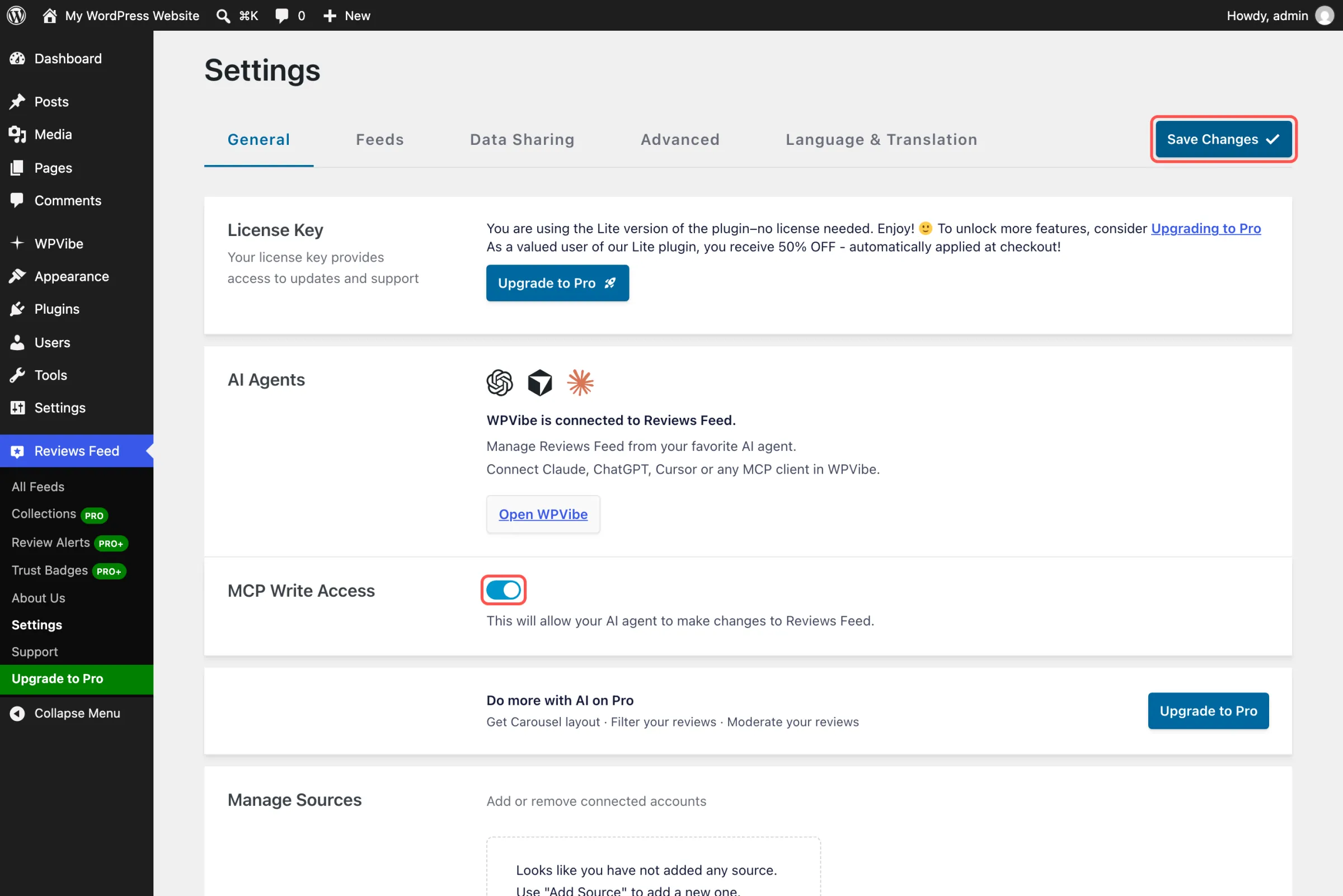
Go back to Reviews Feed » Settings, flip on MCP Write Access, and click Save Changes. This is the switch that lets Reviews Feed’s AI tools change your feeds. Only want answers for now? Leave it off.
Start with “Which reviews feeds do I have, and which sources does each one use?” In ChatGPT, open the + menu and select WPVibe first, so it reads from your site. One tip for new feeds: after your AI creates one, open it in the Feed Builder once and click Save so its styling shows.
More Reviews and More Sources With Pro
With Reviews Feed Pro, your best reviews do more of the selling. Visitors see your average rating up front and can keep reading with a Load More button, you choose which reviews make the cut by star rating, keyword, or length, and a carousel rotates your favorites through a small space. Plus brings in your Facebook, Trustpilot, WooCommerce, and AliExpress reviews, and Elite adds Tripadvisor, Airbnb, Booking.com, and WordPress.org. Because every Pro plan includes AI Agents, everything you set up keeps working after you upgrade.
Using the free plugin right now? Ask your AI which Reviews Feed Pro features you’d unlock. It checks the plugin’s built-in list of Pro features and shares the upgrade link.
Frequently Asked Questions
Is AI Agents included in Reviews Feed Pro?
Yes. It’s part of every plan, from Basic through Plus and Elite to the All Access Bundle. It’s also in the free Smash Balloon Reviews Feed 2.16.0, which shows up to 10 of the latest reviews from one Google or Yelp listing without an API key. On Pro, your reviews do more of the persuading. Your AI can put only your 5-star reviews in front of visitors, and your plan brings in reviews from Facebook, Trustpilot, and WooCommerce on Plus, or Tripadvisor, Airbnb, and Booking.com on Elite, so shoppers see praise from the places they already trust.
How much does WPVibe cost?
Nothing to start. The free plan includes a daily allowance of WordPress actions, and paid WPVibe plans give you more.
Can my AI connect a new Google or Yelp listing?
No. You add new review sources yourself in Reviews Feed » Settings. After that, your AI can build feeds from them and switch which sources a feed shows.
Could my AI remove a feed on its own?
No. All it can do is ask. Nothing gets deleted until you open the confirmation link in your browser and click Delete feed yourself.
How do I turn write access back off?
Go to Reviews Feed » Settings, switch off MCP Write Access, and click Save Changes. Reviews Feed’s AI tools are read-only again from that moment, and any delete link still waiting won’t work.
Update to 2.16.0 and Let Your Reviews Do More Work
One short setup, and the next time you want your reviews feed changed, you can ask ChatGPT or Claude instead of opening the editor. That means no clicking through feed settings to change the sort order, no searching for the right Write a Review link, and no worrying your AI removes a feed you meant to keep.
Already on the free Smash Balloon Reviews Feed or Reviews Feed Pro? Grab the 2.16.0 update, and you’ll find the AI Agents box in Settings.
New to Smash Balloon? Reviews Feed Pro gets you more reviews, more sources, and AI Agents from day one. Or install the free Smash Balloon Reviews Feed from WordPress.org, connect your Google or Yelp listing, and use the four steps above to link your AI.
Run your reviews feeds from ChatGPT or Claude
Reviews Feed Pro shows more of your reviews from more places, and with AI Agents on every plan, you can sort, filter, and restyle all of it from ChatGPT or Claude. Pick Plus for Facebook, Trustpilot, and WooCommerce reviews, or Elite for Tripadvisor, Airbnb, and Booking.com too. Backed by a 14-day money back guarantee.
Get Reviews Feed ProUsing Facebook Feed as well? You can connect it the same way. See how to change your Facebook feed by asking ChatGPT or Claude.
Which review would you put first on your homepage? Share it in the comments.